A company buyer
What a buyer who buys for a company sees - the invite, Locations, the company's prices, the location's address, payment terms and a PO number at checkout, paying later, and orders sent for review.
A company buyer is a customer who is a contact of one of your companies (see Companies and Company locations). When they sign in, they buy for a company location: they see the location’s prices, the order goes to the location’s address, and it is paid by the location’s payment terms.
Here the store has the company Lahore School Supplies, with its location Head office at 20 Davis Road, Lahore. Bilal Ahmed is its Location admin. The location has the payment terms Net 30 days and the catalog Wholesale prices, 20% off every product (see Catalogs).
The invite email
When the store presses Send account invite for a contact (part 3), the contact gets an email, You can now buy for Lahore School Supplies at Sunny Socks. It says Sunny Socks added you as a buyer for Lahore School Supplies. Sign in to your account to place orders: with Go to your account.

Go to your account links to the account pages on the store. The contact signs in there with their email and a code, like any buyer (see Sign in to your account).
The usual prices, before signing in
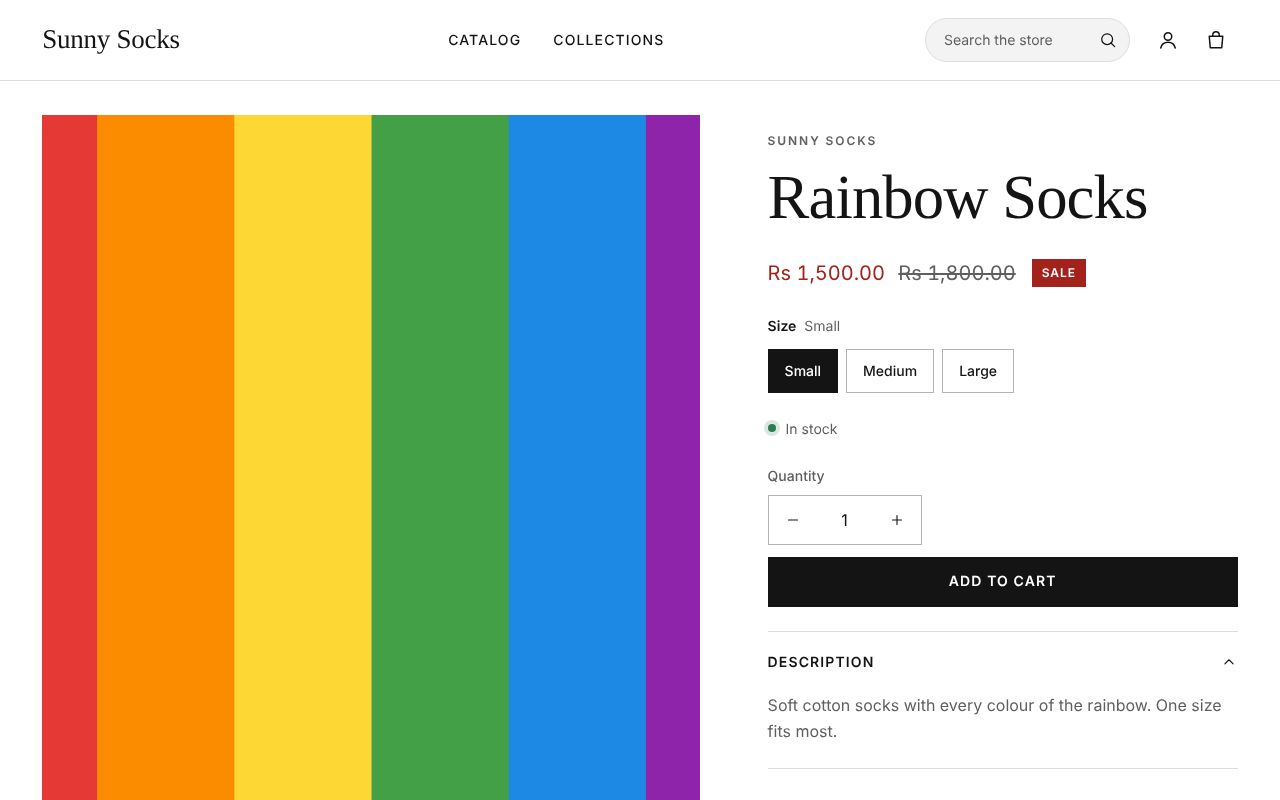
Before signing in, the contact sees what every buyer sees: Rainbow Socks at Rs 1,500.00, on sale from Rs 1,800.00.
Locations
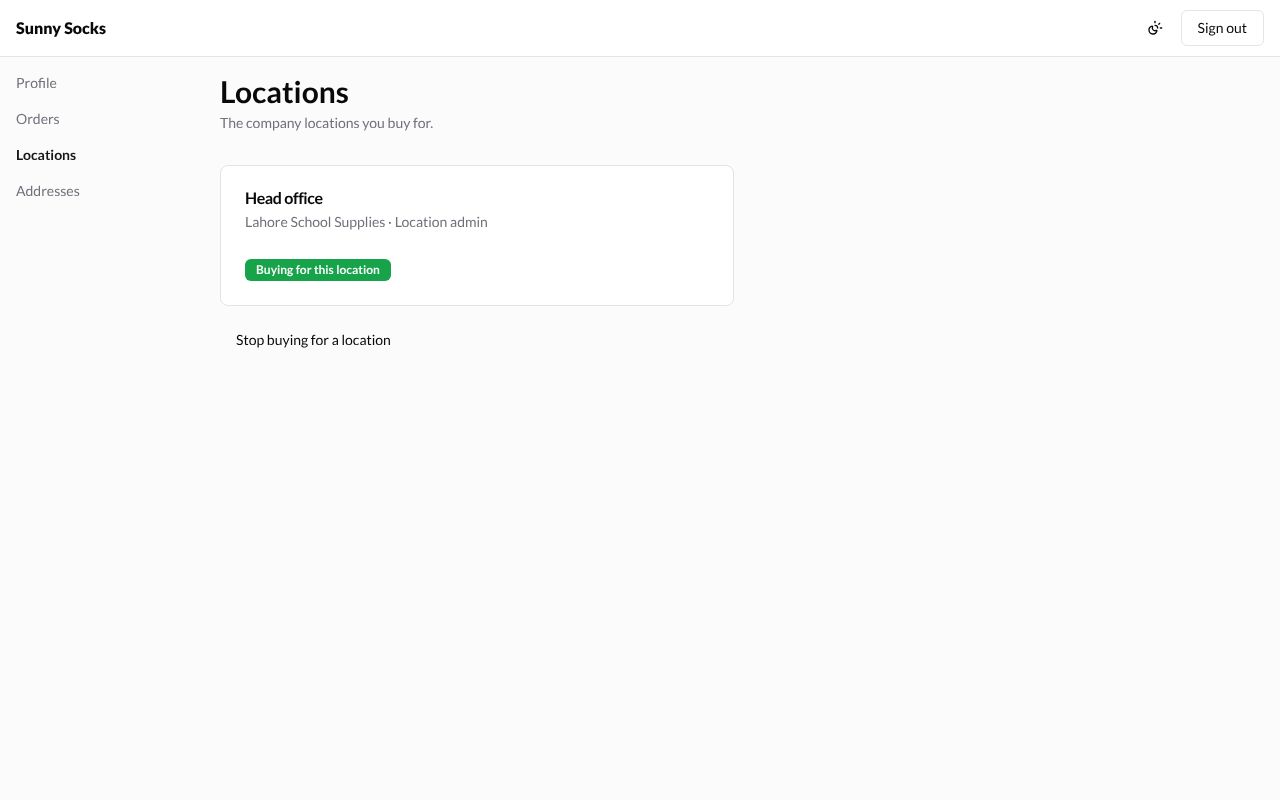
A company buyer’s account has one more page, Locations: The company locations you buy for. Each location shows its company and the buyer’s role, here Lahore School Supplies · Location admin.
With one location, it is chosen at sign-in: its card says Buying for this location in green. Stop buying for a location stops buying for it. A buyer with more than one location chooses which one to buy for with Buy for this location on its card.
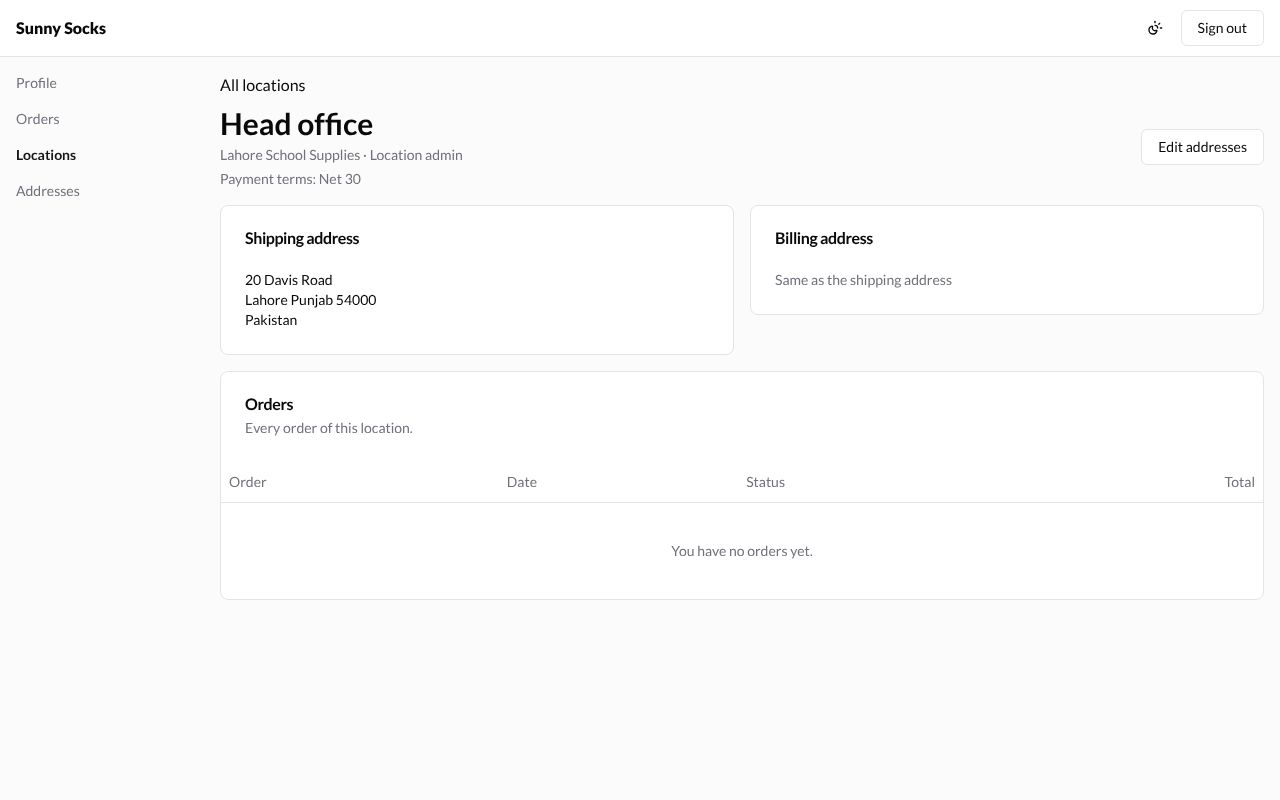
Press the location’s name to open it. It shows the buyer’s role, Payment terms: Net 30, the location’s Shipping address and Billing address, and its Orders. A Location admin sees Every order of this location. and can change its addresses with Edit addresses; an Ordering only buyer sees only their own orders.
The company’s prices
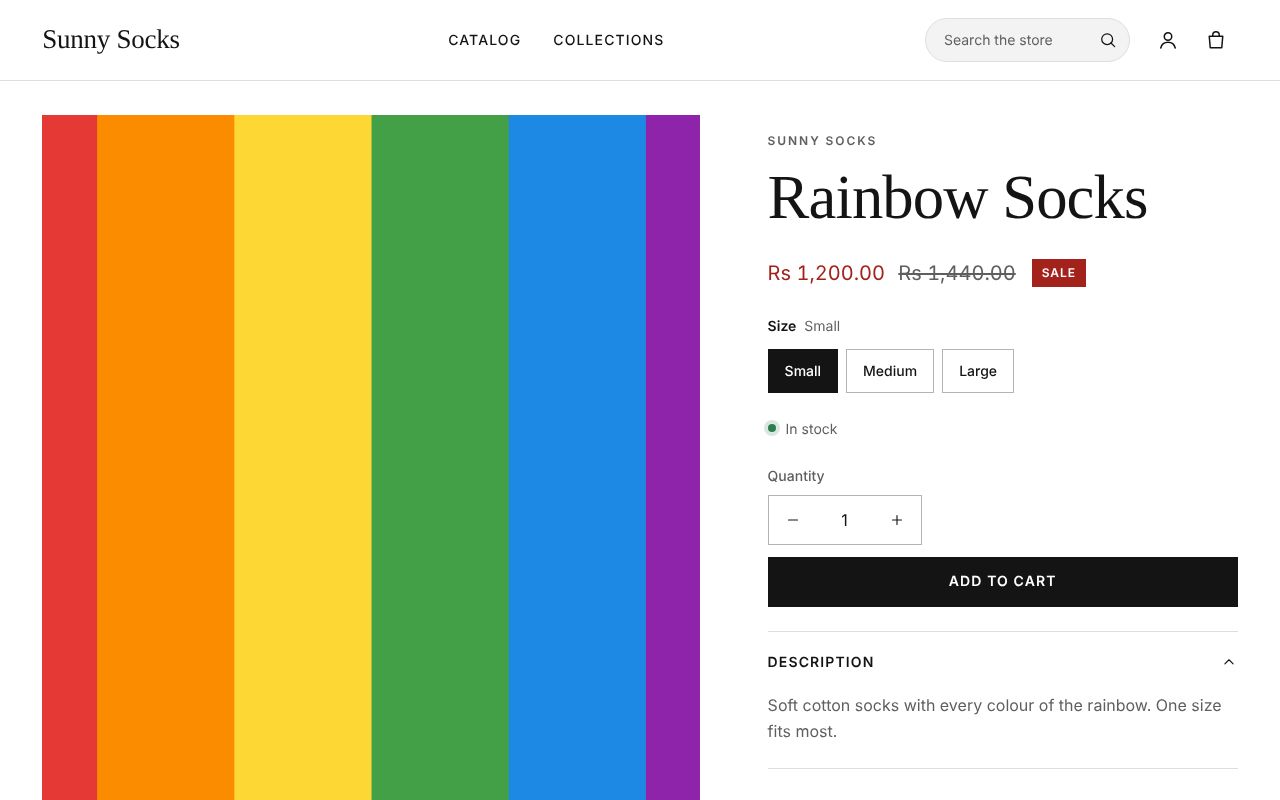
Back on the store, the same product now shows the location’s catalog price: Rainbow Socks is Rs 1,200.00, 20% less, and the crossed-out price is 20% less too, Rs 1,440.00.
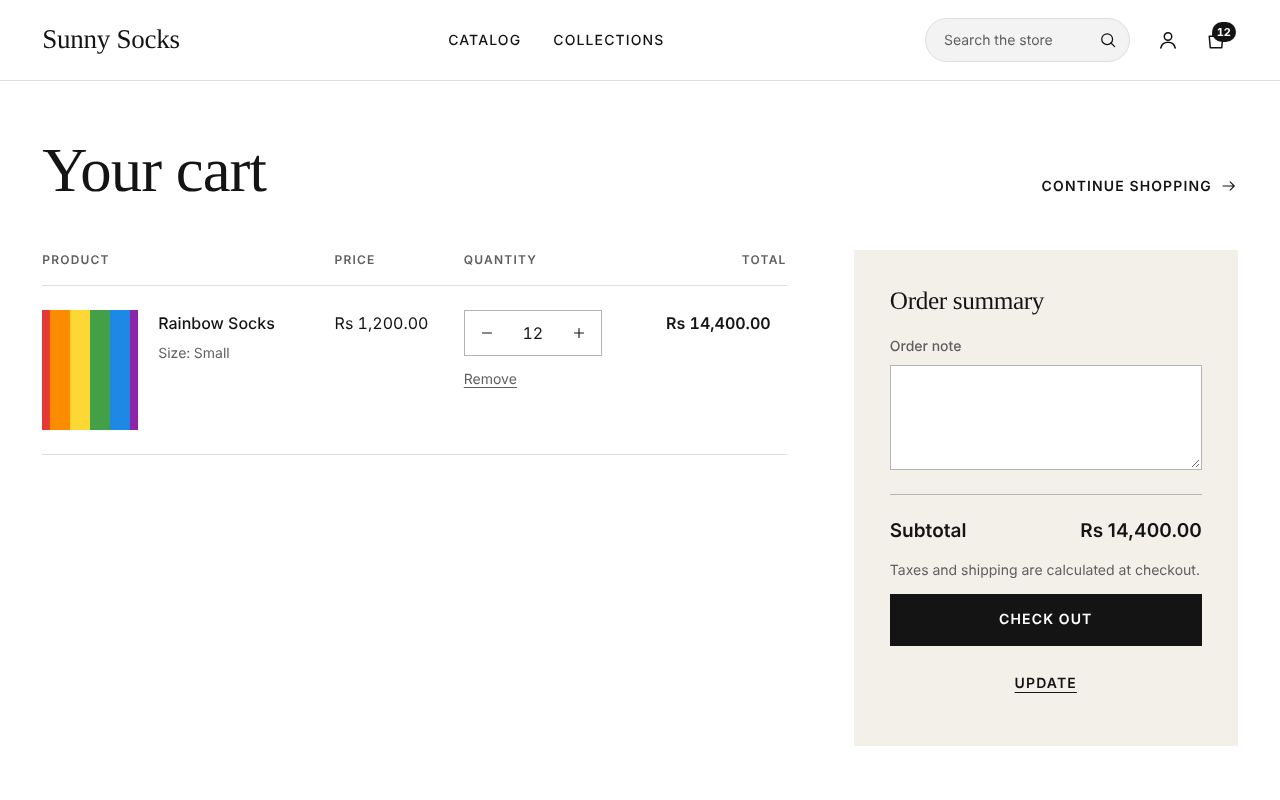
The cart uses these prices too: 12 pairs make Rs 14,400.00.
Check out for the location
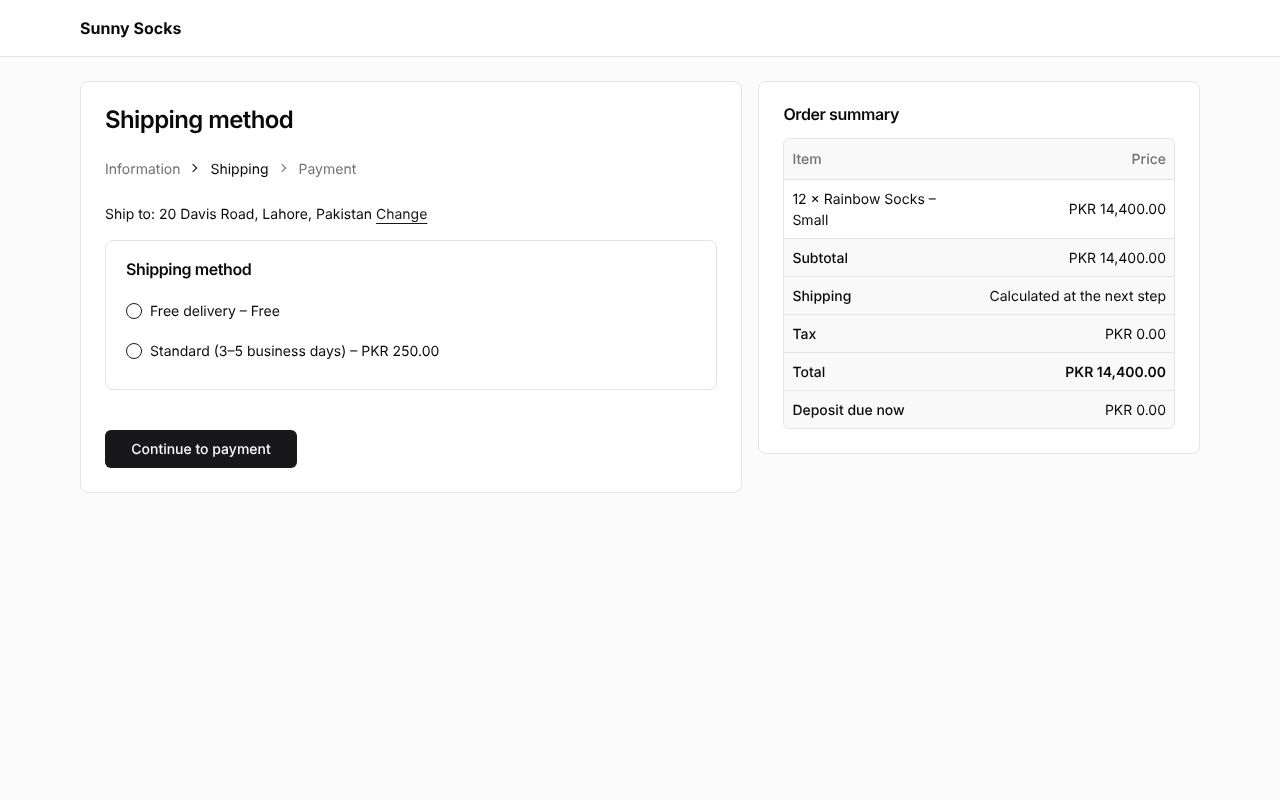
Press Check out. As for any signed-in buyer, the checkout goes straight to Shipping method, here to the location’s address: Ship to: 20 Davis Road, Lahore, Pakistan. This order is over PKR 3,000, so the store’s Free delivery shows next to Standard. The Order summary has one more line, Deposit due now.
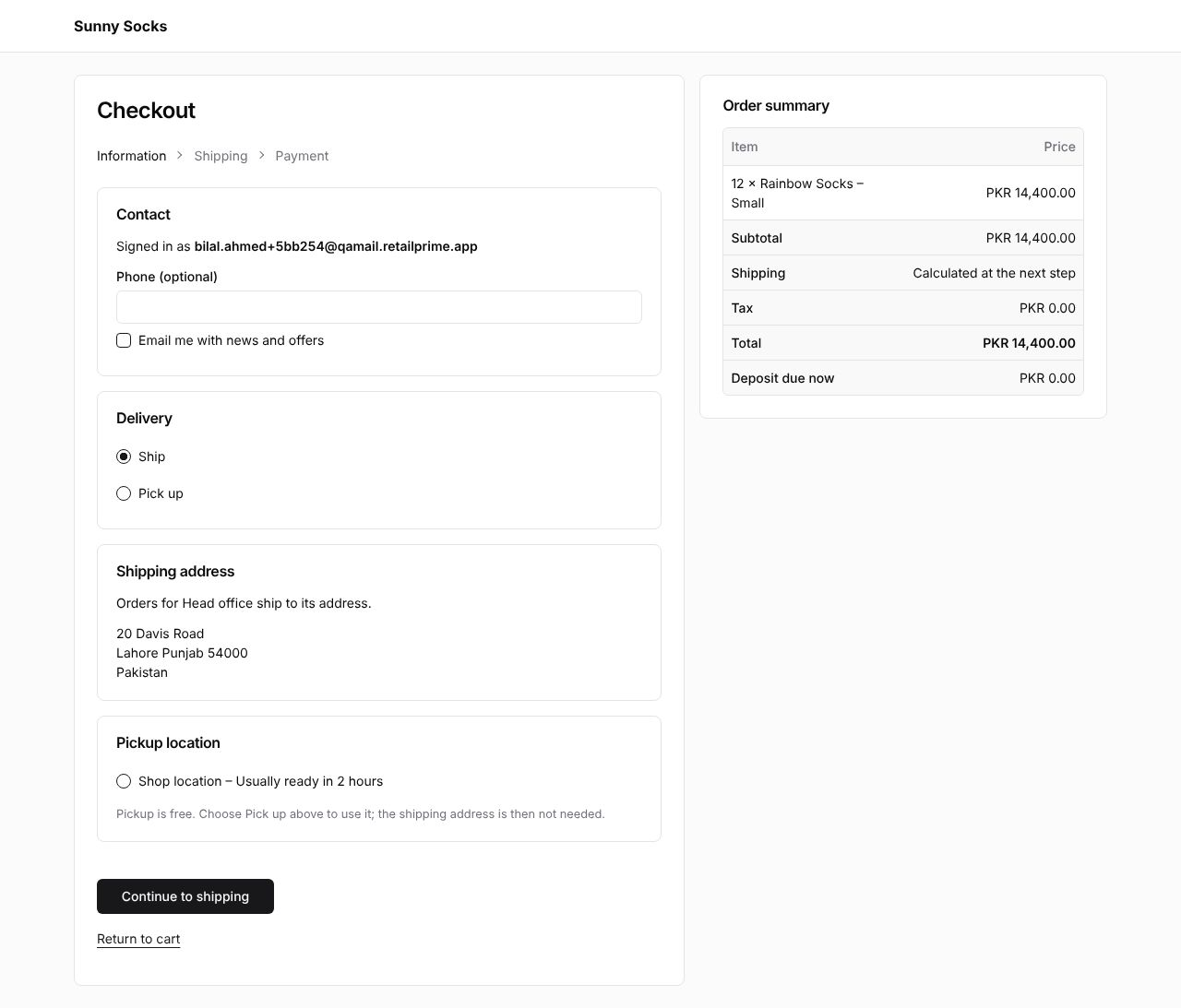
The Information step (press Information at the top) shows the difference: Signed in as and the email, and under Shipping address no boxes, but Orders for Head office ship to its address. and the address. The buyer can still choose Pick up.
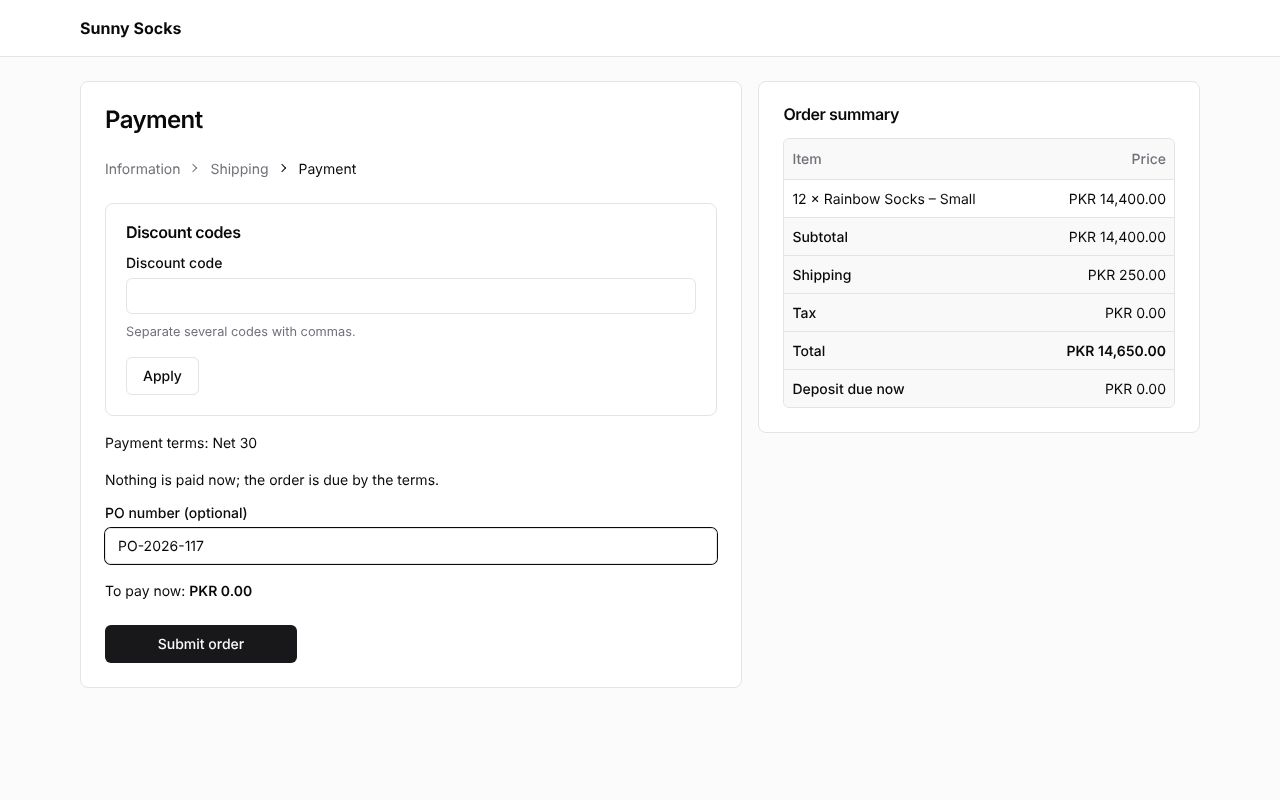
Choose a shipping method (here Standard) and press Continue to payment. The Payment step shows:
- Payment terms: Net 30 and Nothing is paid now; the order is due by the terms. When the location asks for a deposit, this line says how much is paid now instead;
- PO number (optional): the company’s purchase order number, such as
PO-2026-117; - To pay now: PKR 0.00 and Submit order.
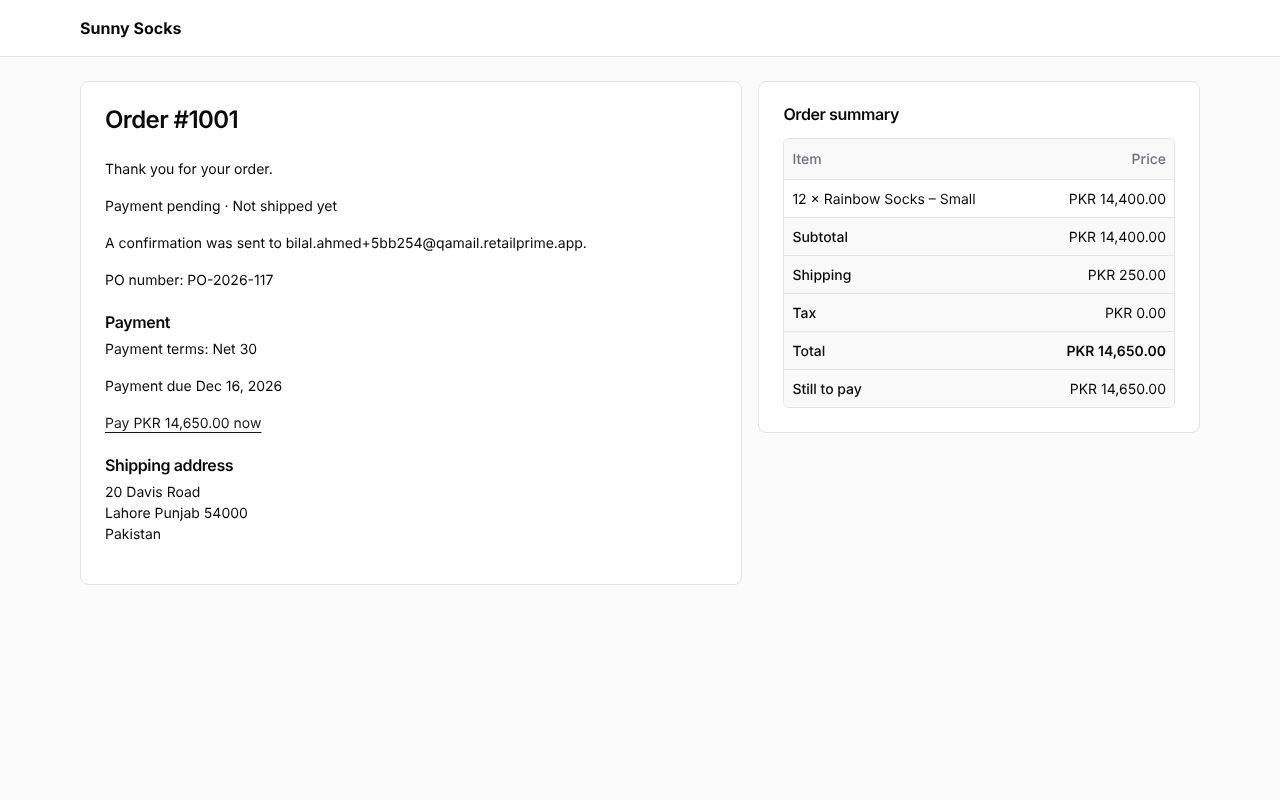
Press Submit order. The order is placed without paying. Its status page shows Payment pending · Not shipped yet, PO number: PO-2026-117, and a Payment section with Payment terms: Net 30, Payment due Dec 16, 2026 (30 days later) and a link to pay, Pay PKR 14,650.00 now. The Order summary ends with Still to pay.
Pay later
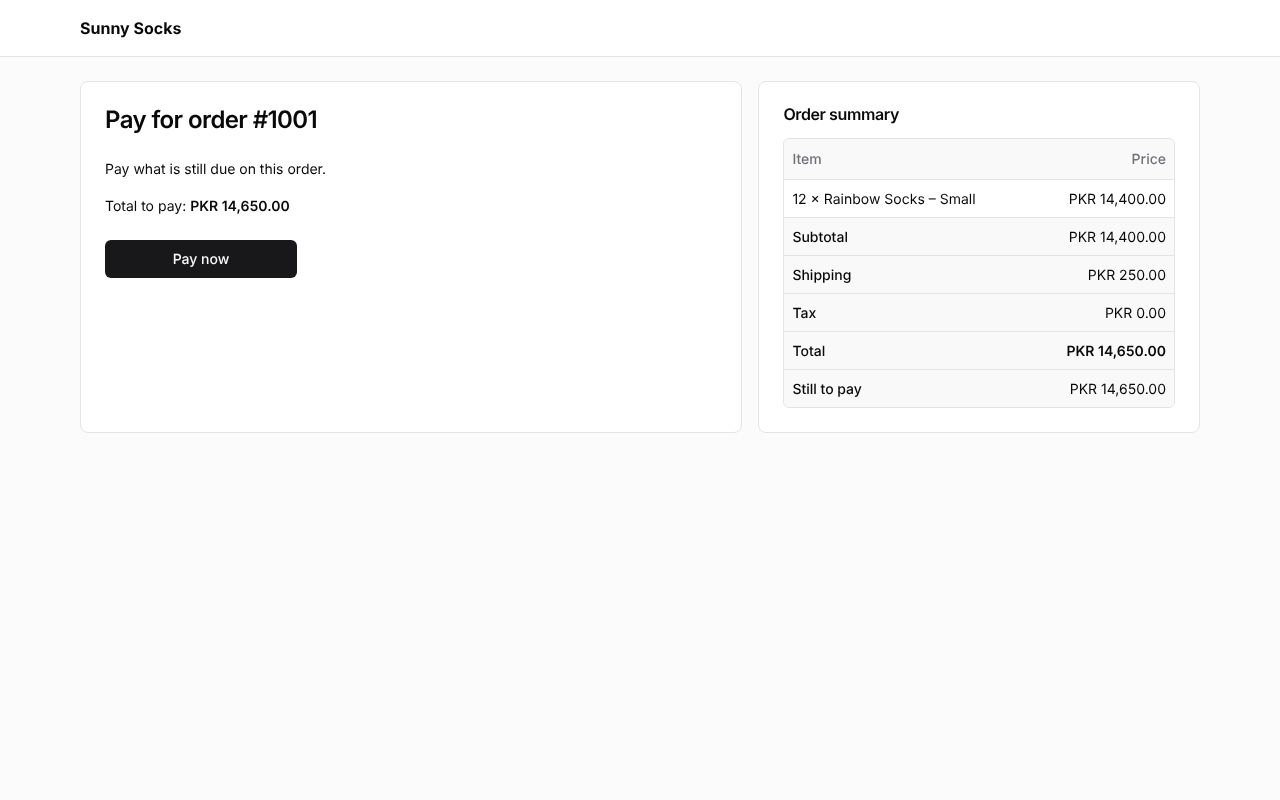
Pay PKR 14,650.00 now opens Pay for order #1001: Pay what is still due on this order., Total to pay and Pay now, which pays on the test gateway as at checkout. The store can also send the buyer this link by email with Request payment (see Payments and refunds).
The orders list
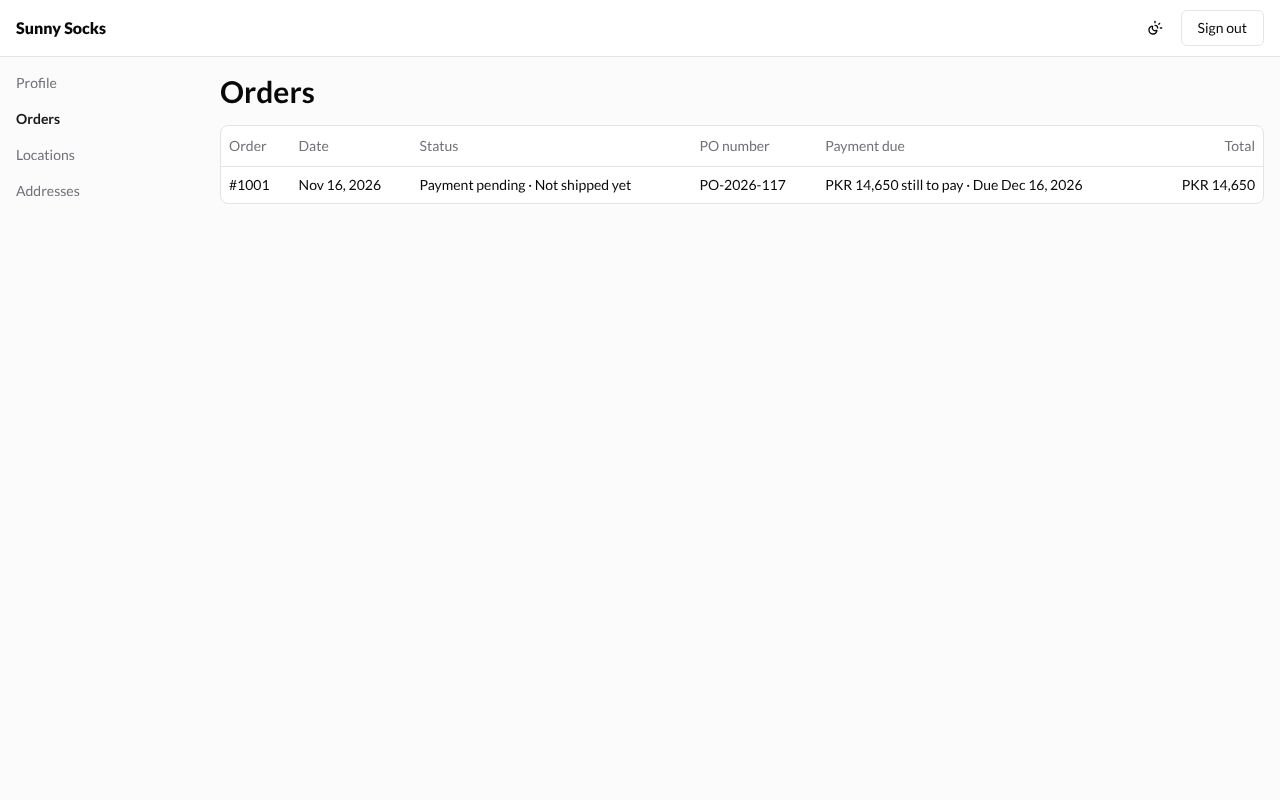
In the account, Orders now has two more columns for a company buyer: PO number and Payment due, here PKR 14,650 still to pay · Due Dec 16, 2026.
Orders sent for review
A location can be set to Submit all orders as drafts for review (its Order submission, part 3). The Payment step then says Your order is sent to the store for review before it is placed., and the button is Submit for review.
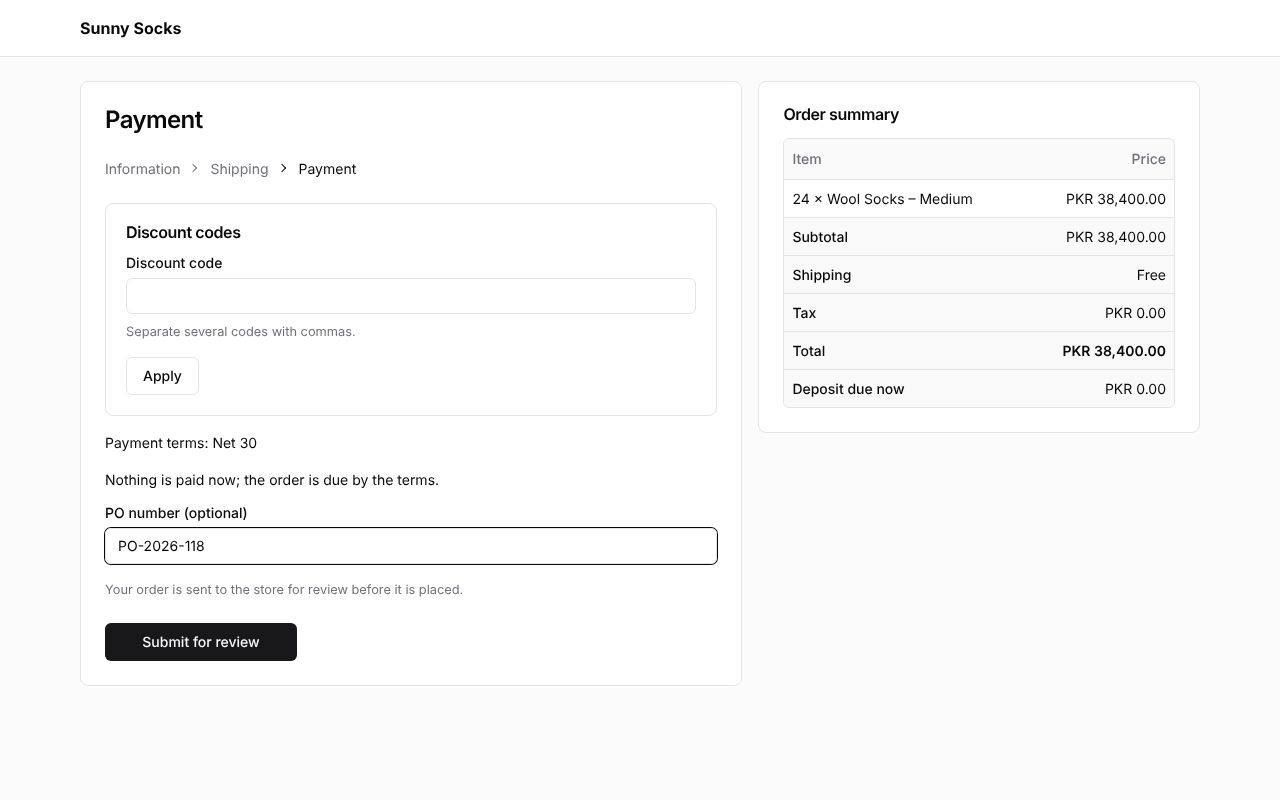
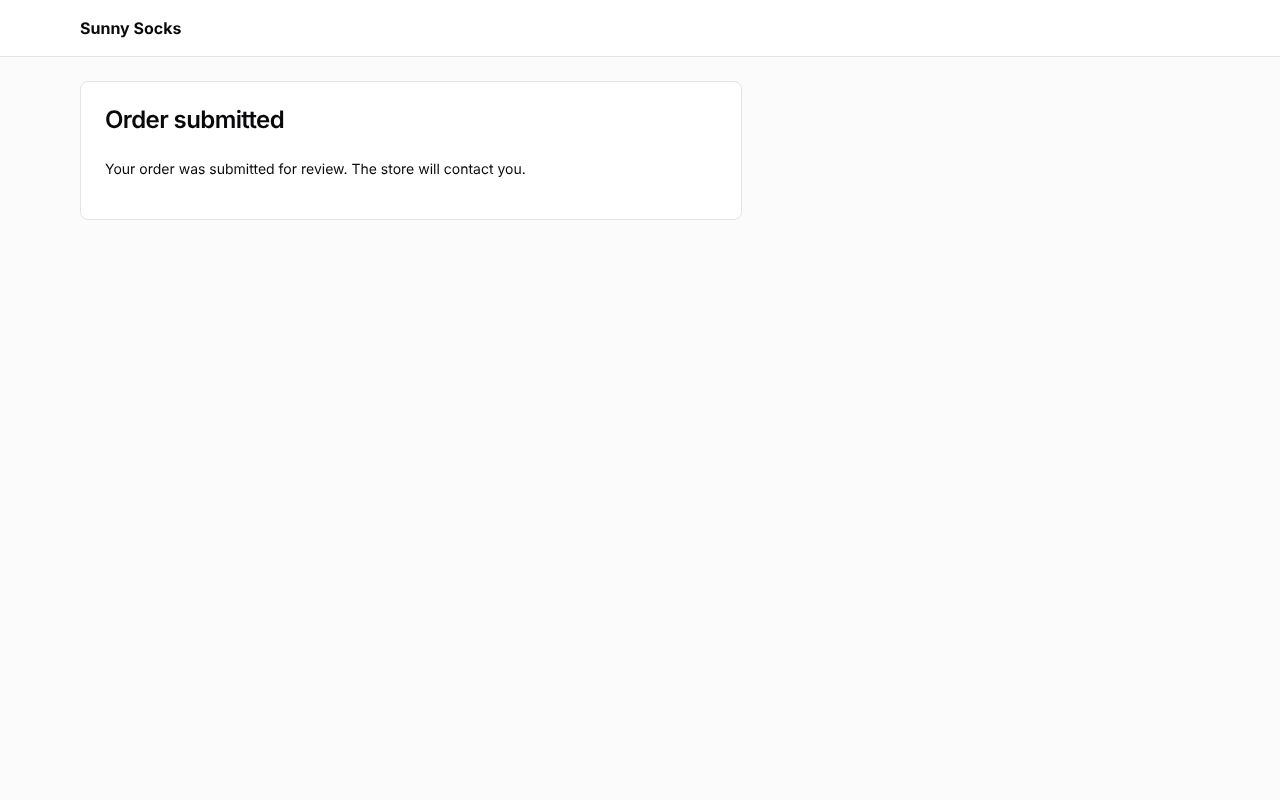
Press Submit for review. The page Order submitted says Your order was submitted for review. The store will contact you. No order is placed yet: the store gets a draft order for the location in Drafts, and completes it from there (see Draft orders).
You’re done
That is the whole buyer’s side, and the end of this guide. You have opened your own store, filled it with products, set up payments, shipping and your theme, and now placed orders on it as a buyer: as a guest, signed in and for a company.
To test something again, follow its page from the Welcome page, which lists every part of the guide.