Open your store
Your store's address, the password page while the store is on trial, and the home page, on a computer and on a phone.
This part of the guide is the other side of the counter: what a buyer sees on your store, from typing its address to their order arriving. You don’t need to sign in to the Admin for any of it. Open your store in a private or incognito window, so the browser treats you as a new visitor.
The pictures come from the sock shop the earlier parts built: Sunny Socks, with Rainbow, Striped and Wool Socks and a Sock Gift Box, the Best sellers collection, an About us page and a Sock care blog.
Your store’s address
Your store’s address is:
https://<your-store-address>.stg.retailprime.app<your-store-address> is the address you got when you created your store (part 1). To open it from the Admin, press View store on the Online Store page (see Themes).
The password page
Until your store has a plan, it has a password, so only people you give it to can visit. A visitor sees the password page: the store’s name, your message for visitors, a Password box and Enter. The password and the message are set in Online Store → Preferences (see Preferences and the password page).
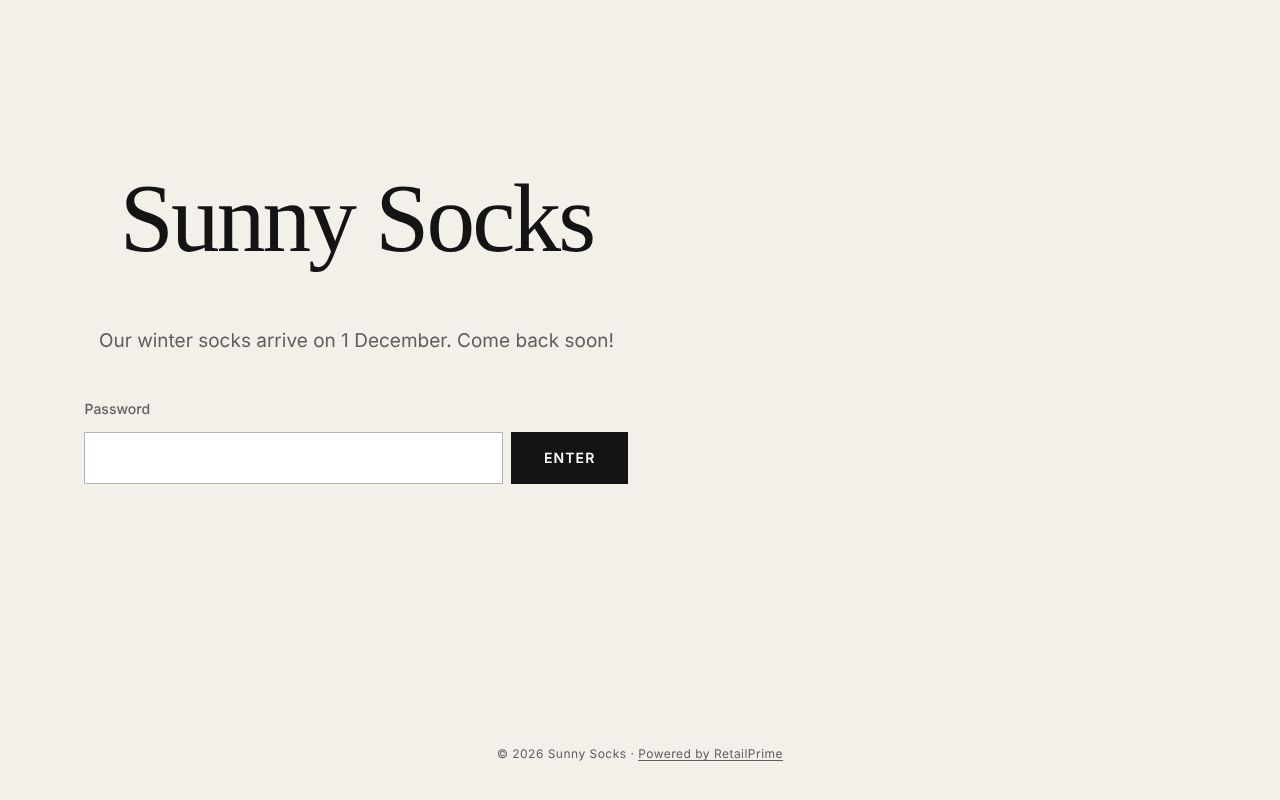
- Type the store’s password in Password, such as
sunny2026. - Press Enter.
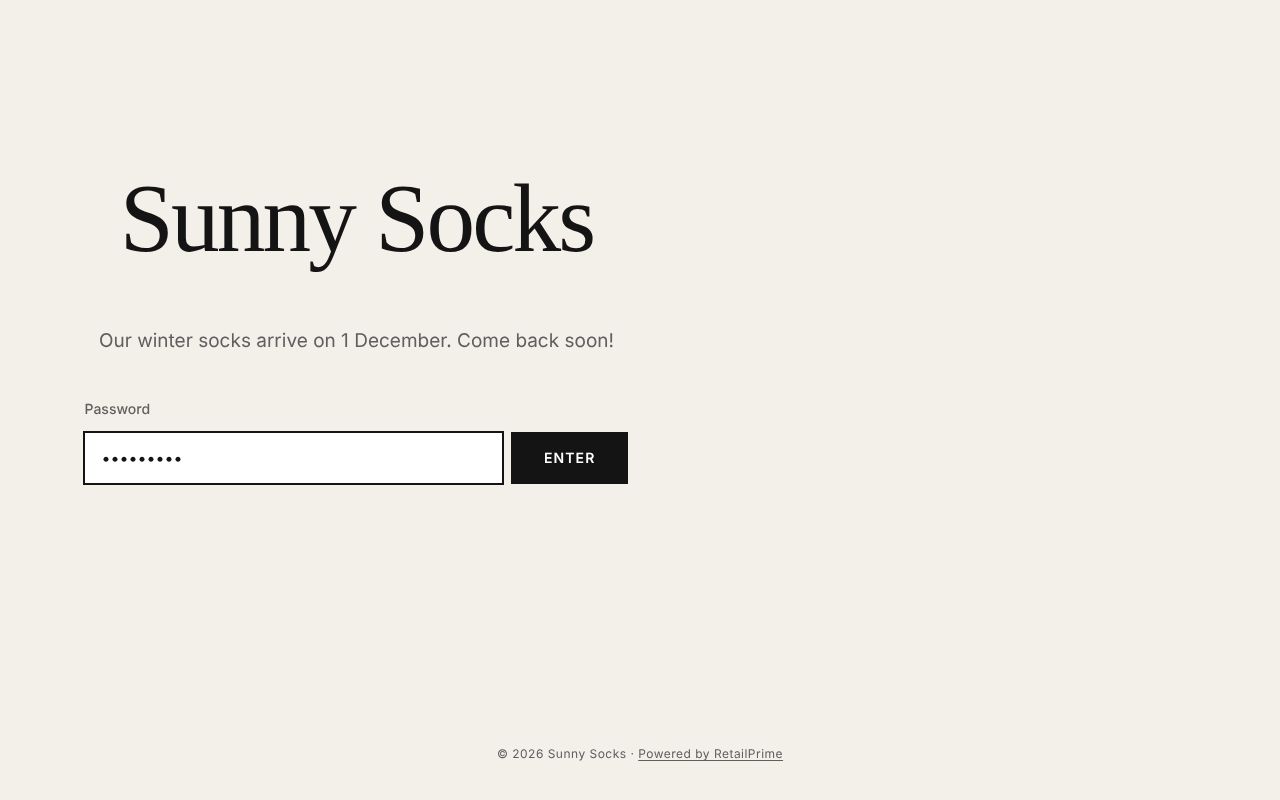
The store opens. A wrong password shows The password is not correct. under the box.
The home page
The home page is the first page buyers see.
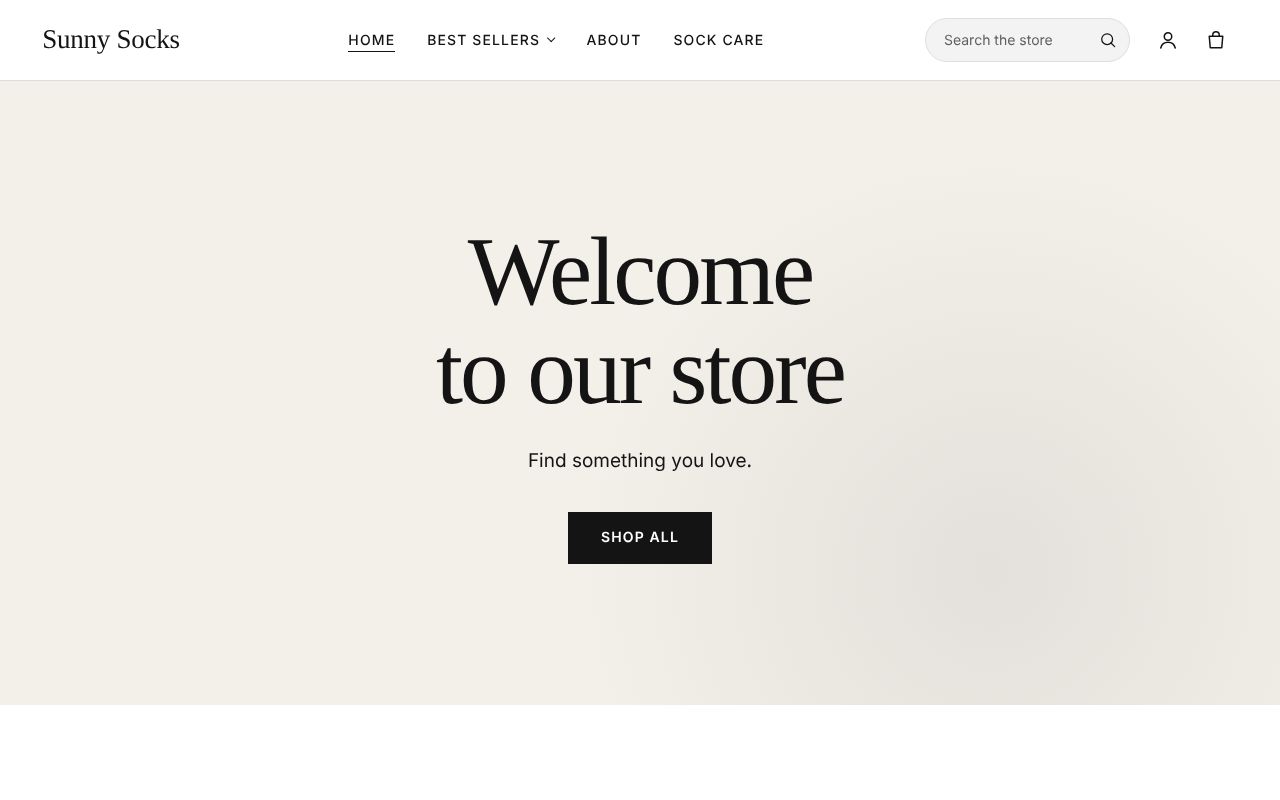
Along the top, in the header:
| Part | What it does |
|---|---|
| Sunny Socks (the store’s name) | Goes back to the home page from anywhere |
| The menu: Home, Best sellers, About, Sock care | Your store’s main menu (see Menus). Without a main menu, the theme shows Catalog and Collections instead |
| Search the store | Finds products, pages and blog posts (see Search) |
| The person icon | Sign in, or Account once the buyer is signed in (see Sign in to your account) |
| The bag icon | The cart, with the number of items in it (see The cart) |
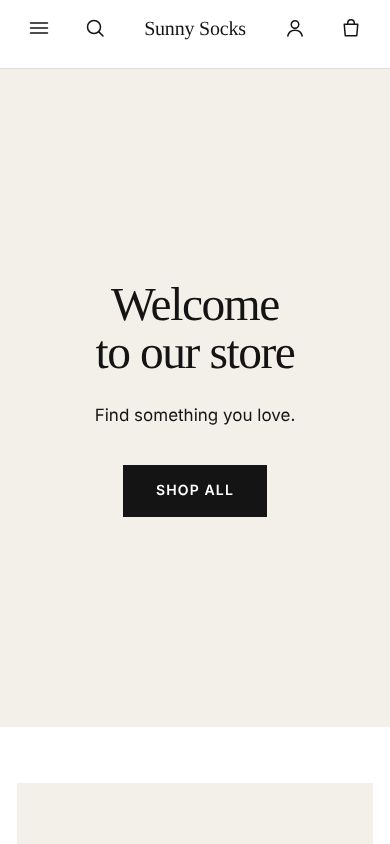
Here is the whole home page, from top to bottom. The big Welcome to our store banner with Shop all, Made with care and Talk about your brand are the starter theme’s own sections, with its own words; the owner changes them in the theme editor (see The theme editor). At the bottom is the footer.
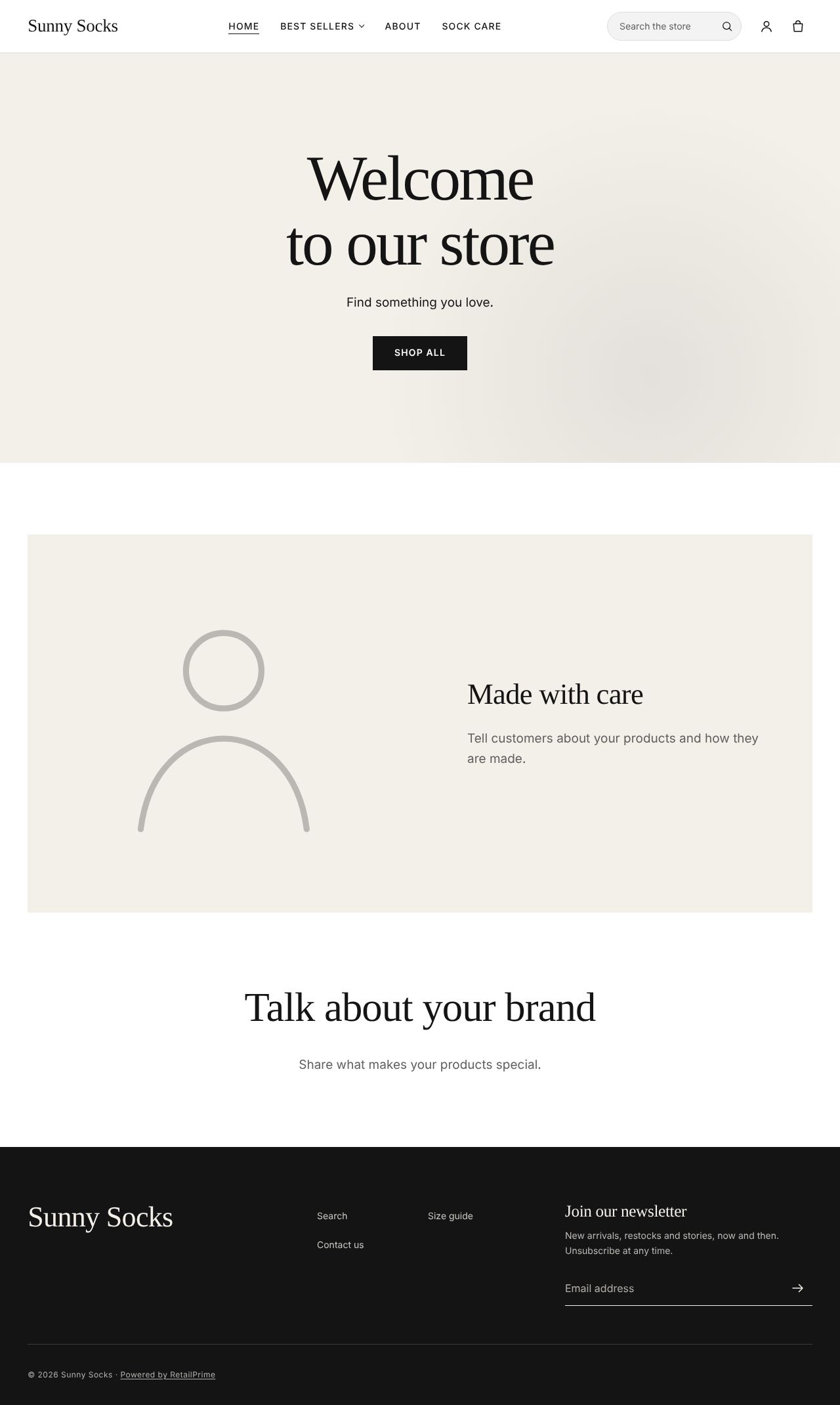
Shop all opens every product (see Collections and filters).
On a phone
On a phone the header is smaller: the menu is behind the ☰ button on the left, next to the search button, then the store’s name, the account and cart icons.
What’s next
Menus, footer, pages and the blog: find your way around the store.