Checkout: contact and delivery
The checkout's first step, Information - the email, shipping or pickup, and the shipping address - with what happens when a box is missed.
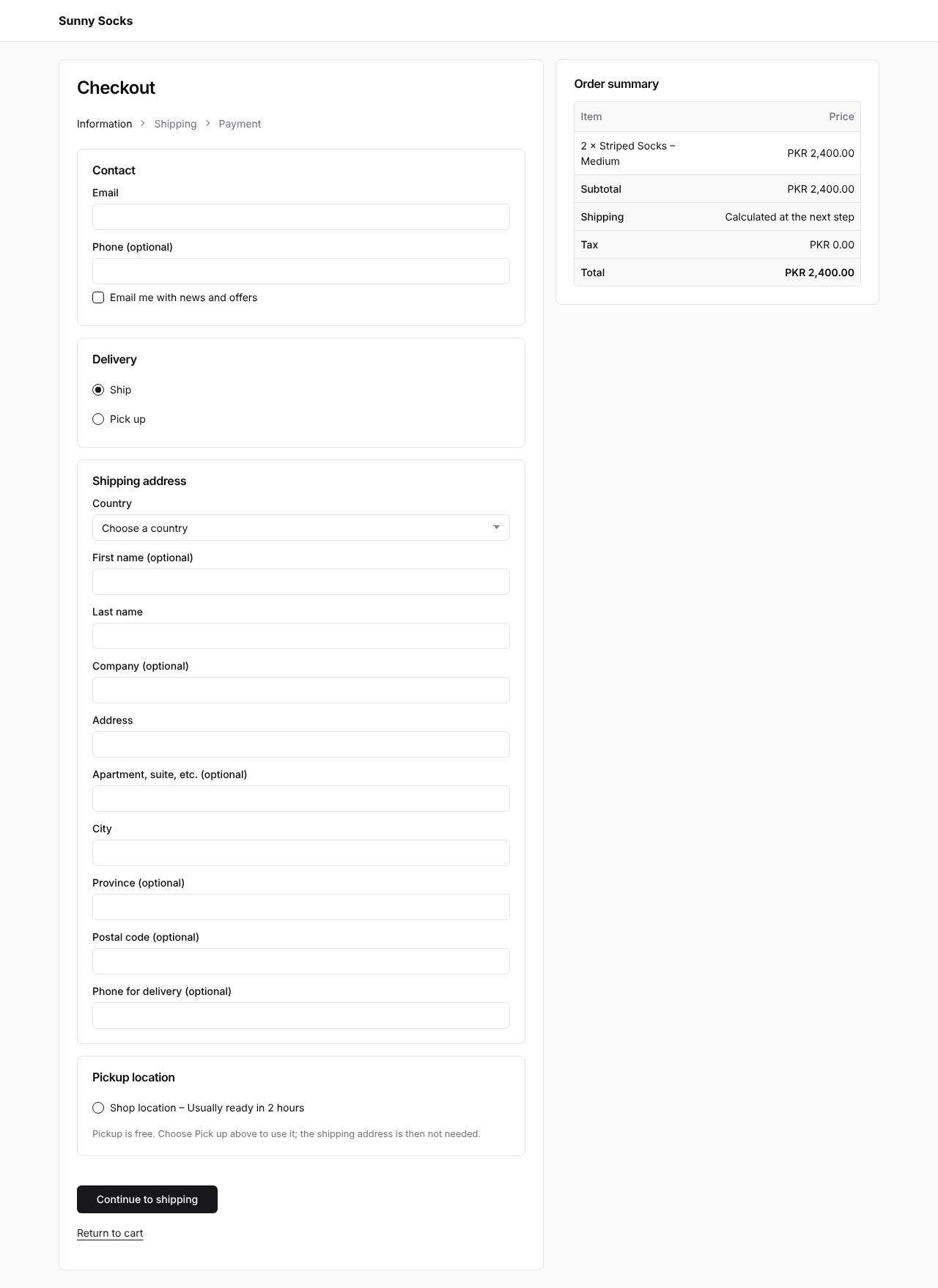
Press Check out in the cart. The Checkout opens. It is RetailPrime’s own page, the same for every store whatever its theme, with the store’s name at the top.
It has three steps, shown under the title: Information, Shipping and Payment. The step you are on is in black. On the right, the Order summary lists what you are buying, the Subtotal, Shipping, Tax and Total.
Fill in the Information step
Contact
| Box | What to type | Example |
|---|---|---|
Where the order confirmation goes. On staging, use an address ending in @qamail.retailprime.app |
sara.malik@qamail.retailprime.app |
|
| Phone (optional) | A phone number. The owner chooses whether this box is hidden, optional or required (see Checkout) | +92 300 1234567 |
| Email me with news and offers | Tick it to get the store’s marketing emails | ticked |
Delivery
Choose Ship to have the order sent to you, or Pick up to collect it from the store. Pick up only shows when the store offers pickup (see Pick up in store).
Shipping address
| Box | What to type | Example |
|---|---|---|
| Country | Choose from the list. Only the countries the store ships to are in it | Pakistan |
| First name (optional) | Sara |
|
| Last name | Malik |
|
| Company (optional) | ||
| Address | The street and number | 7 Gulberg Main Boulevard |
| Apartment, suite, etc. (optional) | ||
| City | Lahore |
|
| Province (optional) | ||
| Postal code (optional) | 54660 |
|
| Phone for delivery (optional) | A number for the courier |
Pickup location lists where the order can be picked up. It is only used when Pick up is chosen: Pickup is free. Choose Pick up above to use it; the shipping address is then not needed.
Here is the step filled in:
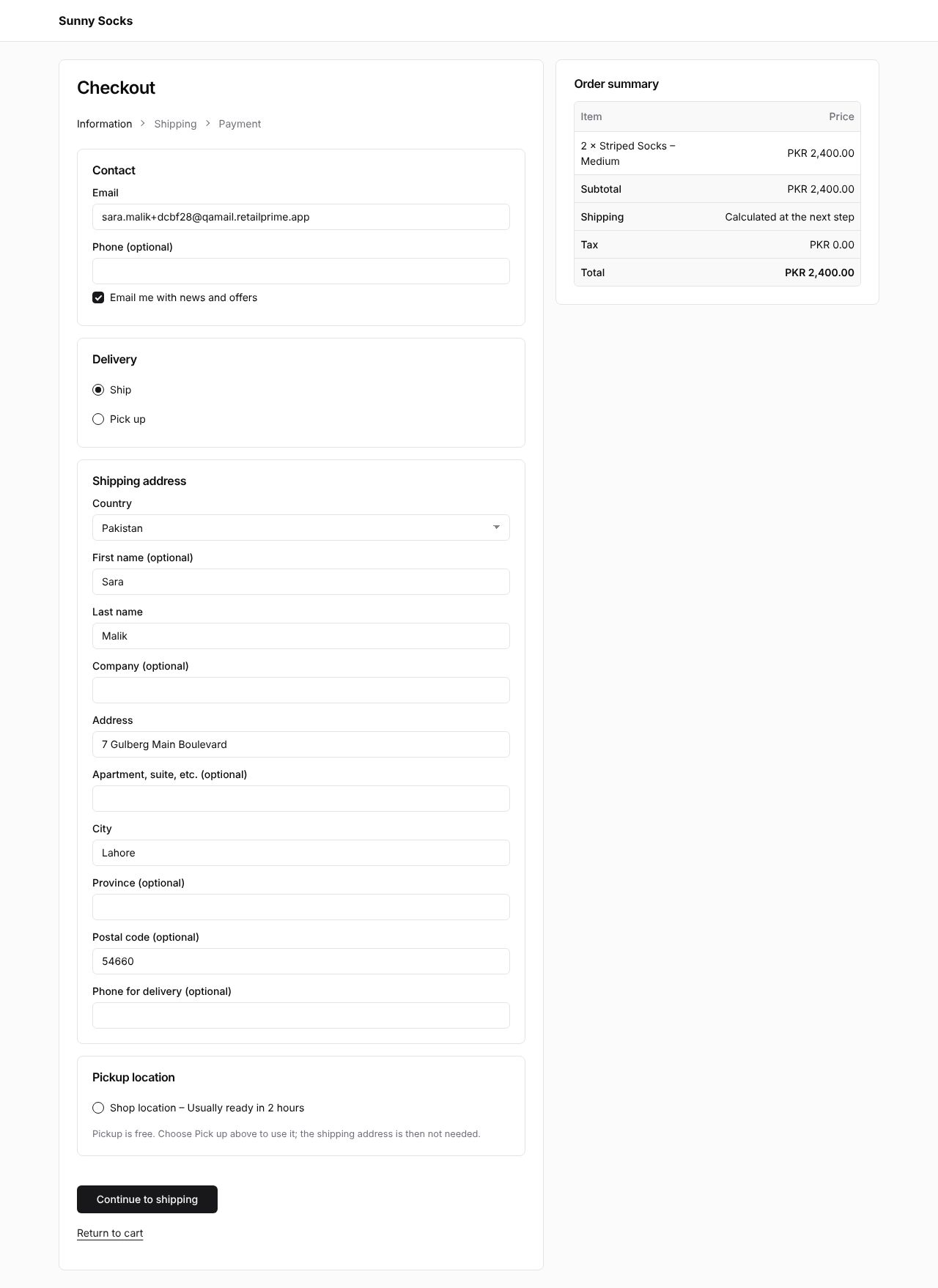
Press Continue to shipping. Return to cart goes back to the cart instead.
When a box is missed
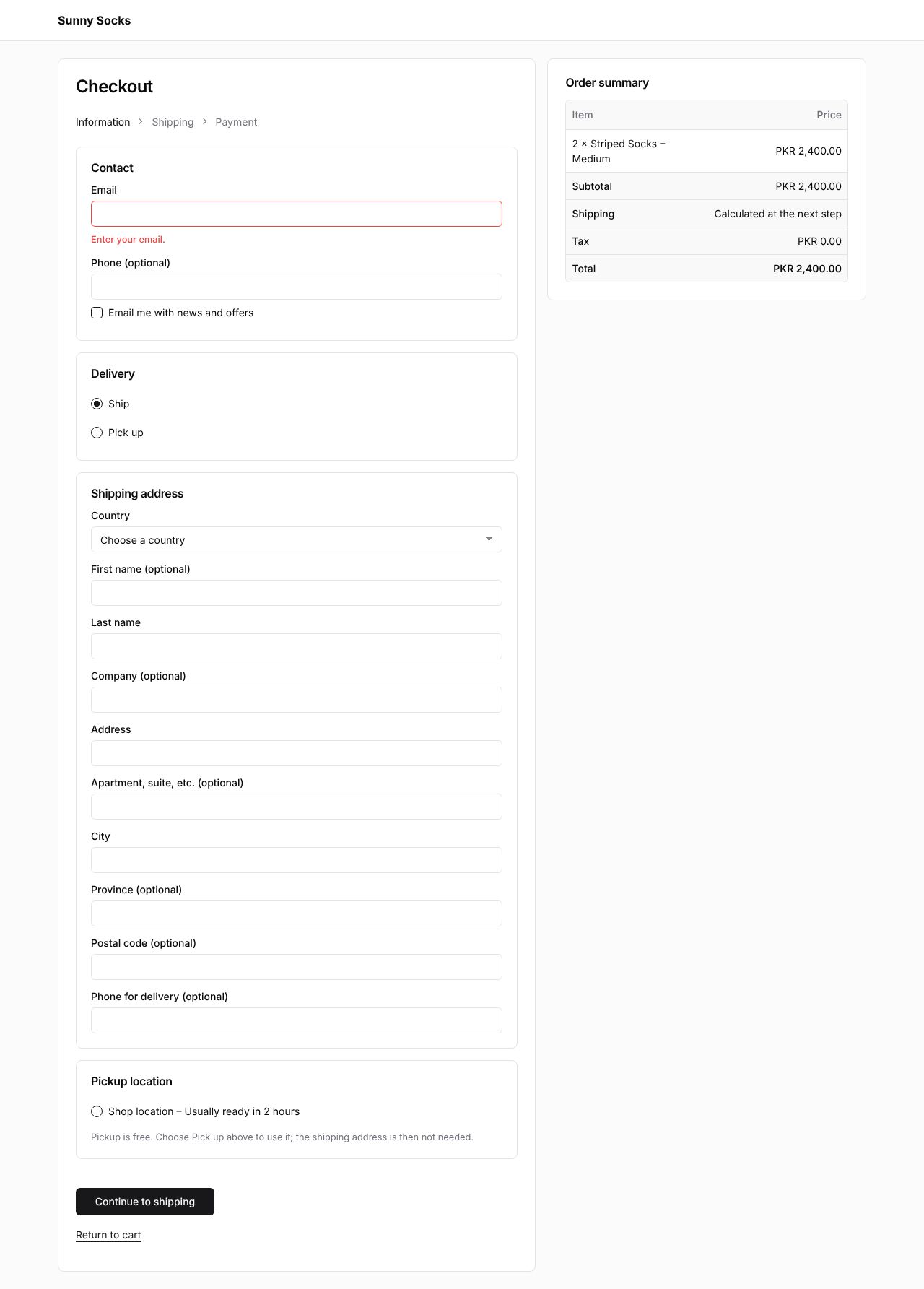
If a box that must be filled in is empty, the step stays open and says what is wrong in red under the box. For example, with no email: Enter your email. Fill it in and press Continue to shipping again.
On a phone
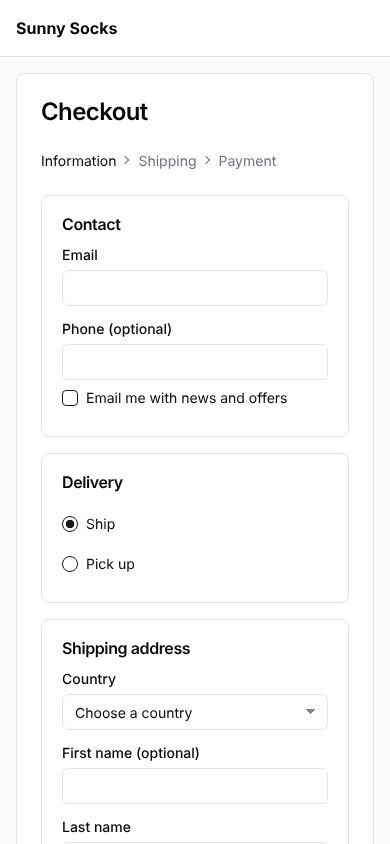
On a phone the boxes fill the screen’s width, and the Order summary comes after the form, at the bottom.
What’s next
Checkout: shipping and payment: choose how it is sent, type a discount code and pay.