Store credit and signing out
See your store credit on your Profile, check out signed in, spend the credit at checkout, and sign out.
Store credit on your Profile
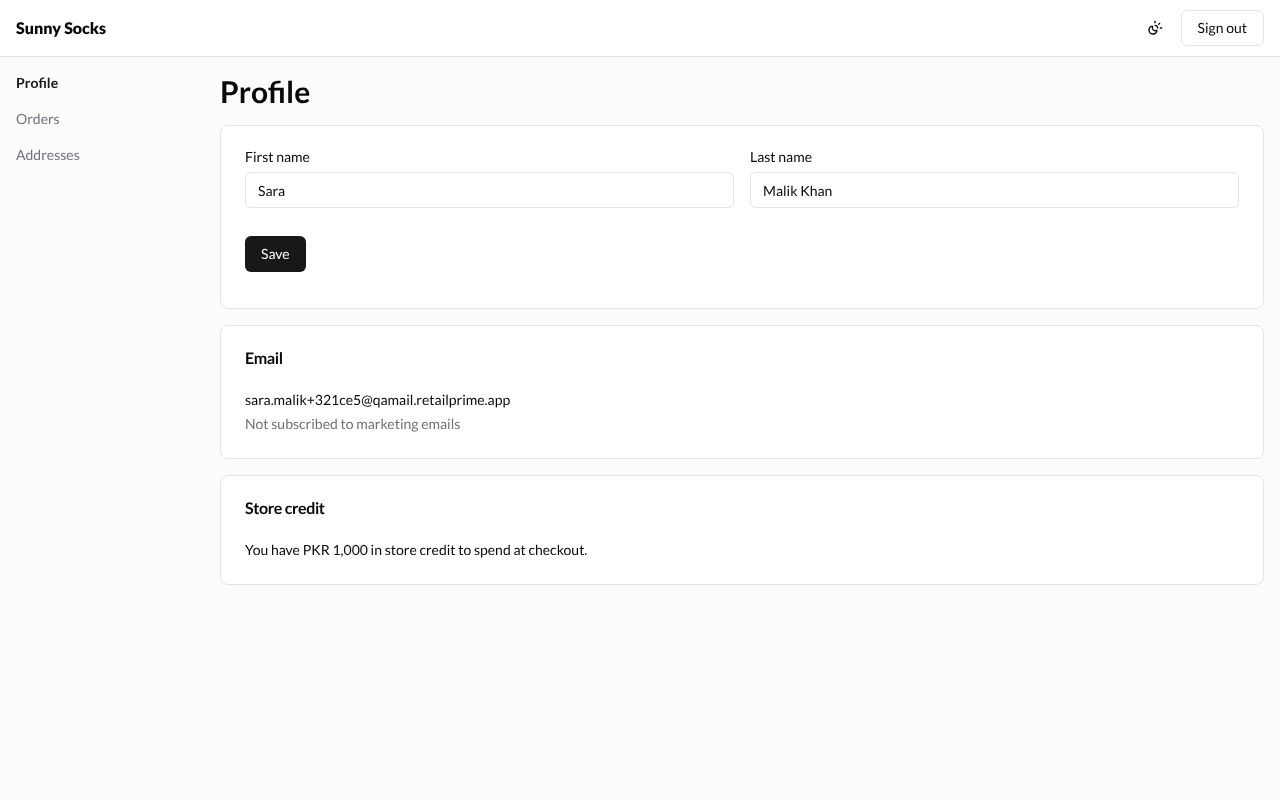
The store can give a customer store credit, money to spend on the store, from the customer’s page in the Admin (see Store credit, merge and delete). Here Sunny Socks gave Sara PKR 1,000.
The buyer’s Profile then has a Store credit card: You have PKR 1,000 in store credit to spend at checkout. A buyer without store credit doesn’t see this card.
Check out signed in
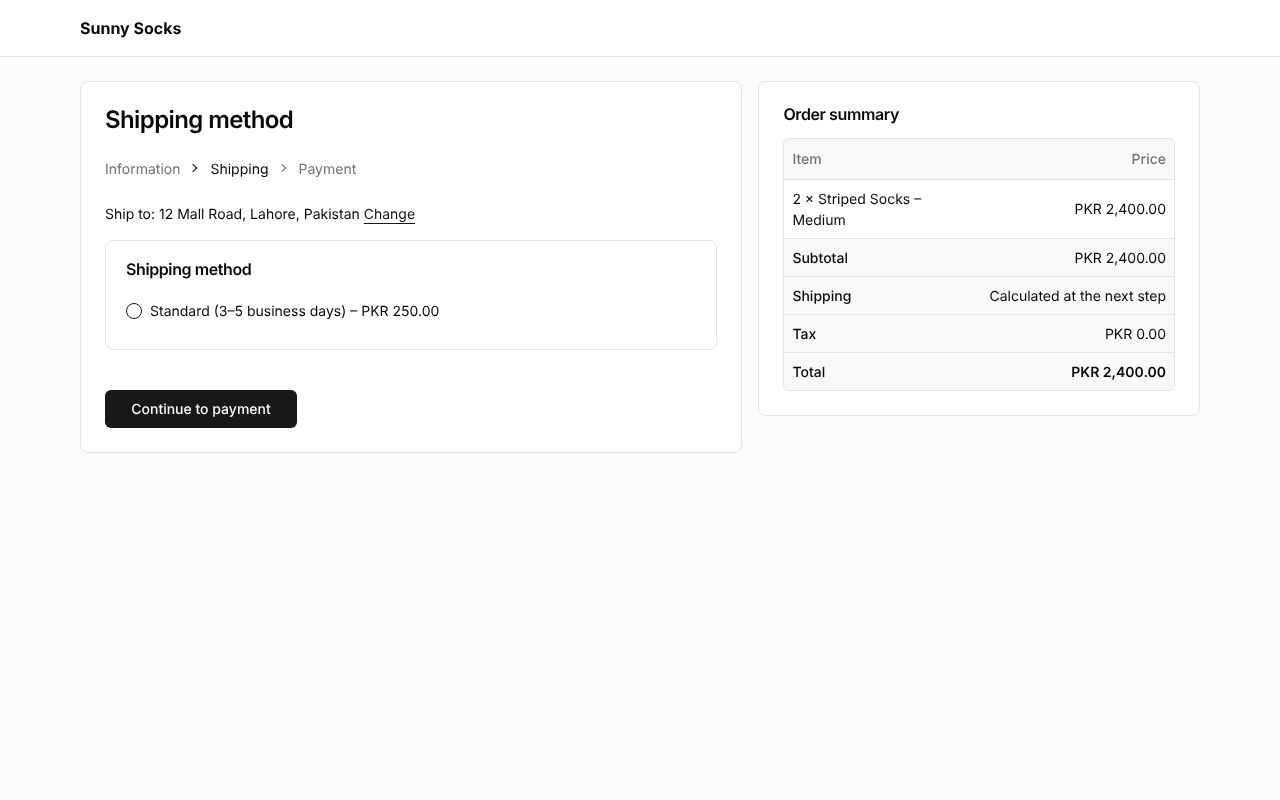
A signed-in buyer who presses Check out goes straight to the Shipping method step: the checkout already knows their email and uses their default address, shown in Ship to:, here 12 Mall Road, Lahore, Pakistan.
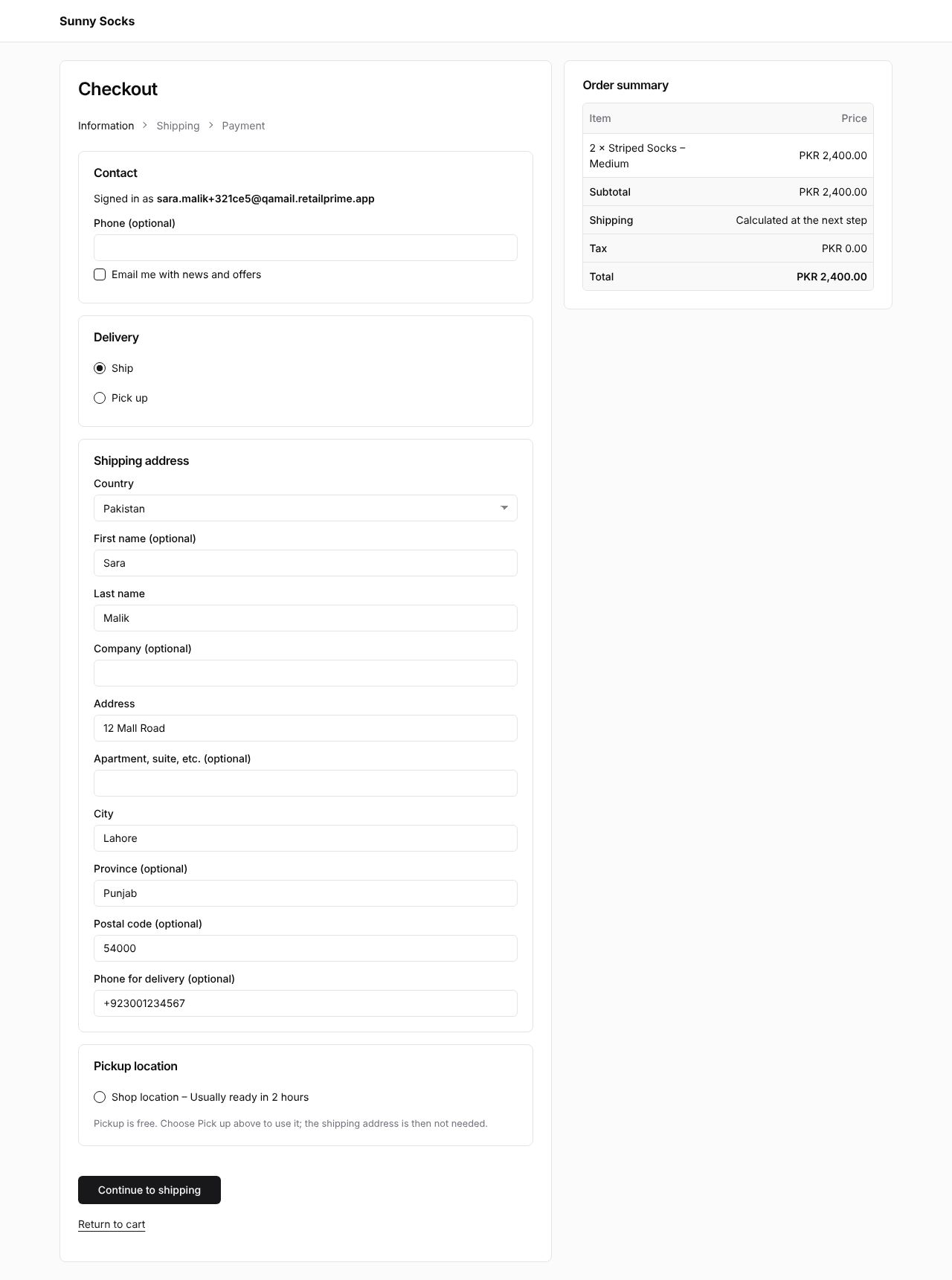
Press Information at the top (or Change) to see the first step. Instead of the Email box, it says Signed in as and the buyer’s email.
Spend store credit at checkout
On the Payment step, a buyer with store credit sees Use my store credit (PKR 1,000.00 available) with Apply under it.
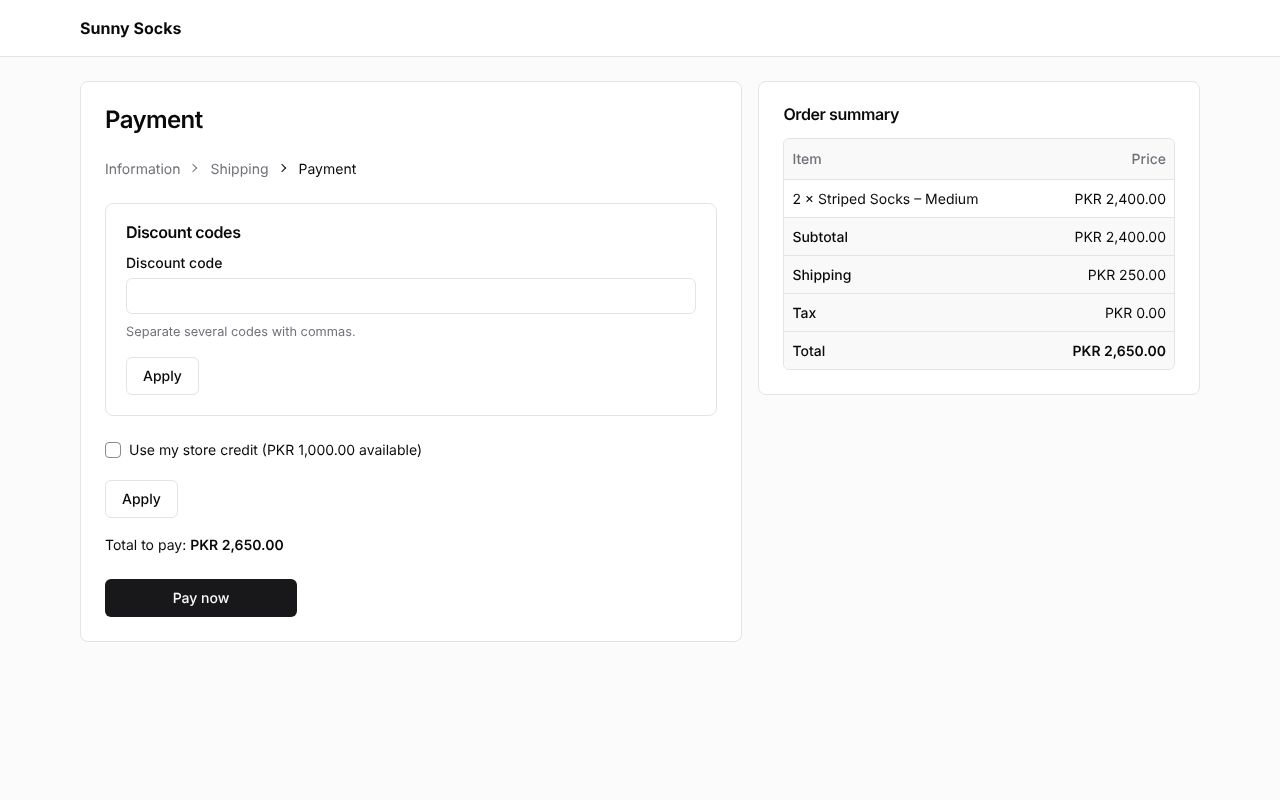
Press Apply under it. The box is ticked and the button becomes Change (press it to stop using the credit). The Order summary gets a Store credit line, −PKR 1,000.00, and the page now says To pay now: PKR 1,650.00.
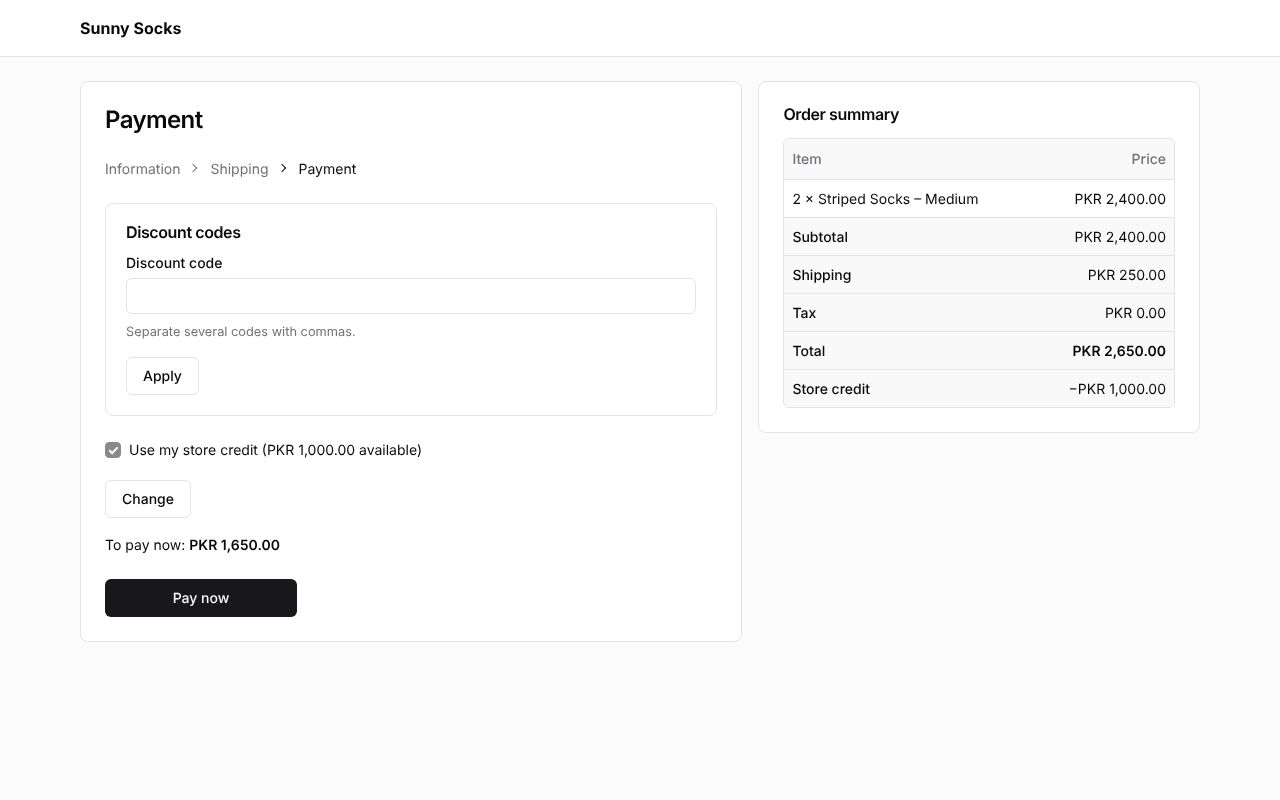
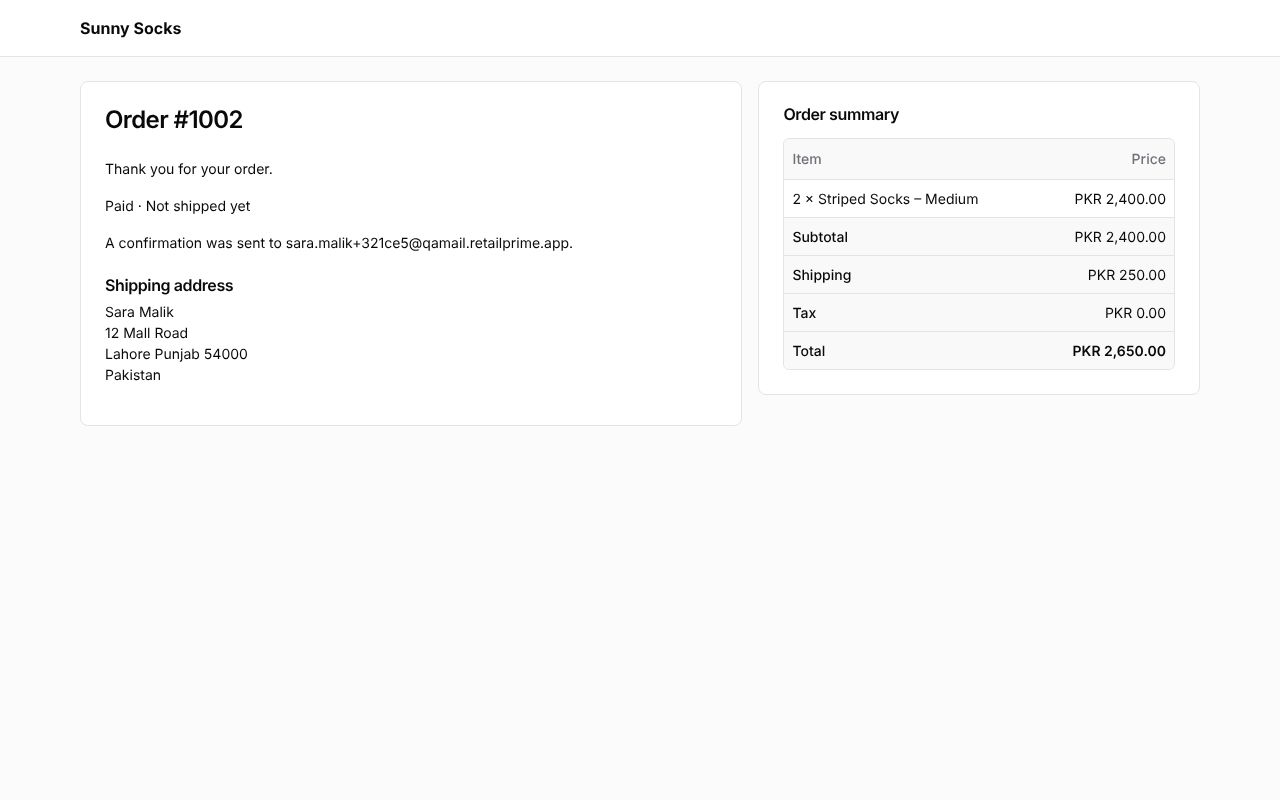
Press Pay now and pay the rest with a test card (see Checkout: shipping and payment). When the store credit covers the whole total, there is nothing left to pay, and the button says Complete order instead of Pay now.
Sign out
- On the store, the person icon in the header is now called Account. Press it to open your account.
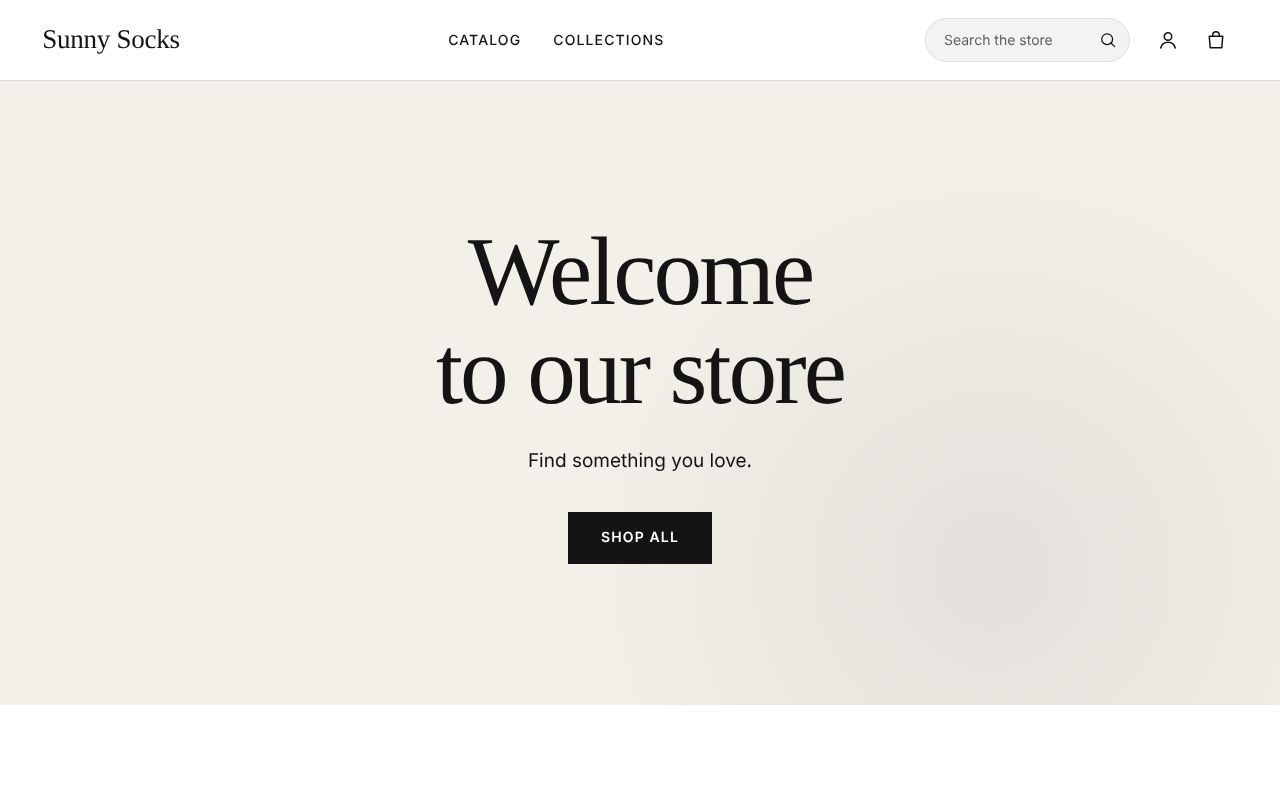
- Press Sign out at the top right of any account page.
The page says 401 and You’re signed out, with Sign in again to see your account. and Sign in.
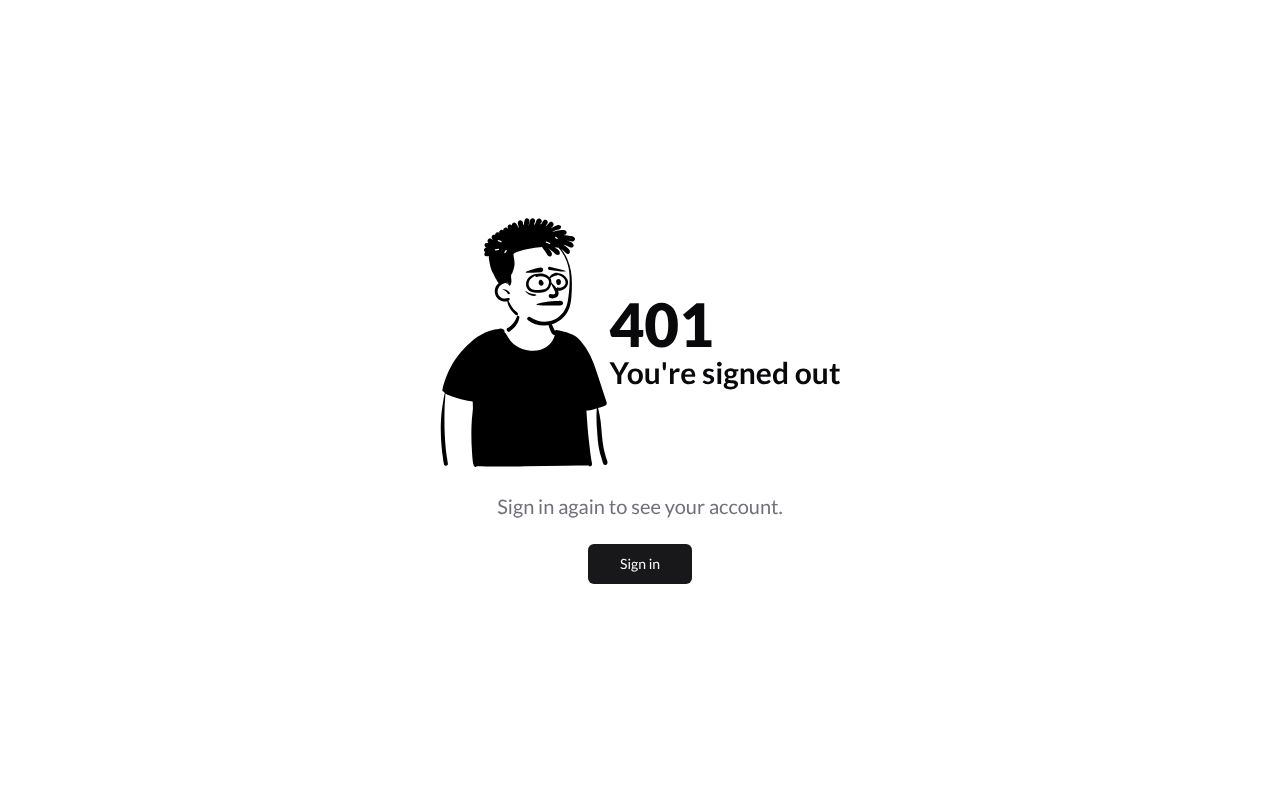
The store’s header shows Sign in again.
What’s next
A company buyer: what a buyer who buys for a company sees.