Checkout: shipping and payment
Choose a shipping method, apply a discount code, and pay on staging's test gateway, with a declined test card first.
The Shipping step
The Shipping method step shows where the order goes, Ship to: 7 Gulberg Main Boulevard, Lahore, Pakistan, with Change to go back and change the address. Under it are the store’s shipping methods for that address, each with its delivery time and price.
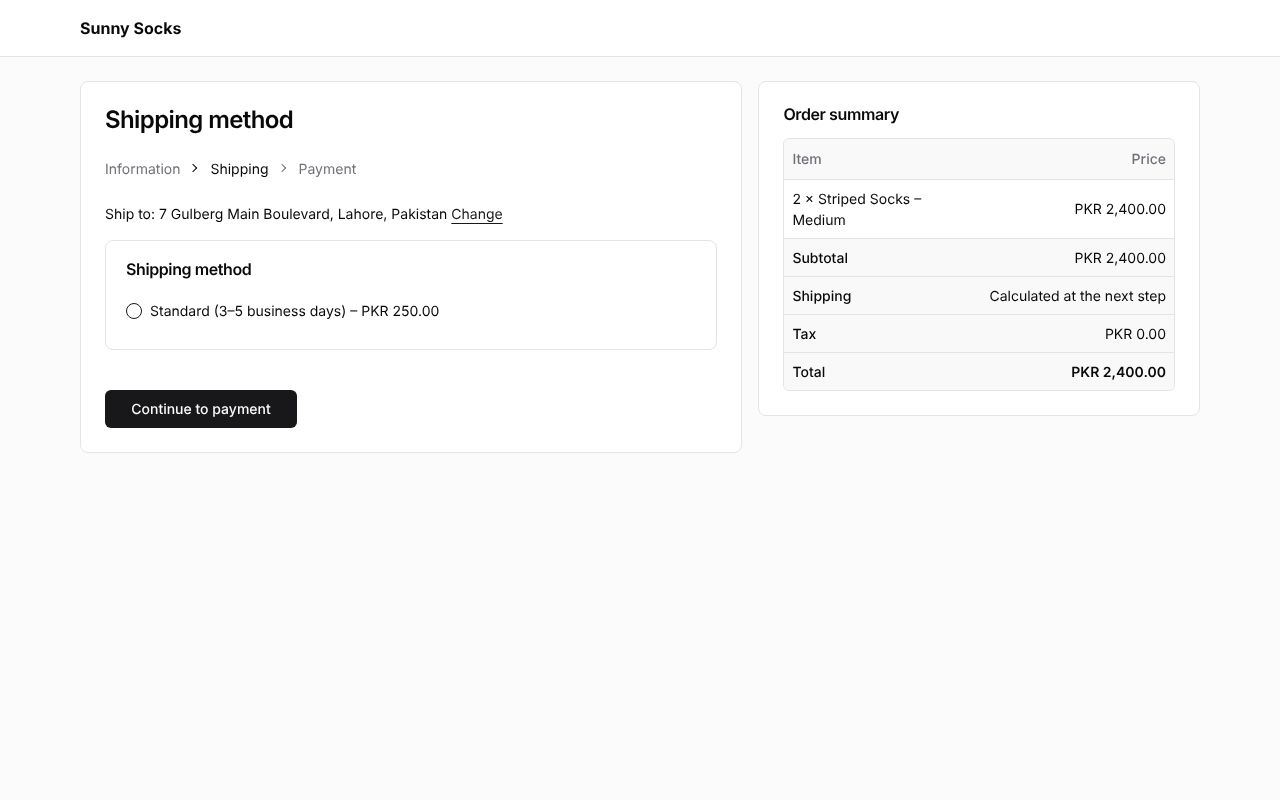
- Choose a method, here Standard (3–5 business days) – PKR 250.00.
- Press Continue to payment.
The methods come from the owner’s shipping zones (see Shipping and delivery). A method with a condition only shows when the order meets it: this store also has Free delivery for orders from PKR 3,000, which doesn’t show for this PKR 2,400 order. (A larger order with both is pictured on A company buyer.)
If the store has no method for the address, the step says There are no shipping methods for this address. Change the address or contact the store.
You can go back to an earlier step at any time by pressing its name, such as Information, at the top.
The Payment step
The Payment step has Discount codes, then Total to pay and Pay now. The Order summary now shows the shipping price.
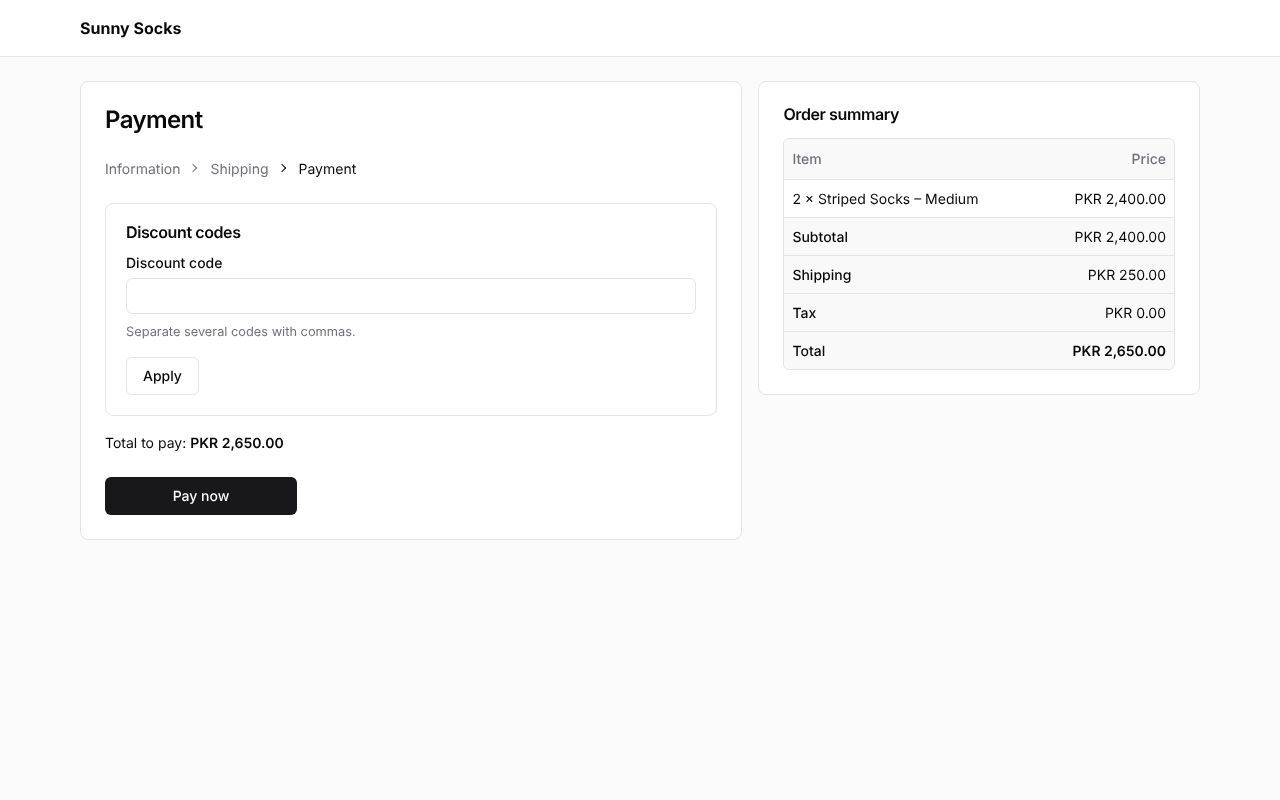
Depending on the store’s settings, this step can also have an Order note (optional) box, and a Payment method choice between Pay online and the store’s manual methods, such as cash on delivery (see Checkout and Payments).
A discount code
The store made the code WELCOME10, 10% off the order, in Discounts (see Create a discount).
- Type the code in Discount code. To use several, separate them with commas.
- Press Apply.
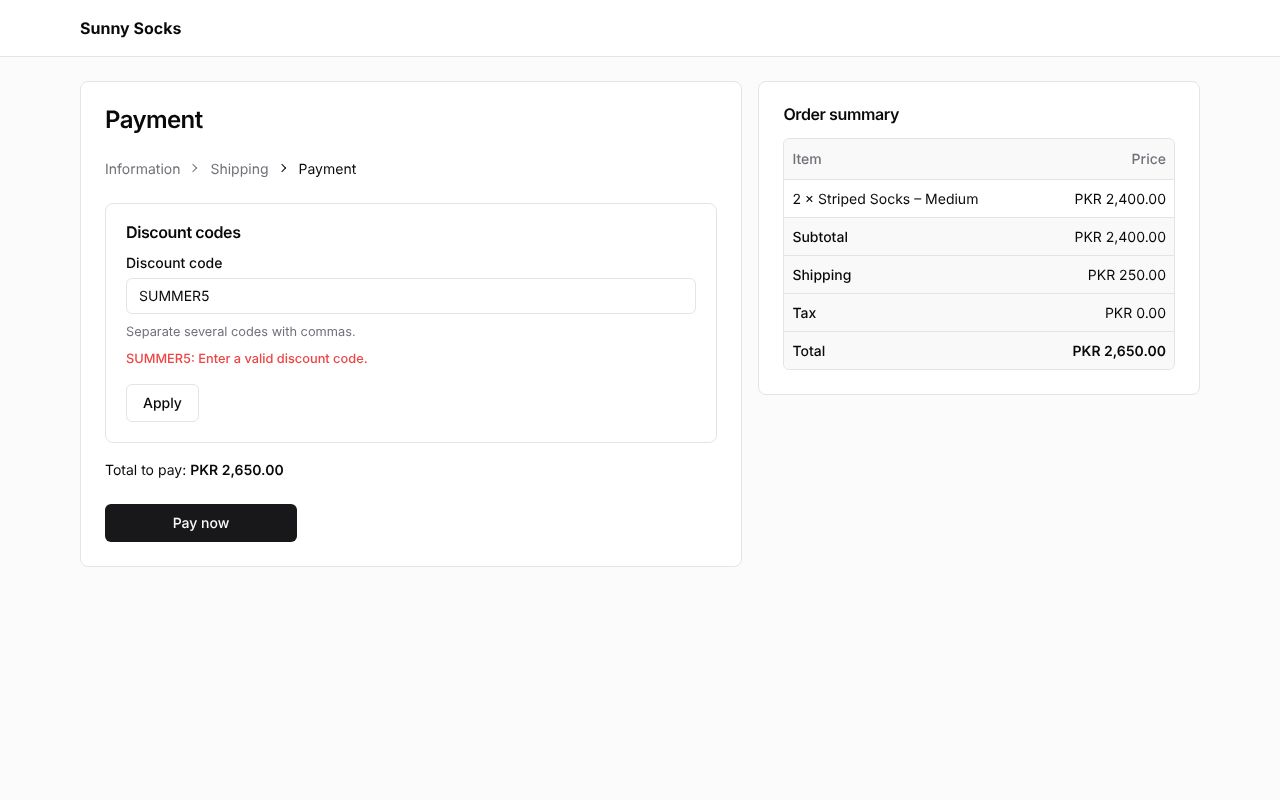
A code that doesn’t exist, such as SUMMER5, is refused in red: SUMMER5: Enter a valid discount code. The total doesn’t change.
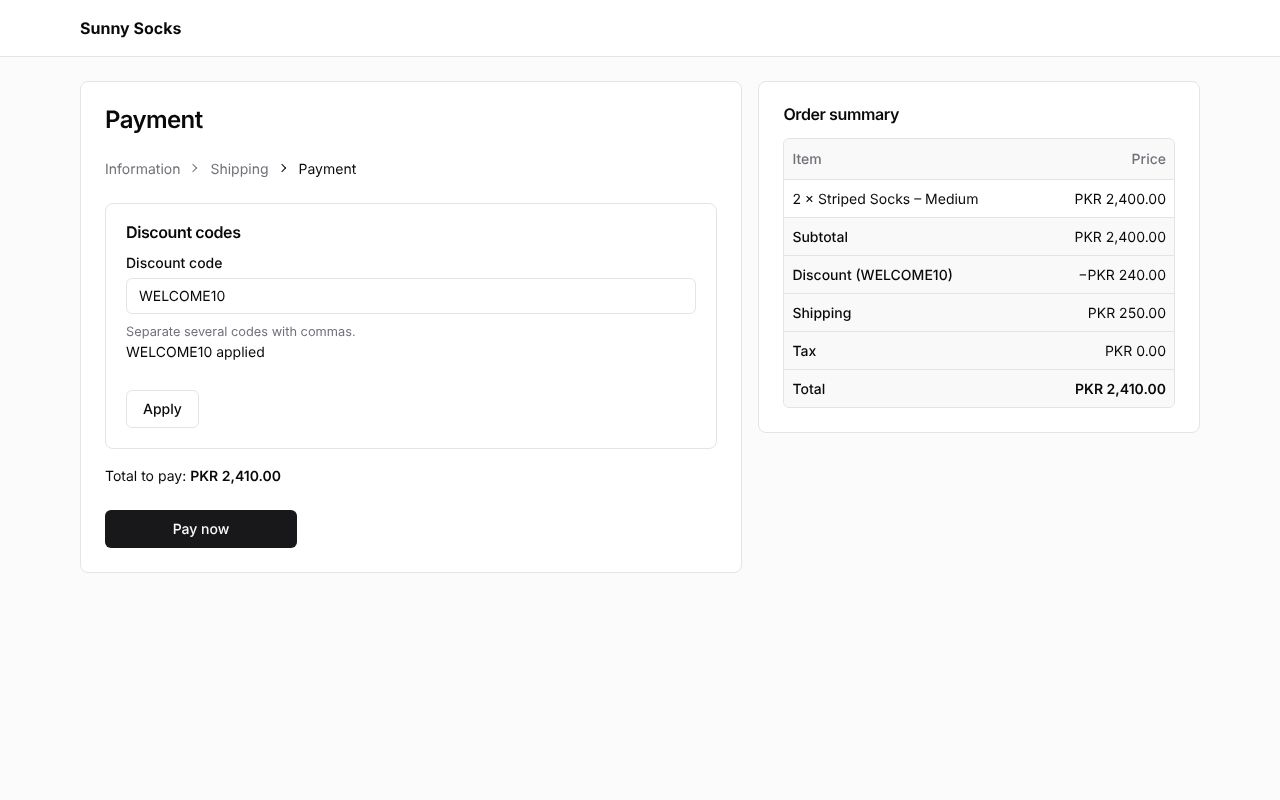
With the right code, WELCOME10, the card says WELCOME10 applied. The Order summary gets a Discount (WELCOME10) line of −PKR 240.00 (10% of PKR 2,400.00), and the total drops to PKR 2,410.00.
Pay on the test gateway
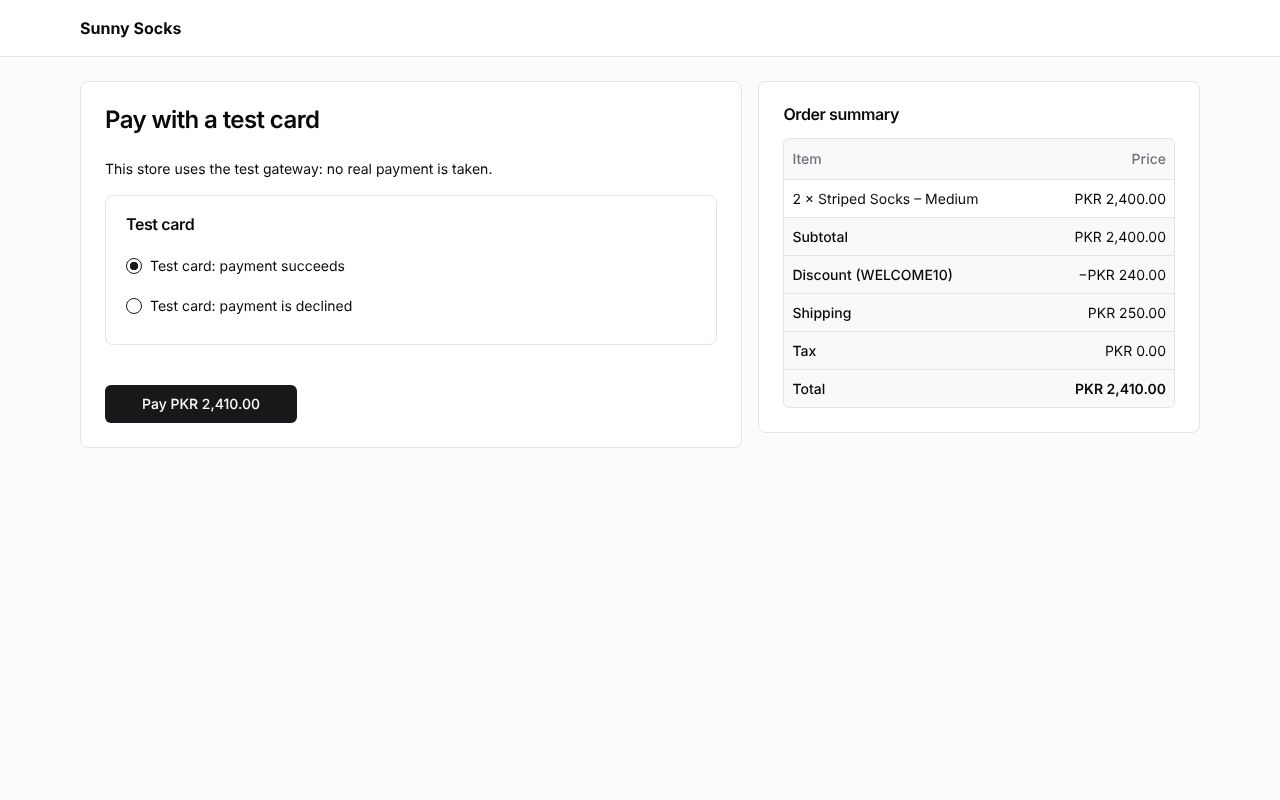
On staging, stores use the test gateway: no real money is taken. Press Pay now. The page Pay with a test card opens, saying This store uses the test gateway: no real payment is taken.
A declined card
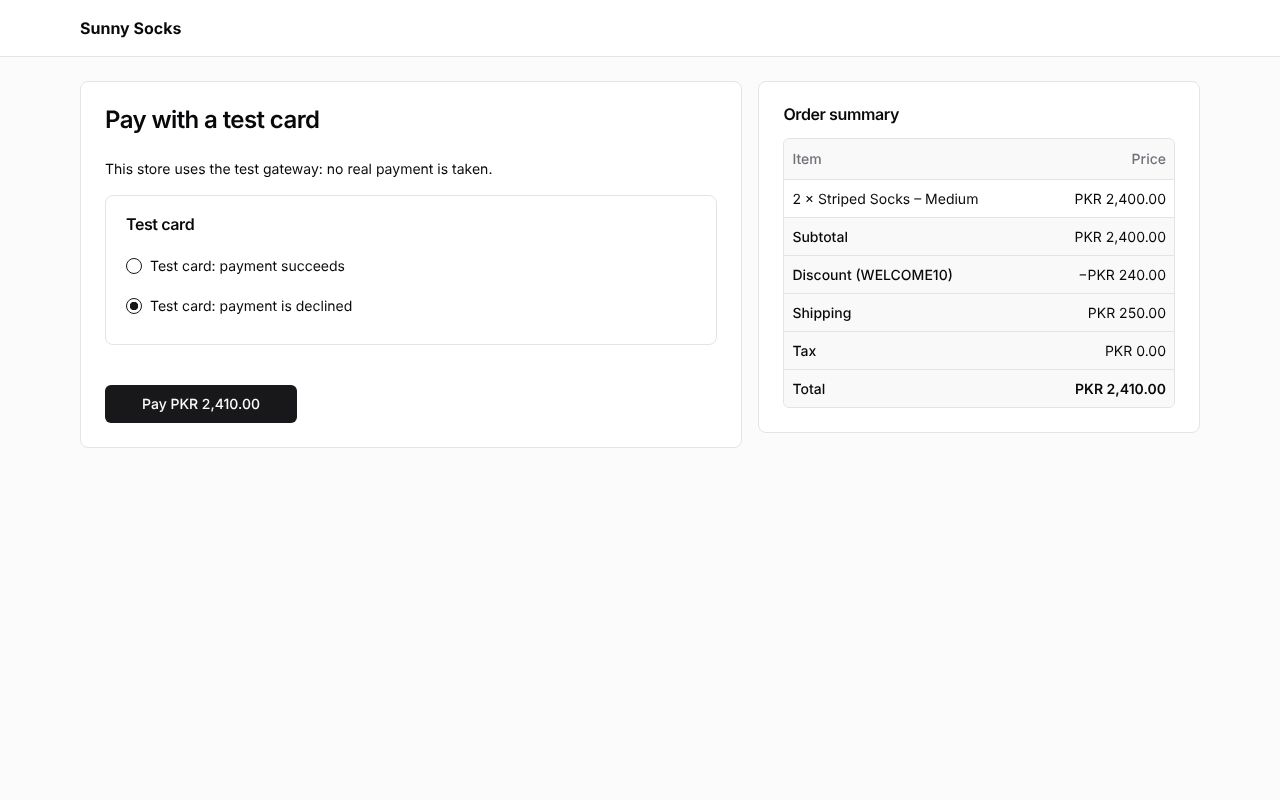
- Choose Test card: payment is declined.
- Press Pay PKR 2,410.00.
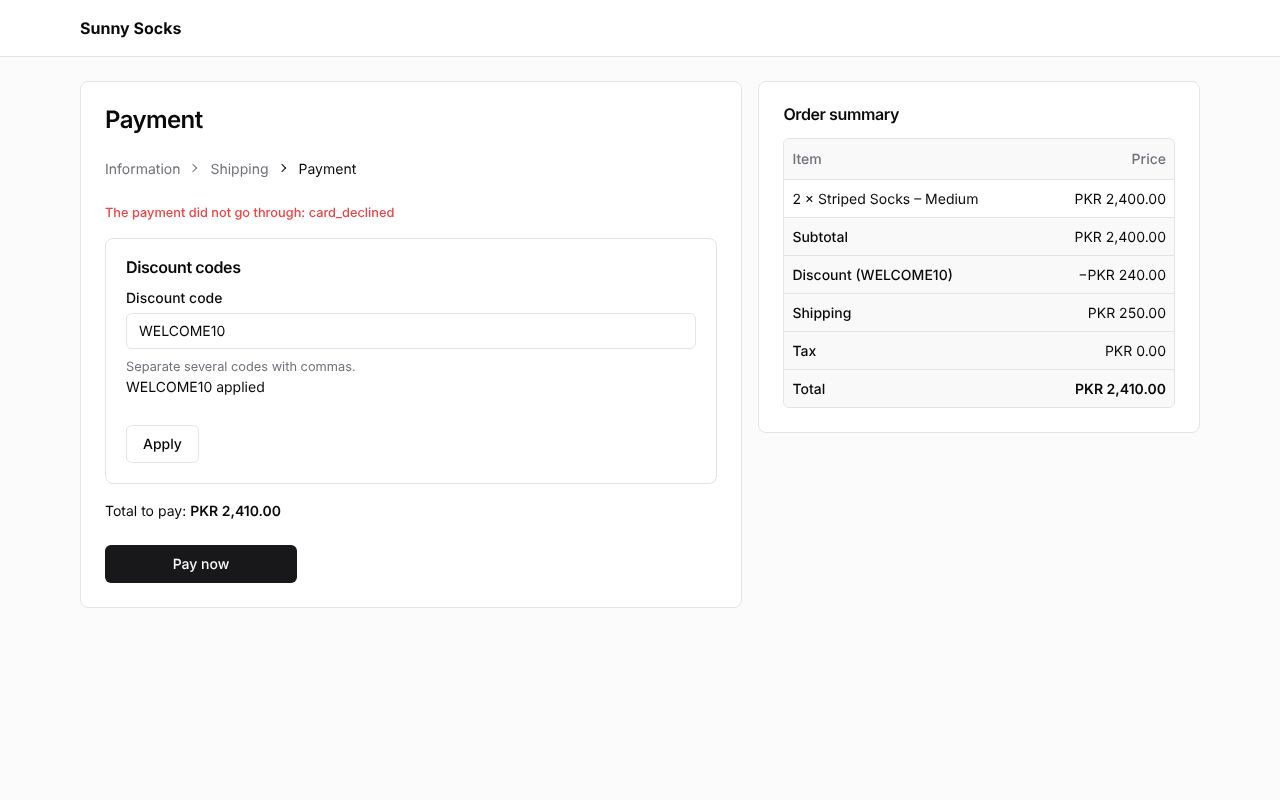
You are back on the Payment step, with The payment did not go through: card_declined in red at the top. No order is placed and nothing is lost: the discount code is still applied.
Pay again
- Press Pay now.
- Choose Test card: payment succeeds.
- Press Pay PKR 2,410.00.
The order is placed, and its page opens (see After the order).
On a phone
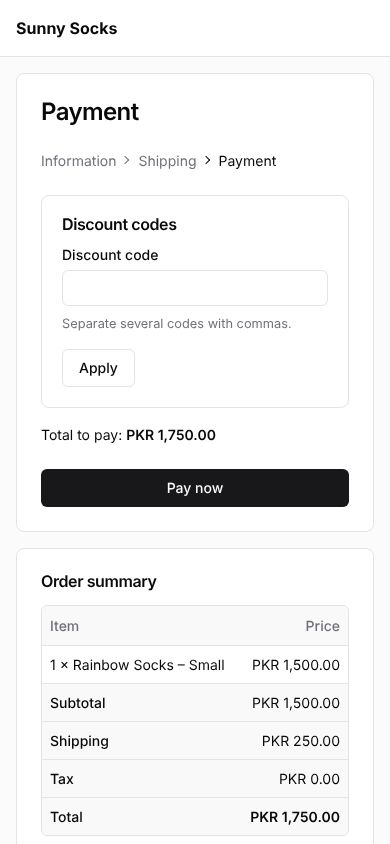
On a phone, the Payment step shows the discount codes, the total and Pay now first, and the Order summary below them.
What’s next
After the order: the thank-you page, the emails and the order status page.