Shipping and delivery
Create shipping zones and rates, edit and delete them, offer local pickup, and mark a pickup order as picked up.
In Settings, press Shipping and delivery. The page says One general profile for every product that requires shipping. Buyers in a country outside every zone cannot have items shipped. A new store has No shipping zones yet. The Local pickup card is under the zones.
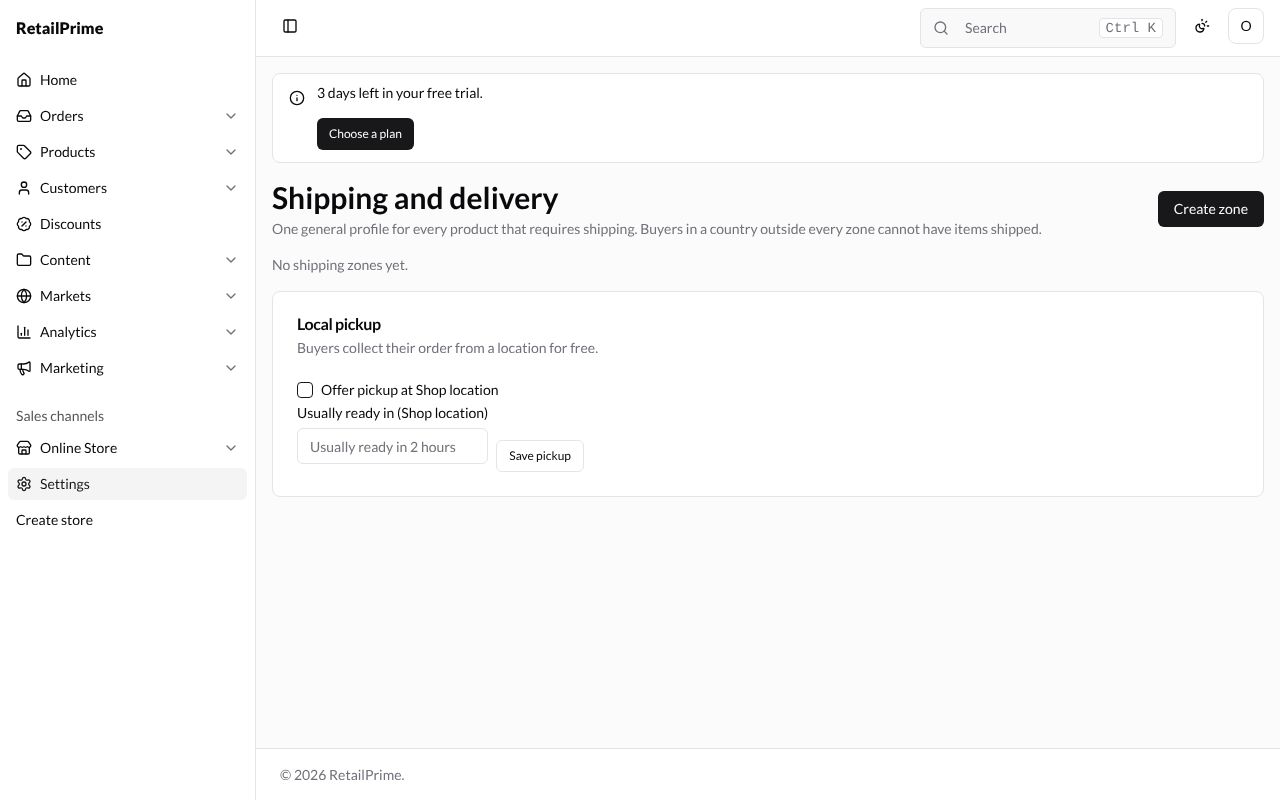
Create a shipping zone
A zone is a group of countries that share the same shipping rates.
-
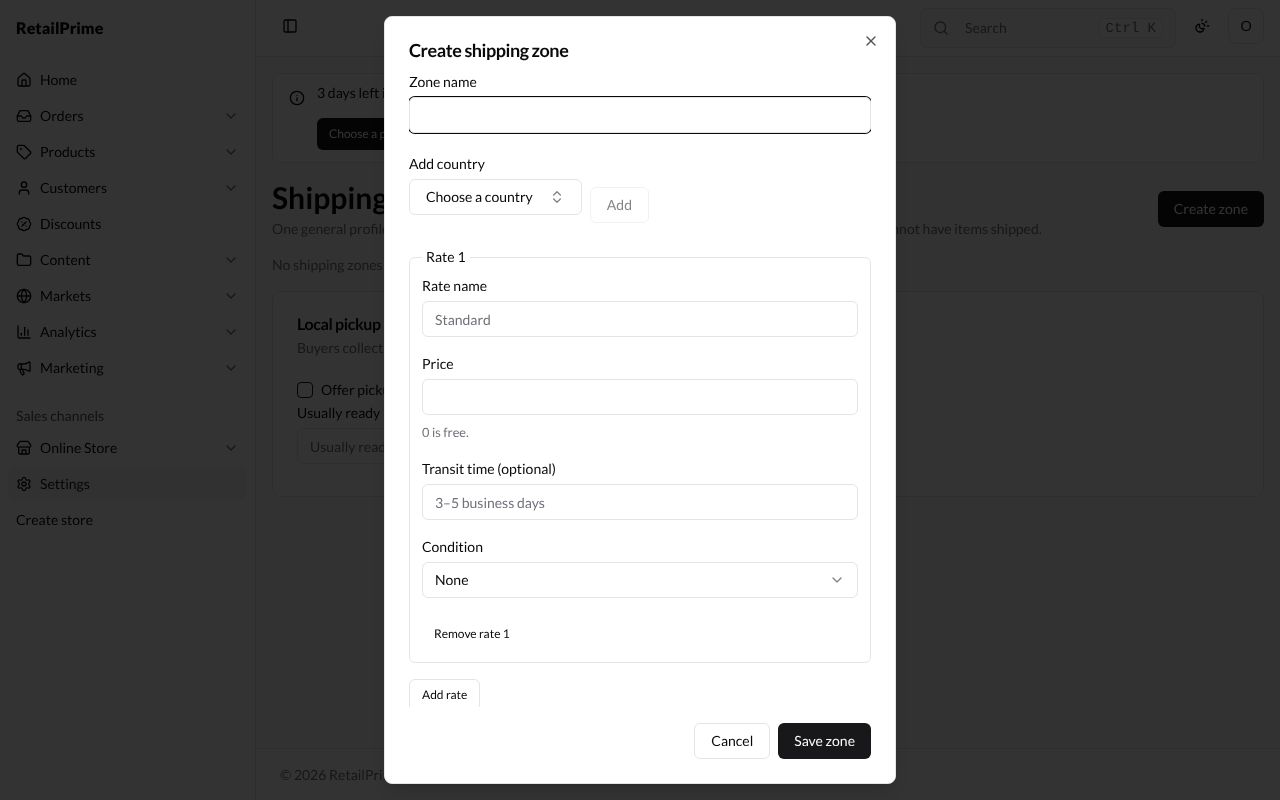
Press Create zone. The Create shipping zone window opens with one empty rate, Rate 1.
-
Type the Zone name, here
Pakistan. -
In Add country, choose a country and press Add. It appears under the box with a × to take it off again. Add as many countries as the zone needs.
-
Fill in Rate 1:
| Box | What to type | Example |
|---|---|---|
| Rate name | What buyers see at checkout | Standard |
| Price | 0 is free. | 250 |
| Transit time (optional) | How long delivery takes | 3–5 business days |
| Condition | None (always offered), Order weight (grams) or Order subtotal. With a condition, Minimum and Maximum boxes appear | None |
-
Press Add rate for another rate. Here Rate 2 is
Free delivery, Price0, Condition Order subtotal, Minimum3000: free delivery on orders of PKR 3,000 or more. Remove rate 2 takes a rate off.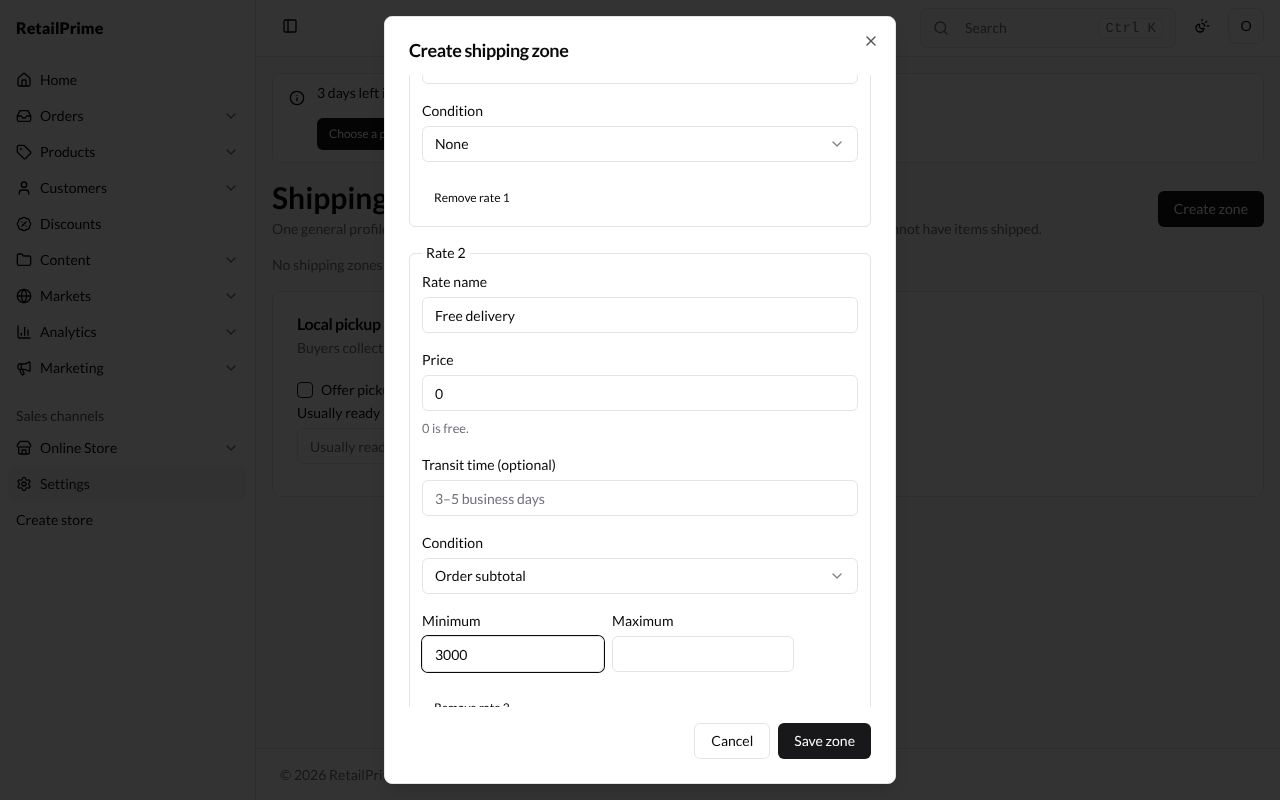
-
Press Save zone. The zone is a card, with its countries and one line per rate: Standard · PKR 250 · 3–5 business days · Always and Free delivery · Free · Subtotal from 3000.00.
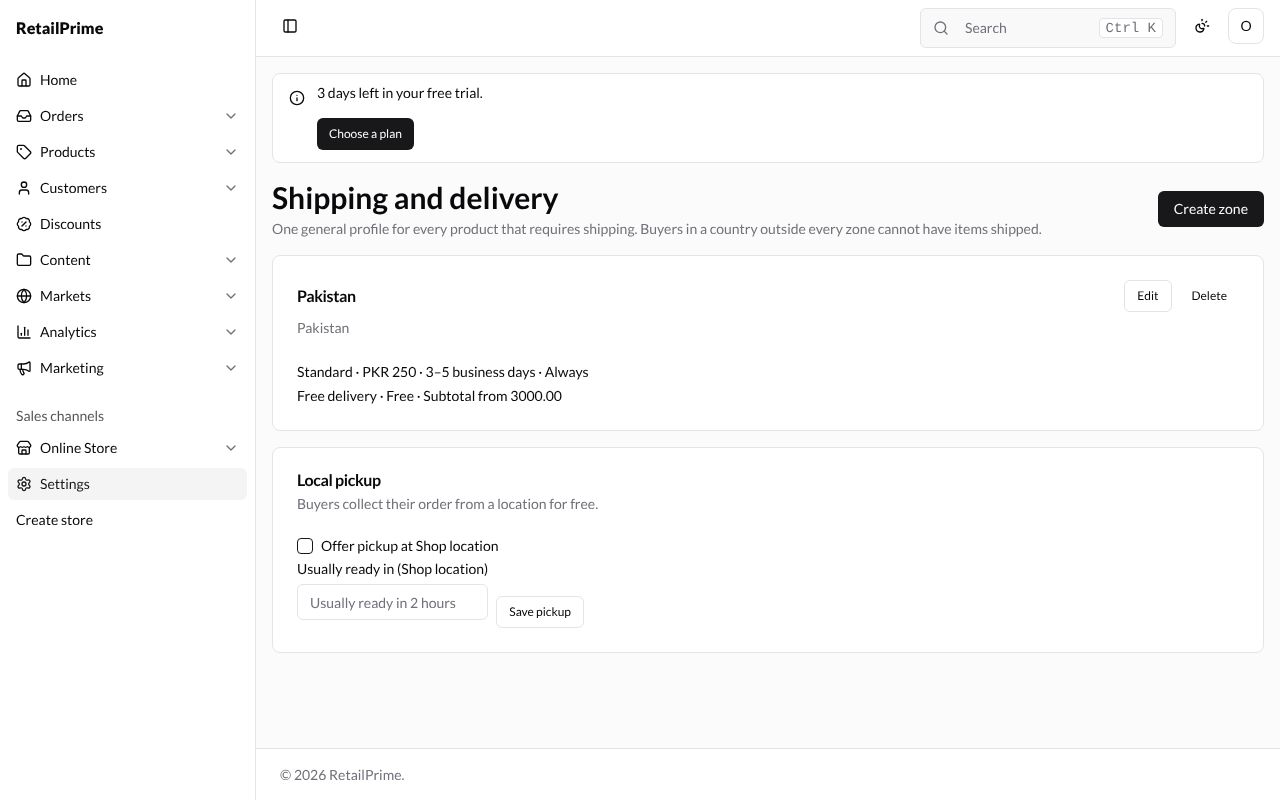
A zone with no rates says No rates: buyers in this zone cannot choose a shipping method.
Edit a zone
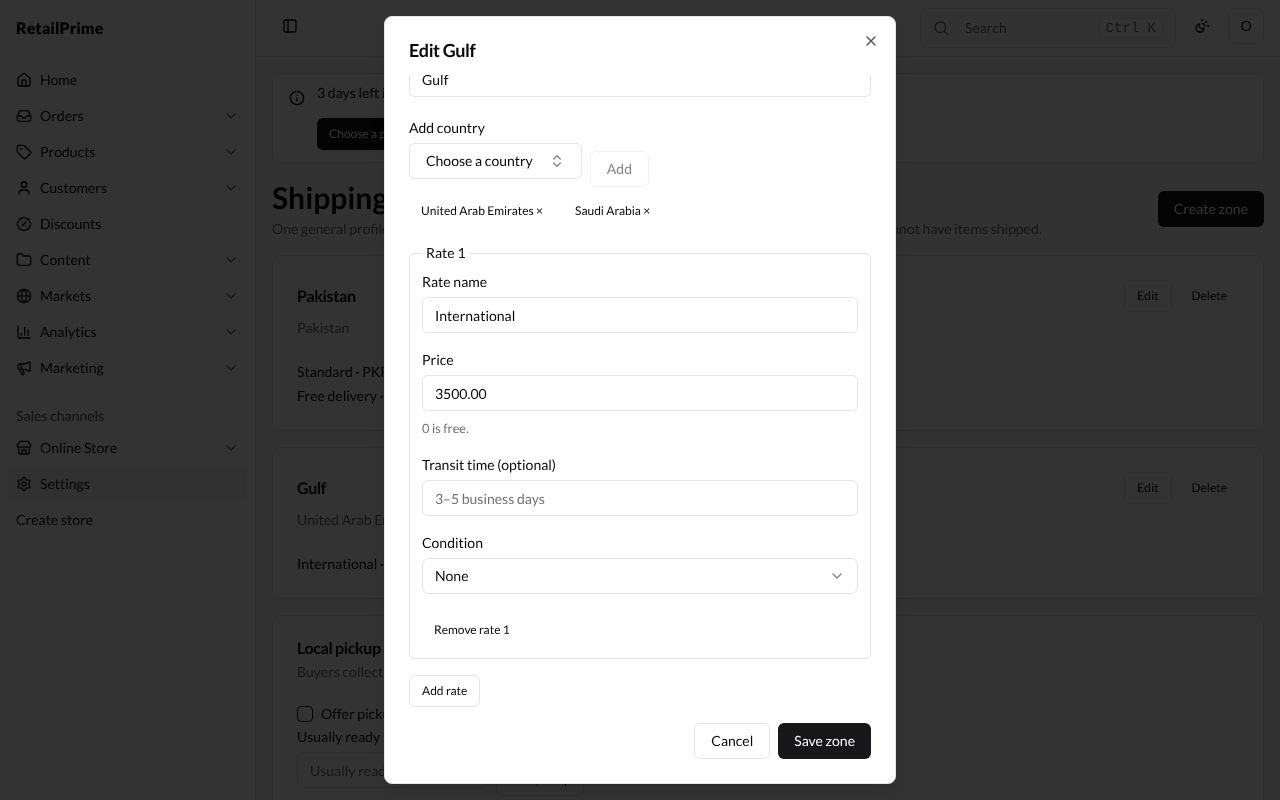
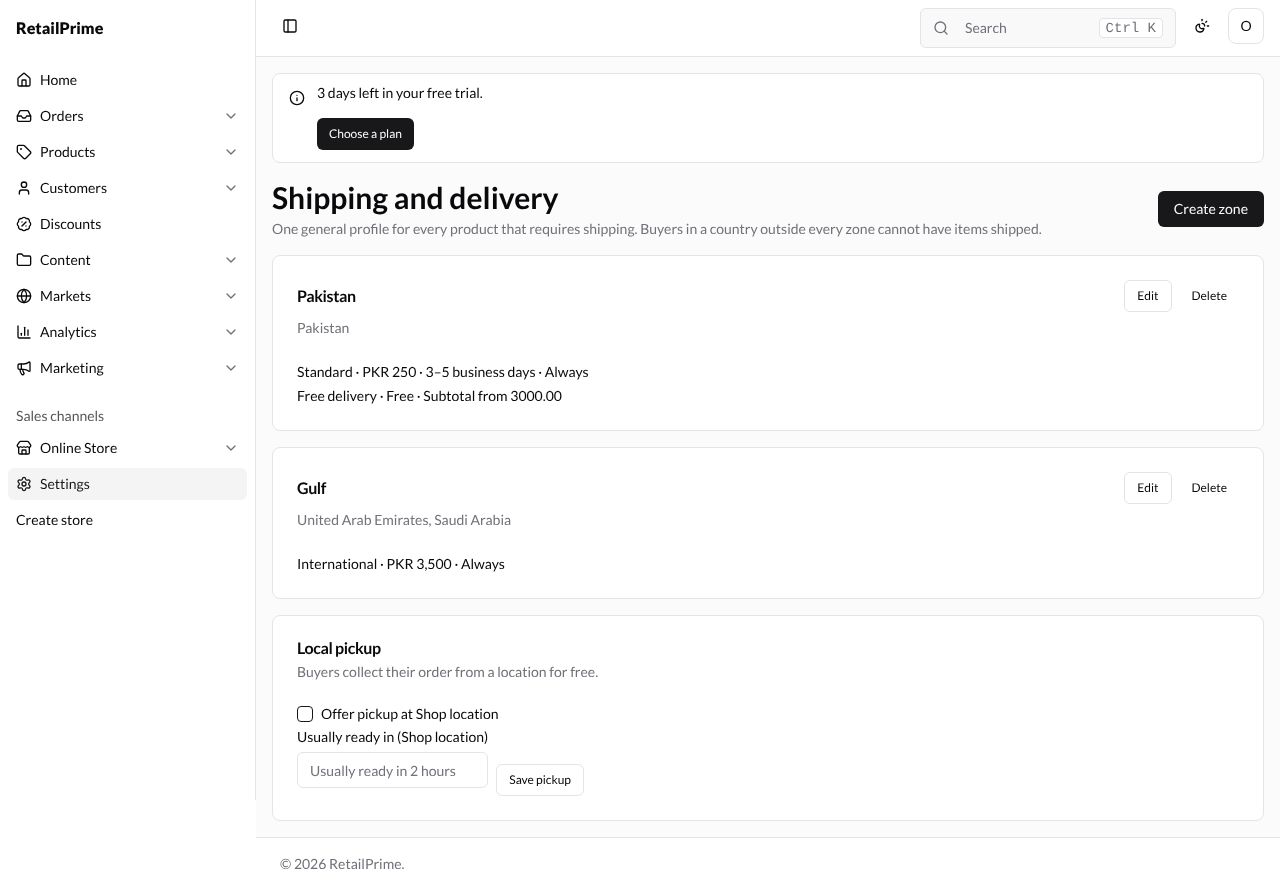
Here a second zone, Gulf, has United Arab Emirates and one rate, International, PKR 3,500. To add Saudi Arabia:
-
Press Edit on the zone’s card. The window is called Edit Gulf.
-
Change anything: here choose Saudi Arabia in Add country and press Add.
-
Press Save zone.
Delete a zone
Press Delete on the zone’s card. The zone is deleted at once, without asking first, so be sure before you press it.
Local pickup
Buyers collect their order from a location for free. There is a line for each active location that fulfils online orders (Locations shows how to add one).
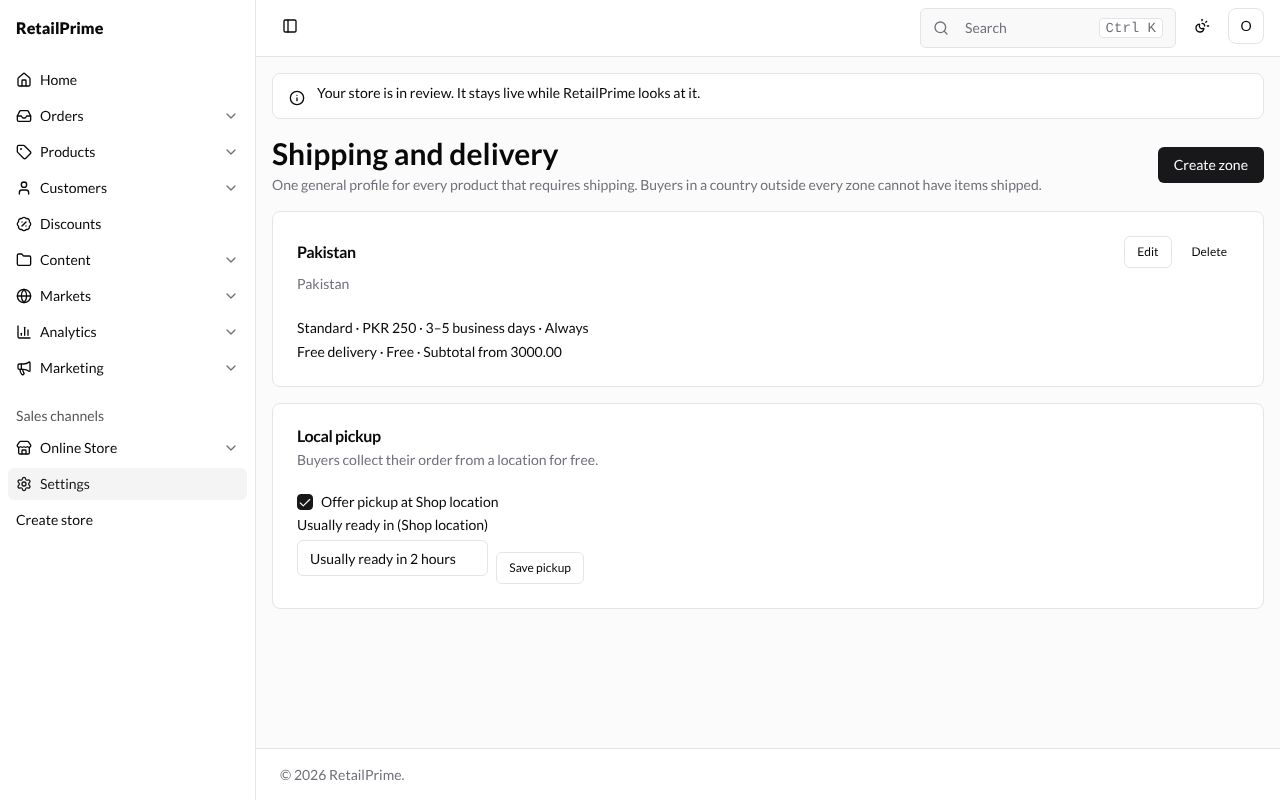
- Tick Offer pickup at Shop location.
- In Usually ready in (Shop location), type what buyers are told, such as
Usually ready in 2 hours. - Press Save pickup.
A buyer picks up an order
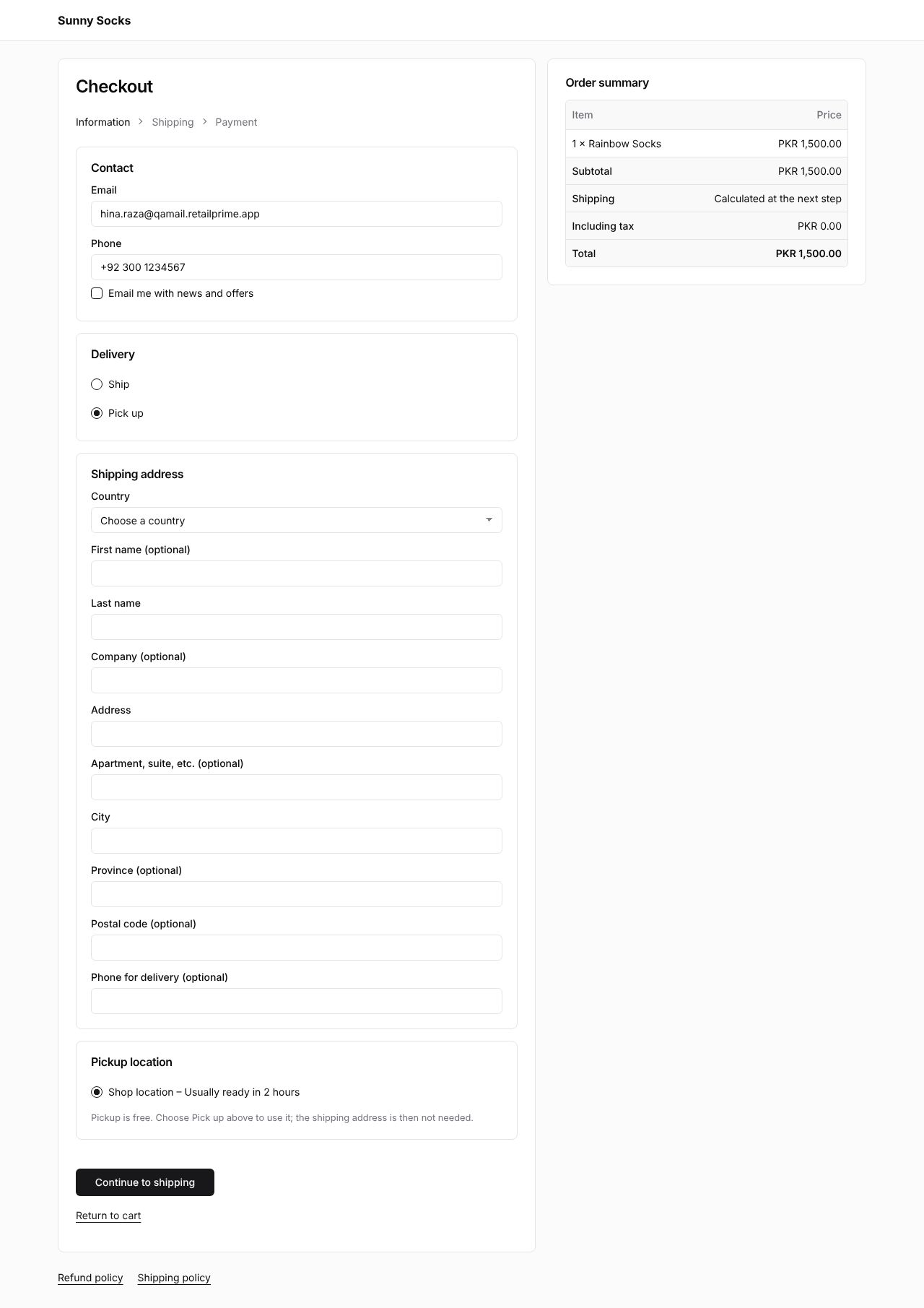
With pickup on, the checkout’s Delivery card offers Ship and Pick up. A buyer who chooses Pick up chooses the location under Pickup location (Shop location – Usually ready in 2 hours). Pickup is free. Choose Pick up above to use it; the shipping address is then not needed.
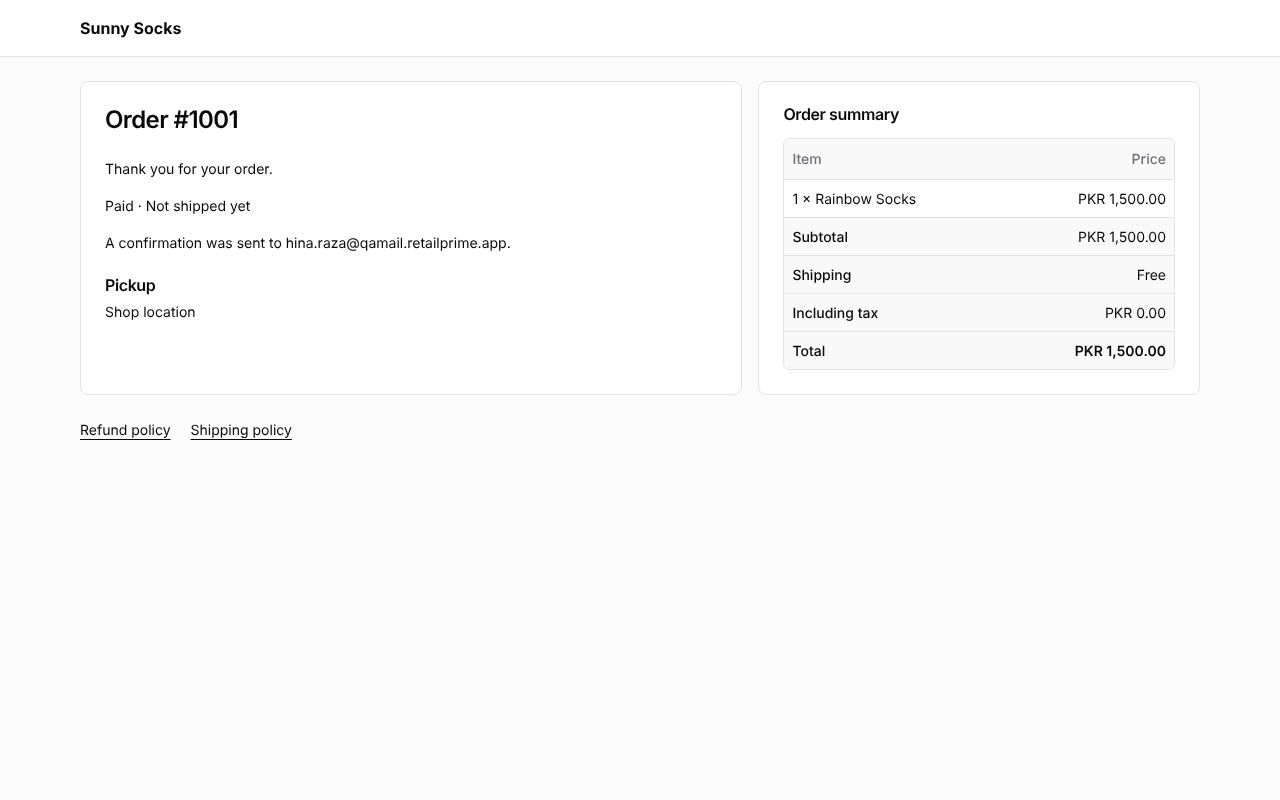
They go straight to the payment step (shipping is Free), pay with the test card, and see their order. It says Pickup and Shop location.
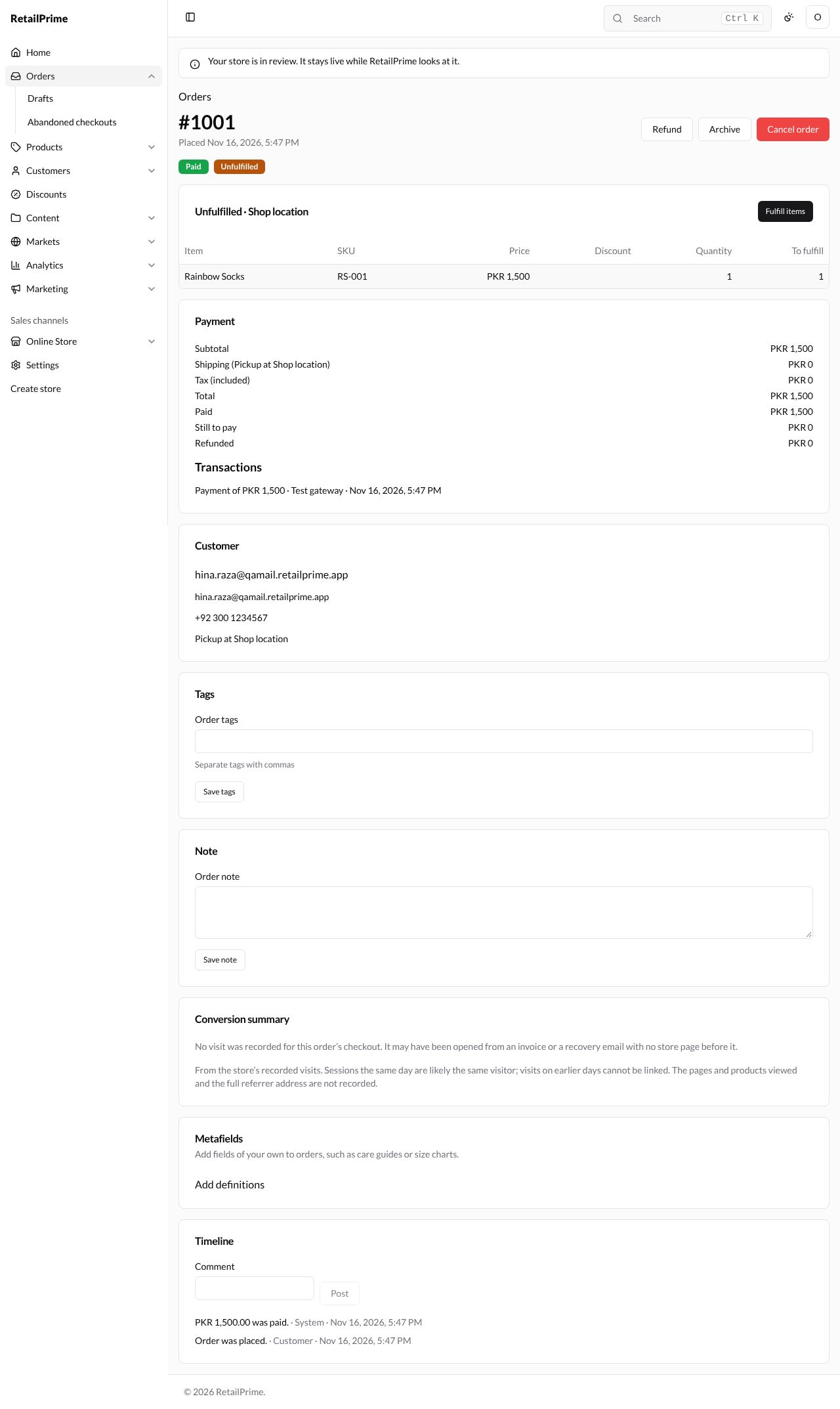
In the Admin, the order says Pickup at Shop location in the Customer card, and Shipping (Pickup at Shop location) costs PKR 0.
Mark as picked up
-
Fulfil the order as for any order (Fulfil and deliver): press Fulfill items, then Fulfill items in the window.
-
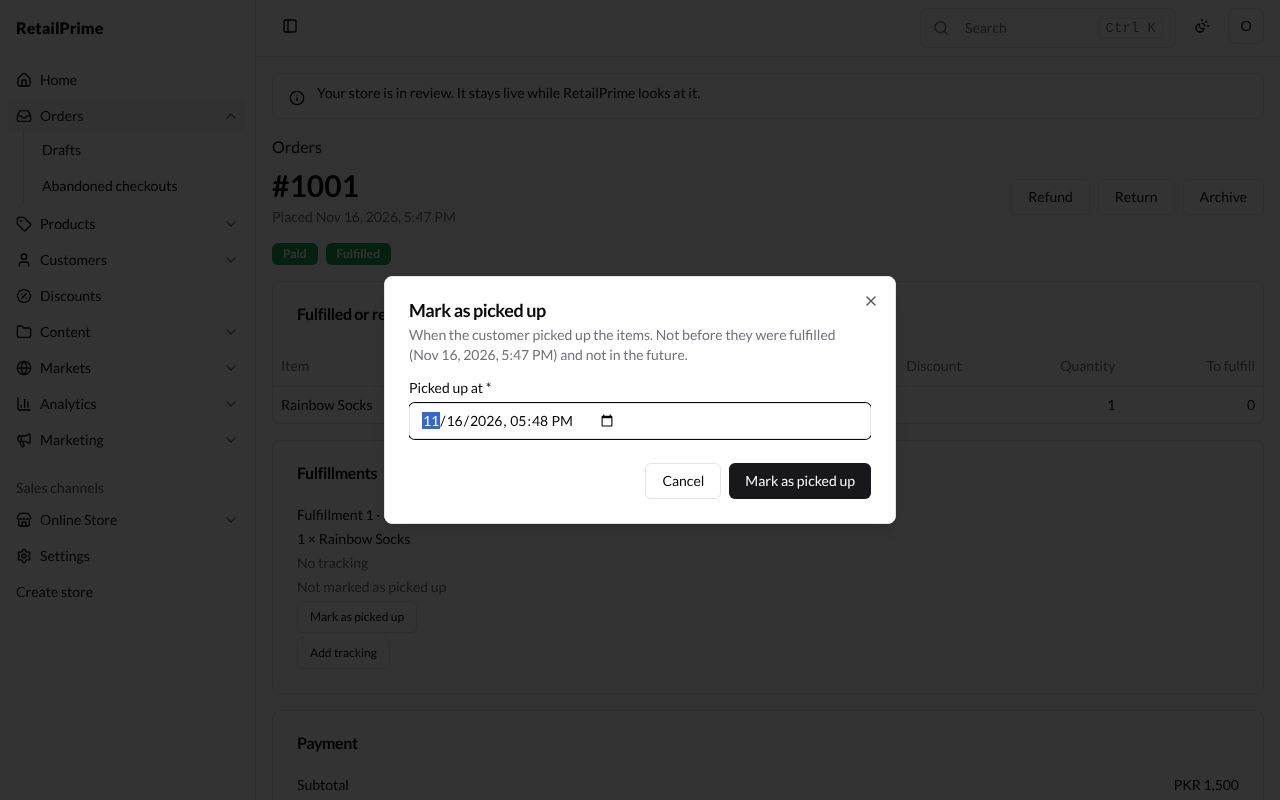
The Fulfillments card says Not marked as picked up. When the buyer has collected the order, press Mark as picked up.
-
The window Mark as picked up says When the customer picked up the items. Not before they were fulfilled (the time) and not in the future. Picked up at starts at now; change it if they came earlier.
-
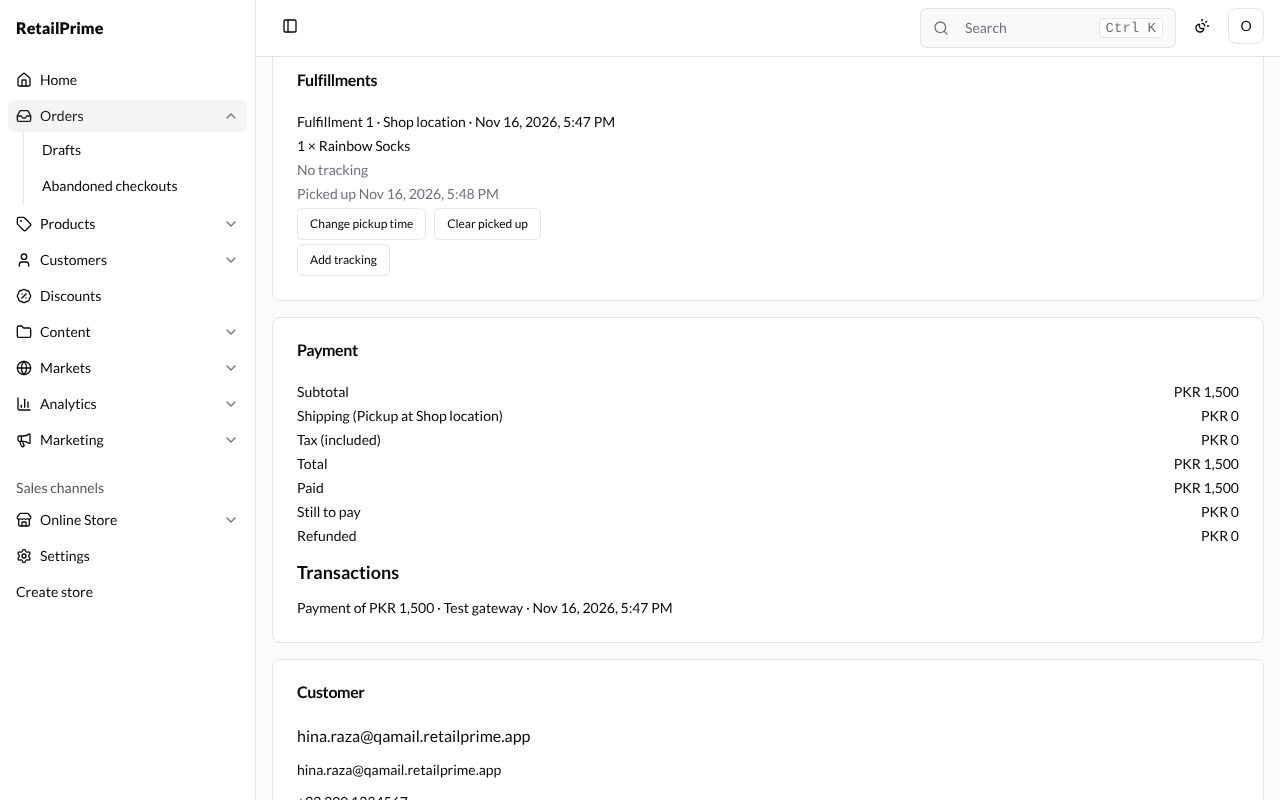
Press Mark as picked up. The fulfilment says Picked up and the time, with Change pickup time and Clear picked up to correct it.
What’s next
Taxes: set the tax rates for the countries you sell to.