Domains
See your store's RetailPrime address, connect a domain of your own, follow it from Pending to Connected, make it primary, and remove it.
In Settings, press Domains. The page says The addresses buyers use to reach your online store. The primary domain is the one shown in search results and links. Every store starts with its RetailPrime address (such as e2e-f8ffd91b.stg.retailprime.app), Primary and Connected.
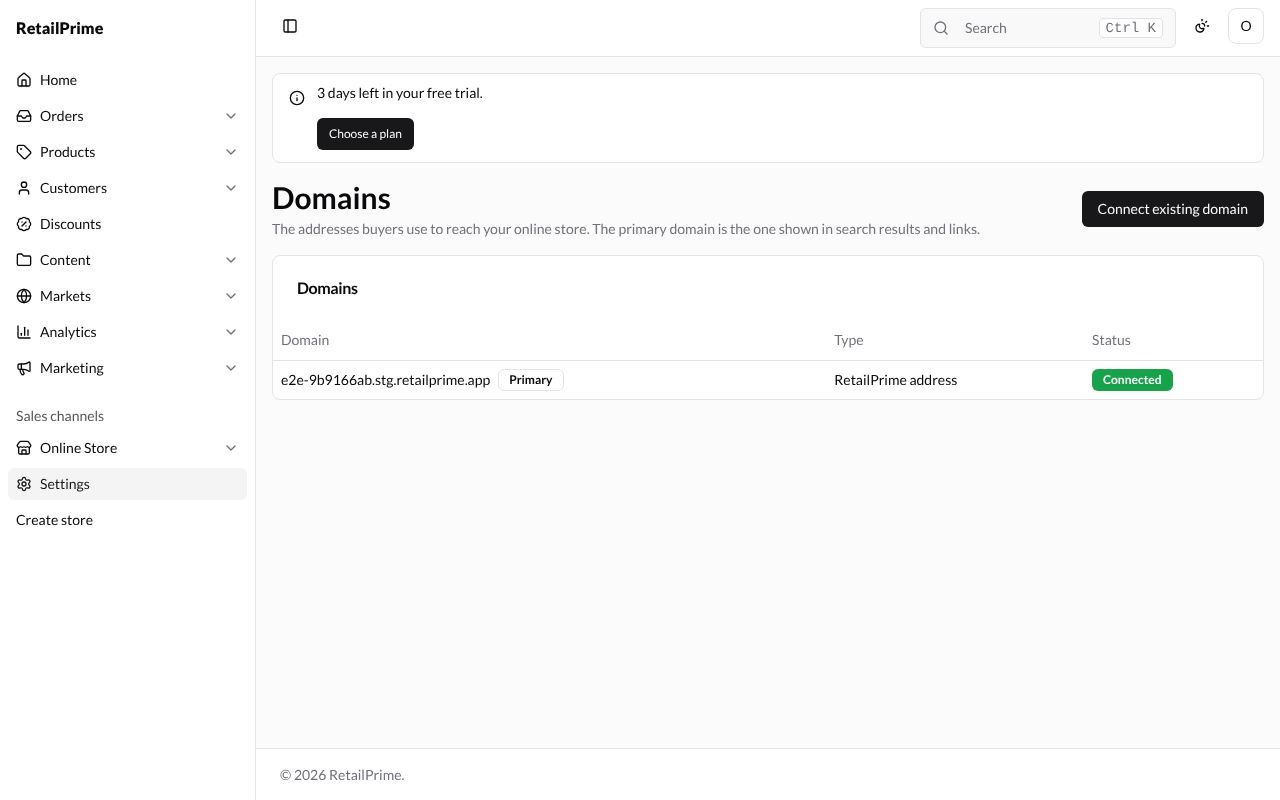
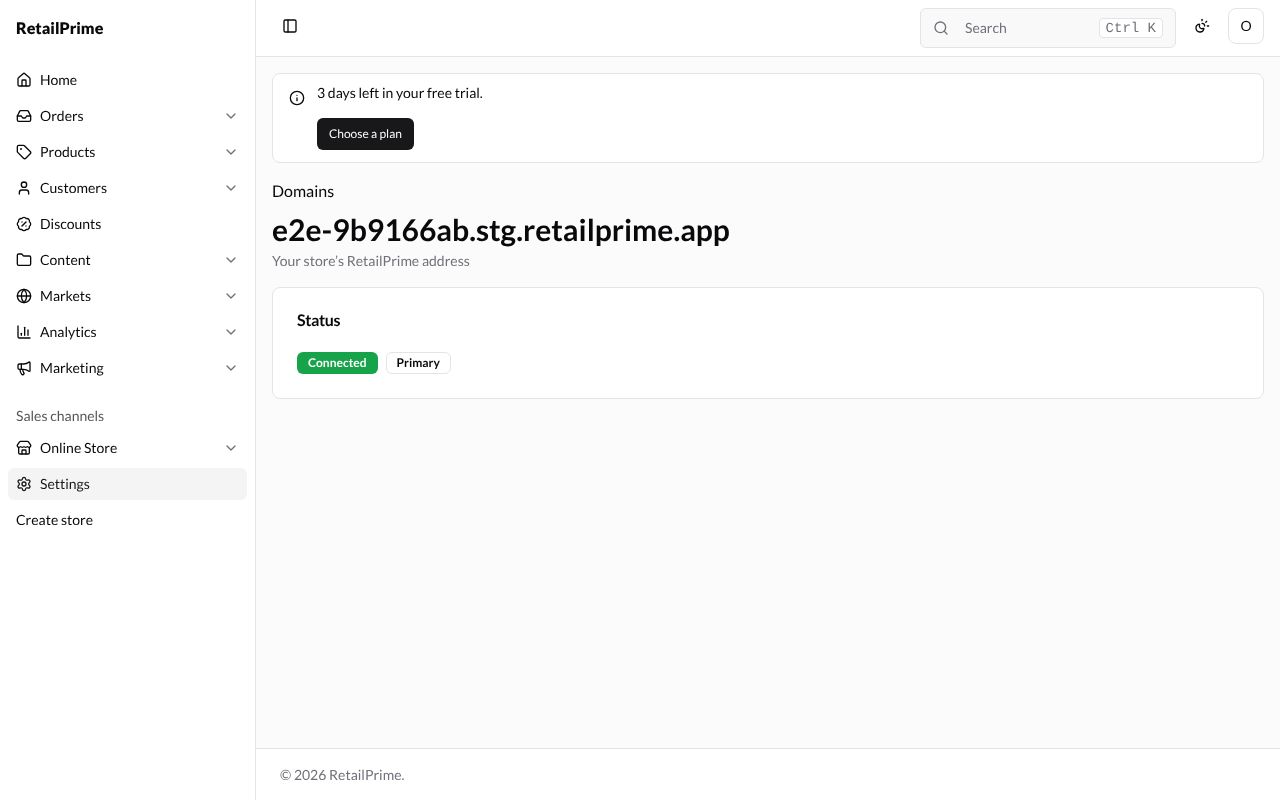
Press an address to open its page. The RetailPrime address’s page says Your store’s RetailPrime address, with its Status.
Connect a domain you own
You need a domain you have bought from a domain provider. The example below is www.sunnysocks.example.com; use your own.
-
On the Domains page, press Connect existing domain. The page says Use a domain you already own, such as www.example.com.
-
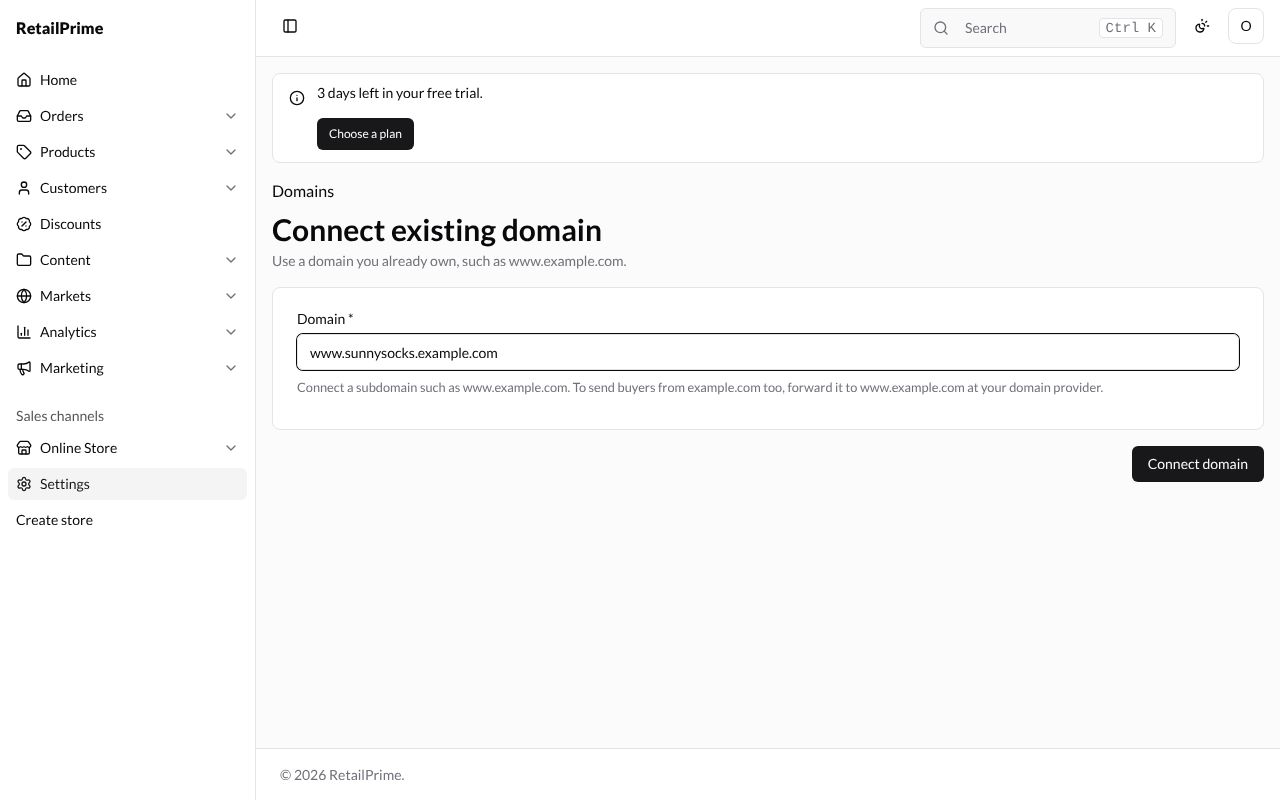
In Domain, type the domain, starting with
www.(or another subdomain): Connect a subdomain such as www.example.com. To send buyers from example.com too, forward it to www.example.com at your domain provider. A domain withoutwww.is refused with a message such as Connect a subdomain such as www.sunnysocks.com, then forward sunnysocks.com to it at your domain provider.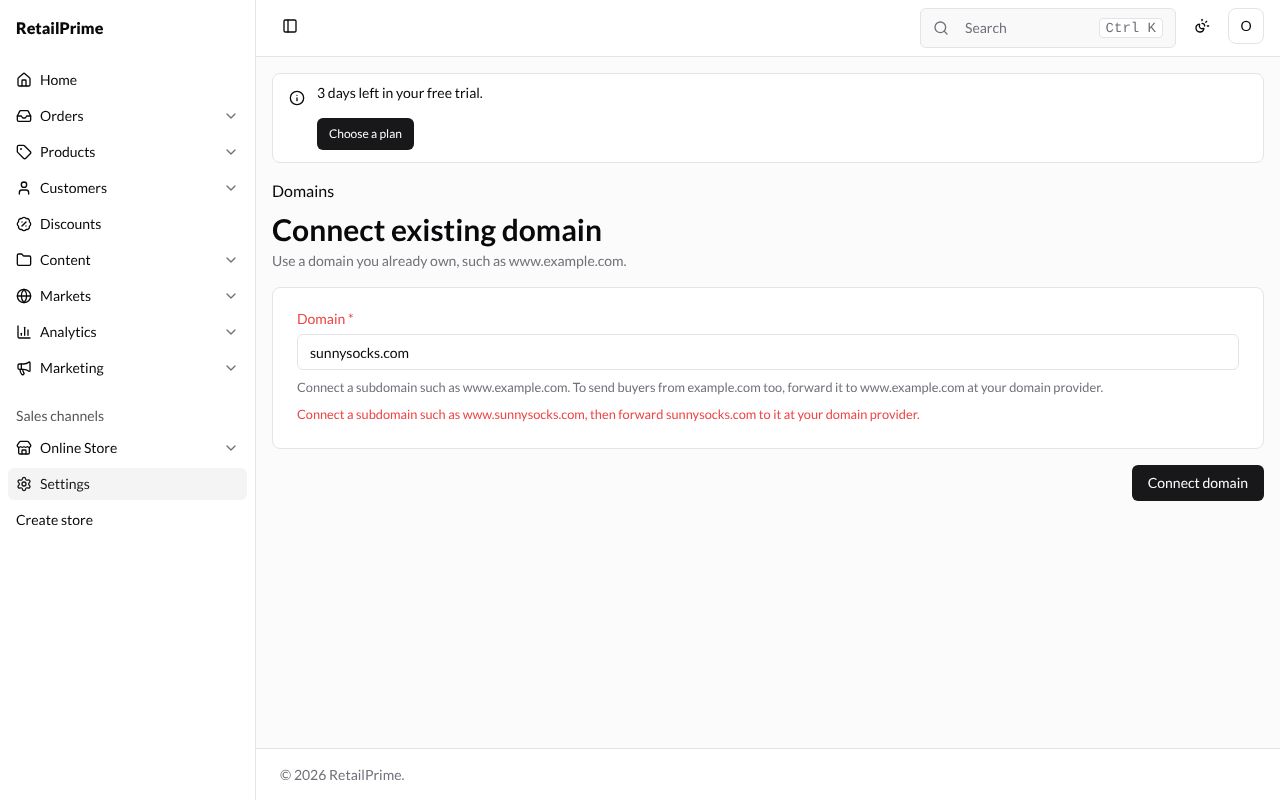
-
Press Connect domain.
Pending: add the DNS record
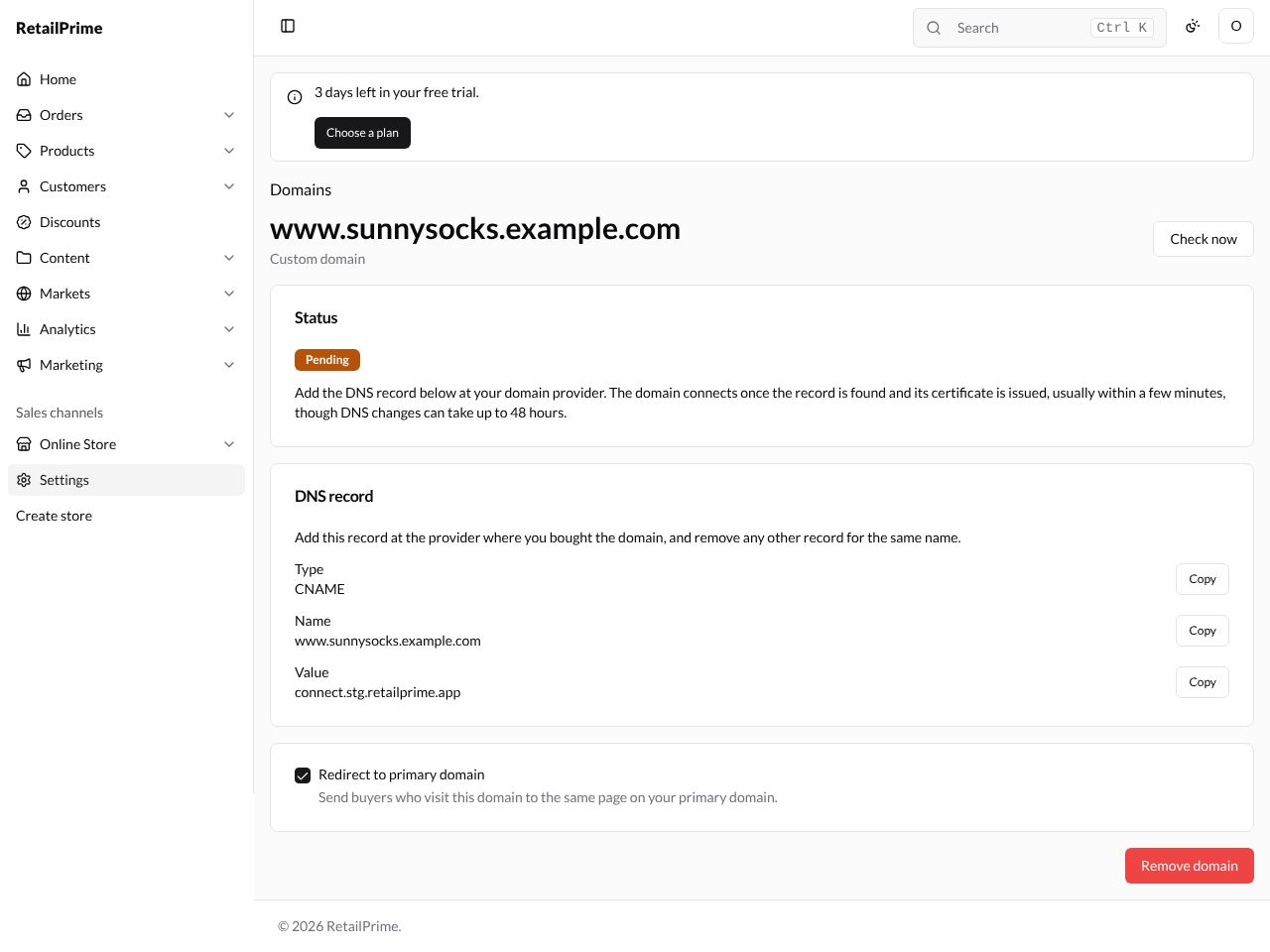
The domain’s page says Custom domain and its status is Pending: Add the DNS record below at your domain provider. The domain connects once the record is found and its certificate is issued, usually within a few minutes, though DNS changes can take up to 48 hours.
The DNS record card says Add this record at the provider where you bought the domain, and remove any other record for the same name. It gives the Type (CNAME), the Name (your domain) and the Value (connect.stg.retailprime.app), each with a Copy button. Sign in at your domain provider and add that record.
Connected
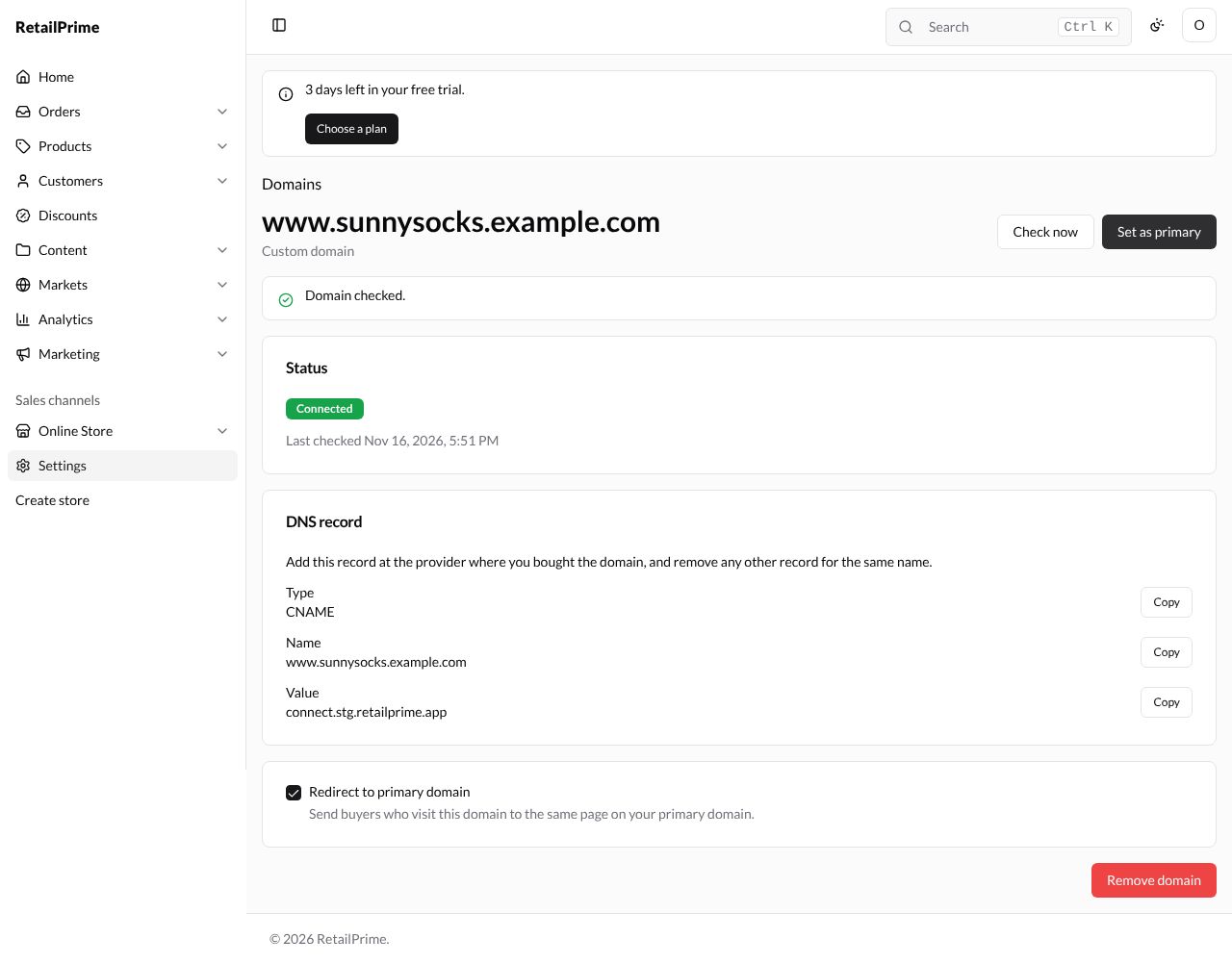
RetailPrime checks a pending domain a minute after you connect it, then every 5 minutes. To check at once, press Check now. The page says Domain checked., and once the record is found the status is Connected, with Last checked and the time.
A domain still pending after 7 days (or one your domain provider blocks or moves) becomes Failed: This domain could not be connected and no longer reaches your store. Remove it, then connect it again once its DNS record is in place.
Make it the primary domain
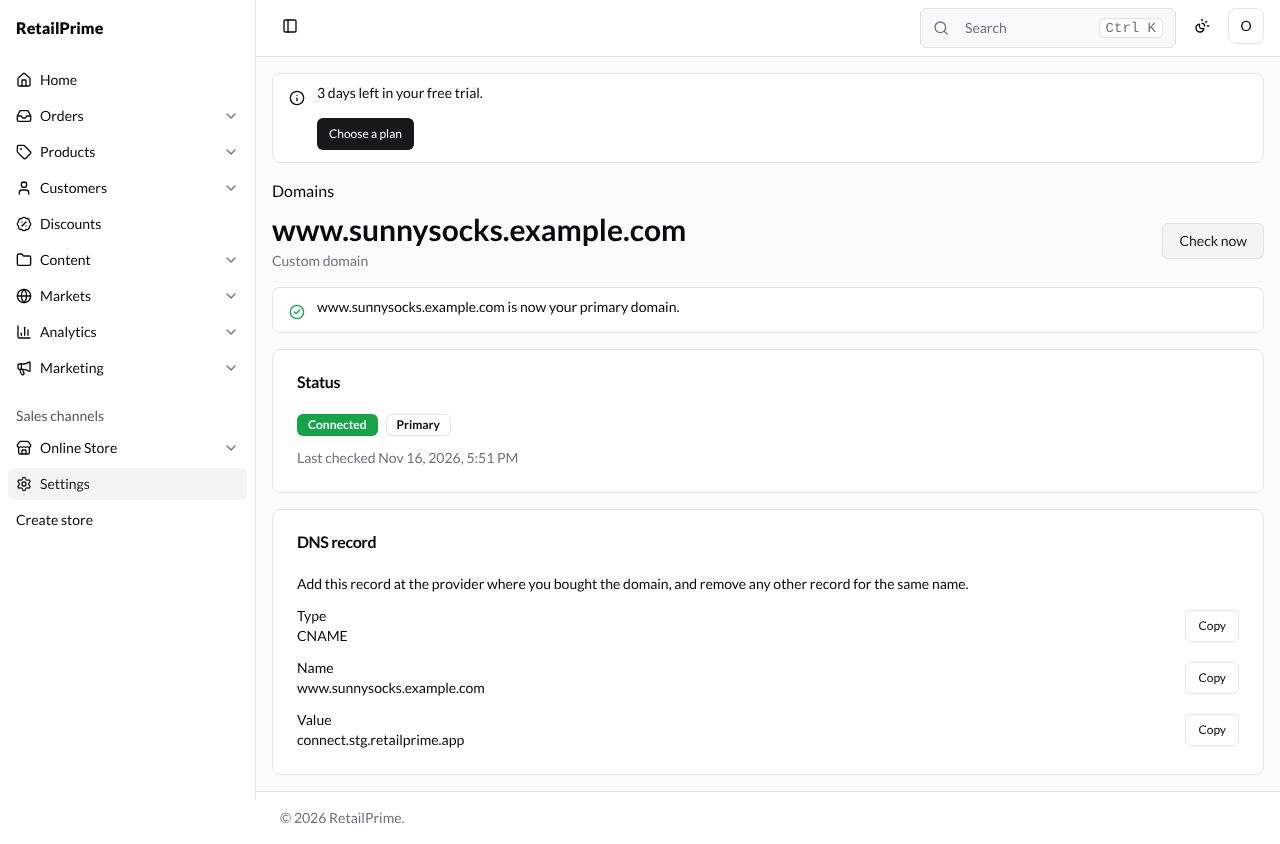
The primary domain is the address buyers are sent to and see in links. Press Set as primary on a connected domain. The page says www.sunnysocks.example.com is now your primary domain.
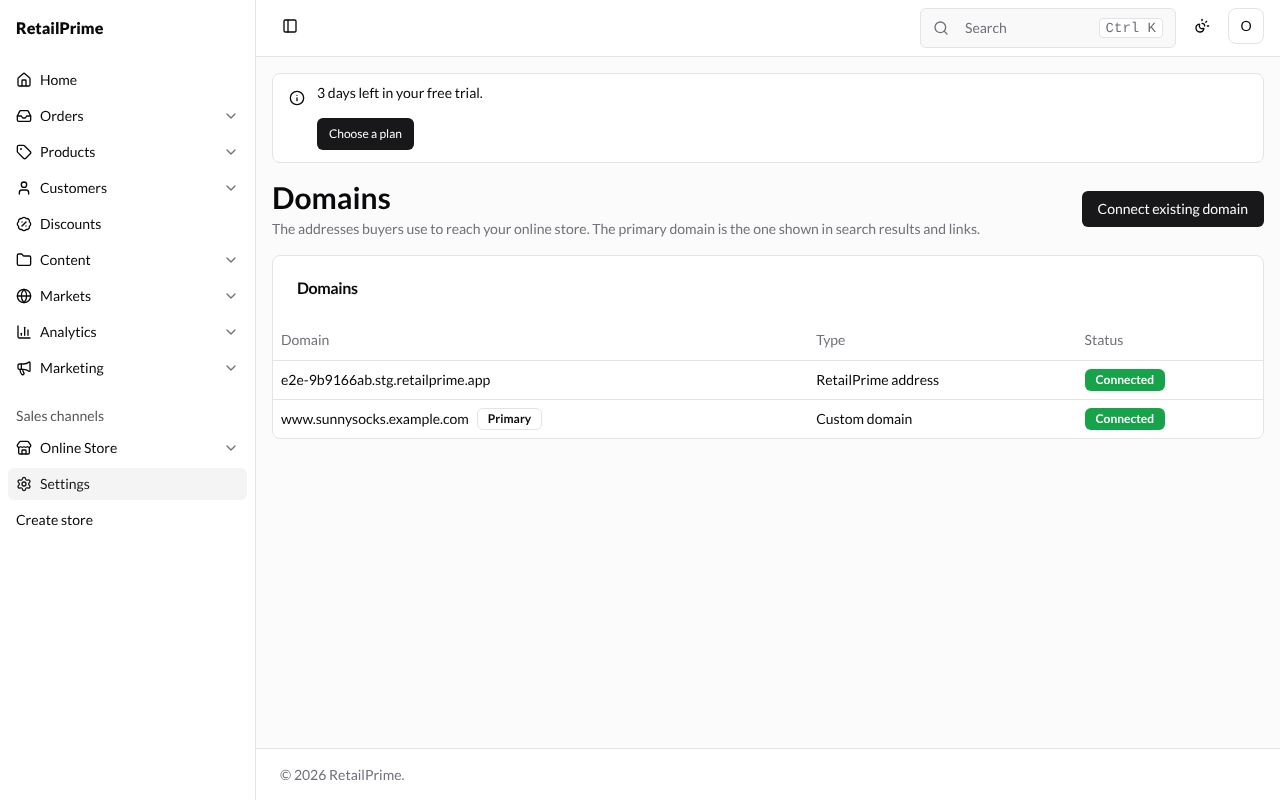
The Domains page now shows Primary next to it.
Redirect to primary domain
Each address that isn’t primary has Redirect to primary domain: Send buyers who visit this domain to the same page on your primary domain. It is ticked at first. Untick it to show your store on that address without redirecting; it is saved at once and the page says This domain now shows your store without redirecting. (Ticking it again says This domain now redirects to your primary domain.)
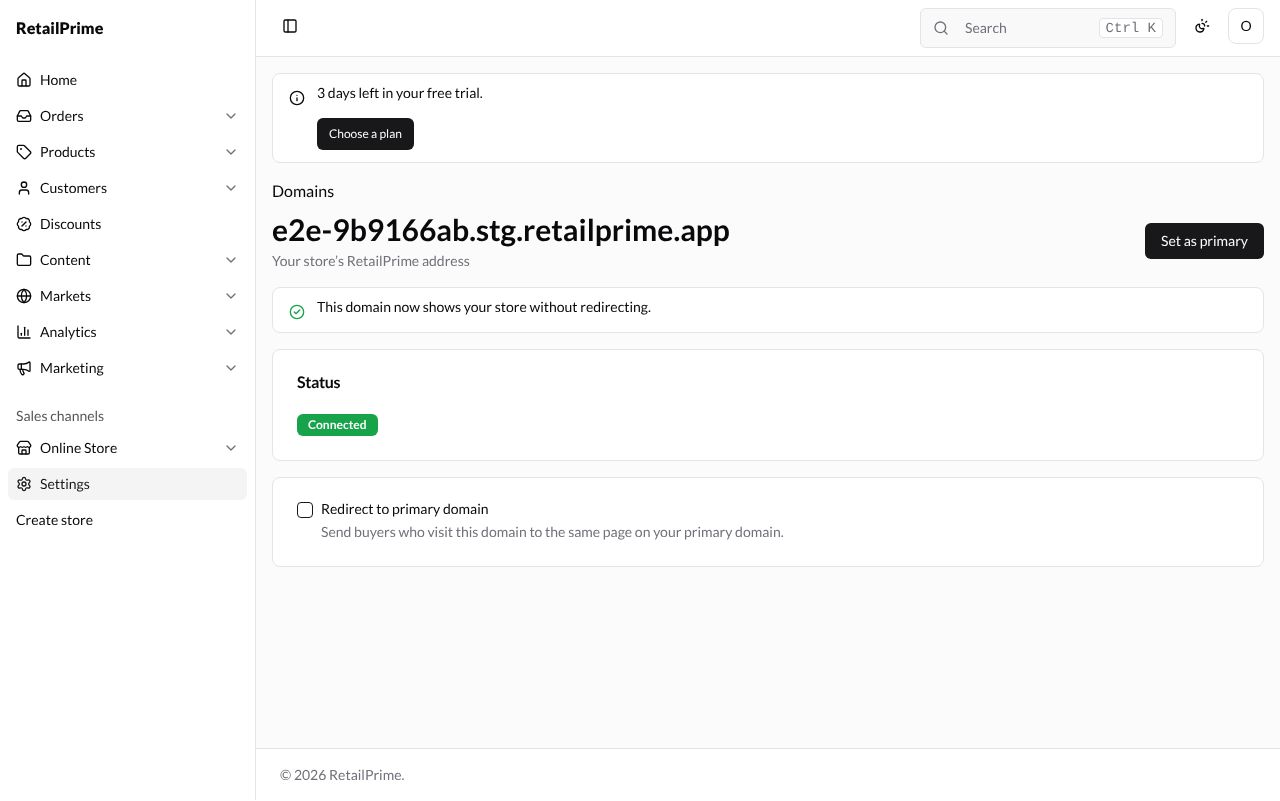
To make the RetailPrime address primary again, open it and press Set as primary.
Remove a domain
-
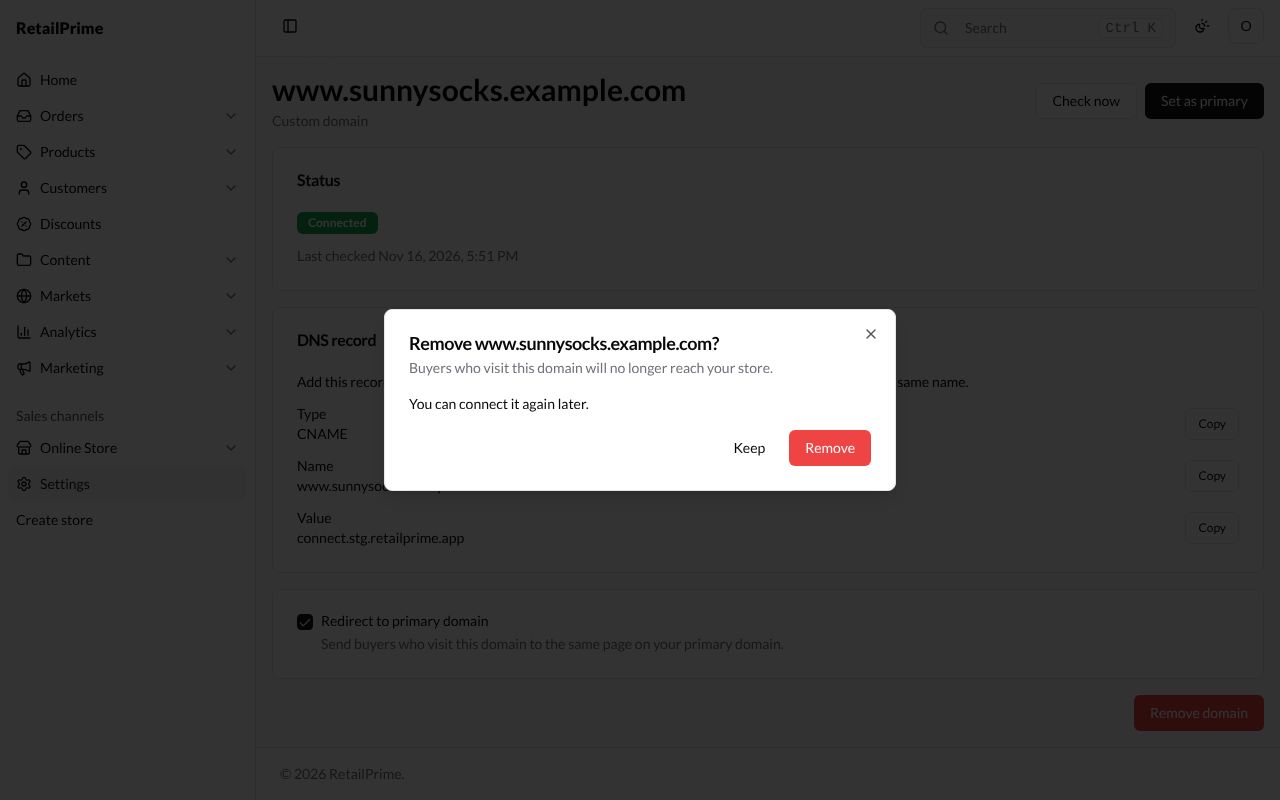
Open the domain and press Remove domain. The button is only there for a domain of your own that is not primary: to remove the primary one, make another address primary first.
-
A window asks Remove www.sunnysocks.example.com?: Buyers who visit this domain will no longer reach your store. and You can connect it again later.
-
Press Remove. You are back on the Domains page without it.
What’s next
Notifications and webhooks: the emails your store sends, and sending its events to your own systems.