Roles
See the Users page, then create, edit and delete roles: the sets of permissions you give to the people who work on your store.
Before you invite someone, decide what they may do. A role is a set of permissions you give to users.
The Users page
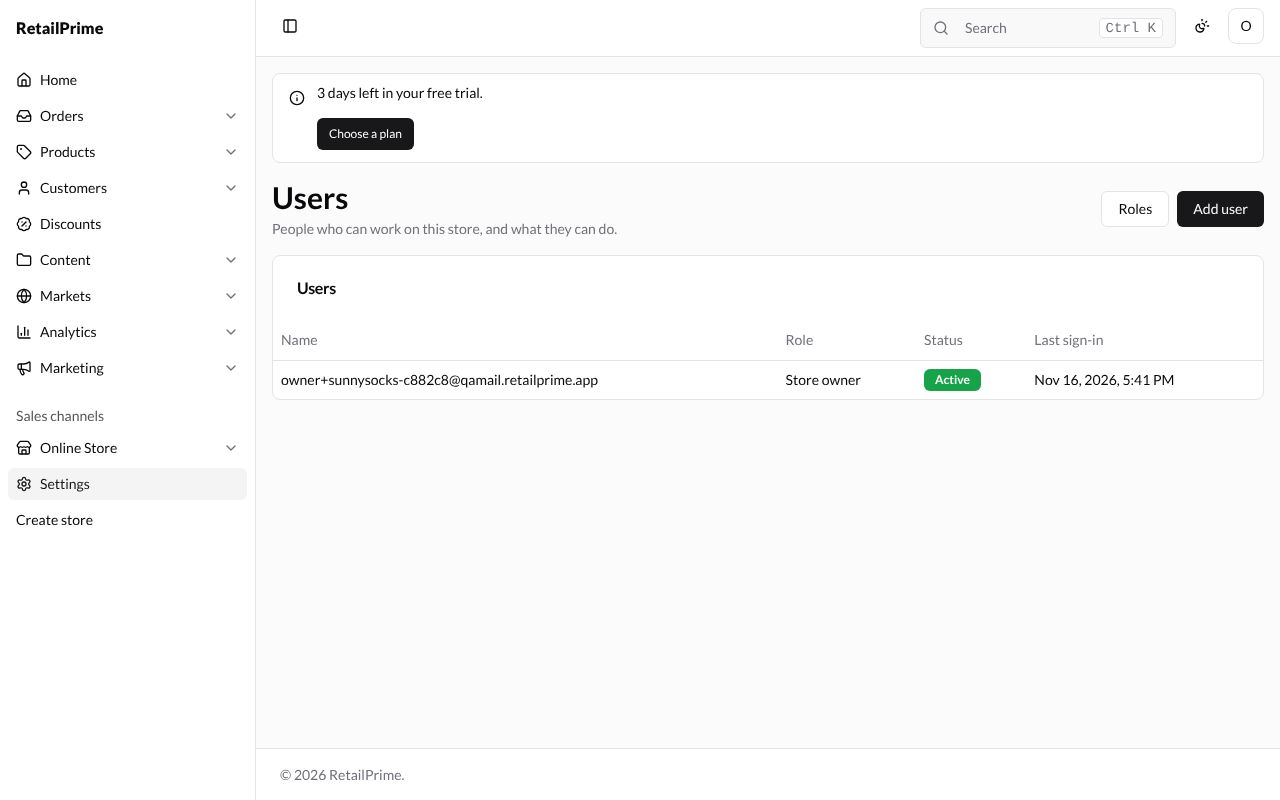
In the sidebar, press Settings, then Users. The page says People who can work on this store, and what they can do. At first only you are listed, as Store owner, Active, with the time you last signed in.
The Roles page
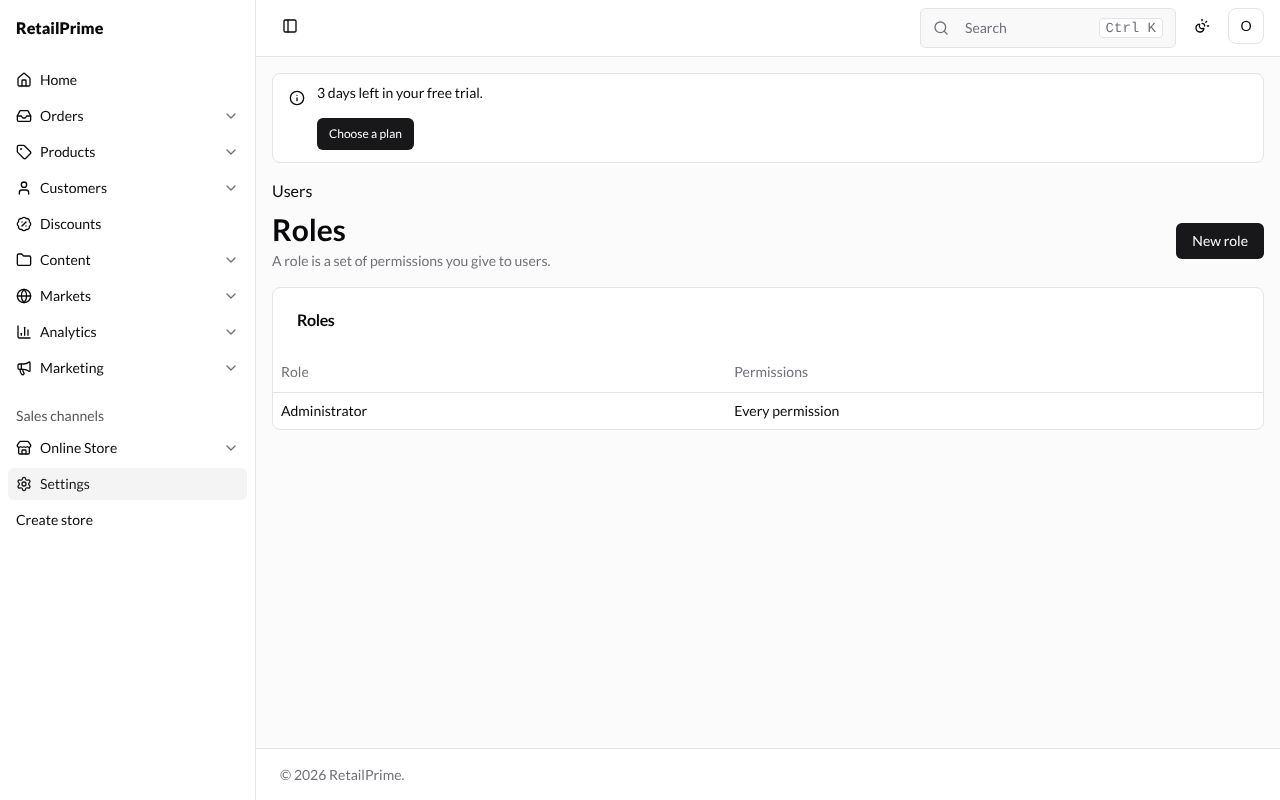
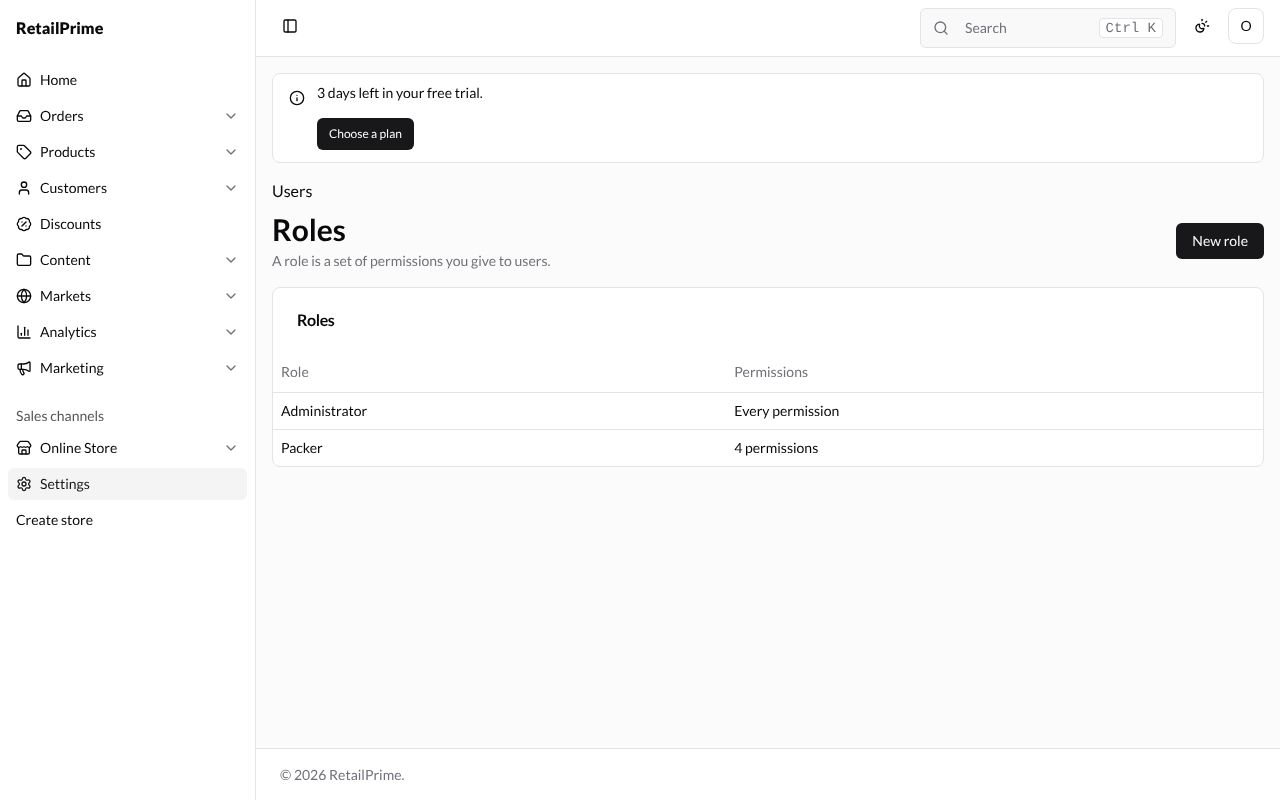
Press Roles at the top right. The page says A role is a set of permissions you give to users. A new store has one role, Administrator, with Every permission.
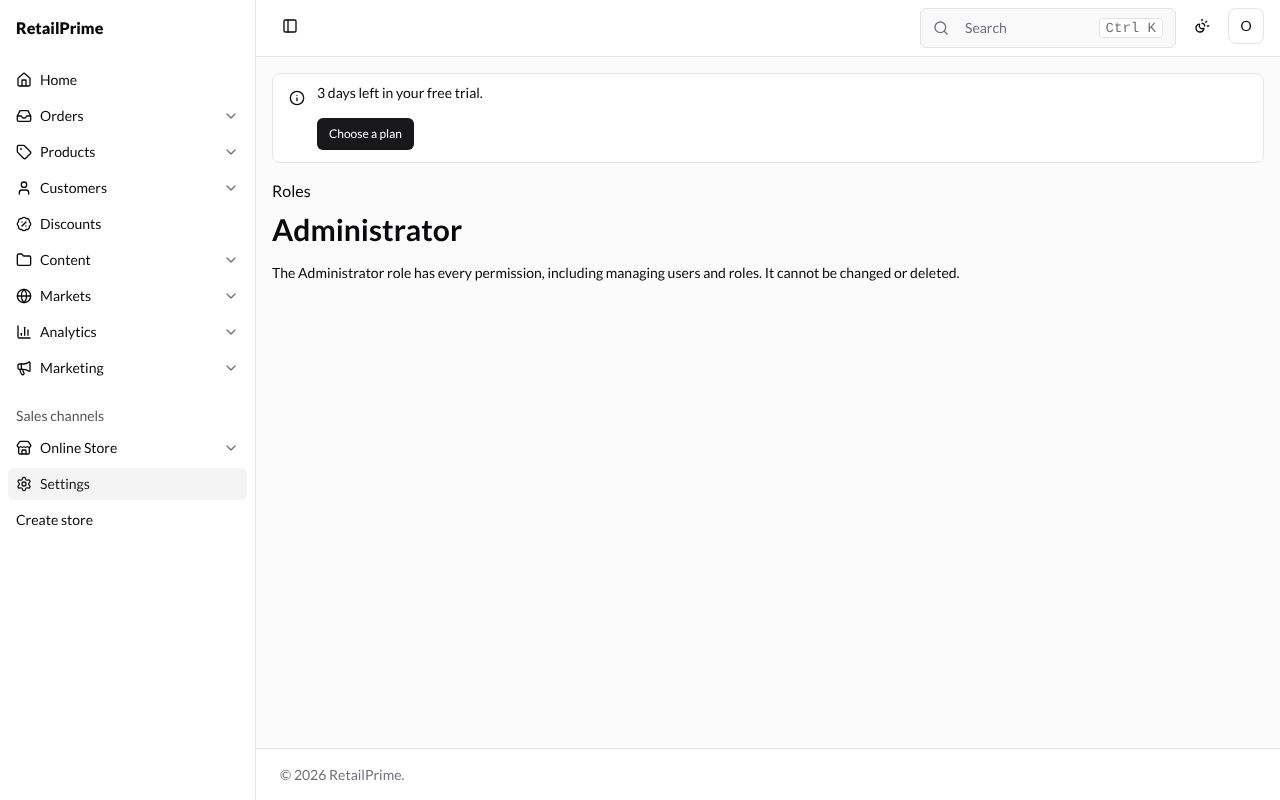
Press Administrator to open it. It says The Administrator role has every permission, including managing users and roles. It cannot be changed or deleted.
Create a role
-
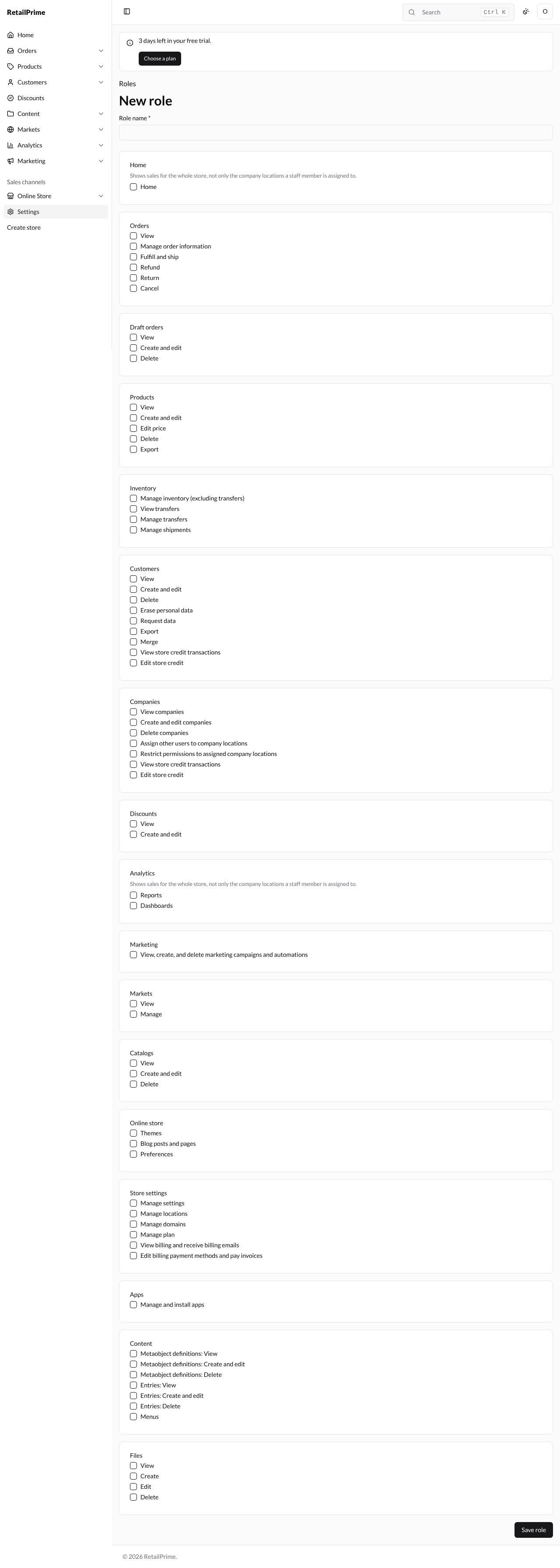
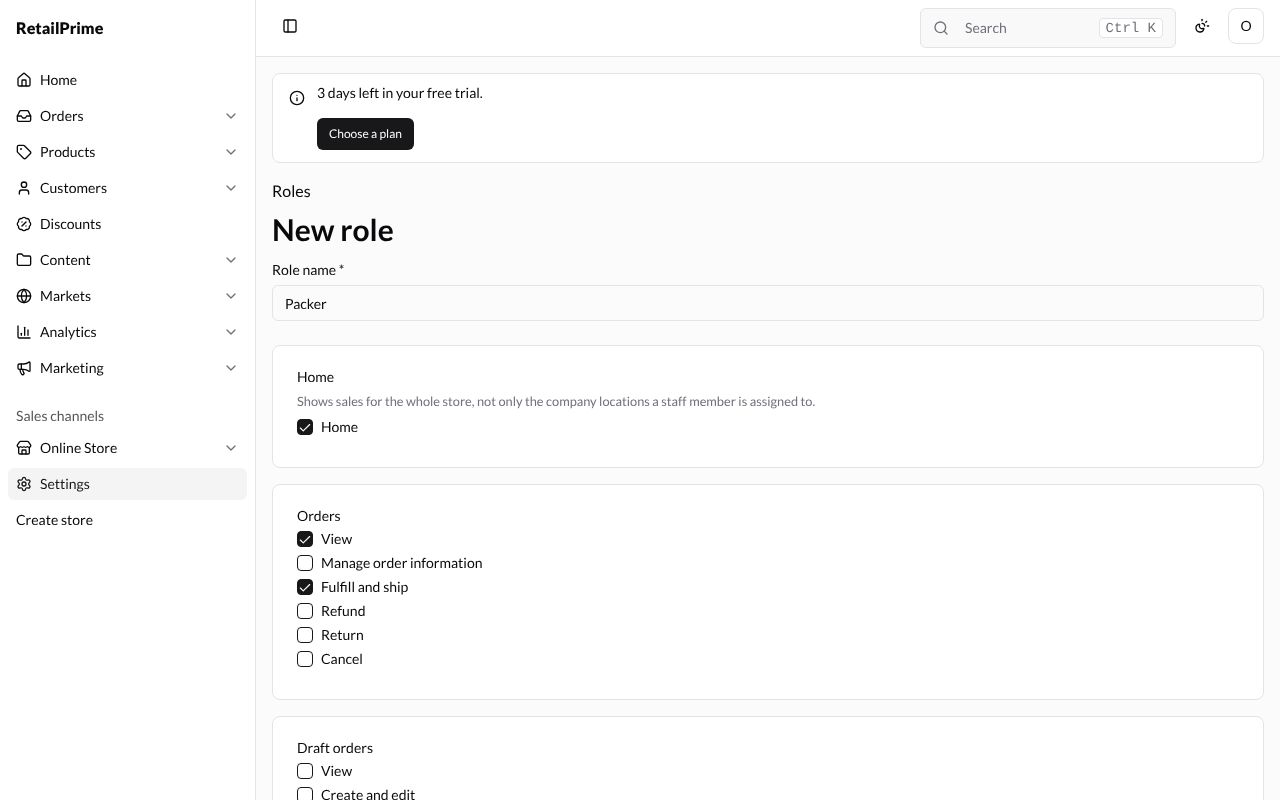
On the Roles page, press New role. The page lists every permission, grouped in cards: Home, Orders, Draft orders, Products, Inventory, Customers, Companies, Discounts, Analytics, Marketing, Markets, Catalogs, Online store, Store settings, Apps, Content and Files.
-
Type the Role name, here
Packer, for someone who packs orders. -
Tick what the role may do. For a packer: Home in the Home card; View and Fulfill and ship in Orders; View in Products.
-
Scroll down and press Save role. You are back on the Roles page, where Packer has 4 permissions.
Edit a role
-
On the Roles page, press the role’s name, here Packer.
-
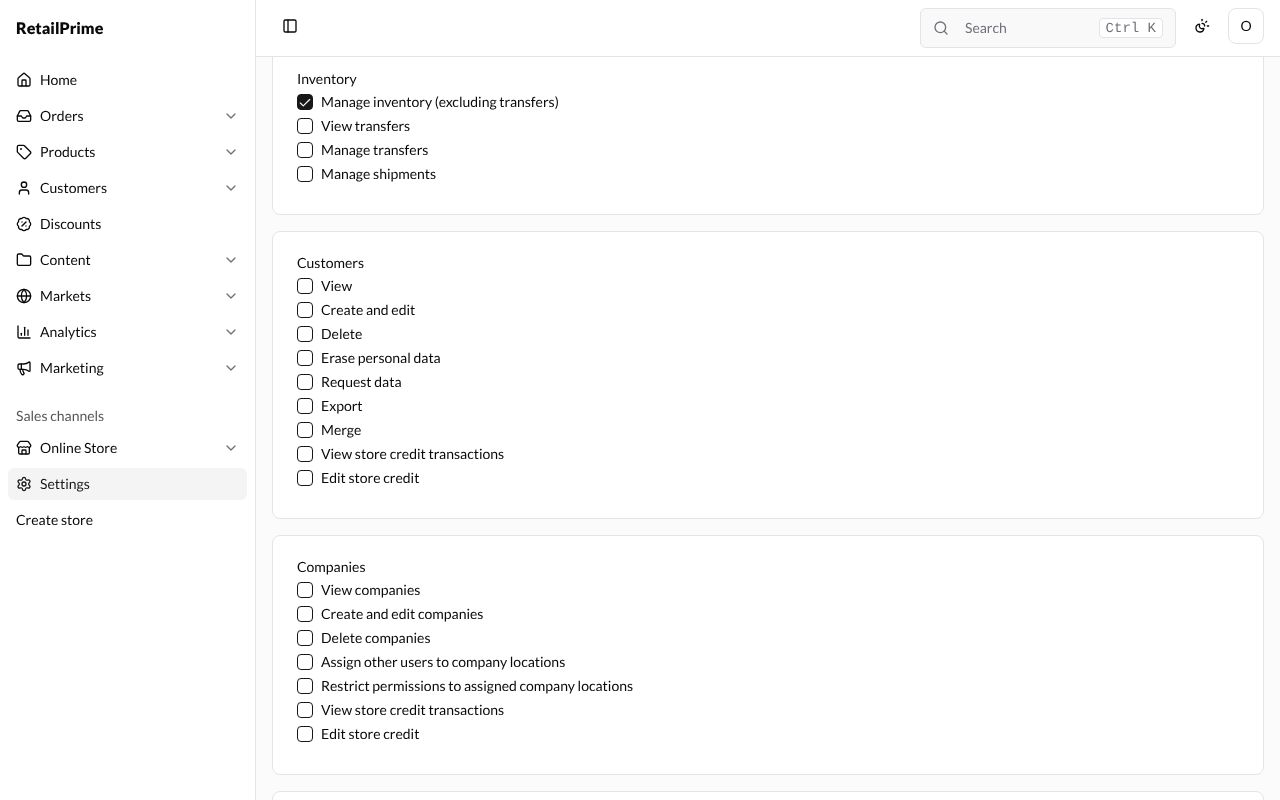
Change its name or tick and untick permissions. Here, in the Inventory card, tick Manage inventory (excluding transfers) so packers can count stock.
-
Press Save role. The Roles page now says 5 permissions. Everyone with the role gets the change.
Delete a role
Open the role and press Delete role at the bottom left. A window asks Delete Packer?: A role can be deleted only when no user or invitation has it. and This cannot be undone. Press Delete (or Keep to leave it).
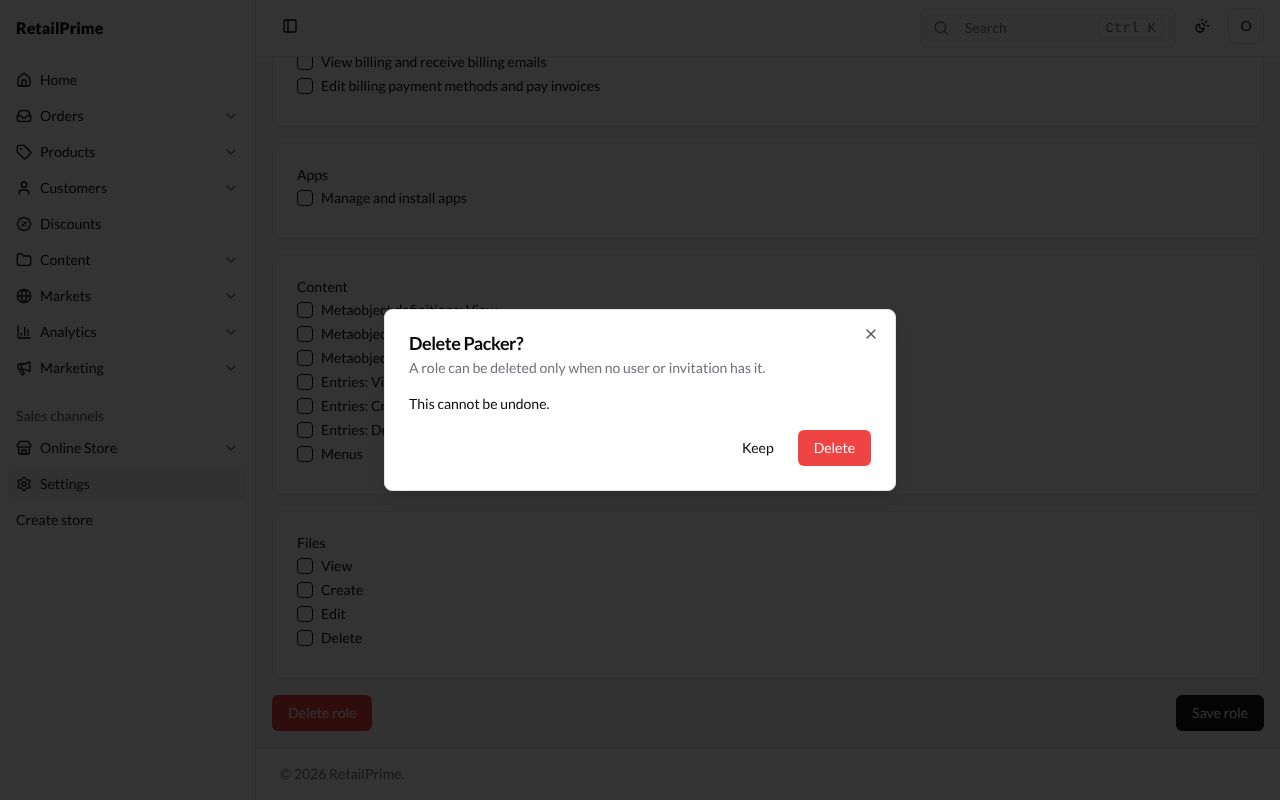
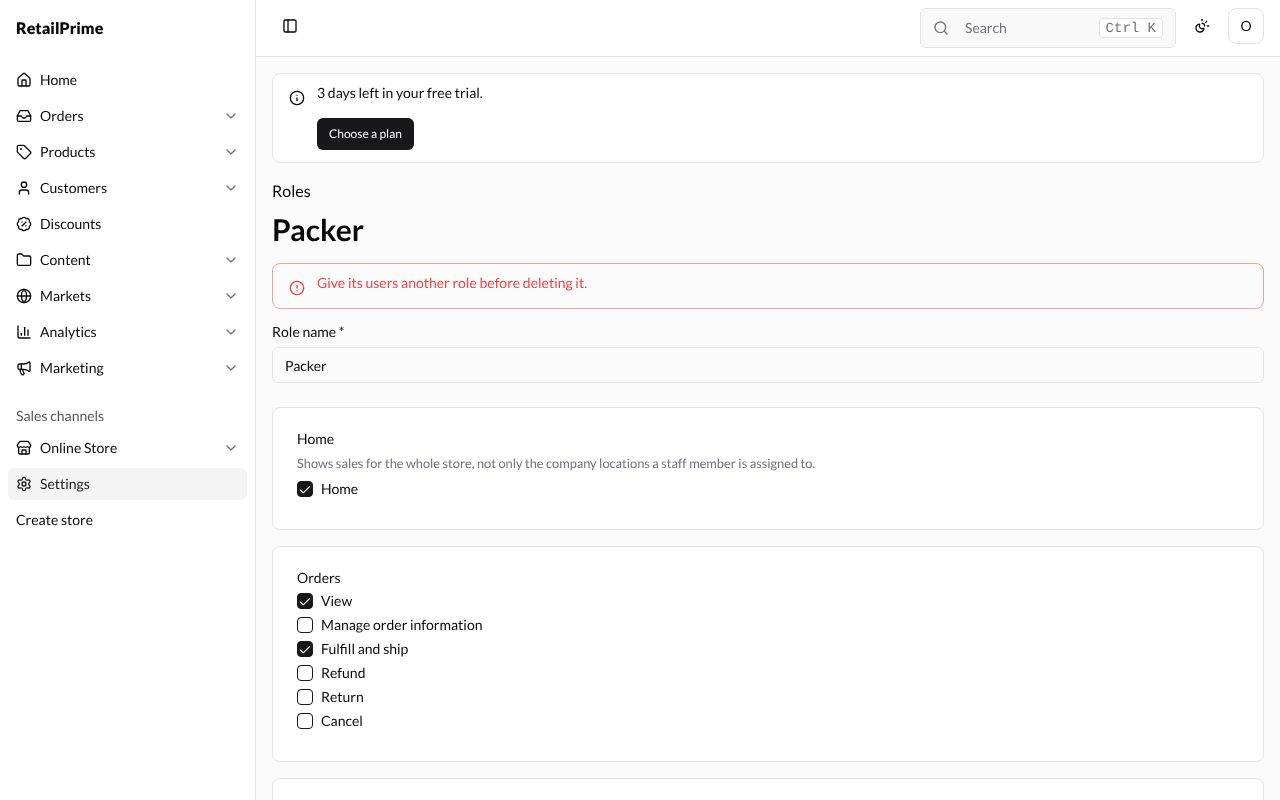
If someone still has the role, the page says Give its users another role before deleting it. and the role stays. Change their role first (Change, remove and transfer ownership shows how), then delete it.
What’s next
Add a user: invite someone with the Packer role.