Add a user
Invite someone by email with a role, and follow them as they accept with their own account and two-step sign-in.
Each person who works on your store has their own account and signs in with their own password and authenticator. You invite them by email and choose their role.
Send an invitation
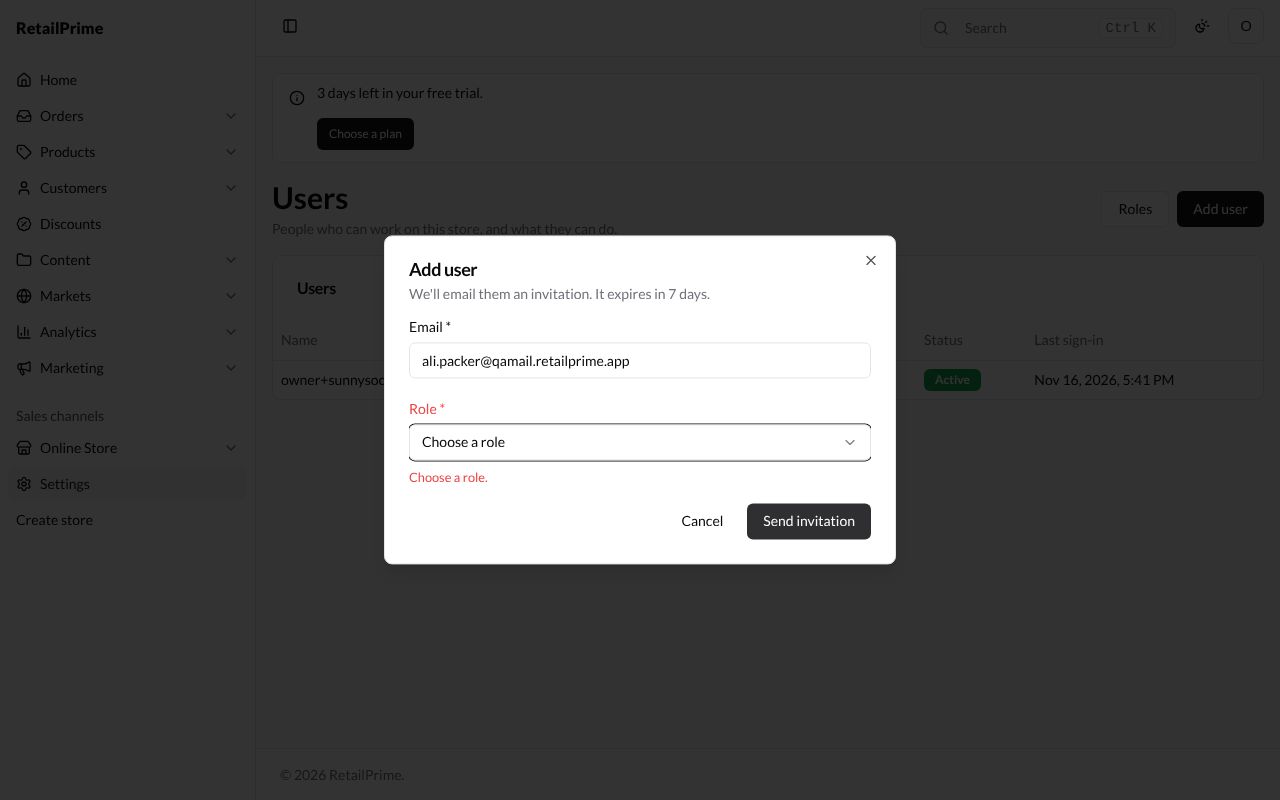
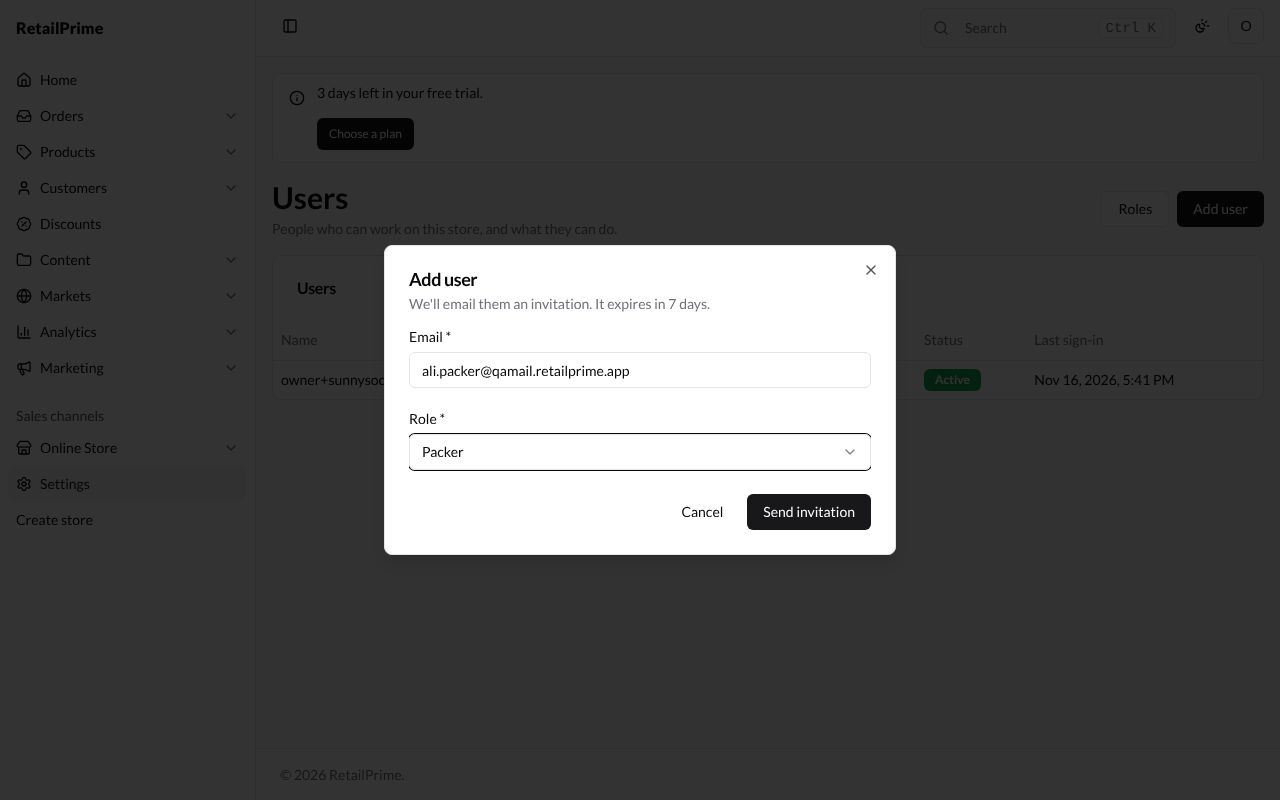
- In Settings → Users, press Add user. The Add user window says We’ll email them an invitation. It expires in 7 days.
- Fill in the window:
| Box | What to type | Example |
|---|---|---|
| Email (required) | Their email address. On staging, an @qamail.retailprime.app address |
ali.packer@qamail.retailprime.app |
| Role (required) | Choose a role from Roles | Packer |
If you press Send invitation without a role, the window says Choose a role. and sends nothing.
-
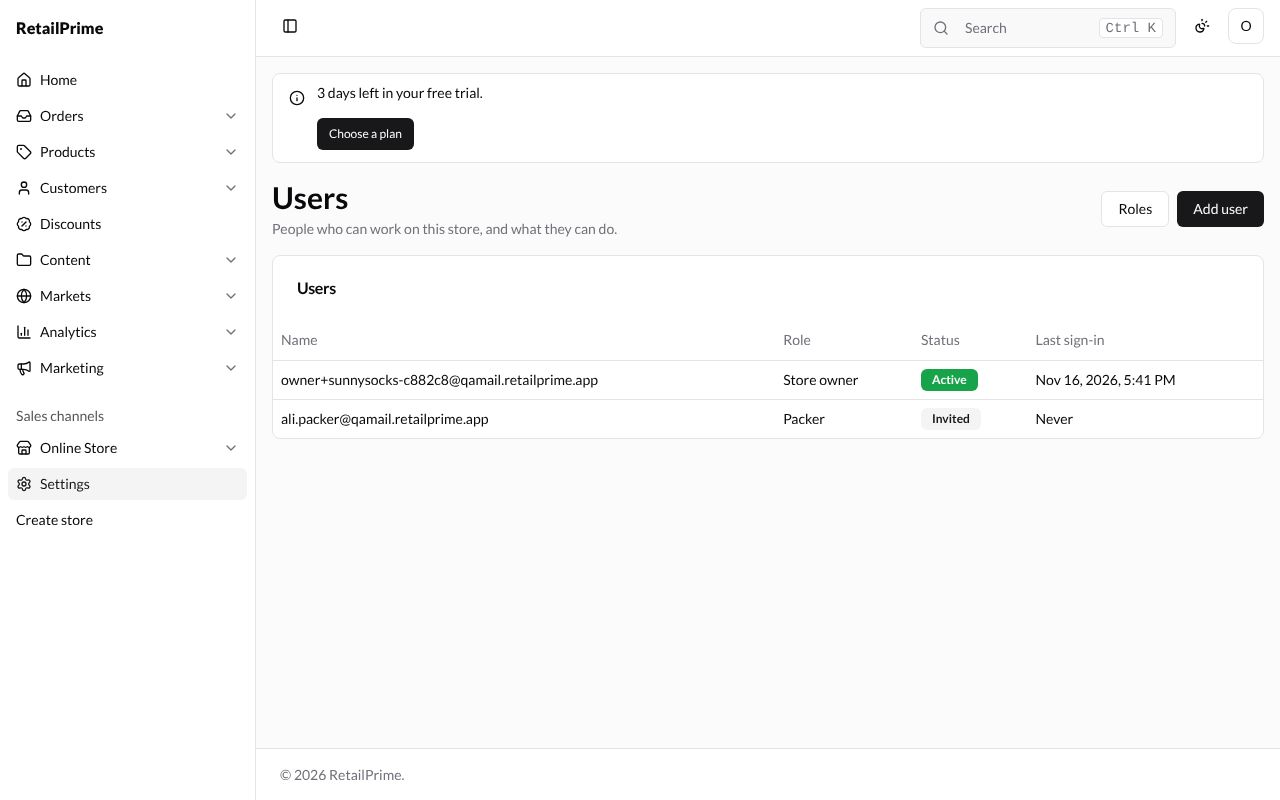
Press Send invitation. The window closes and the person is listed with their role, Invited, and Never as their last sign-in.
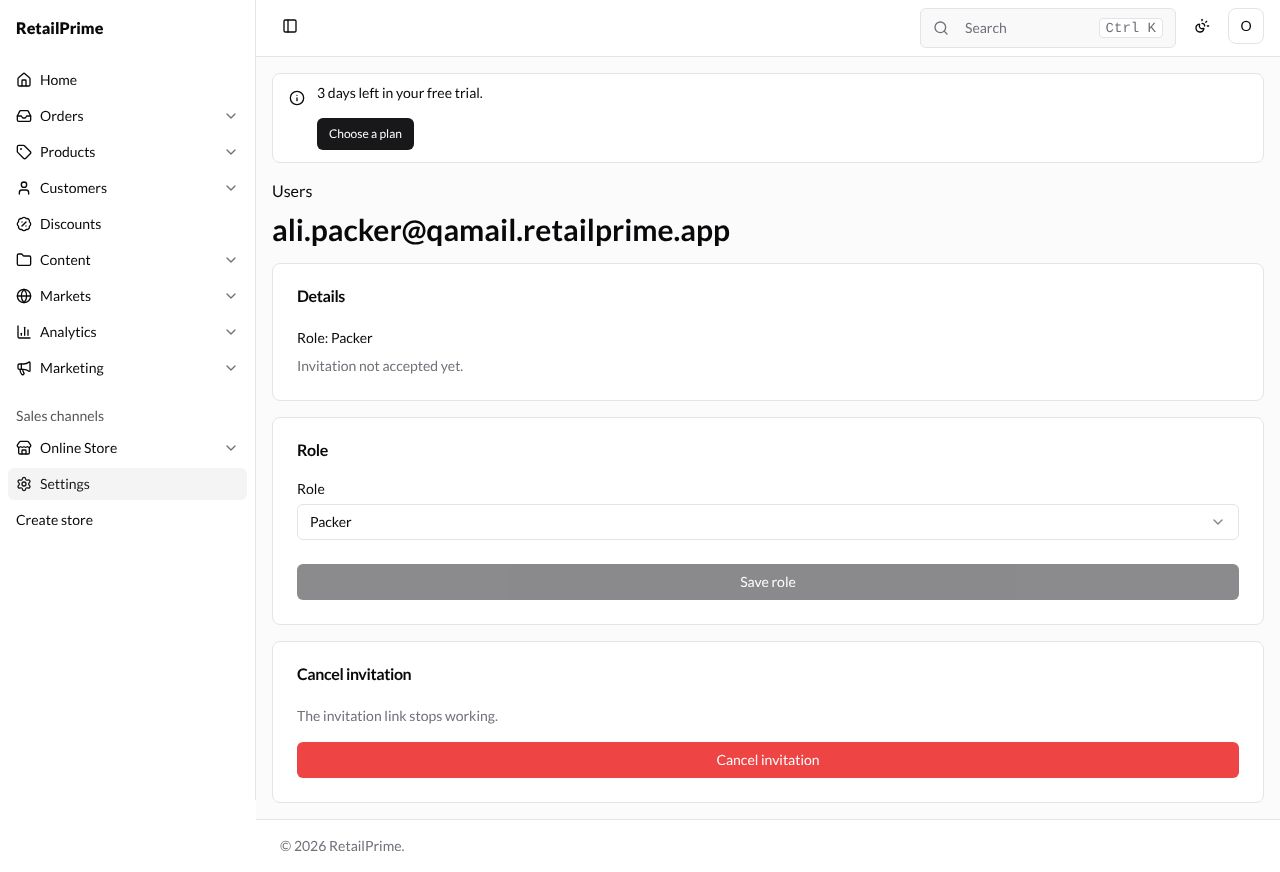
Press the invited email address to open its page: Role: Packer and Invitation not accepted yet. You can change the role here before they accept, or cancel the invitation (Change, remove and transfer ownership).
The invited person accepts
The rest of this page is what the invited person does, on their own computer or phone.
-
They open the
qa@qamail.retailprime.appinbox and find the email to their address: You have been invited to help run Sunny Socks on RetailPrime. Accept the invitation: with the link Accept the invitation. It says The invitation expires in 7 days.
-
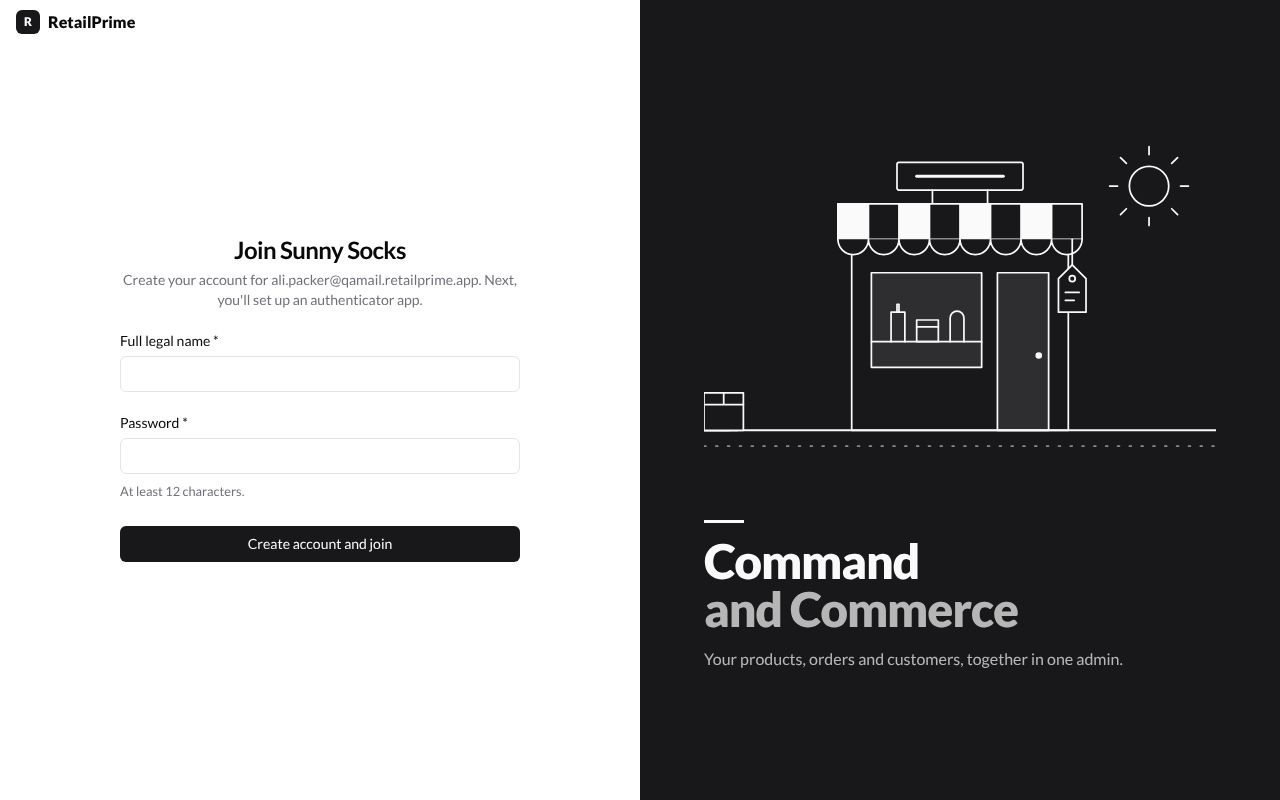
They press Accept the invitation. The page Join Sunny Socks says Create your account for ali.packer@qamail.retailprime.app. Next, you’ll set up an authenticator app.
-
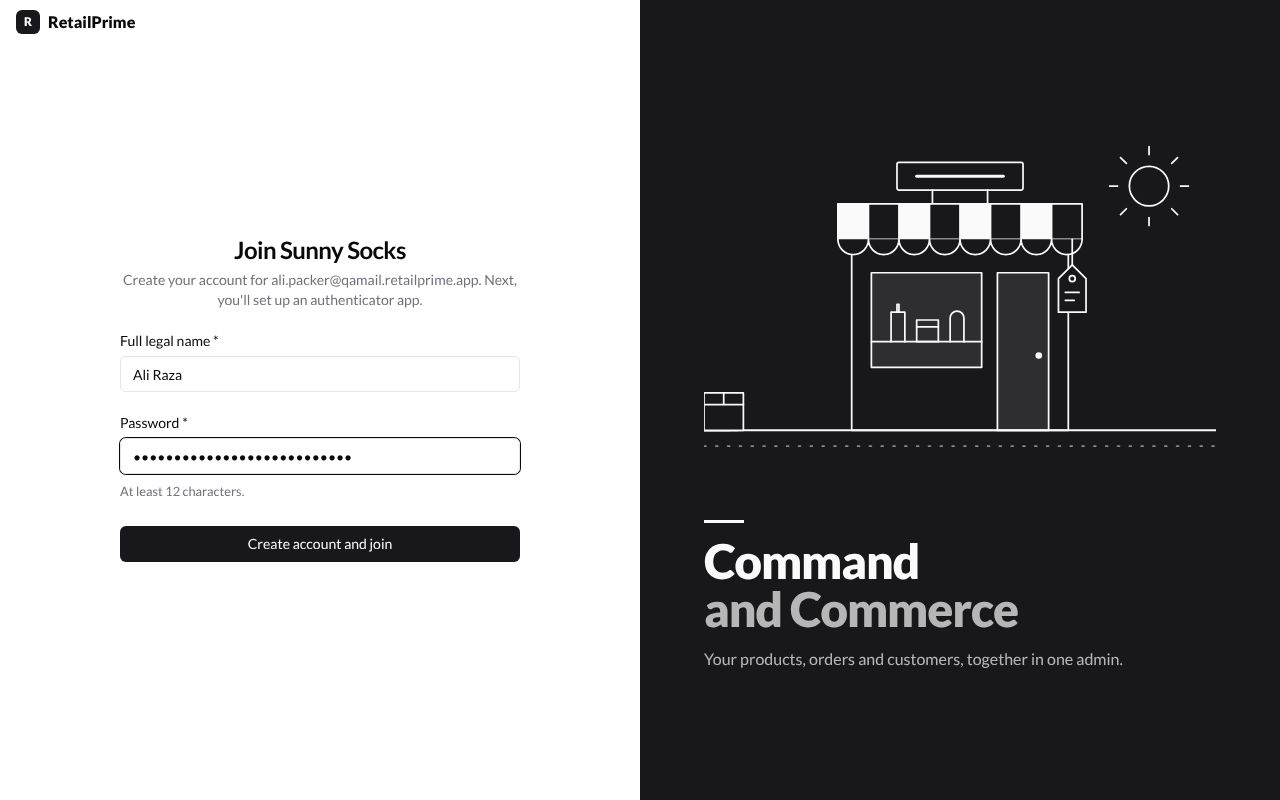
They fill in their own details:
| Box | What to type | Example |
|---|---|---|
| Full legal name (required) | Their own name | Ali Raza |
| Password (required) | At least 12 characters. | a long password of their own |
-
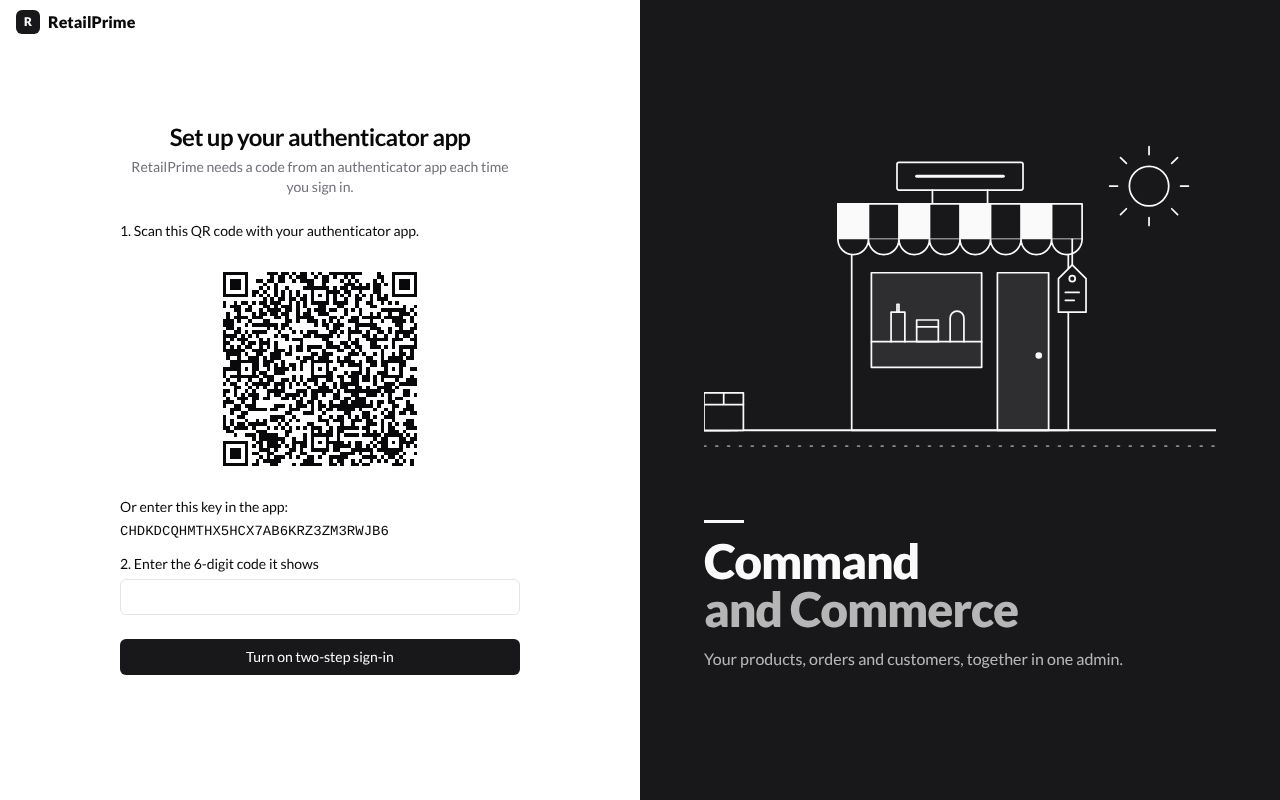
They press Create account and join. Like you in part 1, they now Set up your authenticator app: they scan the QR code with their authenticator app (or type the key under it), type the 6-digit code it shows, press Turn on two-step sign-in, save their recovery codes, tick I have saved these codes somewhere safe and press Continue. Turn on two-step sign-in shows each of these screens.
-
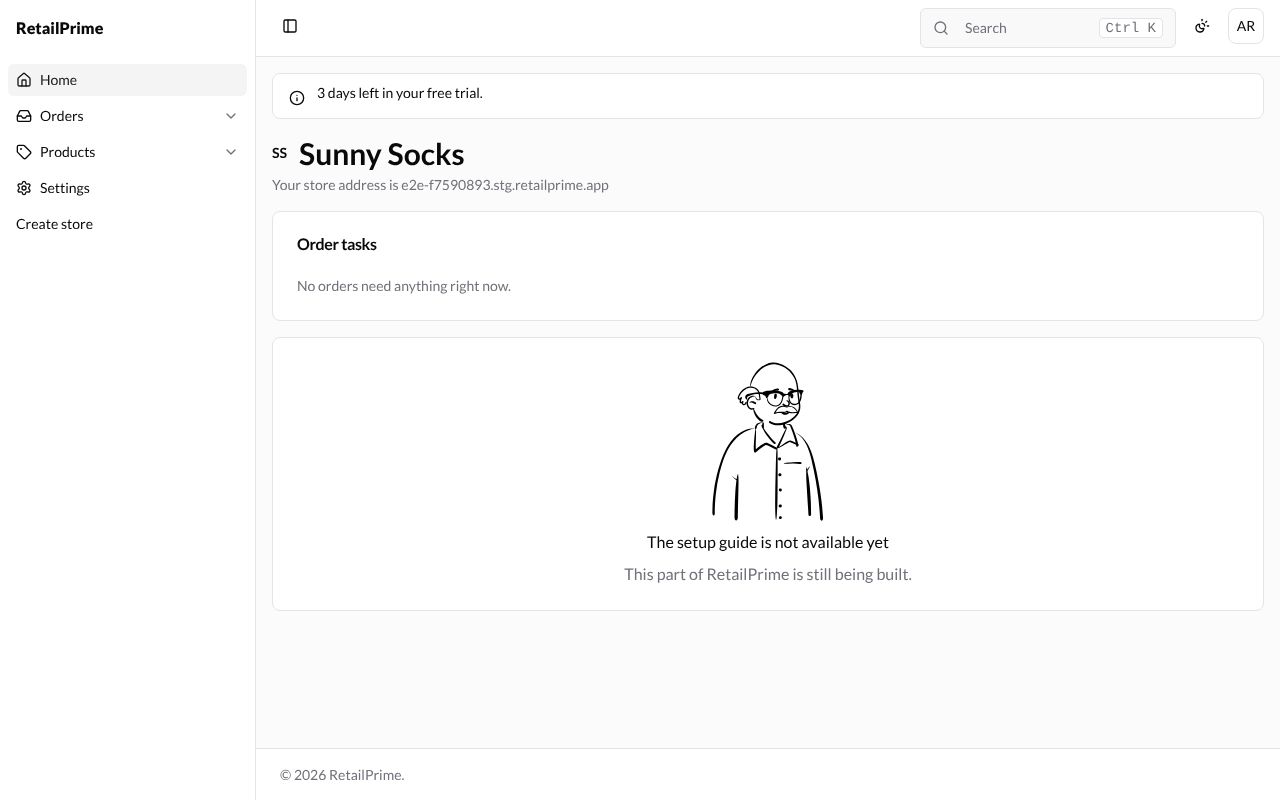
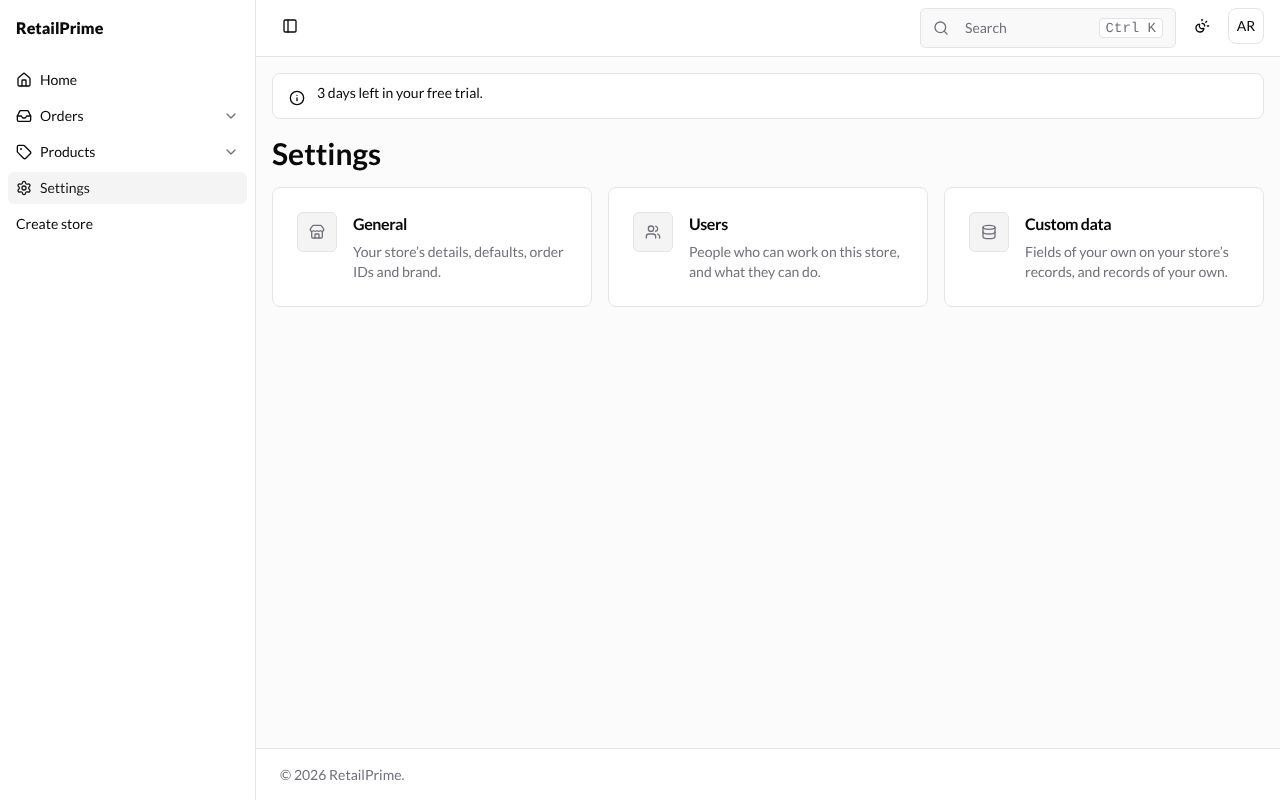
They land on Sunny Socks’ Home page. Their sidebar only shows what their role allows: Home, Orders, Products and Settings. Their initials (AR) are at the top right.
What the new user sees
When they press Settings, they only see the settings pages they may use. A Packer sees General, Users and Custom data, with no Plan, Billing, Payments or other cards.
Back on your Users page
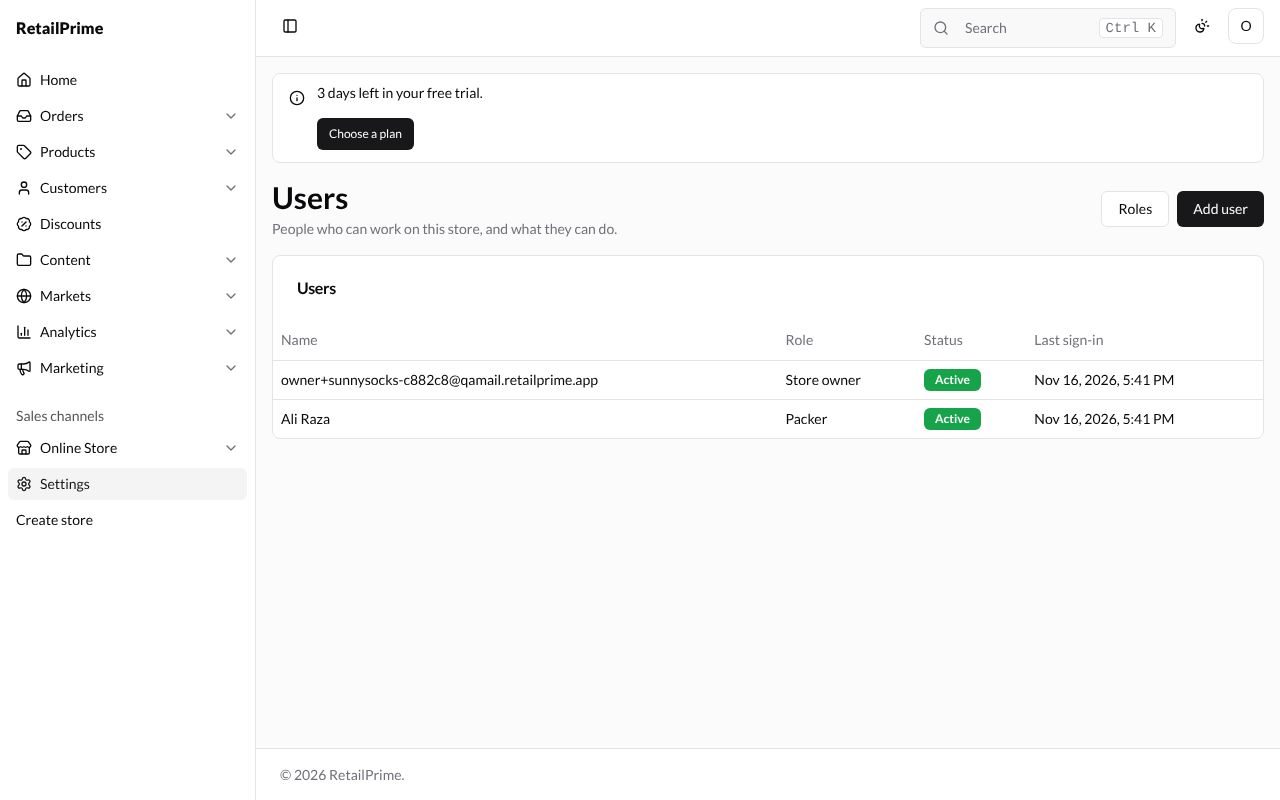
Your Users page now shows Ali Raza, Packer, Active, with the time they last signed in.
What’s next
Change, remove and transfer ownership: change a user’s role, remove them, and pass your store to someone else.