Metaobject definitions
Make a record type of your own with its fields, add, move and remove fields, use it in a product field, and delete it.
A metaobject definition is a record type of your own, with the fields you choose. Here it is a Sock designer, with each designer’s full name, bio and website. You then add the designers themselves (the entries) in Content → Metaobjects, as part 5 shows in Metaobjects.
Add a metaobject definition
-
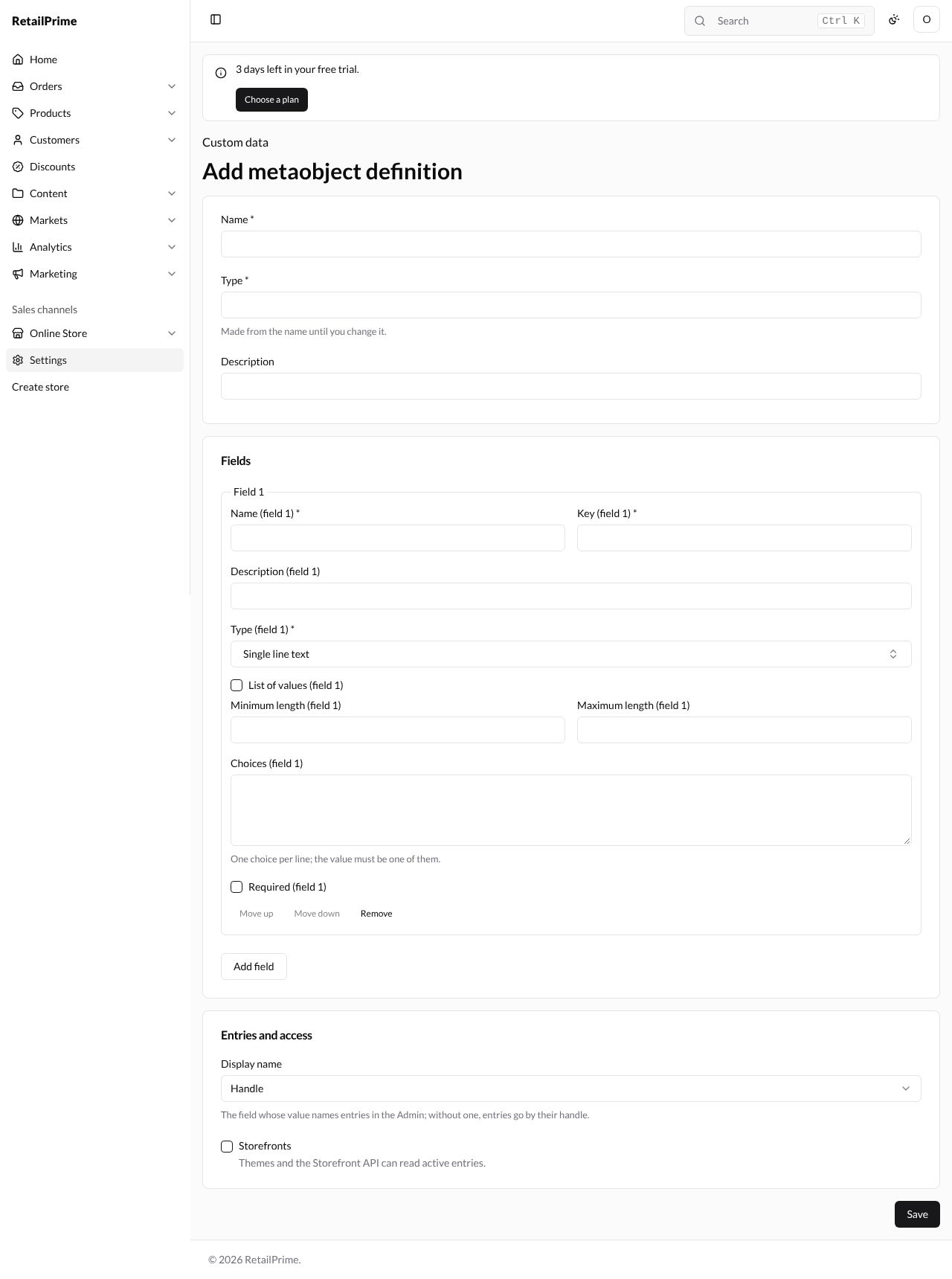
In Settings → Custom data, press Add metaobject definition.
-
Fill in the first card:
| Box | What to type | Example |
|---|---|---|
| Name (required) | The record type’s name | Sock designer |
| Type (required) | Made from the name until you change it. Themes use it | sock_designer |
| Description | What it is for |
- Fill in Field 1. Each field has the same boxes as a metafield definition, with (field 1), (field 2) and so on after their names:
| Box | What to type | Example |
|---|---|---|
| Name (field 1) (required) | The field’s name | Full name |
| Key (field 1) (required) | Made from the name | full_name |
| Description (field 1) | ||
| Type (field 1) (required) | The kind of value, as for metafields | Single line text |
| The type’s validations | Such as Choices (field 1) | |
| Required (field 1) | Ticked: every entry must have it | ticked |
-
Press Add field for each further field. Here Field 2 is
Website(URL, with Allowed domains (field 2): One domain per line, such as example.com.), Field 3 isBio(Multi-line text) and Field 4 isFavourite colour.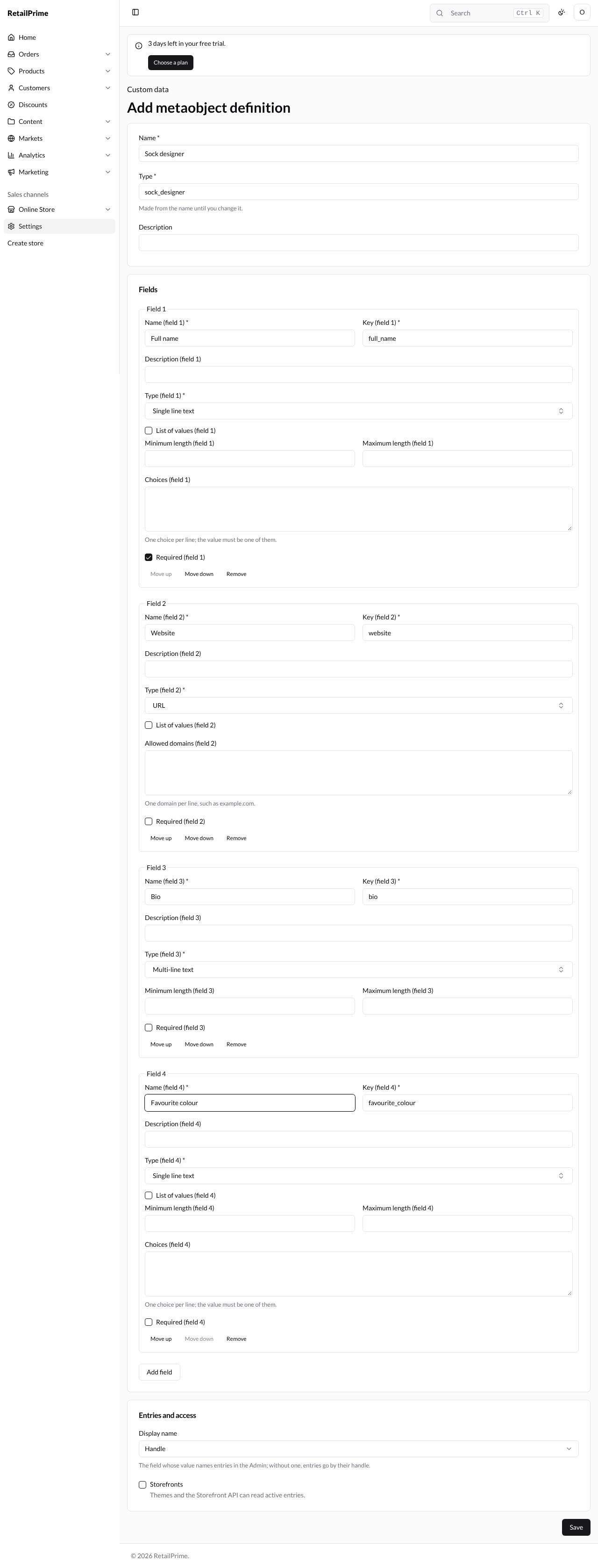
-
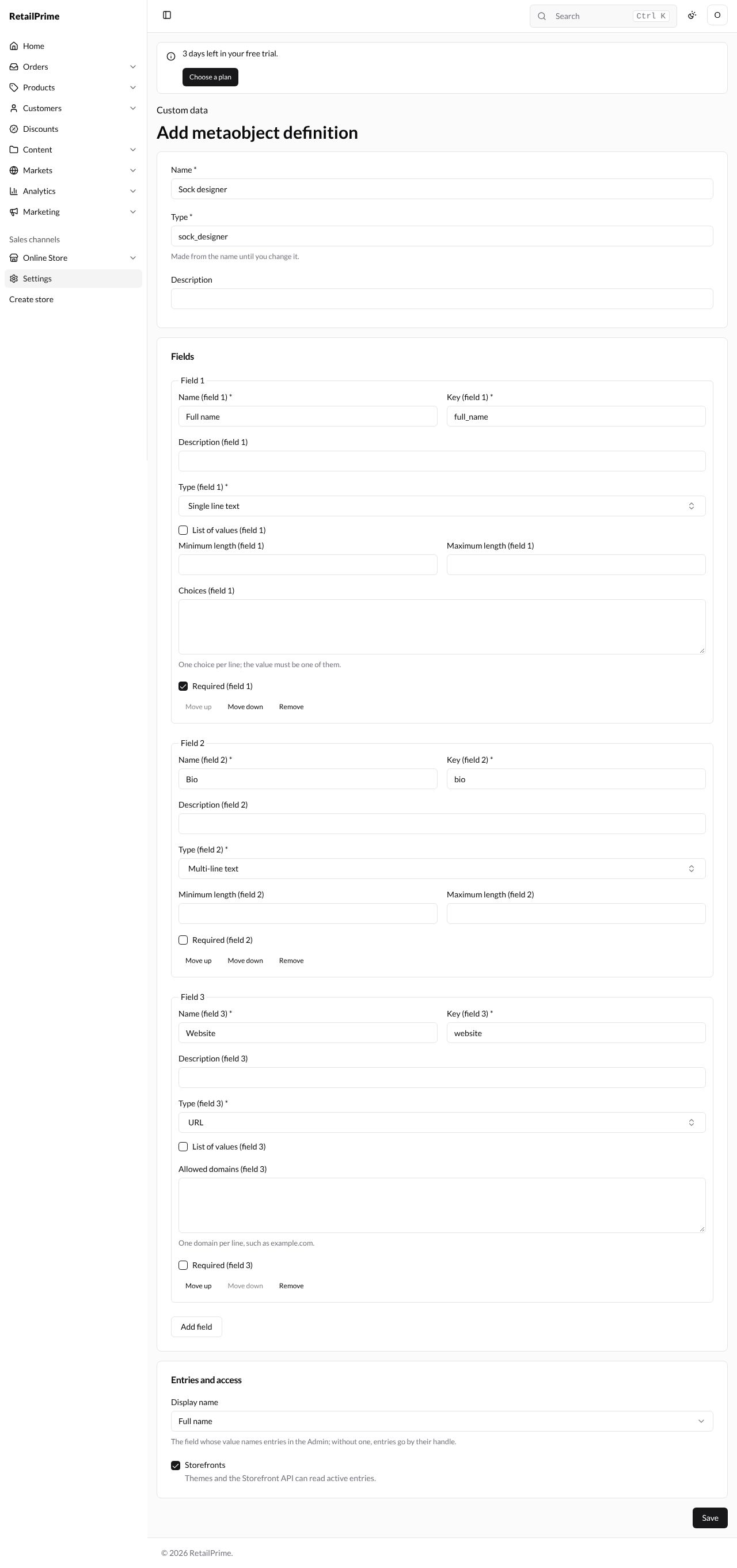
Each field has Move up, Move down and Remove at the bottom. Here Move up under Bio puts it before Website, and Remove under Favourite colour takes that field away.
-
Under Entries and access:
- Display name: The field whose value names entries in the Admin; without one, entries go by their handle. Choose Full name.
- Storefronts: Themes and the Storefront API can read active entries. Tick it.
-
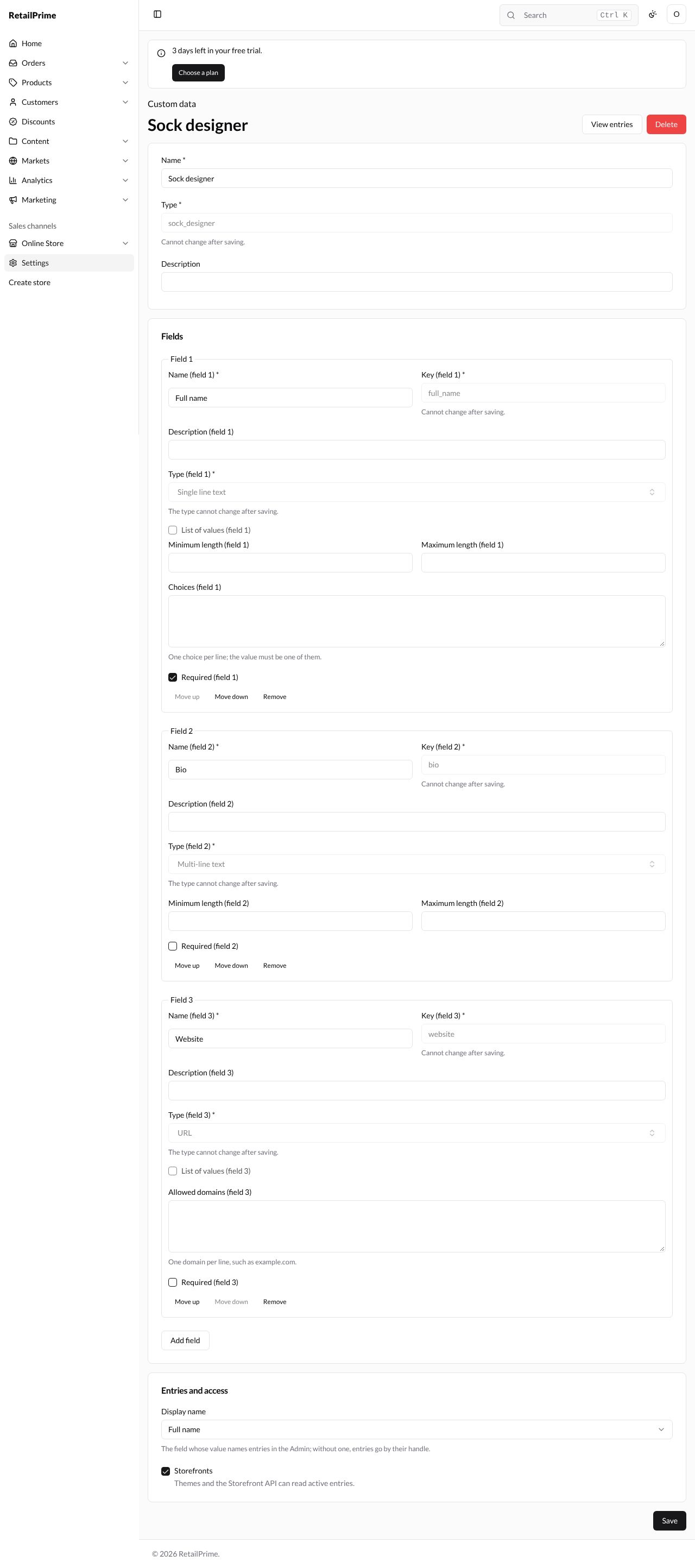
Press Save. The definition’s page opens, with View entries (which opens its entries in Content → Metaobjects) and Delete at the top. The Type and each field’s key and type are now greyed out: Cannot change after saving. You can still rename things, change validations, tick Required, add, move and remove fields, and press Save.
Use it in a product field
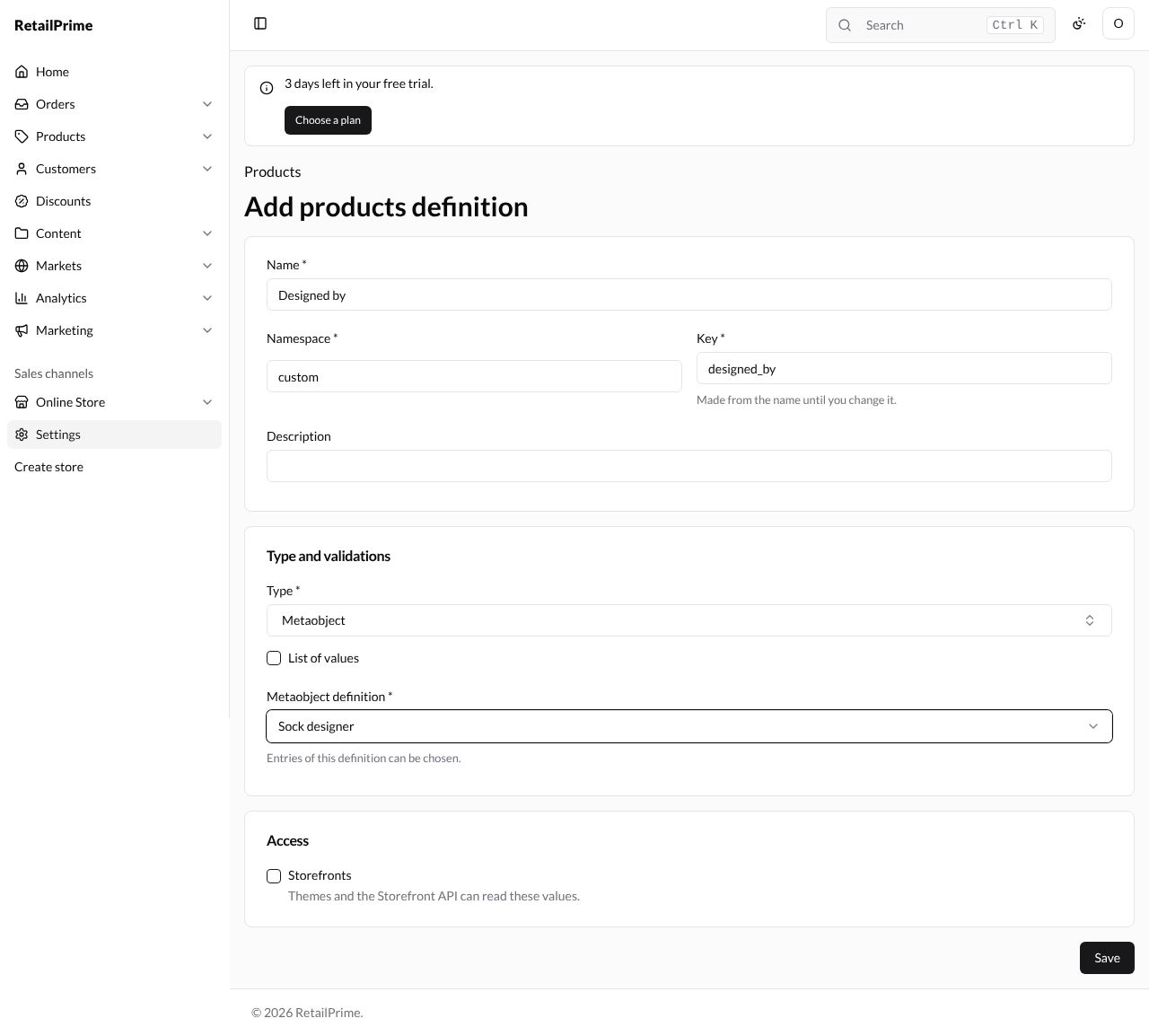
To choose a designer on each product, add a product metafield definition of type Metaobject:
-
In Settings → Custom data → Products, press Add definition.
-
Type the Name, here
Designed by, and choose Metaobject as the Type. -
In Metaobject definition (Entries of this definition can be chosen.), choose Sock designer.
-
Press Save. Each product’s Metafields card now has Designed by, where you choose one designer, as part 5 shows.
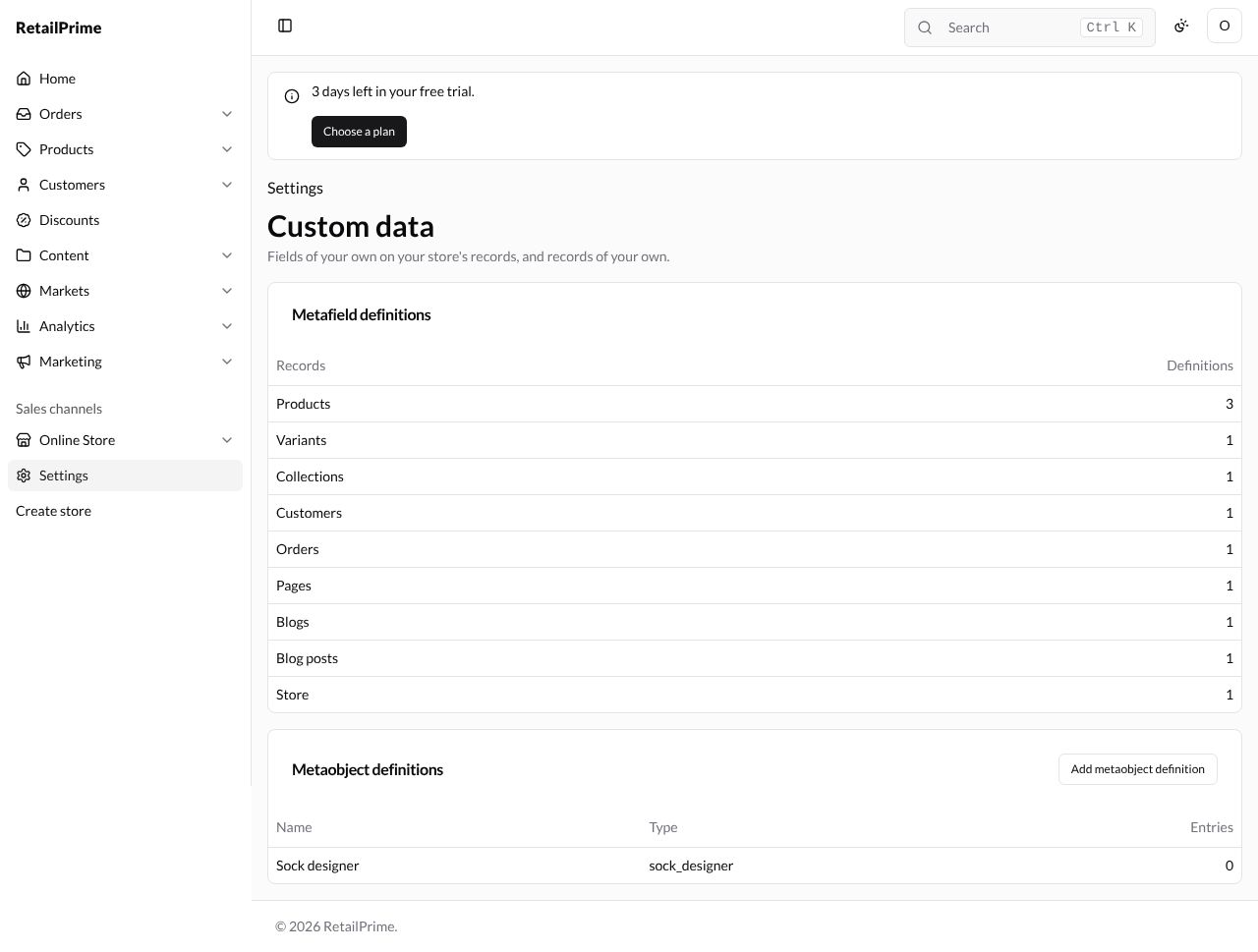
The Custom data page now counts 3 product definitions and lists Sock designer under Metaobject definitions, with its type and number of Entries.
Delete a metaobject definition
-
Open it and press Delete.
-
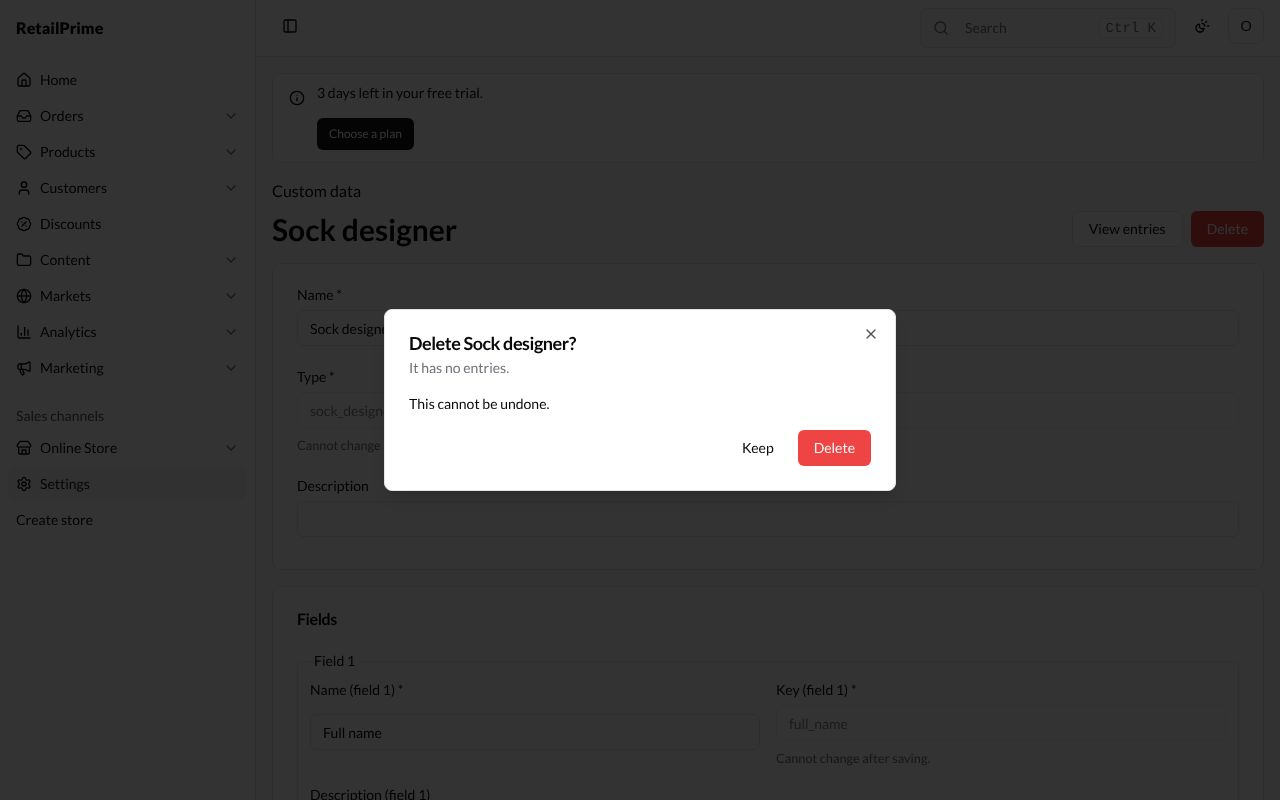
A window asks Delete Sock designer? and says how many entries go with it (here It has no entries.) and This cannot be undone.
-
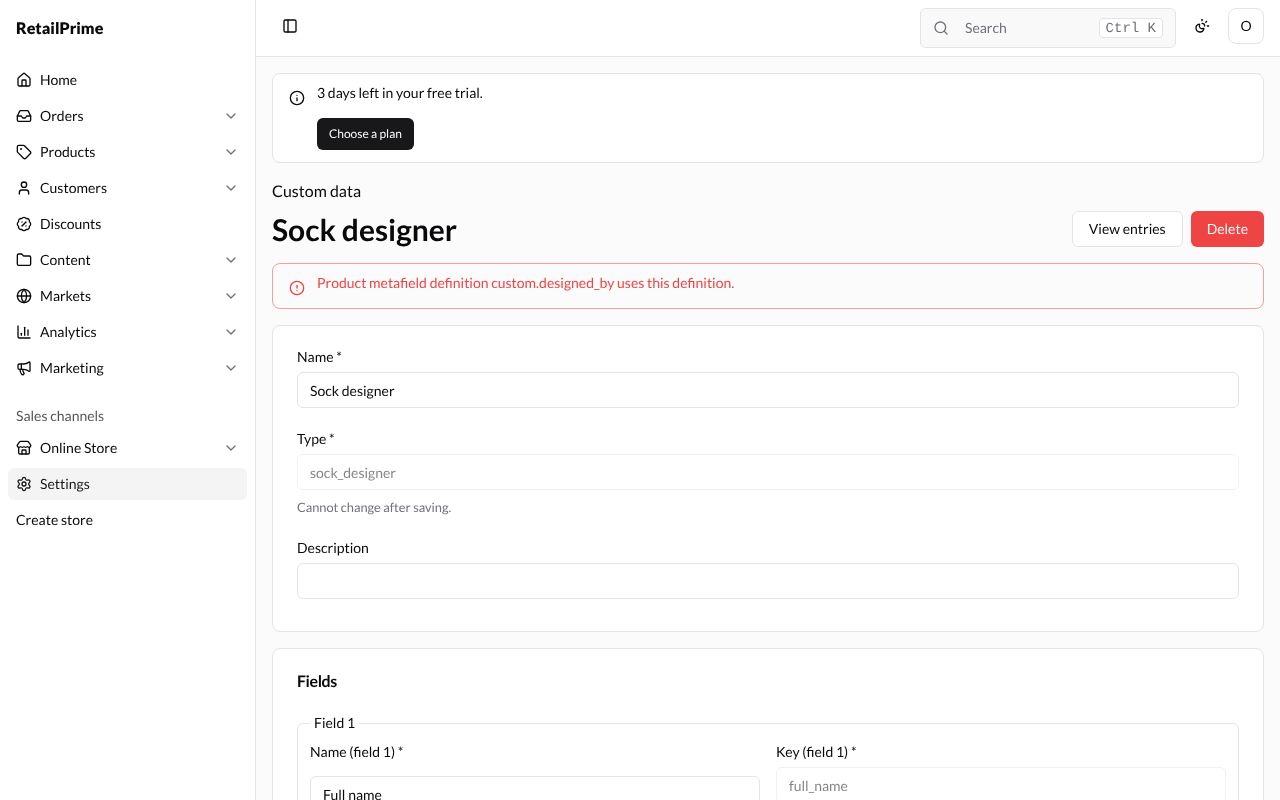
Press Delete. A definition that has no field using it is deleted and you are back on the Custom data page. But while a field uses it, the page says so and nothing is deleted, here Product metafield definition custom.designed_by uses this definition. Delete that field first.
What’s next
Marketing email: the last settings page.