The store currency
Change your store's currency with your authenticator code, until the store's first order locks it.
Your store currency is chosen when you create the store. Only the store owner can change it, and only until the store has its first order.
Change the store currency
-
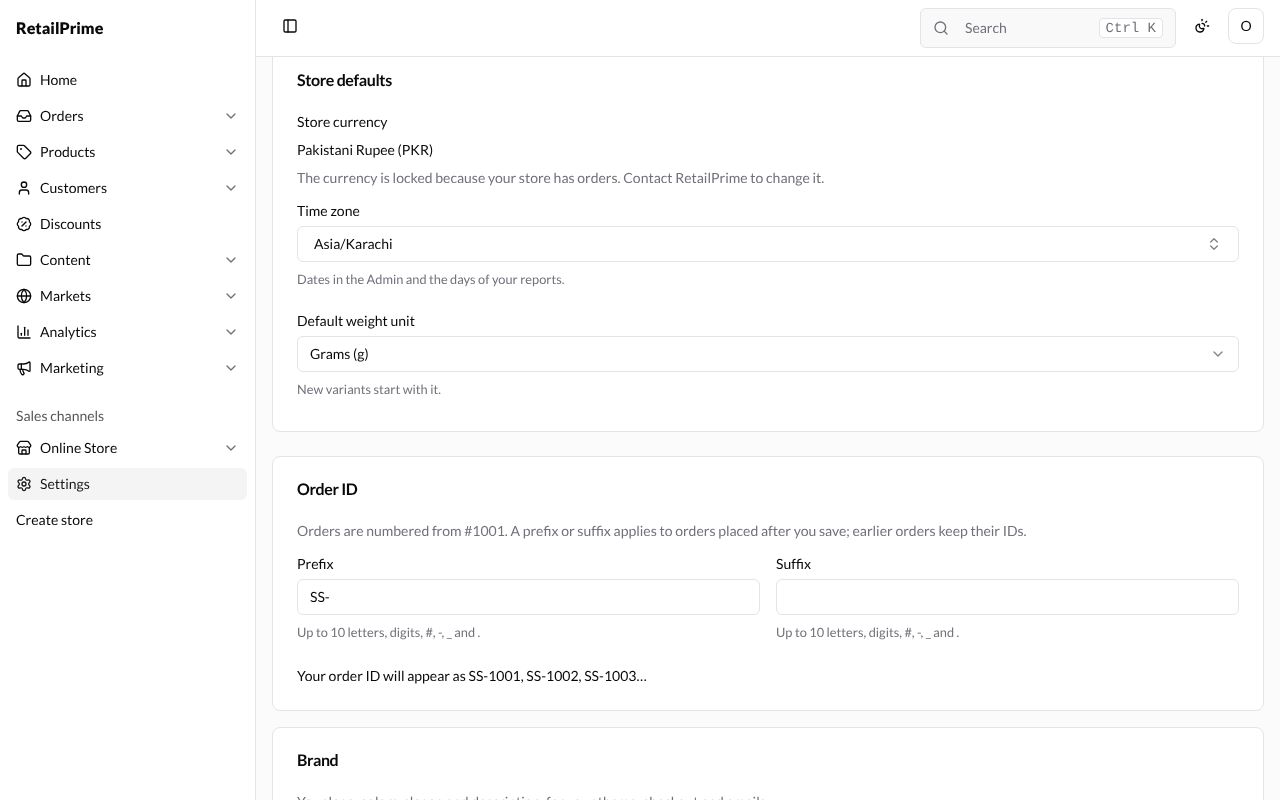
In Settings → General, find Store currency in the Store defaults card and press Change store currency.
-
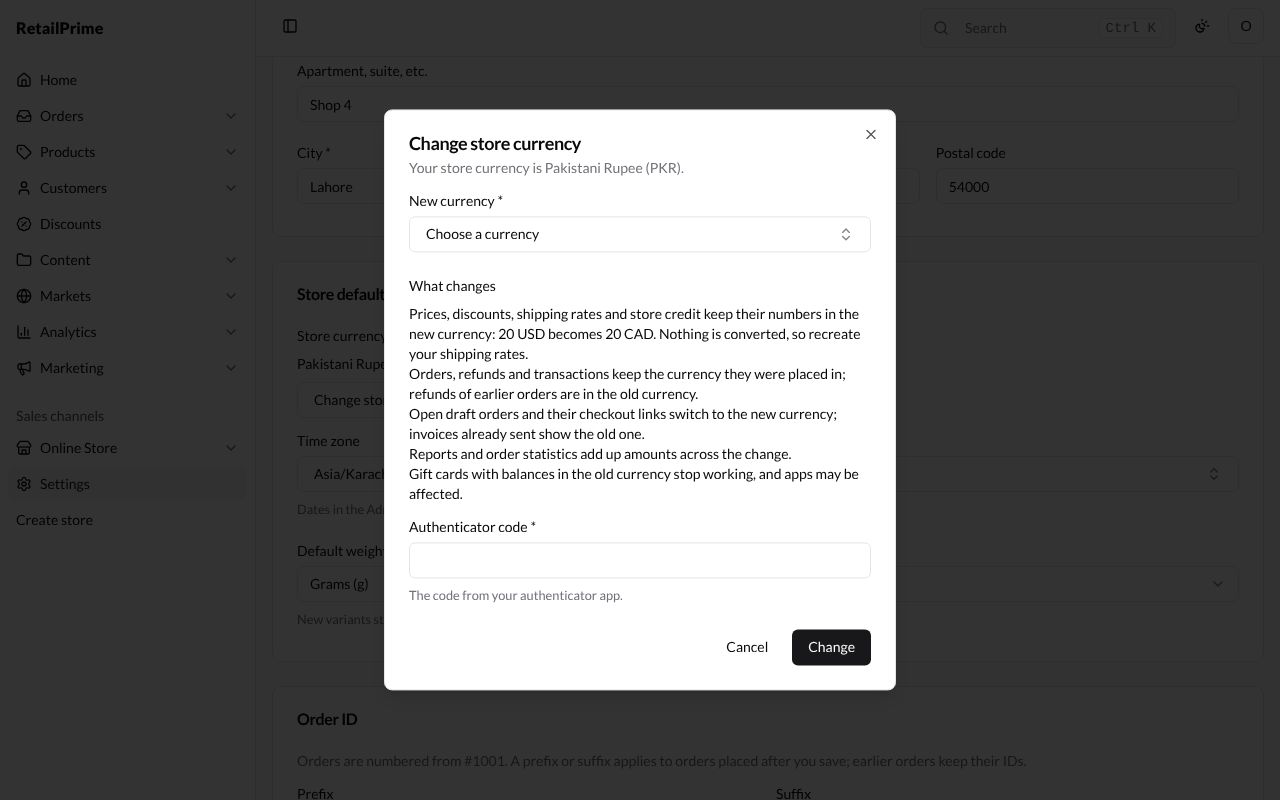
A window opens: Change store currency, with Your store currency is Pakistani Rupee (PKR). Read What changes carefully:
- Prices, discounts, shipping rates and store credit keep their numbers in the new currency: 20 USD becomes 20 CAD. Nothing is converted, so recreate your shipping rates.
- Orders, refunds and transactions keep the currency they were placed in; refunds of earlier orders are in the old currency.
- Open draft orders and their checkout links switch to the new currency; invoices already sent show the old one.
- Reports and order statistics add up amounts across the change.
- Gift cards with balances in the old currency stop working, and apps may be affected.
-
Fill in the window:
| Box | What to type | Example |
|---|---|---|
| New currency (required) | Type the currency’s name or code in the list | US Dollar (USD) |
| Authenticator code (required) | The code from your authenticator app. | the 6 digits your app shows now |
-
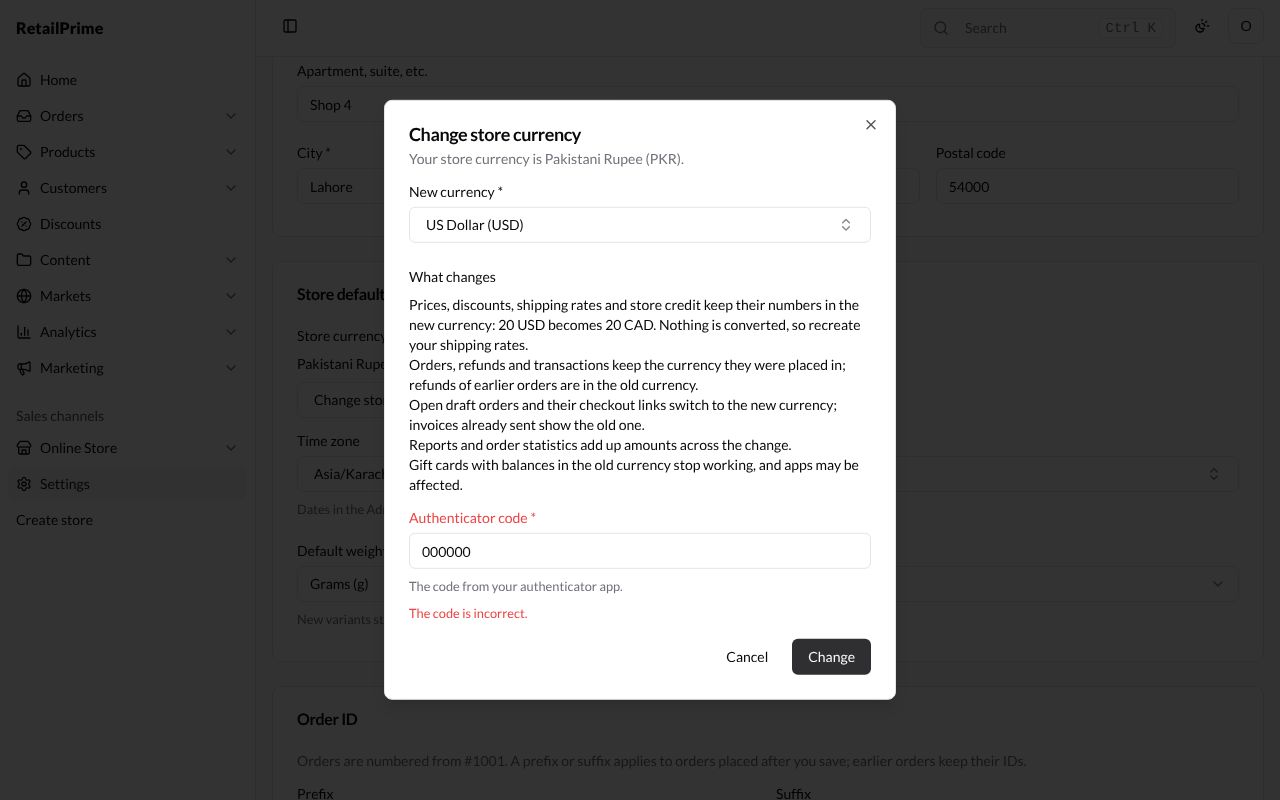
Press Change. A wrong code is refused with The code is incorrect. Type the code your app shows now and press Change again.
-
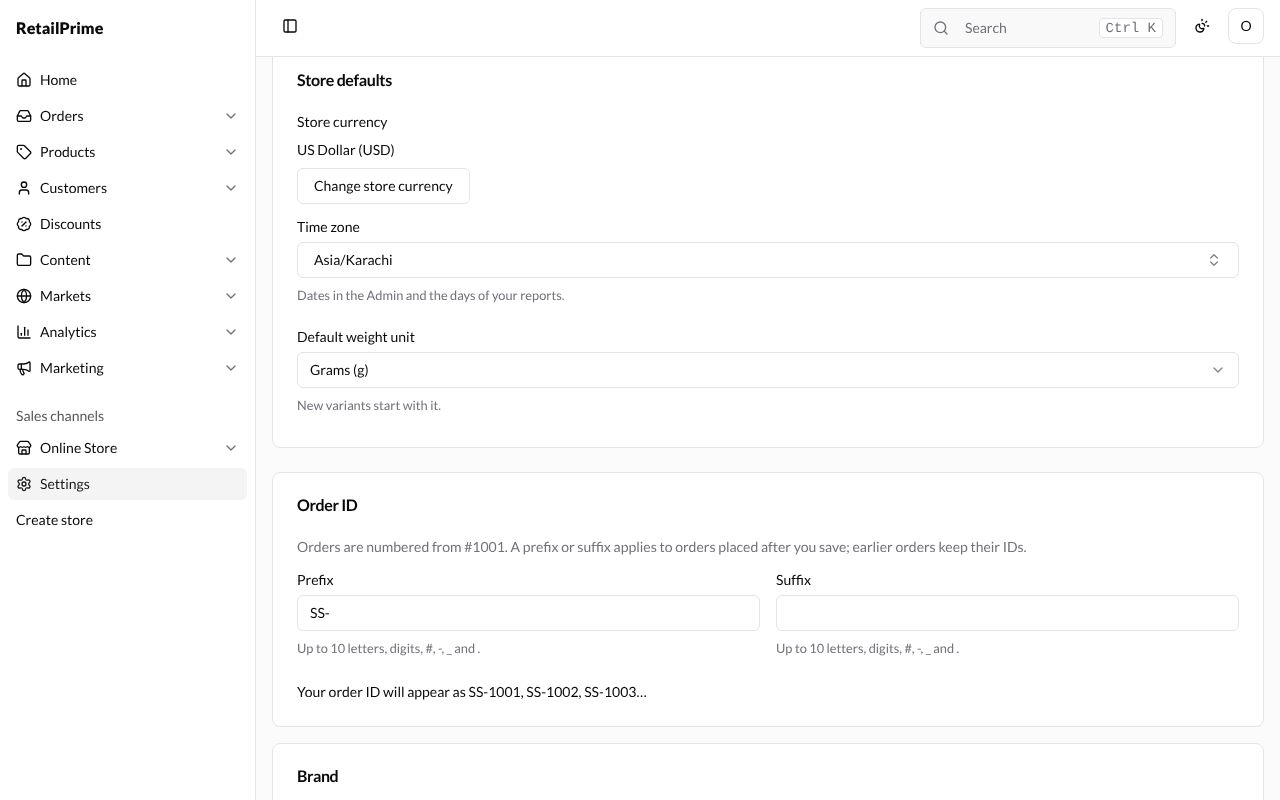
The window closes and Store currency shows the new one.
When the currency can’t be changed now
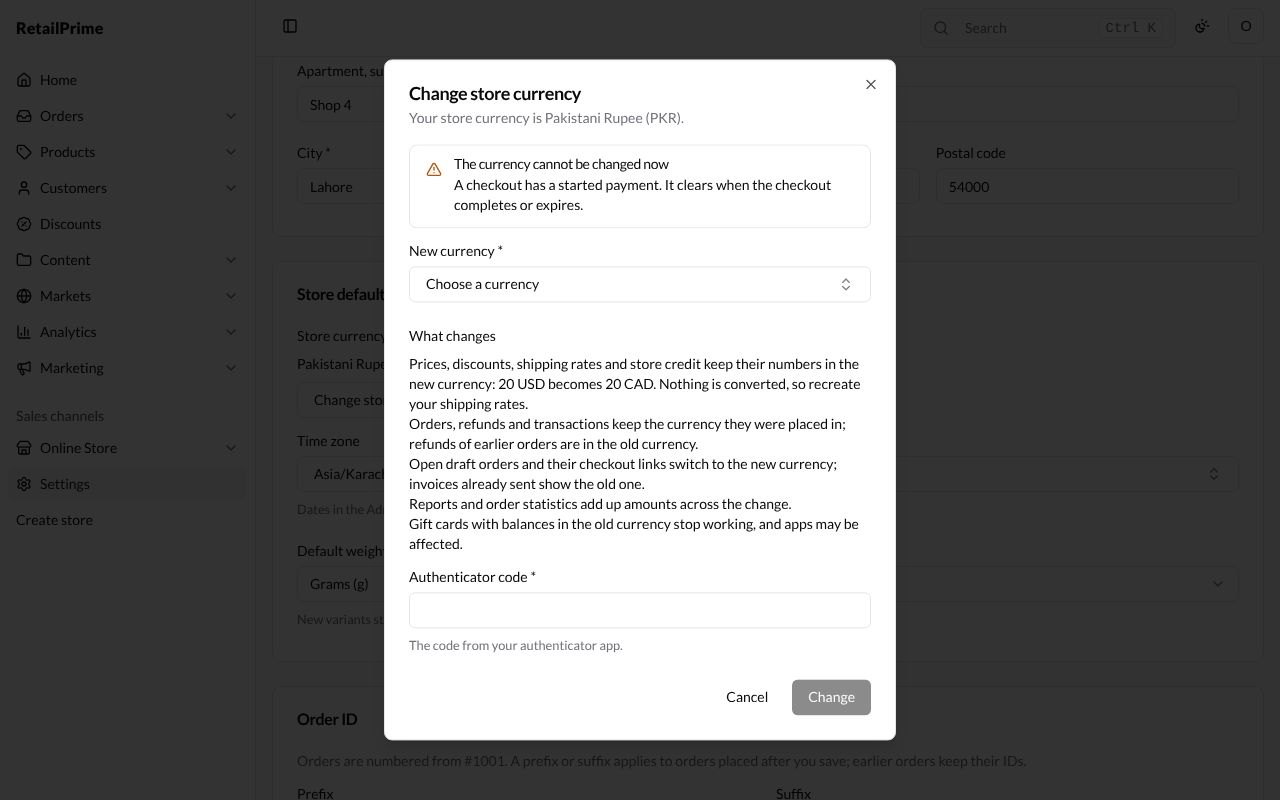
Sometimes the window says The currency cannot be changed now, with the reason under it, and Change can’t be pressed. Here a buyer has started paying at checkout: A checkout has a started payment. It clears when the checkout completes or expires. Press Cancel, wait until the reason clears, then try again.
After the first order
Once your store has an order, the button is gone and the card says The currency is locked because your store has orders. Contact RetailPrime to change it.
What’s next
Roles: decide what each person who works on your store may do.