Taxes
Add a country's tax rate and province rates, edit and remove them, and choose whether prices include tax.
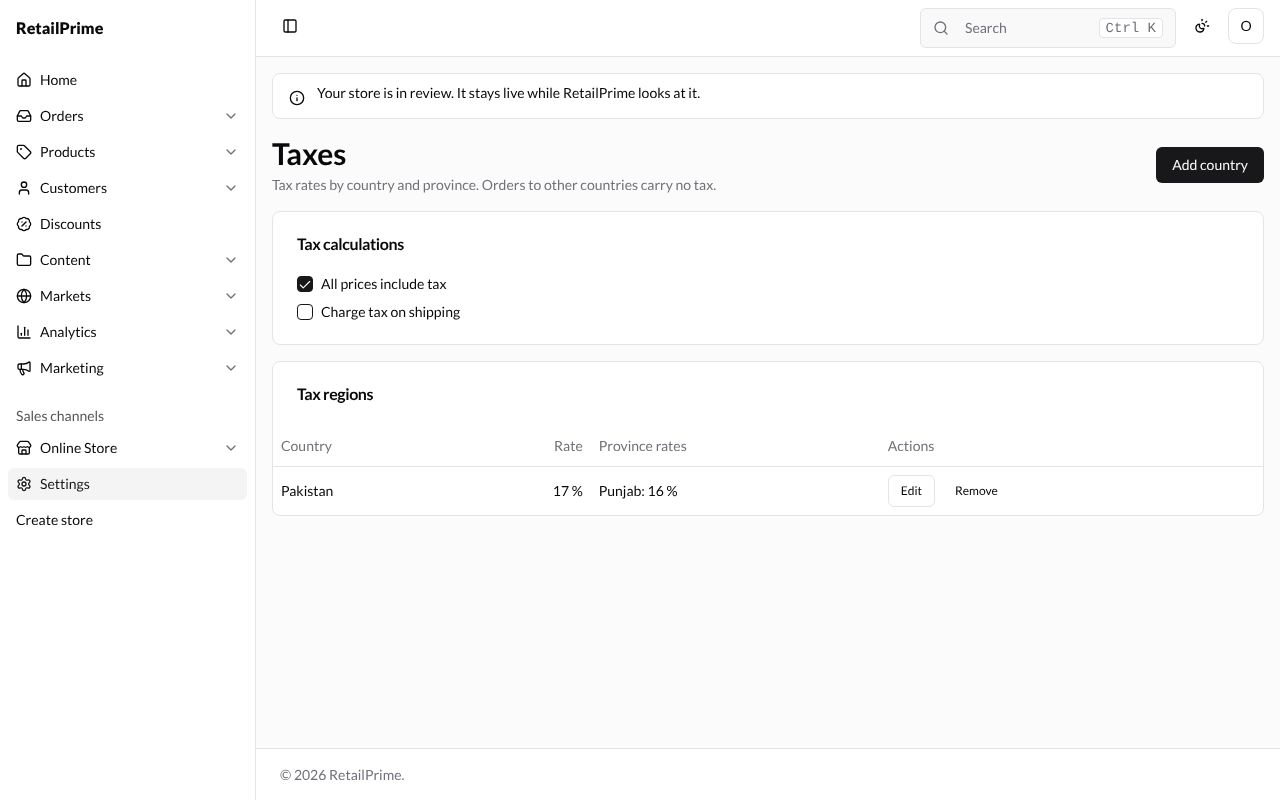
In Settings, press Taxes. The page says Tax rates by country and province. Orders to other countries carry no tax. A new store has No tax rates yet.
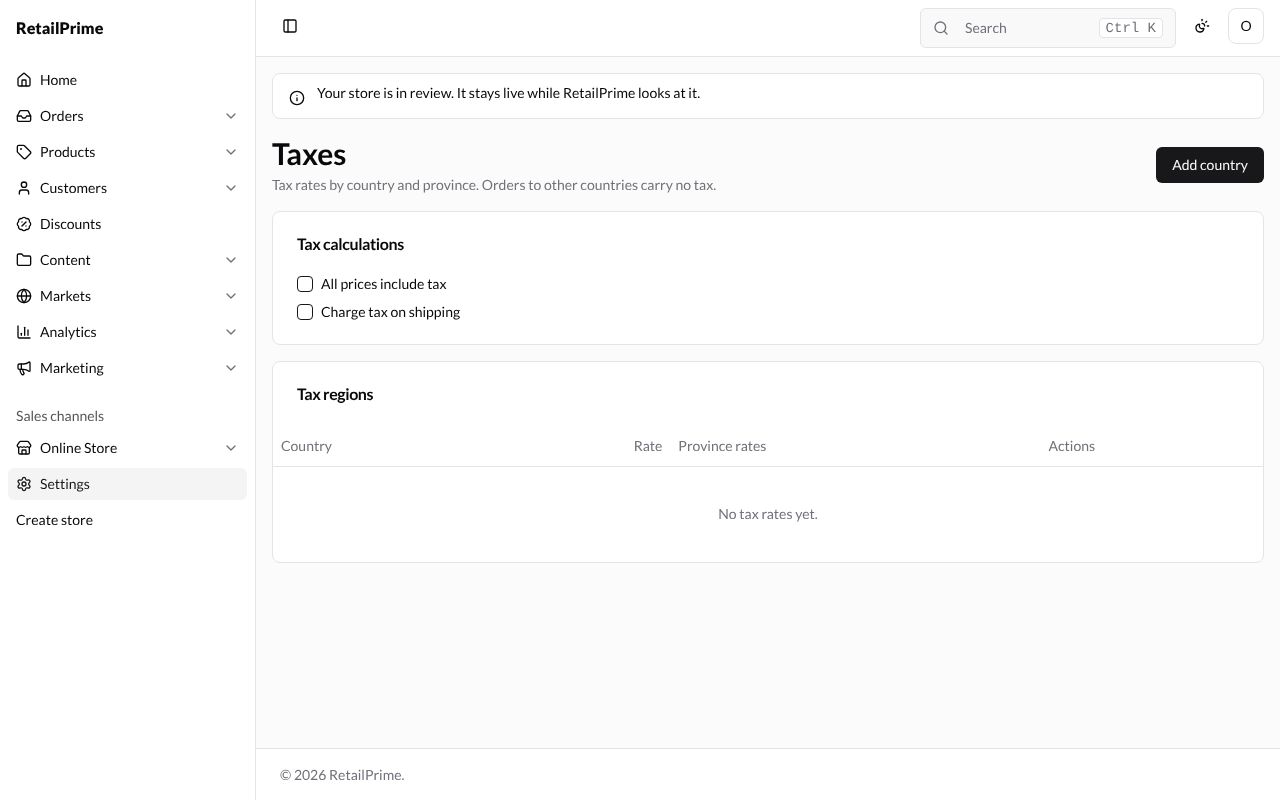
Add a country
- Press Add country.
- Fill in the window:
| Box | What to type | Example |
|---|---|---|
| Country | Type the country’s name in the list | Pakistan |
| Tax rate (%) | The country’s rate | 18 |
-
To give a province its own rate, press Add province rate and fill in Province 1 and Province 1 rate (%), here
Punjaband16. Remove next to a province takes it off.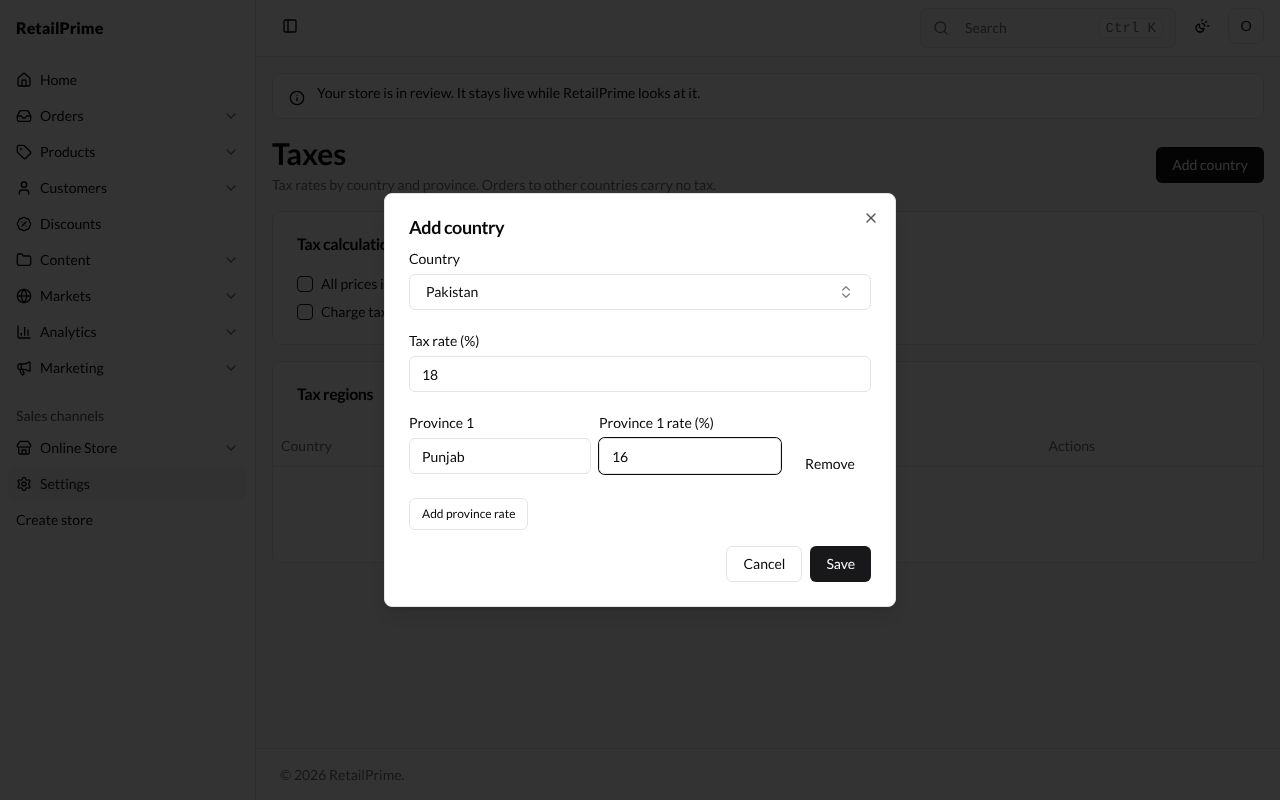
-
Press Save. The country is listed with its Rate and Province rates.
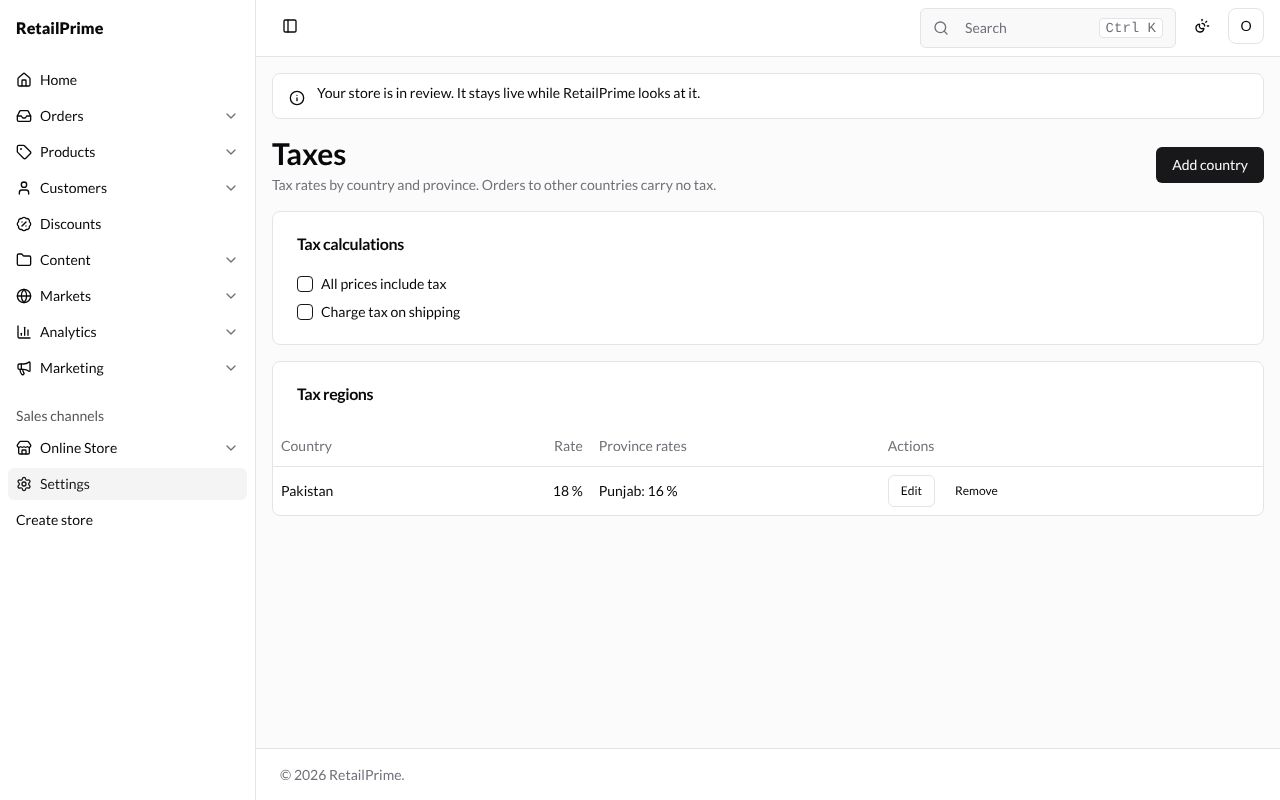
Edit a country
Press Edit on its row. The window Taxes for Pakistan has the same boxes, but the country can’t be changed. Change the rate, here to 17, and press Save.
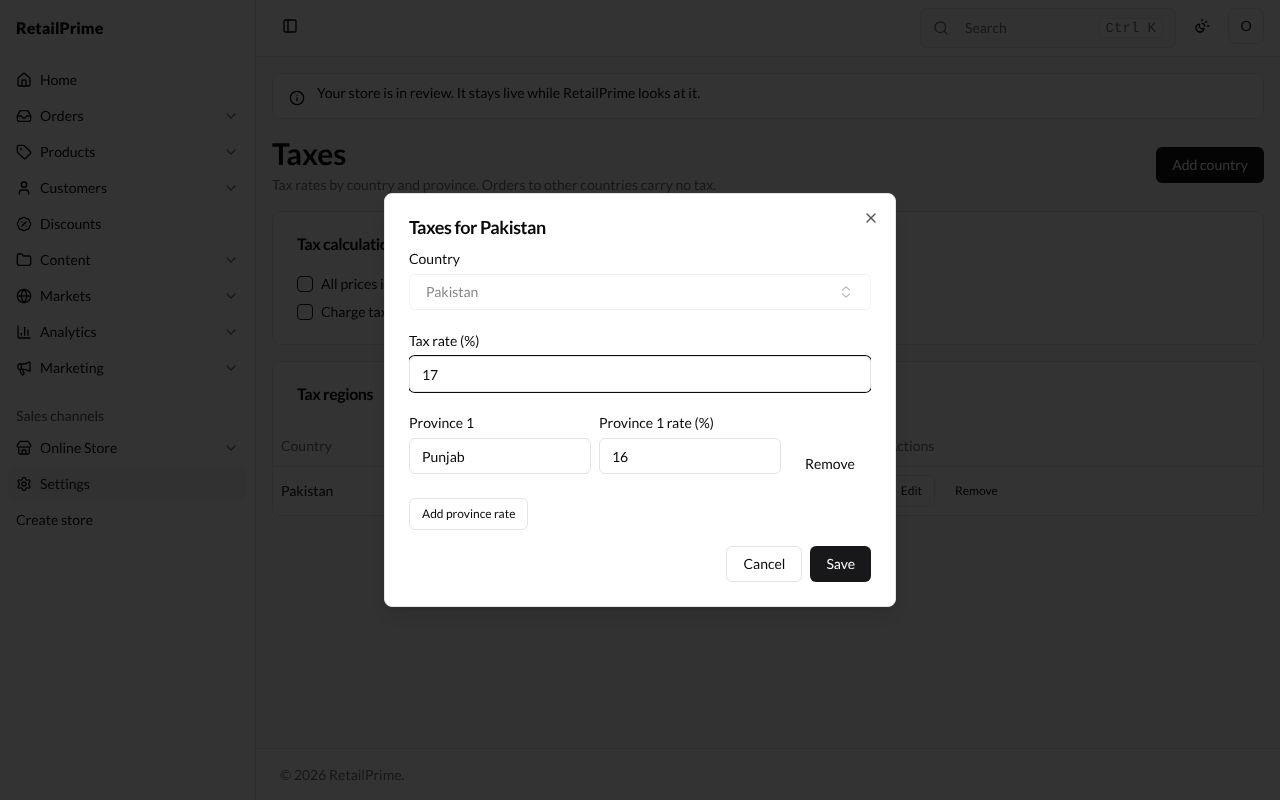
Tax calculations
Each box is saved as soon as you tick or untick it:
| Box | What it means |
|---|---|
| All prices include tax | Your prices already have the tax in them; checkout shows it as Including tax |
| Charge tax on shipping | Shipping is taxed too |
Remove a country
Press Remove on its row. It is removed at once, without asking first, and orders to that country carry no tax.
What’s next
Locations: add the places you keep stock and fulfil orders from.