Apps and Storefront API tokens
Install an app from its own site, see what it can reach, uninstall it, and create and revoke Storefront API tokens.
In Settings, press Apps. The page says Apps installed in your store. Each one reaches only the store data you allowed when installing it. Under the list is the Storefront API tokens card.
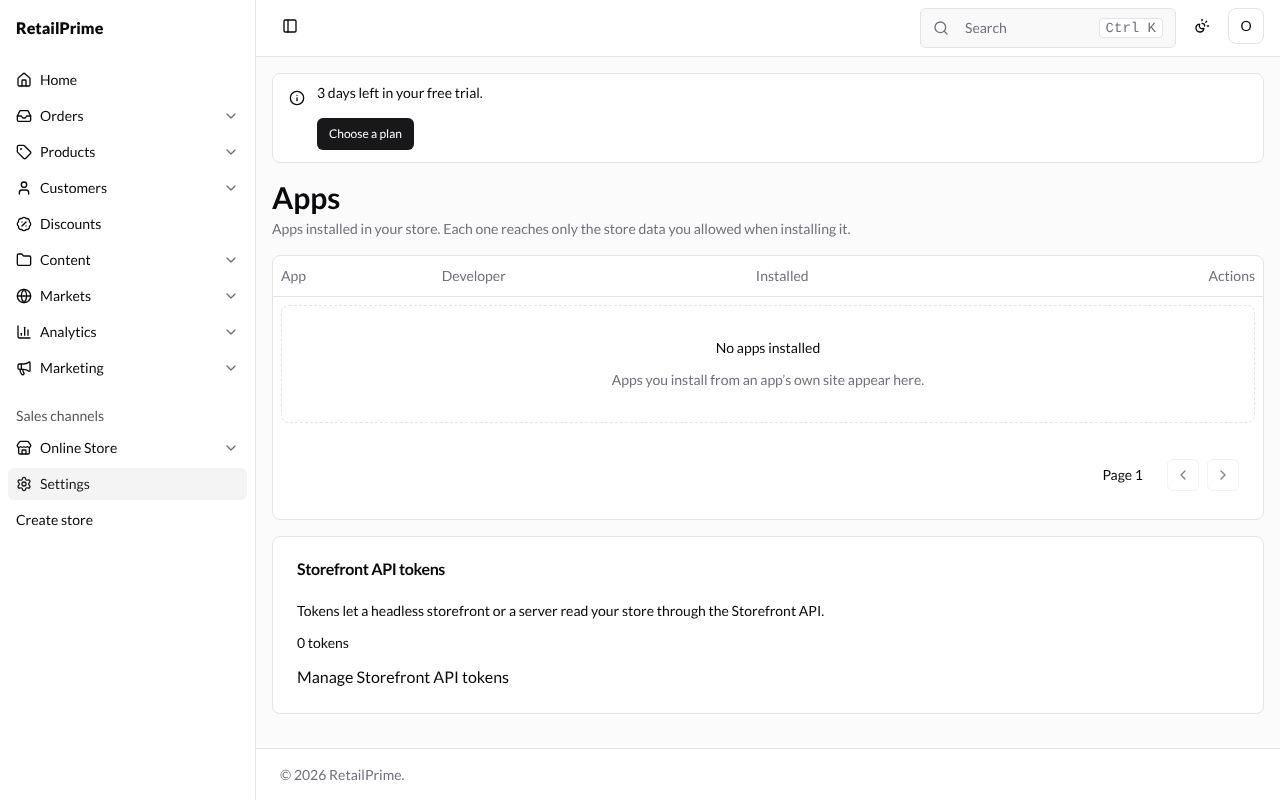
Install an app
You don’t install apps from this page: Apps you install from an app’s own site appear here. An app’s own site sends you to RetailPrime to install it. The example below is a test app called Order Sync by Example Apps Ltd.
-
RetailPrime shows Install Order Sync, By Example Apps Ltd. The Order Sync will be able to card lists what it asks for, in words and by name, here View products, collections and catalogs (
read_products) and View orders (read_orders). About the developer gives its support email and privacy policy. At the bottom: Order Sync is made by Example Apps Ltd, not RetailPrime. You can uninstall it at any time from Settings → Apps.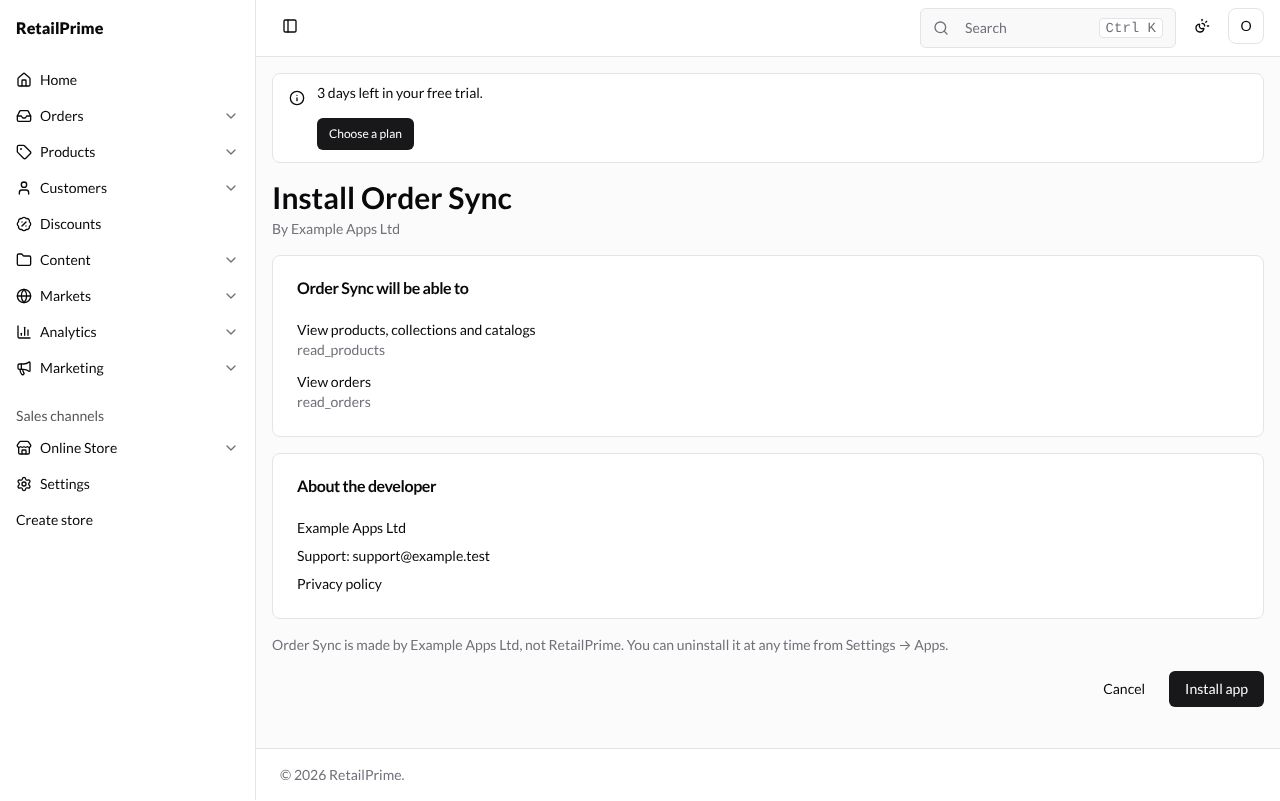
-
Press Install app to allow it, or Cancel to go back to the app without giving it access. After Install app, you are taken back to the app’s own site.
Installed apps
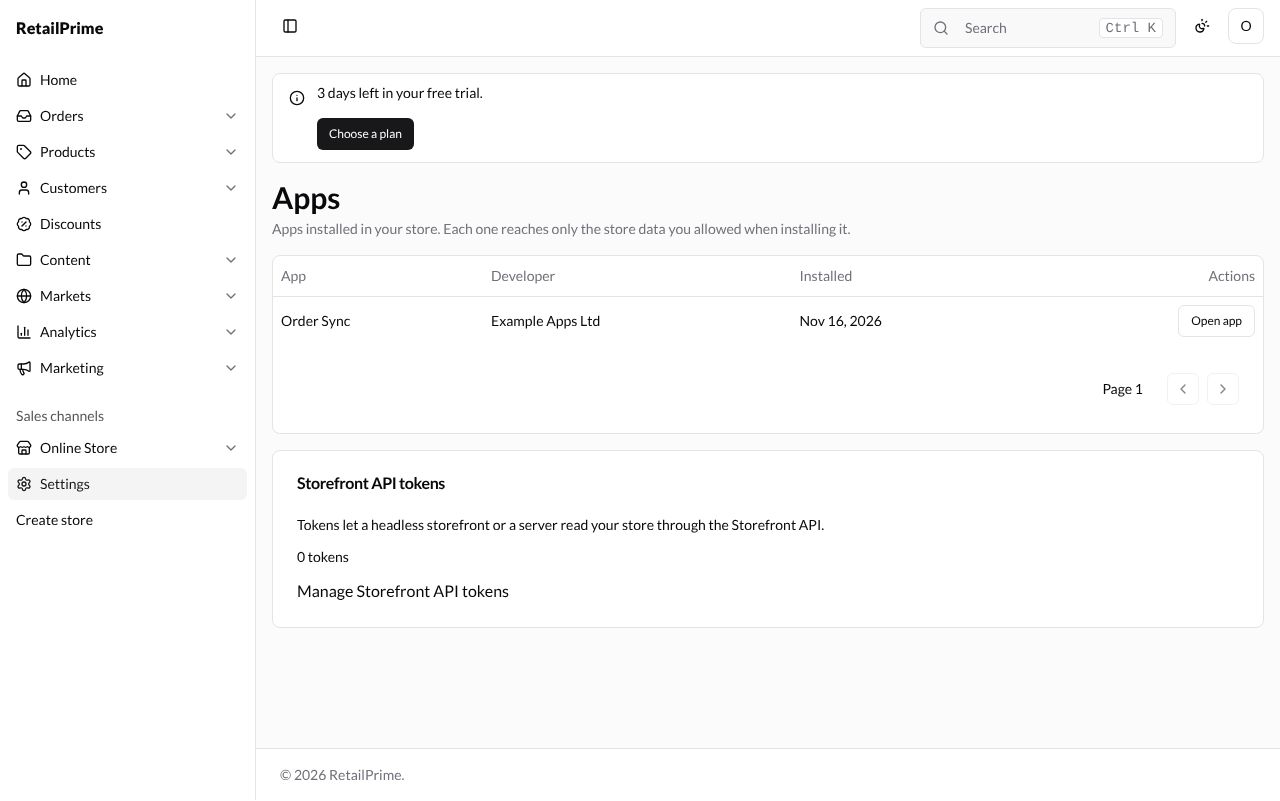
The app is now listed with its Developer, the day it was Installed, and Open app, which opens the app’s site in a new tab.
Press the app’s name to see its page: Access (what it can reach) and Details (Installed by who and when, support email and privacy policy), with Open app and Uninstall at the top.
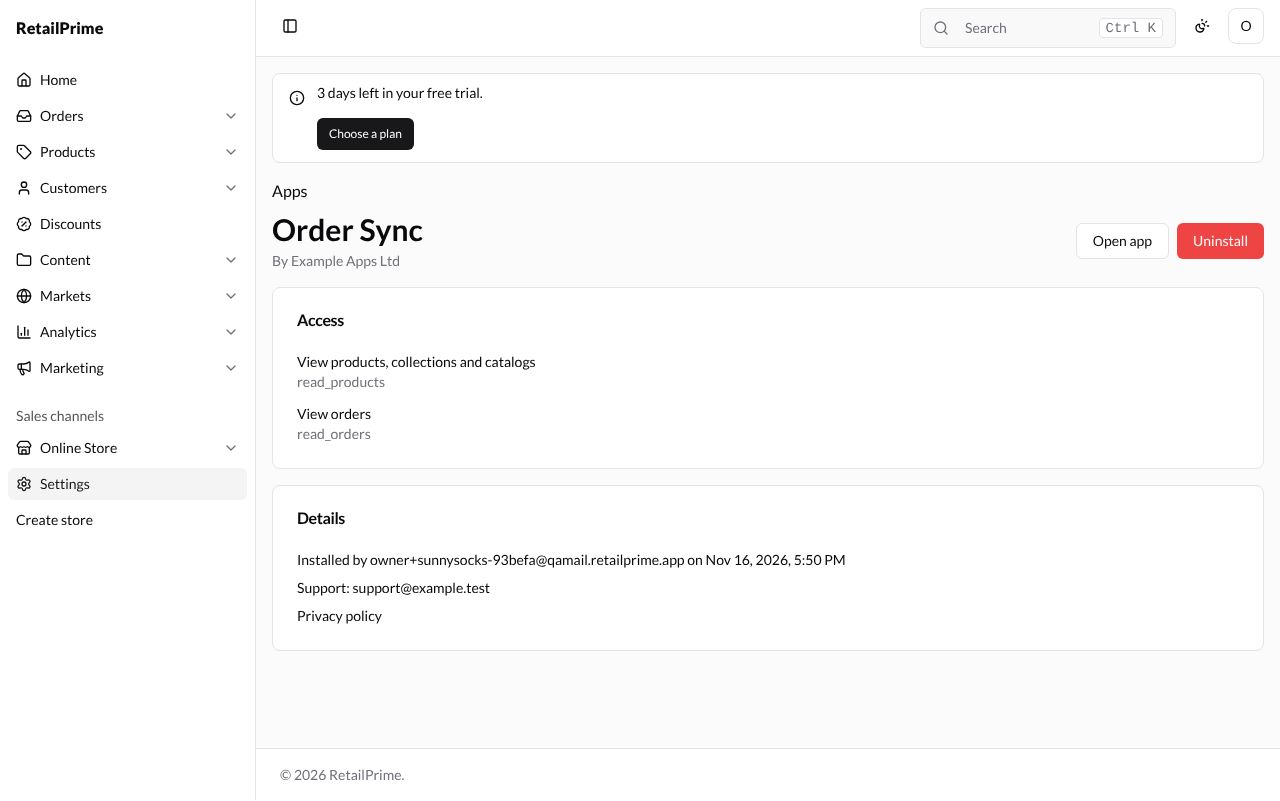
Uninstall an app
-
On the app’s page, press Uninstall.
-
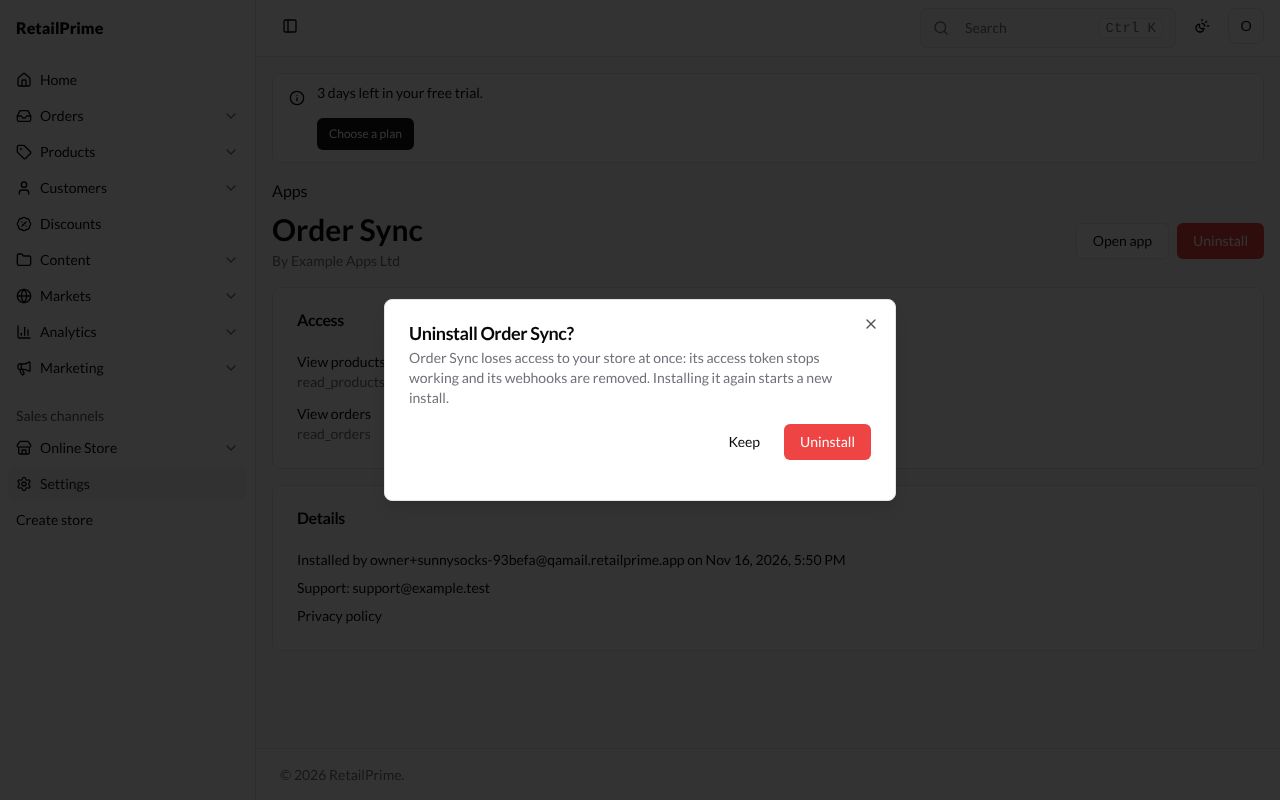
A window asks Uninstall Order Sync?: Order Sync loses access to your store at once: its access token stops working and its webhooks are removed. Installing it again starts a new install.
-
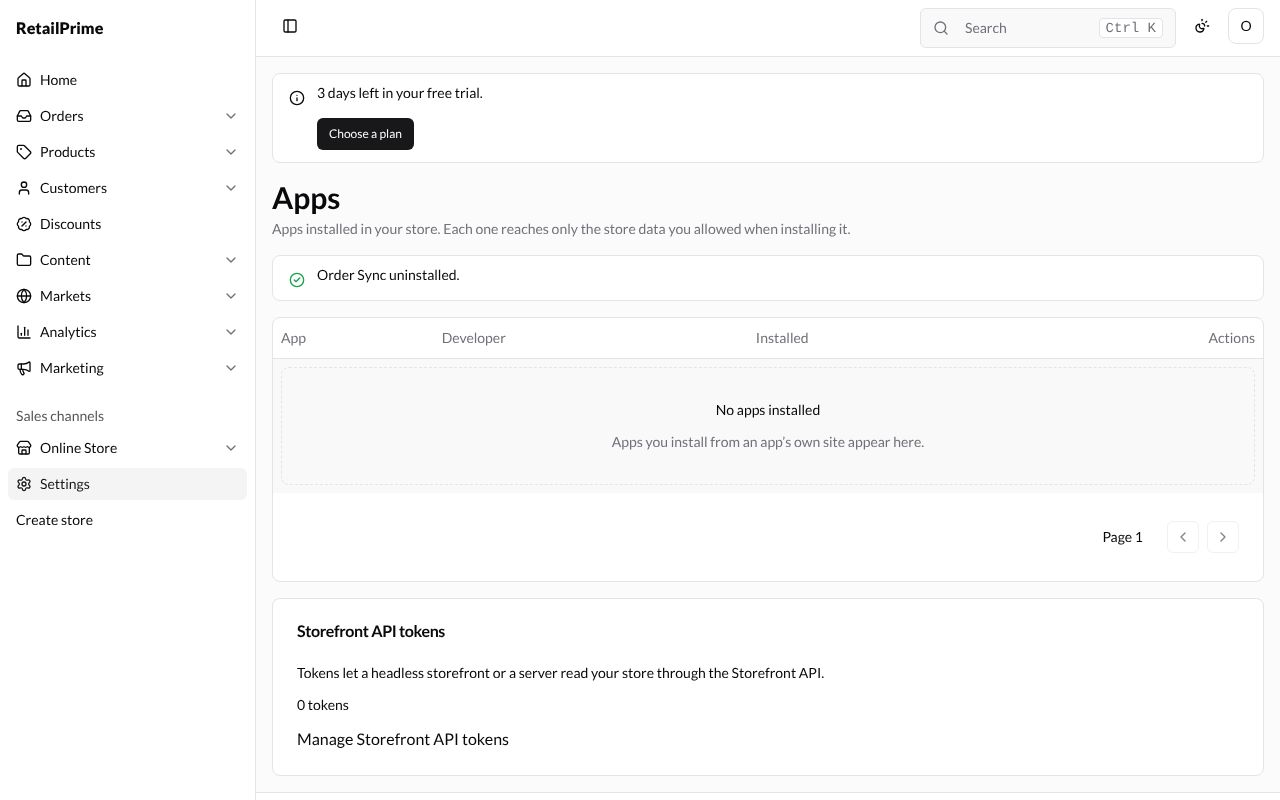
Press Uninstall. The Apps page says Order Sync uninstalled.
Storefront API tokens
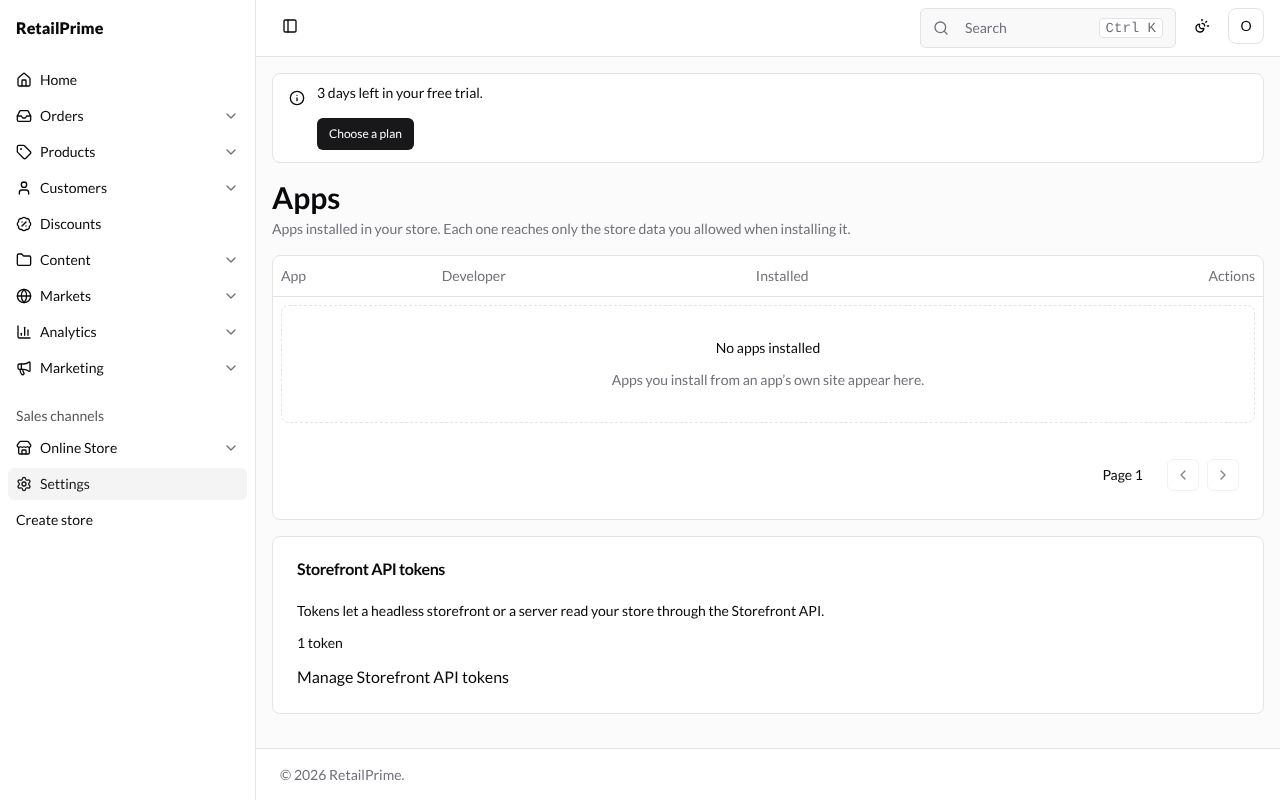
Tokens let a headless storefront or a server read your store through the Storefront API. The card counts your tokens. Press Manage Storefront API tokens.
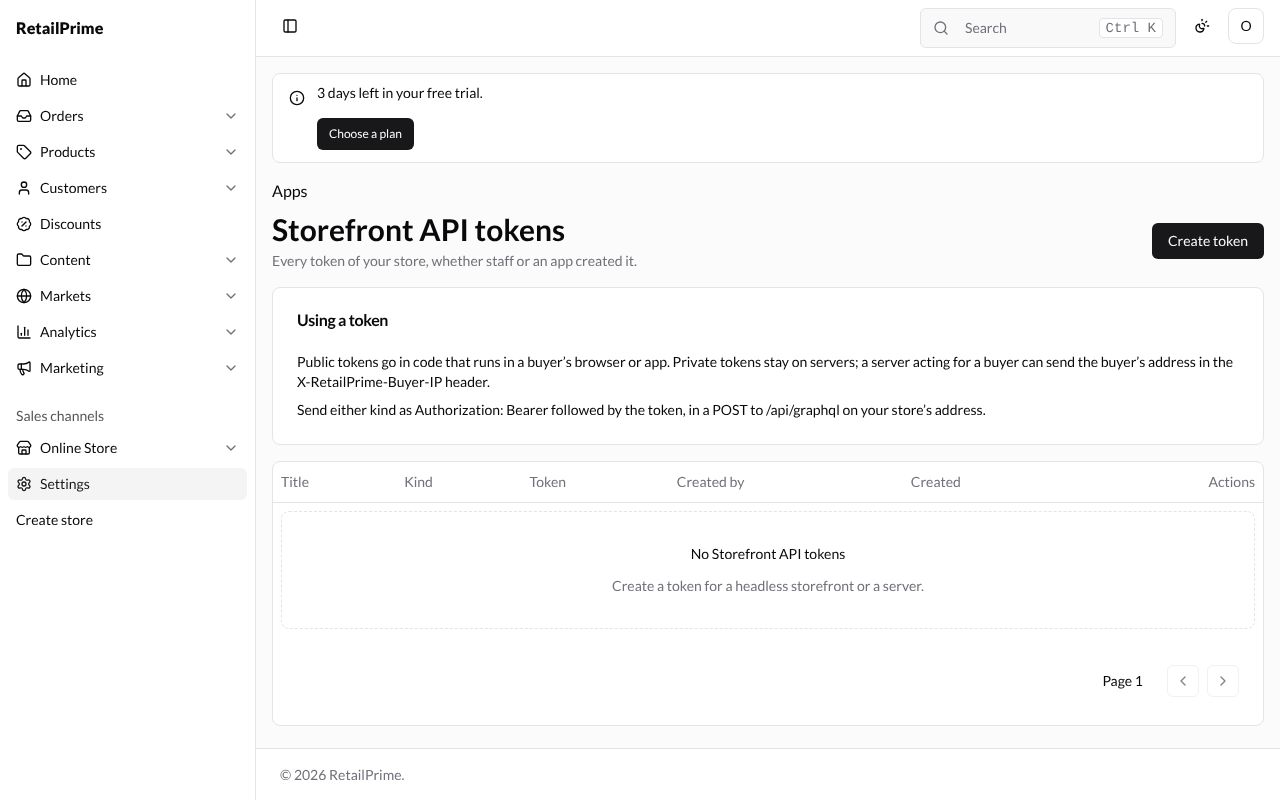
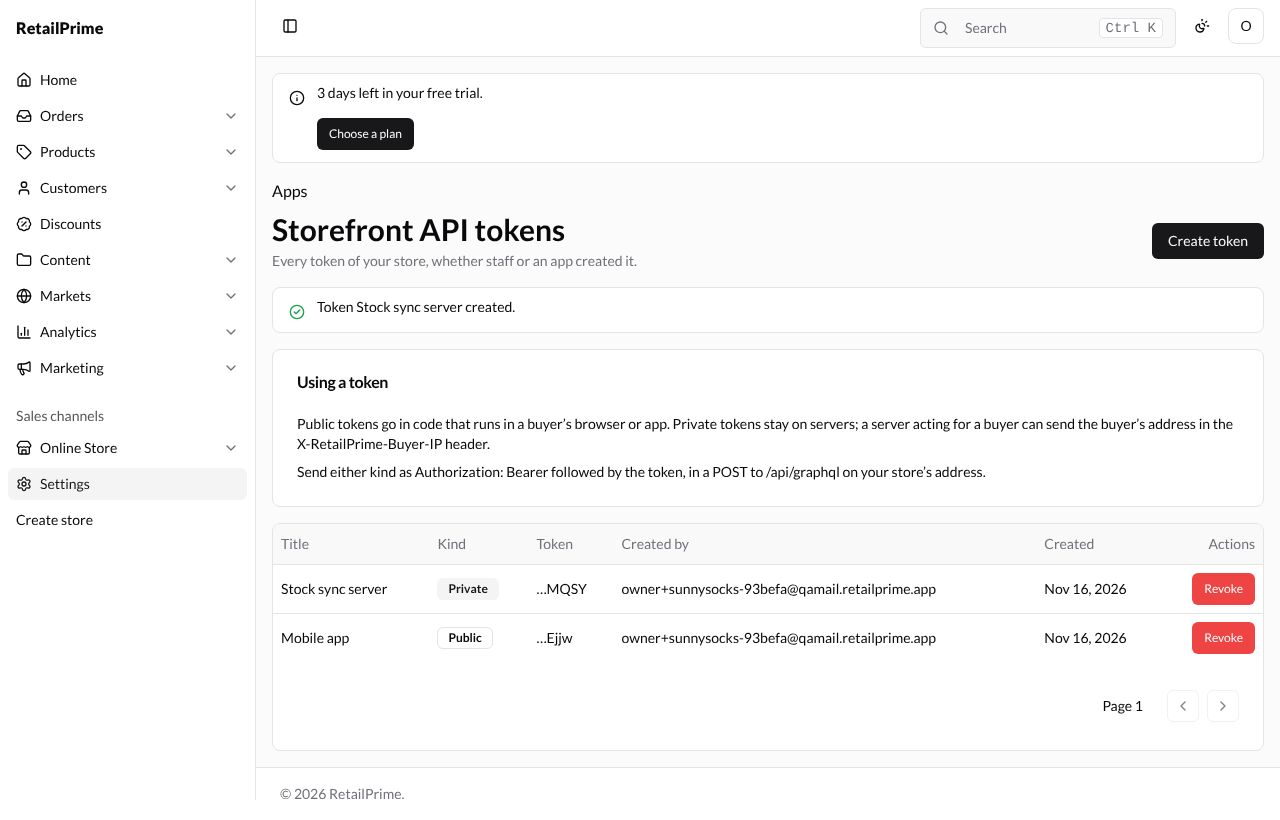
The page says Every token of your store, whether staff or an app created it. The Using a token card explains: Public tokens go in code that runs in a buyer’s browser or app. Private tokens stay on servers; a server acting for a buyer can send the buyer’s address in the X-RetailPrime-Buyer-IP header. and Send either kind as Authorization: Bearer followed by the token, in a POST to /api/graphql on your store’s address.
Create a token
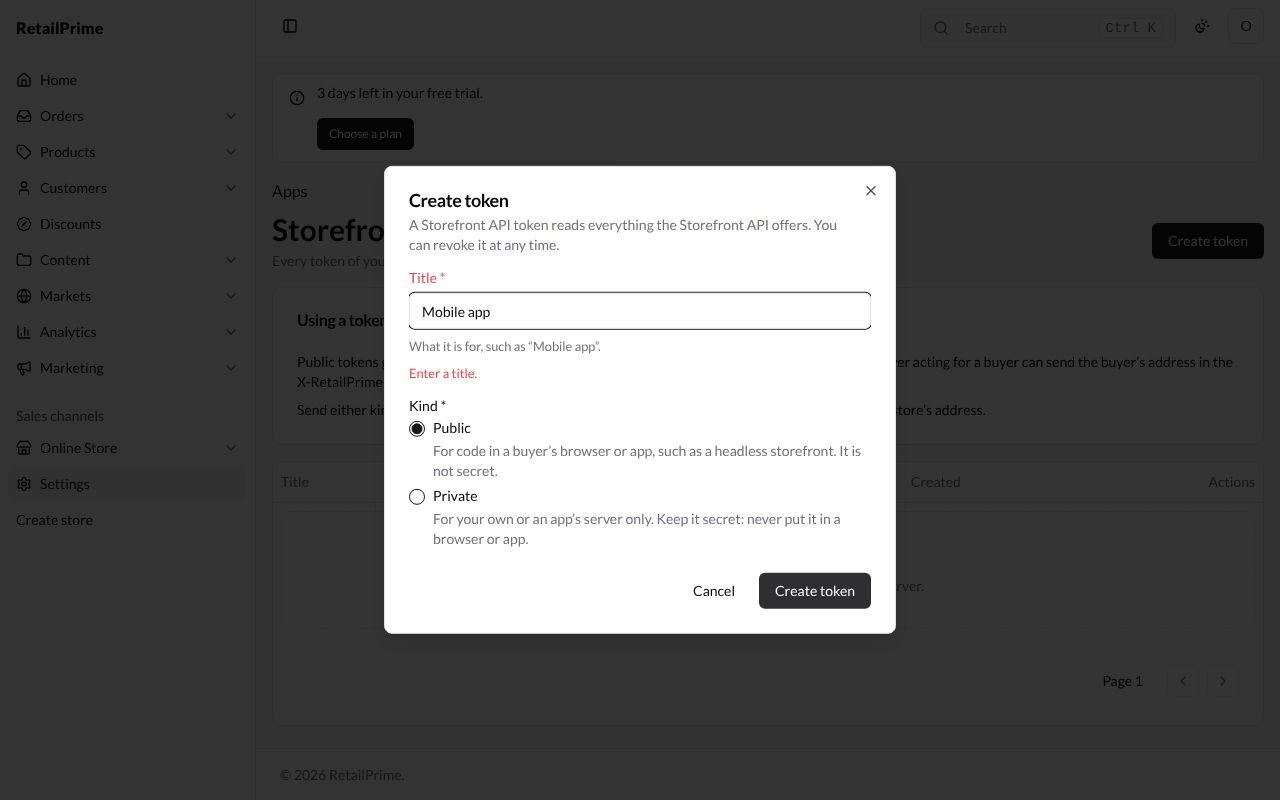
- Press Create token. The window says A Storefront API token reads everything the Storefront API offers. You can revoke it at any time.
- Fill it in:
| Box | What to choose | Example |
|---|---|---|
| Title (required) | What it is for, such as “Mobile app”. Without one: Enter a title. | Mobile app |
| Kind (required) | Public: For code in a buyer’s browser or app, such as a headless storefront. It is not secret. Private: For your own or an app’s server only. Keep it secret: never put it in a browser or app. | Public |
-
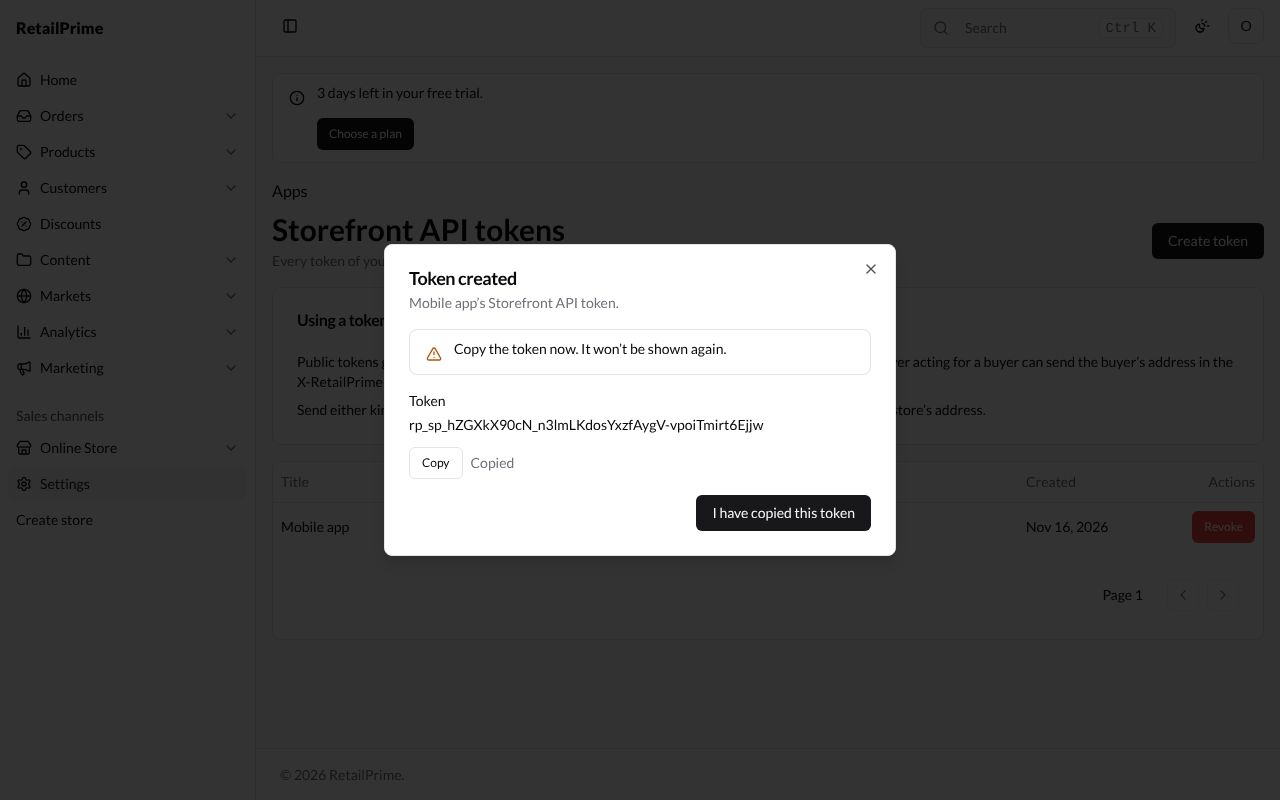
Press Create token. The Token created window shows the token once: Copy the token now. It won’t be shown again. Press Copy (it says Copied) and keep the token somewhere safe.
-
Press I have copied this token. The page says Token Mobile app created. The list shows each token’s Title, Kind, only its last characters under Token, who created it and when.
Revoke a token
-
Press Revoke on its row.
-
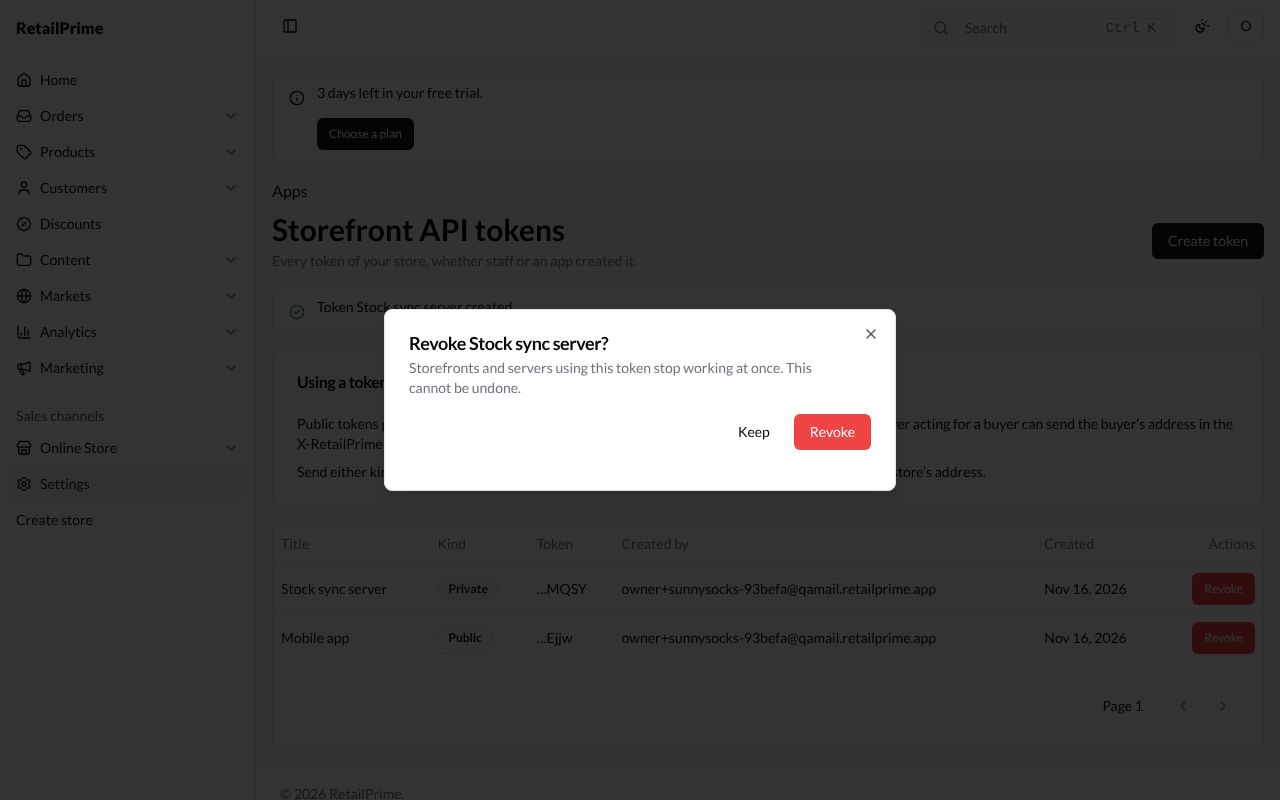
A window asks Revoke Stock sync server?: Storefronts and servers using this token stop working at once. This cannot be undone.
-
Press Revoke. The token is gone. Back on Apps, the card counts 1 token.
What’s next
Domains: give your store an address of your own.