Brand and store activity
Add your logo, square logo, cover image, colours, slogan and description, and read who changed what in your store.
Both pages open from Settings → General.
Brand
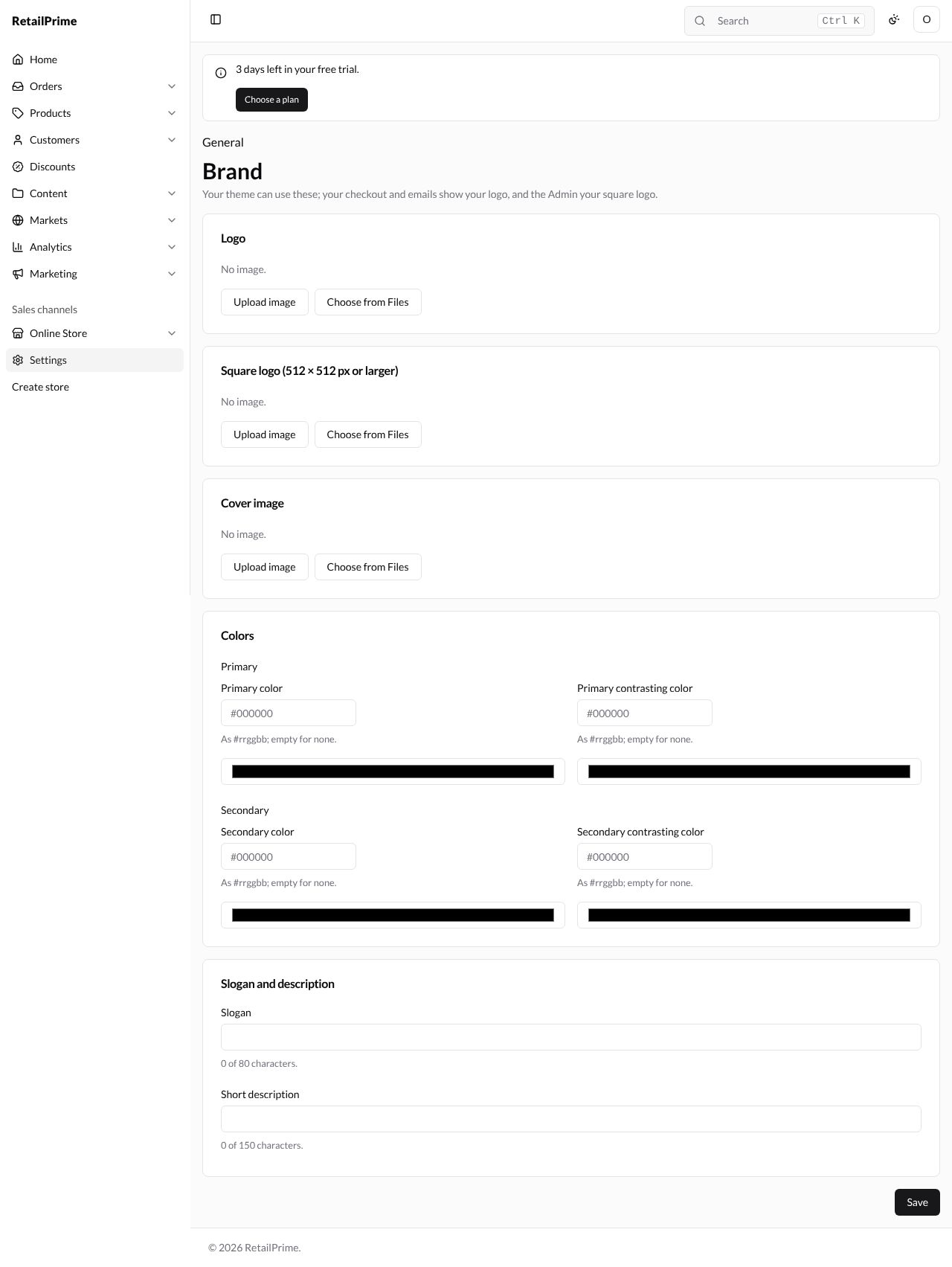
On the General page, find the Brand card (Your logo, colors, slogan and description, for your theme, checkout and emails.) and press Manage. The Brand page says Your theme can use these; your checkout and emails show your logo, and the Admin your square logo. A new store has No image. in each picture card and empty colours:
Pictures
There are three picture cards: Logo, Square logo (512 × 512 px or larger) and Cover image. Each has the same buttons:
- Upload image: choose a picture on your computer. It is also added to Content → Files.
- Choose from Files: pick a picture you already uploaded in Content → Files (part 5 shows how).
- Remove image: appears once a picture is set, and takes it off (the file stays in Files).
Colours
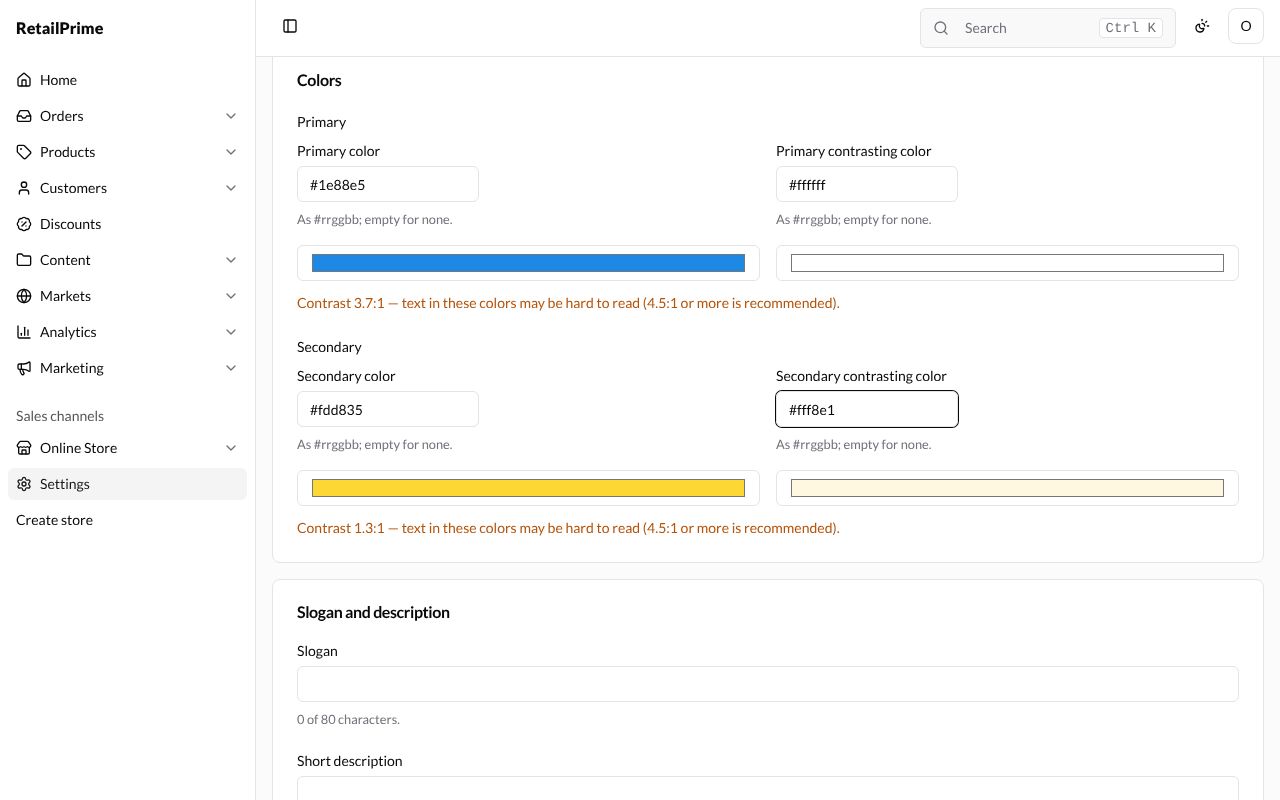
The Colors card has two pairs, Primary and Secondary. Each pair has a colour and a contrasting colour (the colour of text on it):
| Box | What to type | Example |
|---|---|---|
| Primary color | As #rrggbb; empty for none. You can also click the colour bar under the box to pick one | #1e88e5 |
| Primary contrasting color | The colour of text on the primary colour | #ffffff |
| Secondary color | #fdd835 |
|
| Secondary contrasting color | #212121 |
Under each pair, RetailPrime says how easy text is to read, such as Contrast 11.5:1. If the two colours are too close, it says in orange, for example Contrast 1.3:1 — text in these colors may be hard to read (4.5:1 or more is recommended). You can still save them.
Slogan and description
| Box | What to type | Example |
|---|---|---|
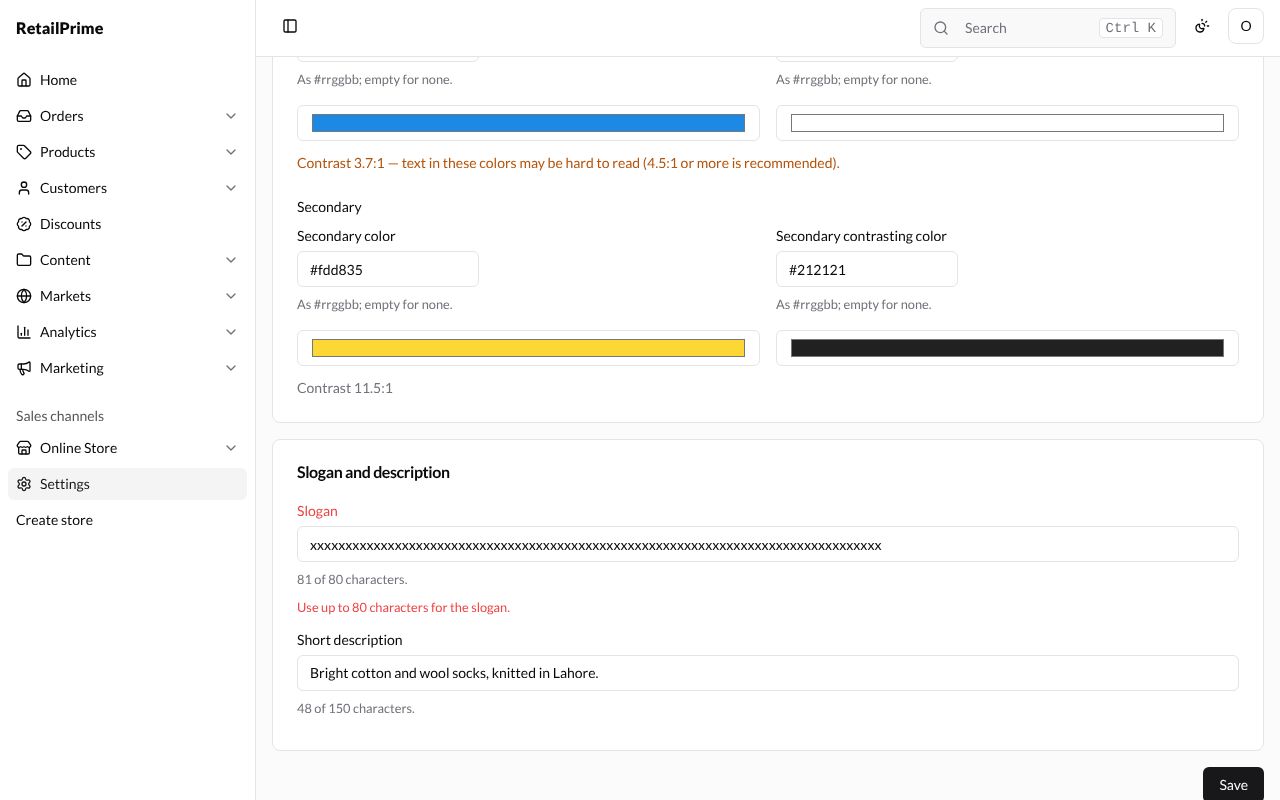
| Slogan | Up to 80 characters; it counts as you type, such as 21 of 80 characters. | Happy feet, every day |
| Short description | Up to 150 characters | Bright cotton and wool socks, knitted in Lahore. |
A slogan that is too long is refused when you press Save: Use up to 80 characters for the slogan.
Save the brand
Press Save. The page says Brand saved.
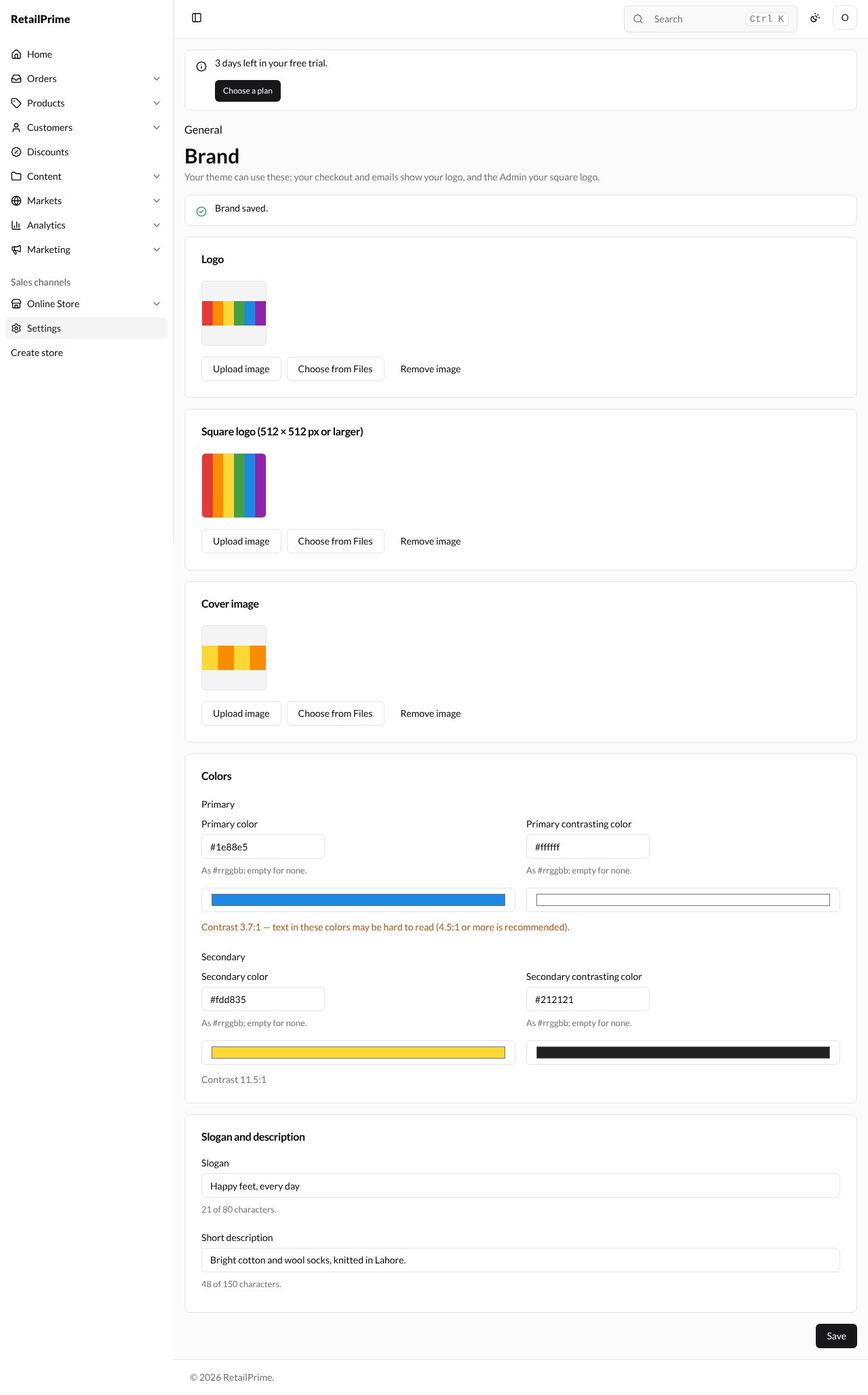
Press General at the top to go back. The Brand card now shows your logo and slogan.
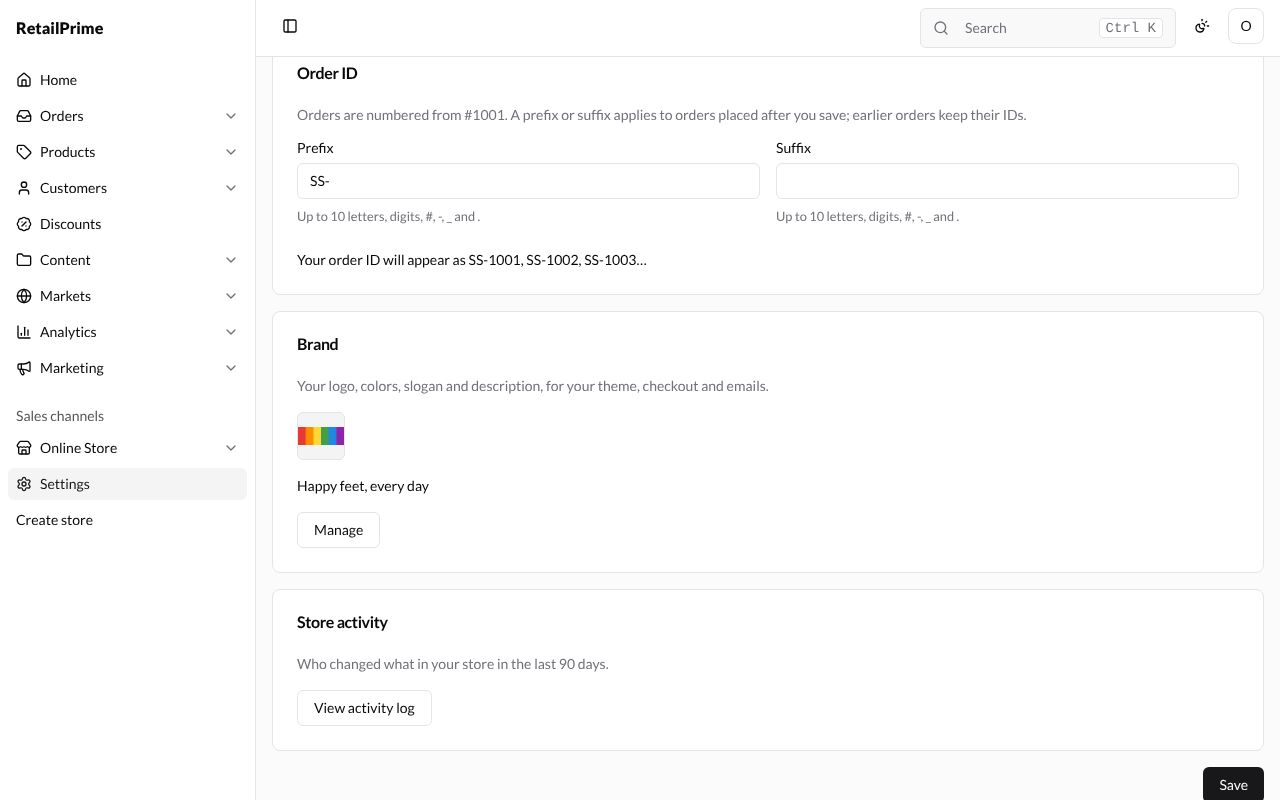
Store activity
On the General page, the Store activity card says Who changed what in your store in the last 90 days. Press View activity log. Each row shows When, Who, What and Resource: here the owner saved the store settings and uploaded three files (the brand pictures).
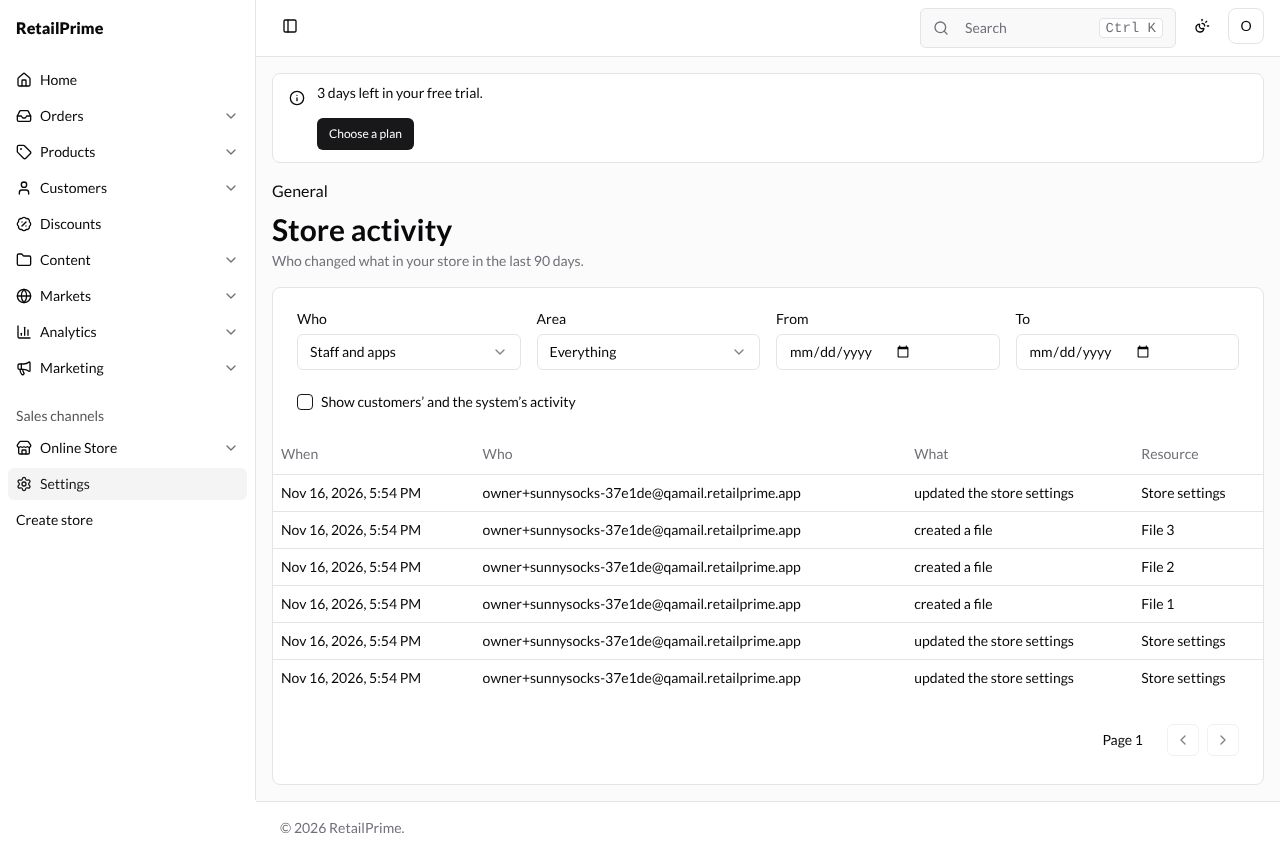
Narrow the list with the filters at the top:
| Filter | Choices |
|---|---|
| Who | Staff and apps, All staff, each active user by name, Apps, Customers and System |
| Area | Everything, Products, Orders, Customers, Content, Settings and Apps |
| From and To | Days, to look at part of the last 90 days |
| Show customers’ and the system’s activity | Tick it to add what buyers and RetailPrime itself did |
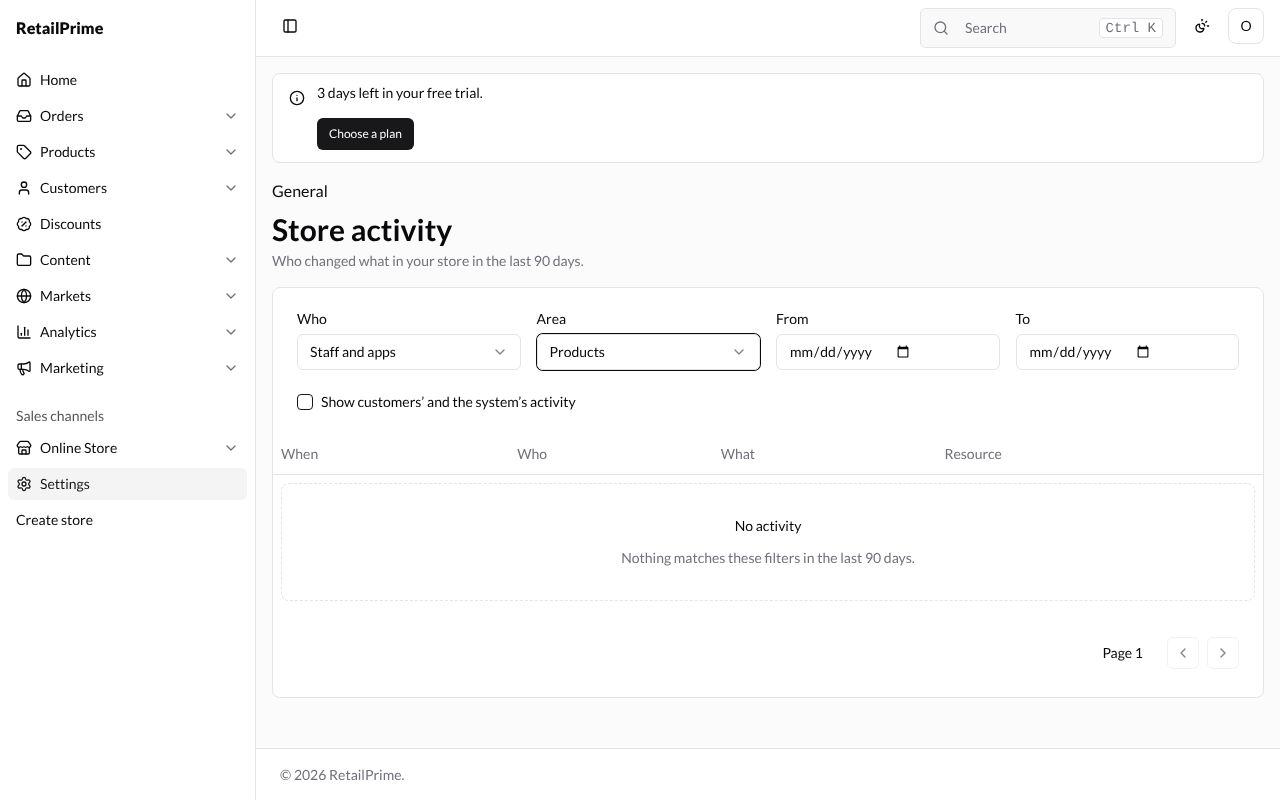
When nothing matches, the list says No activity and Nothing matches these filters in the last 90 days. Here Area is Products, and no product has been changed:
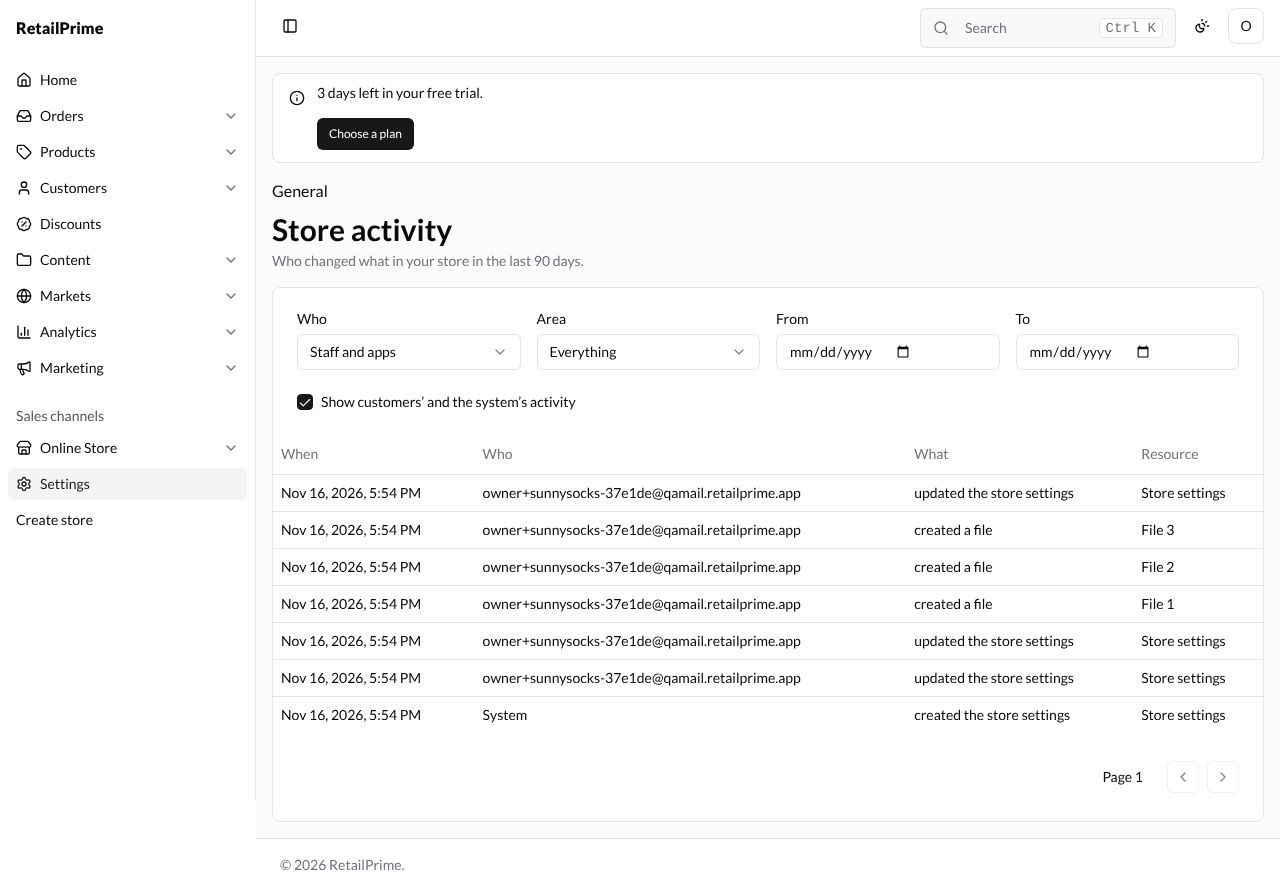
With Show customers’ and the system’s activity ticked, a row by System appears: created the store settings, when the store was made.
Use the arrow buttons next to Page 1 at the bottom to move between pages of the list.
What’s next
The store currency: change it before your first order.