Change, remove and transfer ownership
Change a user's role, remove a user, cancel an invitation, and make an Administrator the store owner.
All of this starts on Settings → Users: press a user’s name to open their page.
A user’s page
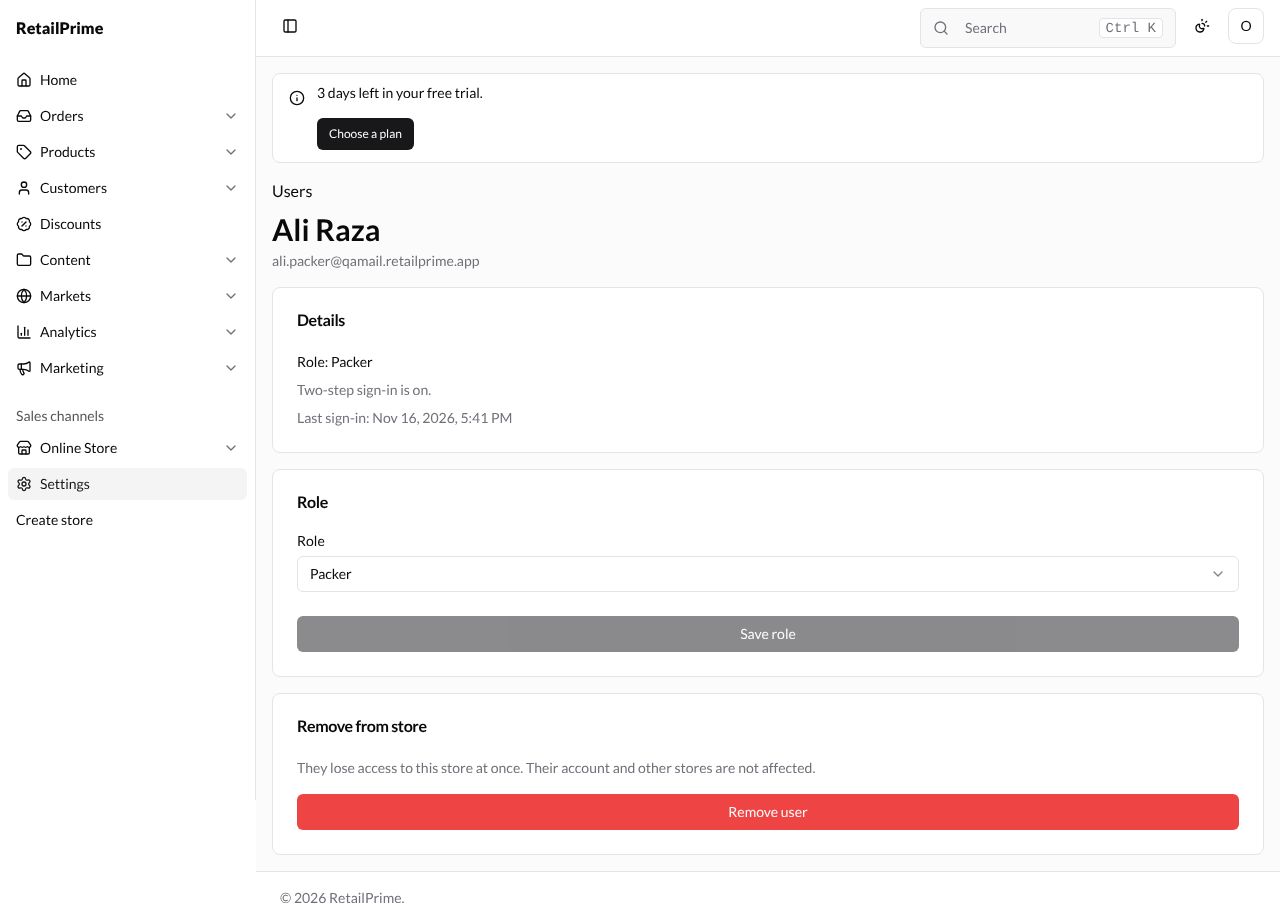
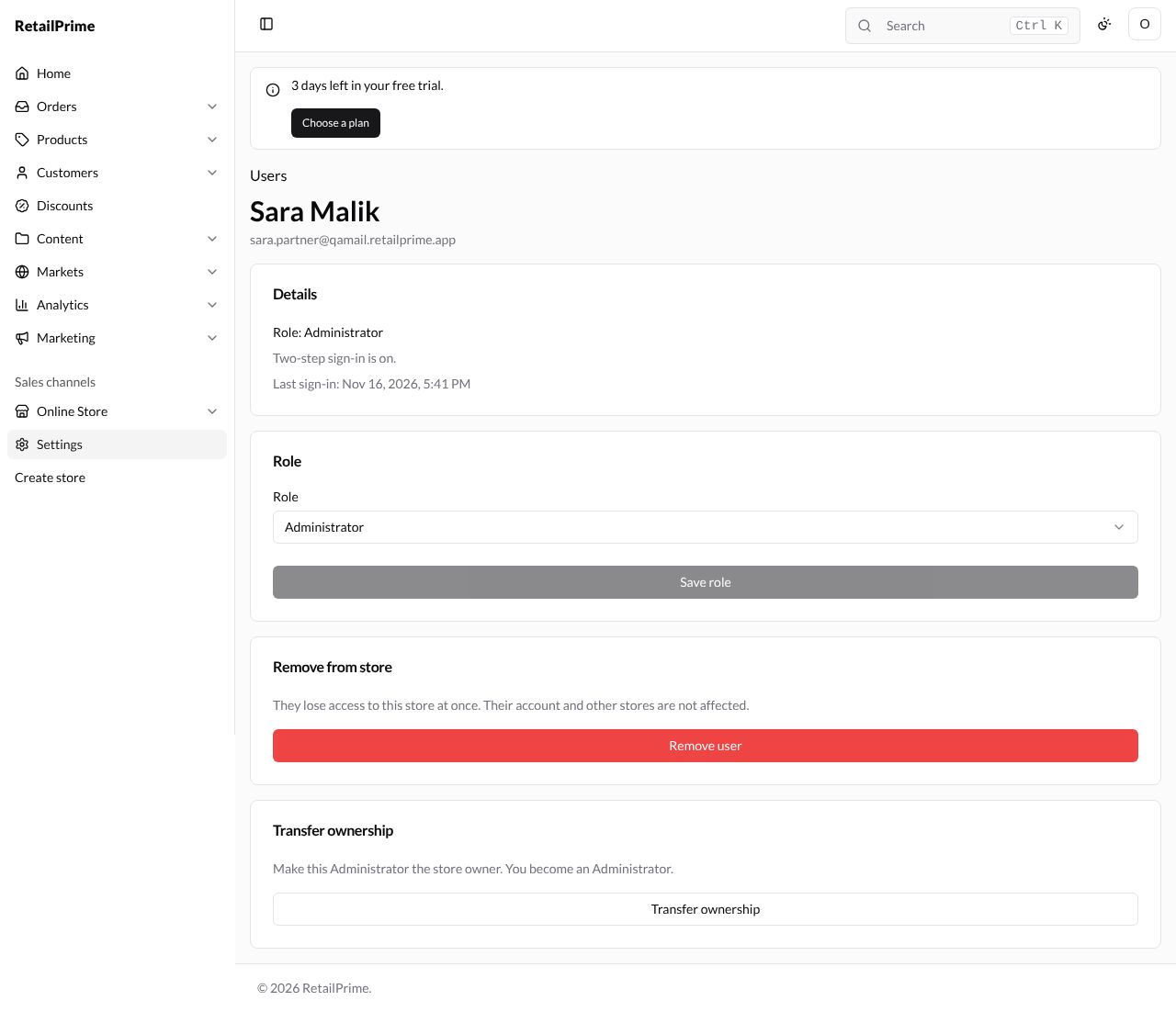
The Details card shows their role, whether Two-step sign-in is on., and their last sign-in. Below are the Role card and the Remove from store card. You can’t change your own page or the store owner’s this way.
Change a user’s role
- In the Role card, choose another role, here Administrator.
- Press Save role (it can only be pressed after you choose a different role). The page says Role saved. and Details shows the new role.
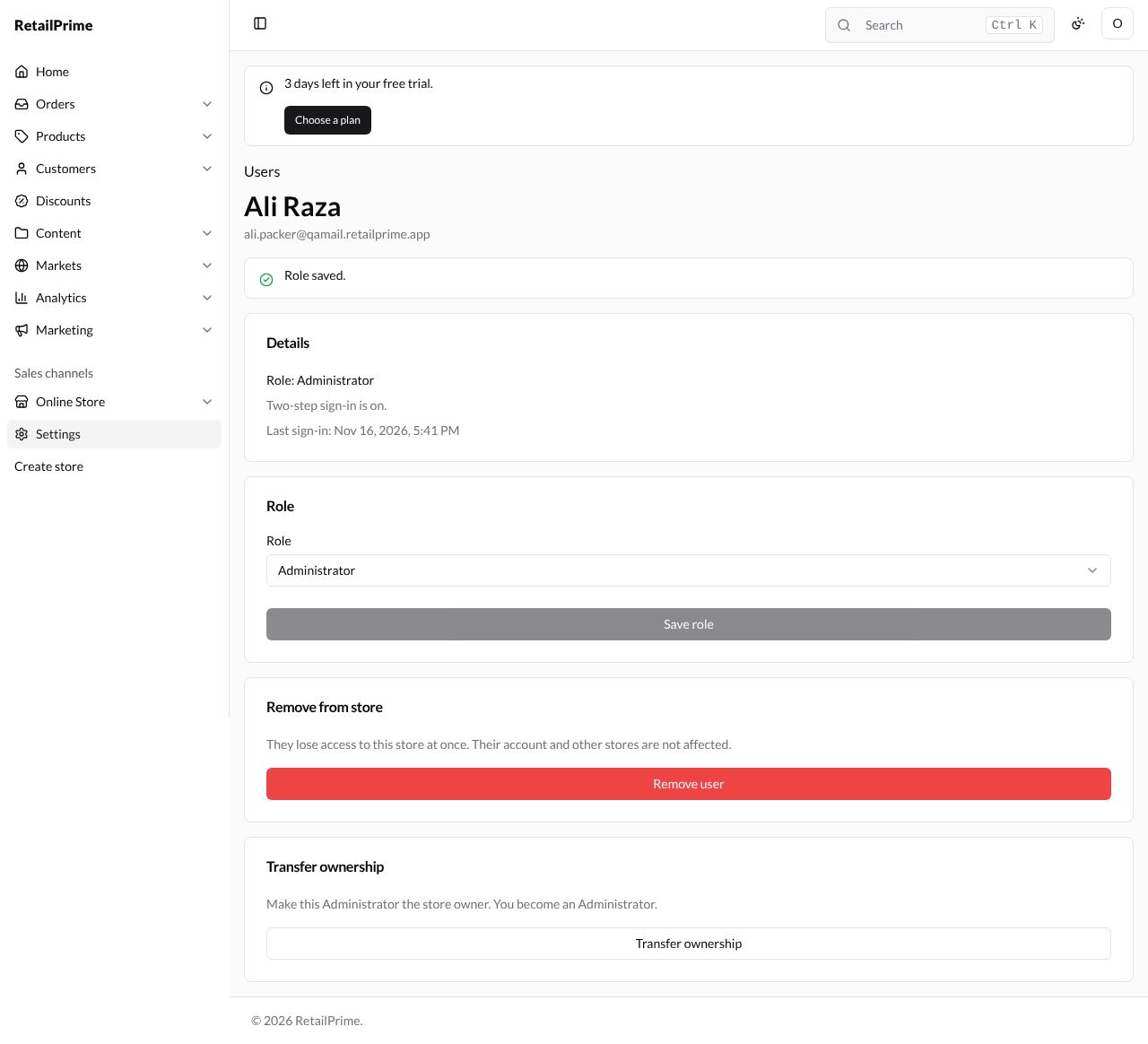
Because Ali is now an Administrator, the store owner also sees a Transfer ownership card on his page (see below).
Remove a user
-
On their page, press Remove user. The card says They lose access to this store at once. Their account and other stores are not affected.
-
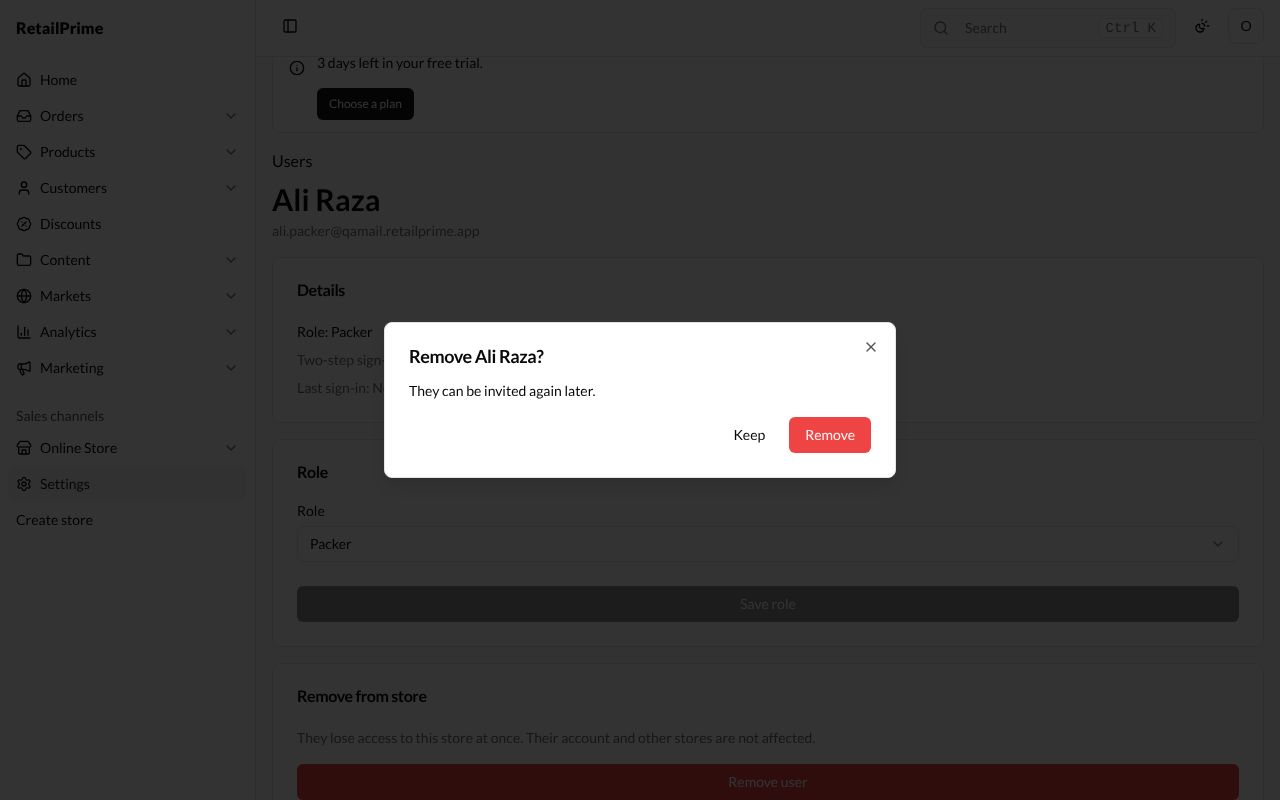
A window asks Remove Ali Raza? and says They can be invited again later.
-
Press Remove (or Keep to change your mind). You are back on the Users page without them.
Cancel an invitation
For someone who has not accepted yet, their page shows a Cancel invitation card instead: The invitation link stops working.
-
Press Cancel invitation.
-
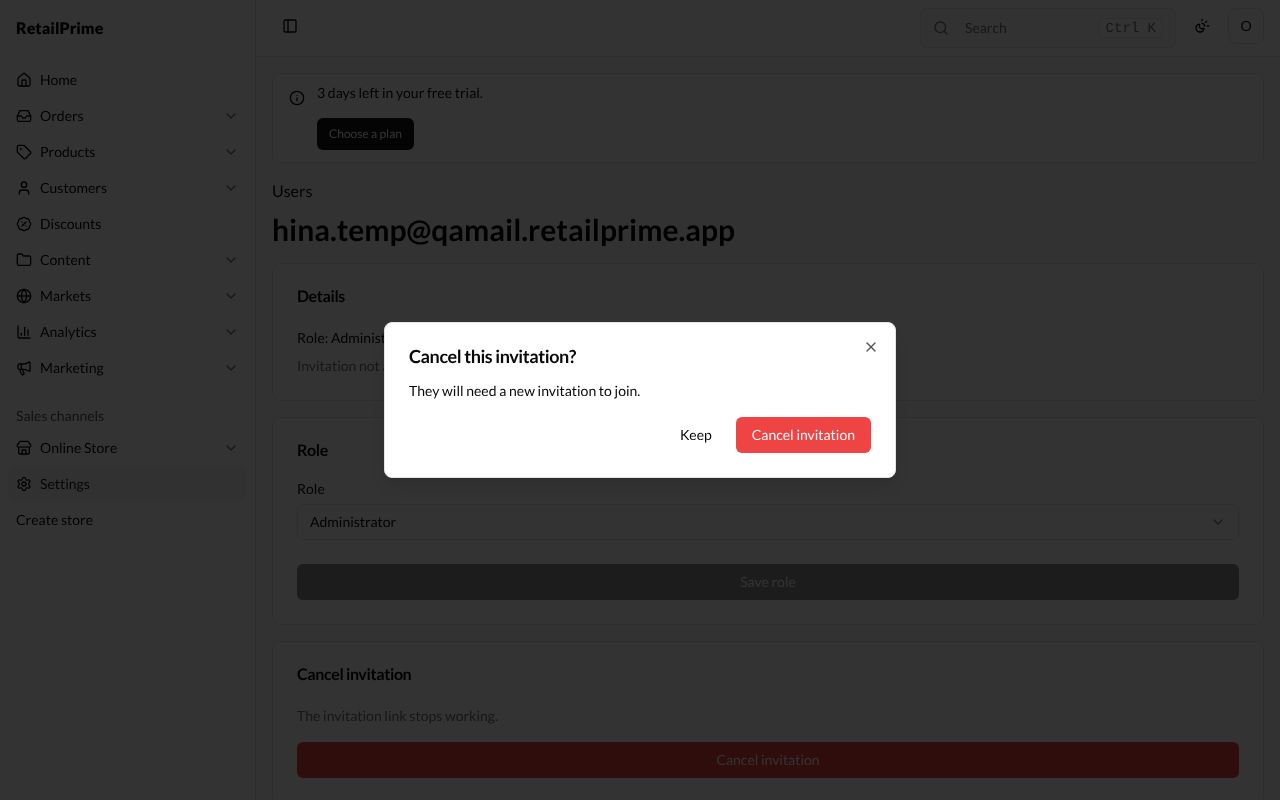
A window asks Cancel this invitation? and says They will need a new invitation to join.
-
Press Cancel invitation. The invitation is gone from the Users page.
Transfer ownership
Only the store owner can do this, and only to someone who has accepted their invitation and has the Administrator role. Here Sara Malik was invited as an Administrator and has joined.
-
Open her page. At the bottom, the Transfer ownership card says Make this Administrator the store owner. You become an Administrator.
-
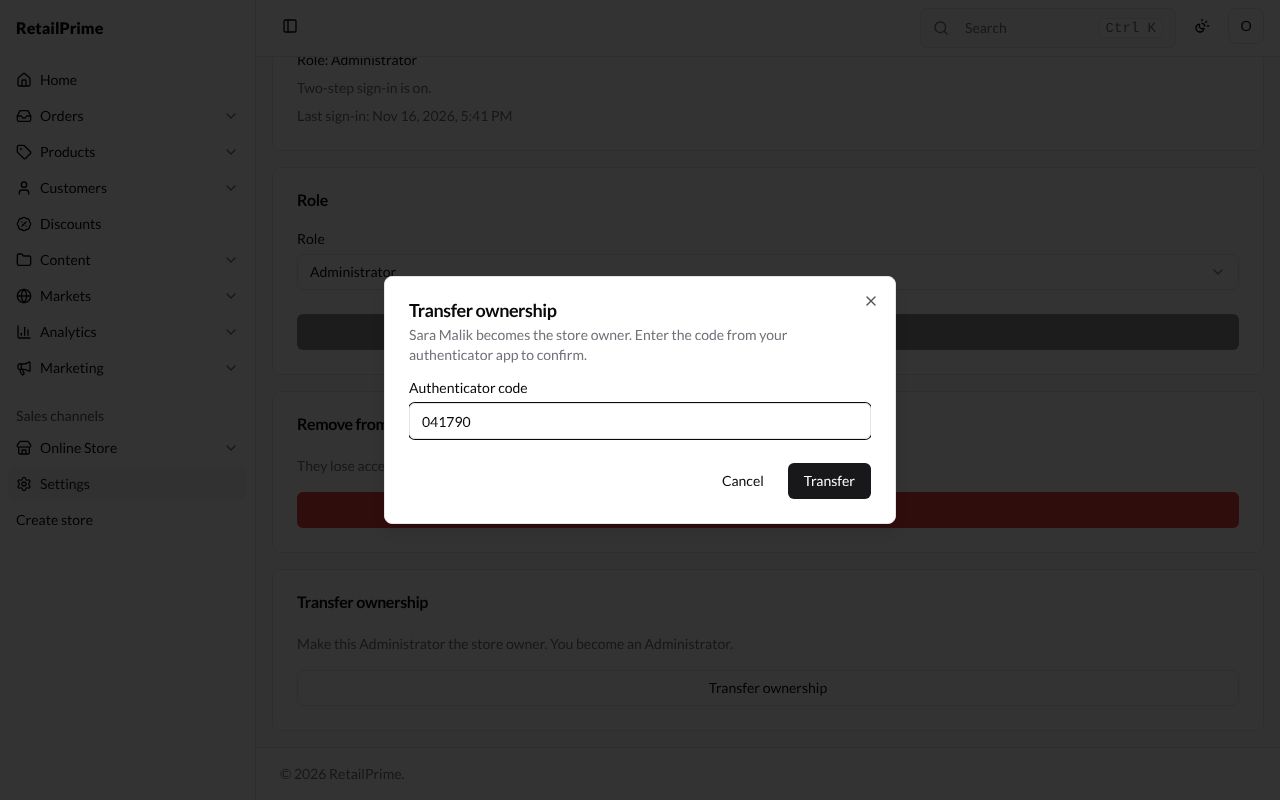
Press Transfer ownership. The window says Sara Malik becomes the store owner. Enter the code from your authenticator app to confirm.
-
Type the 6-digit code from your authenticator app in Authenticator code.
-
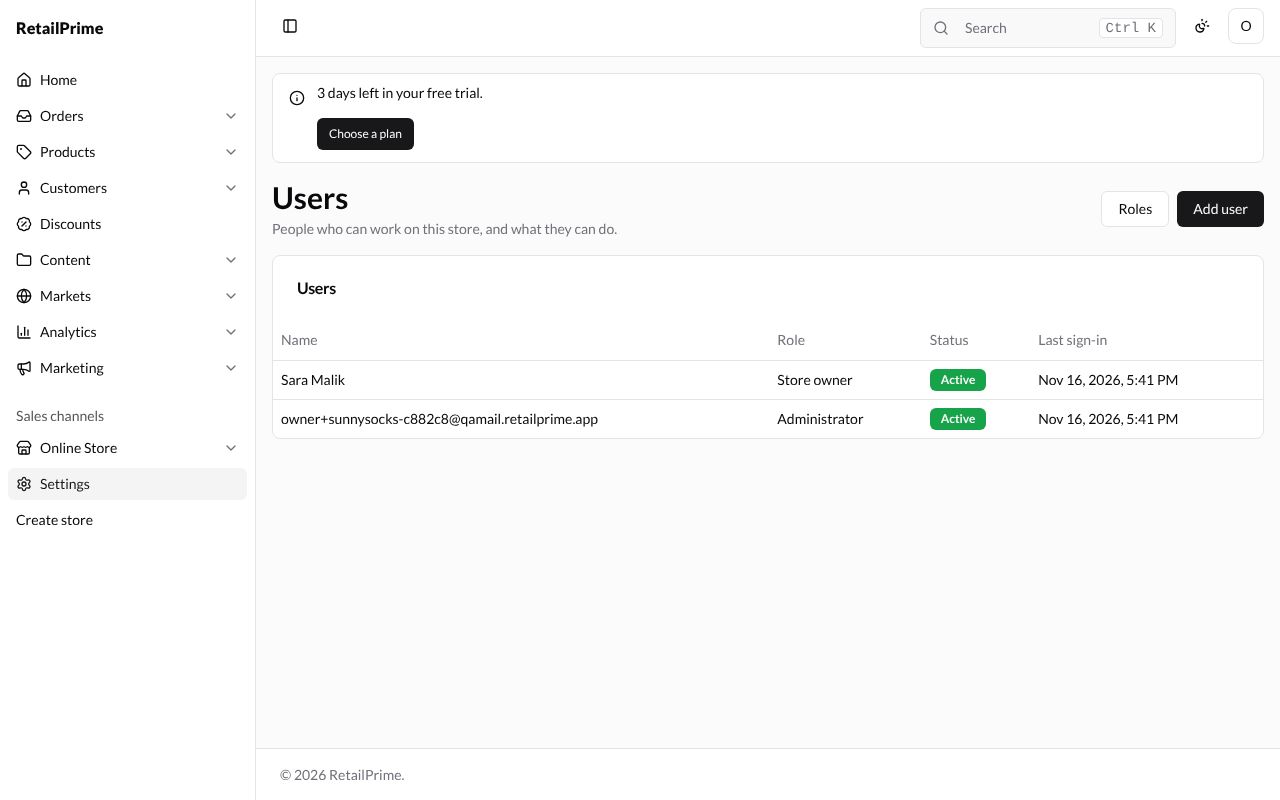
Press Transfer. Her page now says Store owner: every permission, and only they can transfer ownership. On the Users page she is the Store owner and you are an Administrator.
What’s next
Plan and billing: choose your RetailPrime plan and pay its invoices.