Metaobjects
Keep records of your own, such as your sock designers, as entries; add, change, draft and delete them, and link one to a product.
A metaobject is a kind of record you make up yourself, such as a Sock designer with a name, a short bio and a website. Each record of that kind is an entry, such as Hina Tariq. You can then link an entry to a product, so each product says who designed it.
There are two steps:
- The definition: what kind of record it is and which fields it has. You make it in Settings → Custom data, which part 6 of this guide covers in Custom data. Here, a Sock designer definition has three fields: Full name (which must be filled in, and names each entry), Bio (several lines of text) and Website (a web address).
- The entries: the records themselves. You add them in Content → Metaobjects, as this page shows.
Open Metaobjects
In the sidebar, press Content, then Metaobjects. The page says Records of your own, such as designers or size charts. It lists each definition’s Name, how many Entries it has and when it was Updated. Manage definitions opens Settings → Custom data.
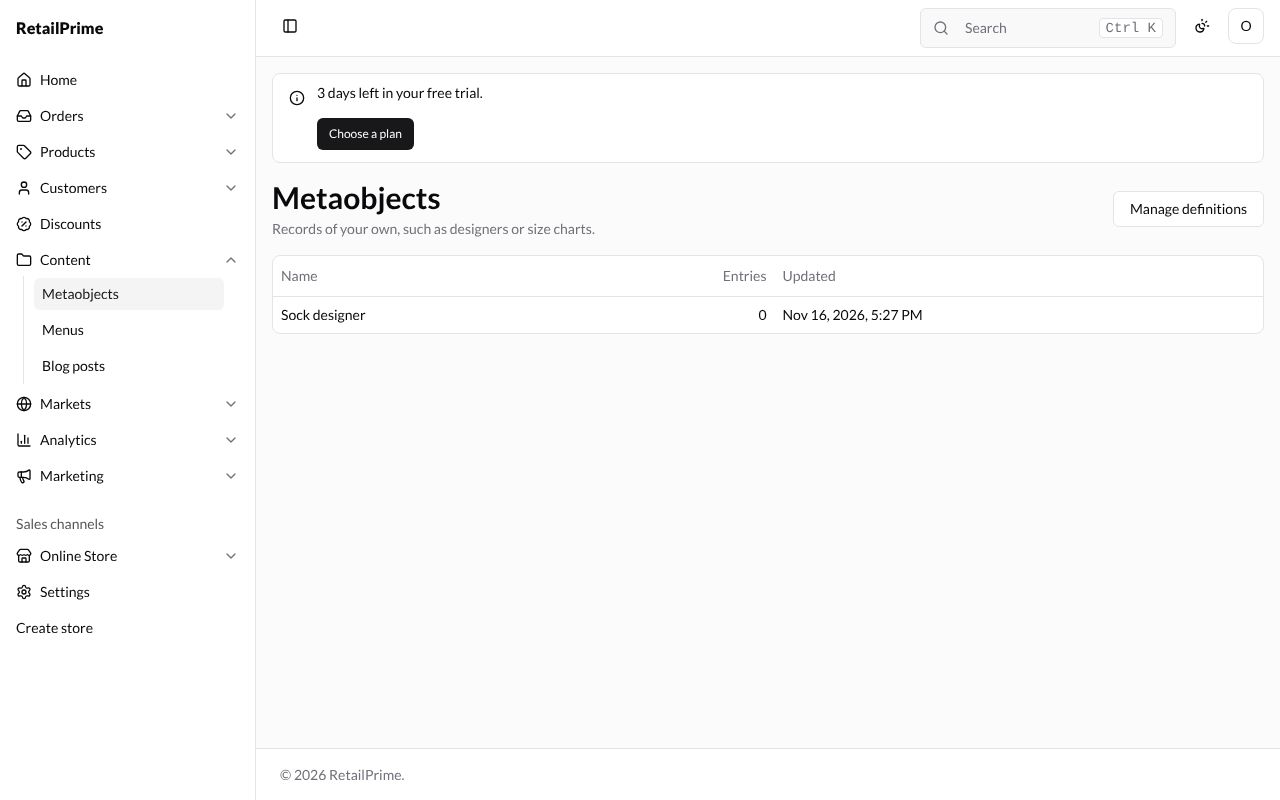
A store with no definition yet says No metaobject definitions yet: Add a definition in Settings → Custom data, then add its entries here.
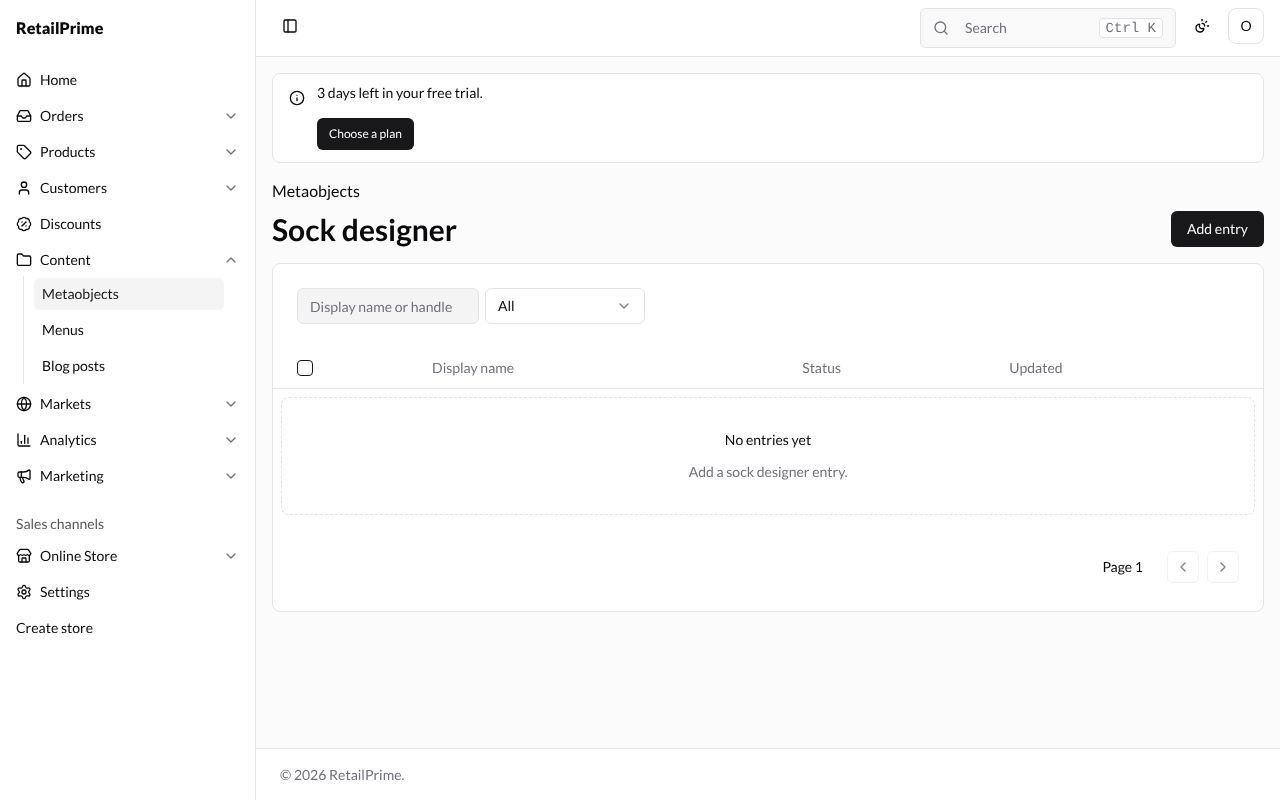
Press Sock designer. Its page lists its entries. It has No entries yet: Add a sock designer entry.
Add an entry
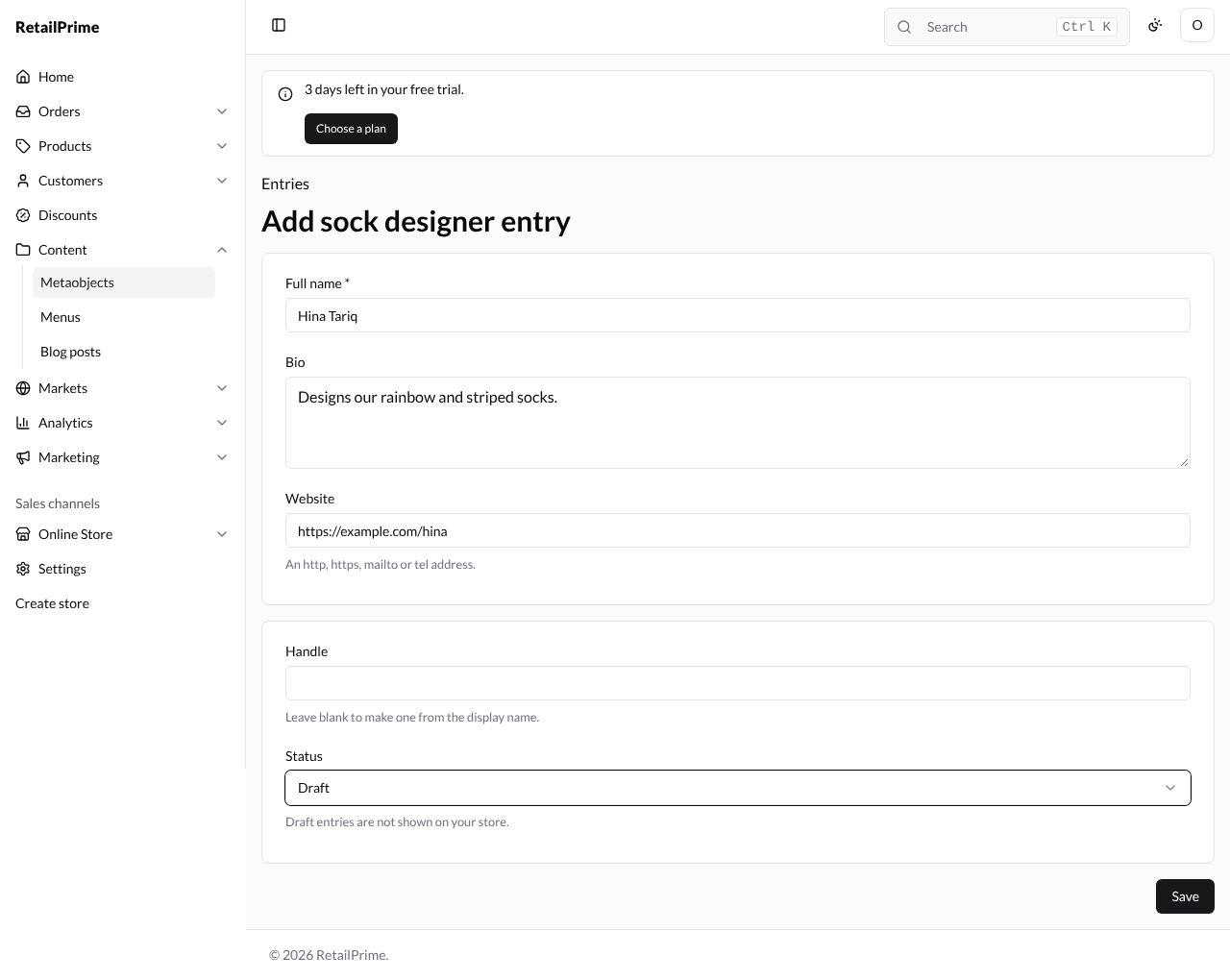
Press Add entry. The Add sock designer entry form has a box for each field of the definition, then Handle and Status.
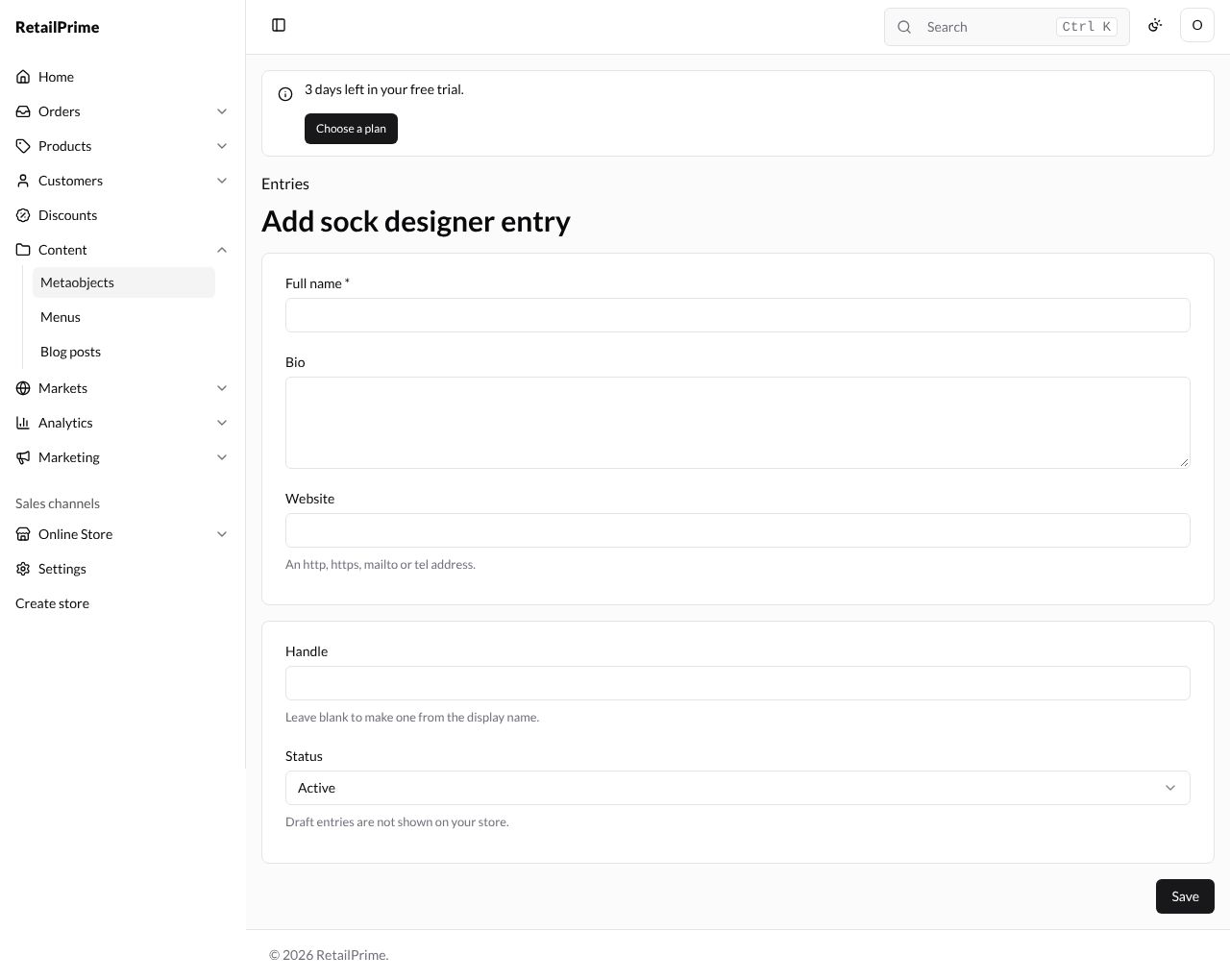
| Box | What to type | Example |
|---|---|---|
| Full name | The designer’s name. It has a star, so it must be filled in | Hina Tariq |
| Bio | A few lines about them | Designs our rainbow and striped socks. |
| Website | An http, https, mailto or tel address. | https://example.com/hina |
| Handle | Leave blank to make one from the display name. | (blank, so hina-tariq) |
| Status | Active or Draft. Draft entries are not shown on your store. | Draft |
If a field that must be filled in is empty, Save says so at the top, such as Enter Full name.
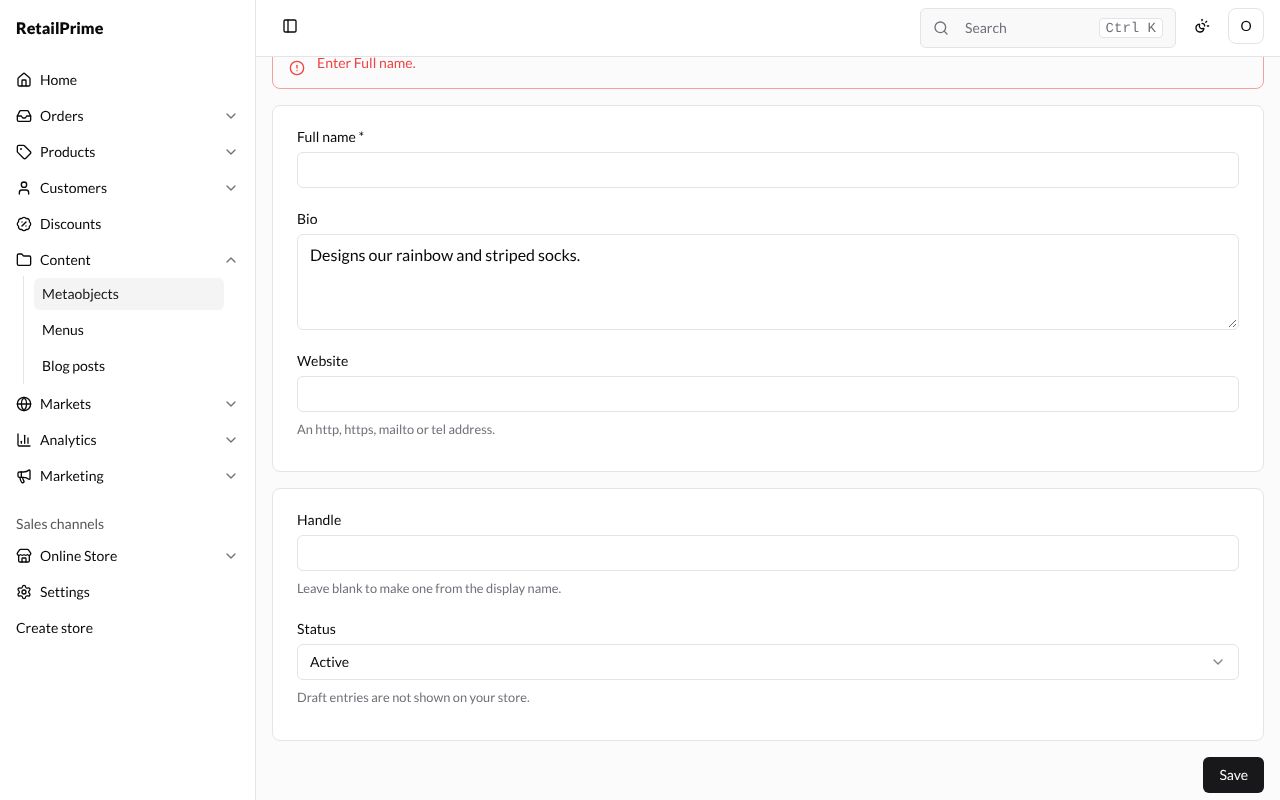
Fill it in and press Save:
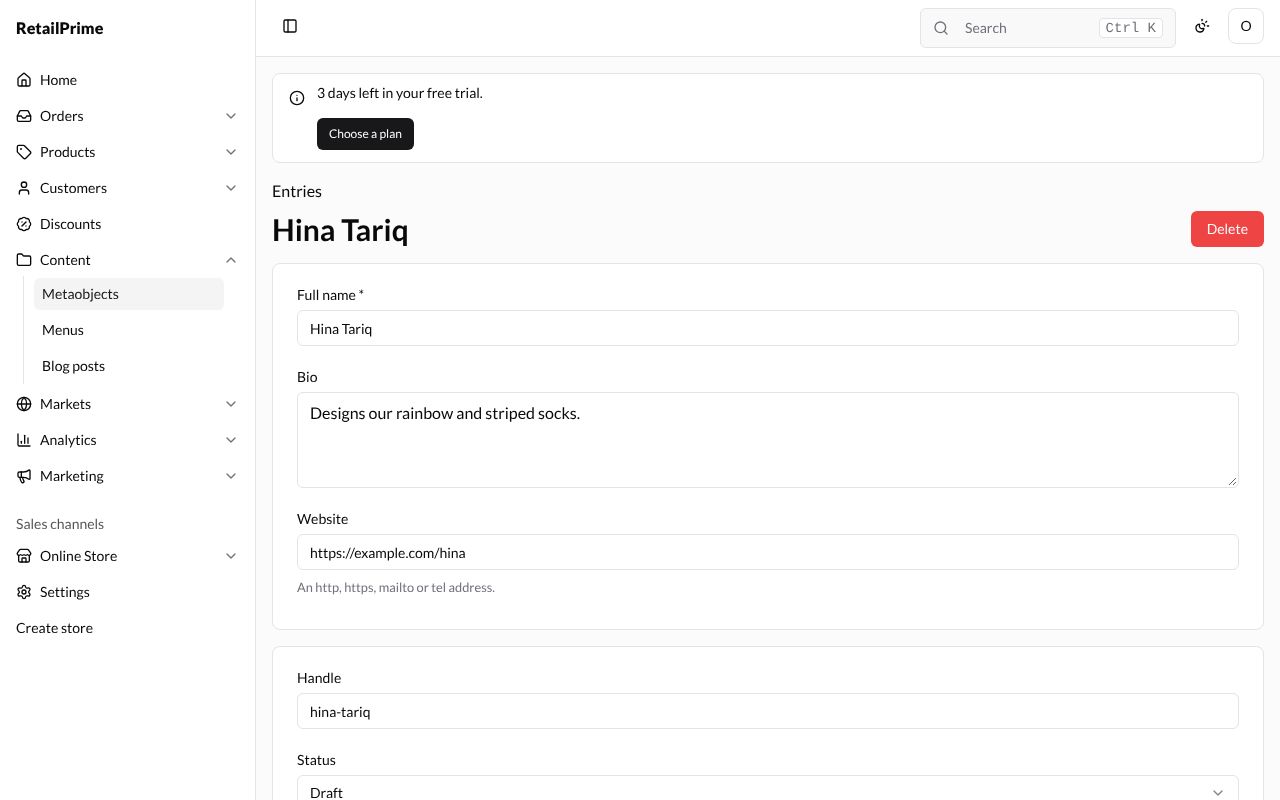
The entry’s page opens with its name at the top, a Delete button, and the Handle made from the name.
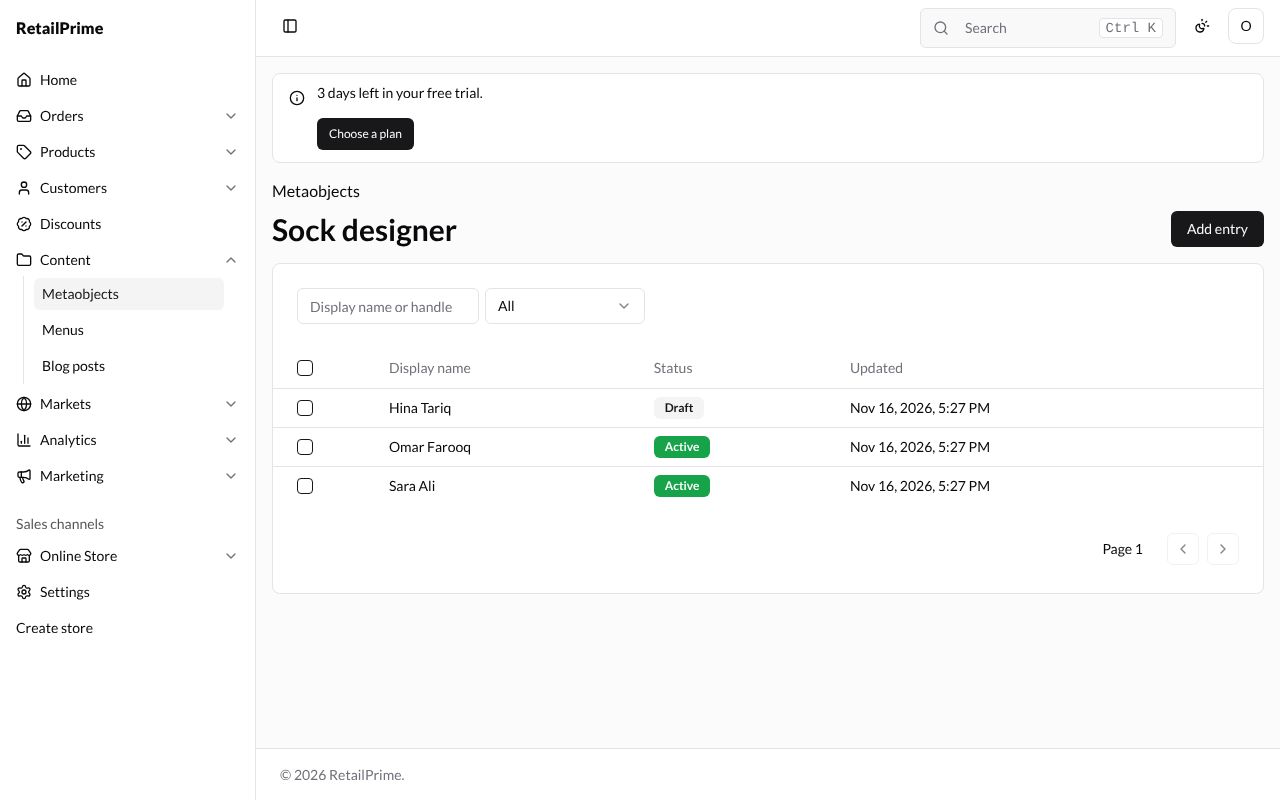
Press Entries at the top left to go back. Here two more entries, Omar Farooq and Sara Ali, are added the same way and left Active.
The entries list
The list shows each entry’s Display name, Status (Active or Draft) and when it was Updated.
- Type in the Display name or handle box and press Enter to find entries.
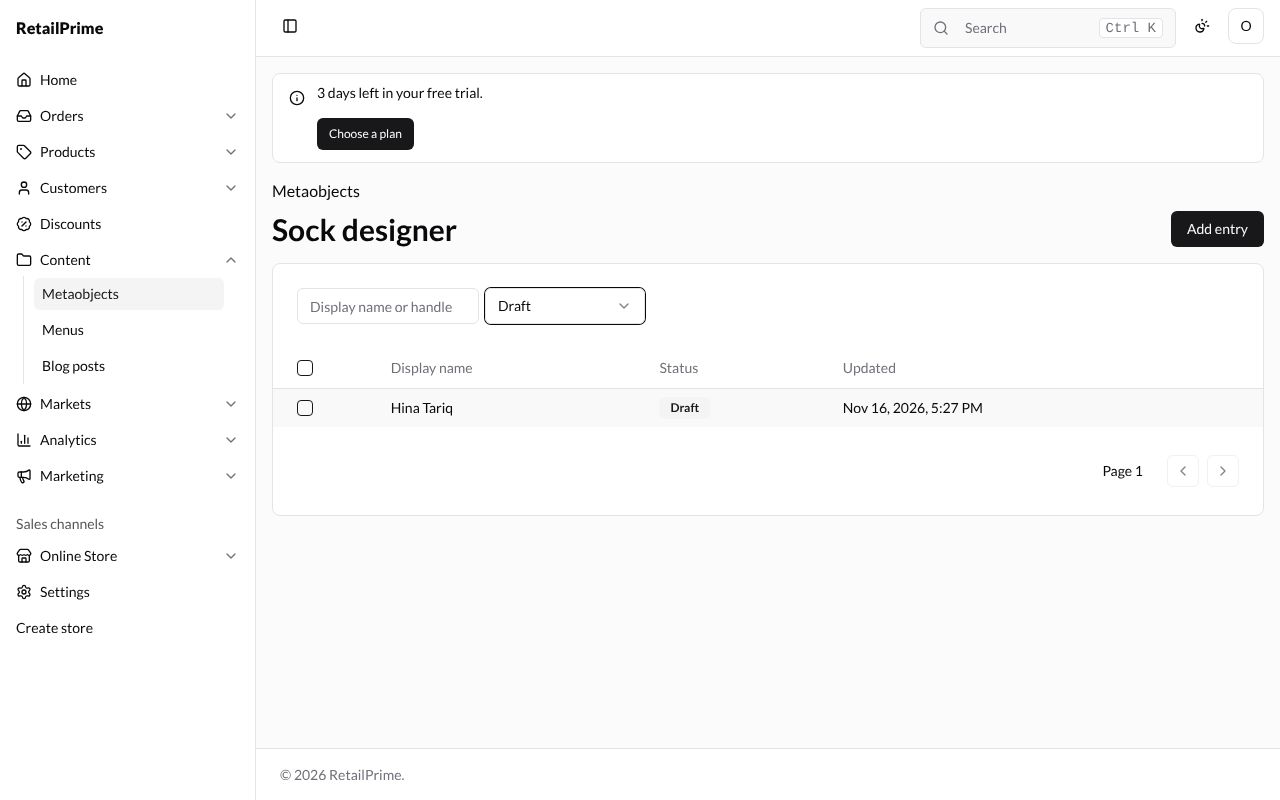
- All shows only Active or Draft entries:
Change an entry
Open the entry, change any box and press Save. Here Hina Tariq’s Status is changed from Draft to Active.
Use an entry on a product
Entries are useful when something points to them. Here, a product field Designed by has been added in Settings → Custom data (part 6), which takes one Sock designer entry. Each product’s page now has it in its Metafields card:
-
Open the product, here Rainbow Socks.
-
In the Metafields card, under Designed by, press Choose entry.
-
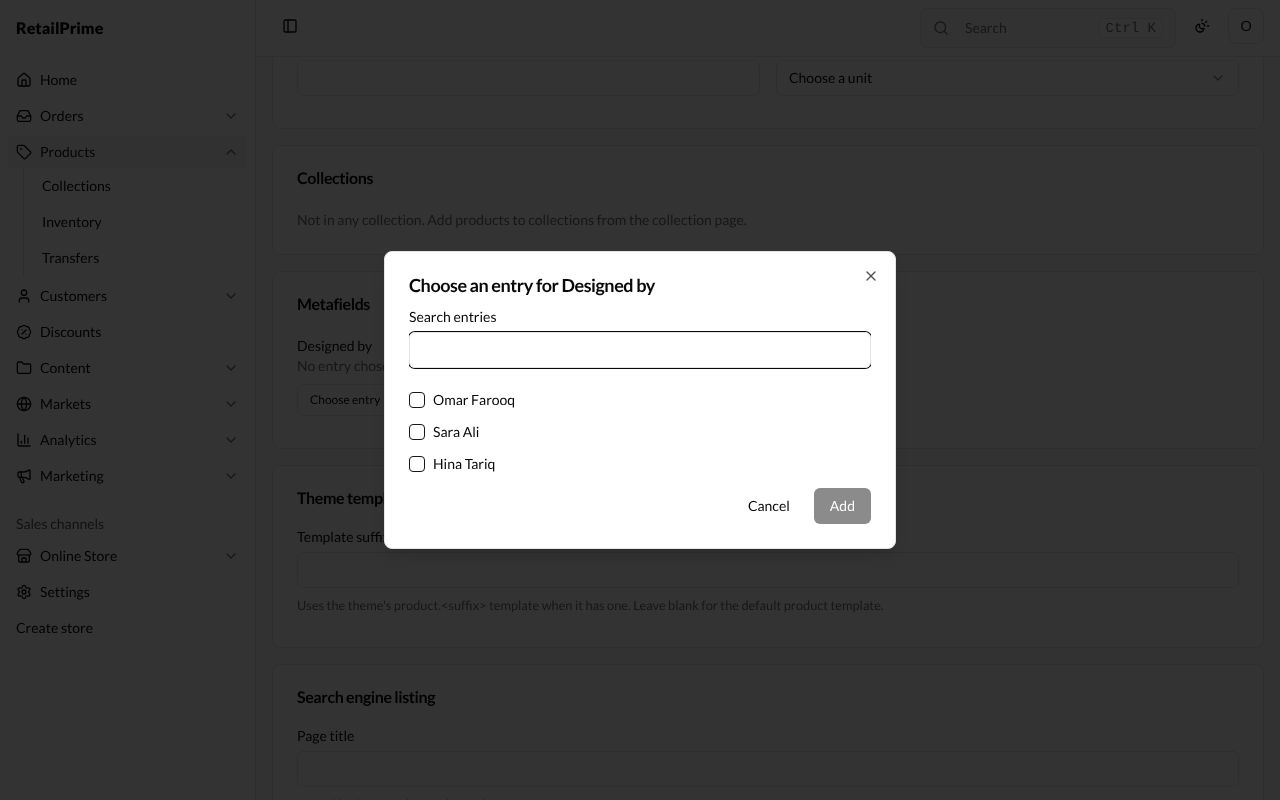
The Choose an entry for Designed by window lists the entries. Type in Search entries to find one, tick it and press Add 1.
-
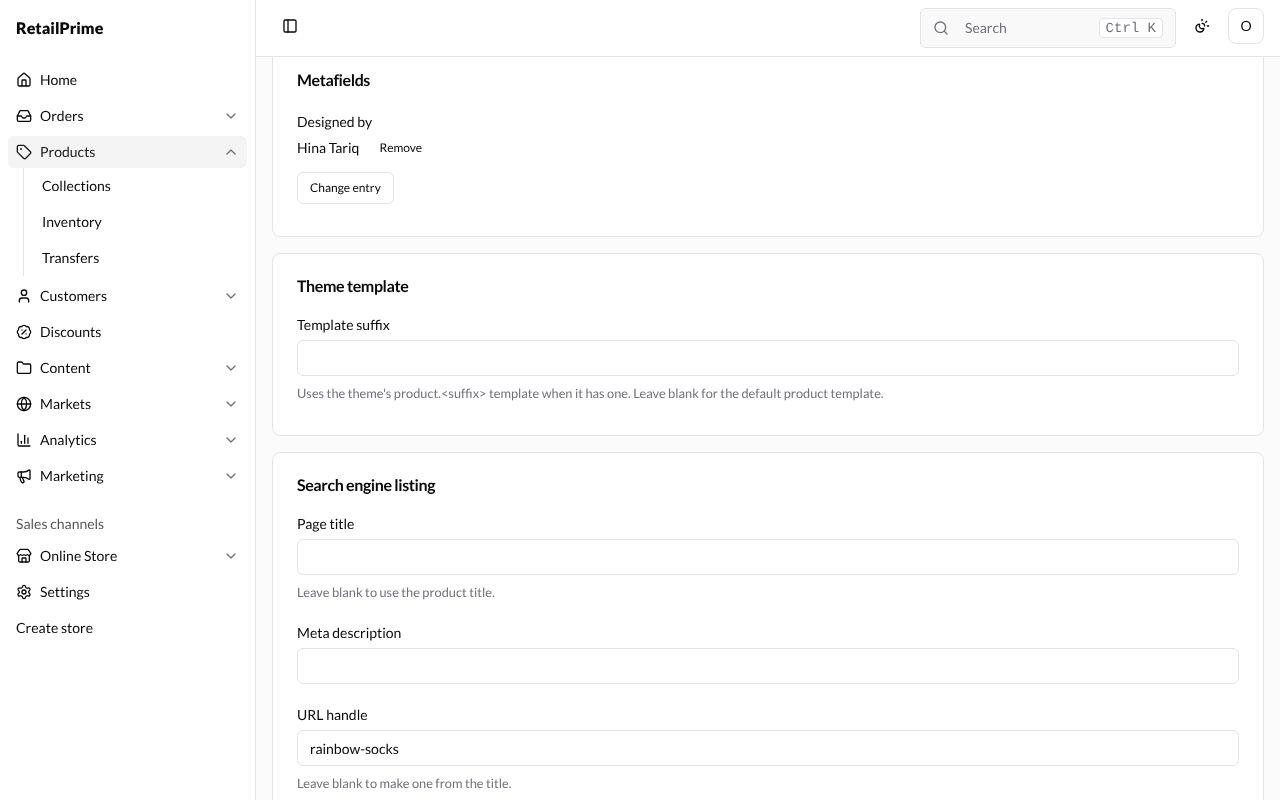
Press Save on the product. Designed by now says Hina Tariq, with Remove and Change entry.
Delete entries
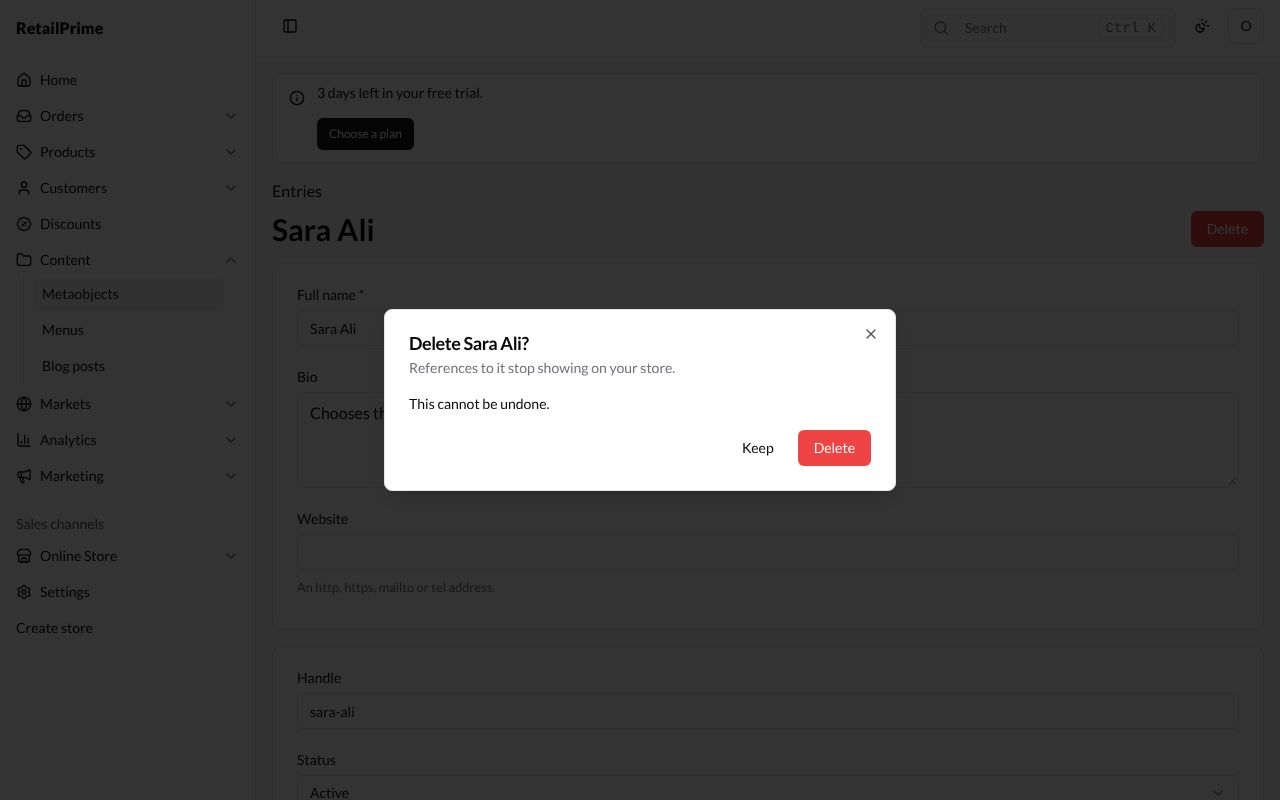
To delete one entry, open it and press Delete. A window asks Delete Sara Ali? and says References to it stop showing on your store. and This cannot be undone. Press Delete.
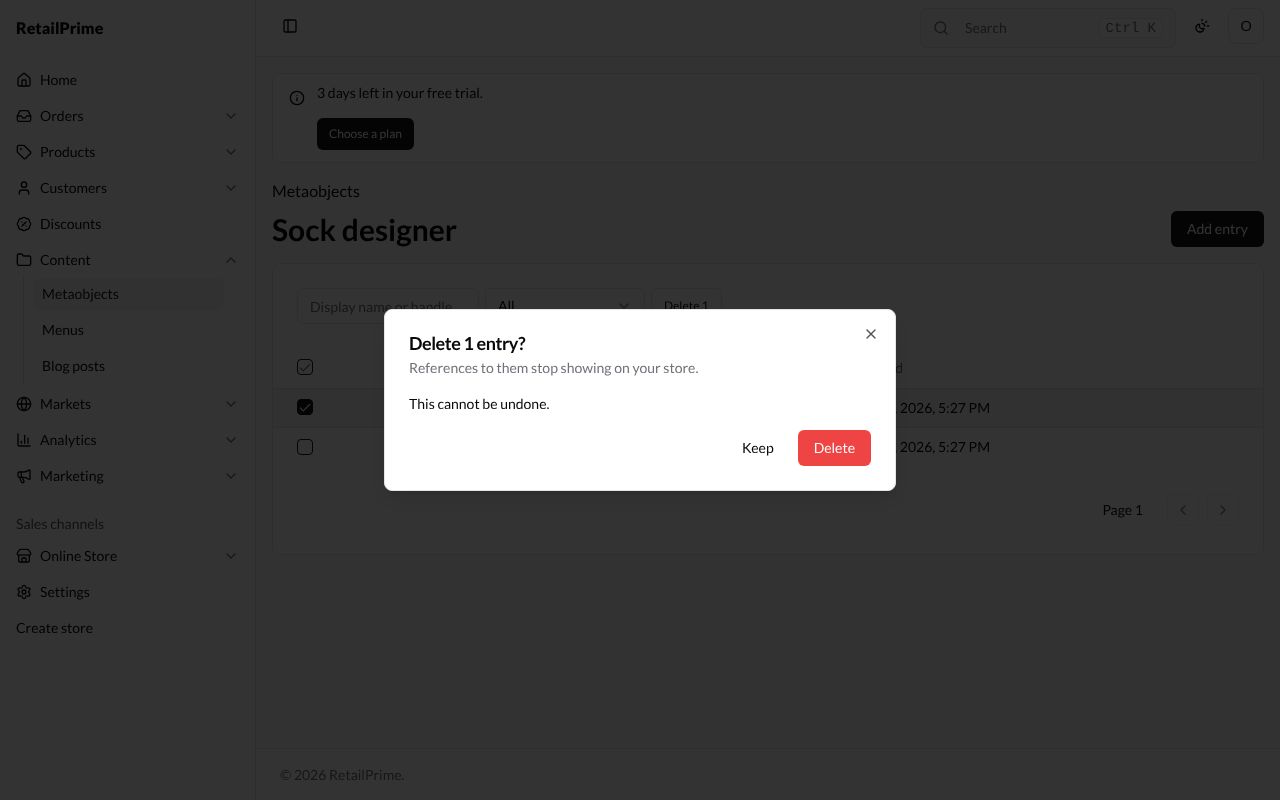
To delete several, tick them in the list and press Delete 1 (with the number you ticked). A window asks Delete 1 entry? and says References to them stop showing on your store. Press Delete. The page says 1 entry deleted.
What’s next
Search filters: choose the filters buyers use to narrow your products.