Search filters
Choose the filters buyers use to narrow your products on collection and search pages, rename and reorder them, and see them on the store.
Search in Online Store decides how buyers find products on your store. It has four tabs: Filters, Featured products, Synonyms and Result types. This page covers Filters; the next page covers the other three.
The pictures on these two pages use four products: Rainbow Socks, Striped Socks, Wool Socks (each in sizes Small, Medium and Large, with product types, vendors and tags) and a Sock Gift Box, imported from a CSV file as Import and bulk edit shows.
Open Search
In the sidebar, under Online Store, press Search. The page says How buyers find products in your online store. and opens on Filters.
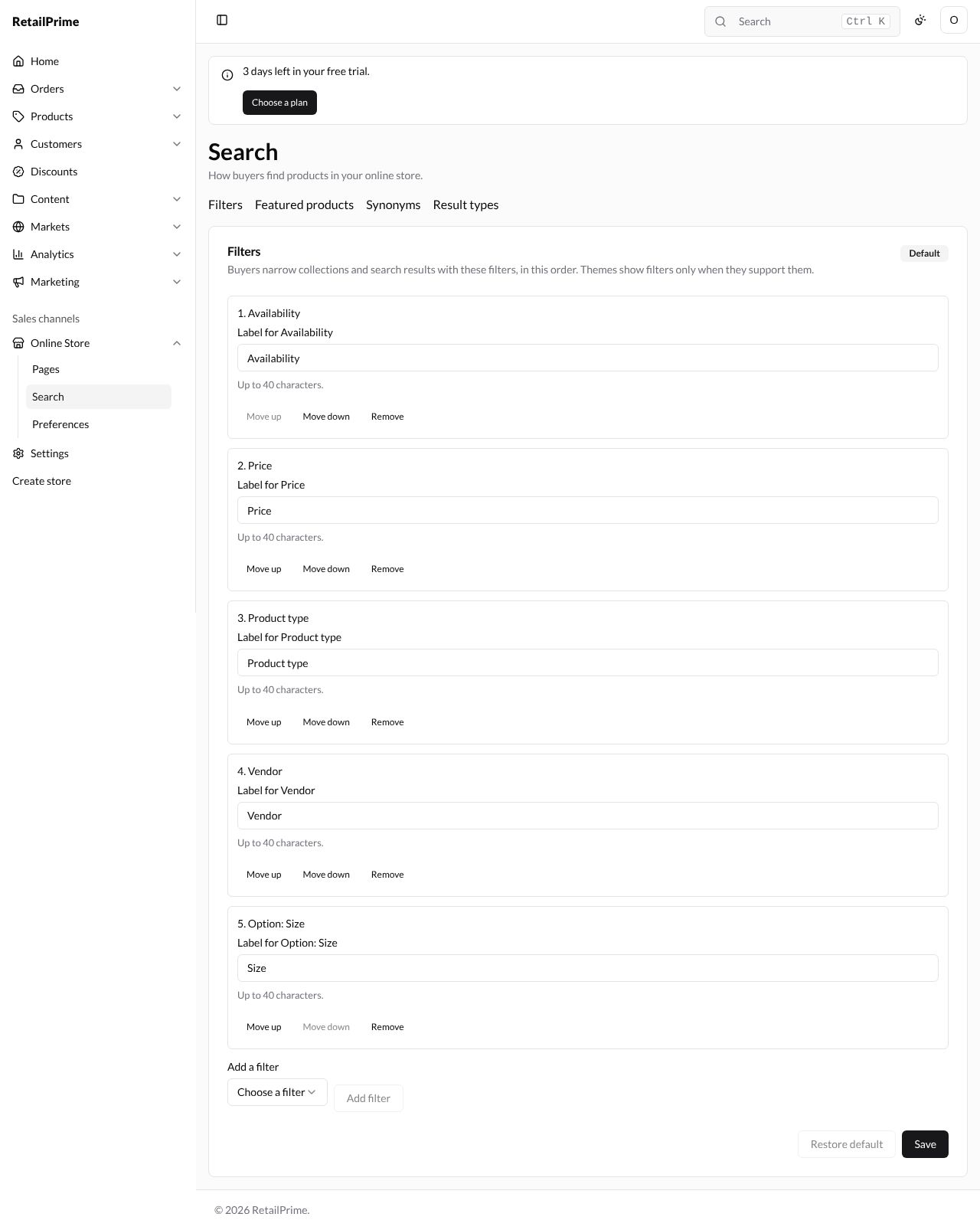
The Filters card says Buyers narrow collections and search results with these filters, in this order. Themes show filters only when they support them. A Default label shows while you haven’t changed the list. A store starts with five filters:
| Filter | Lets buyers choose |
|---|---|
| Availability | In stock or out of stock |
| Price | A price range |
| Product type | A type, such as Wool socks |
| Vendor | Who made it |
| Option: Size | An option value, such as Large. There is one for each option your products have, here Size |
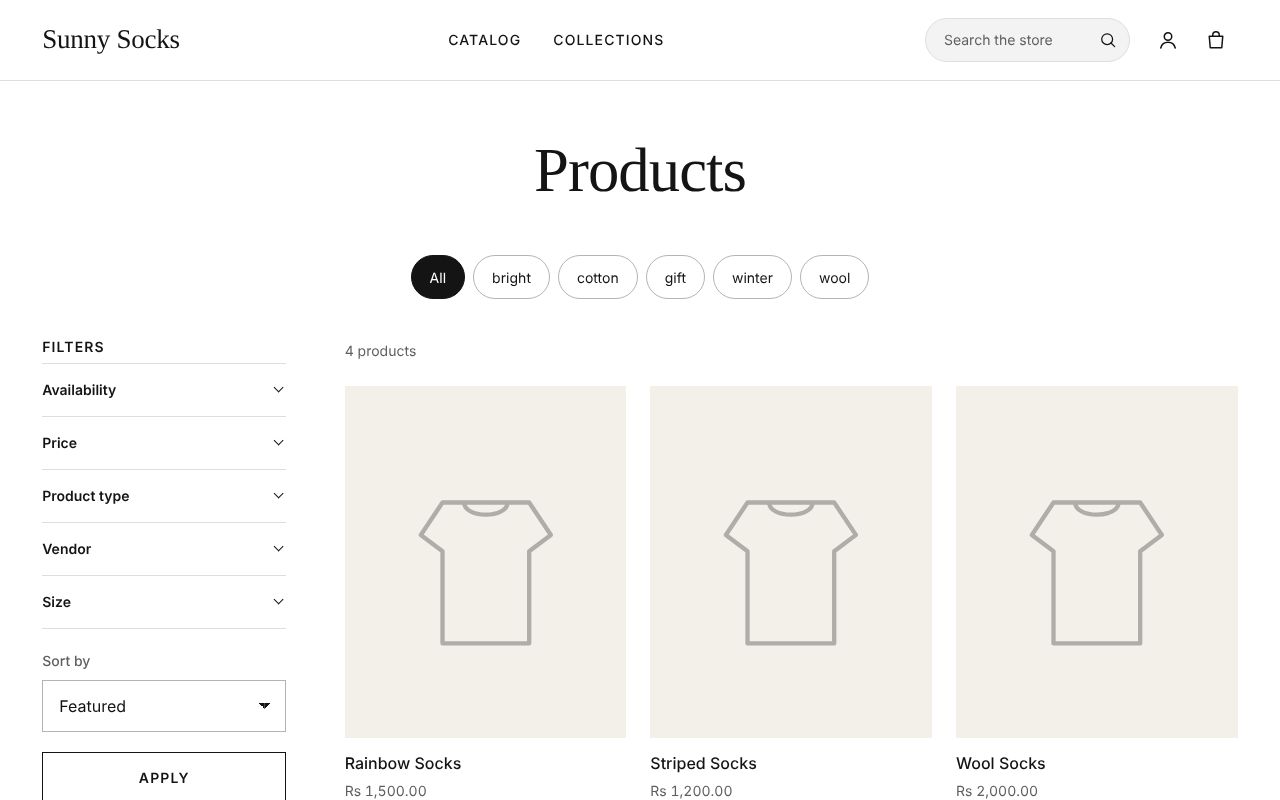
On your store, the filters show on the left of a collection page and the search page, under Filters, in the same order:
Add a filter
-
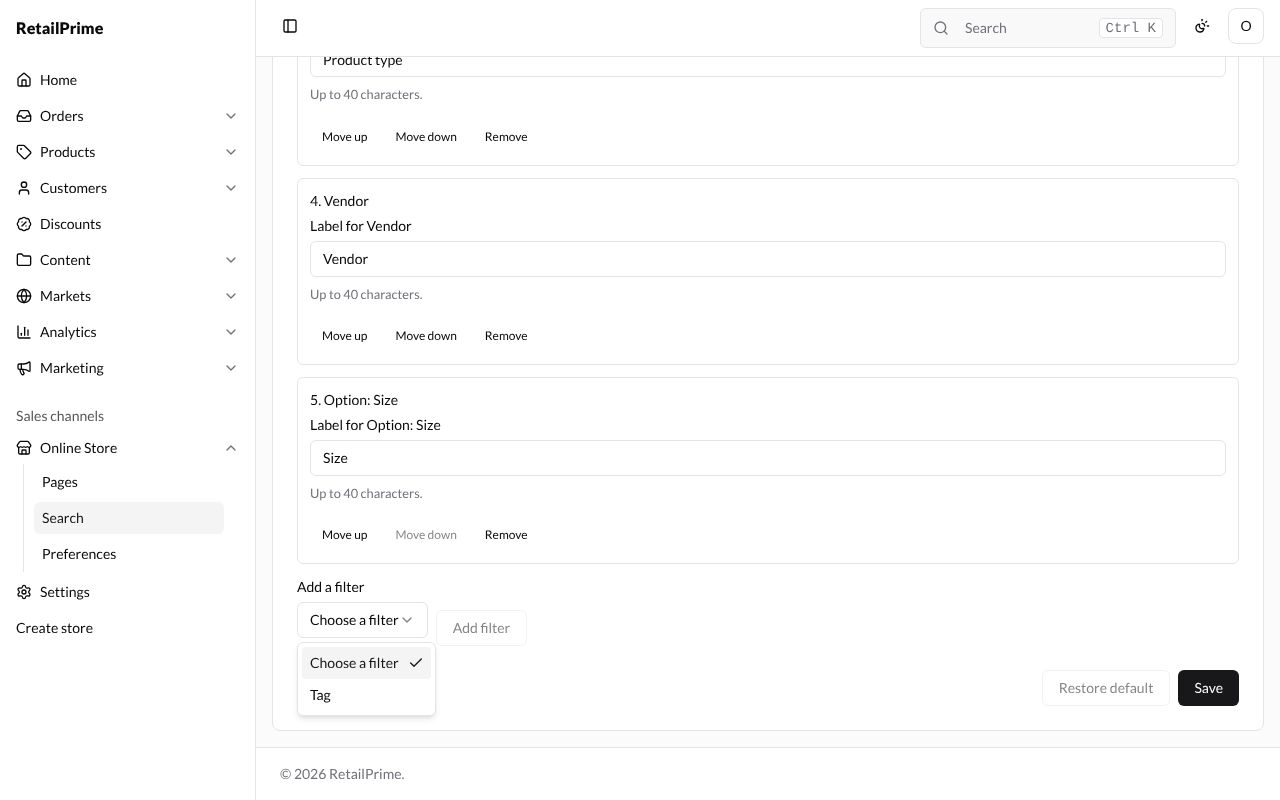
At the bottom of the card, press Add a filter (it says Choose a filter). It lists the filters you don’t have yet, here Tag.
-
Pick one, here Tag, and press Add filter. It is added at the bottom of the list.
A store has up to 25 filters.
Rename, reorder and remove filters
Each filter has:
| Part | What it does |
|---|---|
| Label for … | The name buyers see. Up to 40 characters. Here Product type becomes Sock type |
| Move up / Move down | Moves the filter one place up or down |
| Remove | Takes the filter off the list |
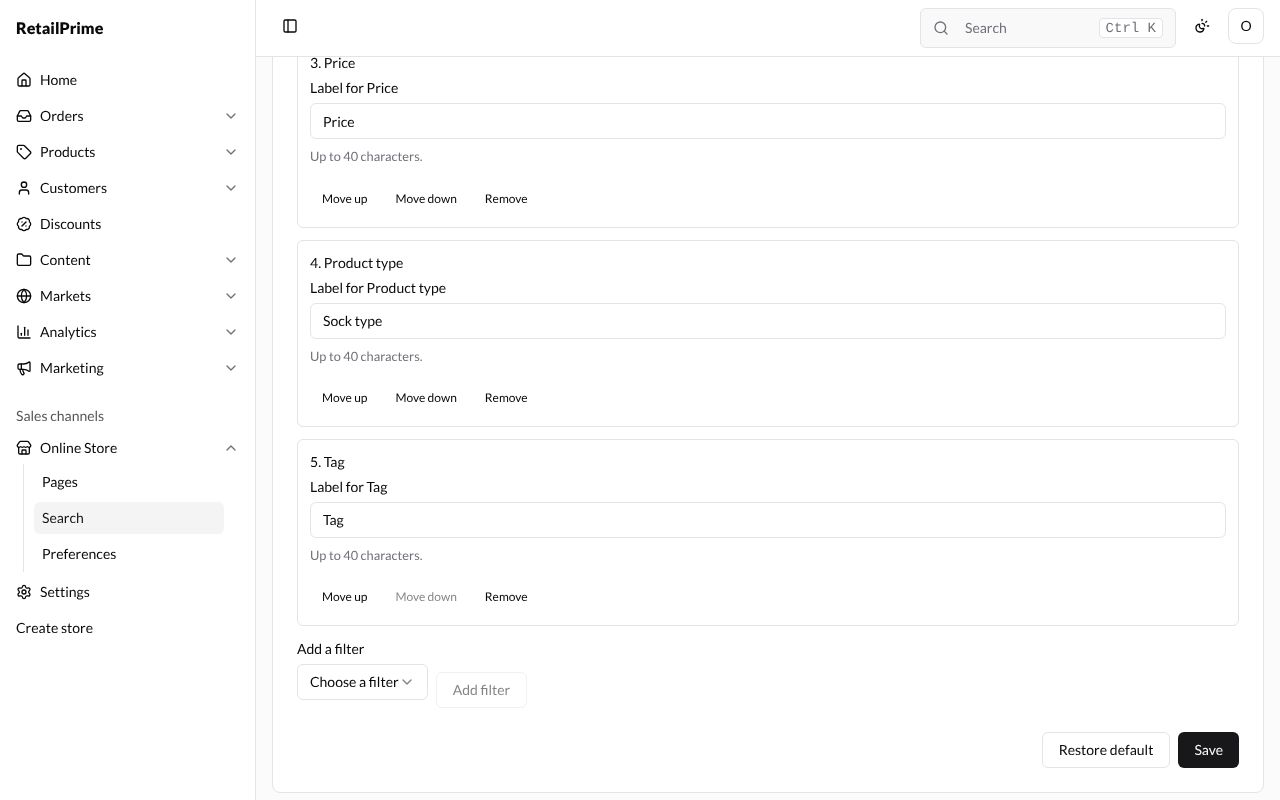
Here Option: Size is moved up to second place, Product type is labelled Sock type, and Vendor is removed:
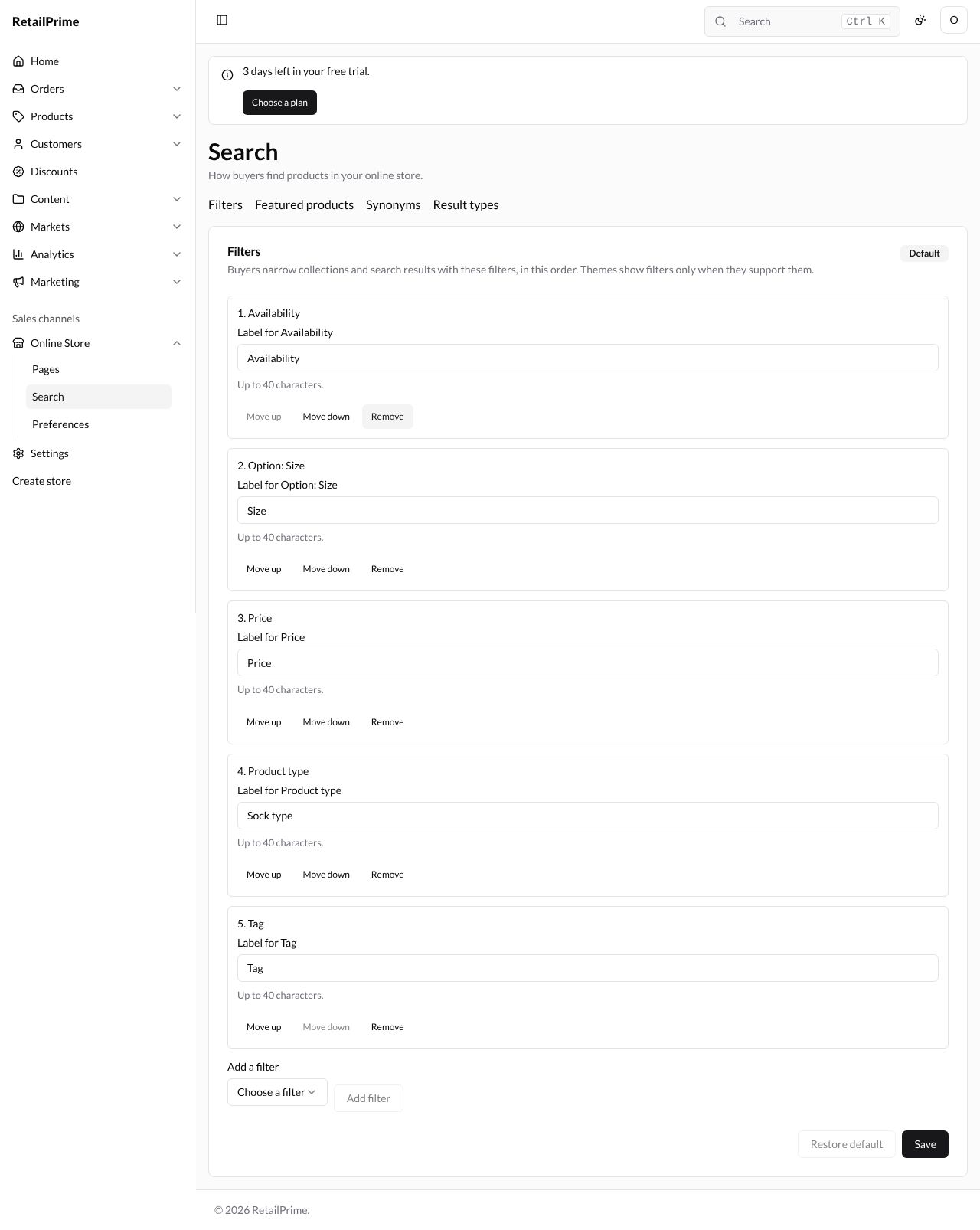
Press Save. The page says Filters saved. and the Default label goes away.
On your store
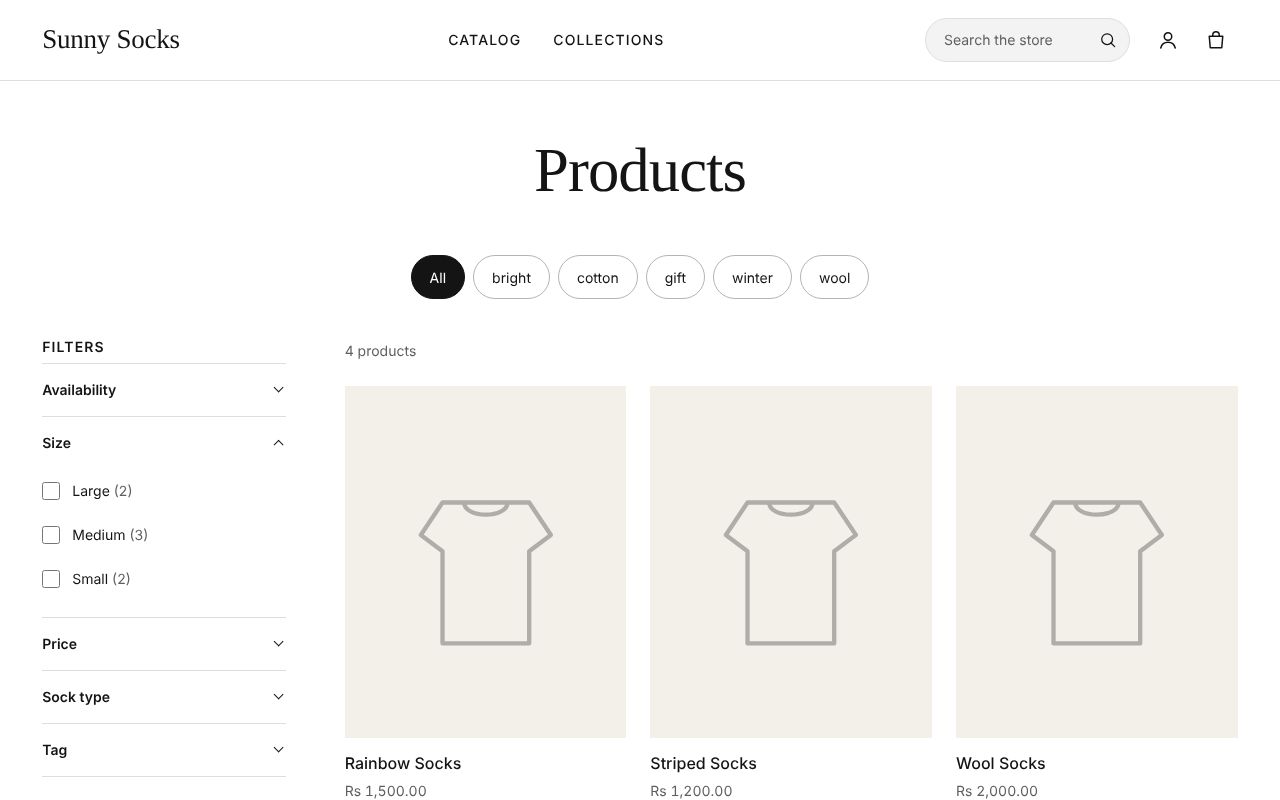
Reload a collection page on your store. The filters now show in the new order with the new names: Availability, Size, Price, Sock type and Tag. Press a filter’s name to open it. Size lists each size with how many products have it:
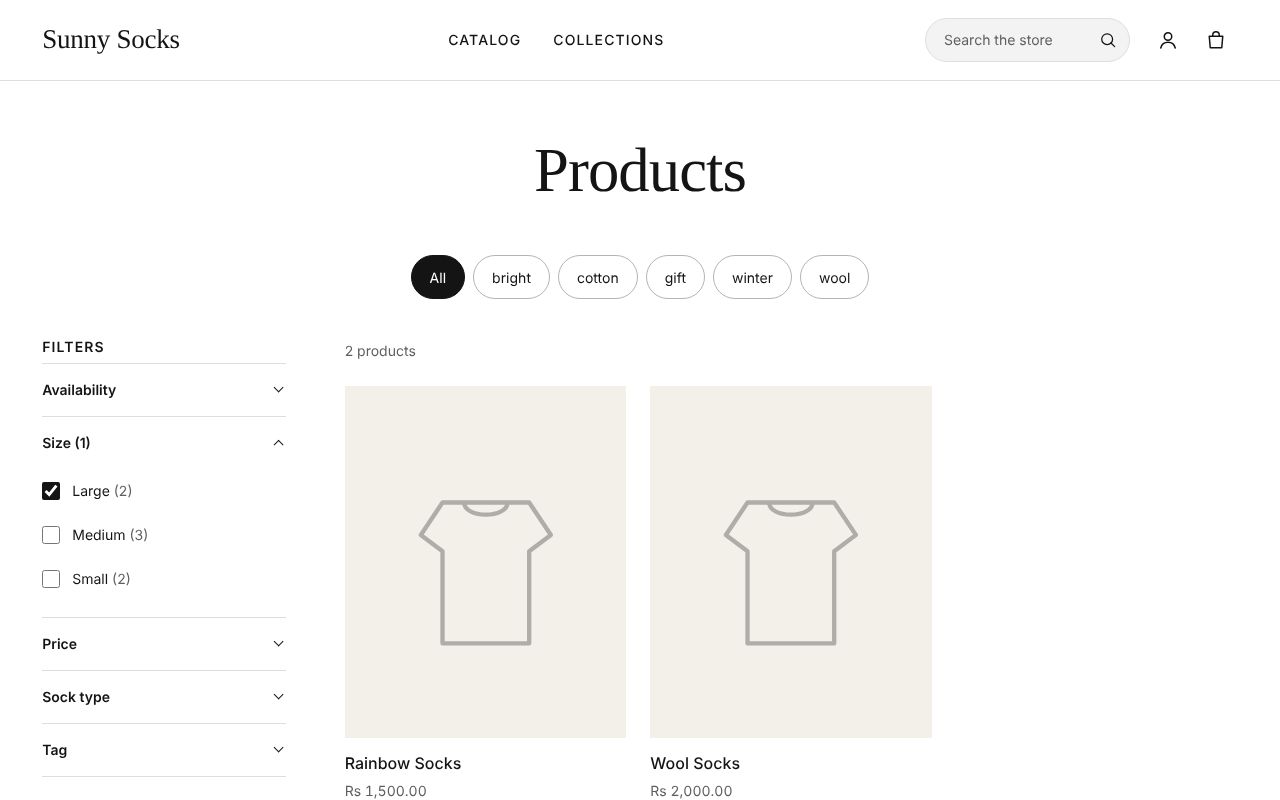
The buyer ticks Large and presses Apply under the filters. Only the products in Large are left, and the filter’s name says Size (1), for one choice made:
Go back to the default filters
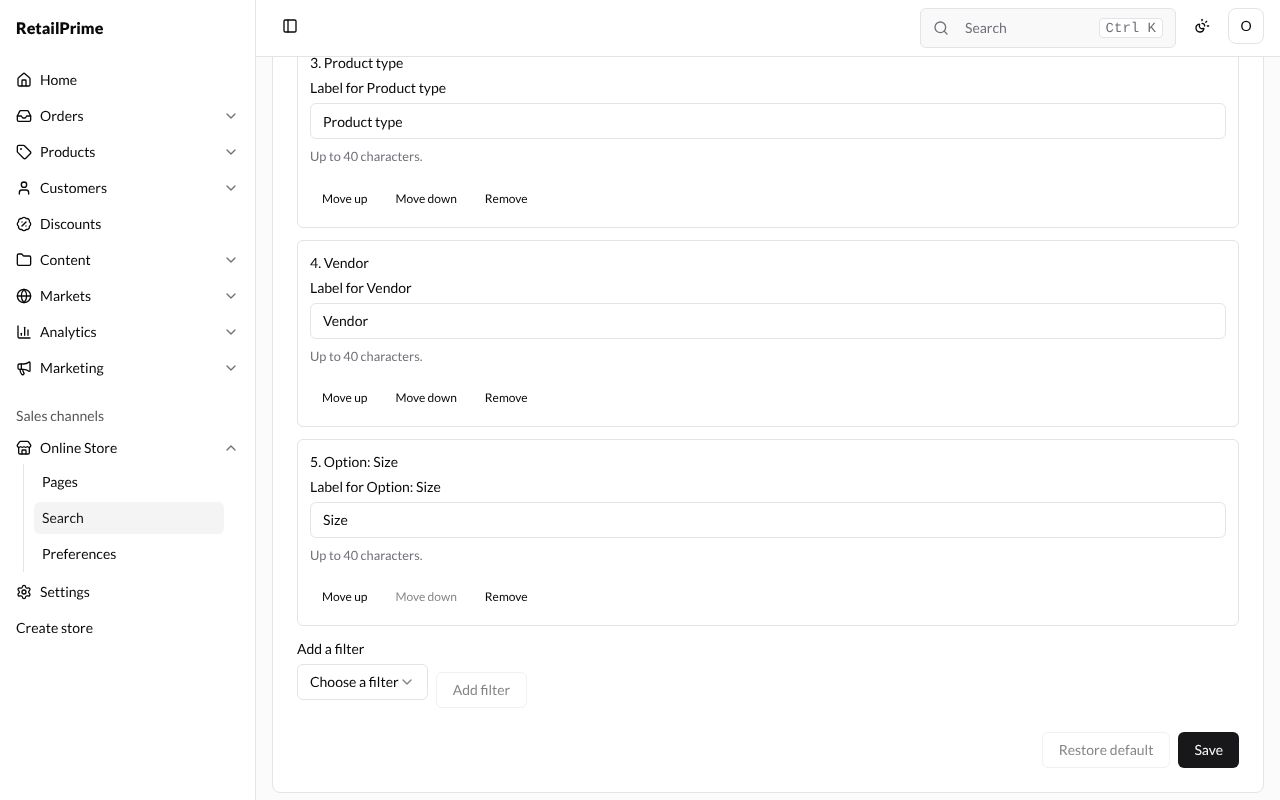
Press Restore default at the bottom of the card. The page says The default filters are restored. and the Default label is back.
What’s next
Featured products, synonyms and result types: choose what buyers find when they search.