The theme editor
Open the theme editor, find your way around it, choose a page to change, change a section's settings, and undo and redo.
The theme editor is where you change what your theme shows: the words, pictures, colours and the order of things on each page. You see your store on the screen as you change it.
Nothing you change here reaches buyers until you press Publish. Until then, your changes are kept in a draft.
Open the editor
- In the sidebar, press Online Store.
- Under Current theme, press Customize.
The editor fills the whole window, without the Admin’s sidebar.
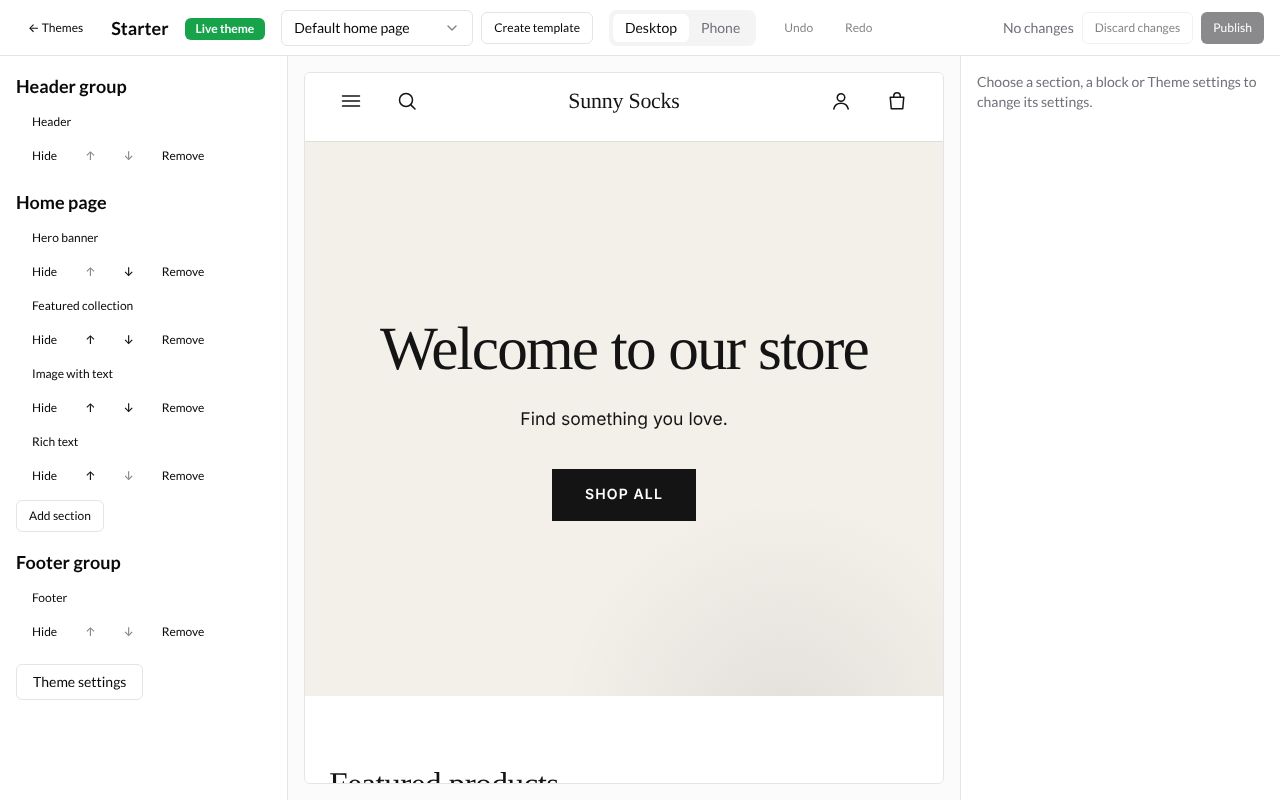
It has four parts:
| Part | What it is |
|---|---|
| The top bar | ← Themes (back to the Themes page), the theme’s name with Live theme when it is your current theme, the Template list, Create template, Desktop and Phone, Undo and Redo, what has happened to your changes, Discard changes and Publish |
| The section list (left) | The parts of the page you are editing, from top to bottom, grouped as Header group, the page itself (here Home page) and Footer group, then Theme settings at the bottom |
| The preview (middle) | Your store, with your changes, as buyers will see it once you publish |
| The settings (right) | The settings of what you chose on the left. Until you choose something it says Choose a section, a block or Theme settings to change its settings. |
Choose the page to edit
Each kind of page in your store has a template: one for the home page, one for product pages, one for collection pages, and so on. The editor opens on Default home page.
To edit another kind of page, press the Template list at the top (it says Default home page) and pick one. The list is grouped by the kind of page:
| Group | The page it shapes |
|---|---|
| 404 page | The page buyers see when an address doesn’t exist |
| Blog posts | A blog post |
| Blogs | A blog’s list of posts |
| Cart | The cart |
| Collections | A collection’s page |
| Collections list | The list of all collections |
| Home page | Your store’s front page |
| Pages | A page such as About us (the starter theme also has a contact template, with a contact form) |
| Password | The page asking for your store’s password |
| Products | A product’s page |
| Search | The search results page |
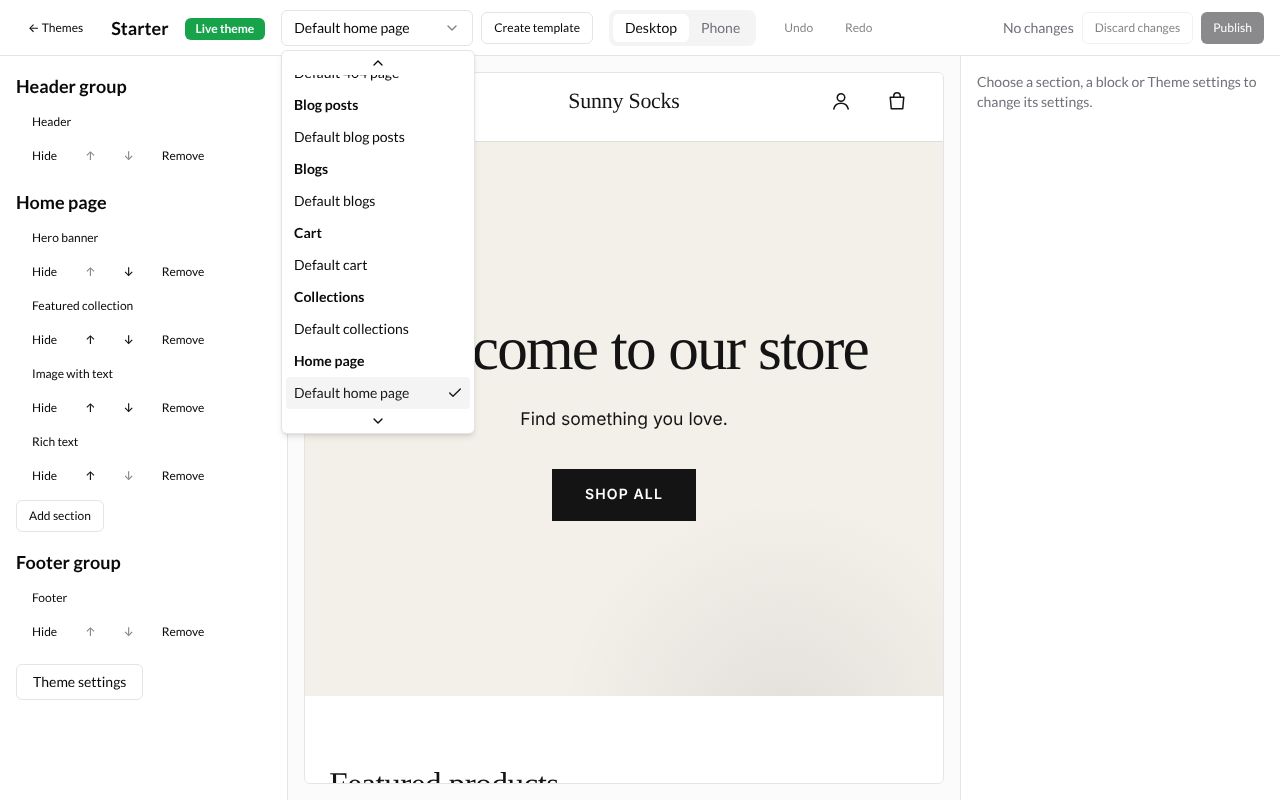
The preview shows one of your real products, collections, pages or posts for that template. If you don’t have one yet, it says There is nothing to preview for products yet. Add one to your store to see this template. (with the kind of page you chose).
Change a section
A section is one band of the page, such as the big banner at the top. In the section list, press its name. Its settings open on the right, under its name.
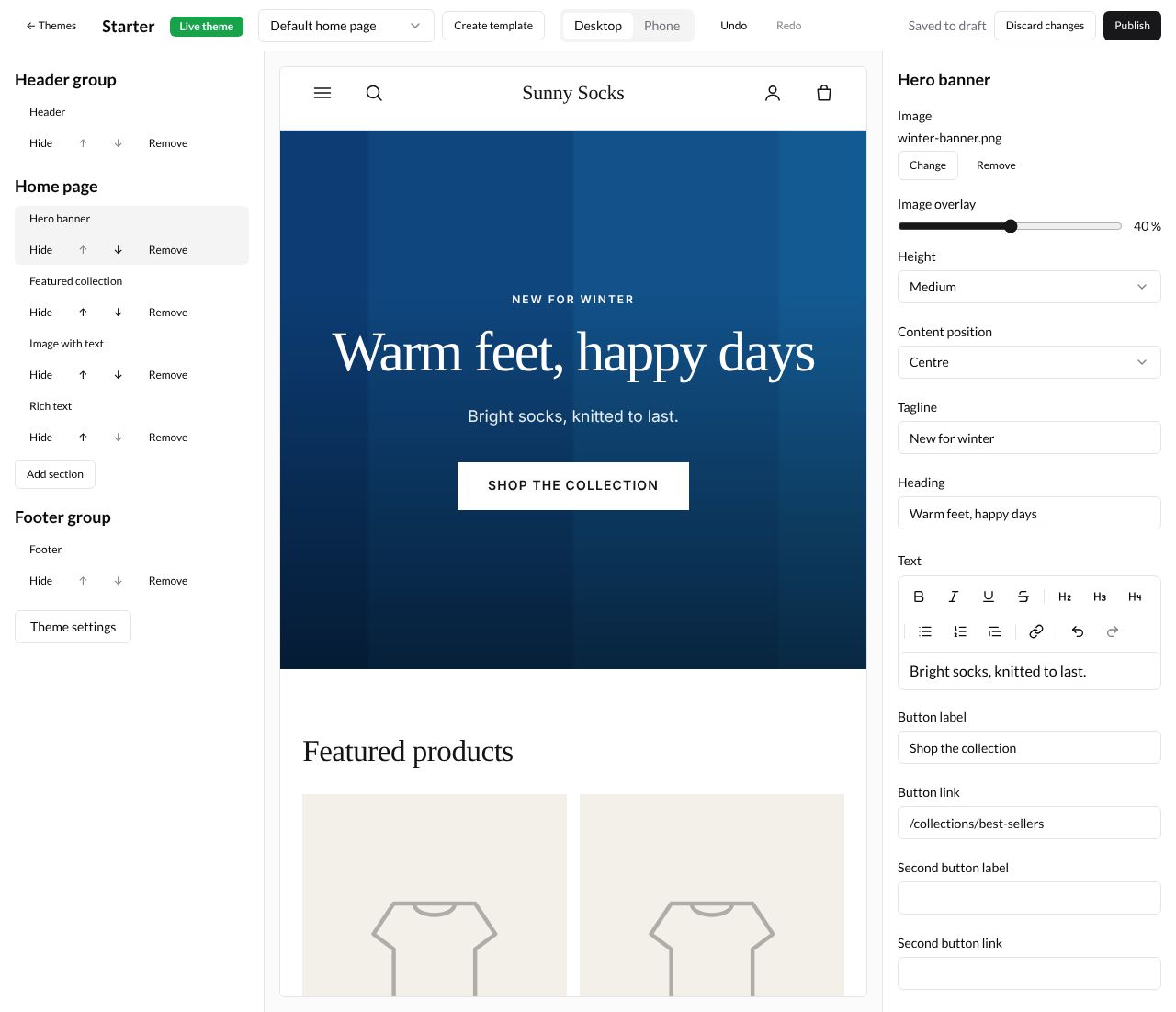
Here, press Hero banner under Home page. It is shaded in the list, and its settings open on the right. A box you leave empty uses the theme’s own words: some show them in grey, such as Welcome to our store in Heading.
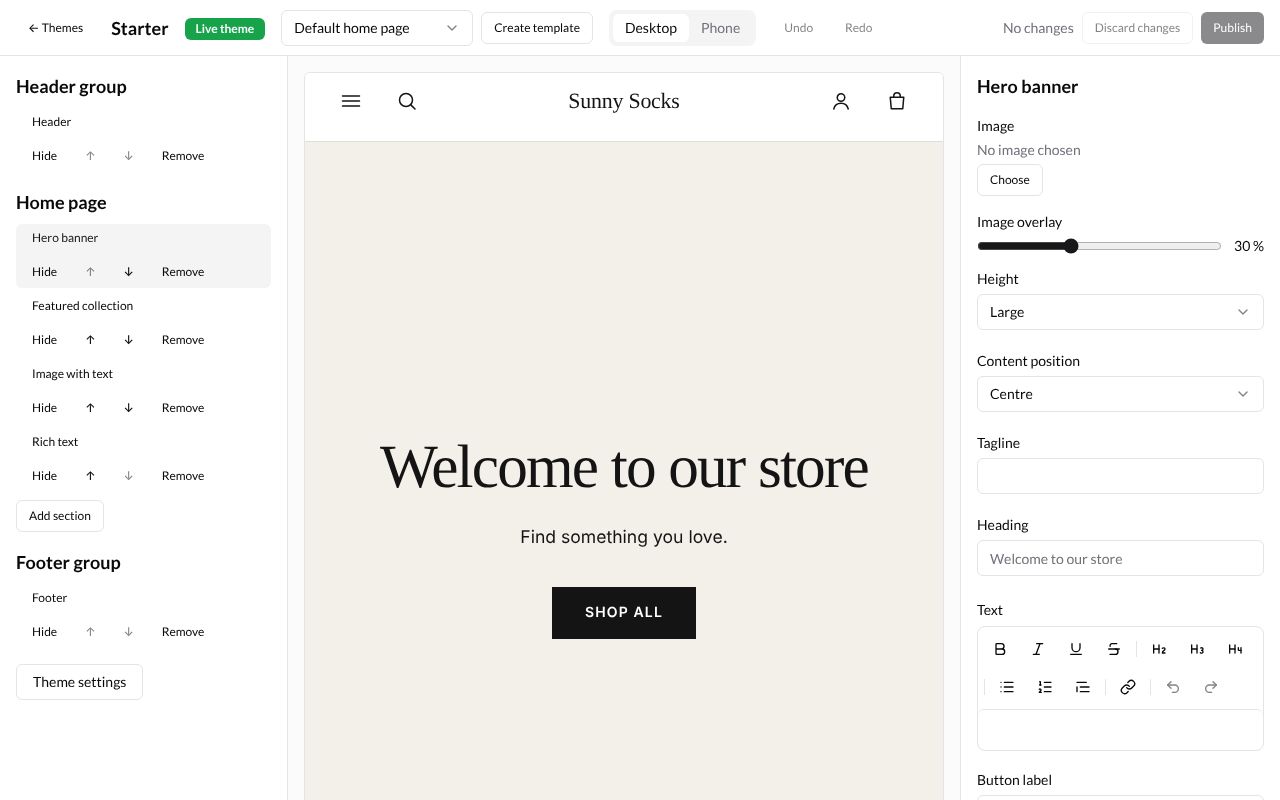
Change its boxes:
| Box | What it is | Example |
|---|---|---|
| Image | The picture behind the banner. Press Choose (see below) | winter-banner.png |
| Image overlay | How much the picture is darkened, so the words stand out. Drag the slider; the number on the right shows the amount | 40 % |
| Height | Small, Medium, Large or Full screen | Medium |
| Content position | Bottom left or Centre | Centre |
| Tagline | Small words above the heading | New for winter |
| Heading | The big words | Warm feet, happy days |
| Text | A line under the heading. It has buttons for bold, italic, underline, strikethrough, headings, lists, links, and its own undo and redo | Bright socks, knitted to last. |
| Button label | The words on the button | Shop the collection |
| Button link | Where the button goes: a path on your store or a full web address | /collections/best-sellers |
| Second button label and Second button link | A second button, if you want one | (blank) |
Choose a picture
Press Choose under Image. The Choose an image window lists the pictures in Content → Files (see Files). Type in Search images and press Enter to find one, then press its name.
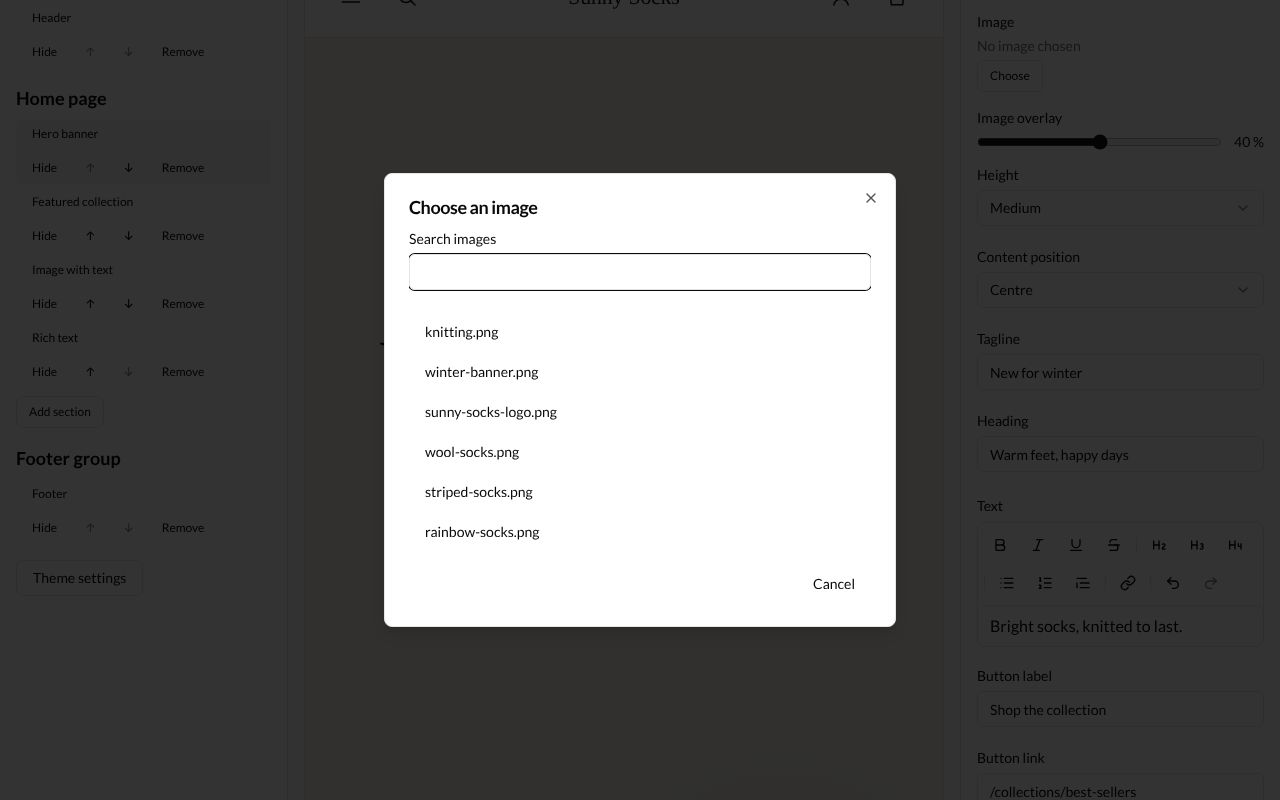
The window closes and the file’s name shows under Image, with Change (choose another) and Remove (no picture).
As you type, the preview changes. About a second after your last change, the top bar says Saved to draft.
What the top bar says
| Words | What they mean |
|---|---|
| No changes | The draft is the same as what buyers see |
| Unsaved changes | You changed something a moment ago; it is about to be saved |
| Saving… | Your change is being saved to the draft |
| Saved to draft | Your changes are kept, but buyers don’t see them yet. Press Publish to show them |
| Not saved | Your last change couldn’t be saved. Check your connection |
You can close the editor and come back later: your draft is still there.
Undo and redo
Press Undo in the top bar to take back your last change, one step at a time. Here, Undo took back the picture: the image says No image chosen and the preview shows the plain banner again.
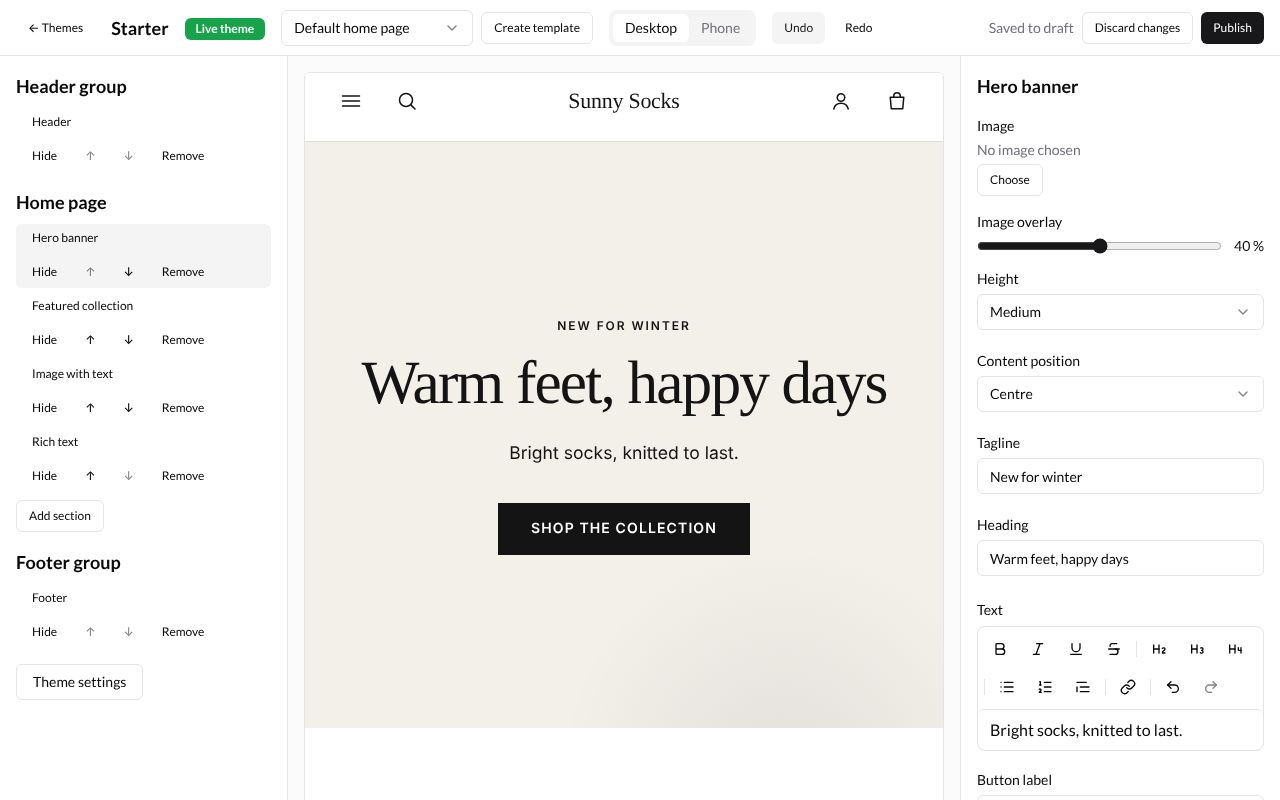
Press Redo to put the change back. You can also press Ctrl+Z to undo and Ctrl+Shift+Z (or Ctrl+Y) to redo, when you are not typing in a box. Undo and Redo only reach back to when you opened the editor.
Desktop and phone
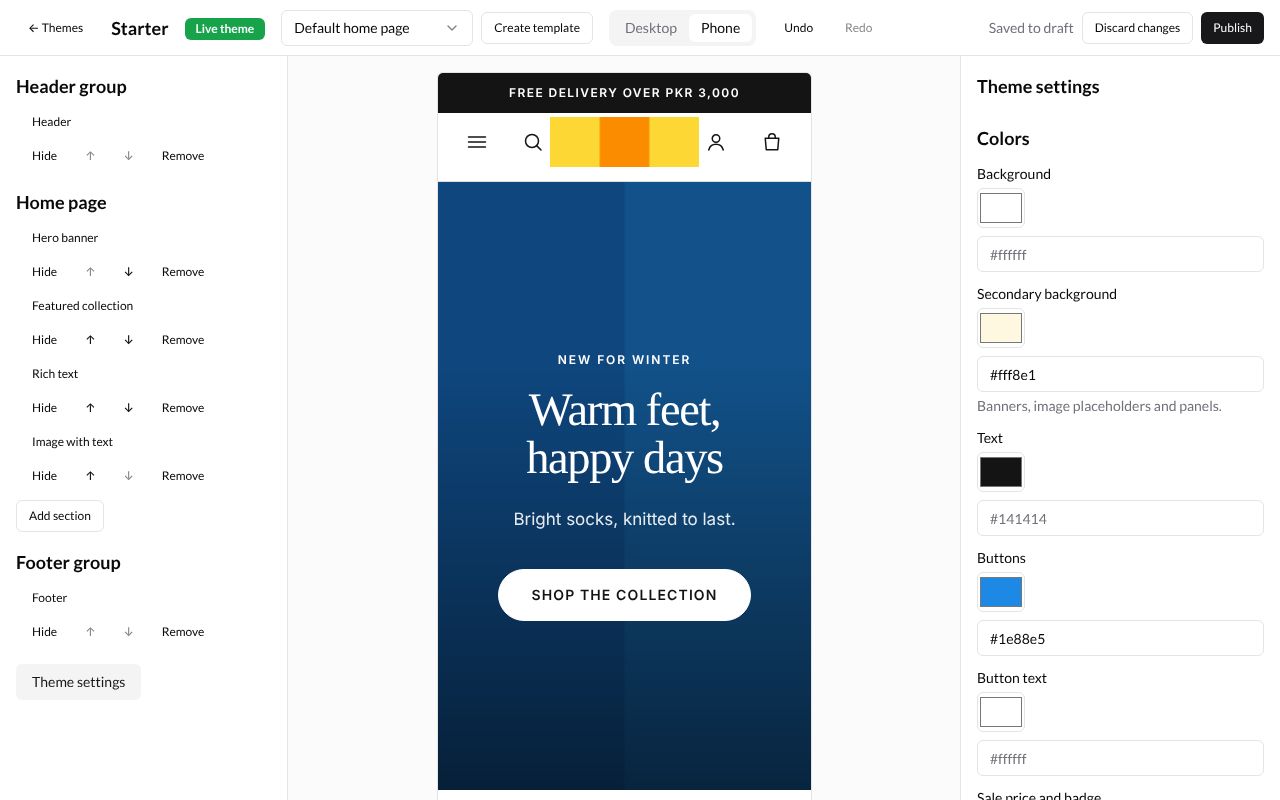
Press Phone in the top bar to see the preview at a phone’s width. Press Desktop to go back.
What’s next
Sections and blocks: add, move, hide and remove the parts of a page, and change the header and footer.