Pages
Write pages such as About us for your store, choose when buyers see them, change and delete them, and see them on the store.
A page is a simple page of words on your store, such as About us, Shipping or a size guide. Buyers reach a page from your menus (see Menus) or by its address, such as /pages/about-us.
Open Pages
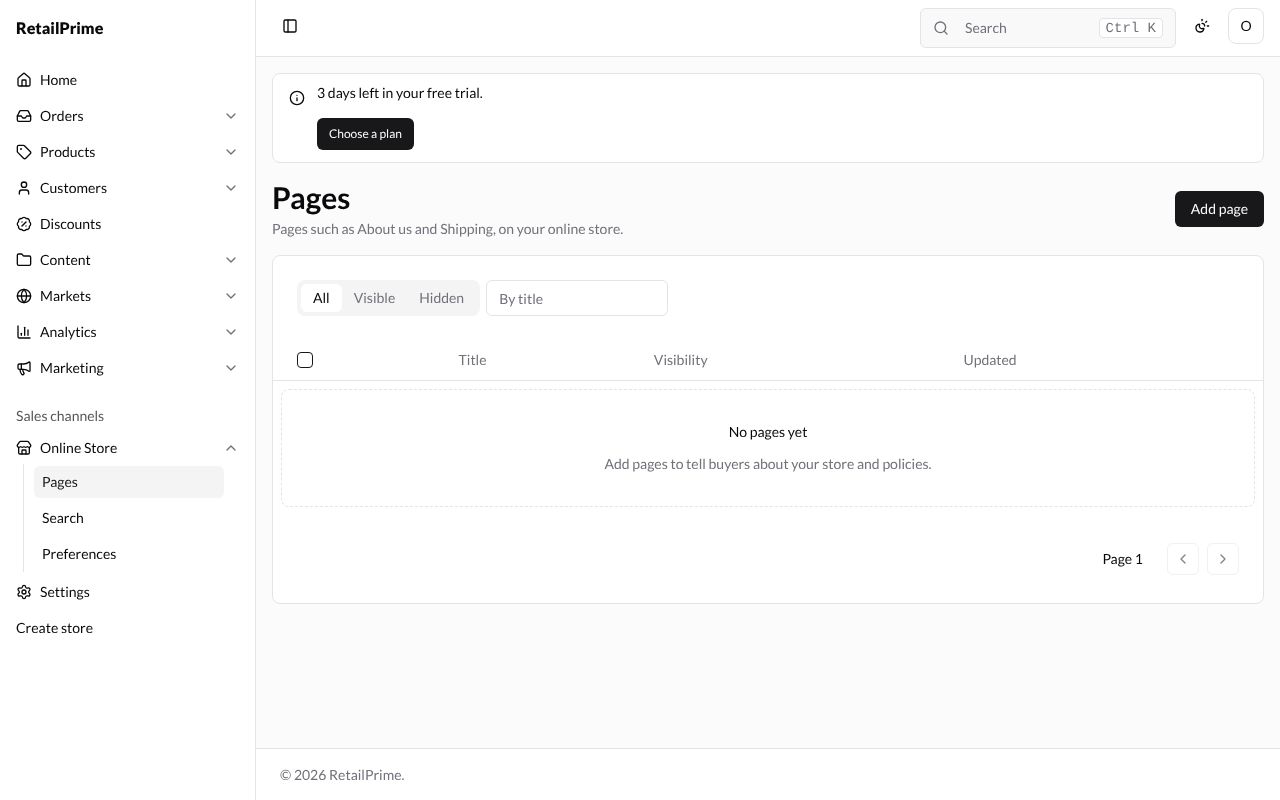
In the sidebar, under Online Store, press Pages. The page says Pages such as About us and Shipping, on your online store. A new store has No pages yet.
Add a page
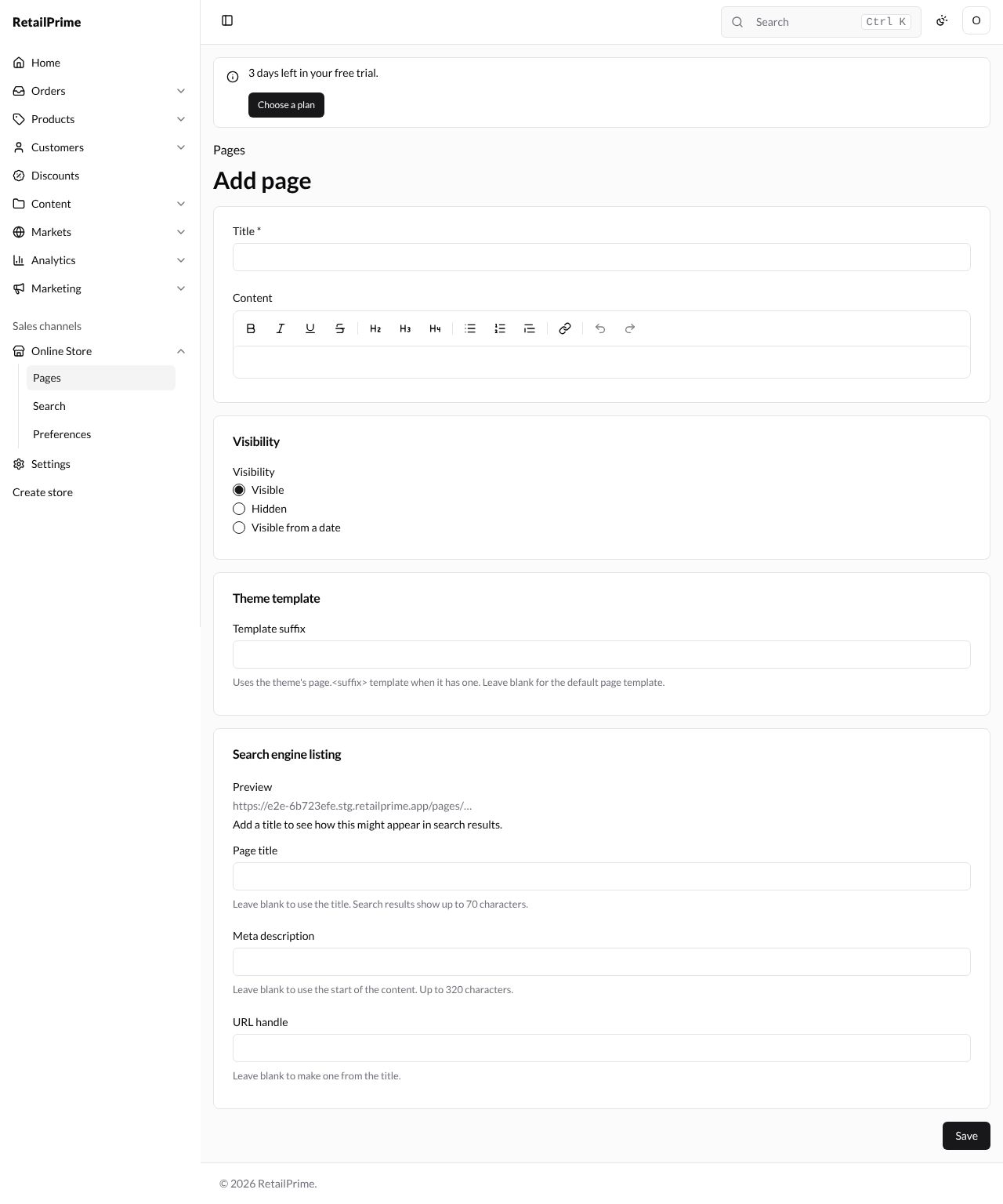
Press Add page. The Add page form has four cards.
| Box | What to type | Example |
|---|---|---|
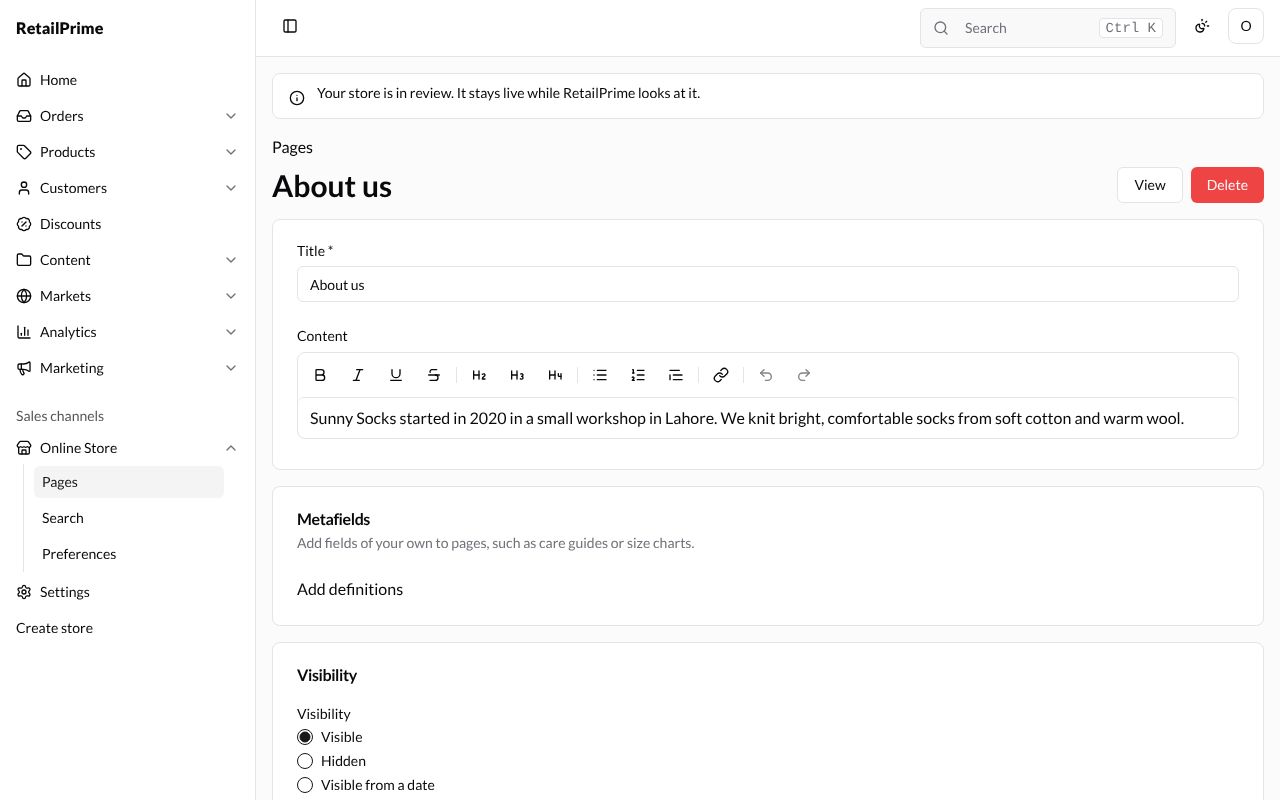
| Title | The page’s name, shown at its top. You must fill it in | About us |
| Content | The words of the page. The buttons above it make words bold, italic, underlined or crossed out, add headings (H2, H3, H4), lists and links, and undo or redo | Sunny Socks started in 2020 in a small workshop in Lahore. … |
| Visibility | Visible, Hidden or Visible from a date (see below) | Visible |
| Template suffix | Leave it blank. It is for a template of your own (see Theme settings, templates and publishing) | (blank) |
| Page title | The title search engines show. Leave blank to use the title. Search results show up to 70 characters. | About Sunny Socks |
| Meta description | The line search engines show under it. Leave blank to use the start of the content. Up to 320 characters. | Who we are and how we knit our socks in Lahore. |
| URL handle | The end of the page’s address. Leave blank to make one from the title. | (blank, so about-us) |
The Preview at the top of Search engine listing shows how the page might look in search results, with its address, title and description.
If you press Save without a Title, the box turns red and says Enter a title.
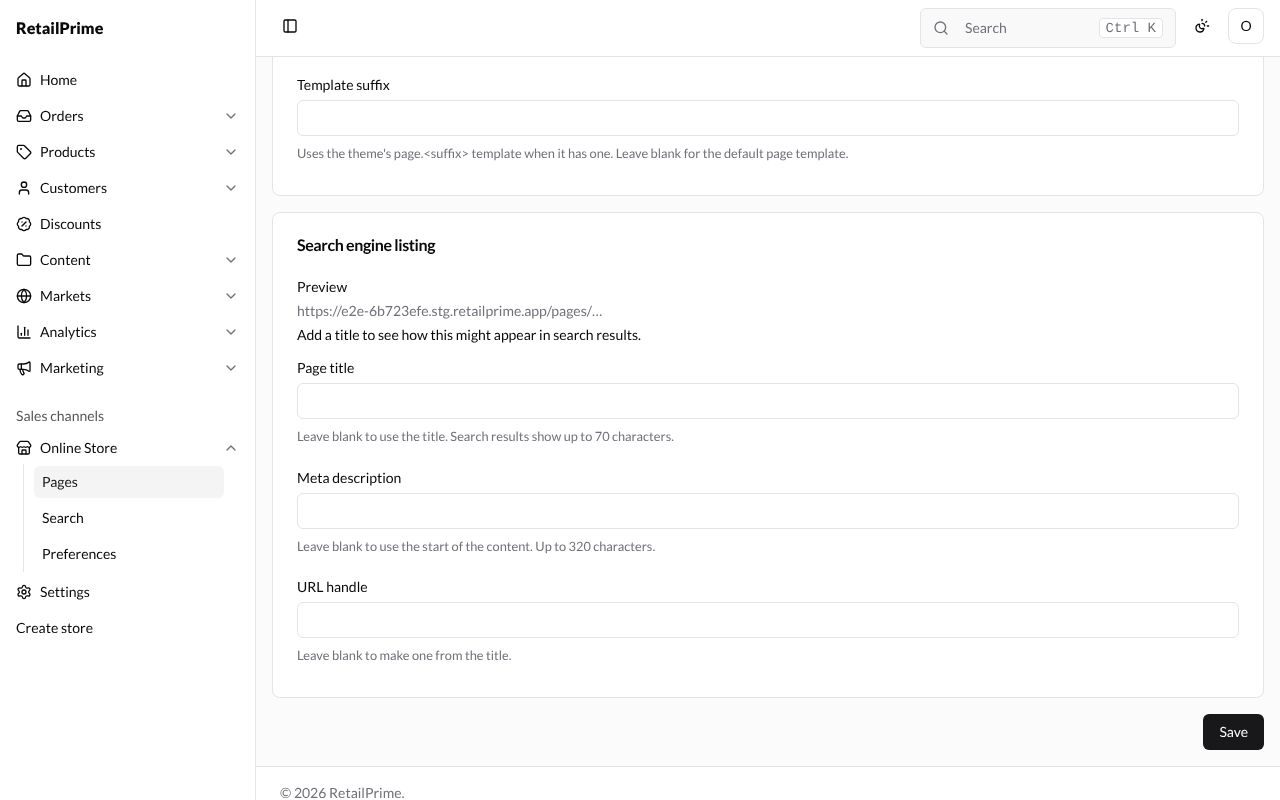
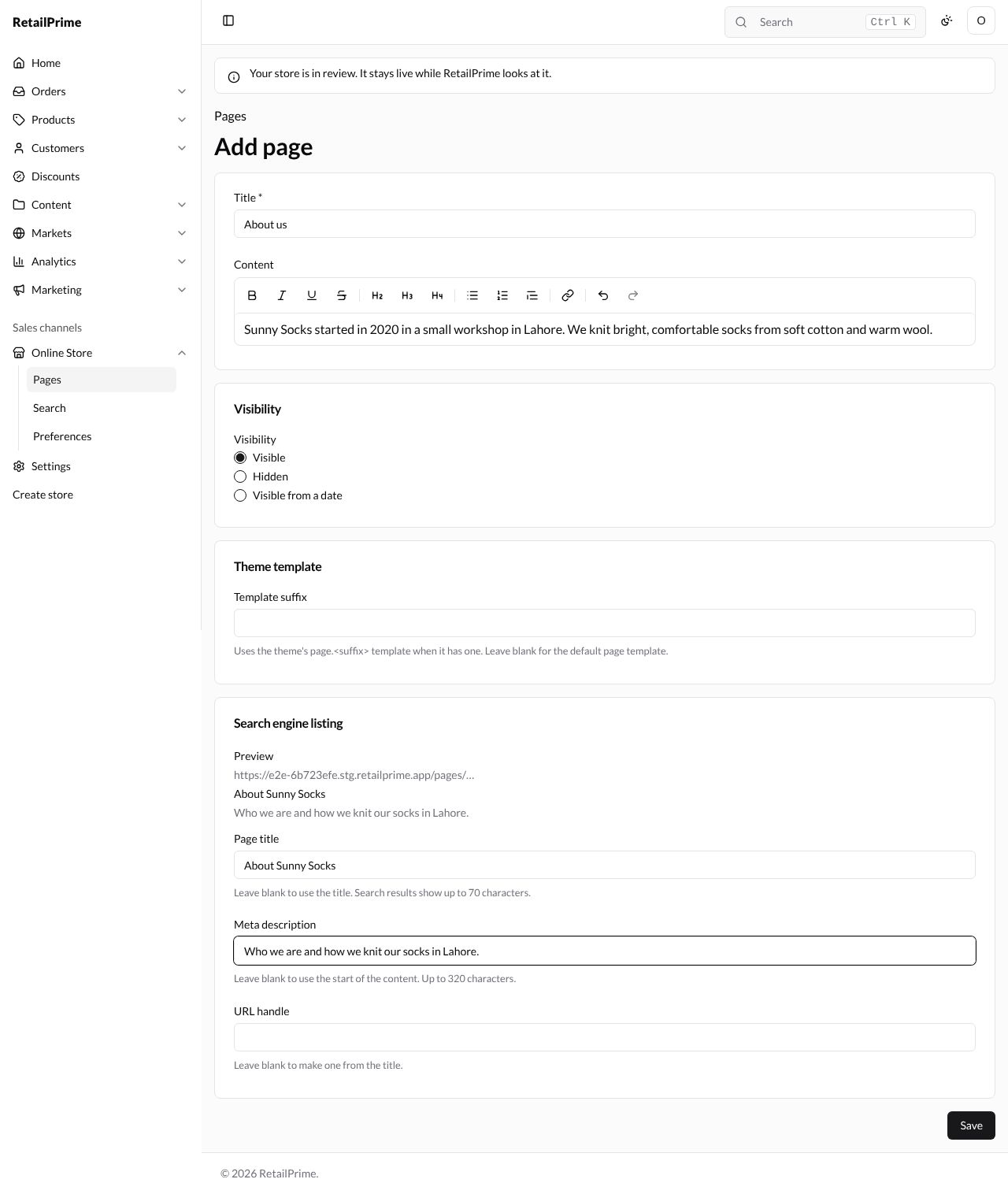
Here is the form filled in:
Press Save. The page’s own screen opens with its title at the top, and View and Delete buttons. A Metafields card has appeared: it is for fields of your own (see Metaobjects).
See it on your store
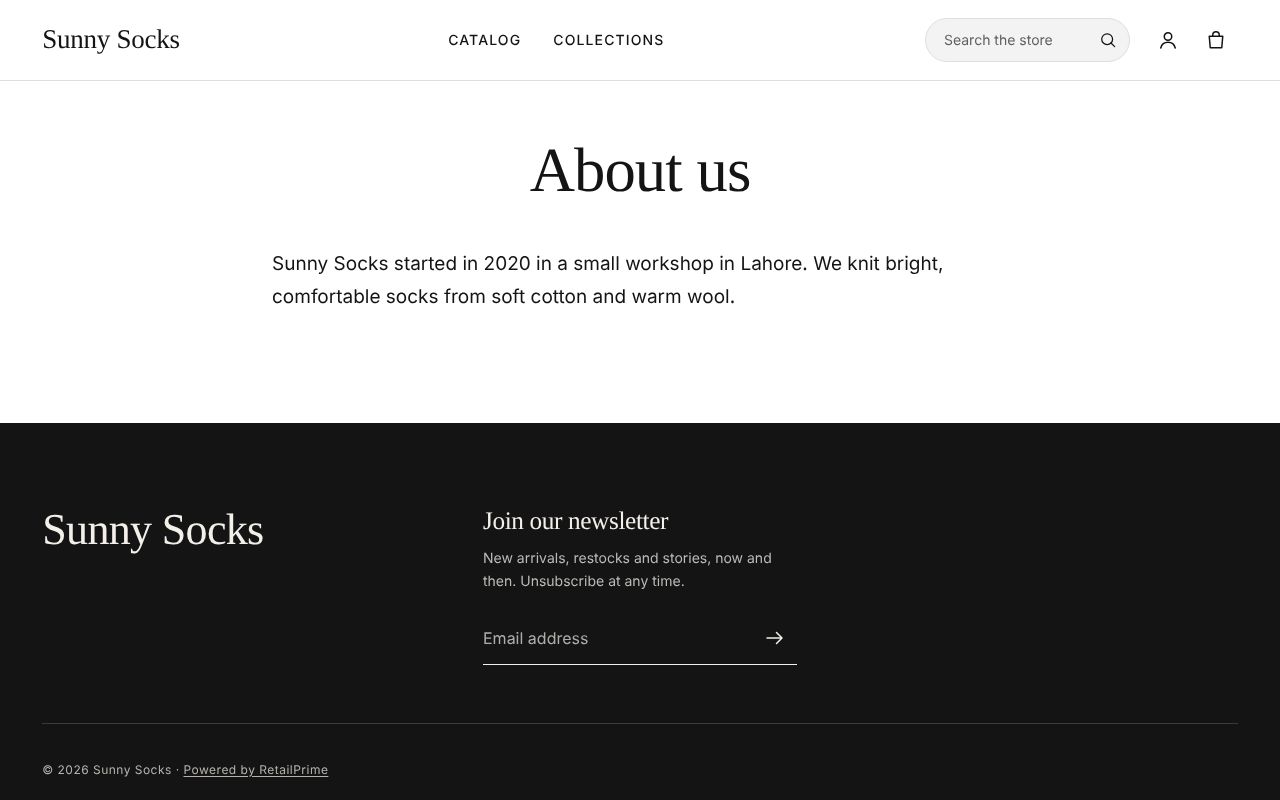
Press View. The page opens on your store in a new tab, at /pages/about-us:
Change a page
Open the page from the Pages list, change any box and press Save. Reload the page on your store to see the change.
Visible, hidden or from a date
The Visibility card decides when buyers can see the page:
| Choice | What it does |
|---|---|
| Visible | Buyers can see it now |
| Hidden | Buyers can’t see it. Use it for a page that isn’t ready |
| Visible from a date | Buyers can see it from the date and time you choose in Visible from |
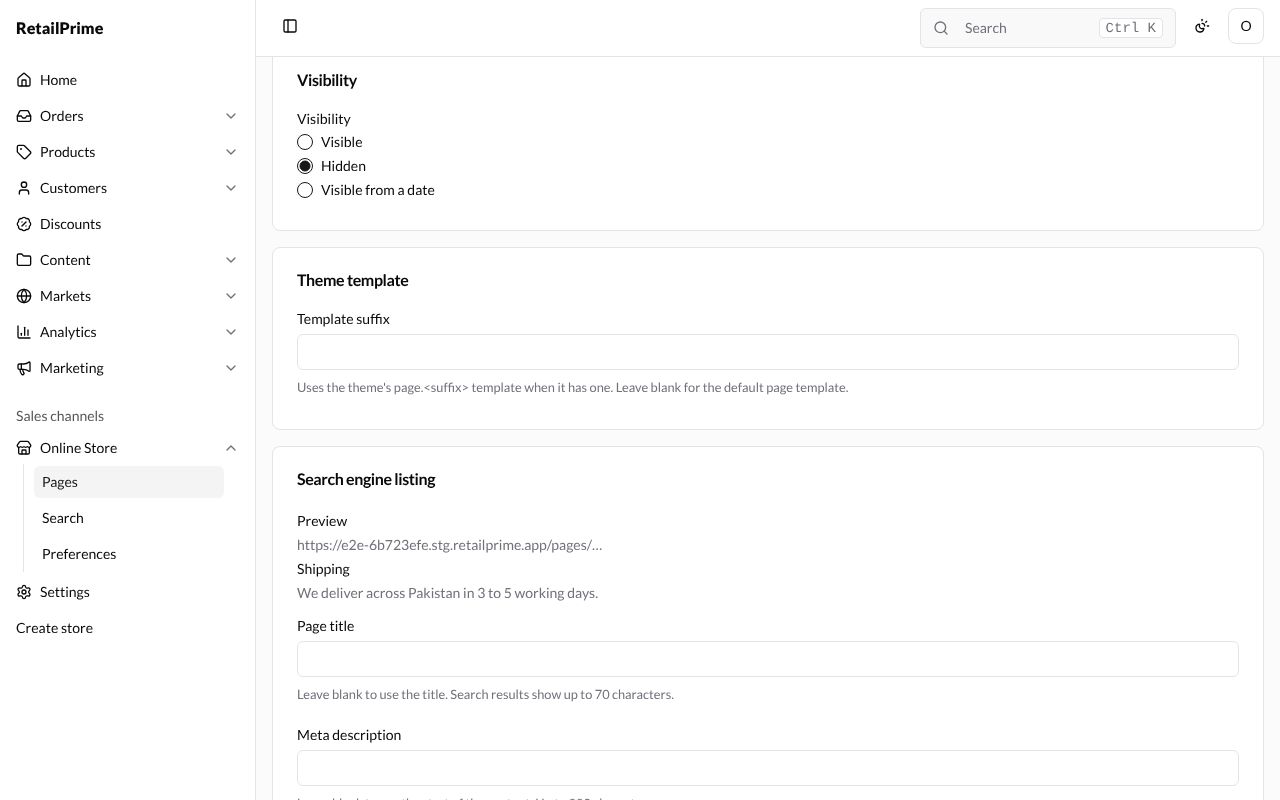
For Visible from a date, a Visible from box appears. Press it and choose a date and time, such as two weeks from now for a winter sale. Without one, Save says Choose the date and time the page becomes visible.
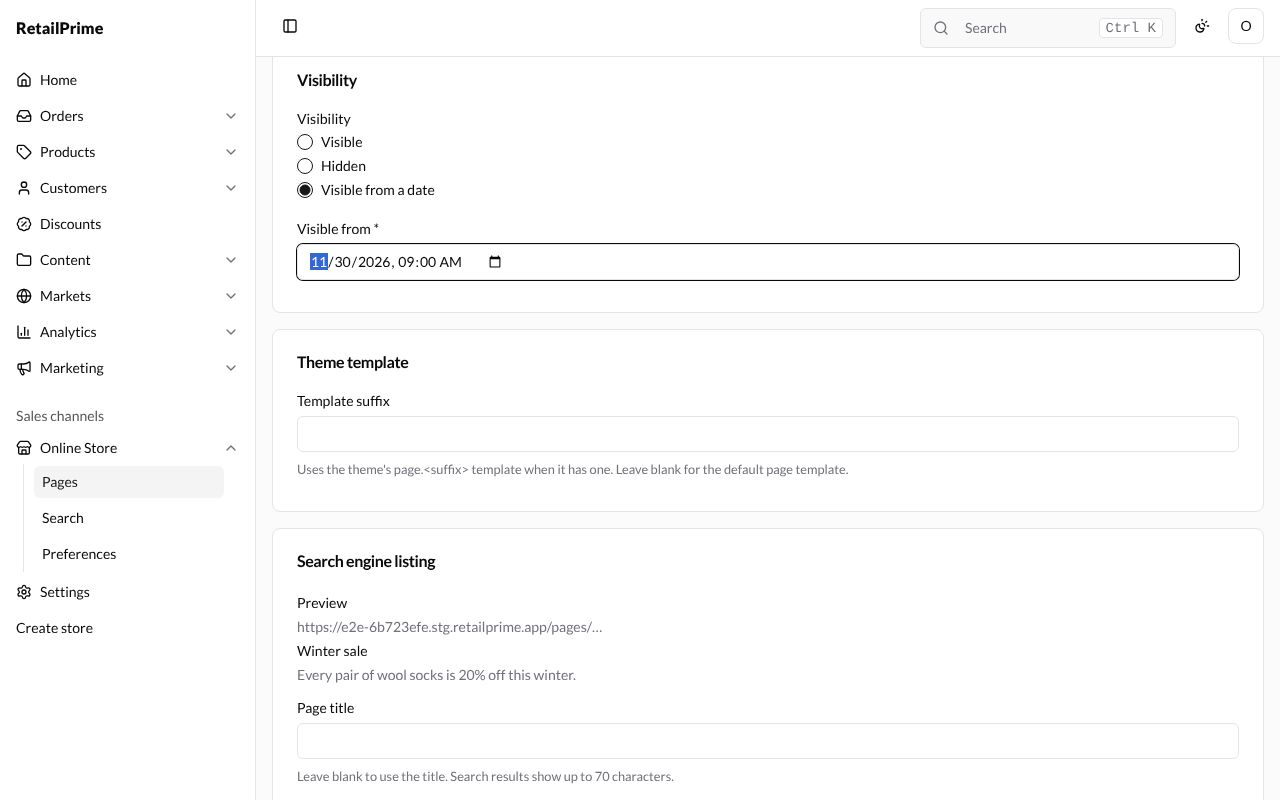
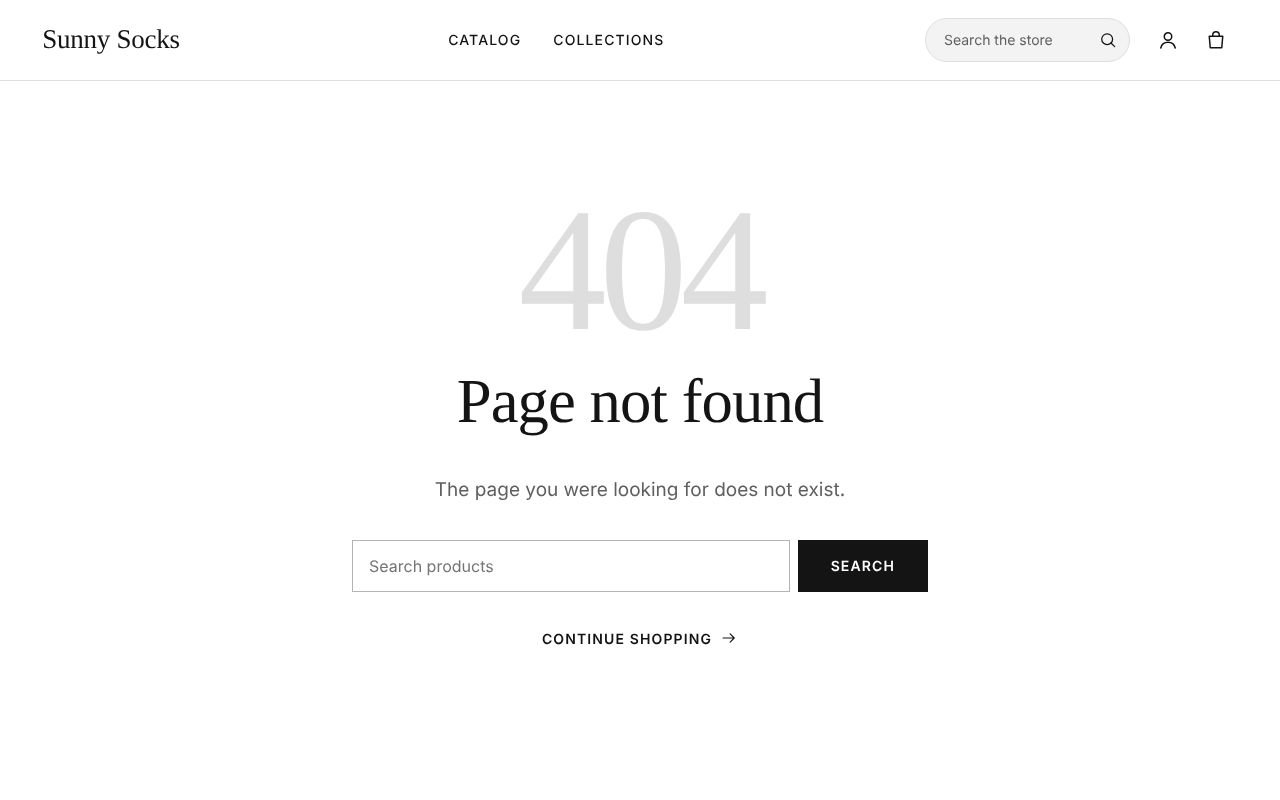
Until then, a buyer who opens the page’s address sees Page not found:
The pages list
Press Pages at the top left (or in the sidebar). Each page shows its Title, Visibility and when it was Updated. Visibility says Visible, Hidden, or Visible from with the date.
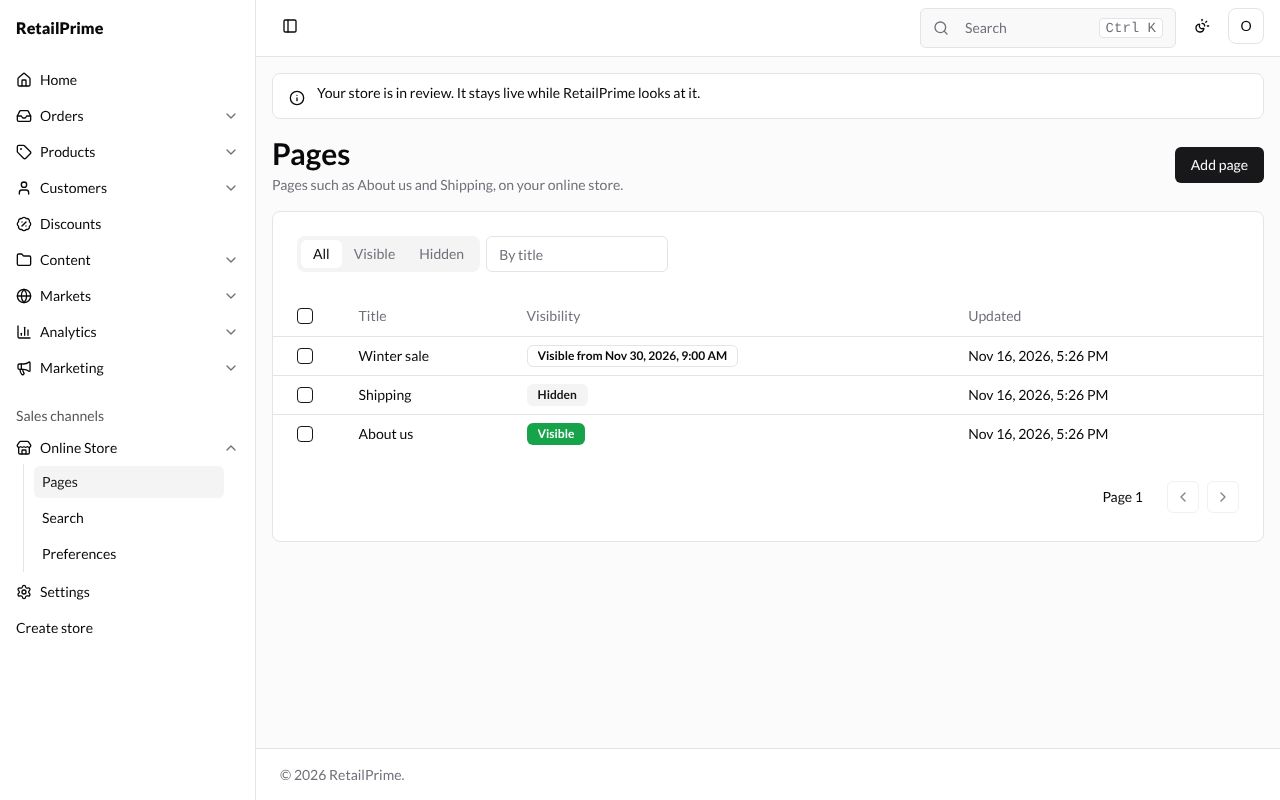
- All, Visible and Hidden at the top show only those pages. Hidden includes pages that become visible later.
- Type in the By title box and press Enter to find a page.
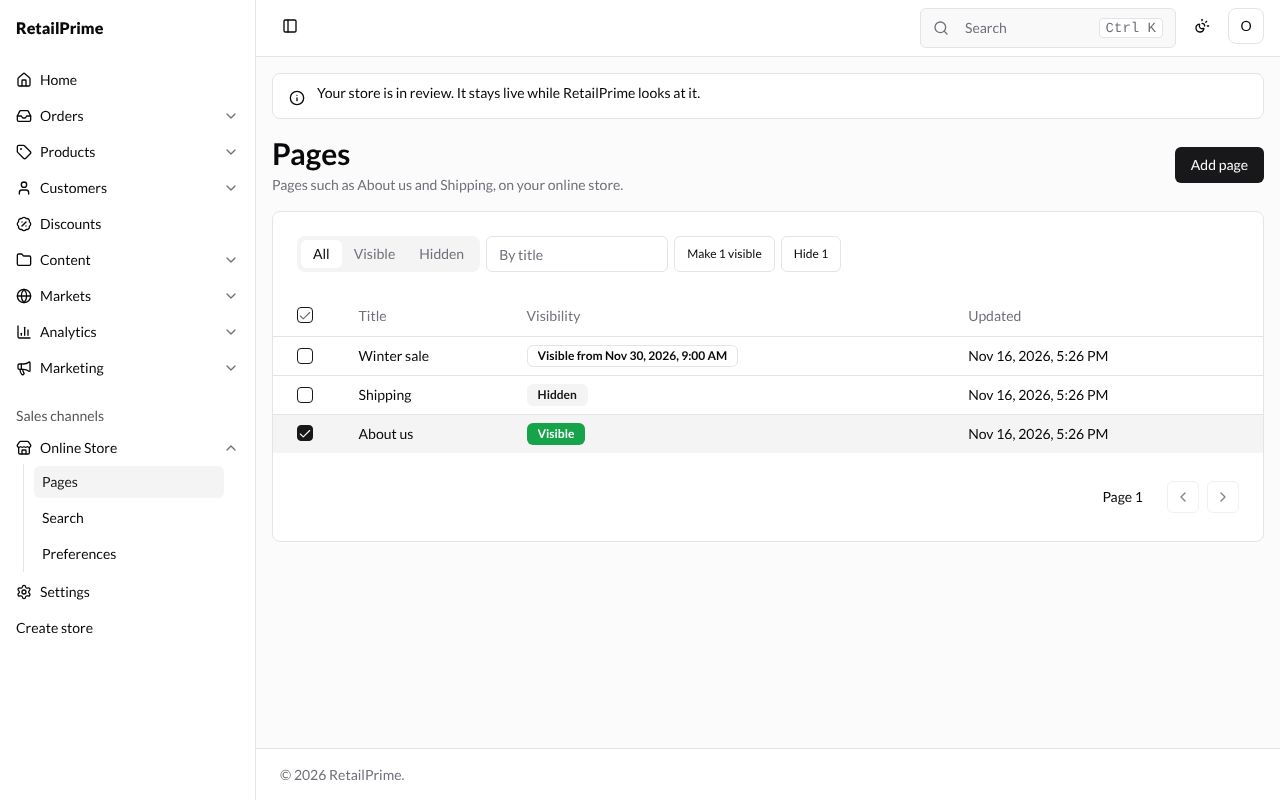
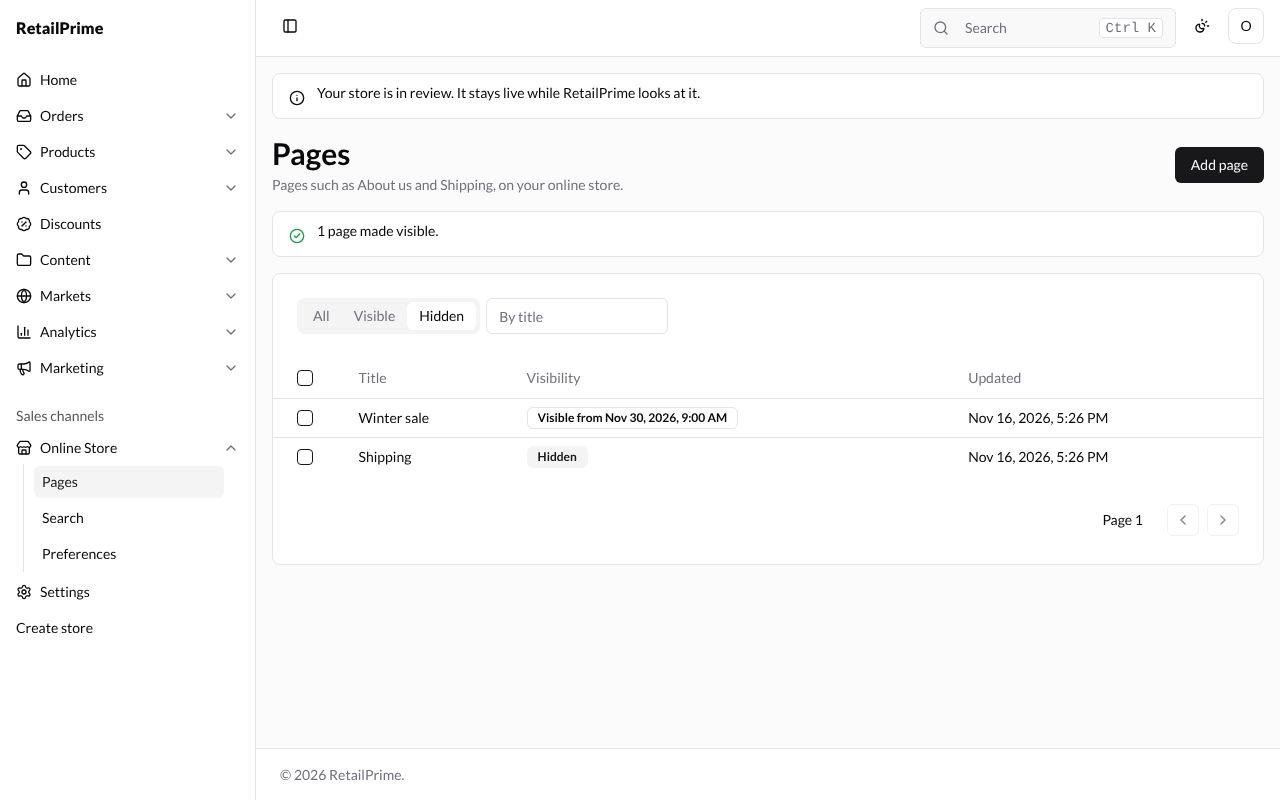
- To hide or show several pages at once, tick them. Make 1 visible and Hide 1 appear (with the number you ticked). Press one: the page says, for example, 1 page hidden. or 1 page made visible.
Delete a page
-
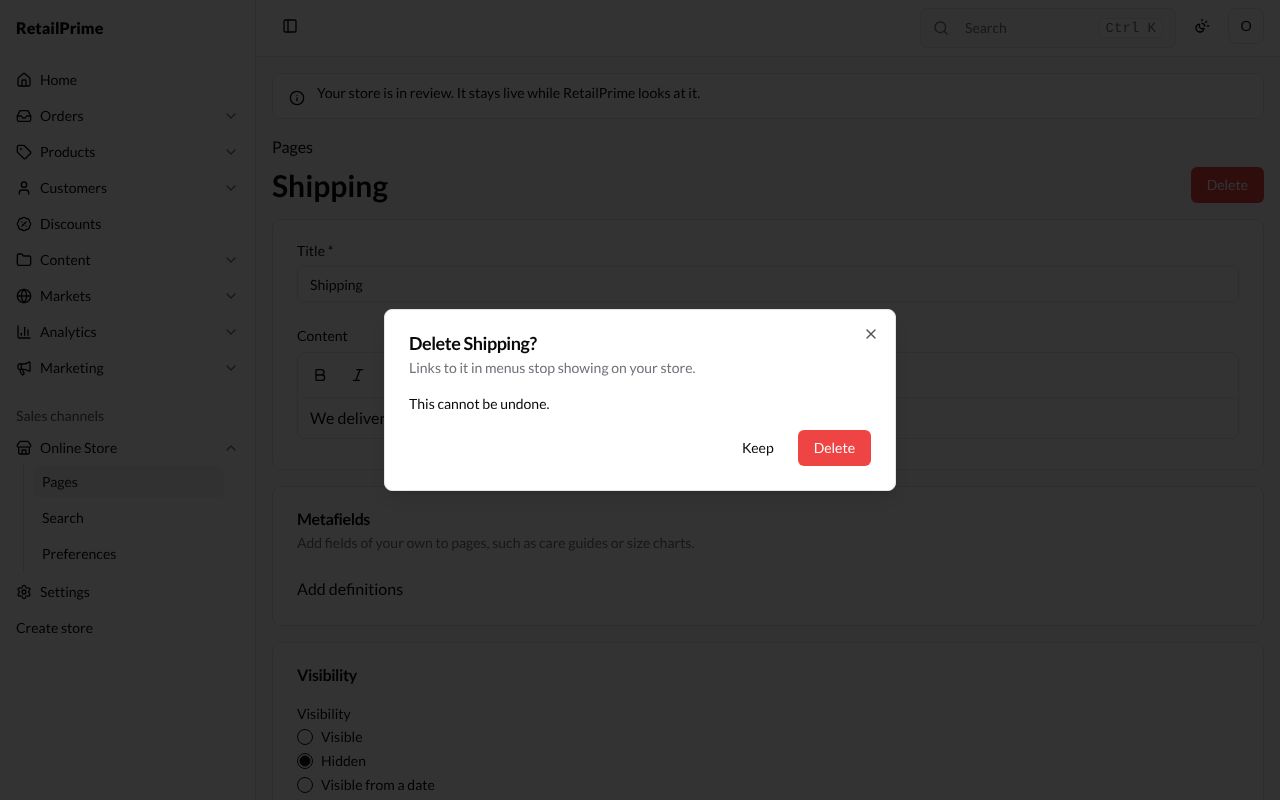
Open the page and press Delete at the top right.
-
A window asks Delete Shipping? and says Links to it in menus stop showing on your store. and This cannot be undone.
-
Press Delete. You are back on the Pages list, without the page. Press Keep to change your mind.
What’s next
Blogs and blog posts: share news and stories with your buyers.