Turn on two-step sign-in
Connect your authenticator app and save your recovery codes.
RetailPrime protects every store with two-step sign-in: your password, plus a 6-digit code from an app on your phone. You set it up once, now.
Scan the QR code
You see Set up your authenticator app.
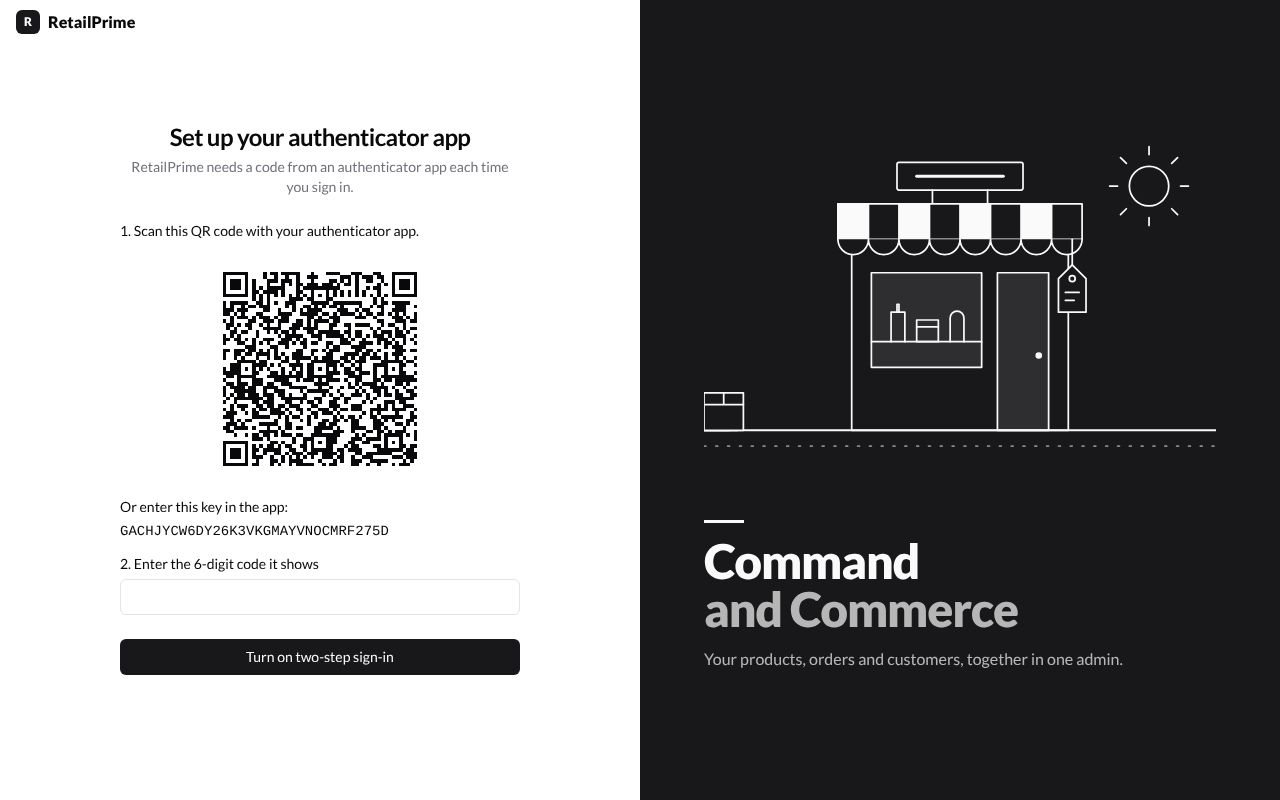
- Open your authenticator app on your phone (for example Google Authenticator or Microsoft Authenticator).
- Tap the button to add an account (often a +), then choose to scan a QR code.
- Point your phone’s camera at the QR code on the screen.
- The app now shows RetailPrime with a 6-digit number that changes every 30 seconds.
Type the code
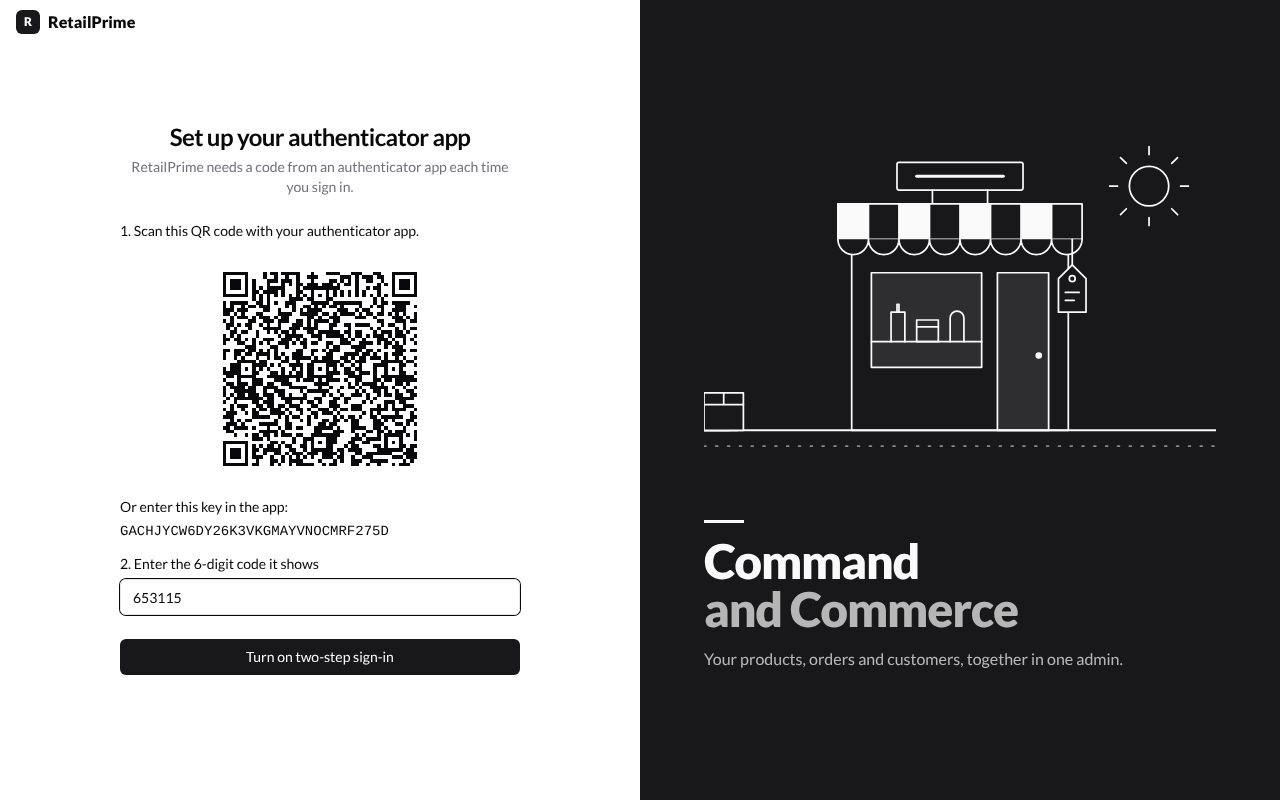
In 2. Enter the 6-digit code it shows, type the 6 numbers your app shows right now, then press Turn on two-step sign-in.
Save your recovery codes
You now see Save your recovery codes: 10 codes. If you ever lose your phone, each code lets you sign in once.
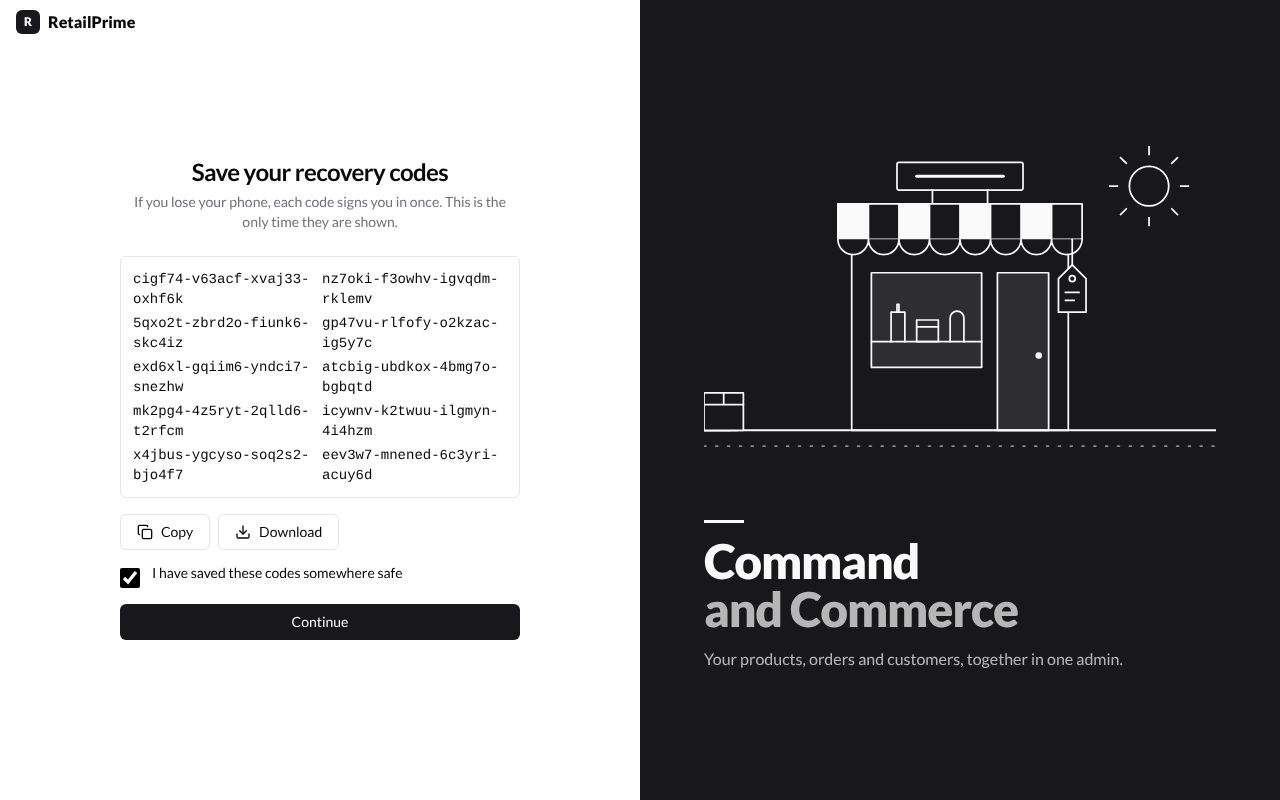
- Press Copy or Download and keep the codes somewhere safe. This is the only time they are shown.
- Tick I have saved these codes somewhere safe.
- Press Continue.
What’s next
RetailPrime asks a few questions about your business.