Companies
Add the businesses you sell to, with their locations and the customers who buy for them, and their roles.
A company is a business that buys from you, such as a school that orders socks for its uniforms. A company has one or more locations (its offices, shops or campuses) and contacts: customers who buy for it.
Open Companies
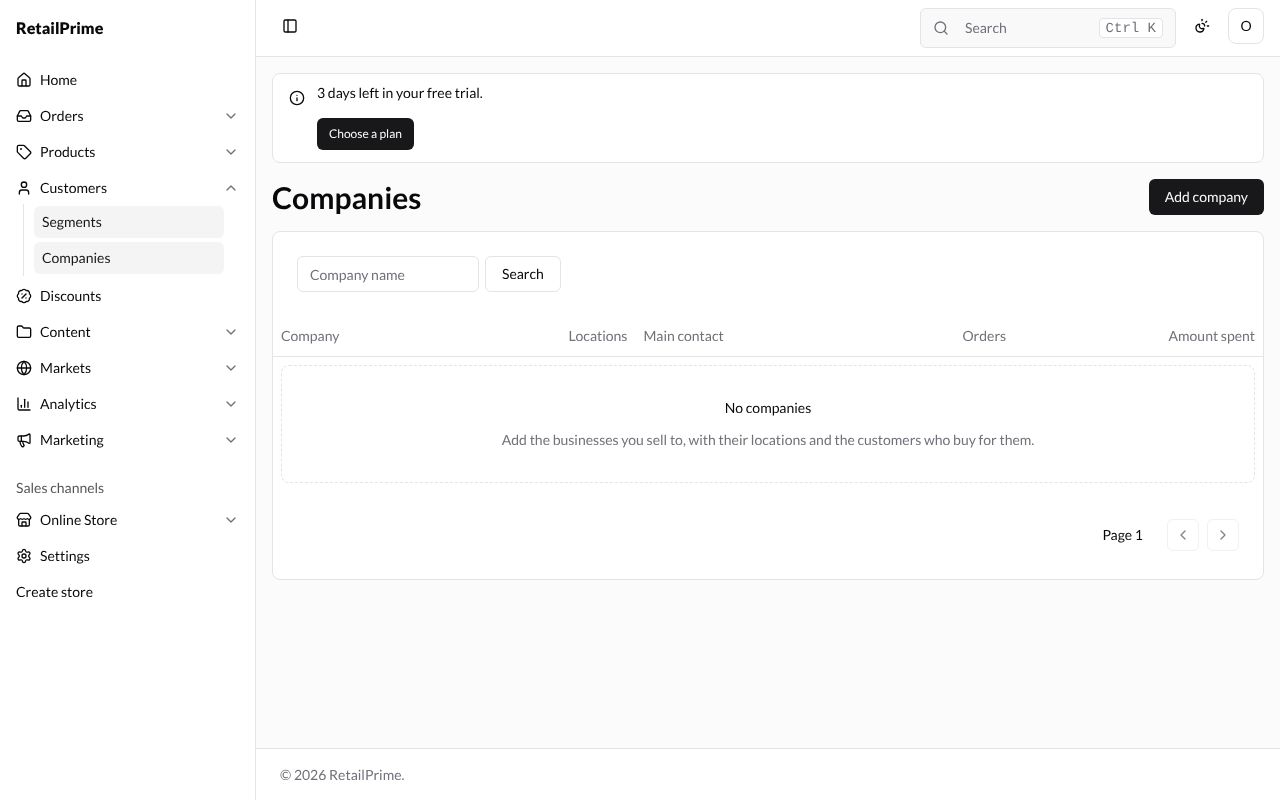
In the sidebar, press Customers, then Companies under it. A new store has none, so the list says No companies and Add the businesses you sell to, with their locations and the customers who buy for them.
Add a company
Press Add company at the top right.
| Box | What to type | Example |
|---|---|---|
| Company name * | The company’s name | Lahore School Supplies |
| Note | Anything about the company. For staff only | Buys socks for school uniforms every term. |
Every company starts with one location, in the First location card:
| Box | What to type | Example |
|---|---|---|
| Location name | The location’s name. When left empty, it is the company’s name | Head office |
| Shipping address | Country, First name, Last name, Company, Address, Apartment, suite, etc., City, Province, Postal code and Phone: where its orders are sent | Pakistan, 20 Davis Road, Lahore, Punjab, 54000 |
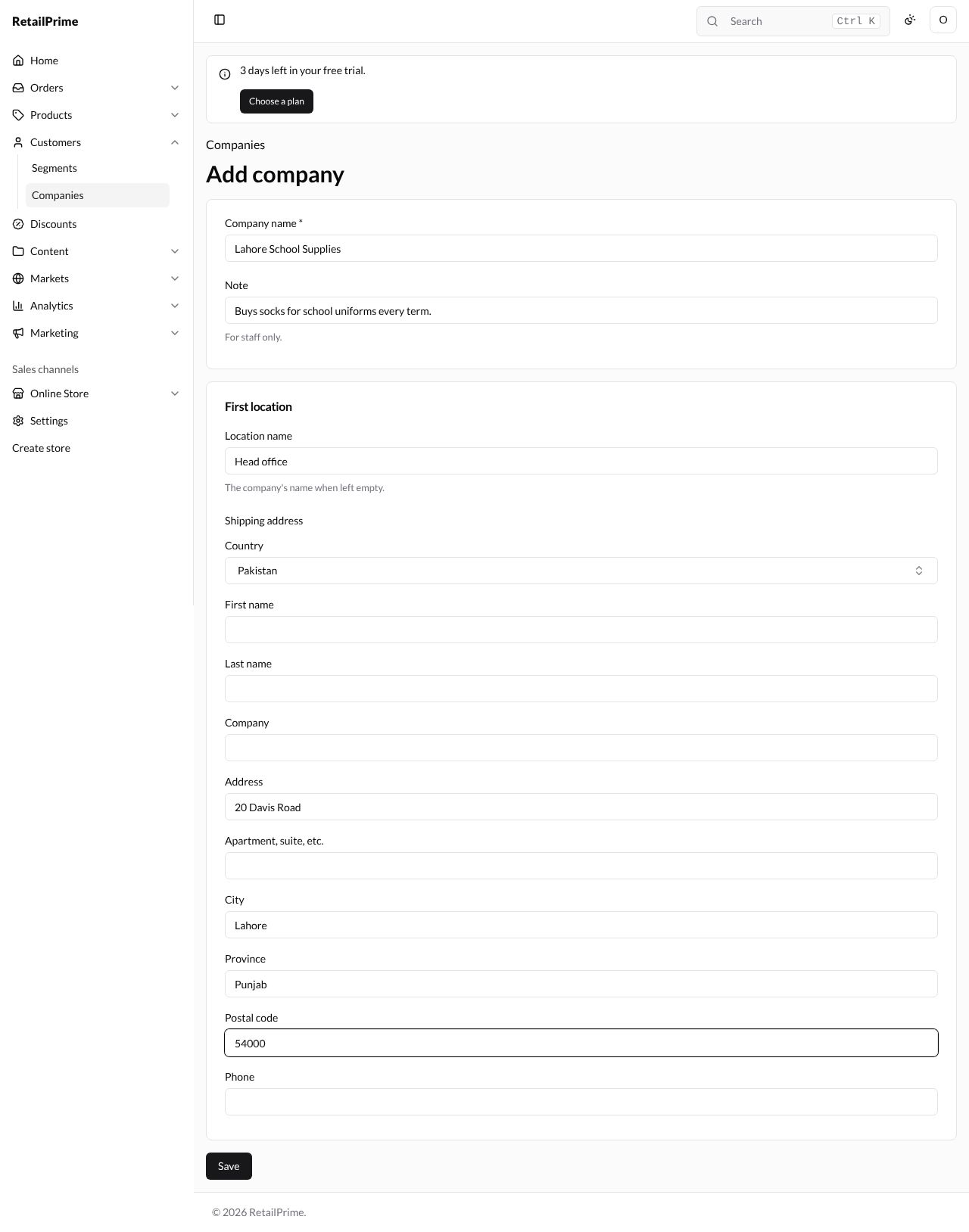
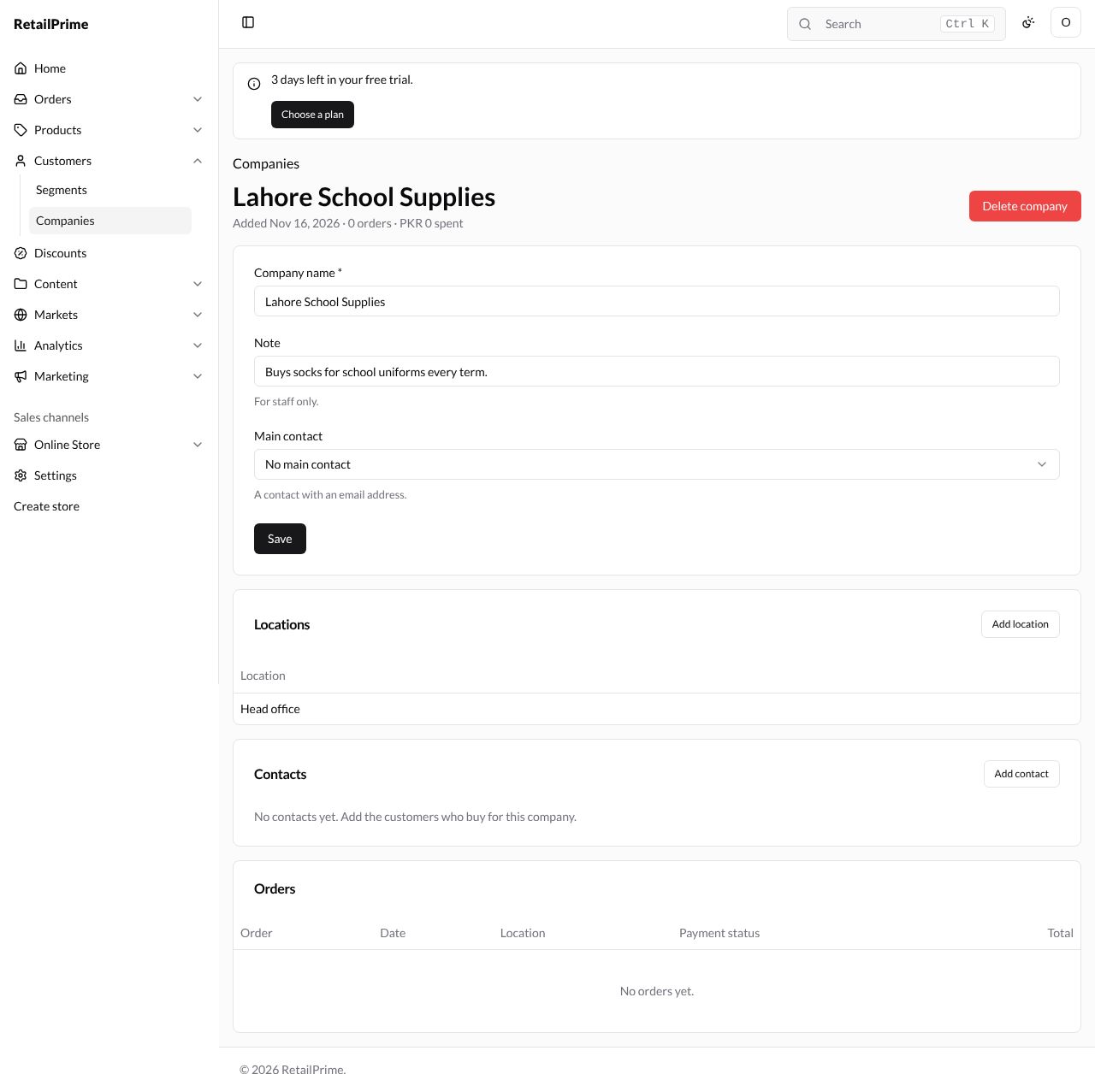
Press Save. The company’s page opens. Under its name it says when it was added, how many orders it has and how much it spent.
Add a location
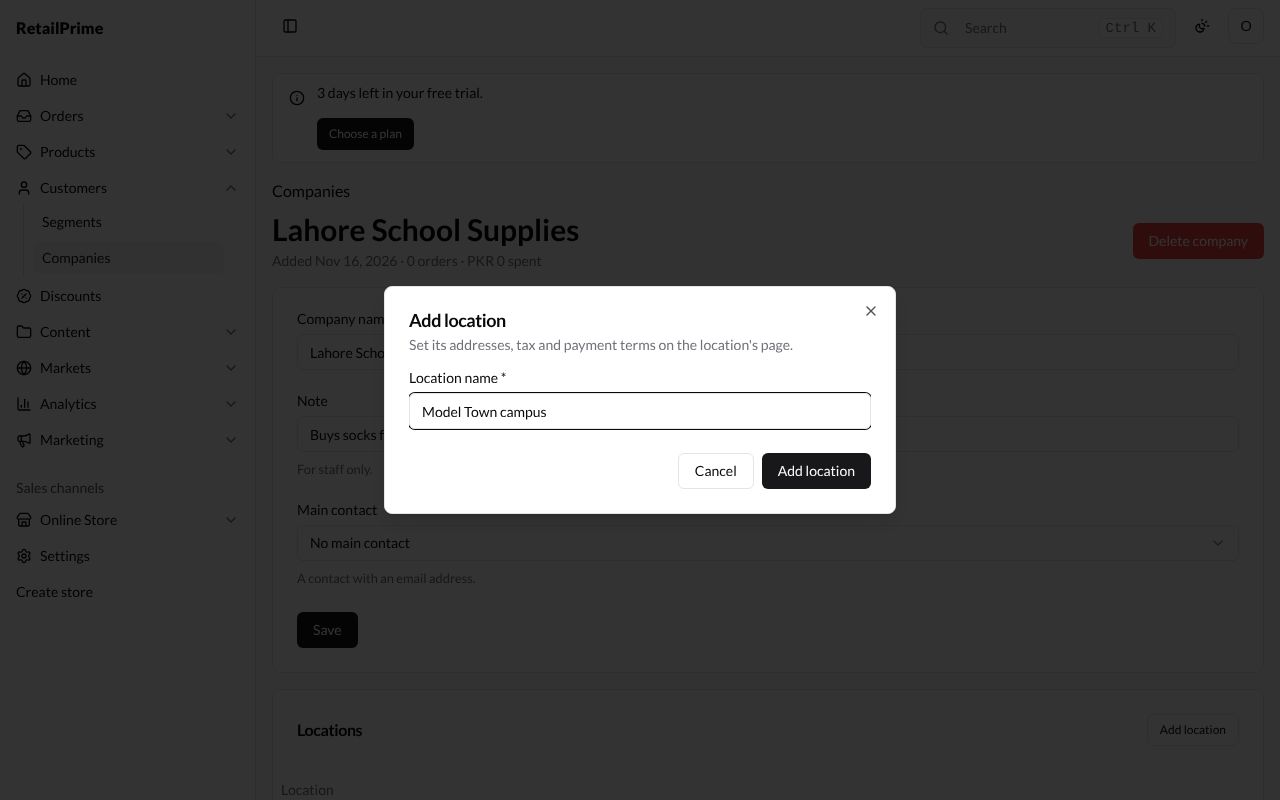
- In the Locations card, press Add location.
- The box says you set the location’s addresses, tax and payment terms on the location’s own page.
- Type the Location name *, such as
Model Town campus. - Press Add location. The page says Location added.
Press a location’s name in the Locations card to open it: see Company locations.
Add contacts
Contacts are customers who buy for the company. Add the customer first in Customers (see Add and edit a customer).
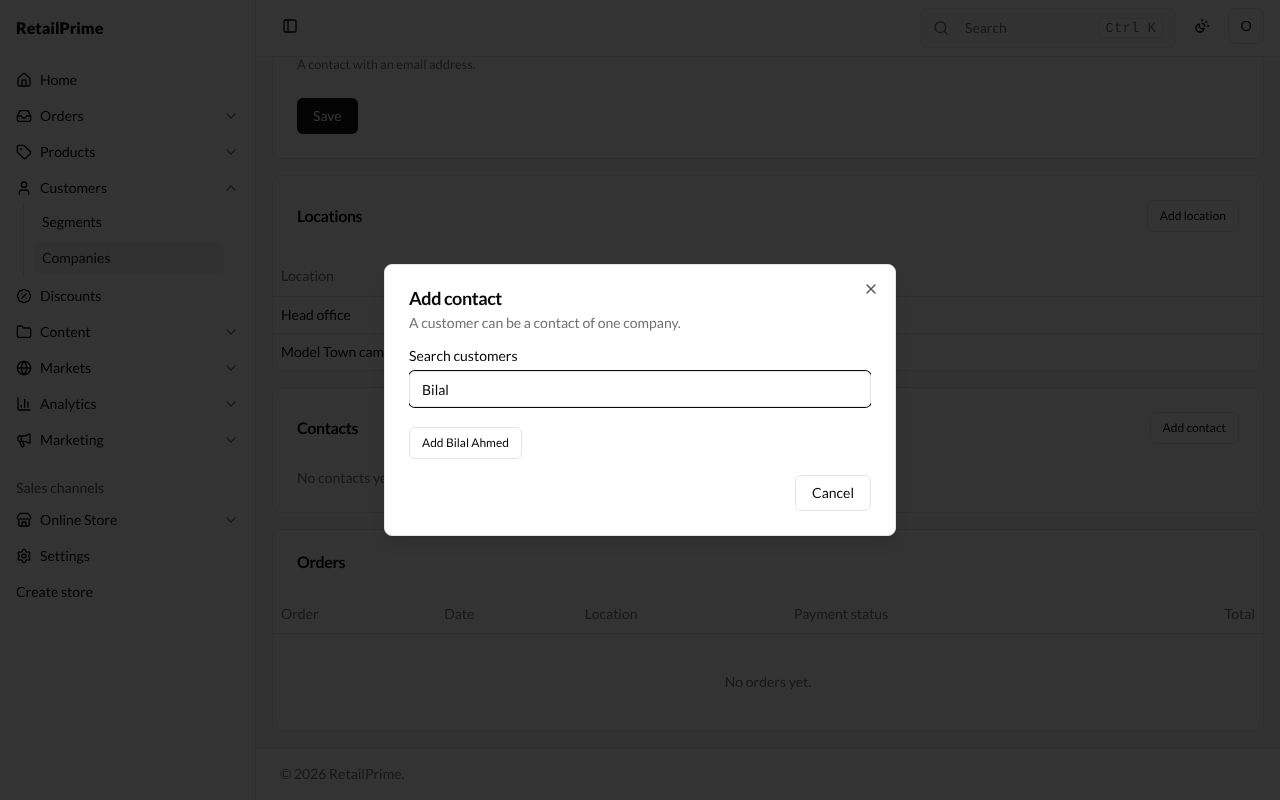
- In the Contacts card, press Add contact.
- The box says a customer can be a contact of one company.
- In Search customers, type at least two letters of their name or email, such as
Bilal. - Press Add Bilal Ahmed. The page says Contact added.
Roles
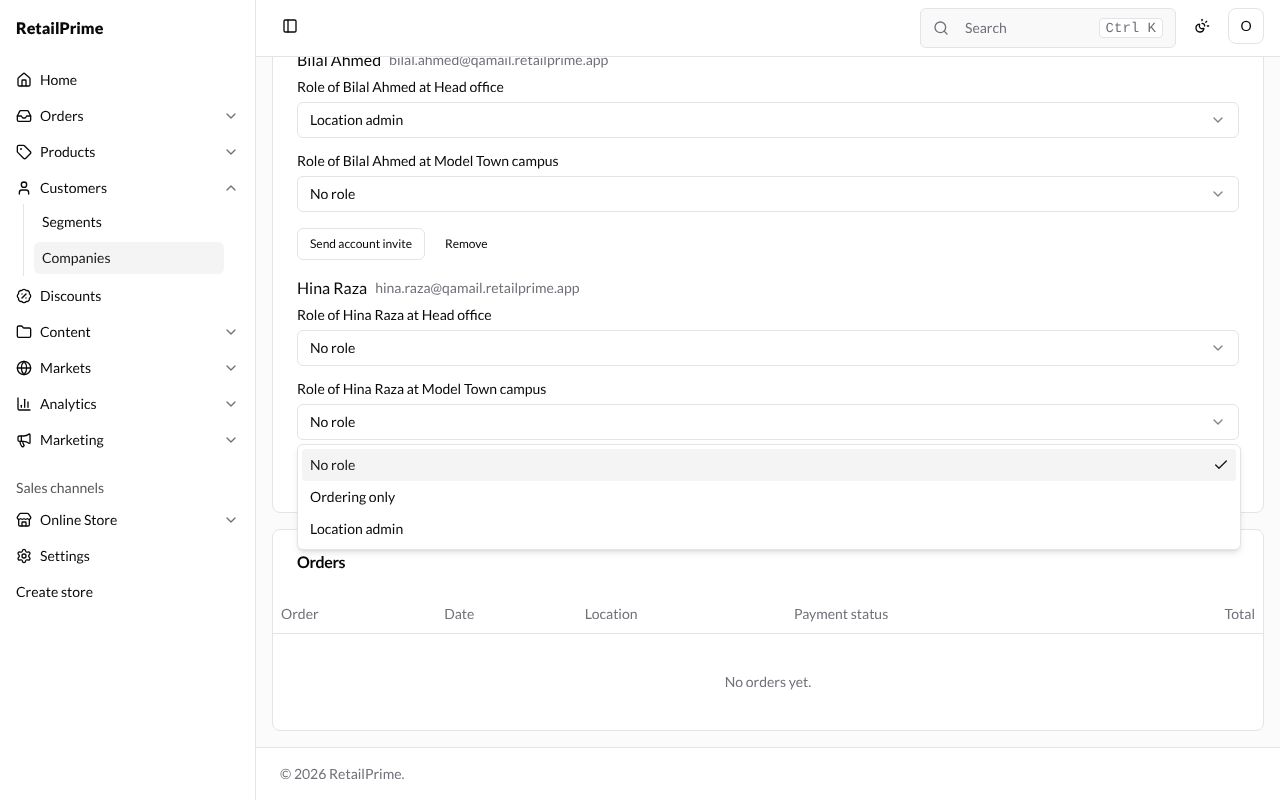
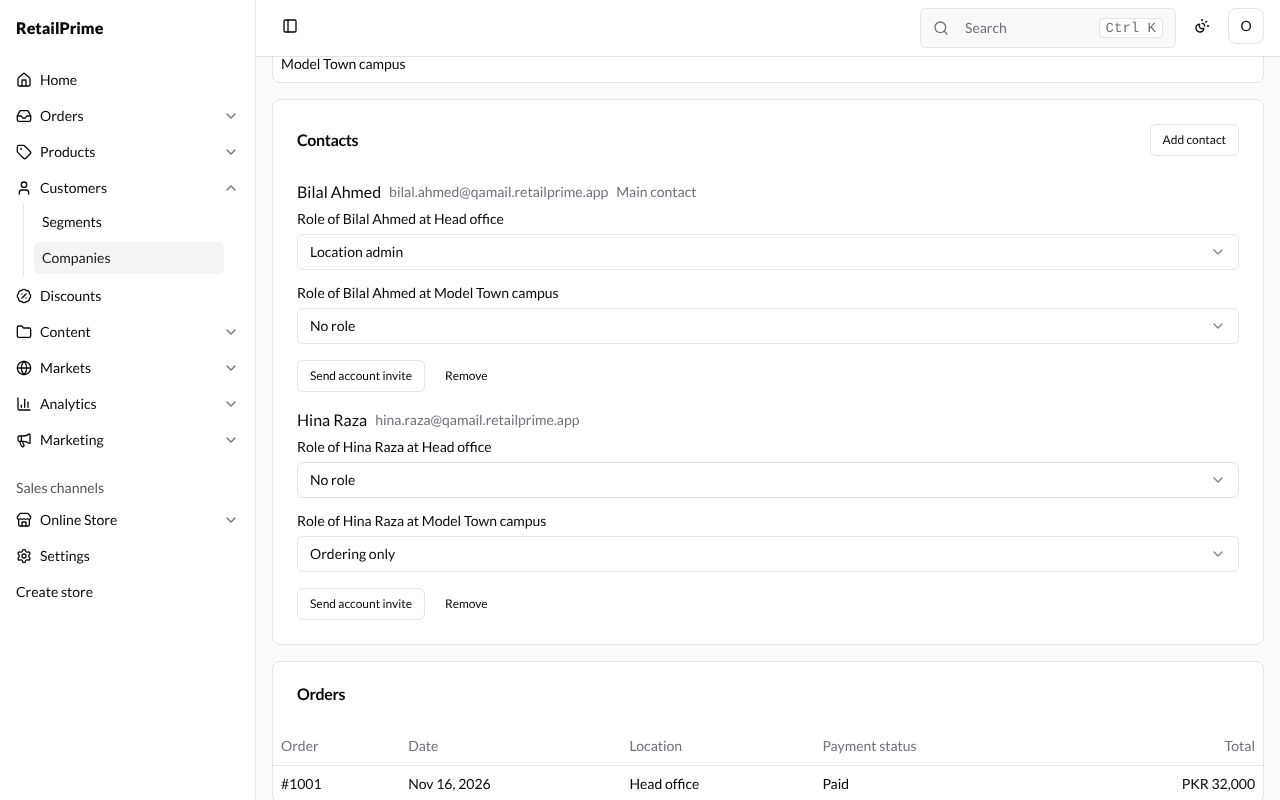
Each contact has a role at each location, chosen in Role of … at …:
| Role | What the contact can do |
|---|---|
| No role | Nothing at that location |
| Ordering only | Place orders for the location and see their own orders |
| Location admin | Place orders, see every order of the location and edit its addresses |
Choose a role and it is saved straight away; the page says Role changed.
Main contact, invites and removing
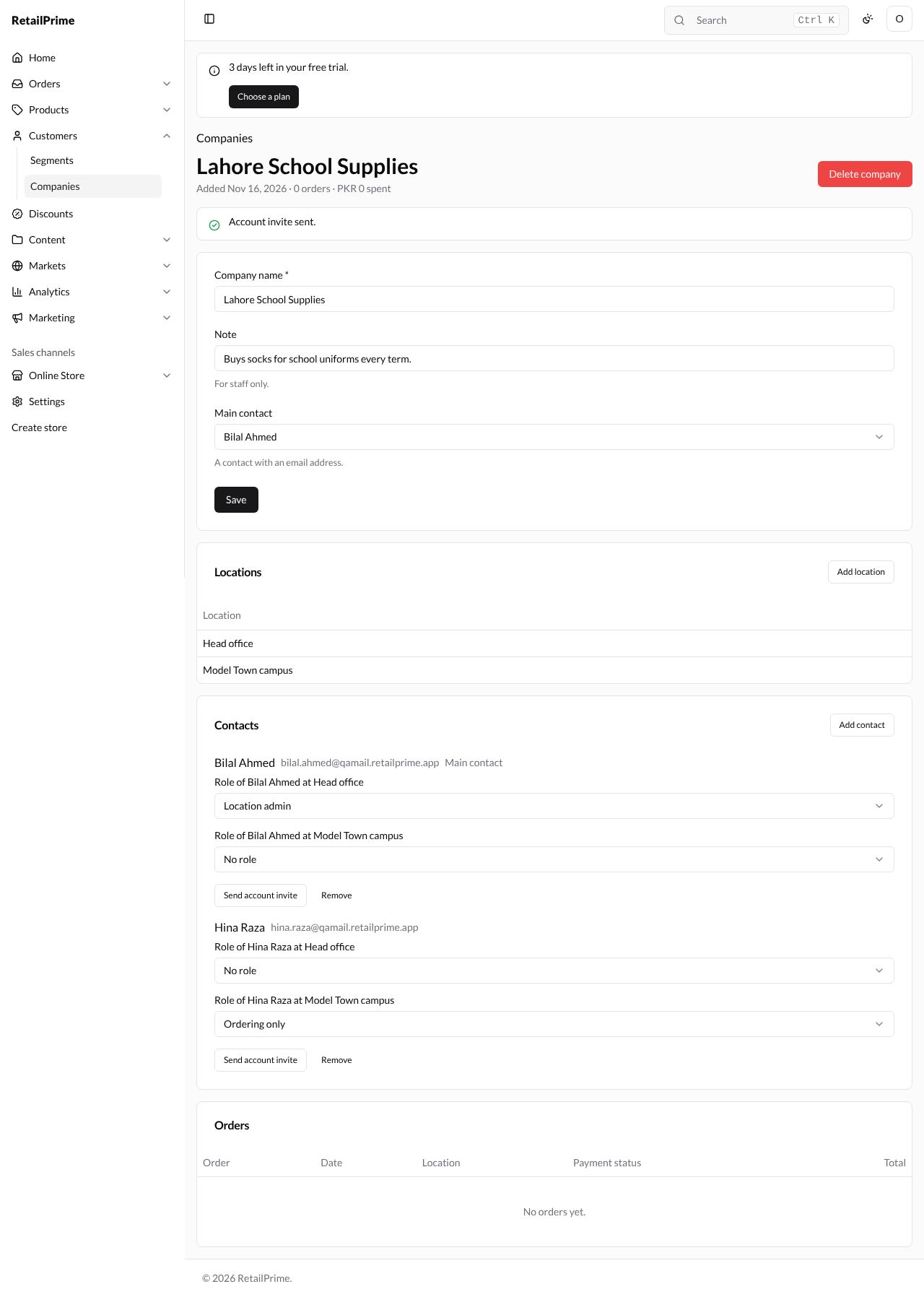
- Main contact: choose one contact in the box at the top of the page. It must be a contact with an email address. The page says Main contact changed. and the contact shows Main contact next to their name.
- Send account invite: emails the contact an invitation to their account on your store, where they buy for the company. The page says Account invite sent. It is greyed out for a contact without an email.
- Remove: takes the customer off the company (and their roles). The customer stays in your store. The page says Contact removed.
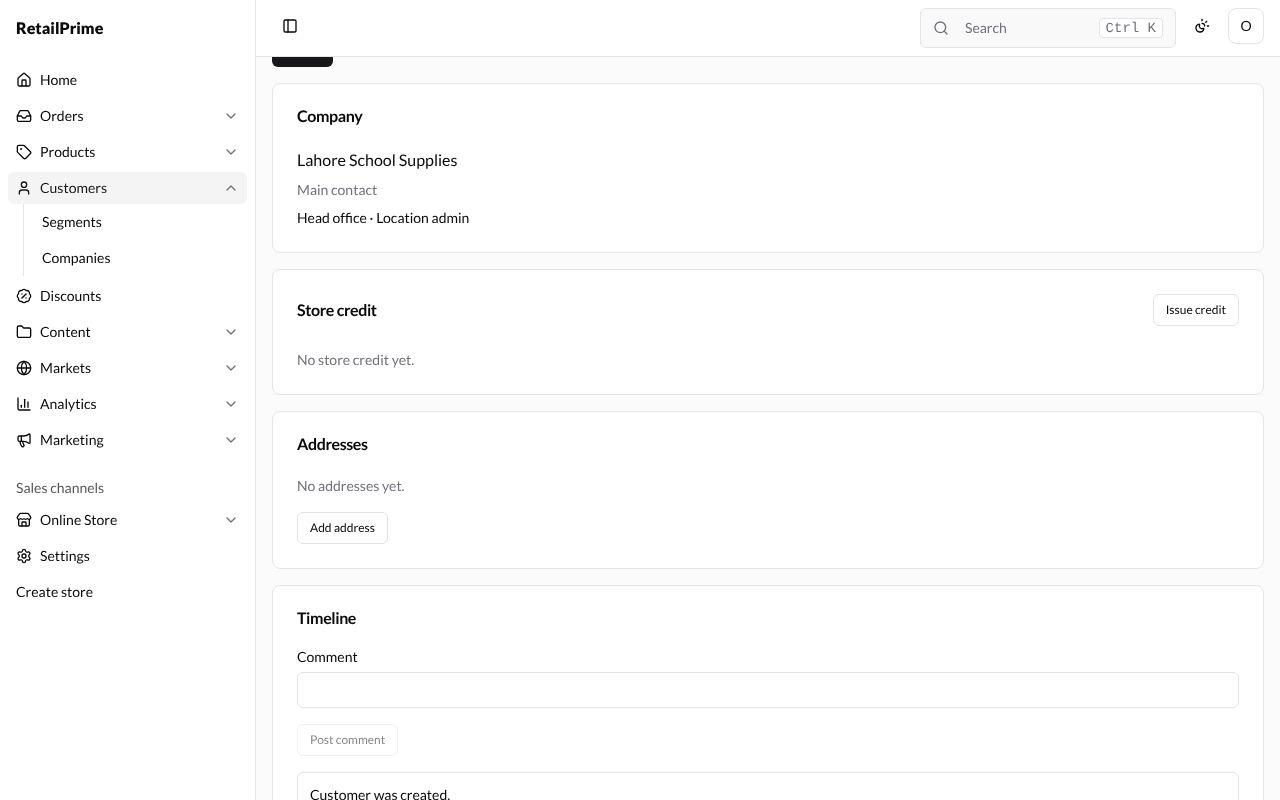
On the customer’s own page, a Company card shows their company (press it to open), Main contact when they are, and their role at each location:
The company’s orders
The Orders card lists every order of all the company’s locations, newest first, with its Date, Location, Payment status and Total. How to make an order for a company is in Company locations.
Edit a company
Change the Company name or the Note and press Save in the first card. The page says Company saved.
The companies list
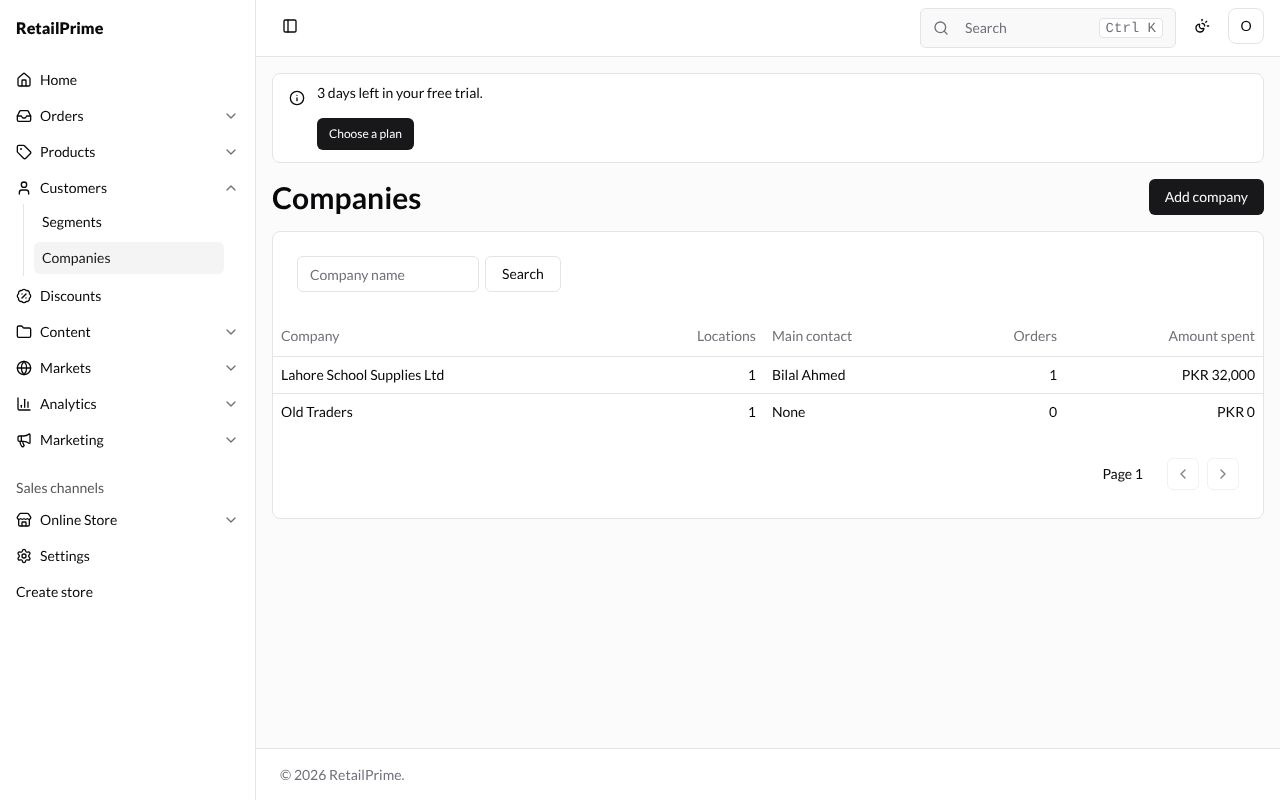
The Companies page lists every company with its number of Locations, its Main contact (or None), its Orders and its Amount spent.
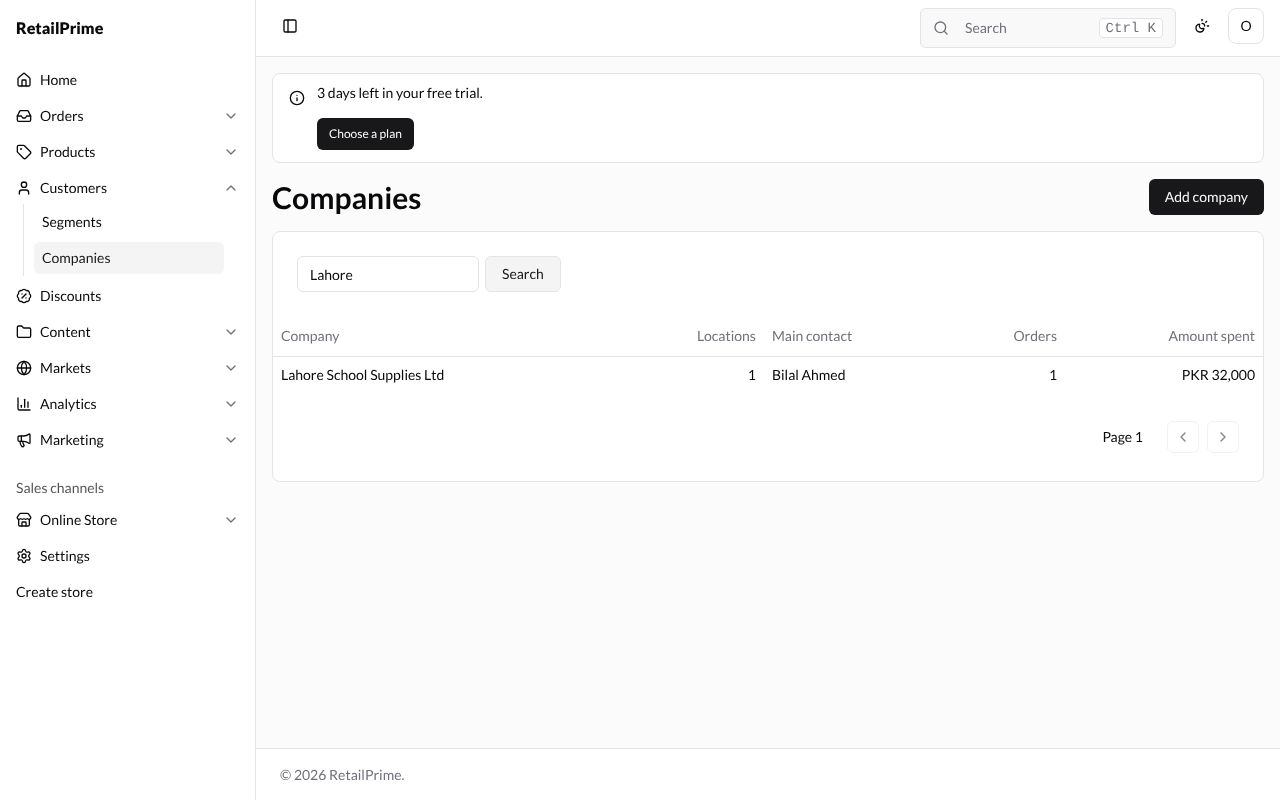
To find a company, type its name in the box and press Search. Empty the box and press Search to see them all again.
Delete a location
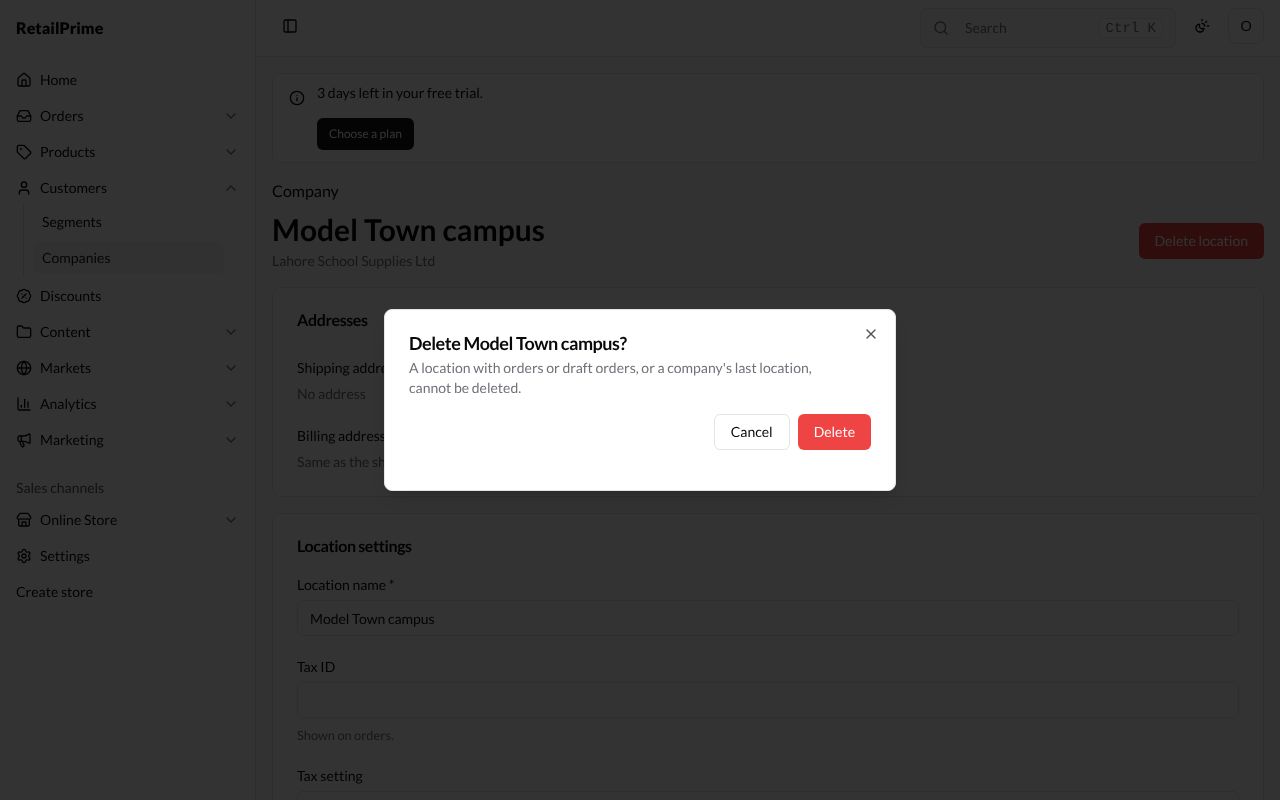
- Open the location and press Delete location (the red button) at the top right.
- The box, such as Delete Model Town campus?, says a location with orders or draft orders, or a company’s last location, can’t be deleted.
- Press Delete, or Cancel to change your mind.
You are back on the company’s page.
Delete a company
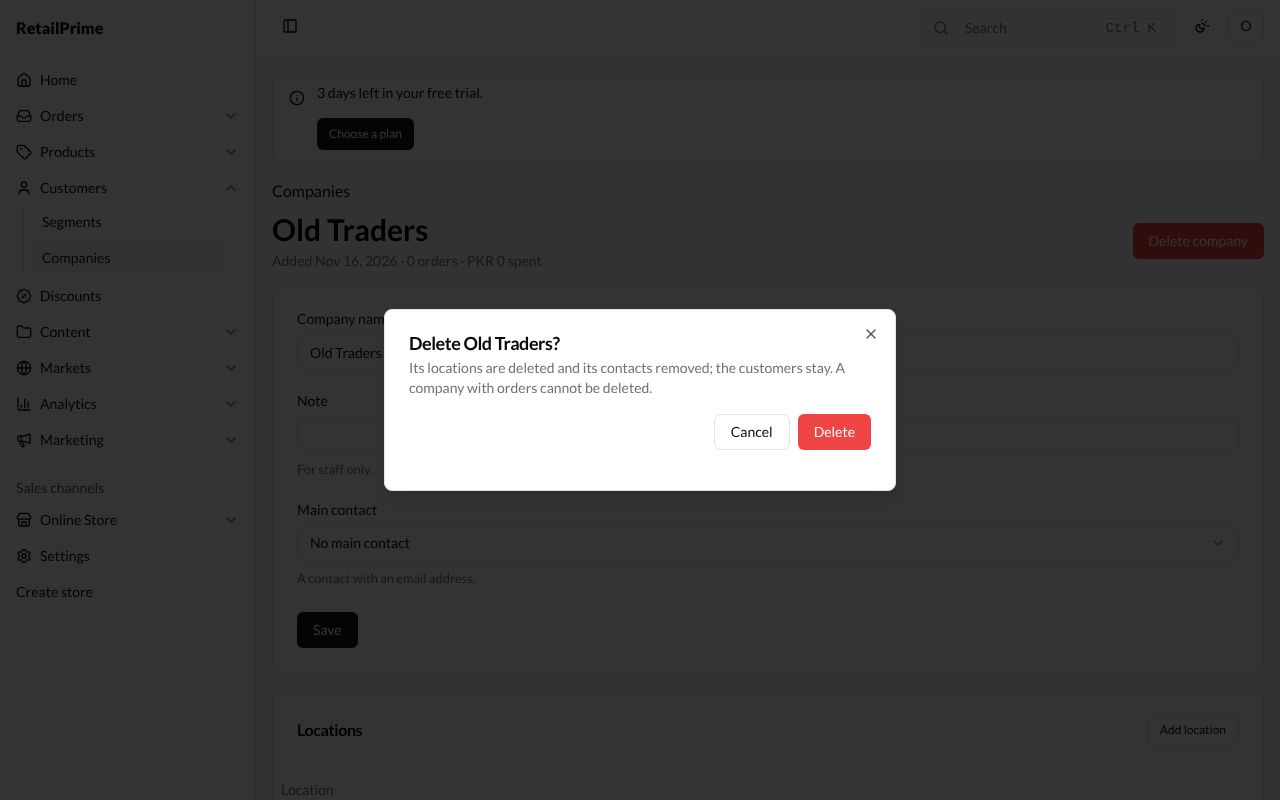
- Open the company and press Delete company (the red button) at the top right.
- The box, such as Delete Old Traders?, says its locations are deleted and its contacts removed; the customers stay. A company with orders can’t be deleted.
- Press Delete, or Cancel to change your mind.
You are back on the companies list.
What’s next
Company locations: a location’s addresses, payment terms, catalogs, store credit and orders.