B2B markets and wholesale catalogs
Make a market for the companies you sell to, and a wholesale catalog with lower prices, minimum quantities and price breaks.
A B2B market is the buyers who purchase for company locations, such as a school that buys socks for its uniforms. Its catalogs can have quantity rules (buy at least 12, in twelves) and price breaks (cheaper per pair from 60 pairs), which region markets can’t.
You need a company with at least one location first: see Companies. Here the store has Lahore School Supplies with its Head office.
Create a B2B market
-
In the sidebar, press Markets, then Create market.
-
Type the Name, such as
Schools. -
In Type, choose B2B. The Countries card is replaced by Company locations.
-
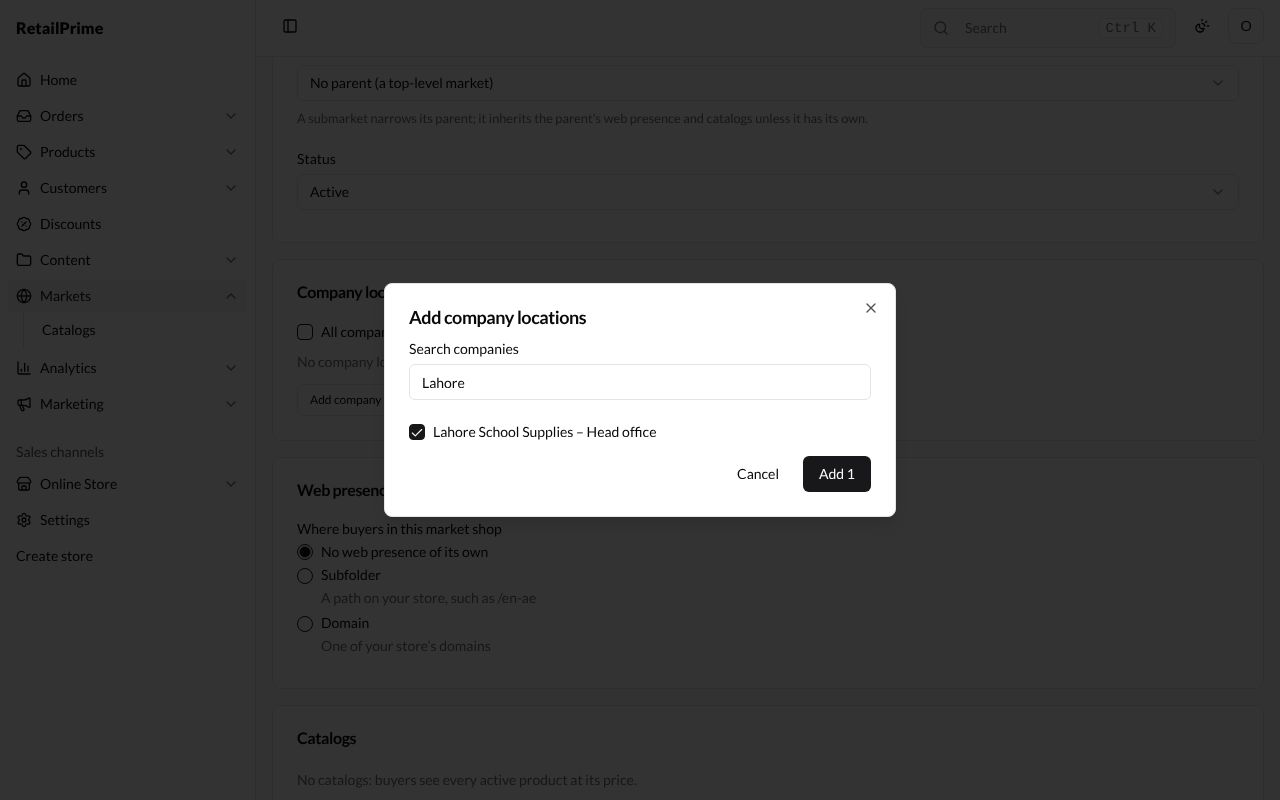
In Company locations, either tick All company locations, or press Add company locations: type a company’s name in Search companies, tick the location (shown as Company – Location) and press Add 1.
-
Web presence and Catalogs work as for a region market.
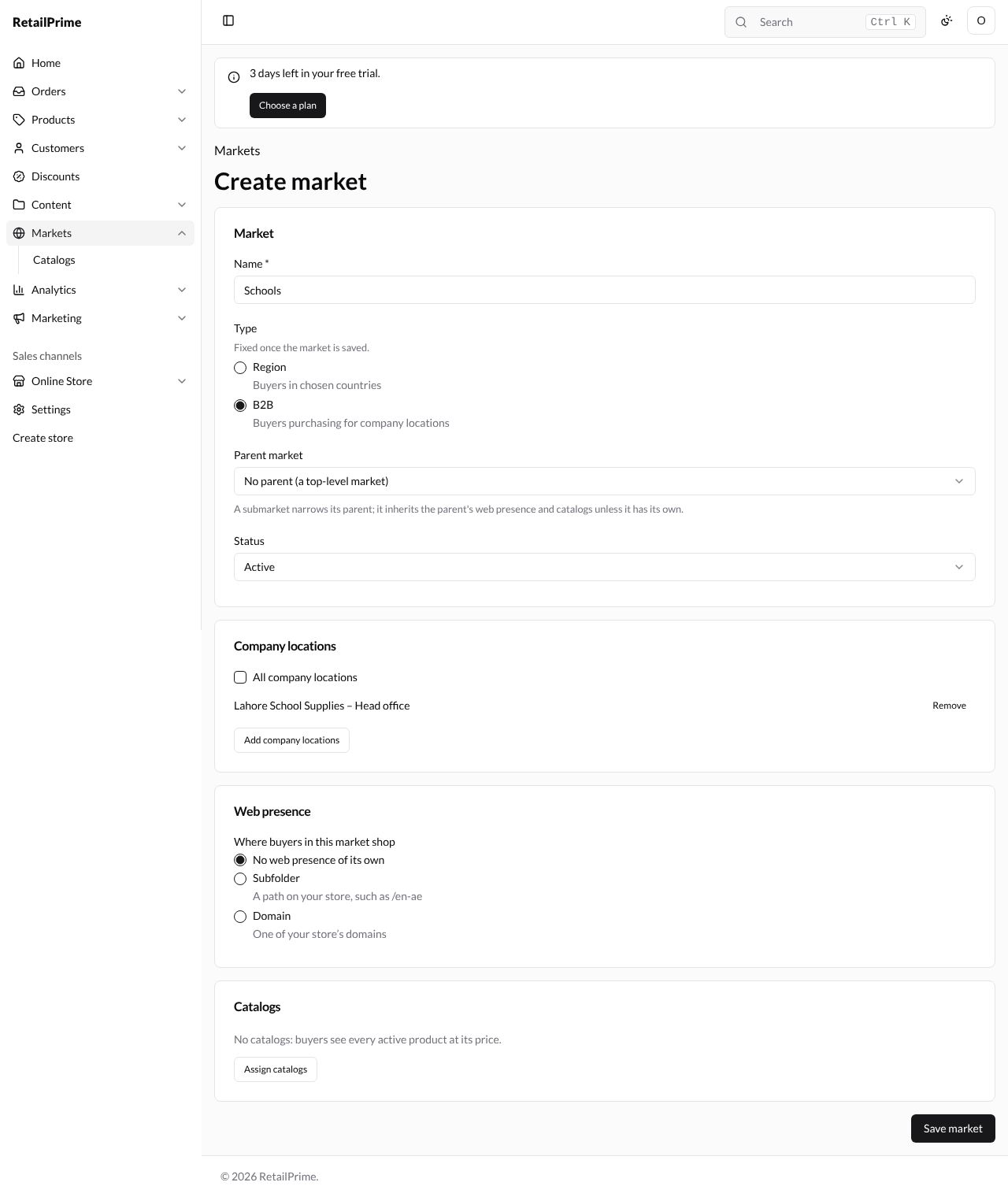
- Press Save market. On the Markets list, its Type is B2B and Countries or locations says 1 company location.
A wholesale catalog
-
Press Markets → Catalogs, then Create catalog.
-
Type a Title, such as
School wholesale, and a Price adjustment (%) of-20(20 % off every price). -
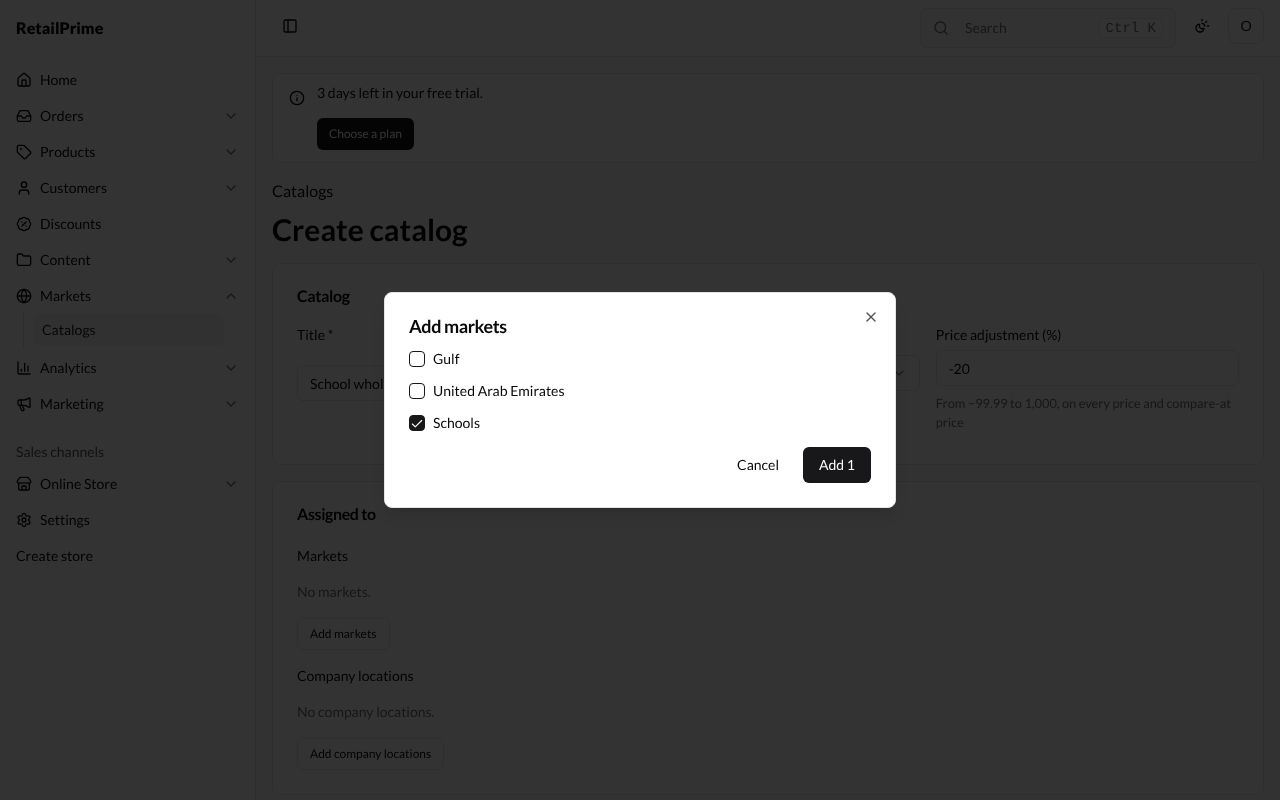
Under Assigned to, press Add markets, tick Schools and press Add 1.
-
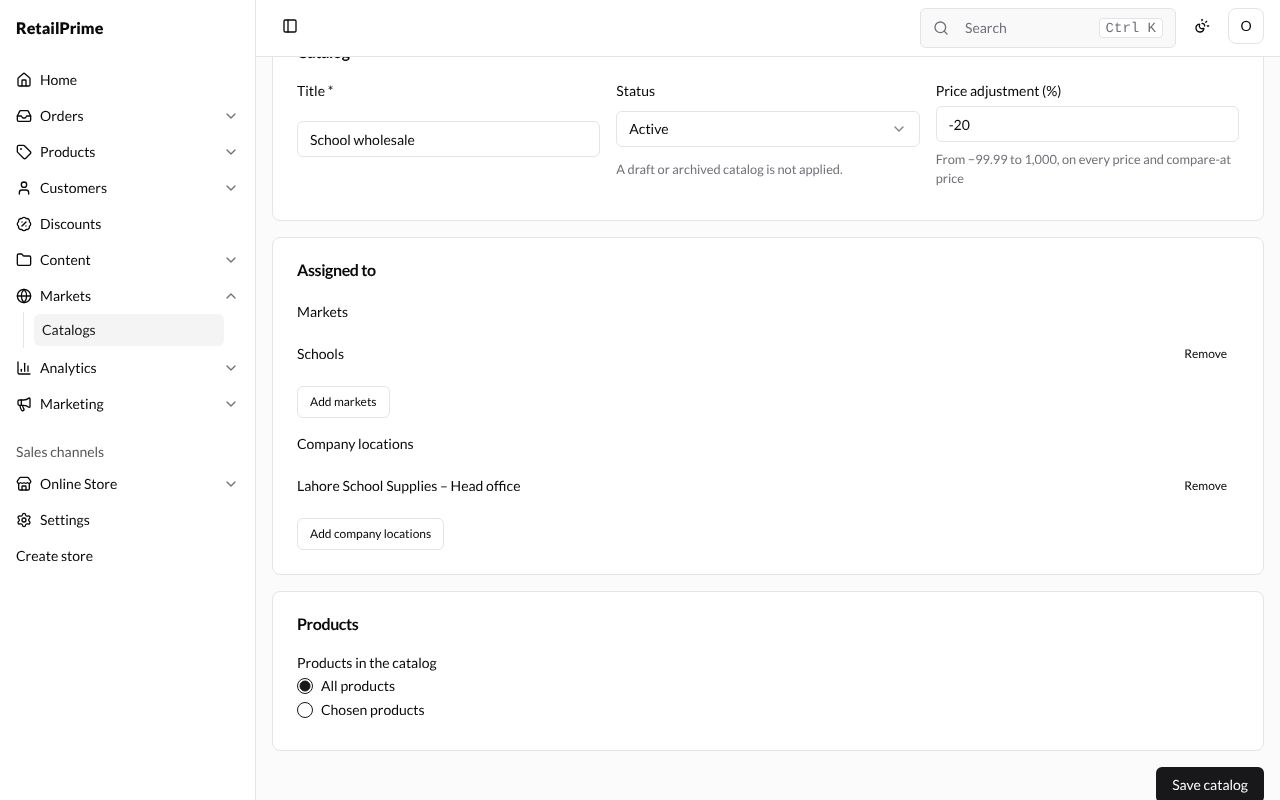
Press Add company locations, find and tick Lahore School Supplies – Head office, and press Add 1.
-
Leave All products and press Save catalog.
Because the catalog is assigned to a B2B market and a company location, its Prices table has two more columns: Quantity rule and Price breaks.
Quantity rules and price breaks
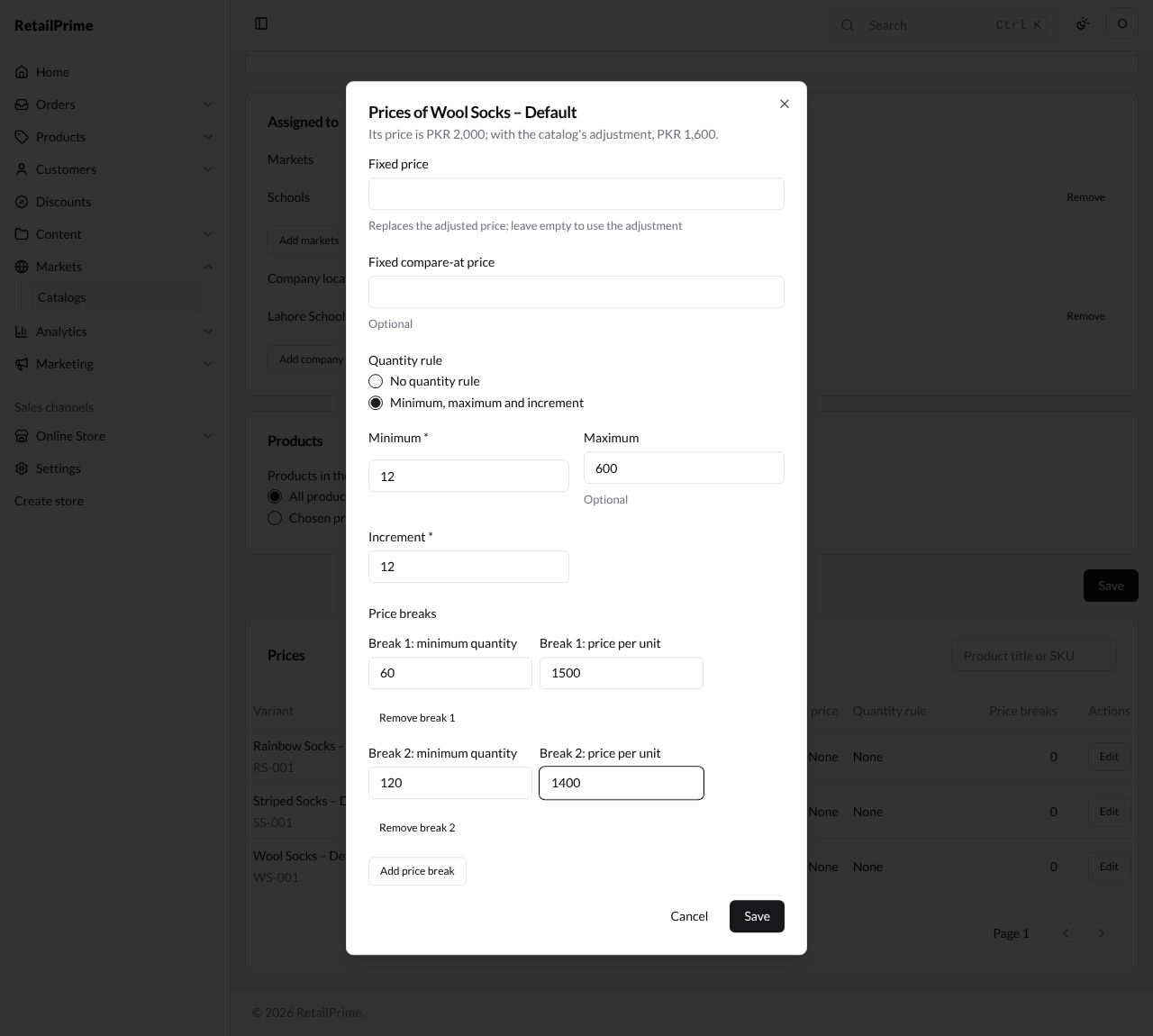
- In Prices, press Edit on a variant, such as Wool Socks. The window says Its price is PKR 2,000; with the catalog’s adjustment, PKR 1,600.
- Fixed price and Fixed compare-at price work as in Catalogs.
- Quantity rule: choose Minimum, maximum and increment, then:
| Box | What it means | Example |
|---|---|---|
| Minimum | The fewest a buyer can order | 12 |
| Maximum | The most (optional) | 600 |
| Increment | They order in steps of this many | 12 |
- Price breaks: press Add price break for each (up to 5). Each has a minimum quantity and a price per unit for that quantity and more. Remove break … takes one off.
| Break | Minimum quantity | Price per unit |
|---|---|---|
| Break 1 | 60 |
1500 |
| Break 2 | 120 |
1400 |
- Press Save. The Wool Socks row now shows 12–600, by 12 under Quantity rule and 2 under Price breaks.
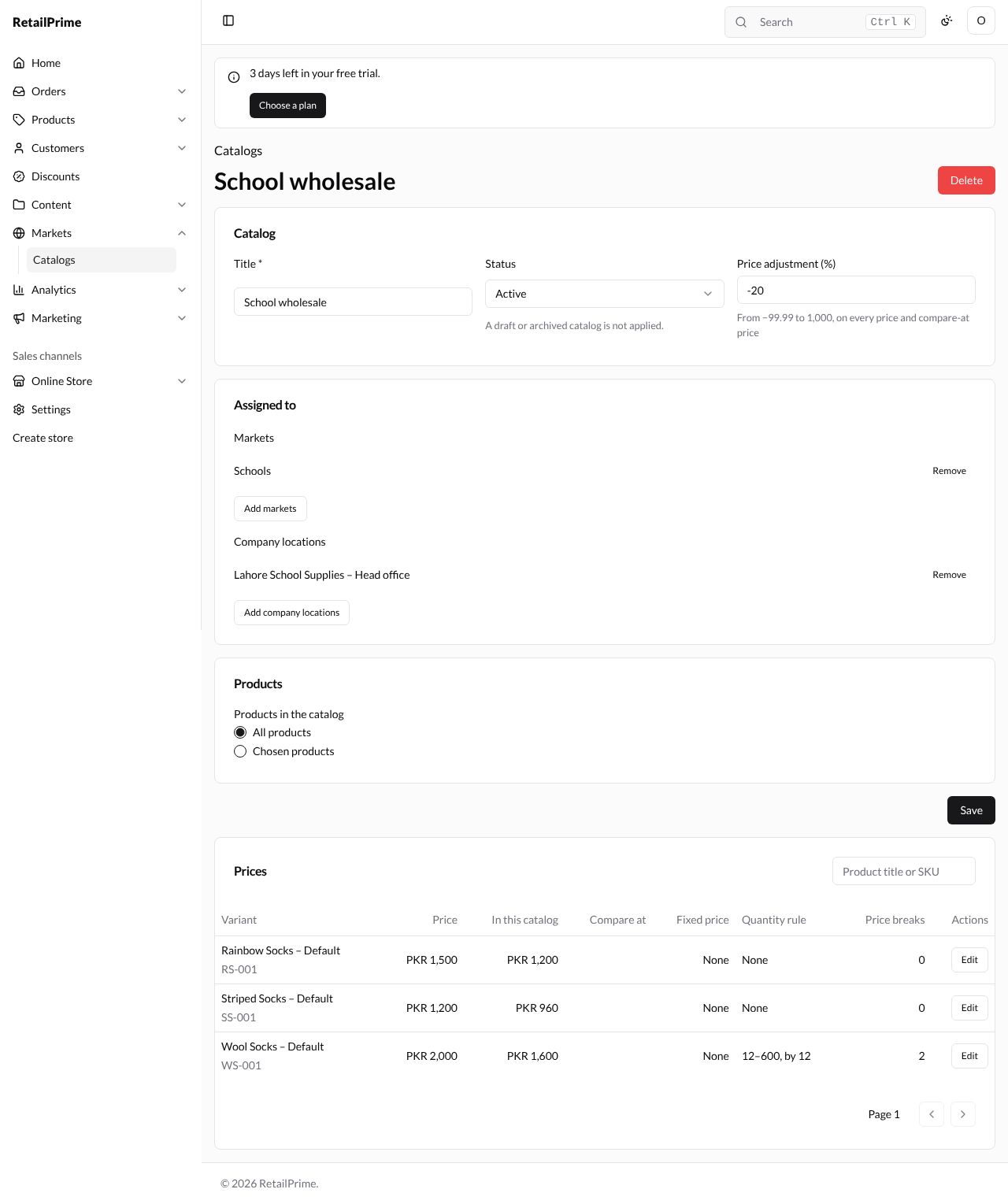
The company location’s buyers, and draft orders you make for the location, now use these prices (see Company locations).
What’s next
You have finished part 4: discounts, marketing, analytics and markets. Part 5 is your online store: start with Themes, to choose how your store looks.