Signup forms
Make a popup that signs buyers up for your emails, with a discount code as a thank-you, then edit it, see it on your store and delete it.
A form is a popup on your store that asks buyers for their email, so you can send them marketing emails. One popup is shown at a time.
Open Forms
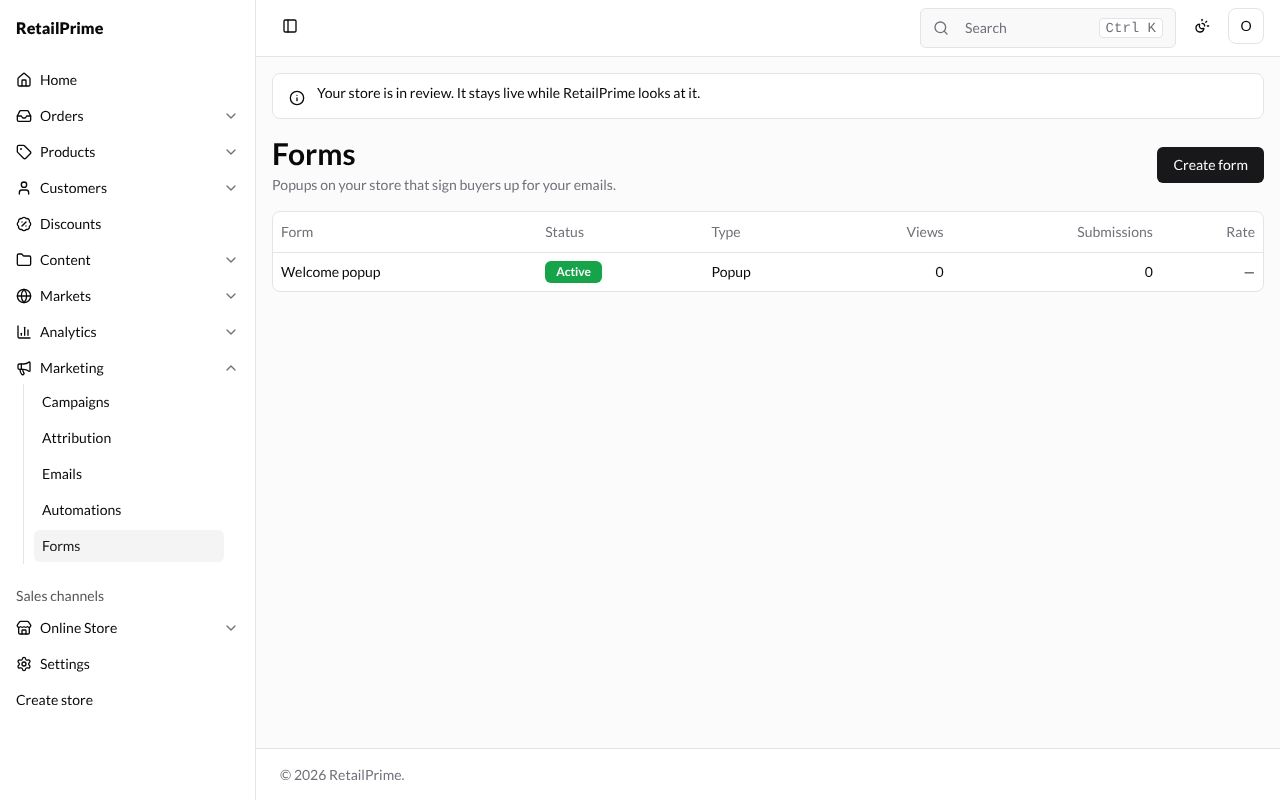
In the sidebar, press Marketing, then Forms. The page says Popups on your store that sign buyers up for your emails. A new store has No forms yet.
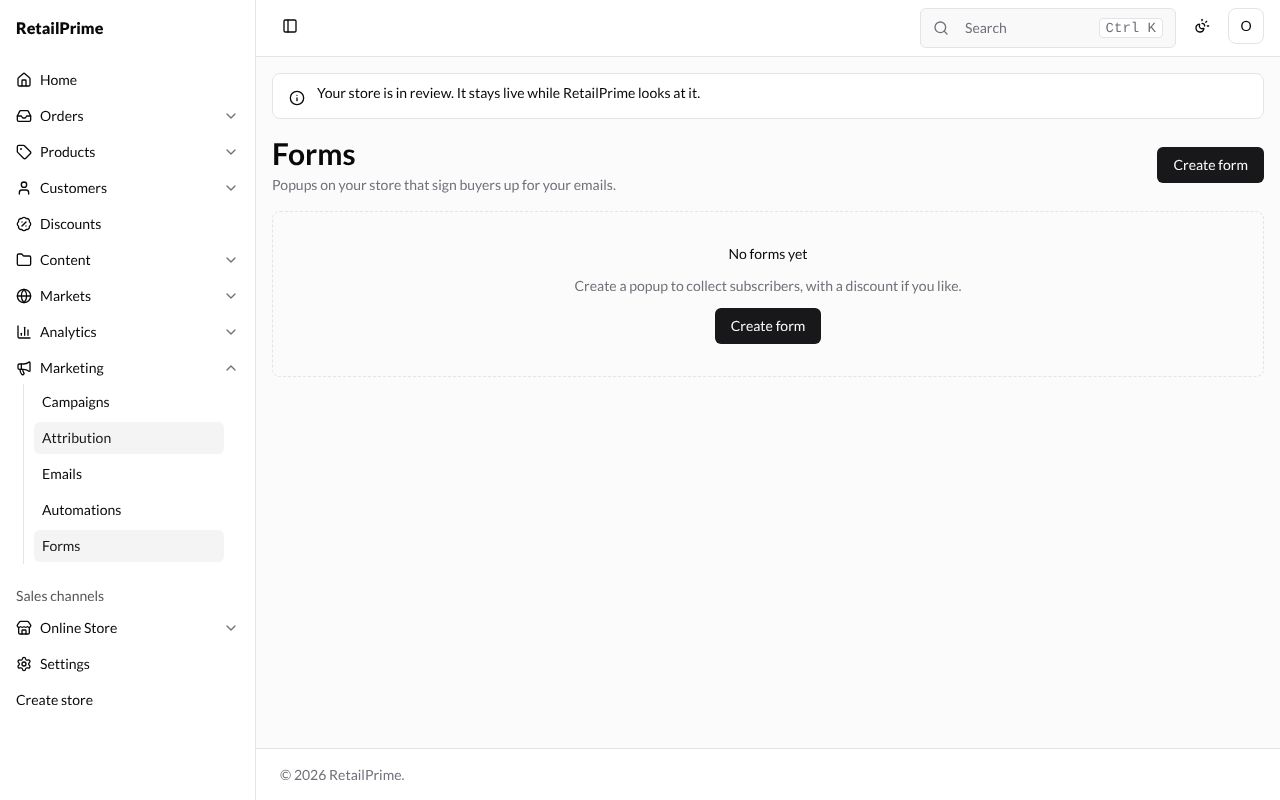
Press Create form. The New form page has the form’s settings on the left and a Preview of the popup on the right, which changes as you type.
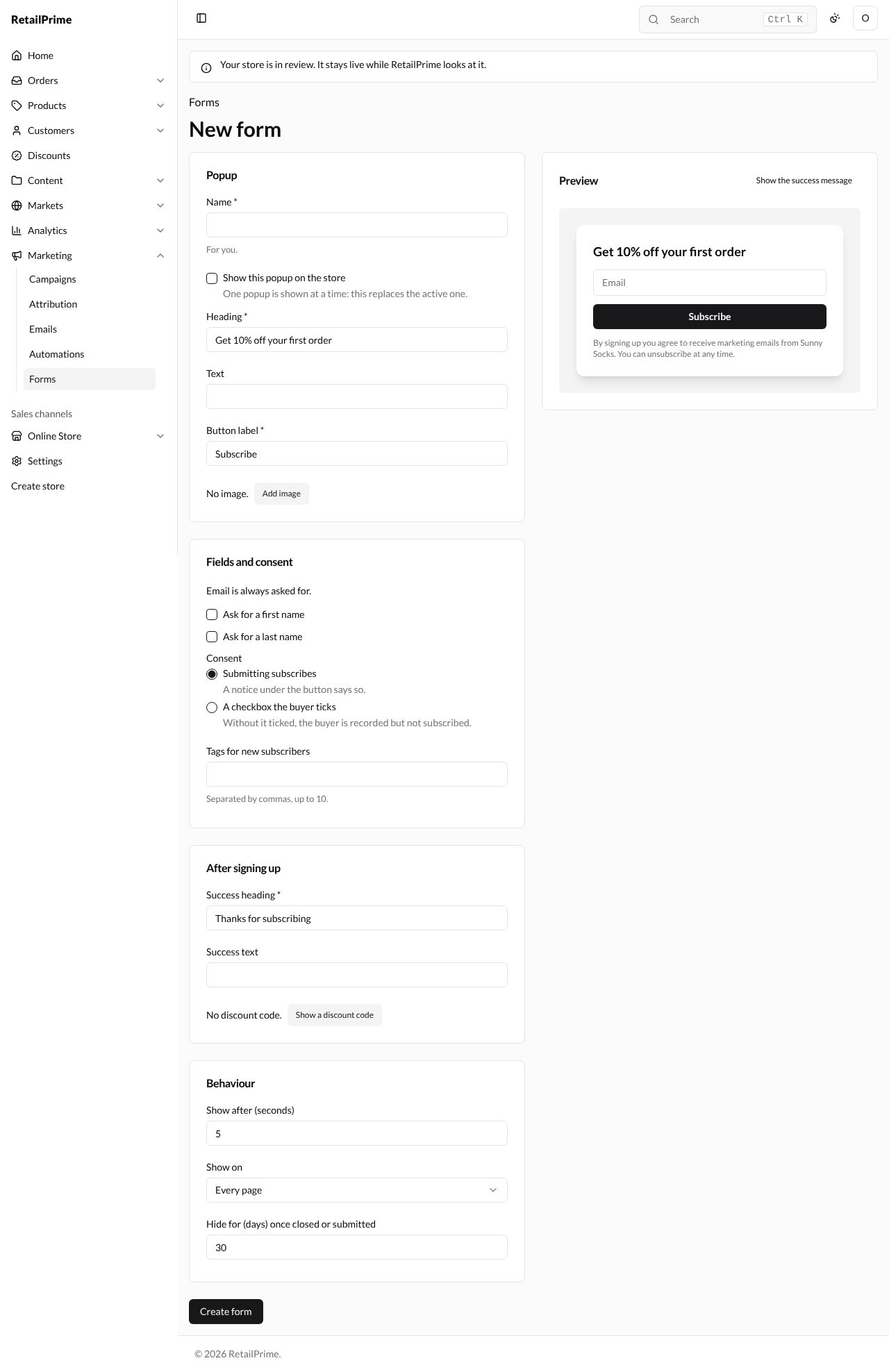
Fill it in
Popup
| Box | What to type | Example |
|---|---|---|
| Name | A name For you. Buyers don’t see it | Welcome popup |
| Show this popup on the store | Tick it to show it. One popup is shown at a time: this replaces the active one. | ticked |
| Heading | The big words at the top of the popup | Get 10% off your first pair |
| Text | A line under the heading | Join the Sunny Socks list for new colours and offers. |
| Button label | The words on the button | Sign me up |
| Add image | Opens Choose an image with the pictures in Content → Files. Tick one and press Add 1. Change image and Remove image then appear | winter-socks.png |
Fields and consent
Email is always asked for. You can also tick Ask for a first name and Ask for a last name.
Consent:
- Submitting subscribes: A notice under the button says so.
- A checkbox the buyer ticks: Without it ticked, the buyer is recorded but not subscribed.
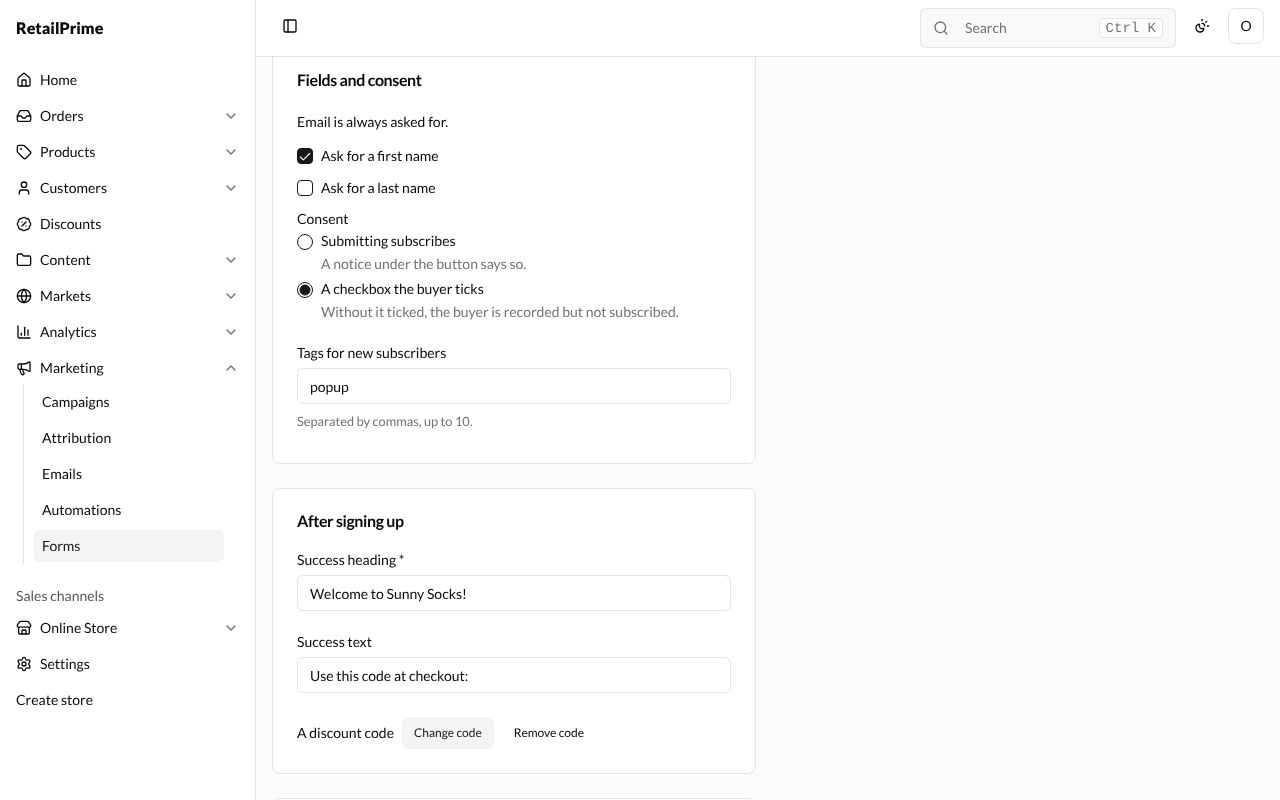
Tags for new subscribers: tags every buyer who signs up through this popup gets, Separated by commas, up to 10., such as popup. You can then find them in Customers by searching tag:popup.
After signing up
| Box | What to type | Example |
|---|---|---|
| Success heading | What the popup says once the buyer has signed up | Welcome to Sunny Socks! |
| Success text | A line under it | Use this code at checkout: |
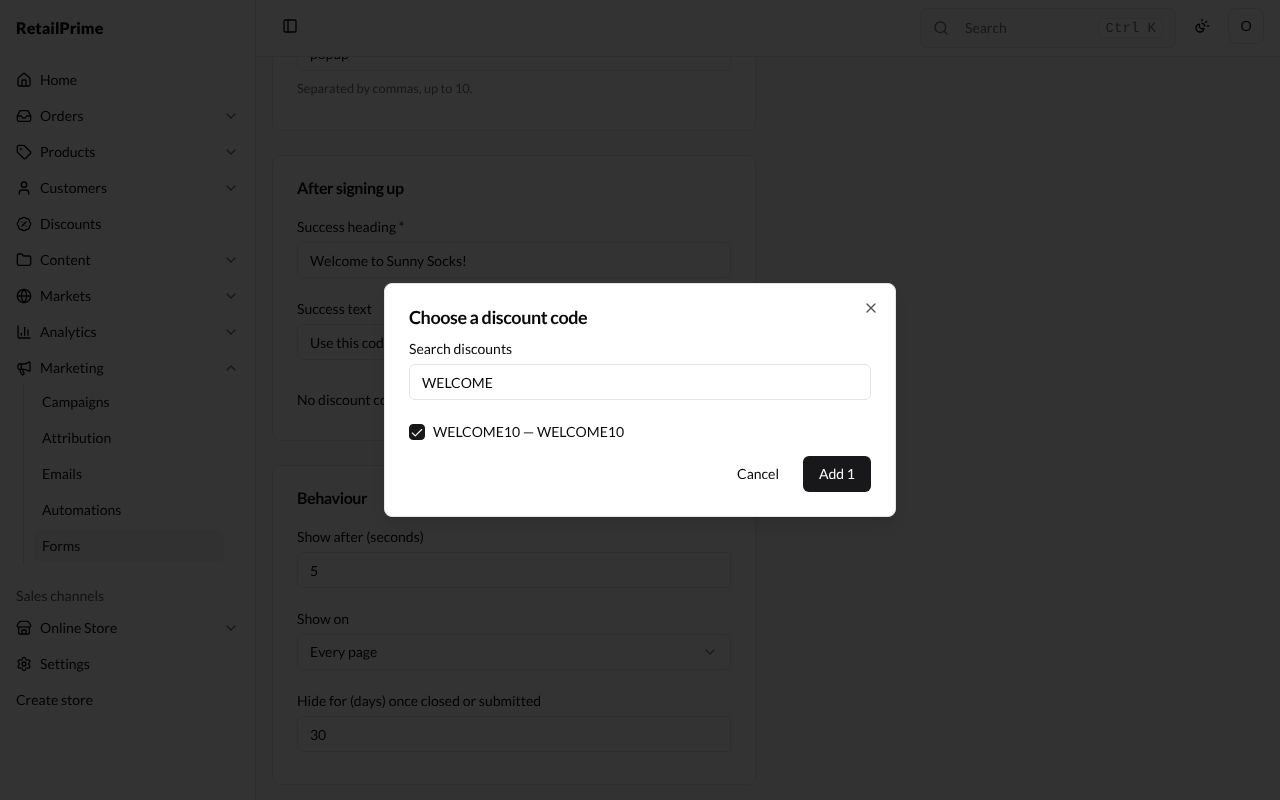
| Show a discount code | Opens Choose a discount code: type in Search discounts, tick a code and press Add 1. The popup then shows the code to the buyer. Change code and Remove code then appear | WELCOME10 |
Behaviour
| Box | What it does | Example |
|---|---|---|
| Show after (seconds) | How long after the page opens the popup shows (0 to 60) | 0 |
| Show on | Every page or The home page only | Every page |
| Hide for (days) once closed or submitted | How long it stays away from a buyer who closed it or signed up (1 to 90) | 30 |
Here is the whole form, filled in:
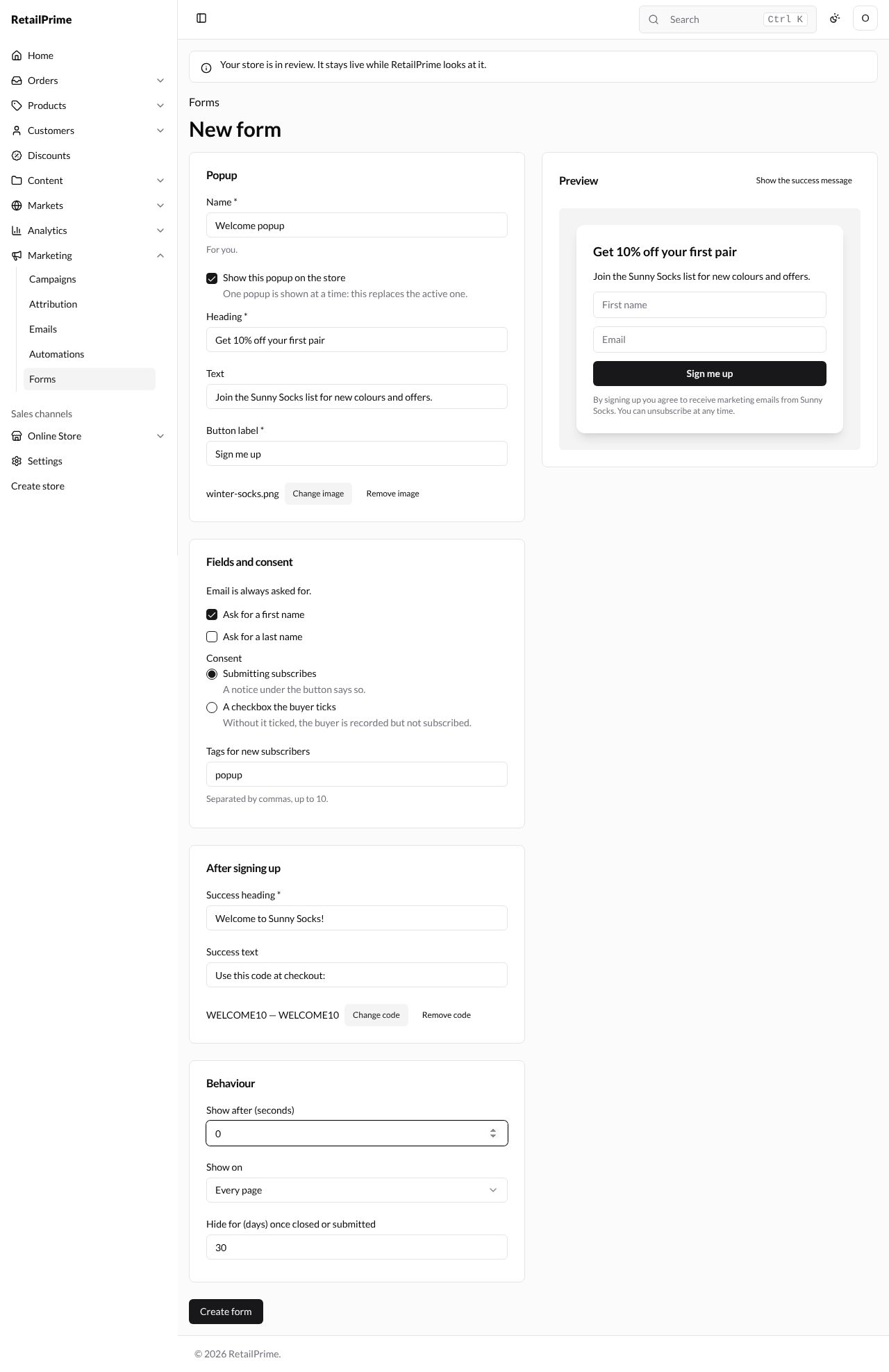
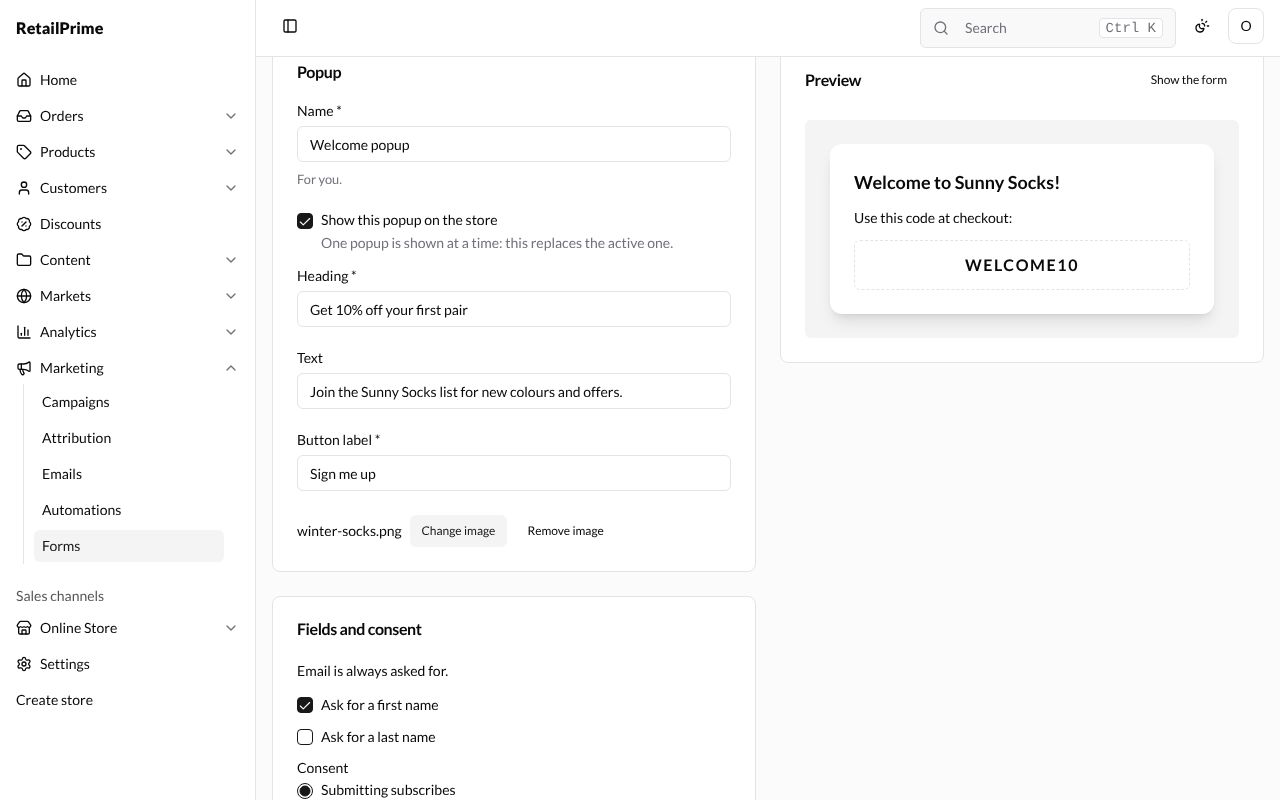
Press Show the success message above the preview to see what the buyer sees after signing up. Press Show the form to go back.
Save it
Press Create form. The form’s page opens with its name as the title, and under it how many views and submissions it has had.
Edit it
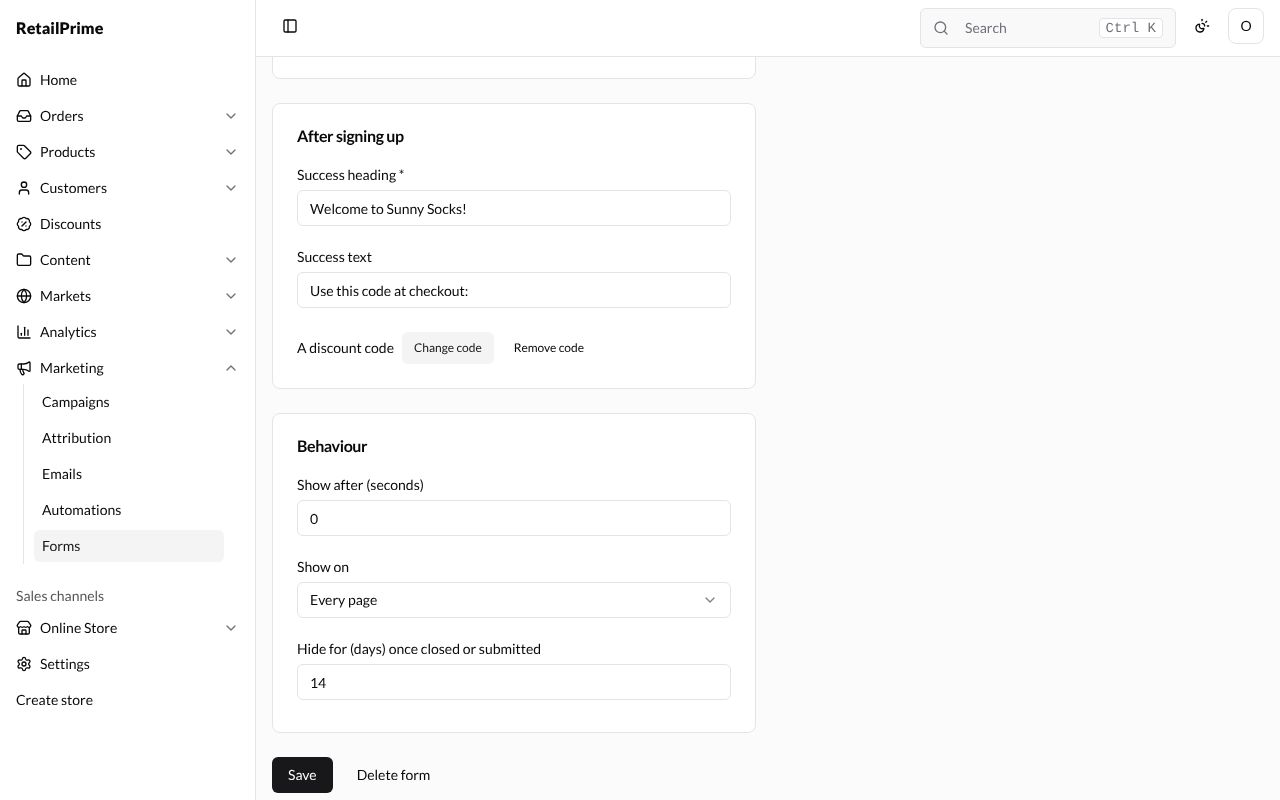
Change any box and press Save at the bottom. The page says Form saved.
The forms list
Press Forms at the top left. Each form is listed with its Status (Active when it is shown on the store, Inactive when not), Type (Popup), Views, Submissions and Rate (the share of views that signed up).
What the buyer sees
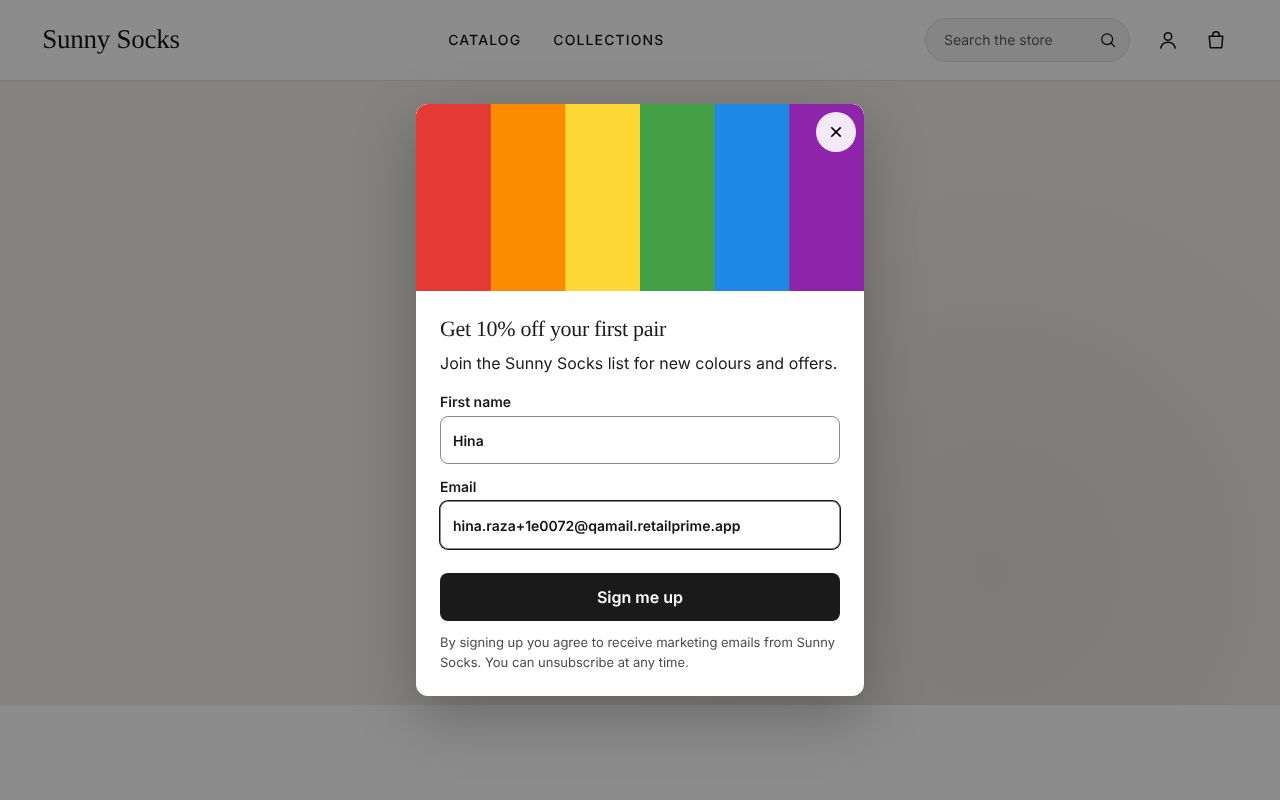
Open your store as a buyer. The popup shows after the seconds you chose. The buyer types their first name and email and presses Sign me up.
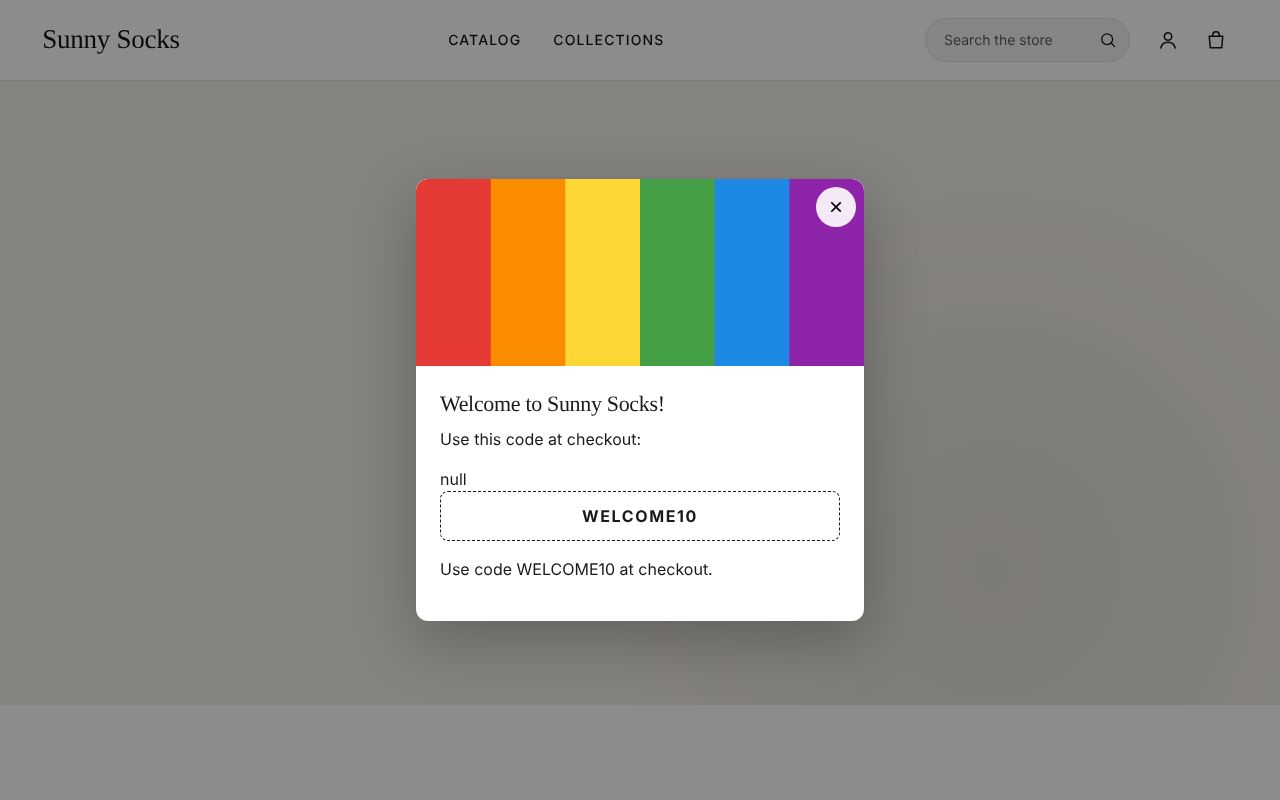
The popup then shows the success heading, the success text and the discount code.
The buyer is now a customer in Customers, subscribed to your emails, with the tag popup.
Delete a form
- Open the form and press Delete form at the bottom.
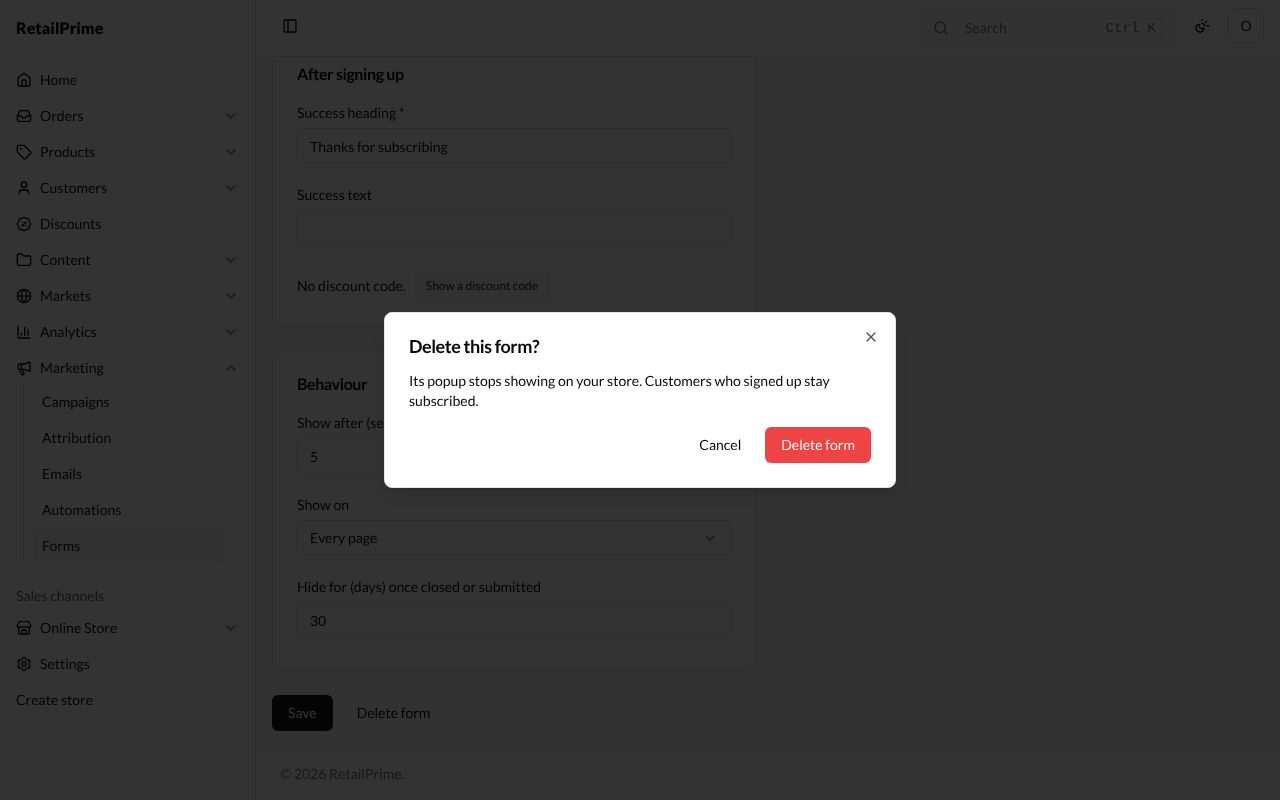
- A window asks Delete this form? and says Its popup stops showing on your store. Customers who signed up stay subscribed.
- Press Delete form. You are back on the Forms list.
What’s next
Emails: write an email and send it to your subscribers.