Other discount types
Amount off order, Buy X get Y and free shipping, as codes or automatic discounts, for chosen customers, segments or markets, and starting later.
The last page made a discount code for chosen products. The other three types use the same form, with a few cards that are different. Each starts the same way: go to Discounts, press Create discount, choose the type and press Continue.
An automatic discount: amount off order
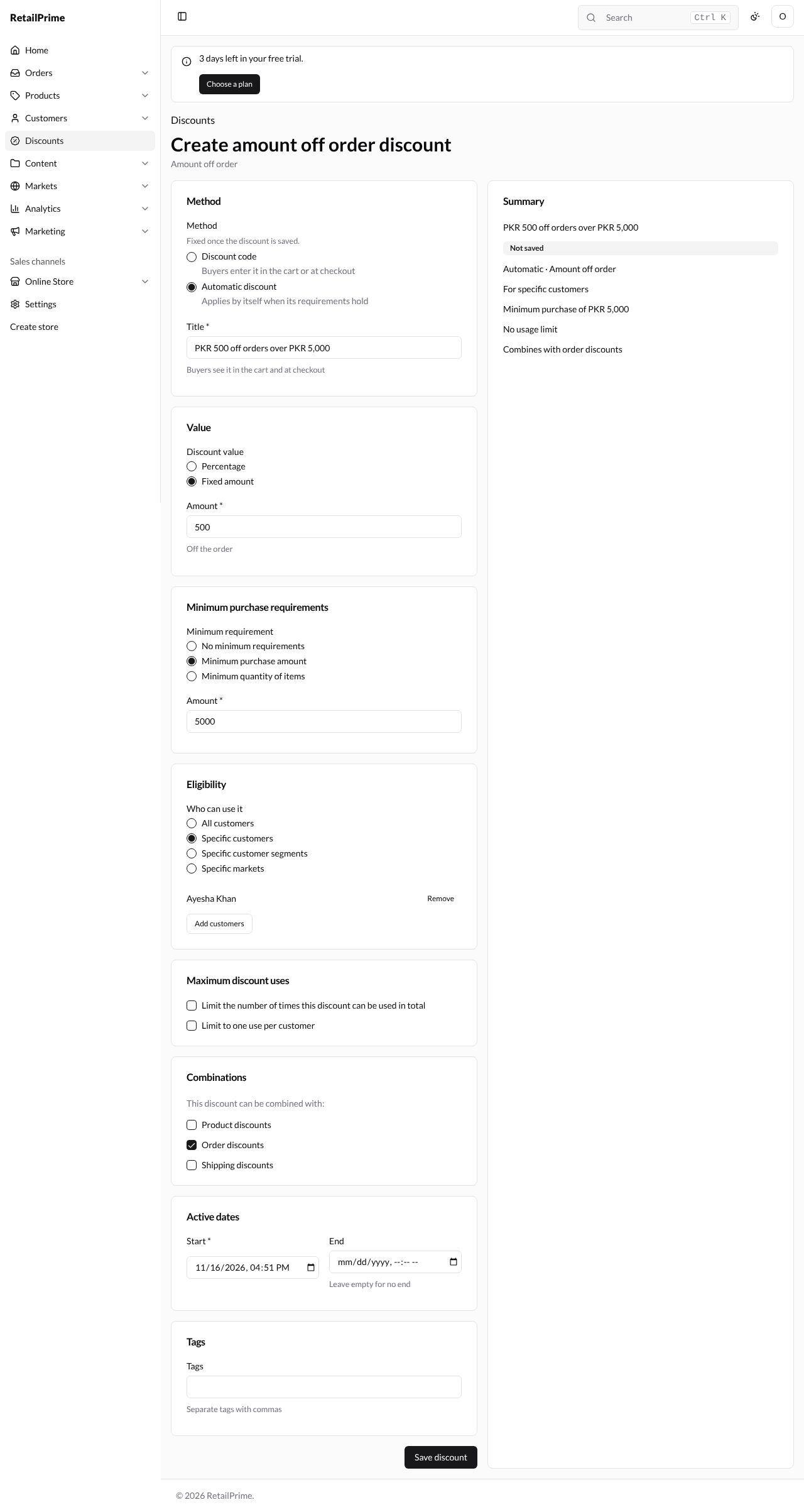
An Amount off order discount takes money off the whole order. Here we make one that applies by itself, for one customer, when she spends PKR 5,000 or more.
-
Choose Amount off order and press Continue. The page is called Create amount off order discount.
-
In Method, choose Automatic discount. The Discount code box goes away, and Title becomes required: Buyers see it in the cart and at checkout. Type
PKR 500 off orders over PKR 5,000. -
In Value, choose Fixed amount and type
500in Amount (Off the order). -
In Minimum purchase requirements, choose Minimum purchase amount and type
5000in Amount. -
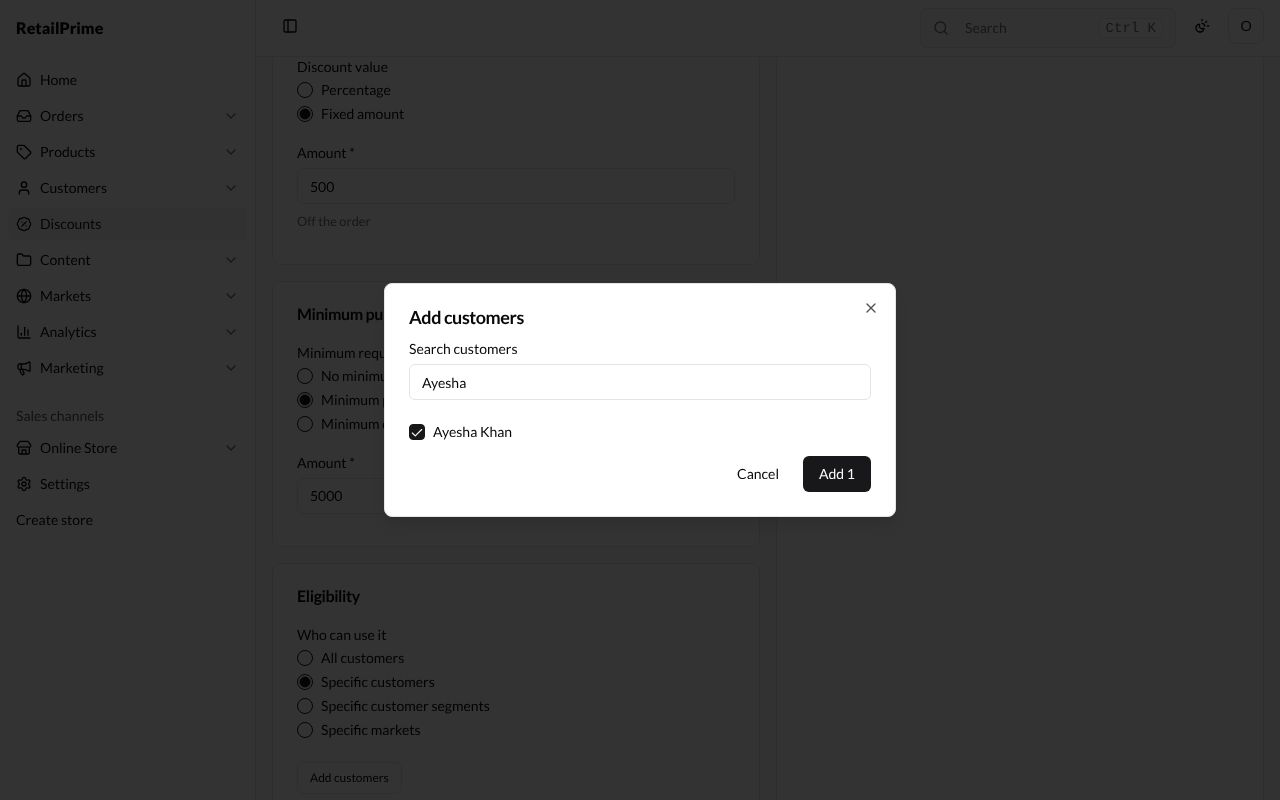
In Eligibility, choose Specific customers, then press Add customers. Type a name in Search customers, tick the customer and press Add 1.
-
In Combinations, tick Order discounts.
- Press Save discount. The page’s title is the discount’s title, and the Summary says Active, Automatic · Amount off order, PKR 500 off, For specific customers and Minimum purchase of PKR 5,000.
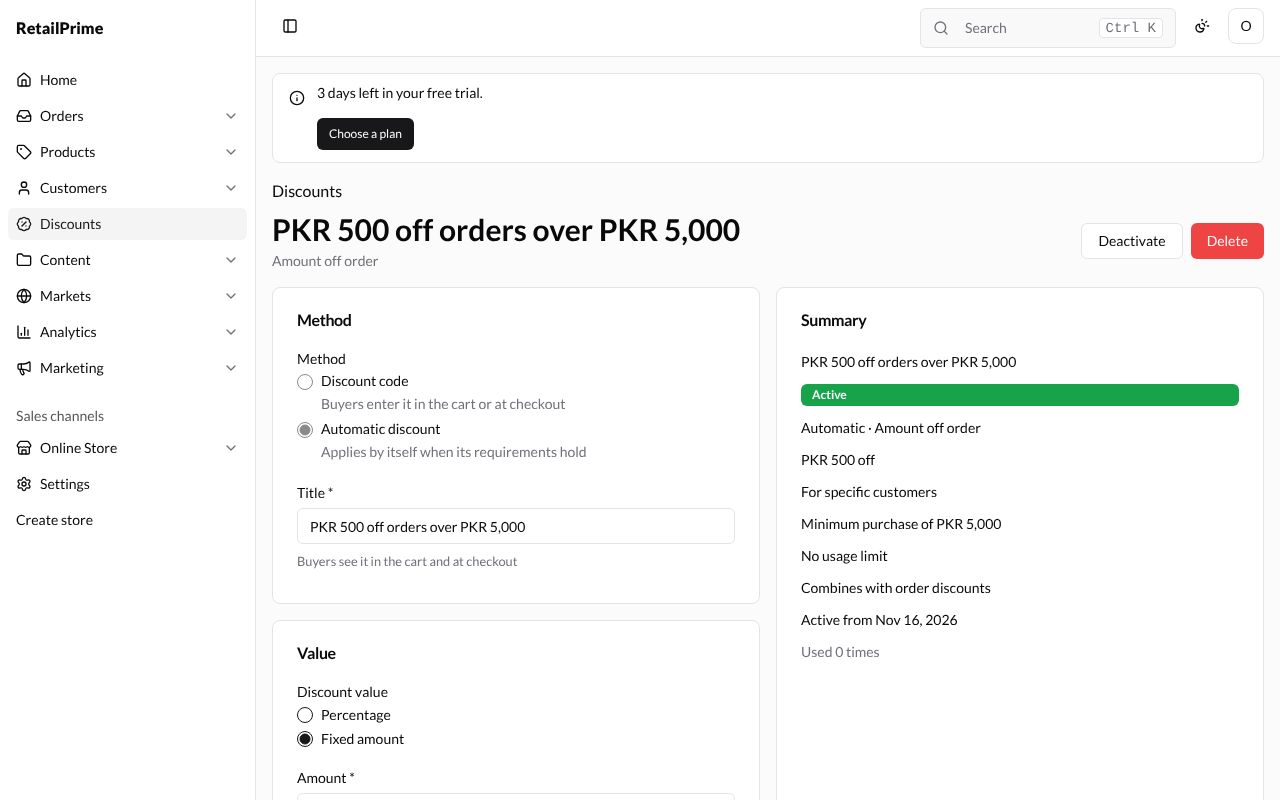
An automatic discount has no codes, so its page has no Manage codes link.
Buy X get Y
A Buy X get Y discount gives the buyer something when they buy something else, such as “buy 2 pairs of Wool Socks, get a pair of Rainbow Socks free”. Its form has two cards in place of Value: Customer gets and Customer buys. It has no Minimum purchase requirements card, because Customer buys is the requirement.
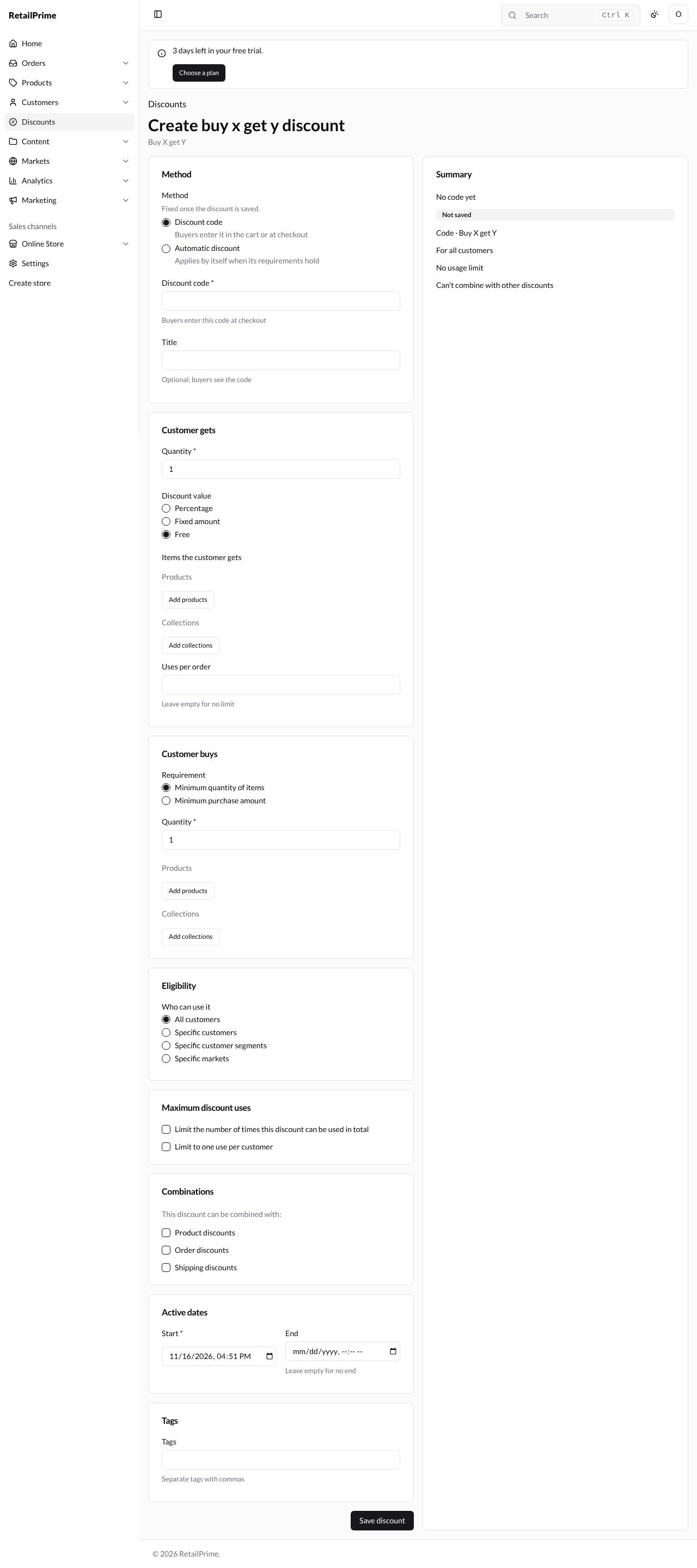
| Card | Box | What to choose or type | Example |
|---|---|---|---|
| Method | Discount code | The code | BUY2GET1 |
| Customer gets | Quantity | How many items the buyer gets | 1 |
| Discount value | Percentage, Fixed amount or Free | Free | |
| Items the customer gets | Add products and/or Add collections | Rainbow Socks | |
| Uses per order | How many times it can apply in one order. Leave empty for no limit | 1 |
|
| Customer buys | Requirement | Minimum quantity of items (then a Quantity) or Minimum purchase amount (then an Amount) | Minimum quantity of items, 2 |
| Products and Collections | What the buyer must buy: Add products opens Add products the buyer buys | Wool Socks |
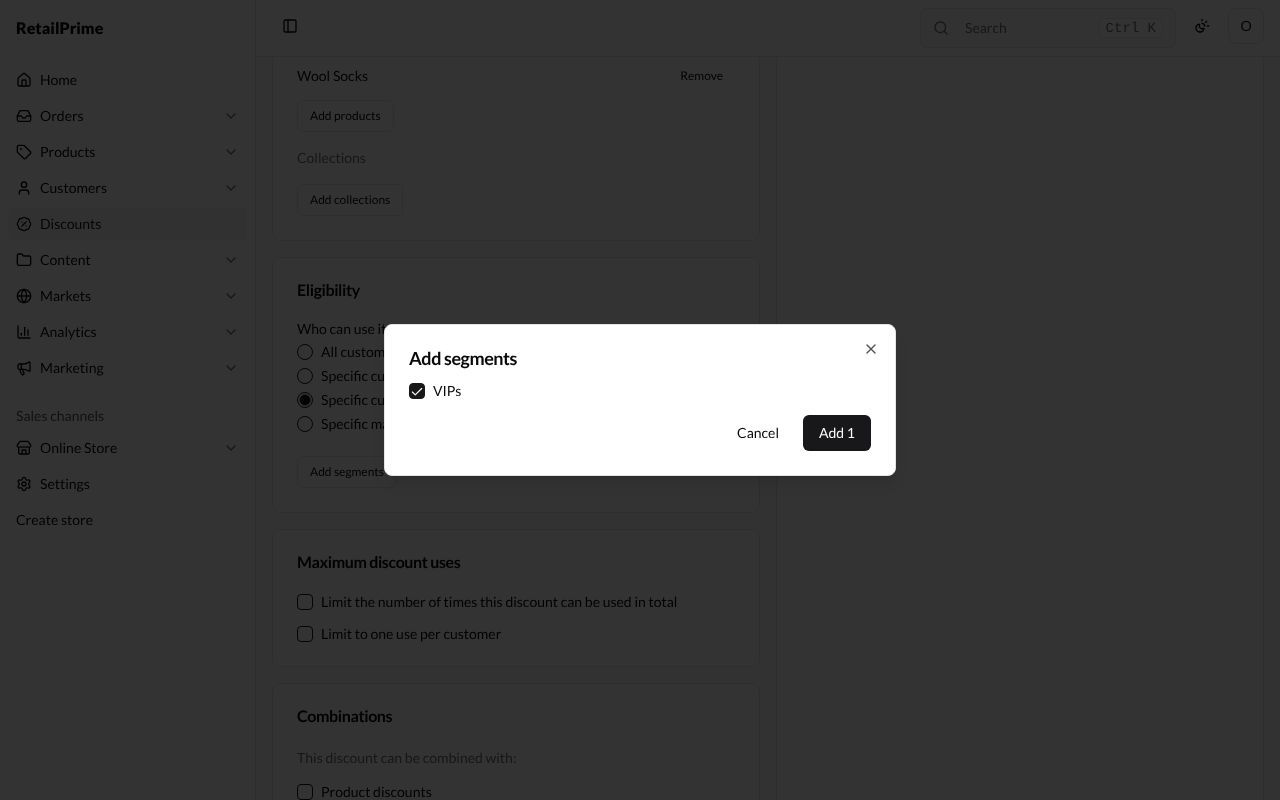
In Eligibility, choose Specific customer segments and press Add segments. The Add segments window lists your segments; tick one, such as VIPs, and press Add 1.
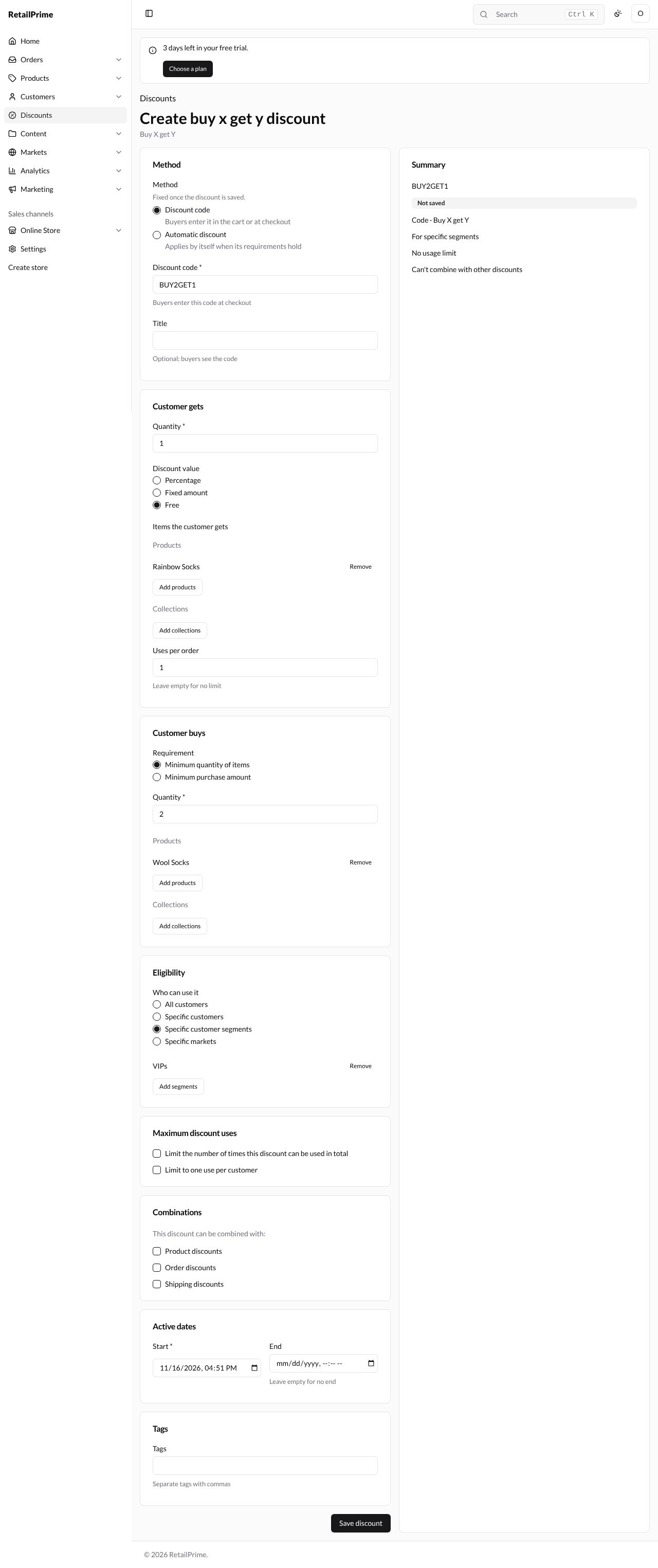
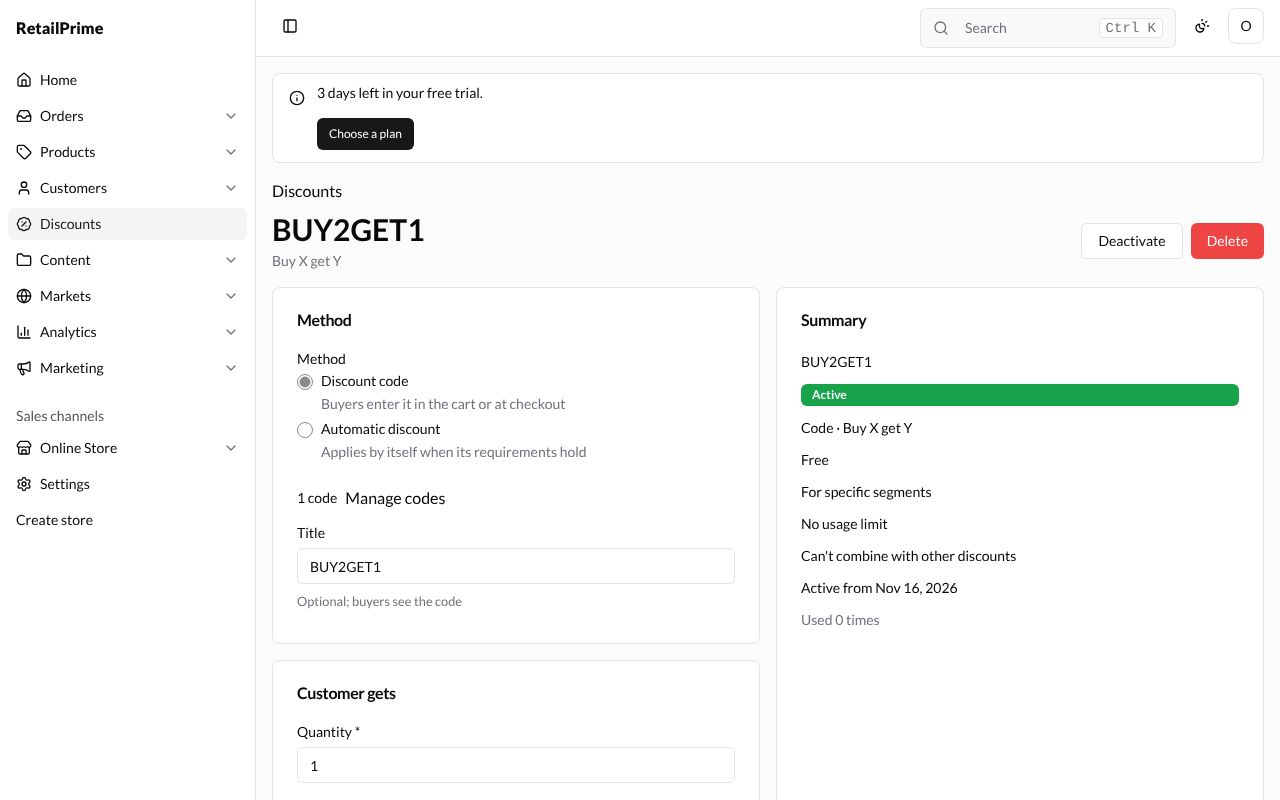
Press Save discount. The Summary says Code · Buy X get Y, Free and For specific segments.
Free shipping, starting later
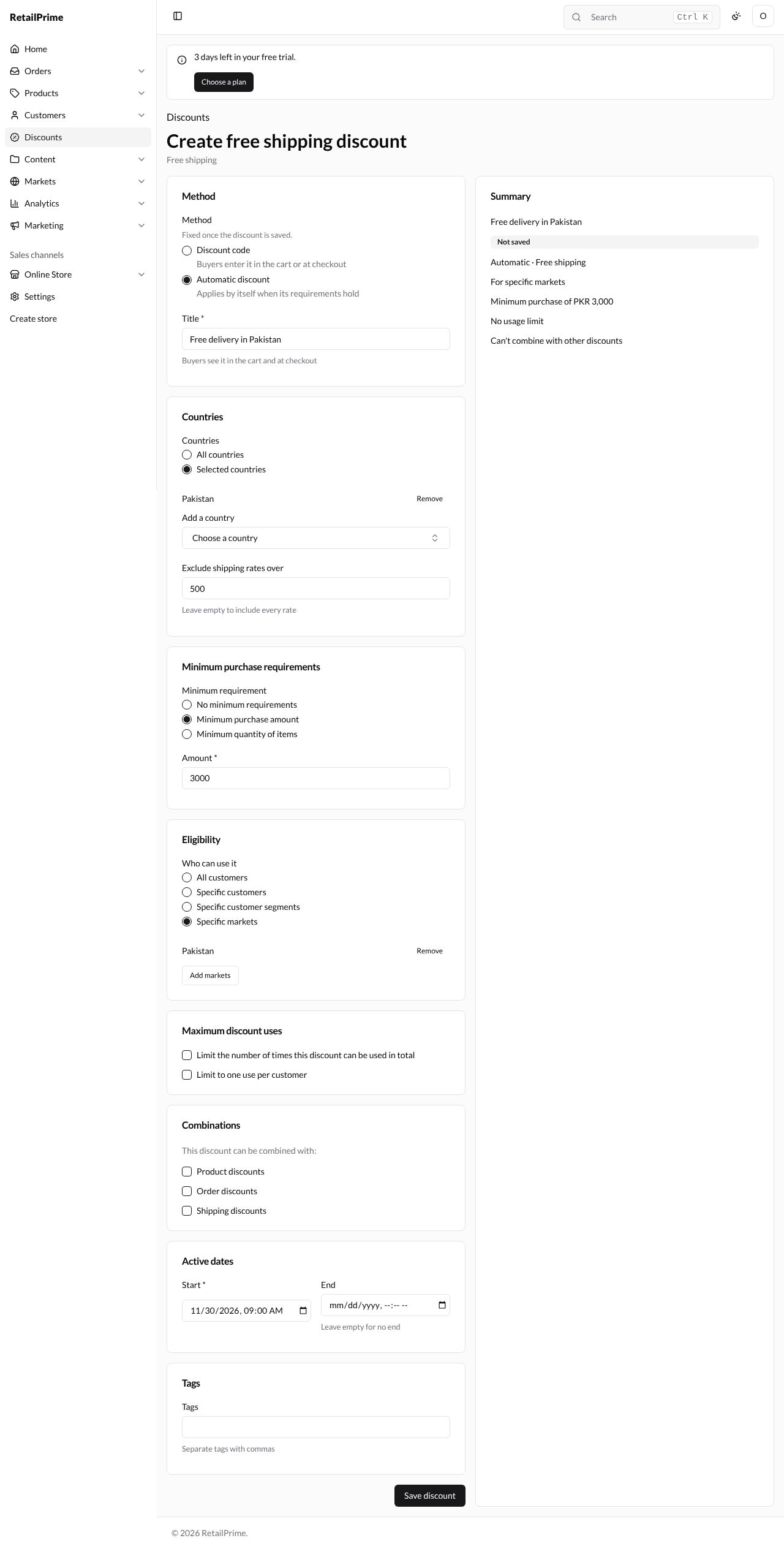
A Free shipping discount takes the shipping off. It has no Value card; it has a Countries card instead.
-
Choose Free shipping and press Continue.
-
In Method, choose Automatic discount and type a Title, such as
Free delivery in Pakistan. -
In Countries, choose All countries, or Selected countries and then pick each one in Add a country (each has a Remove button).
-
Exclude shipping rates over: free shipping is then given only on rates up to this amount, such as
500. Leave empty to include every rate. -
In Minimum purchase requirements, choose Minimum purchase amount and type
3000. -
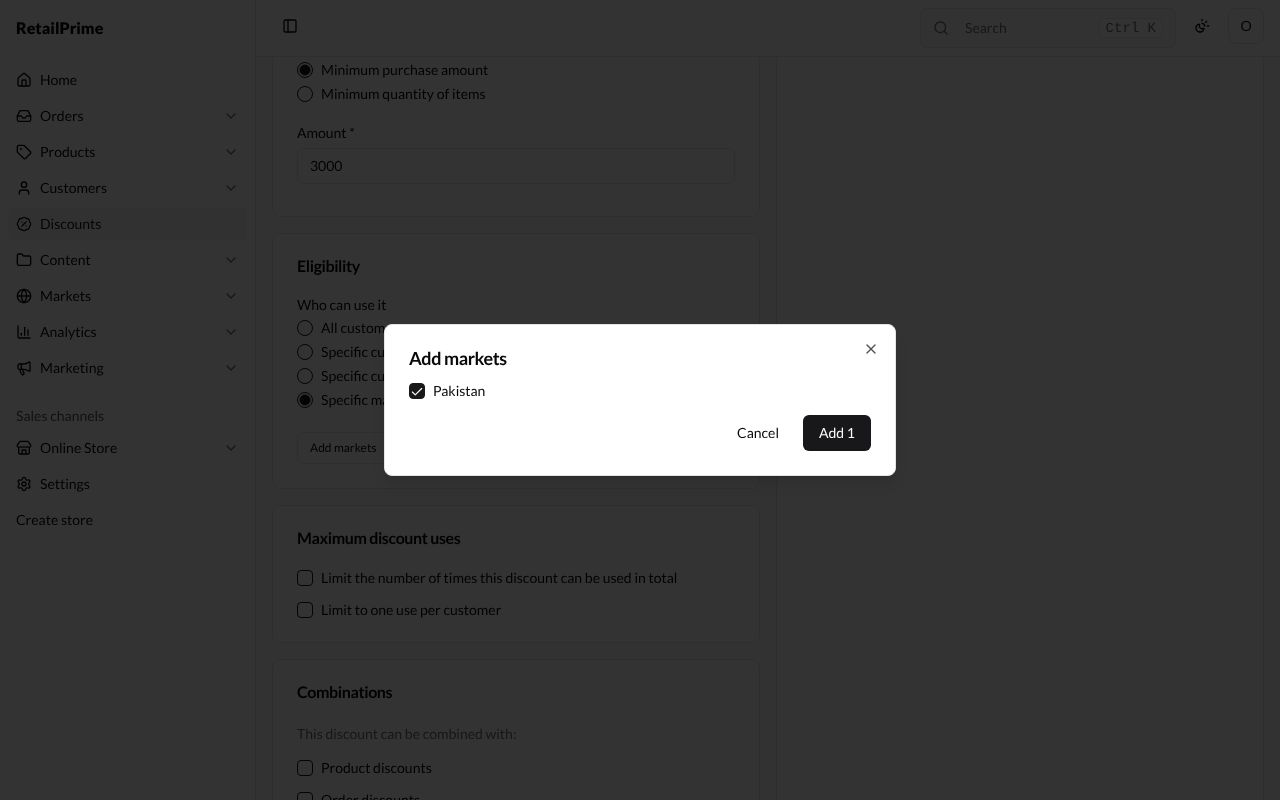
In Eligibility, choose Specific markets and press Add markets. The Add markets window lists your markets; tick Pakistan and press Add 1.
-
In Active dates, set Start to a later day, such as two weeks from today.
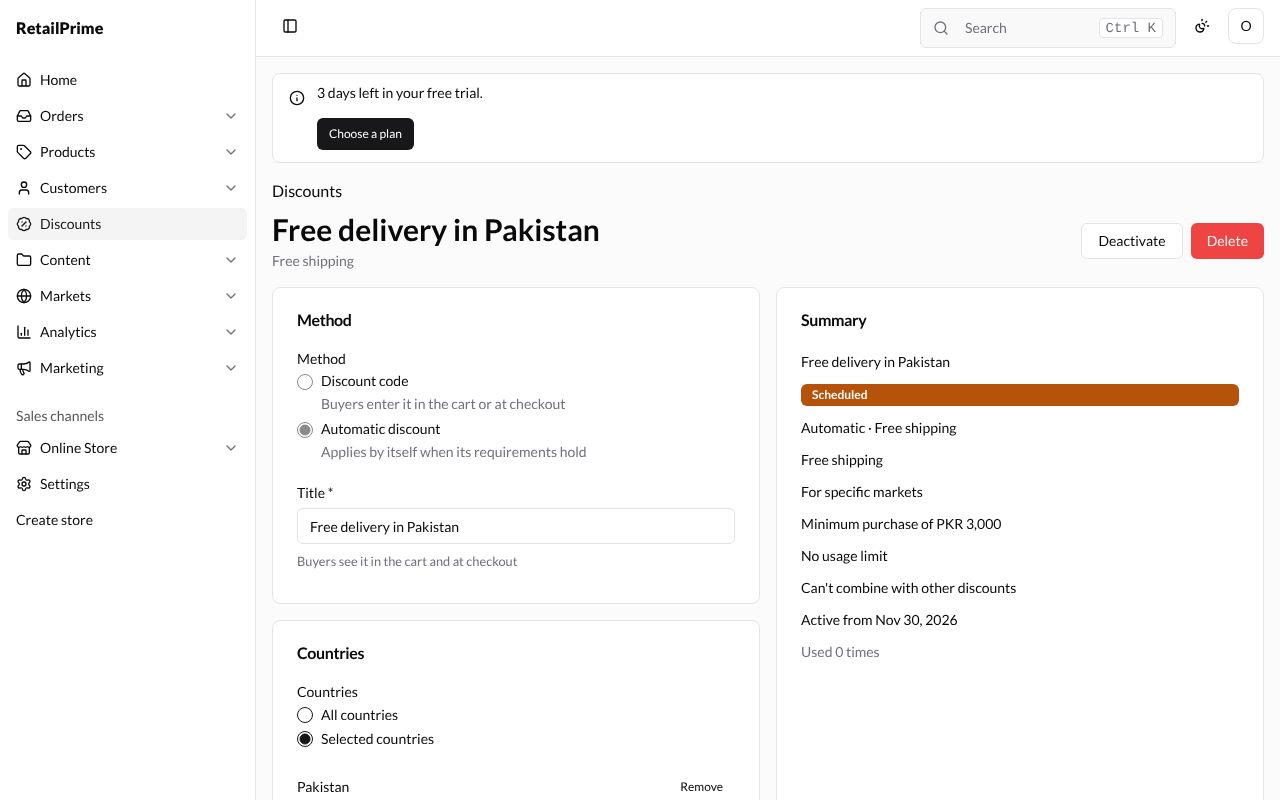
- Press Save discount. Because it starts later, its label is an orange Scheduled, and the Summary says Active from that day. On that day it becomes Active by itself.
A discount’s status
| Status | What it means |
|---|---|
| Active (green) | It is working now |
| Scheduled (orange) | Its Start is later |
| Expired (grey) | Its End has passed, or it was deactivated |
What’s next
Codes, edit and delete: more codes for one discount, changing a discount, and turning it off.