Region markets
Sell to buyers in chosen countries with their own web address and catalog, add a submarket, use your own domain, edit a market and delete it.
A market is a group of buyers you sell to in your own way. A region market is the buyers in chosen countries, such as the Gulf. Each market can have its own web address (a subfolder or a domain) and its own catalogs. Without any market, every buyer sees every active product at its price.
Open Markets
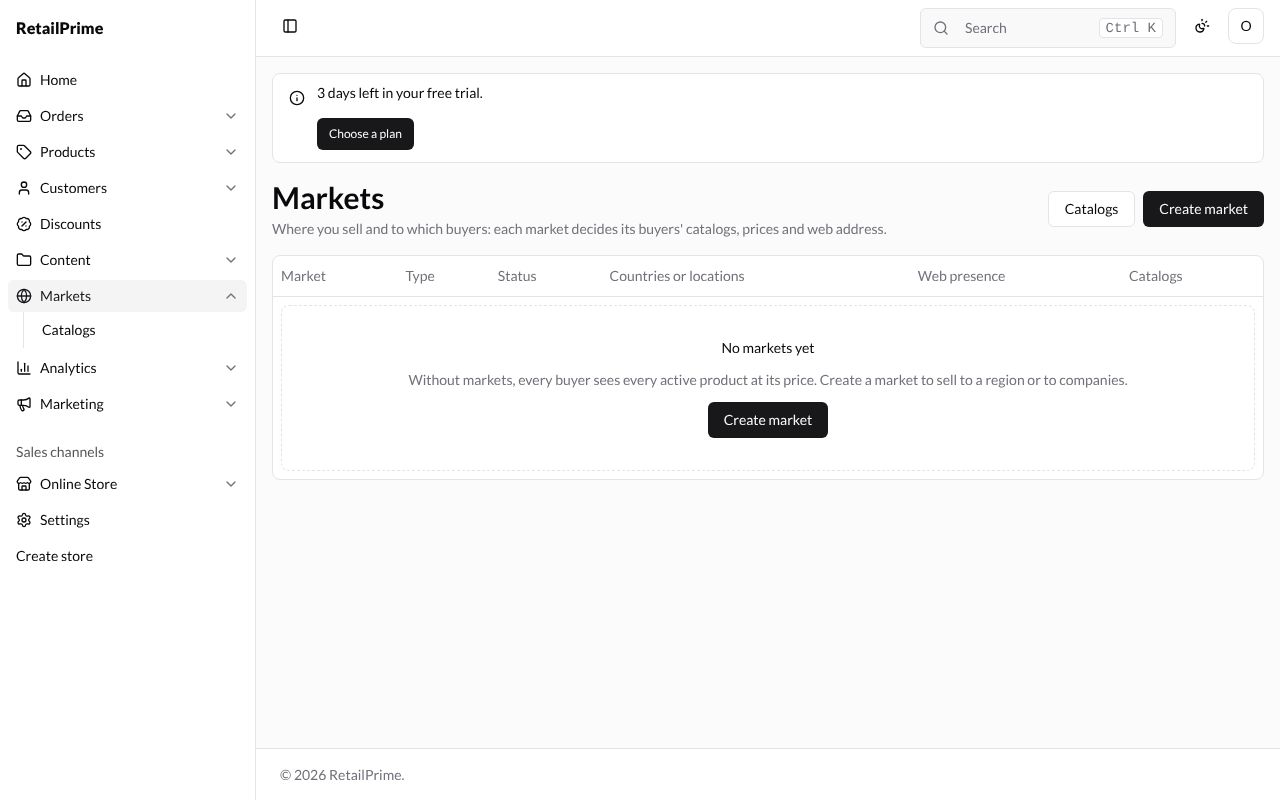
In the sidebar, press Markets. The page says Where you sell and to which buyers: each market decides its buyers’ catalogs, prices and web address. A new store has No markets yet.
Create a region market
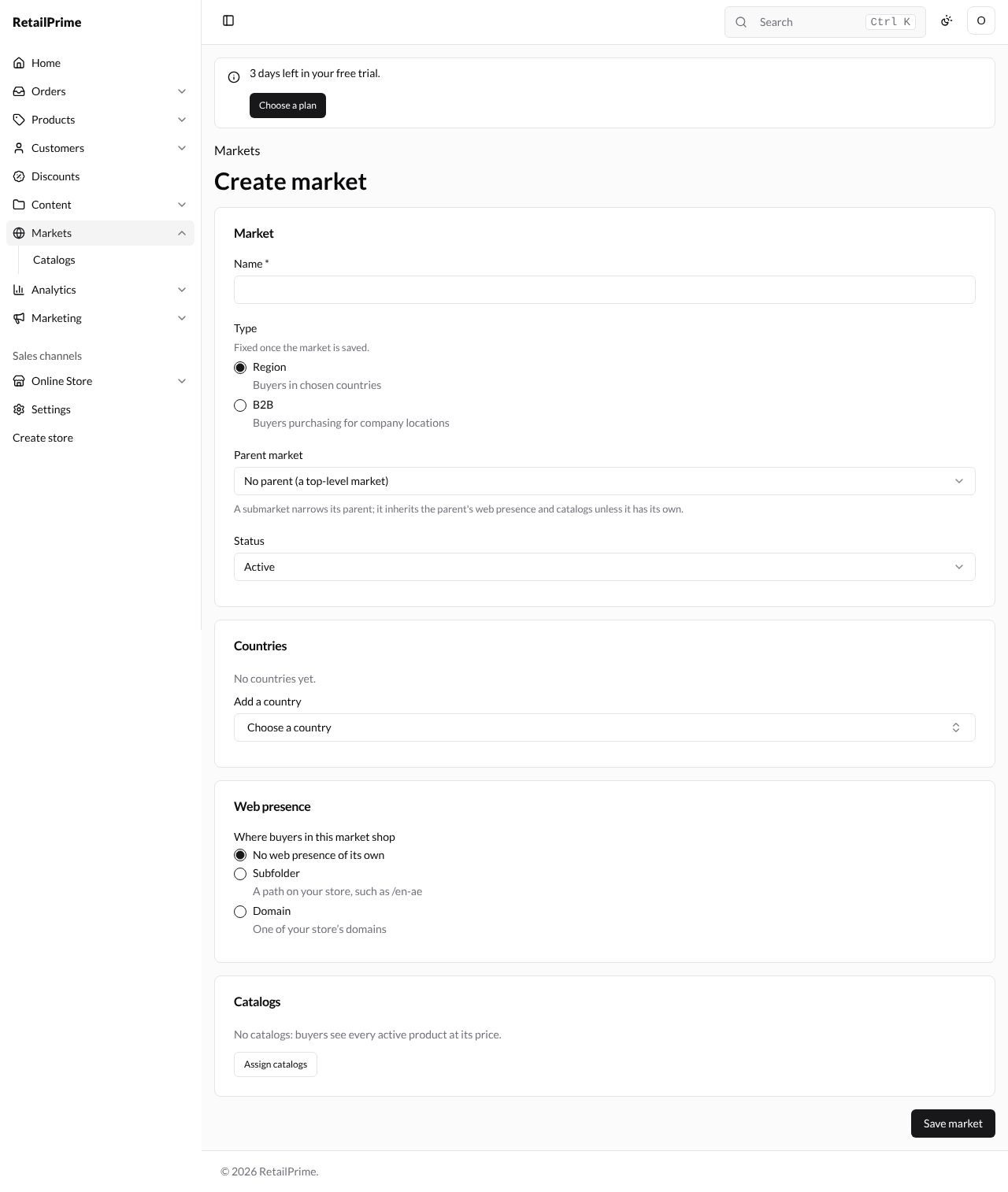
Press Create market. The Create market page has these cards:
Market
| Box | What to type or choose | Example |
|---|---|---|
| Name | The market’s name | Gulf |
| Type | Region (Buyers in chosen countries) or B2B (Buyers purchasing for company locations). Fixed once the market is saved. | Region |
| Parent market | No parent (a top-level market), or a market this one sits inside (see Submarkets) | No parent (a top-level market) |
| Status | Active or Inactive | Active |
Countries
Choose each country in Add a country. Each has a Remove button.
If you press Save market with no country, the market is not saved: the box turns red and a red box above the button says The market wasn’t saved and Choose at least one country.
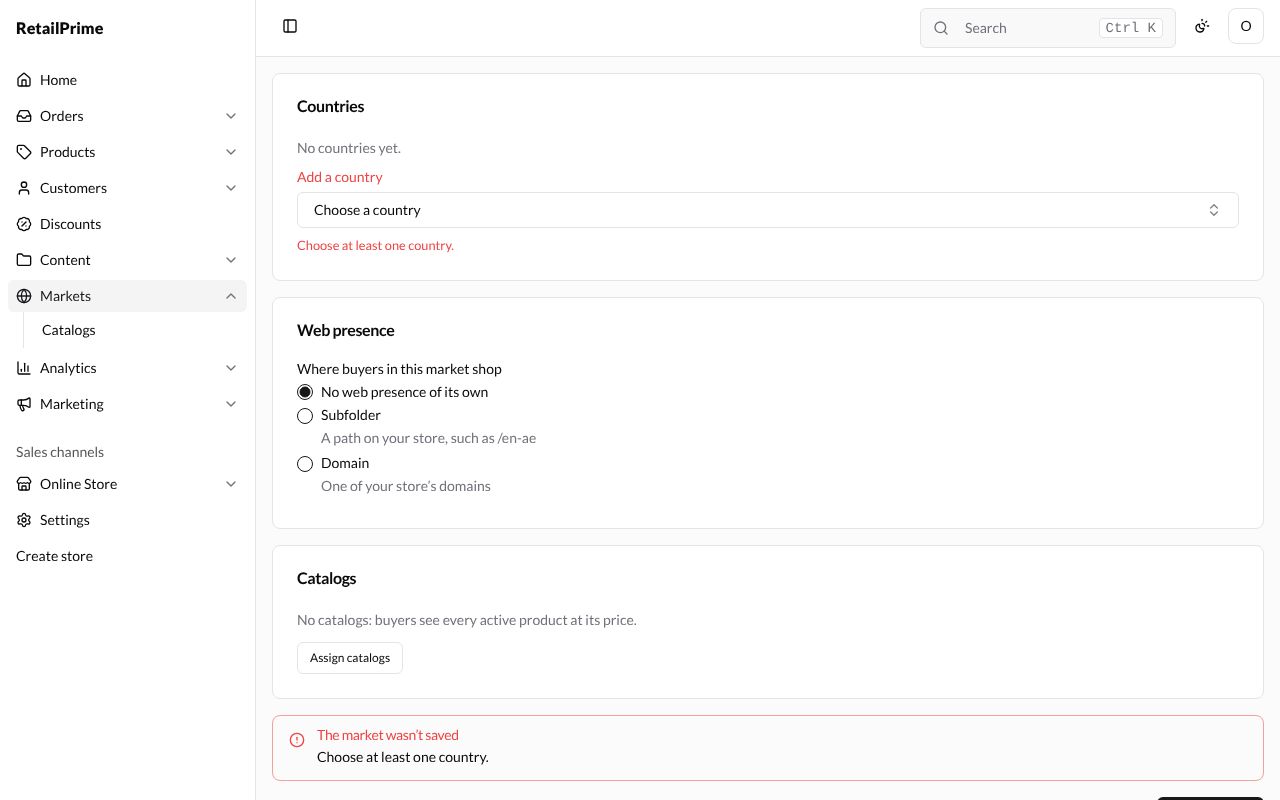
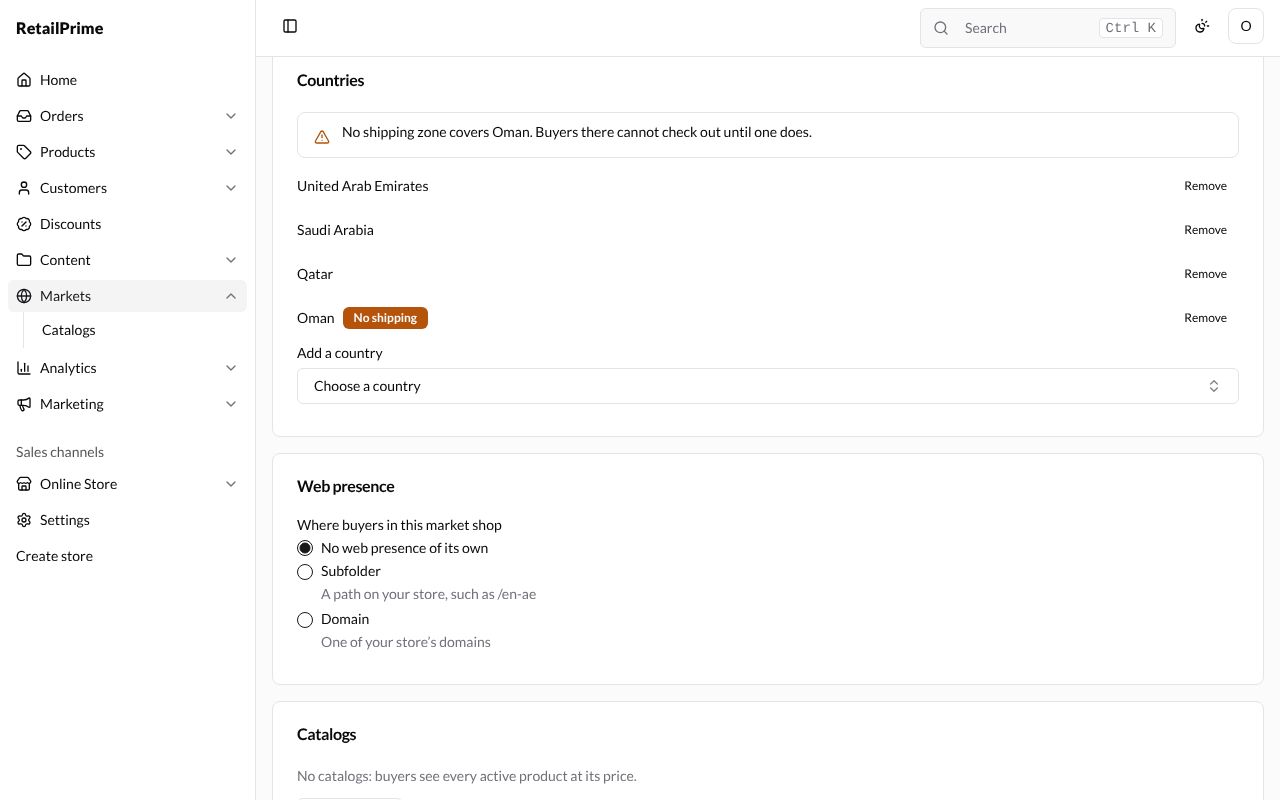
A country your shipping doesn’t cover says (no shipping) in the list, and gets an orange No shipping label once added. A yellow box warns, for example, No shipping zone covers Oman. Buyers there cannot check out until one does. A market with such a country can’t be Active; press Remove next to it, or add a shipping zone for it in Settings → Shipping and delivery first.
Web presence
Where buyers in this market shop:
| Choice | What it means |
|---|---|
| No web presence of its own | Buyers use your store’s usual address |
| Subfolder | A path on your store, such as /en-ae. Type the Subfolder suffix, 2 to 10 letters or digits; the page shows the path, such as /en-gulf |
| Domain | One of your store’s domains: choose it in Domain |
Catalogs
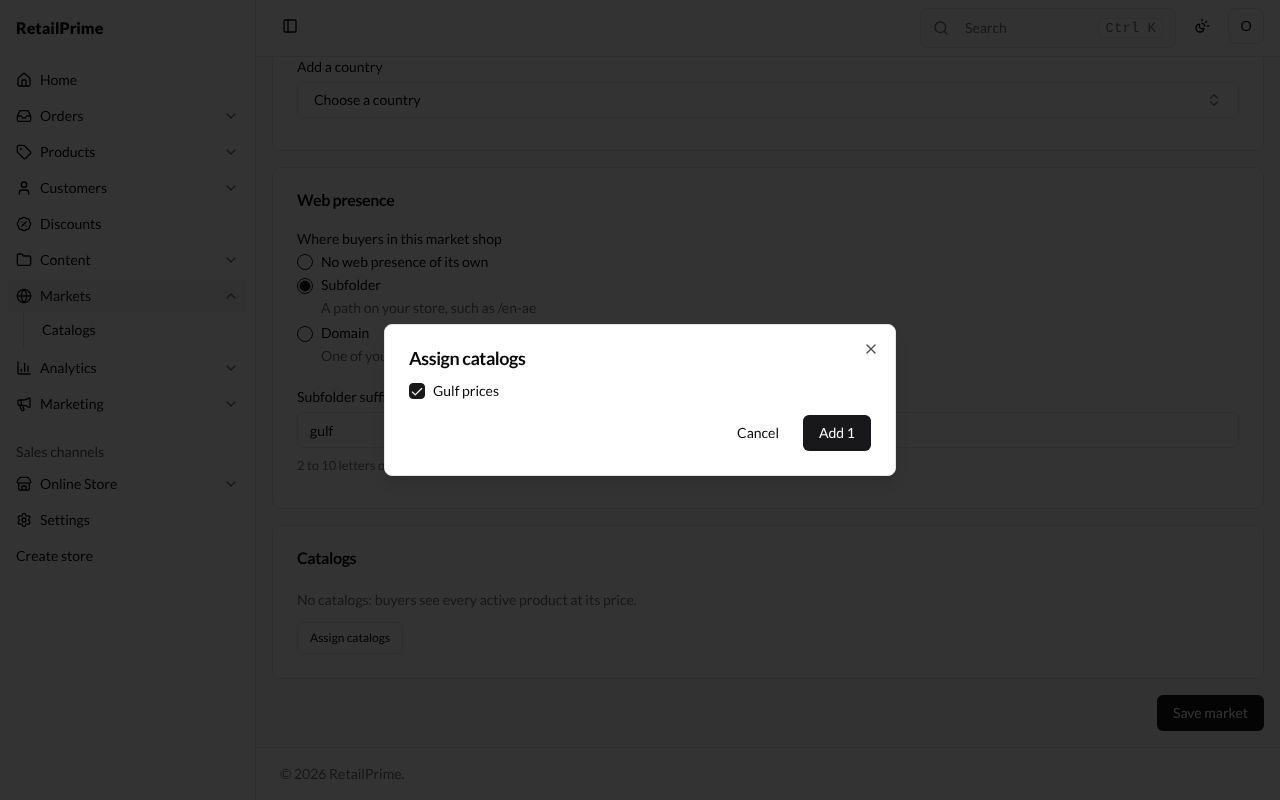
No catalogs: buyers see every active product at its price. Press Assign catalogs, tick a catalog and press Add 1. Each has a Remove button.
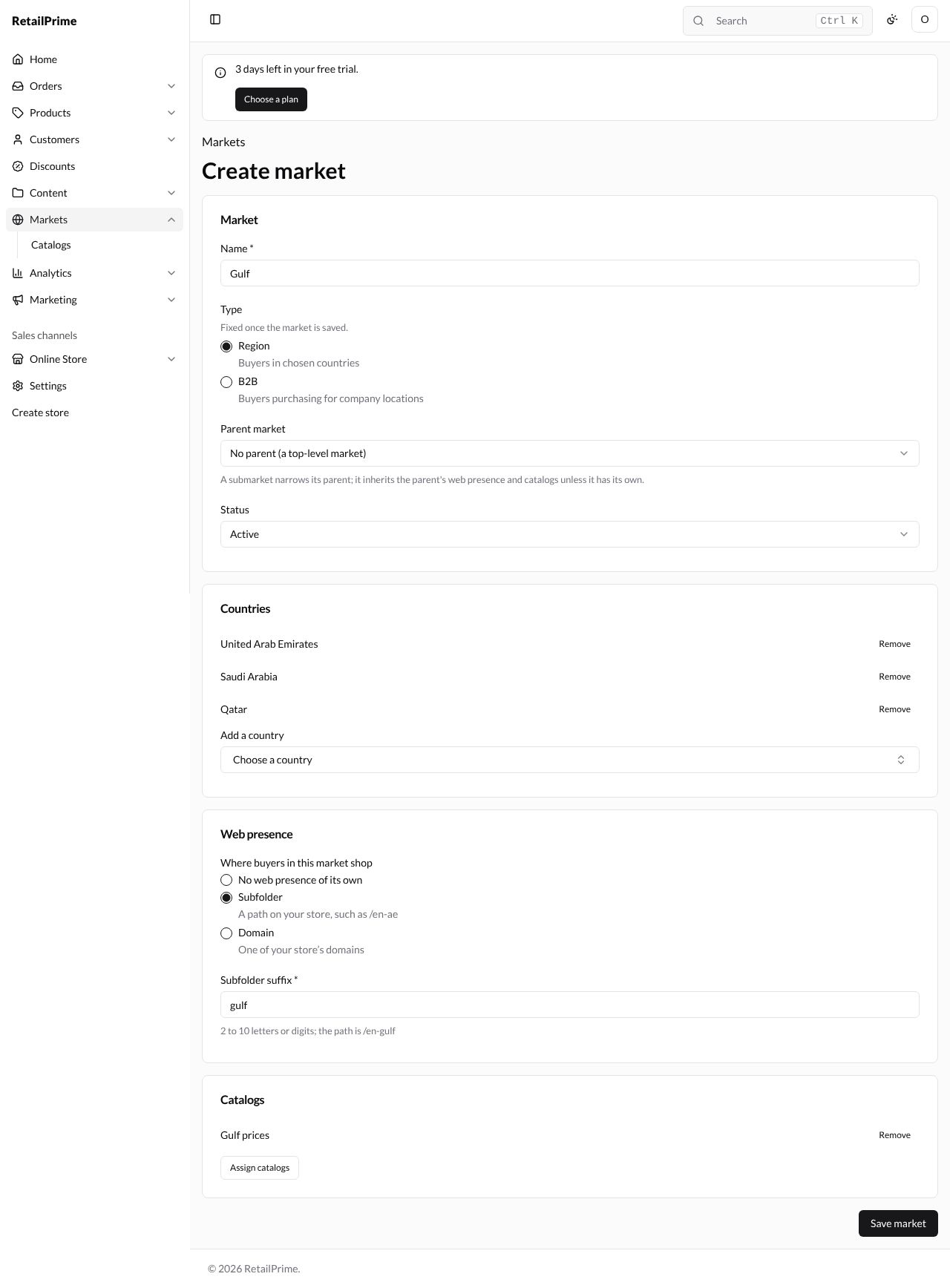
Here is the whole form, filled in:
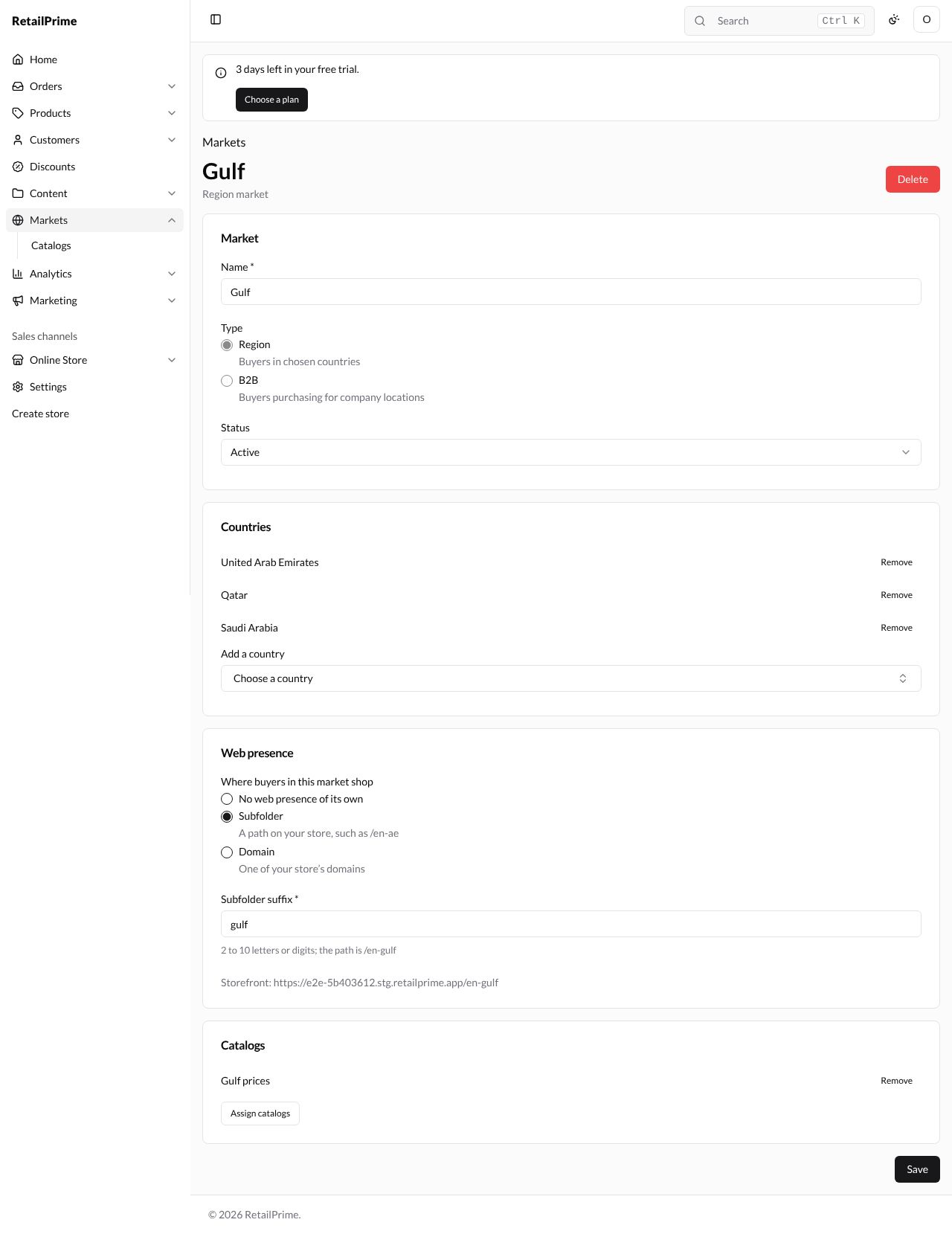
Press Save market. The market’s page opens. Under its name it says Region market, and the Web presence card shows its address, such as Storefront: https://…stg.retailprime.app/en-gulf.
Submarkets
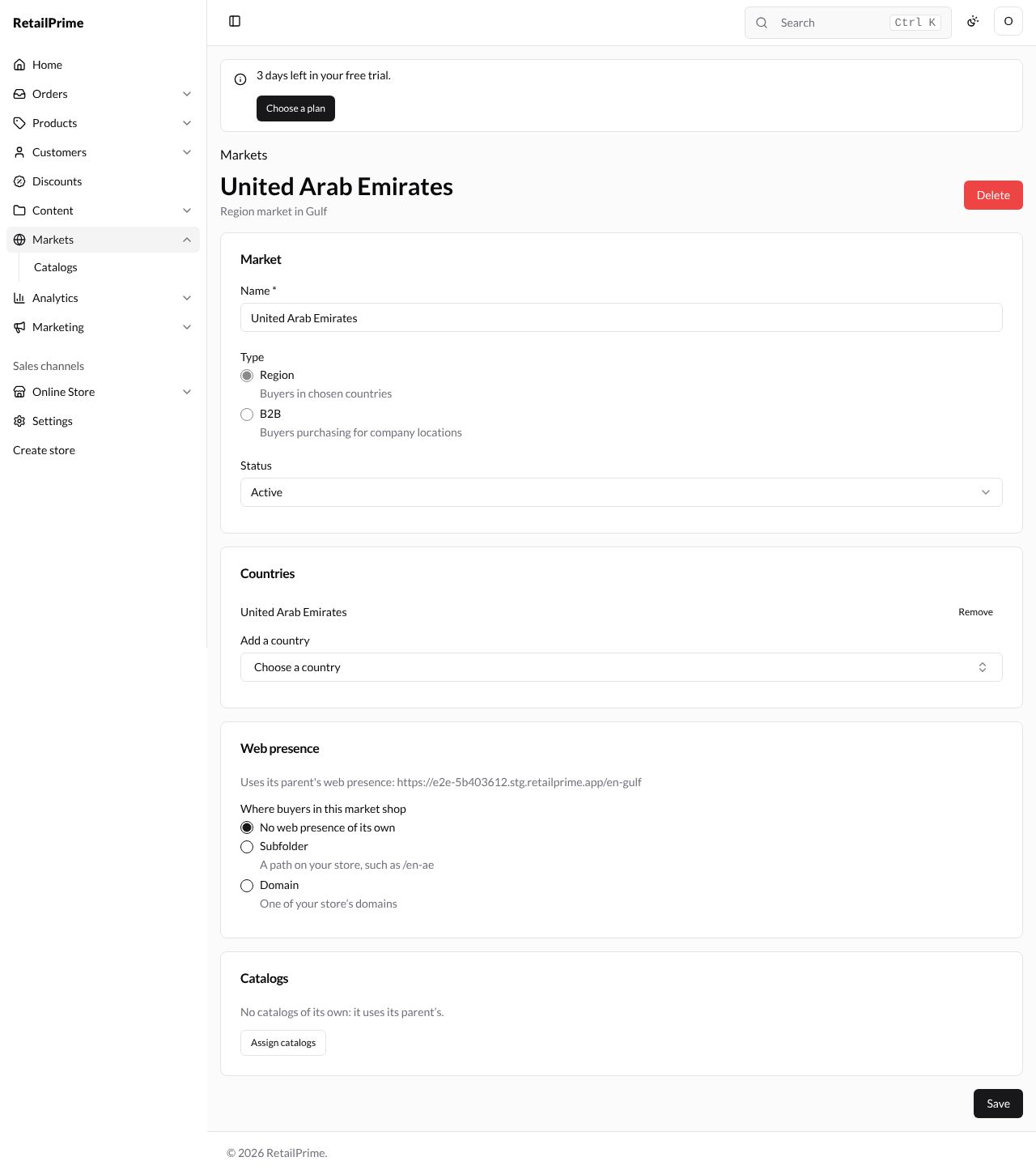
A submarket is a smaller market inside another, such as the United Arab Emirates inside the Gulf. A submarket narrows its parent; it inherits the parent’s web presence and catalogs unless it has its own.
-
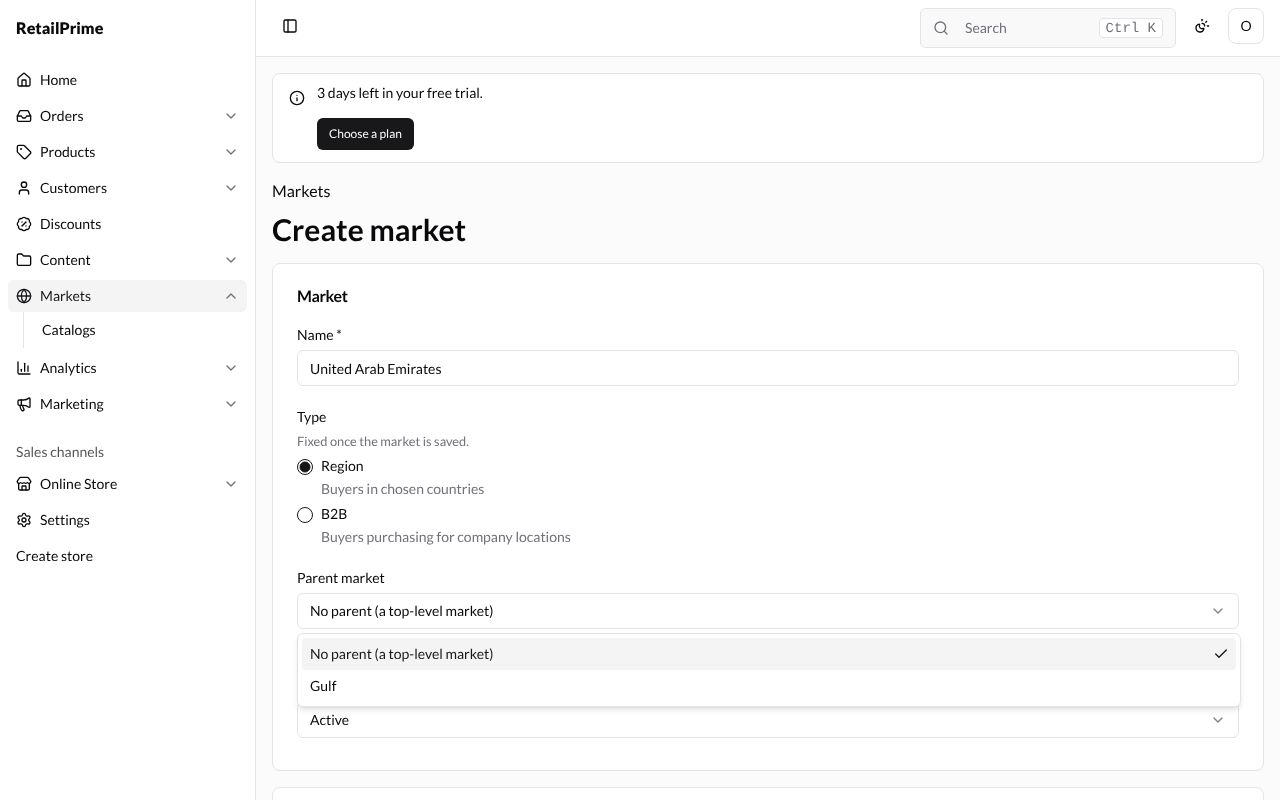
Press Create market, type the Name, such as
United Arab Emirates. -
In Parent market, choose the parent, such as Gulf. Only top-level markets of the same type are offered.
-
Add its country, United Arab Emirates (one of the parent’s countries).
-
Press Save market.
Its page says Region market in Gulf. The Web presence card says Uses its parent’s web presence: …/en-gulf, and Catalogs says No catalogs of its own: it uses its parent’s.
A market on its own domain
To give a market its own domain, first connect the domain to your store in Settings → Domains (covered later in this guide). Here the store has the domain pk.sunnysocks.example.
- Create a market called
Pakistanwith the country Pakistan. - In Web presence, choose Domain.
- In Domain, choose the domain. The list has your store’s domains.
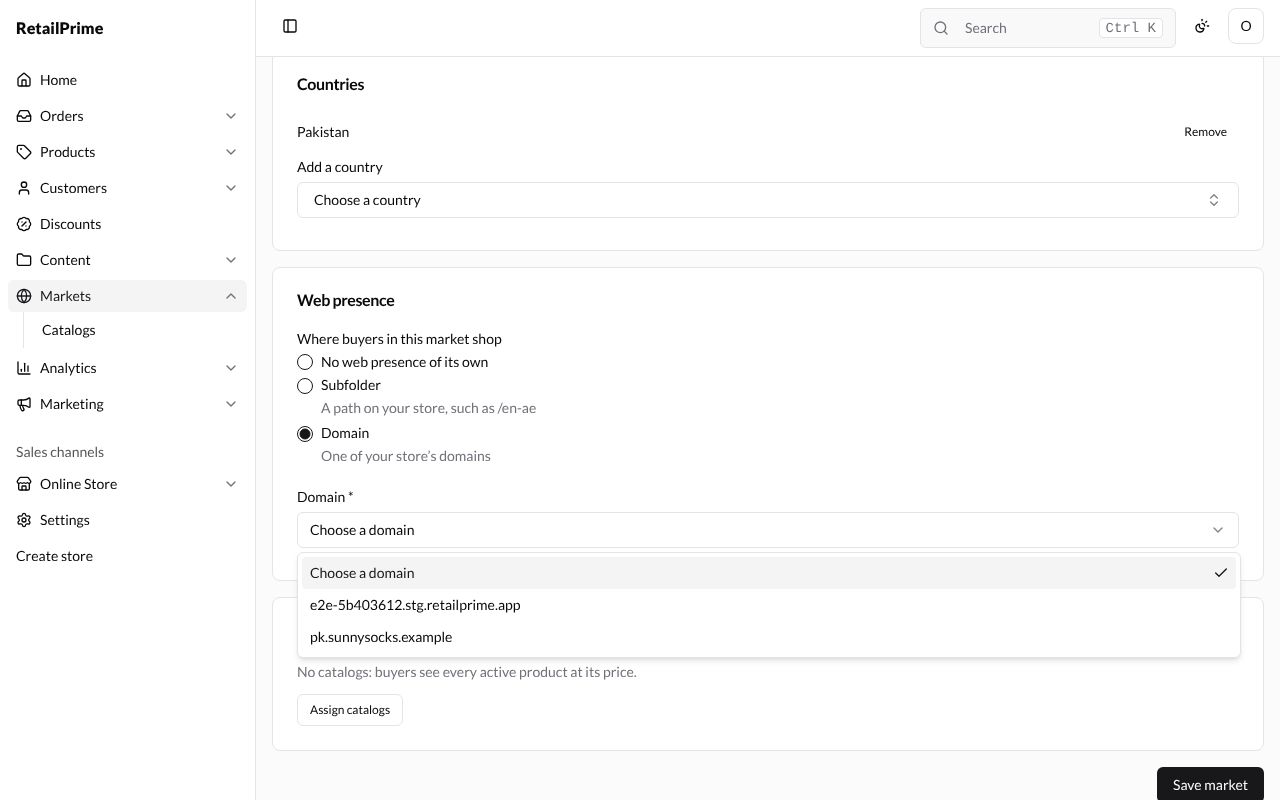
- Press Save market.
The markets list
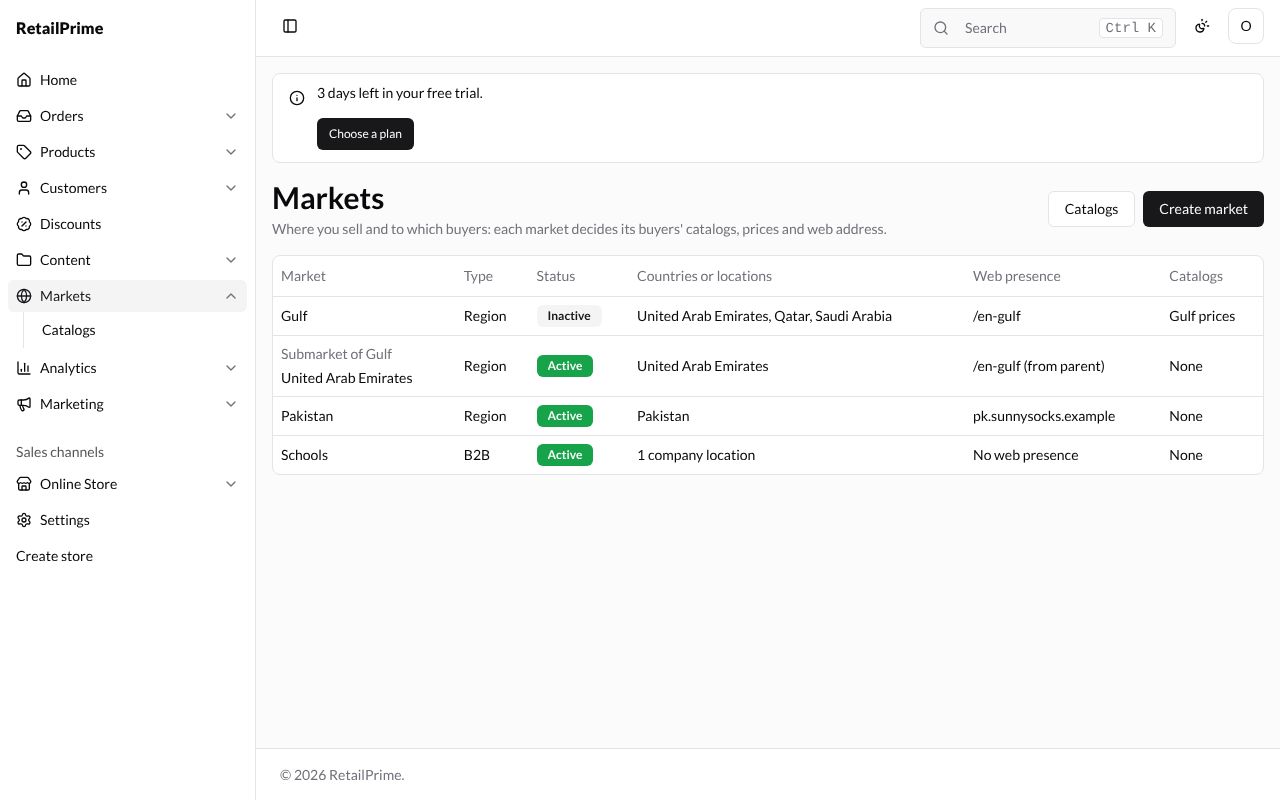
Back on Markets, each market is listed, with its submarkets under it (Submarket of Gulf):
| Column | What it shows |
|---|---|
| Market | Its name: press it to open it |
| Type | Region or B2B |
| Status | Active or Inactive |
| Countries or locations | Its countries, or how many company locations |
| Web presence | Its subfolder (with (from parent) for a submarket), its domain, or No web presence |
| Catalogs | Its catalogs, or None |
Edit a market
Open the market, change any box (except Type), and press Save. Here the Gulf’s Status was changed to Inactive.
Delete a market
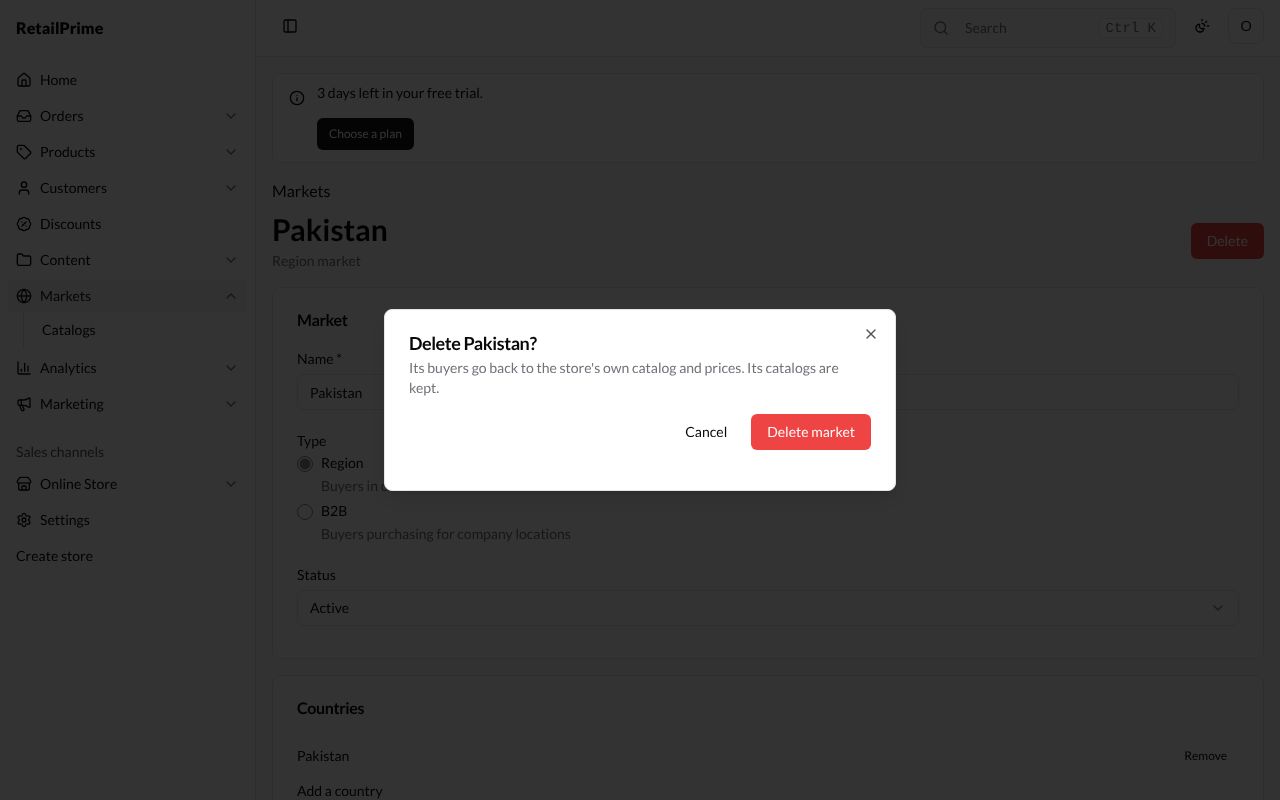
- Open the market and press the red Delete at the top right.
- A window asks Delete Pakistan? and says Its buyers go back to the store’s own catalog and prices. Its catalogs are kept.
- Press Delete market. You are back on the Markets list.
What’s next
B2B markets and wholesale catalogs: prices, minimum quantities and price breaks for the companies you sell to.