Emails
Write a marketing email from blocks, choose who gets it, send yourself a test, then schedule it or send it now, and read its results.
An email (an email campaign) goes once to your subscribed customers, or to some of them. Before you start, set up your sender in Marketing email settings, and have at least one subscriber, for example through a signup form.
Open Emails
In the sidebar, press Marketing, then Emails. The page says Email campaigns to your subscribed customers. A new store has No emails yet.
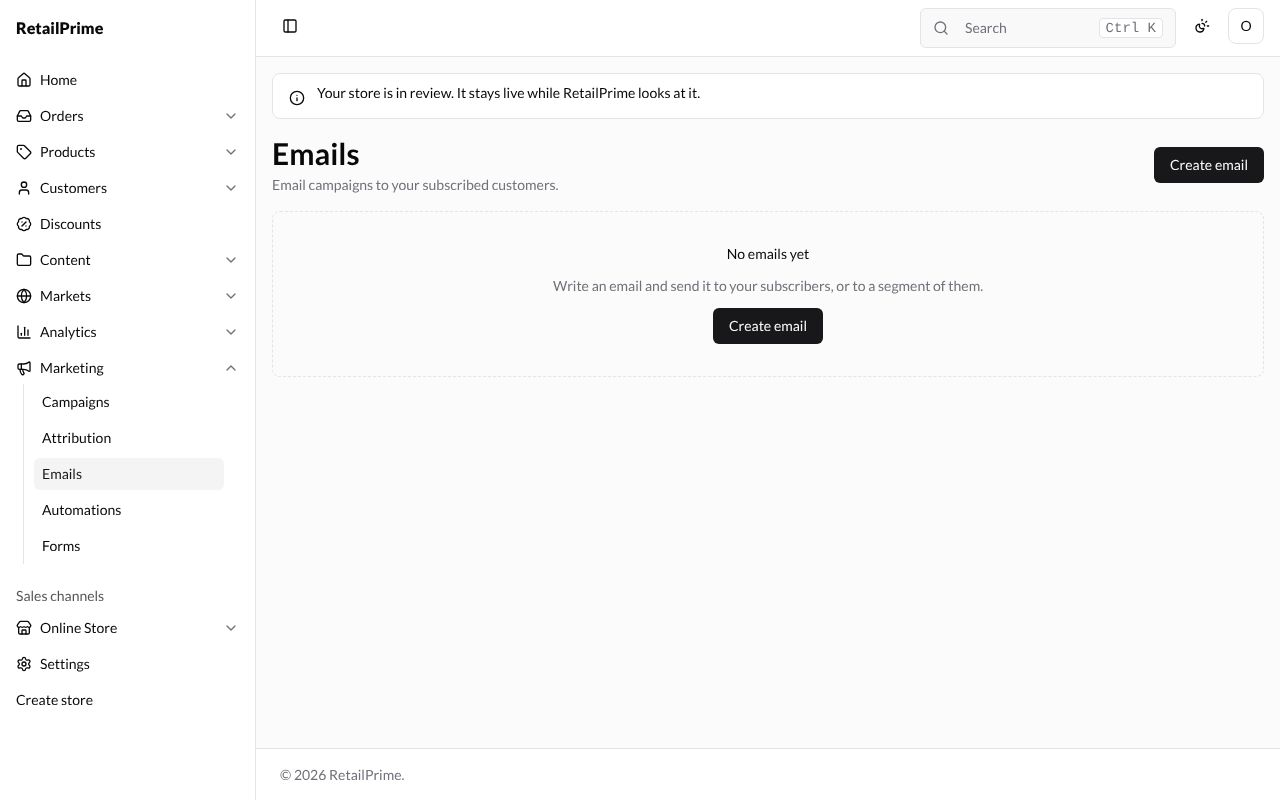
Create an email
- Press Create email. The New email page opens.
- Fill in the two boxes:
| Box | What to type | Example |
|---|---|---|
| Name | For you; also the email’s links’ campaign name. | Winter colours |
| Subject | The subject line buyers see in their inbox | New winter colours are here |
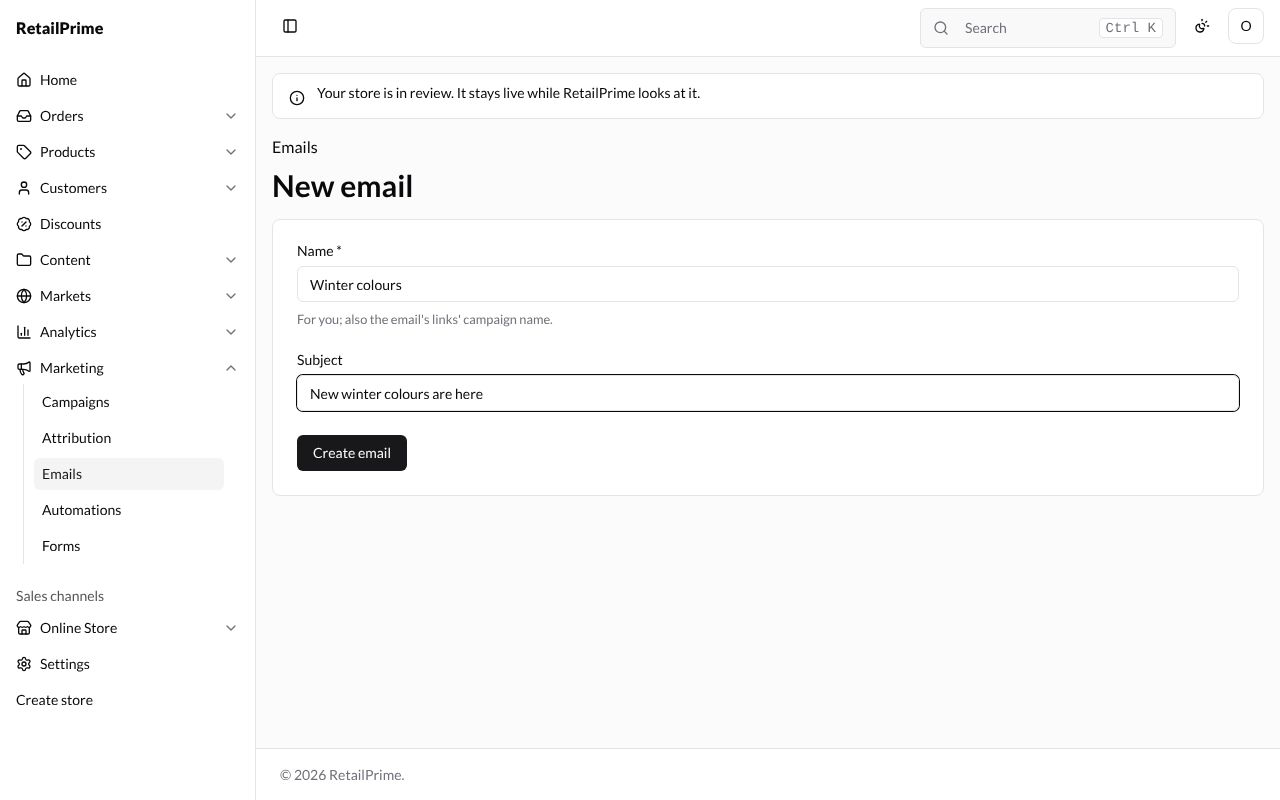
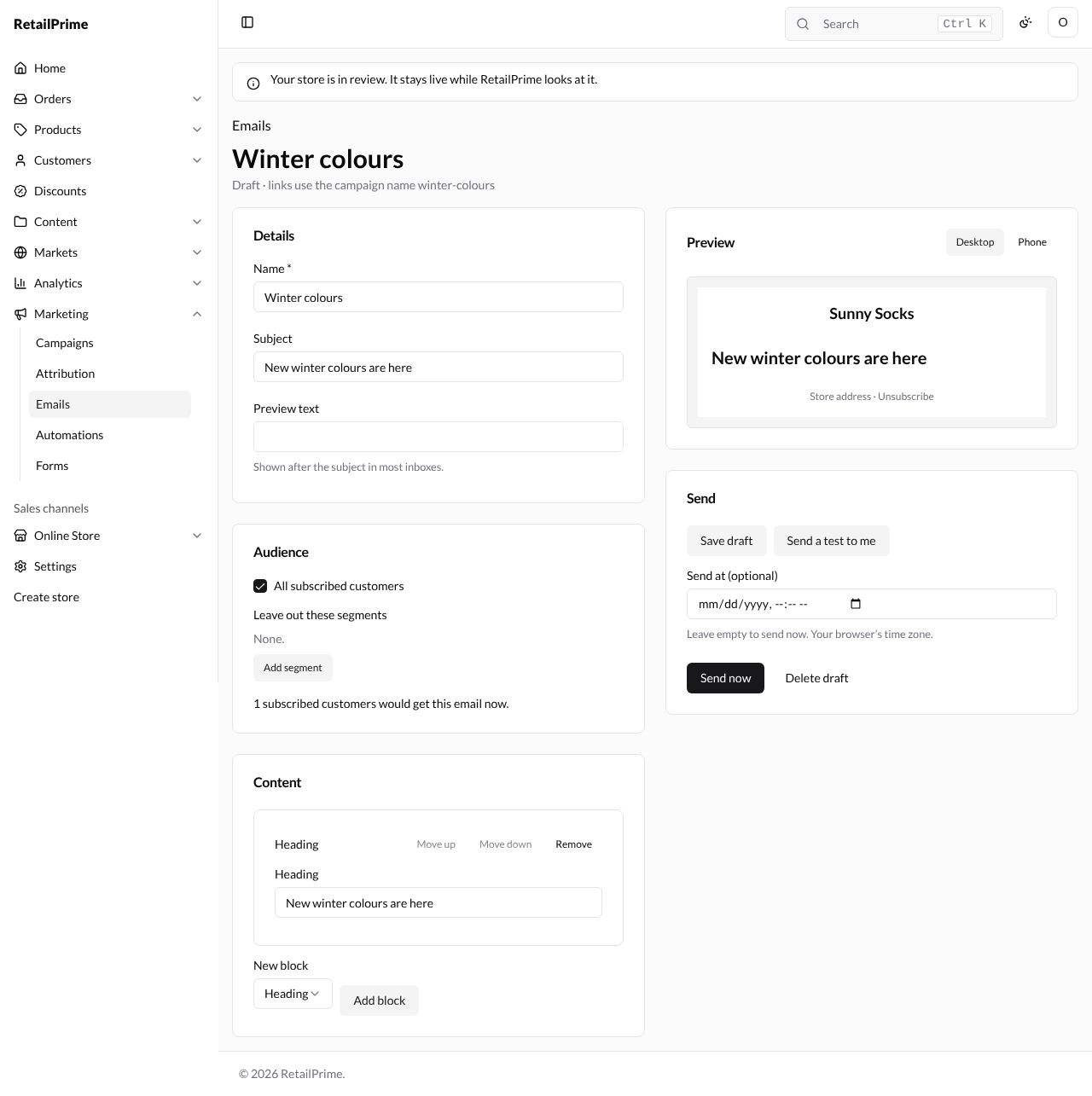
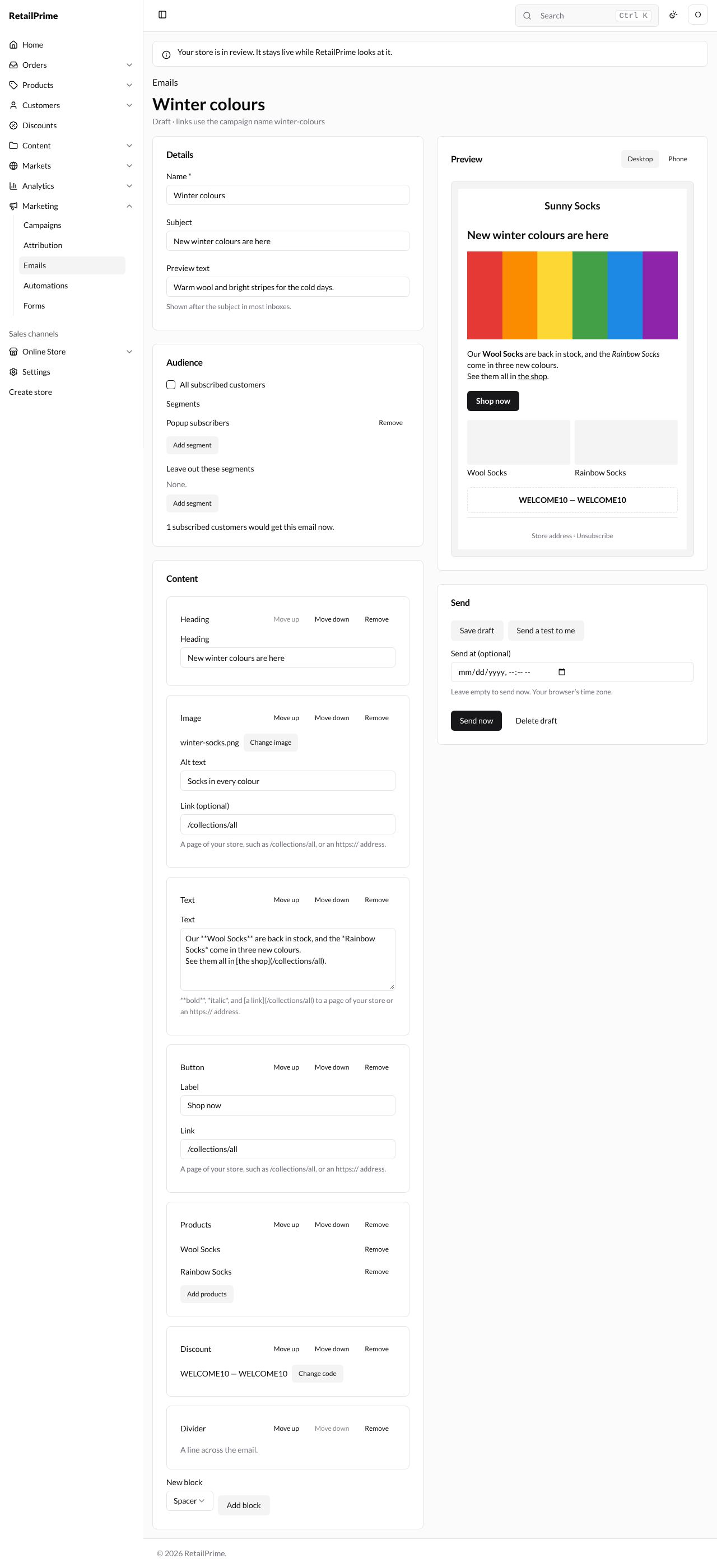
- Press Create email. The email’s page opens as a draft. Under its name it says Draft · links use the campaign name …. It already has one block: a heading with your subject.
Details
Name and Subject can be changed here. Preview text is Shown after the subject in most inboxes., such as Warm wool and bright stripes for the cold days.
Audience: who gets it
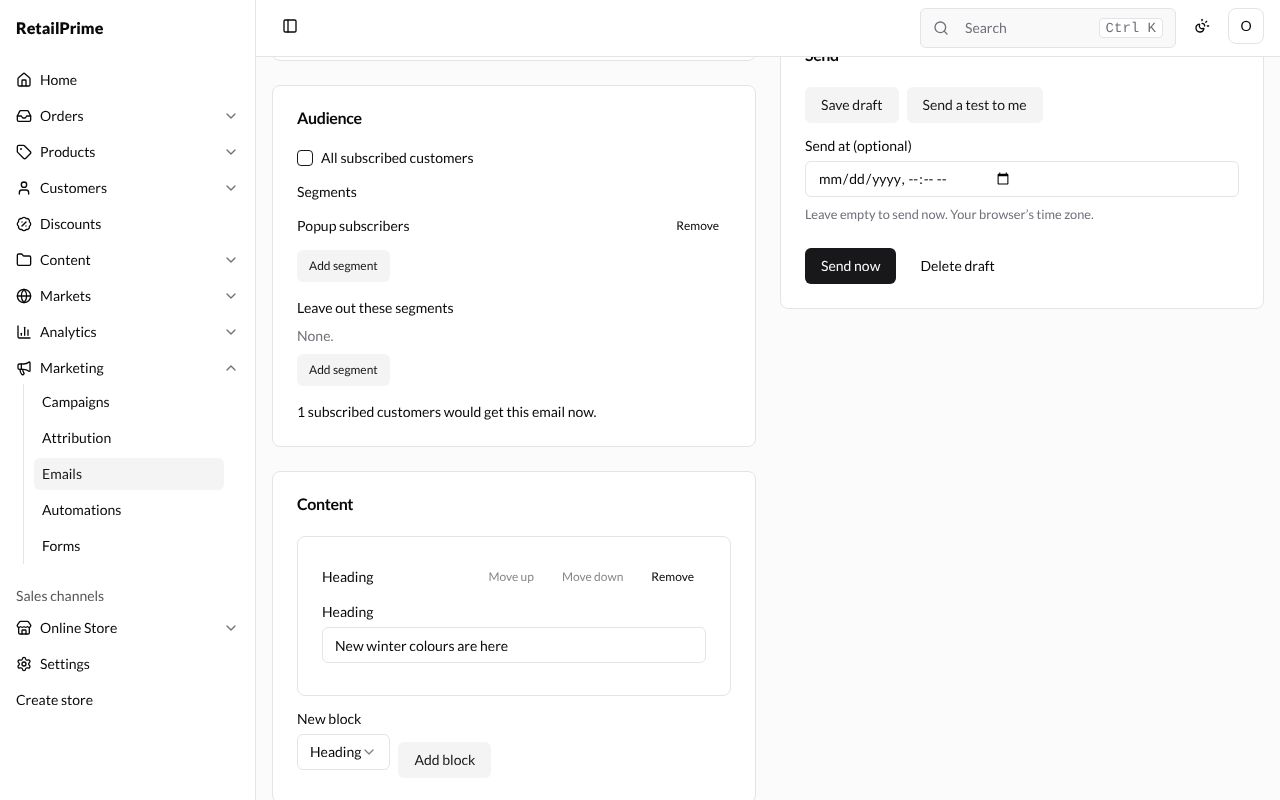
- All subscribed customers is ticked at first: every subscriber gets it.
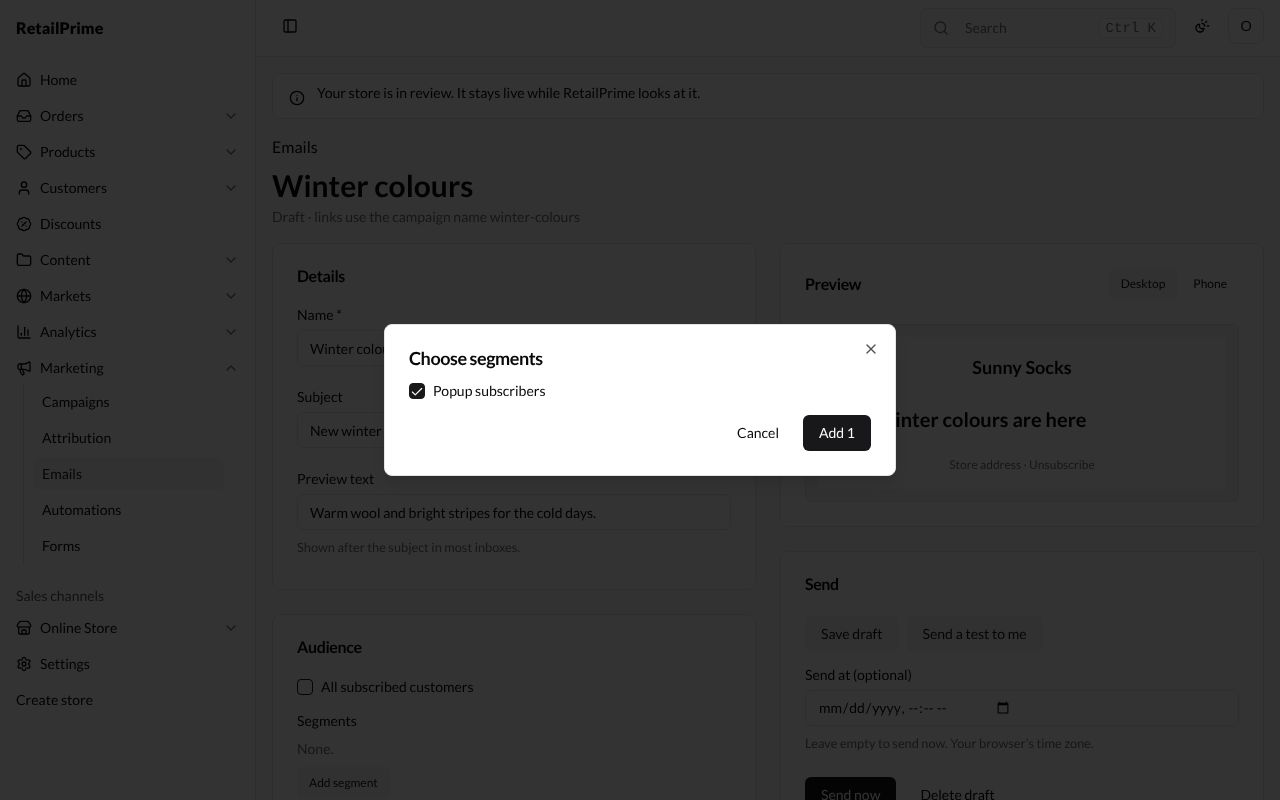
- Untick it to choose Segments instead. Press Add segment, tick a segment, such as Popup subscribers, and press Add 1.
- Leave out these segments: press its Add segment to keep a segment out, even if they are in the audience.
- Each chosen segment has a Remove button.
Under it, the page counts the audience, such as 1 subscribed customers would get this email now.
Content: design the email
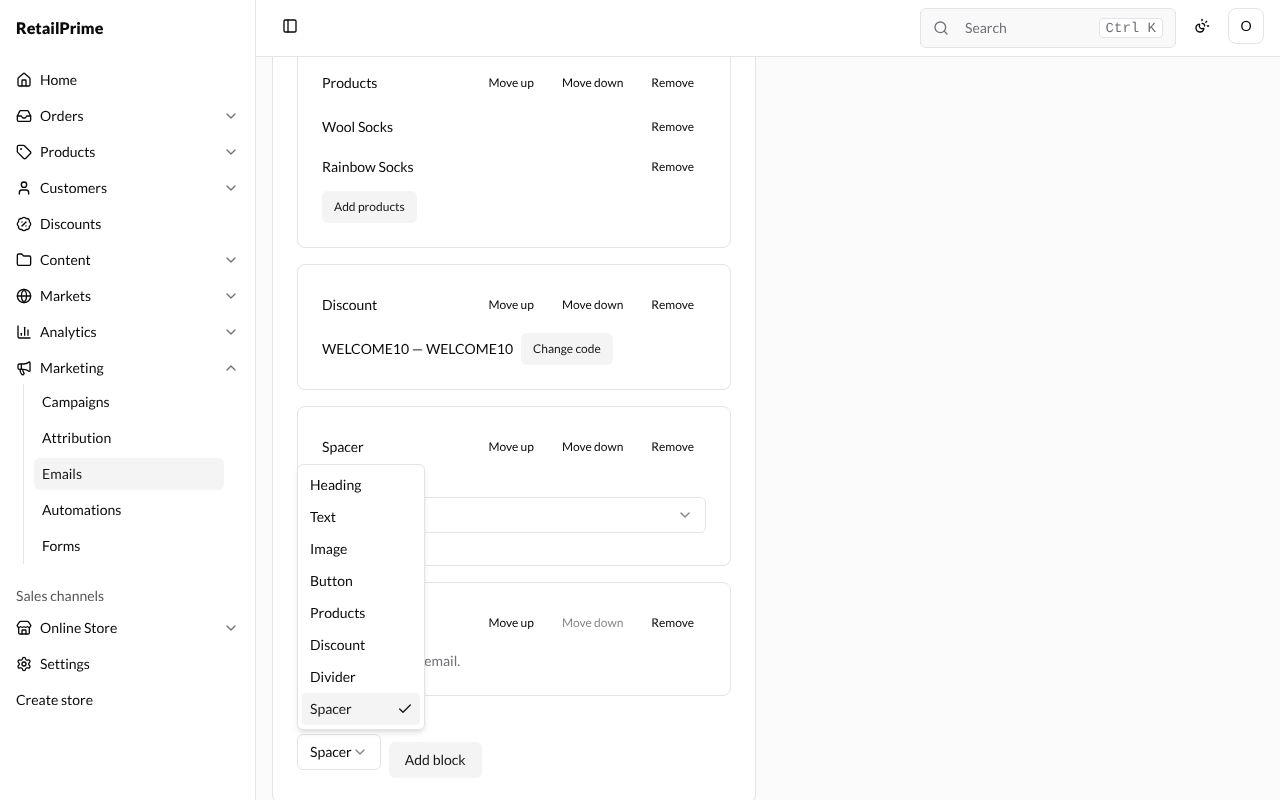
The email is made of blocks, one under the other. To add one, choose its kind in New block and press Add block. It is added at the bottom.
| Block | What to fill in |
|---|---|
| Heading | Heading: big words, such as New winter colours are here |
| Text | Text: one or more lines. Write **bold**, *italic*, and [a link](/collections/all) to a page of your store or an https:// address |
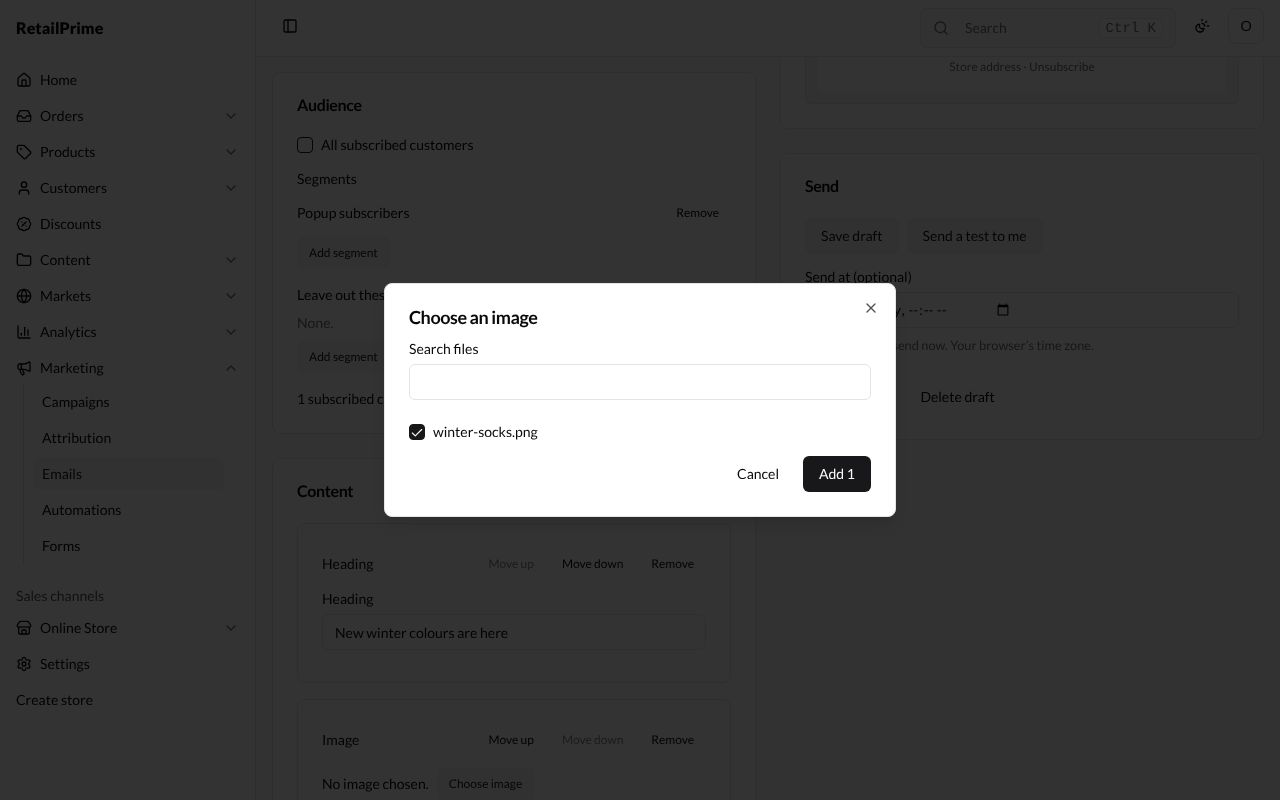
| Image | Press Choose image and pick a picture from Content → Files; then Alt text (what the picture shows, for buyers who can’t see it) and Link (optional) |
| Button | Label, such as Shop now, and Link, such as /collections/all |
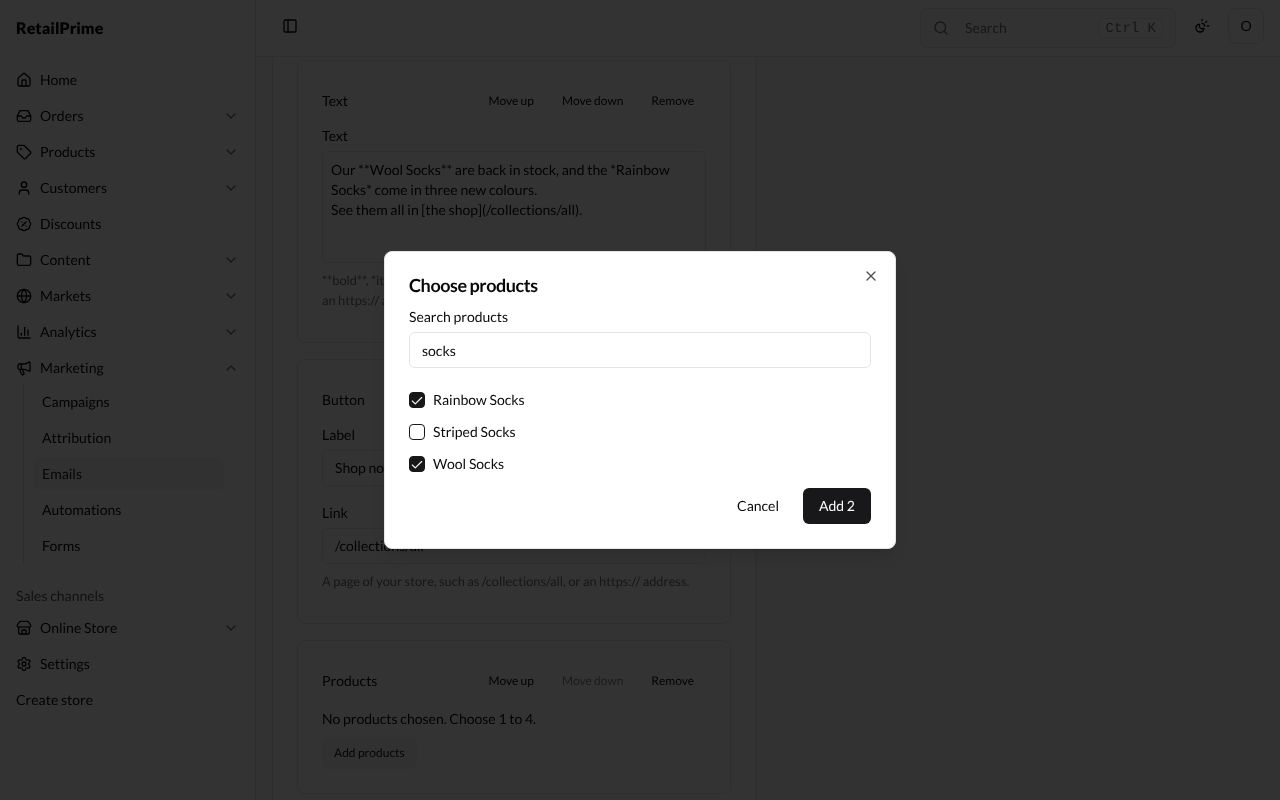
| Products | Press Add products, search and tick 1 to 4 products. Each has a Remove button |
| Discount | Press Choose code and pick a discount code. The email shows the code |
| Divider | Nothing to fill in: A line across the email. |
| Spacer | Space: Small, Medium or Large |
Every block has three buttons at its top right:
- Move up and Move down move it one place.
- Remove takes it out.
Here is the draft with all its blocks:
Preview
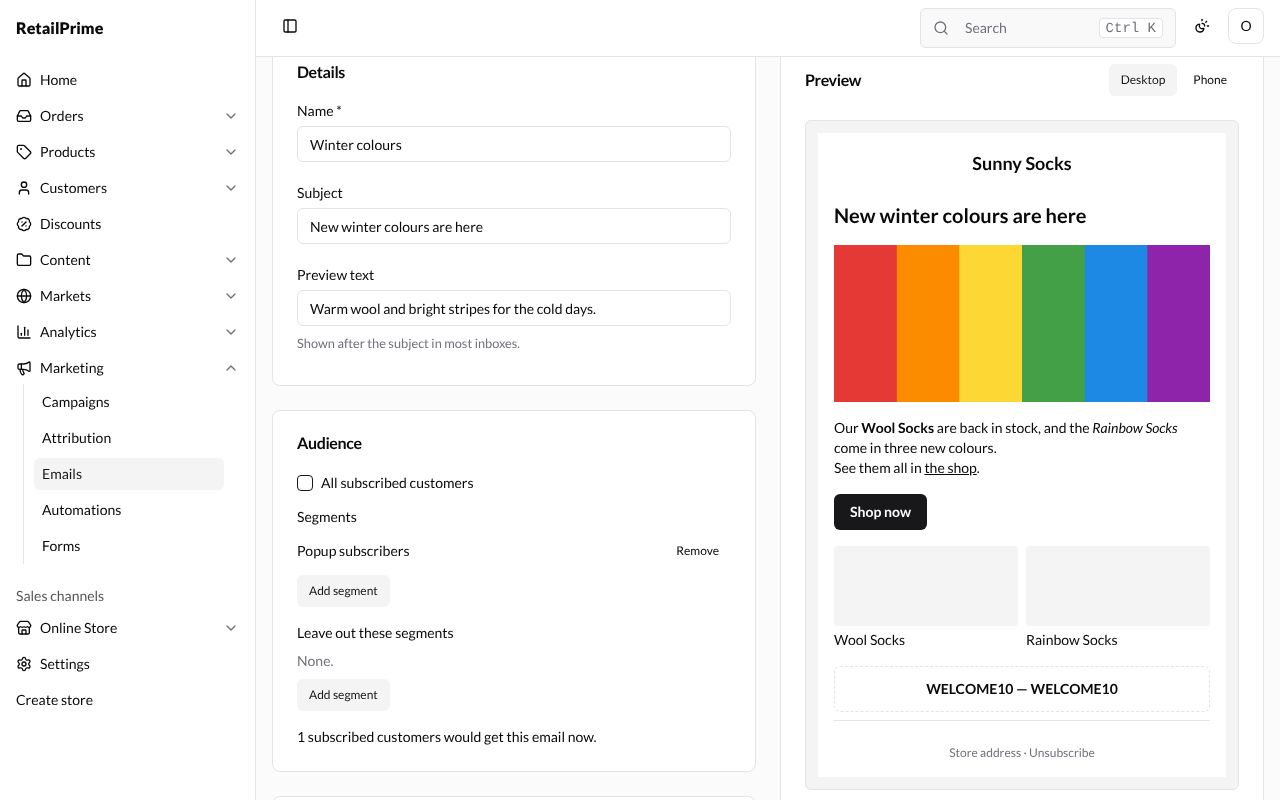
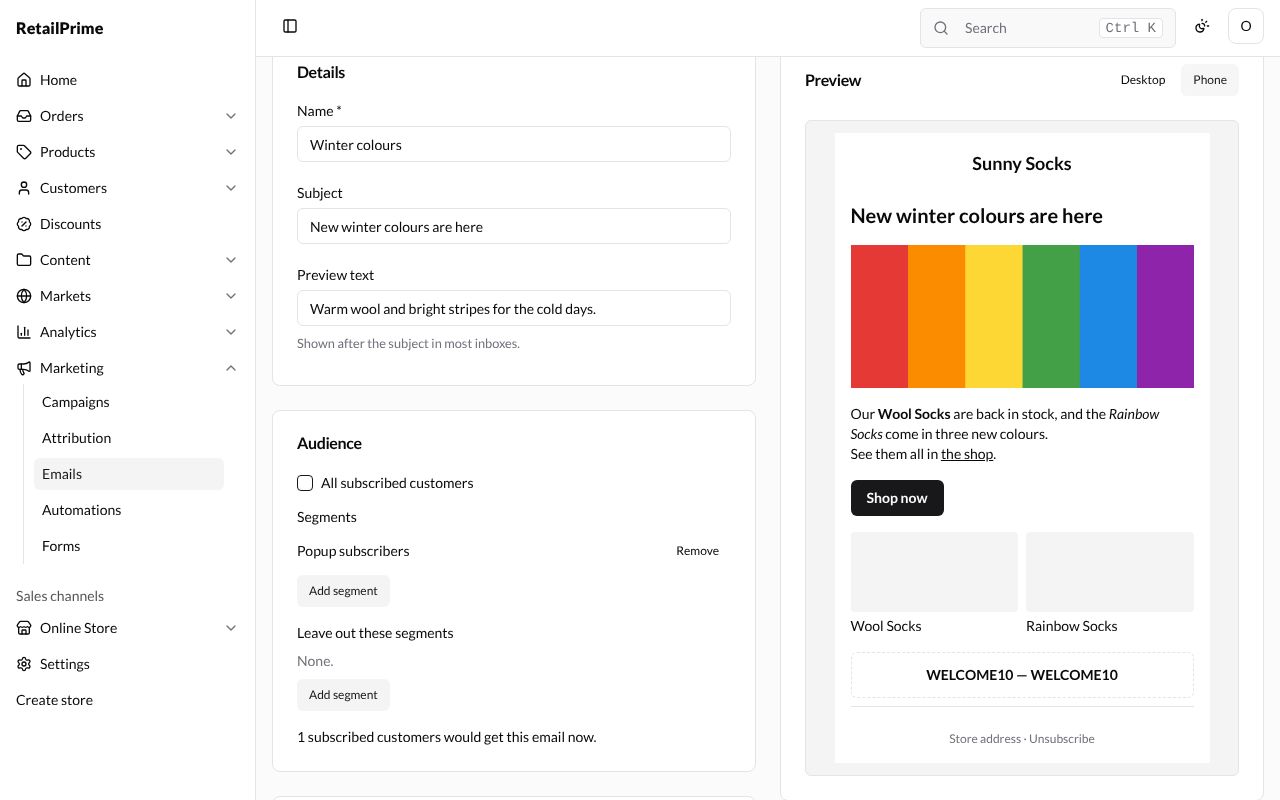
The Preview on the right shows the email as you build it, with your store’s name at the top and Store address · Unsubscribe at the bottom, which every marketing email has. Press Desktop or Phone to see it at that width.
Save and send a test
In the Send card:
- Save draft saves your changes.
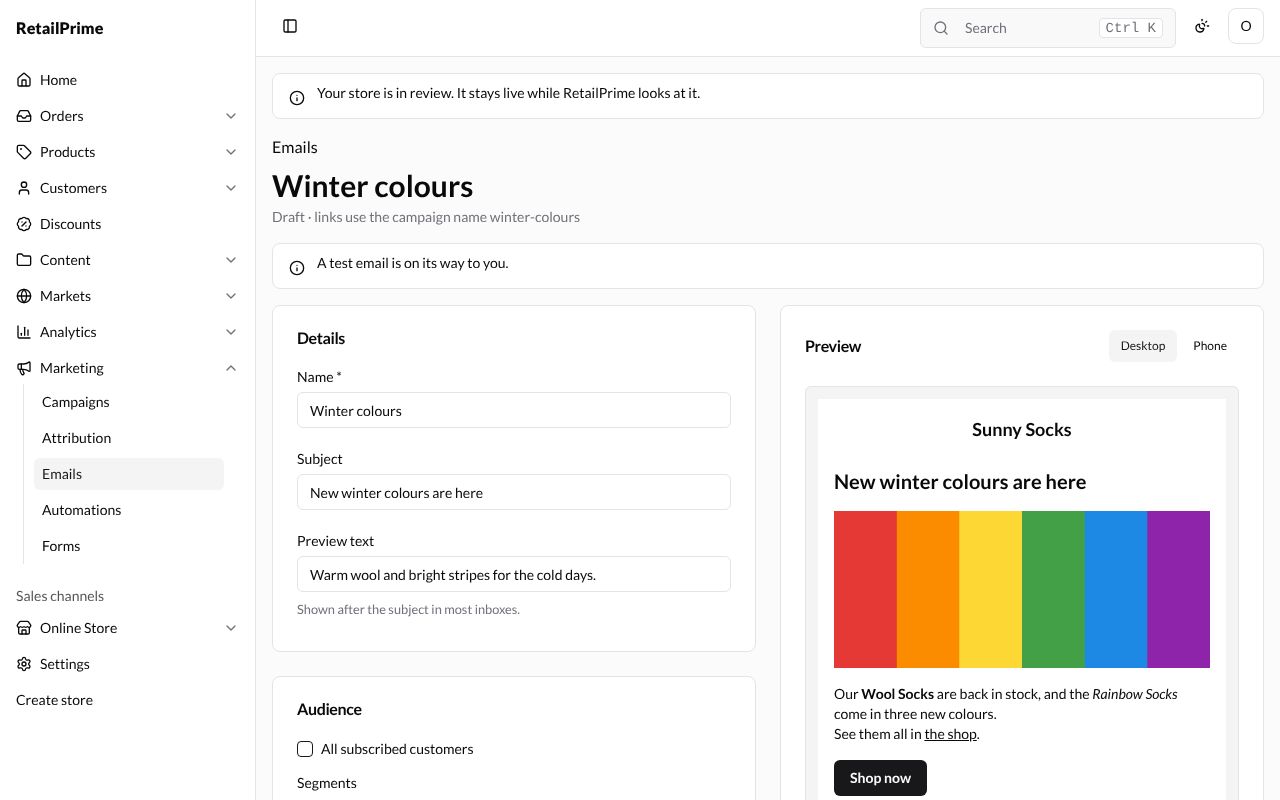
- Send a test to me saves, then sends the email to your own email address (the one you sign in with). The page says A test email is on its way to you. The test’s subject starts with [Test]. You can send up to 10 tests a day.
On staging, look for the test in the qa@qamail.retailprime.app inbox.
Schedule it
- In Send at (optional), choose a day and time. Leave empty to send now. Your browser’s time zone. The button changes from Send now to Schedule.
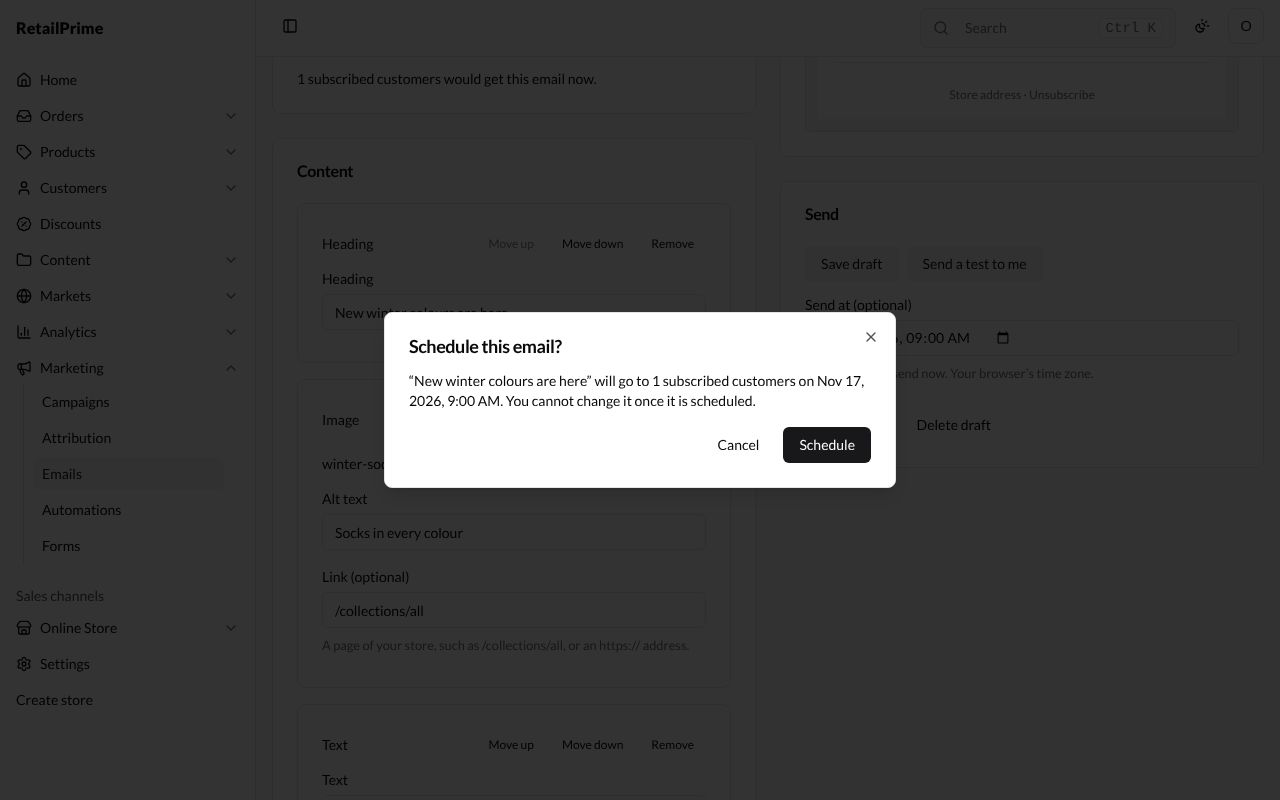
- Press Schedule. A window asks Schedule this email? and says, for example, “New winter colours are here” will go to 1 subscribed customers on Nov 17, 2026, 9:00 AM. You cannot change it once it is scheduled.
- Press Schedule.
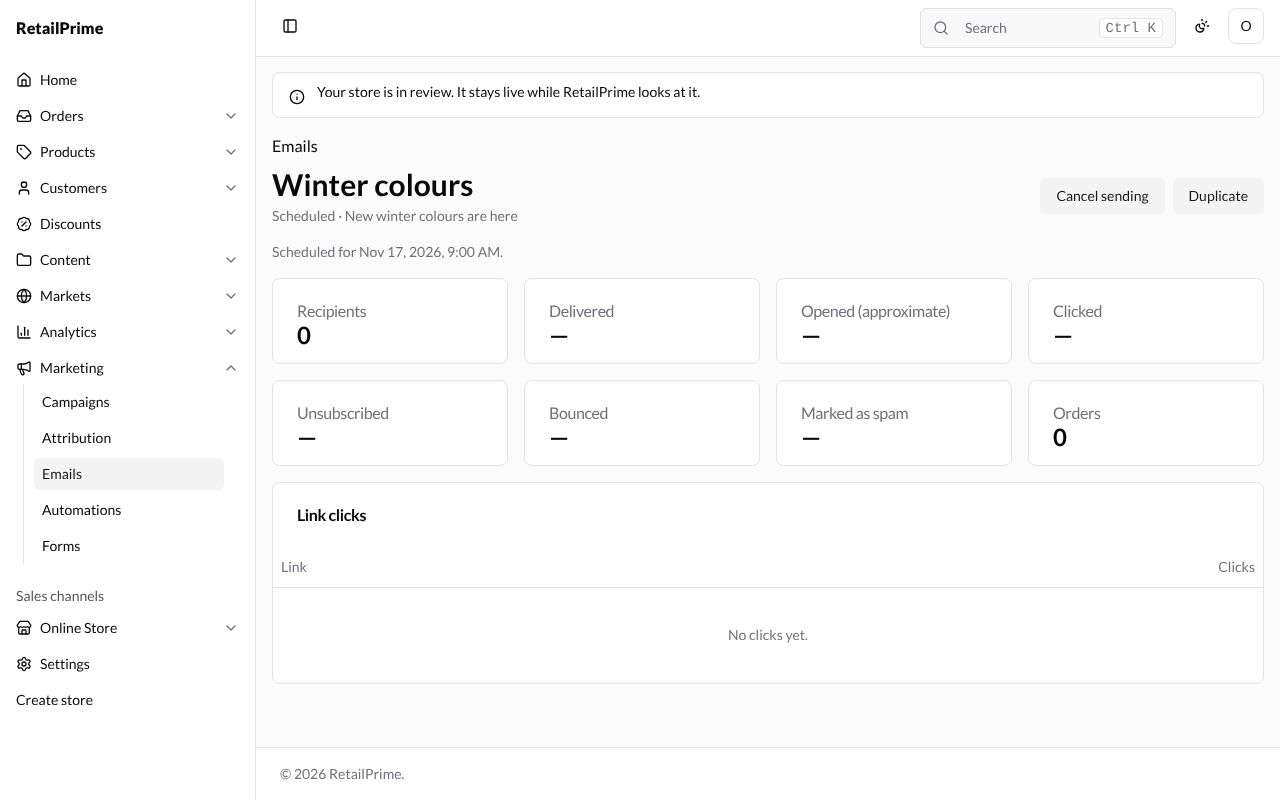
The email’s page now says Scheduled · … and Scheduled for …, with Cancel sending and Duplicate at the top right.
Cancel a scheduled email
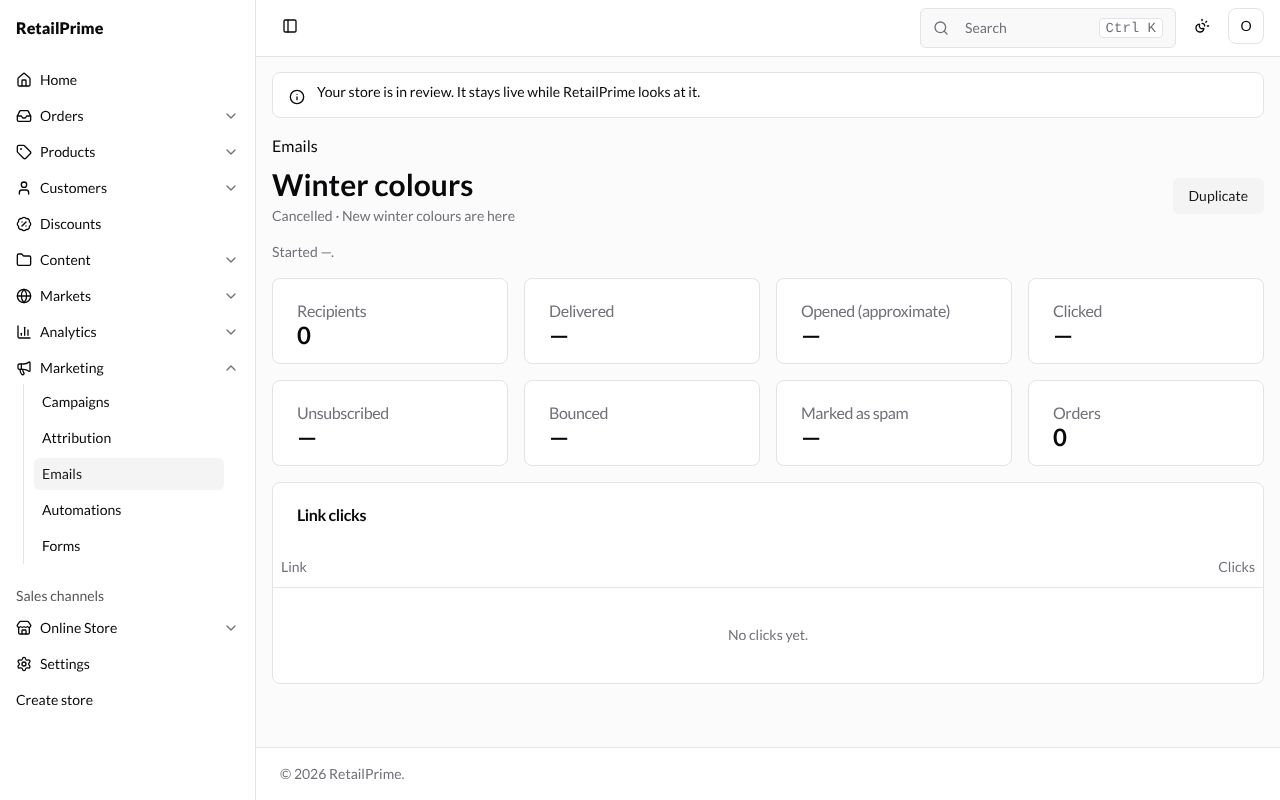
Press Cancel sending. The email becomes Cancelled and won’t be sent. A cancelled email can’t be sent again, but you can copy it.
Duplicate and send now
- Press Duplicate. A new draft opens, called Copy of Winter colours, with the same subject, audience and blocks.
- Leave Send at (optional) empty and press Send now.
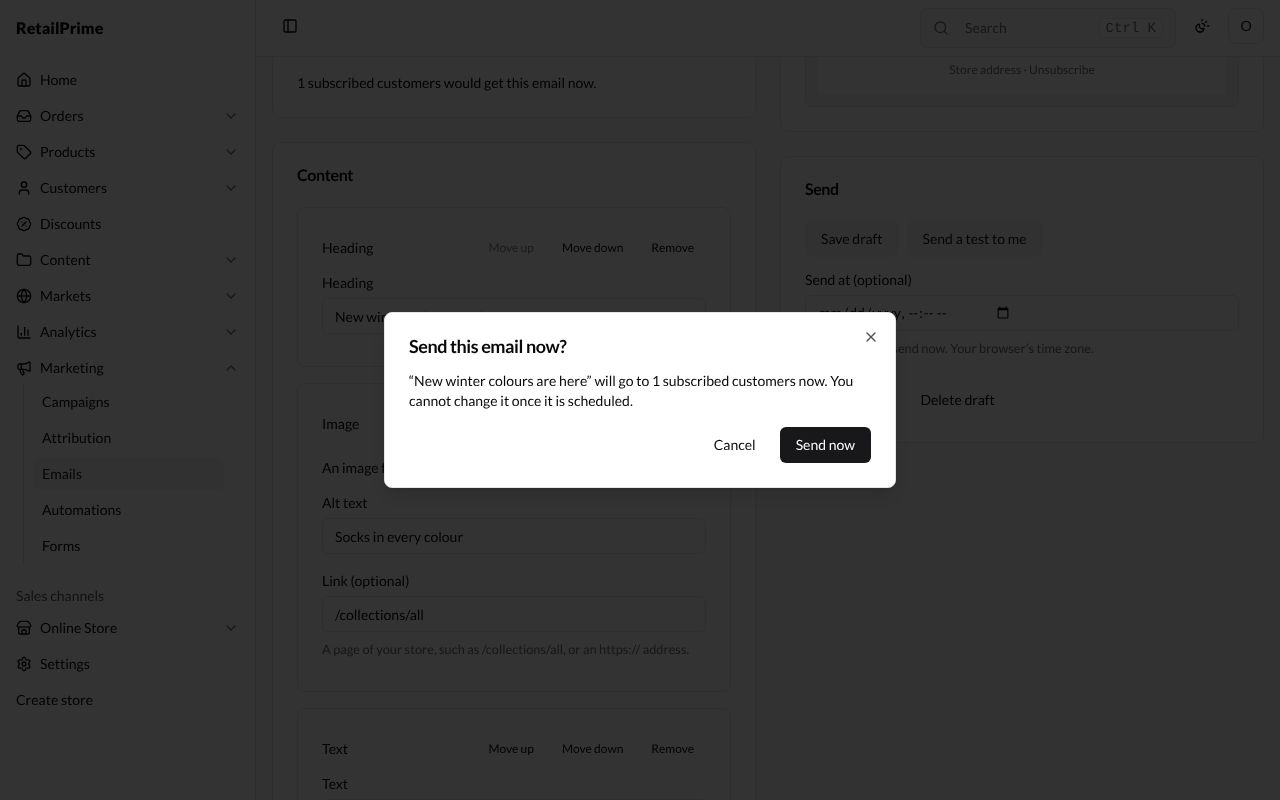
- A window asks Send this email now? and says “New winter colours are here” will go to 1 subscribed customers now. You cannot change it once it is scheduled. Press Send now.
The email is sent shortly after; reload the page to see it change to Sent. On staging, the subscriber’s email lands in the qa@qamail.retailprime.app inbox.
A sent email’s results
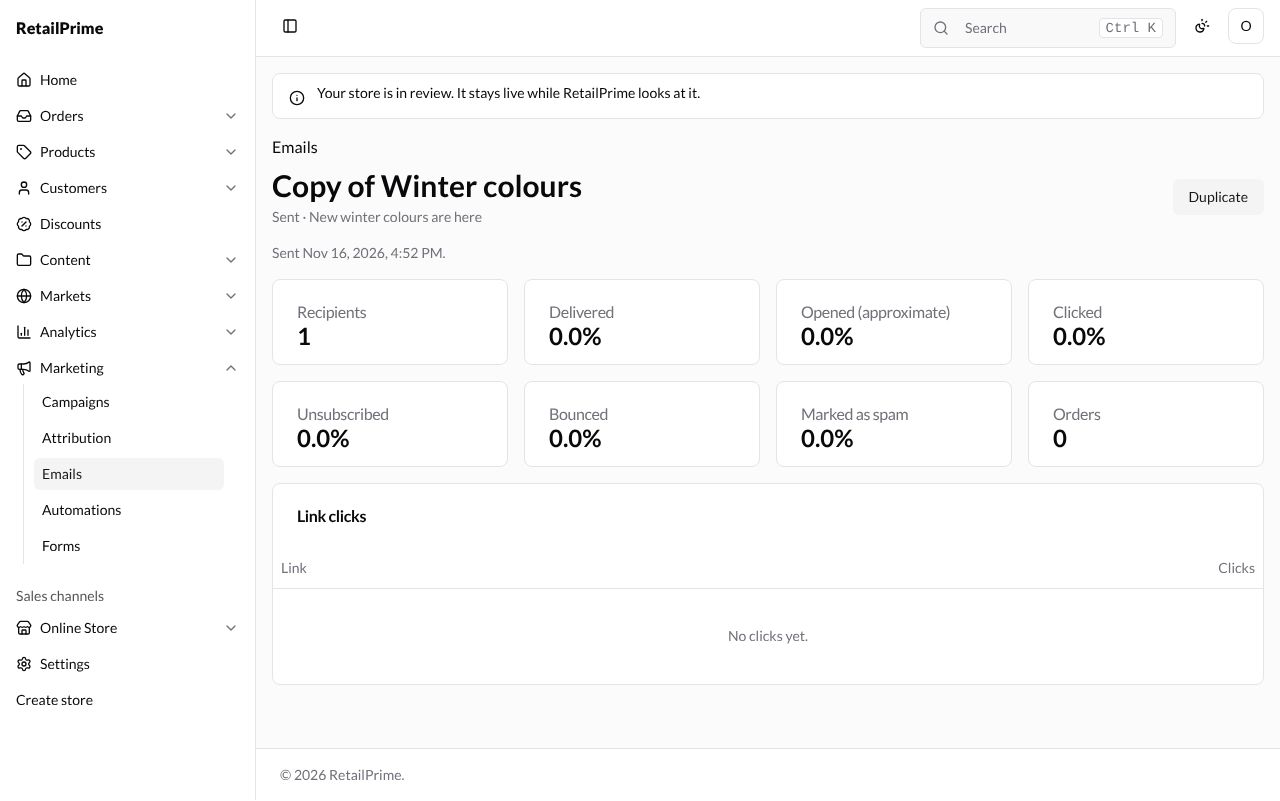
Open the sent email. Under its name it says Sent · … and Sent with the day and time. Its figures:
| Figure | What it means |
|---|---|
| Recipients | How many customers it was sent to |
| Delivered | The share that reached the inbox |
| Opened (approximate) | The share that opened it |
| Clicked | The share that pressed a link in it |
| Unsubscribed | The share that unsubscribed through it |
| Bounced | The share that could not be delivered |
| Marked as spam | The share that marked it as spam |
| Orders | Orders that came from the email |
Under them, Link clicks lists each link with its Clicks (No clicks yet. until someone presses one).
The emails list
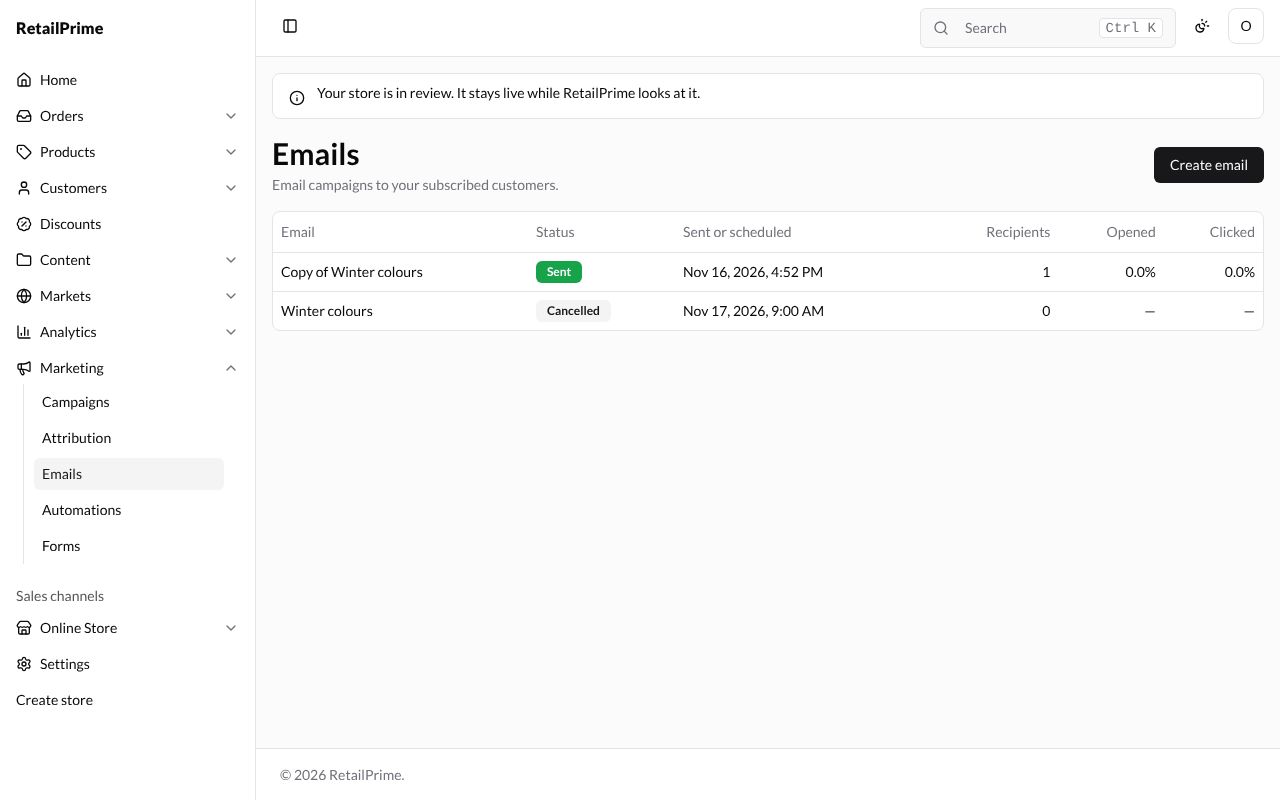
The Emails page lists each email with its Status (Draft, Scheduled, Sending, Sent, Cancelled or Paused), Sent or scheduled, Recipients, Opened and Clicked. Press a name to open it.
Delete a draft
Open a draft and press Delete draft in the Send card. It is deleted straight away, without asking, and you are back on the Emails list. Only drafts can be deleted.
What’s next
Automations: emails that go out by themselves.