The discounts list
Search and filter your discounts, then activate, deactivate, tag, export or delete many at once.
In the sidebar, press Discounts. Every discount is listed, codes and automatic ones together, 50 to a page.
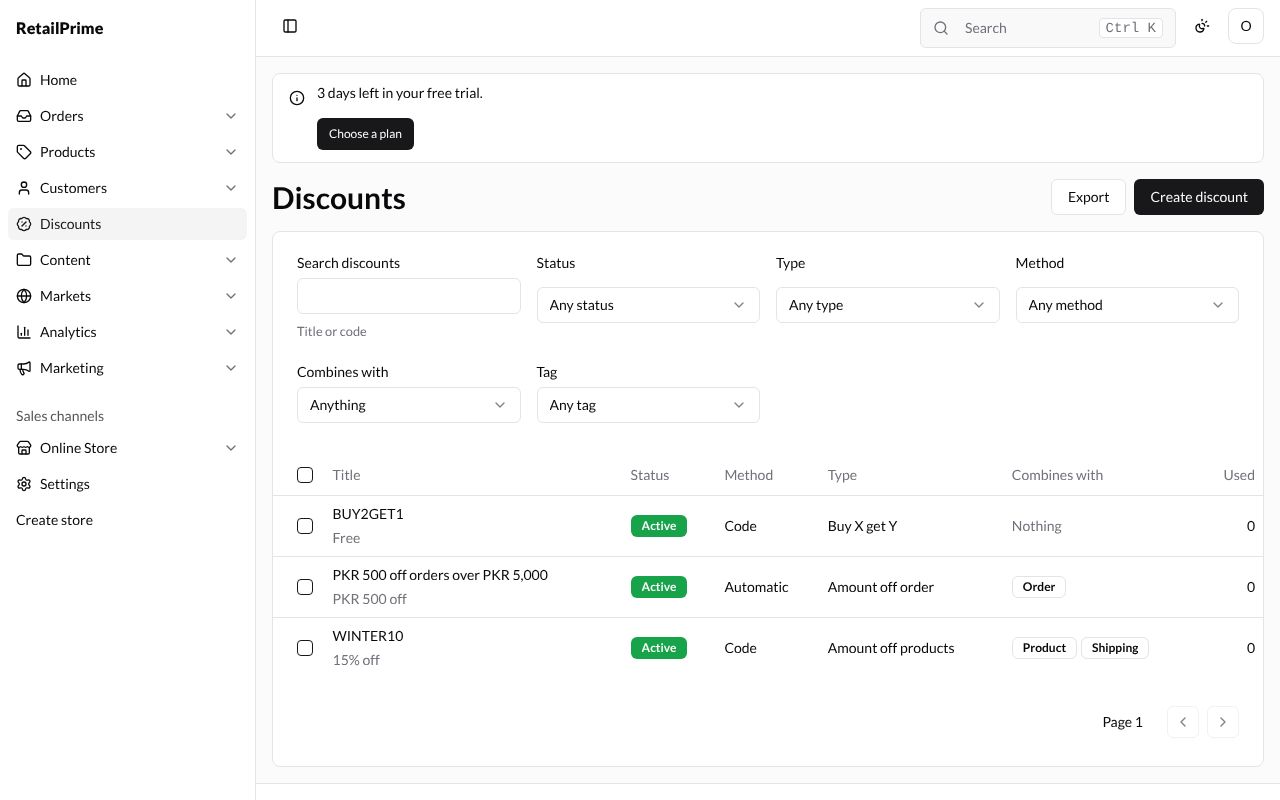
| Column | What it shows |
|---|---|
| Title | The code (for a code discount) or the title (for an automatic one), and under it the value, such as 15% off, PKR 500 off, Free or Free shipping. Press it to open the discount |
| Status | Active, Scheduled or Expired |
| Method | Code or Automatic |
| Type | Amount off products, Amount off order, Buy X get Y or Free shipping |
| Combines with | Product, Order and Shipping labels, or Nothing |
| Used | How many times it has been used in orders |
Search and filter
Above the list:
| Box | What it does |
|---|---|
| Search discounts | Type part of a Title or code, such as WINTER, and press Enter |
| Status | Any status, Active, Scheduled or Expired |
| Type | Any type or one of the four types |
| Method | Any method, Code or Automatic |
| Combines with | Anything, Product discounts, Order discounts or Shipping discounts |
| Tag | Any tag, or one of the tags your discounts have |
A filter applies as soon as you choose it. To see everything again, set it back to Any ….
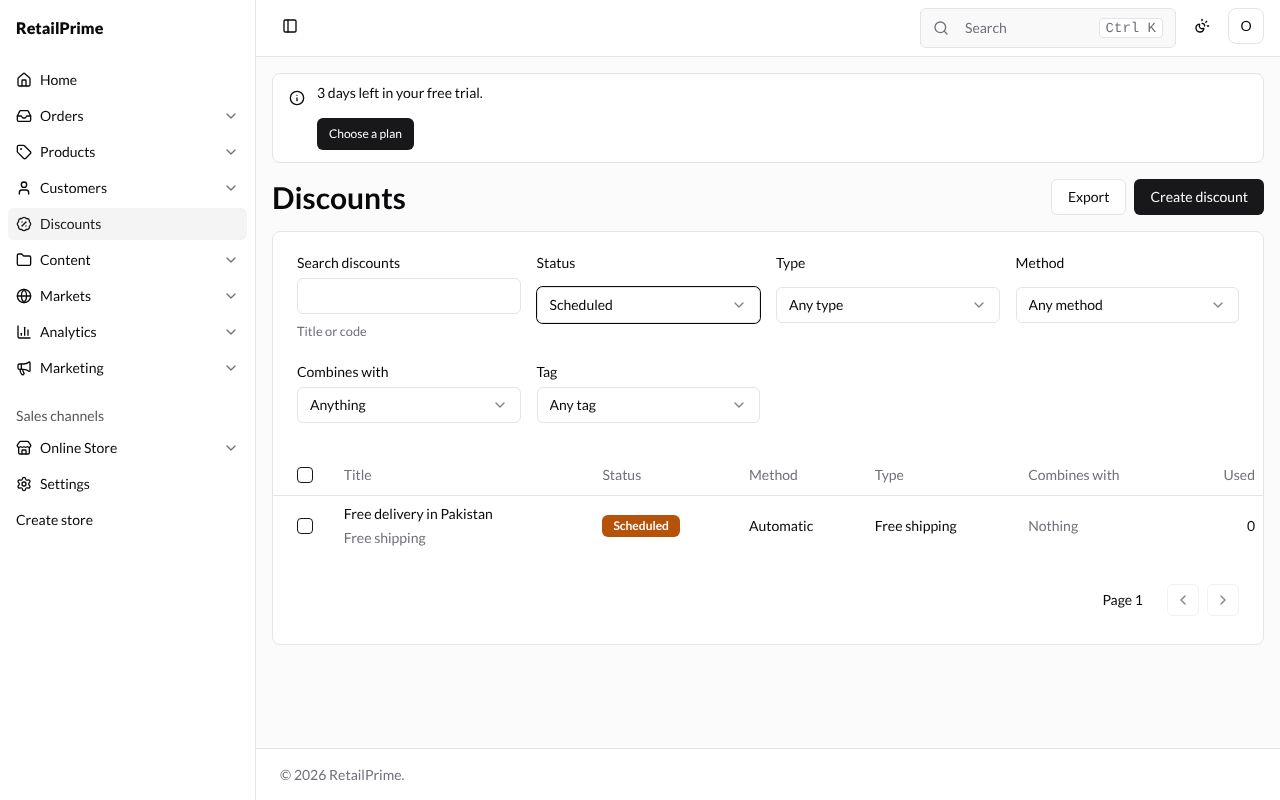
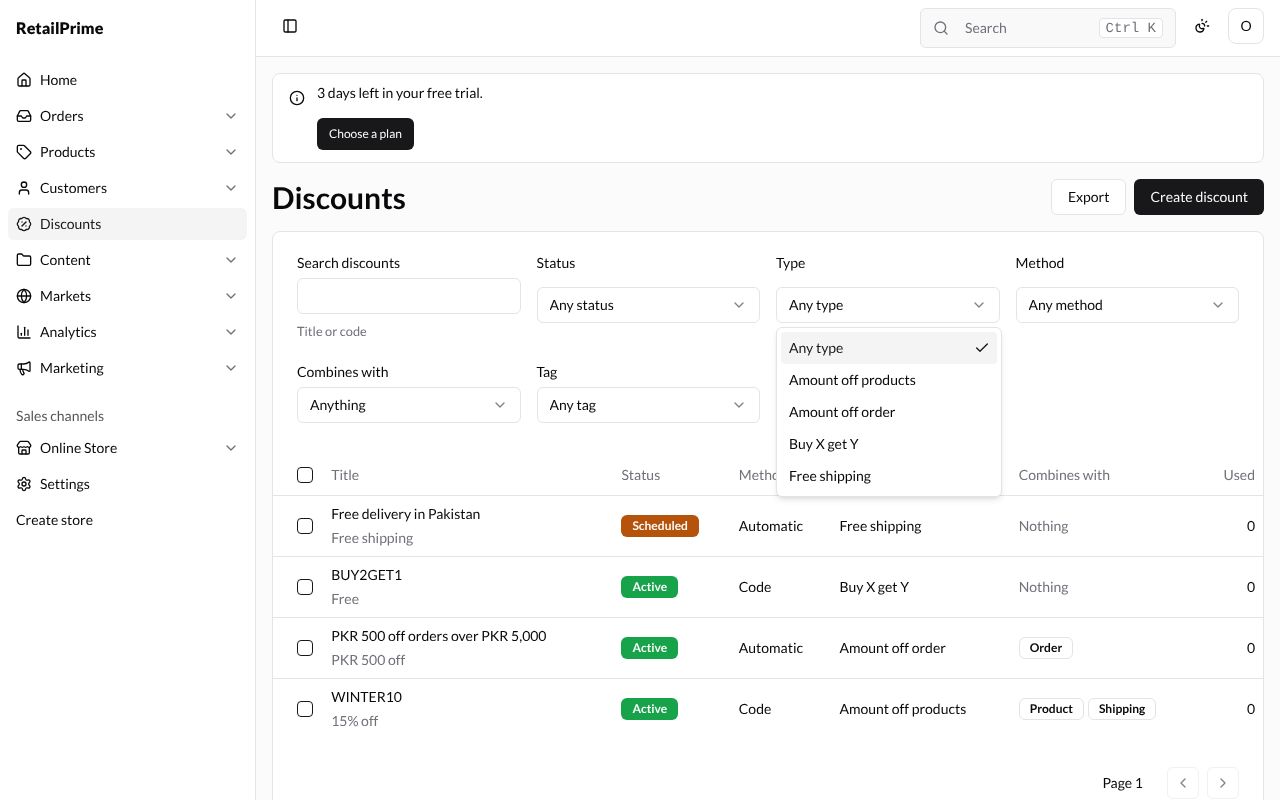
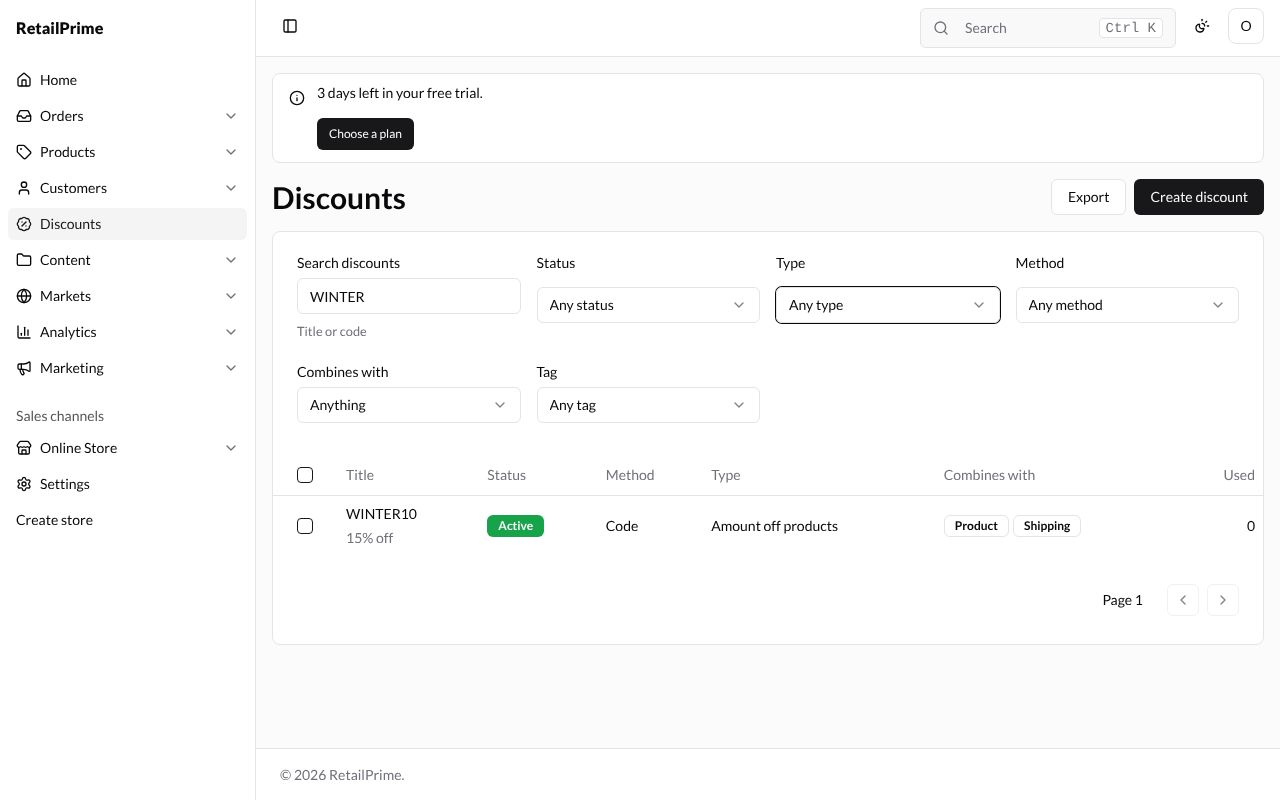
When nothing matches, the list says No discounts match your search and Try another title, code or filter.
Change many discounts at once
Tick the box in front of each discount (or the box in the heading row, for all of them). A bar appears above the list, such as 2 discounts selected, with these buttons:
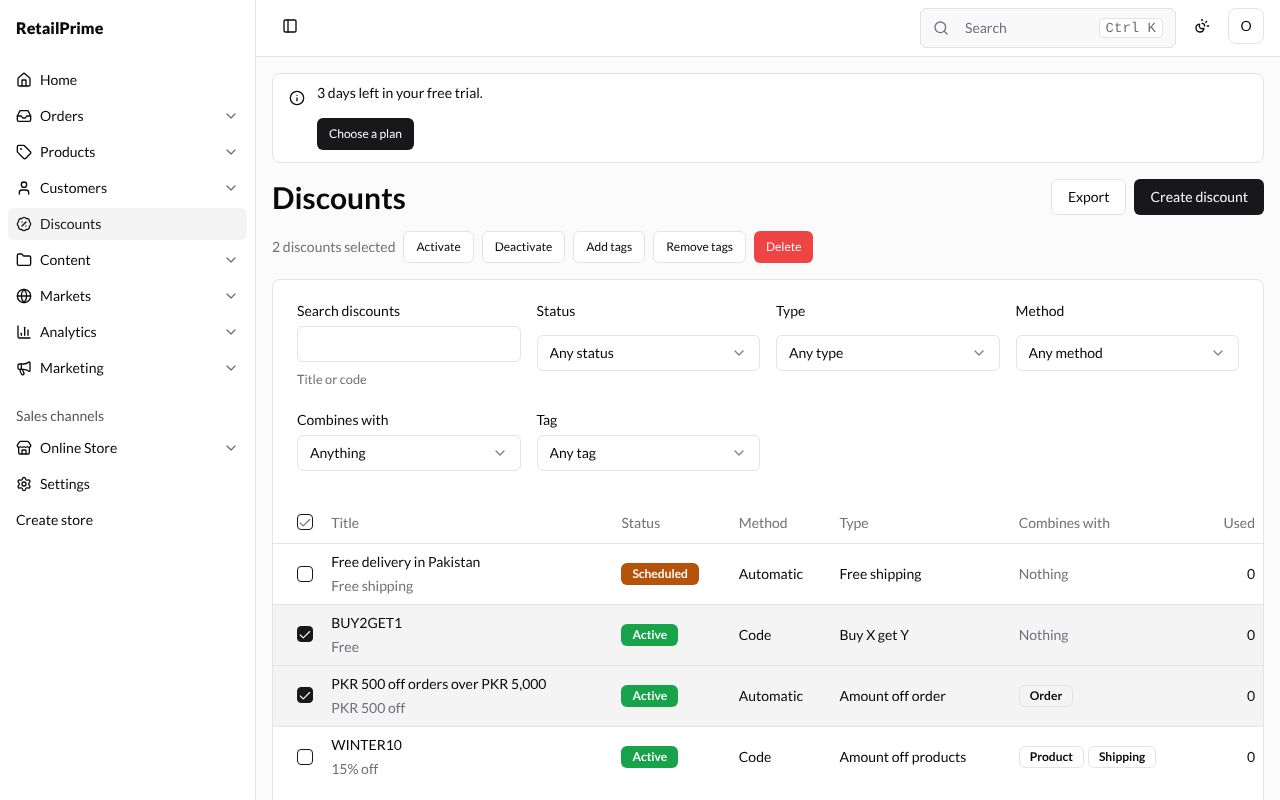
| Button | What it does |
|---|---|
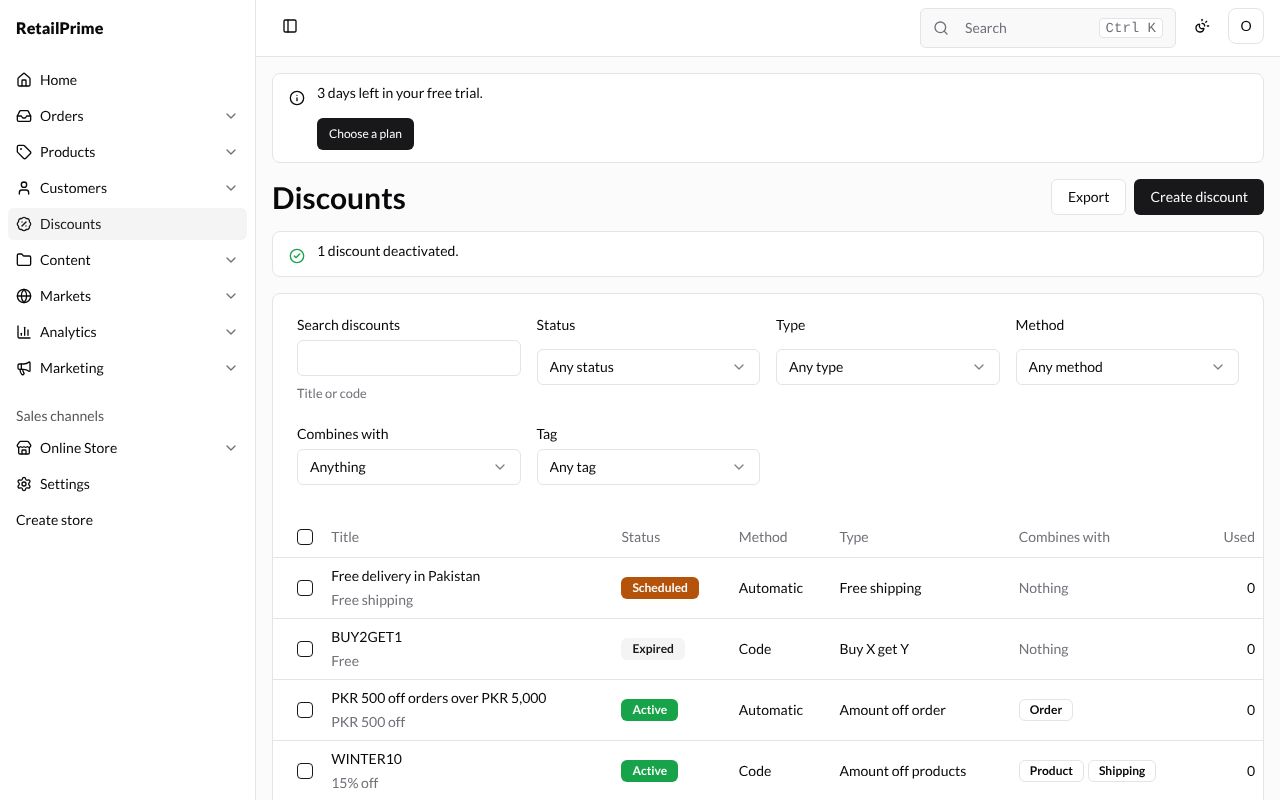
| Activate | Starts the ticked discounts now. The page says, for example, 1 discount activated. |
| Deactivate | Ends them now: they become Expired. The page says 1 discount deactivated. |
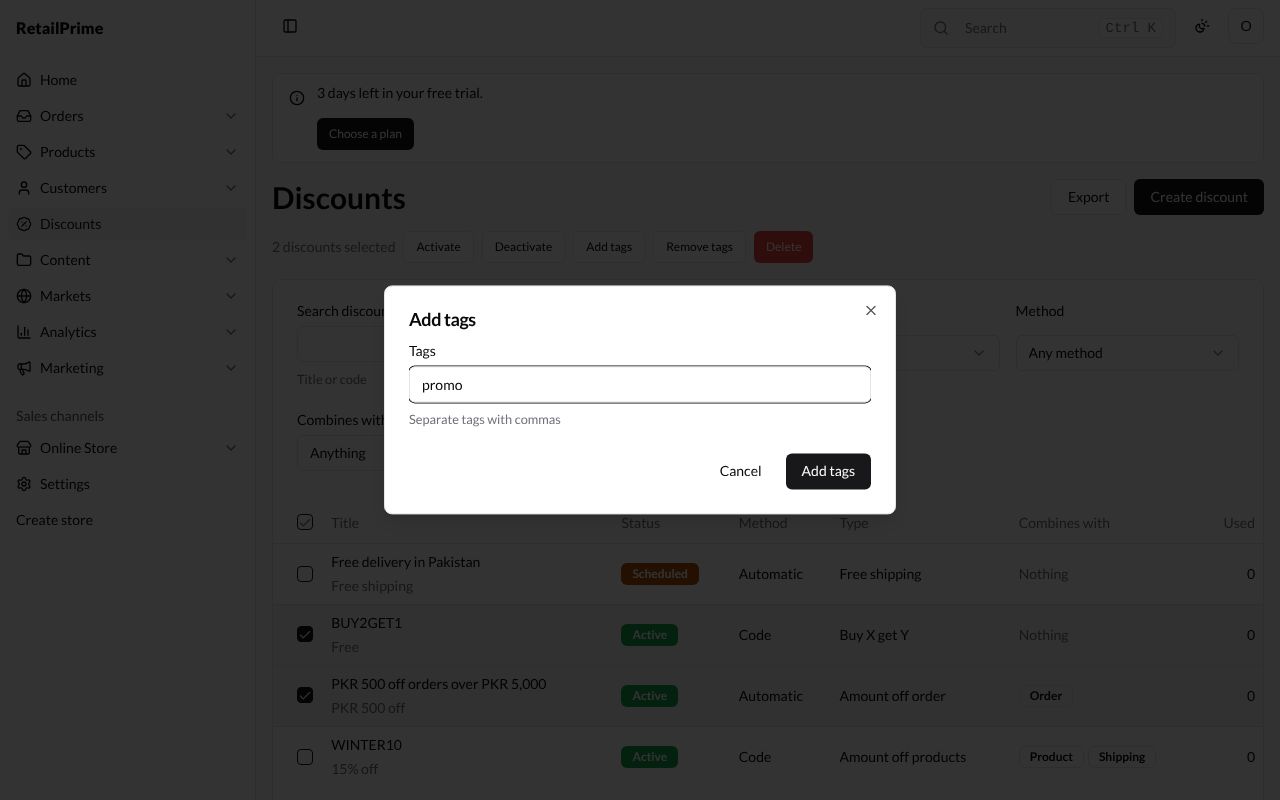
| Add tags | Opens a window with a Tags box (Separate tags with commas); press Add tags. The page says Tags added to 2 discounts. |
| Remove tags | The same window; the tags you type are taken off |
| Delete | Asks first (see below) |
Delete many
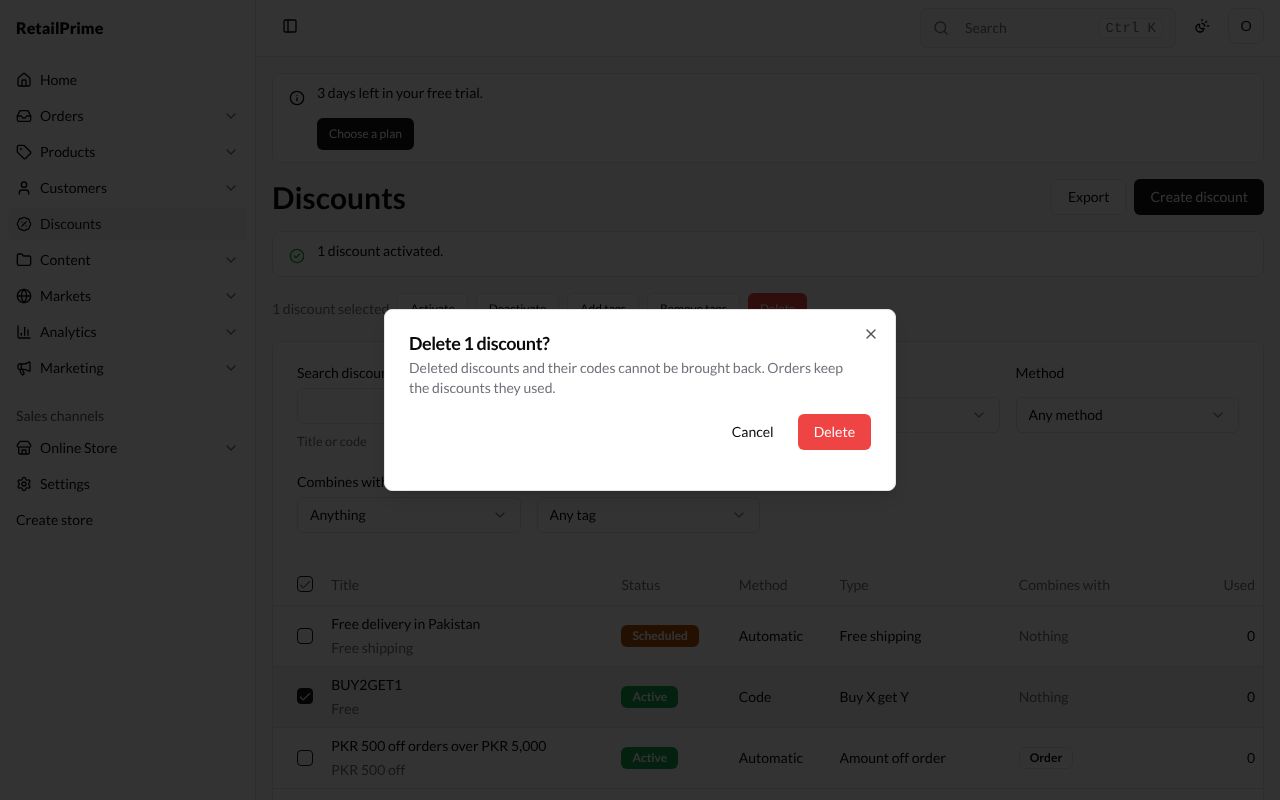
Press Delete on the bar. A window asks, for example, Delete 1 discount? and says Deleted discounts and their codes cannot be brought back. Orders keep the discounts they used. Press Delete. The page says 1 discount deleted.
Export
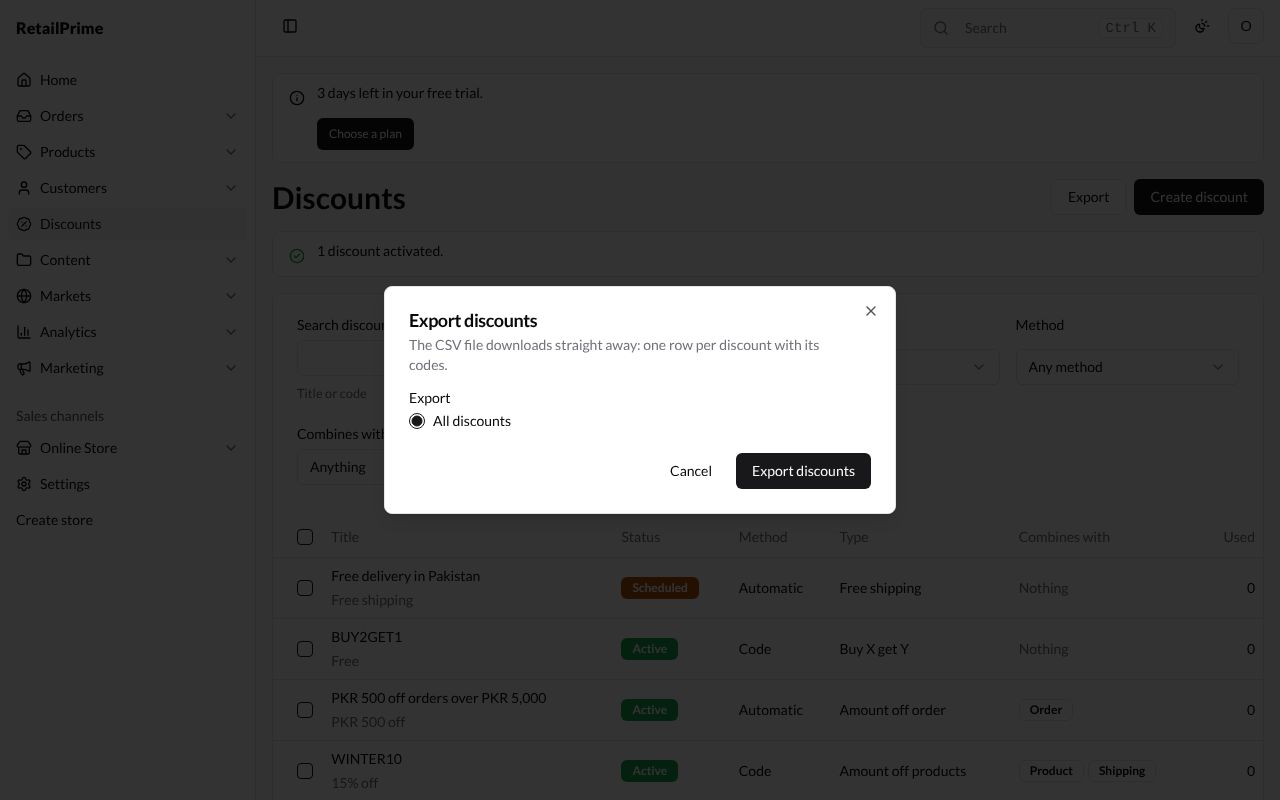
Press Export at the top right. The Export discounts window says The CSV file downloads straight away: one row per discount with its codes. Under Export, choose what to export:
- All discounts;
- Current search, when you have searched or filtered;
- Selected: …, when you have ticked discounts.
Press Export discounts. A CSV file downloads, which you can open in a spreadsheet.
What’s next
Marketing email settings: set up who your marketing emails come from, before you send any.