Marketing email settings
Choose who your marketing emails come from, where replies go, double opt-in and your monthly limit, before you send any.
Marketing is where you bring buyers to your store and keep them coming back: signup popups, emails to your subscribers, emails that go out by themselves, and campaigns with links you can track. Before you send any marketing email, set up the sender.
The Marketing page, before you start
In the sidebar, press Marketing. Its page says The last 30 days, against the 30 days before. A new store has no figures yet: No campaigns yet., No sessions in this period. and No emails yet. The Automations table lists the five automations; only Abandoned checkout is On.
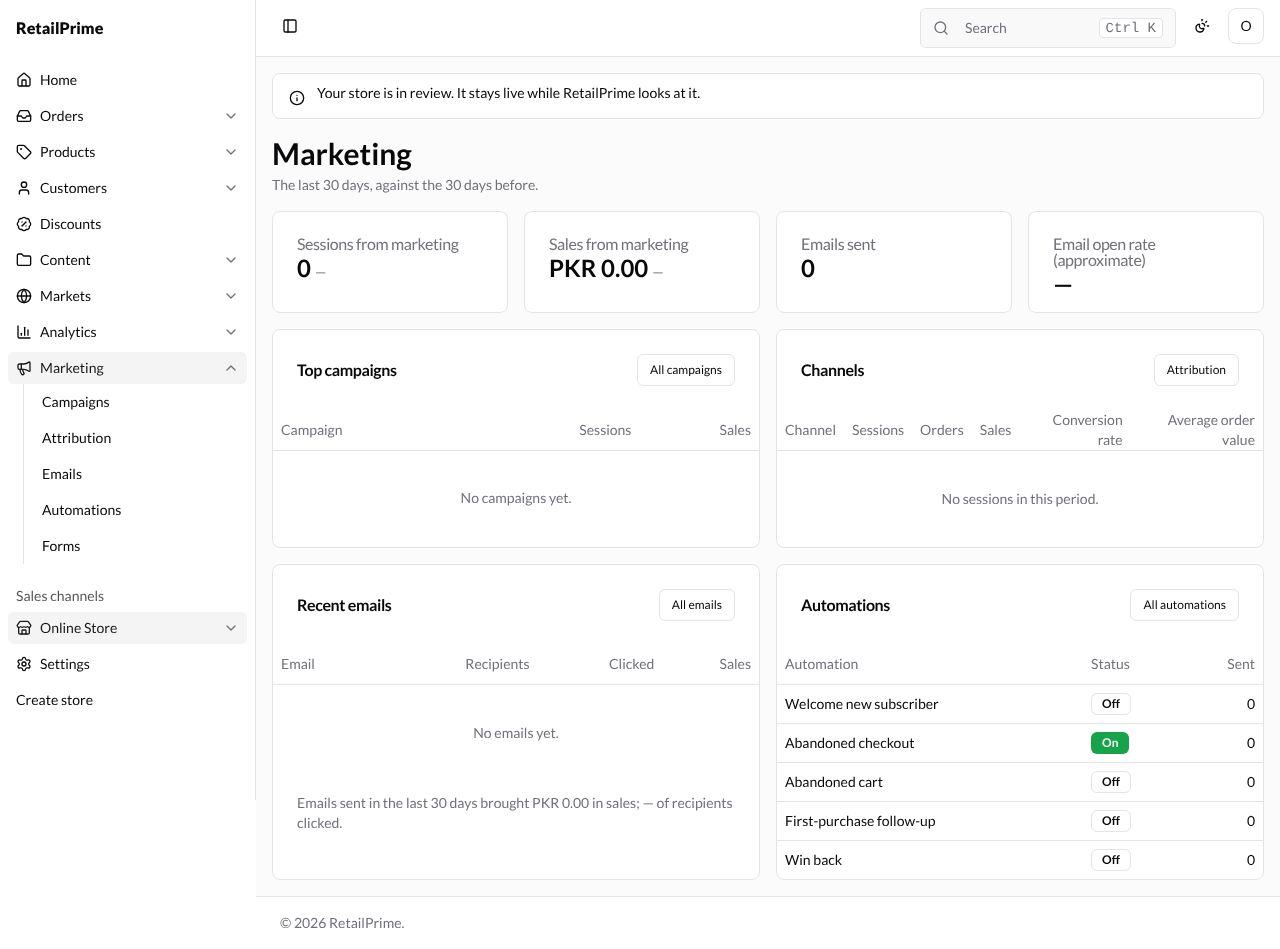
The last page of Marketing shows it again with figures.
Open Settings → Marketing email
In the sidebar, press Settings, then Marketing email. The page says Who your marketing emails come from, how buyers subscribe, and how many you can send.
At first a yellow box says Set a sender email in Settings → Marketing email, where replies go.
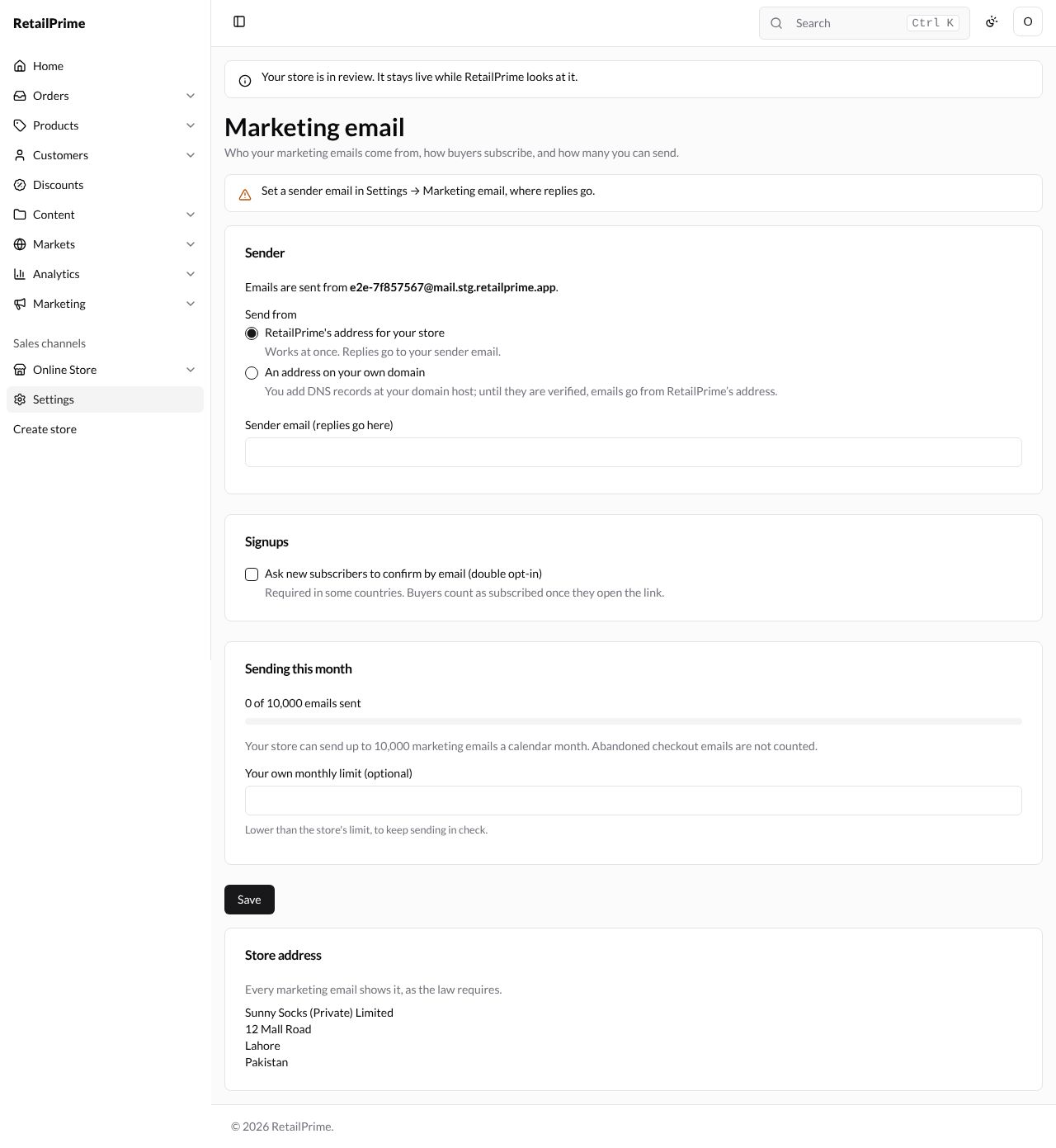
Sender
The card says which address your emails are sent from, such as Emails are sent from …@mail.stg.retailprime.app. Under Send from, choose:
| Choice | What it means |
|---|---|
| RetailPrime’s address for your store | Works at once. Replies go to your sender email. Then type your Sender email (replies go here) |
| An address on your own domain | You add DNS records at your domain host; until they are verified, emails go from RetailPrime’s address. The box is then called Send from: Such as news@yourdomain.com. Free mailbox addresses (Gmail, Yahoo, Outlook) cannot be used. |
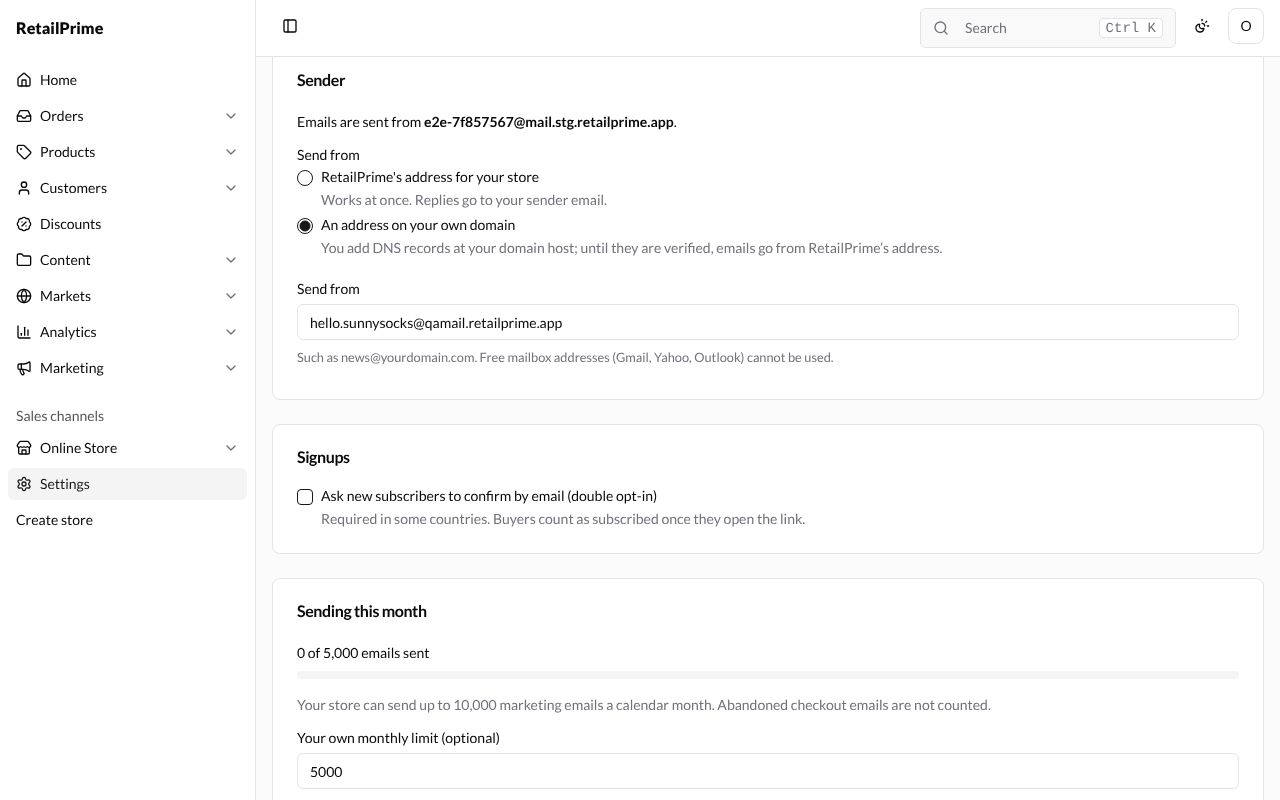
For staging, choose RetailPrime’s address for your store and type an @qamail.retailprime.app address, such as hello.sunnysocks@qamail.retailprime.app.
Signups
Ask new subscribers to confirm by email (double opt-in): Required in some countries. Buyers count as subscribed once they open the link. Leave it off to try things quickly on staging.
Sending this month
It shows how many marketing emails went out this month, such as 0 of 10,000 emails sent, with a bar, and says Your store can send up to 10,000 marketing emails a calendar month. Abandoned checkout emails are not counted.
Your own monthly limit (optional): a lower limit of your own, to keep sending in check, such as 5000.
Store address
Every marketing email shows it, as the law requires. It is your store’s address from Settings → General. When the store has none, the card says Your store has no address, which every marketing email must show.
Save
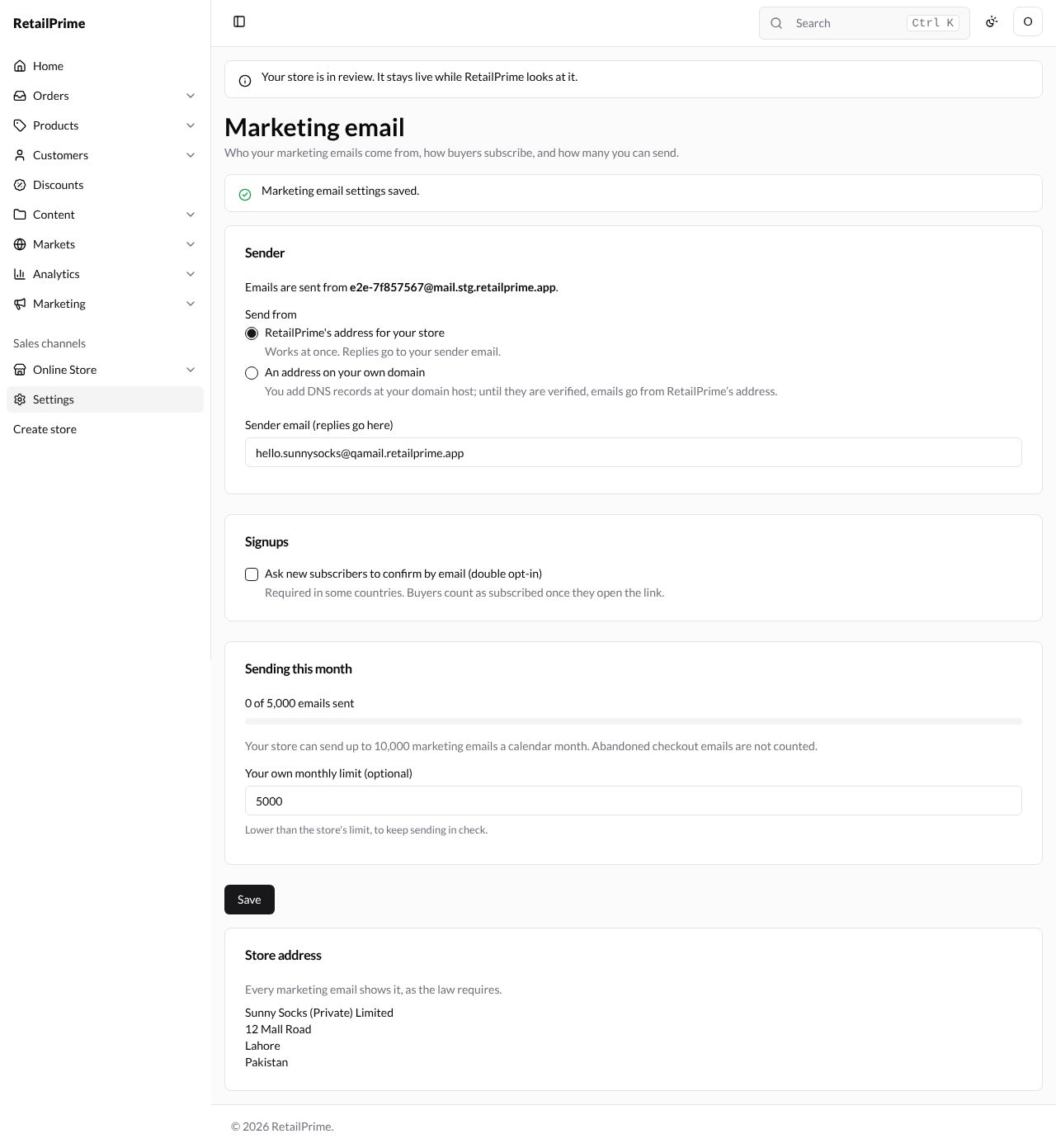
Press Save. The page says Marketing email settings saved., the yellow box goes away, and Sending this month counts against your own limit (0 of 5,000 emails sent).
What’s next
Signup forms: a popup on your store that collects subscribers.