The products list
Find products with views, search and sort, change many at once, and download them as a file.
Press Products in the sidebar to see every product in your store.
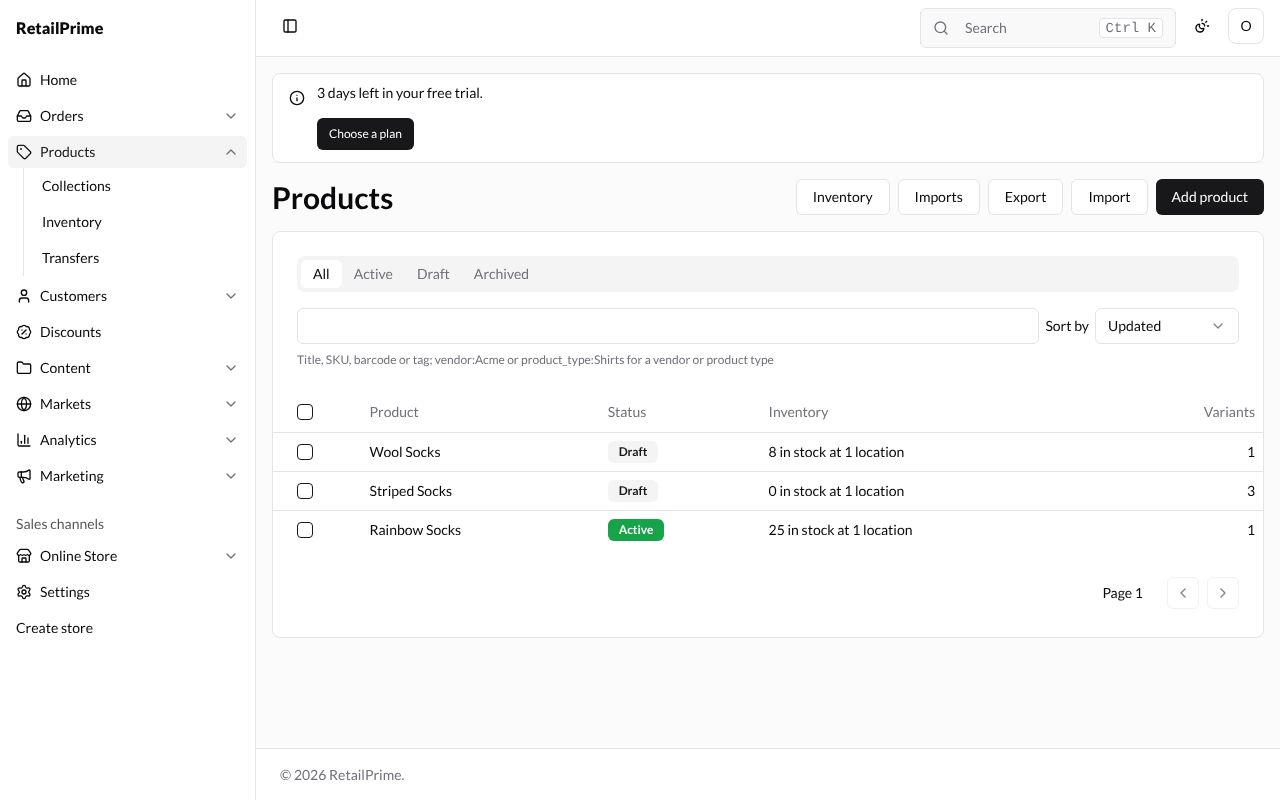
What the list shows
| Column | What it means |
|---|---|
| Product | The product’s name. Press it to open the product |
| Status | Active (green) can be sold; Draft can’t yet |
| Inventory | How many you have, and at how many locations, such as 25 in stock at 1 location |
| Variants | How many versions the product has (see Options and variants) |
The buttons at the top right:
| Button | What it does |
|---|---|
| Inventory | Opens the Inventory page |
| Imports | Lists the CSV files you imported (see Import products and edit in bulk) |
| Export | Downloads your products as a file (below) |
| Import | Adds products from a CSV file (see Import products and edit in bulk) |
| Add product | Starts a new product (see Add a product) |
The list shows 50 products a page. When there are more, the arrows next to Page 1 at the bottom go to the next and previous pages.
Views
The tabs above the list show only some products:
- All: every product except archived ones.
- Active, Draft, Archived: only products with that status.
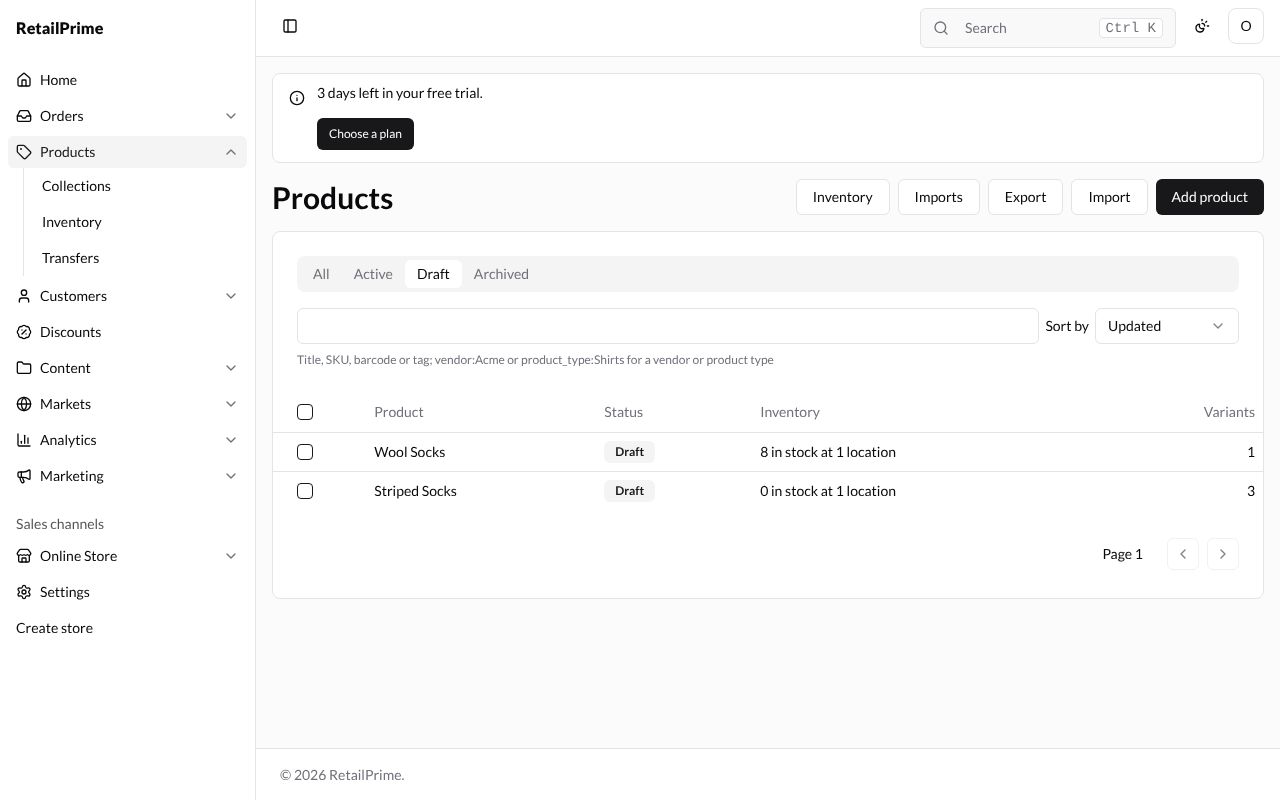
Here is the Draft view, without the active Rainbow Socks:
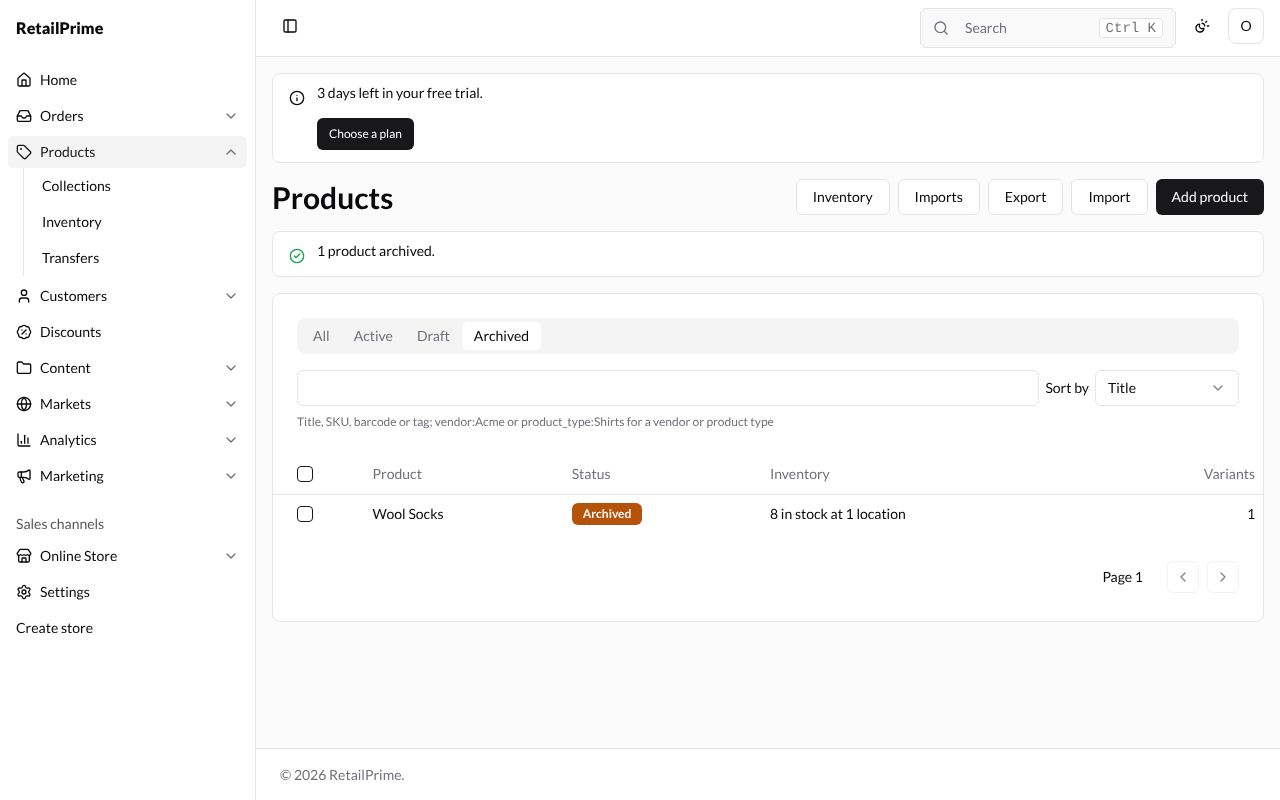
And the Archived view, after archiving Wool Socks (see Archive products below). Its status is Archived:
Search
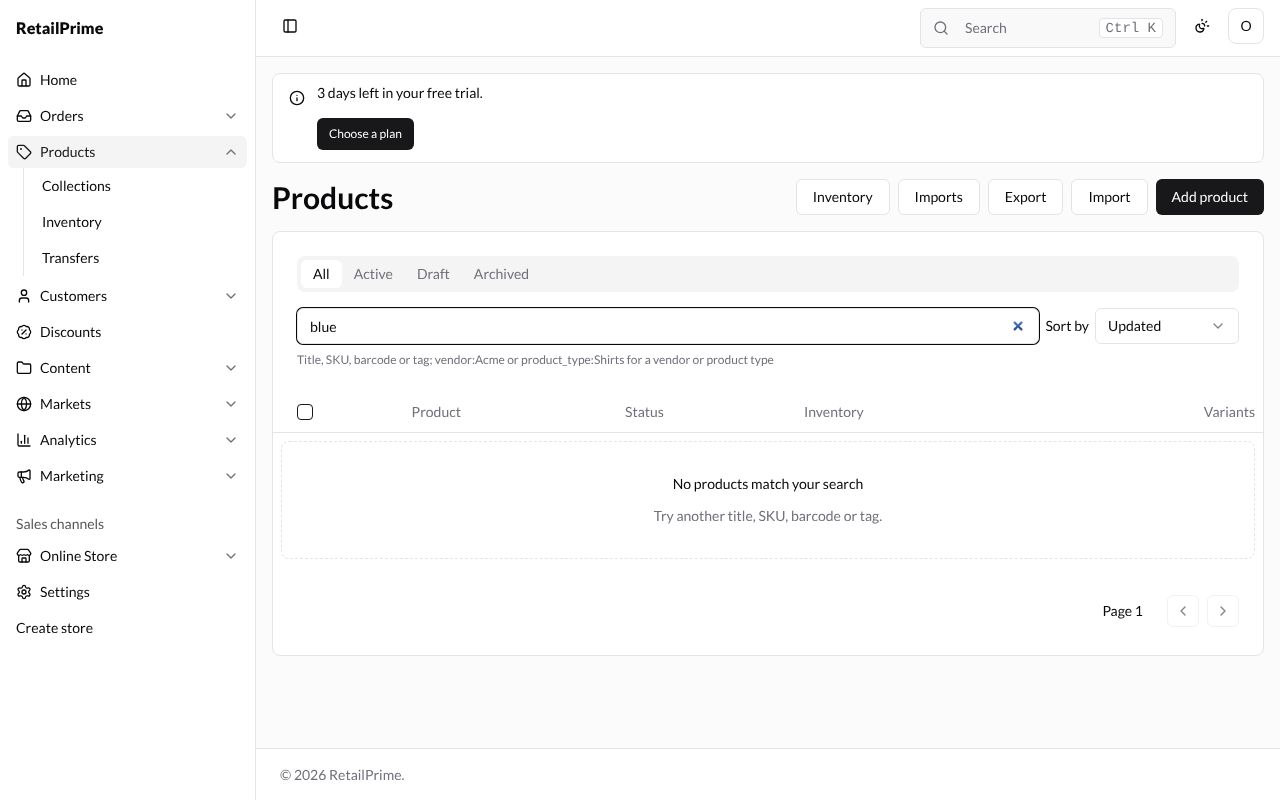
Type in the box under the views and press Enter on your keyboard. You can search by title, SKU, barcode or tag. Type vendor: or product_type: before a word to search by vendor or product type, such as vendor:Acme.
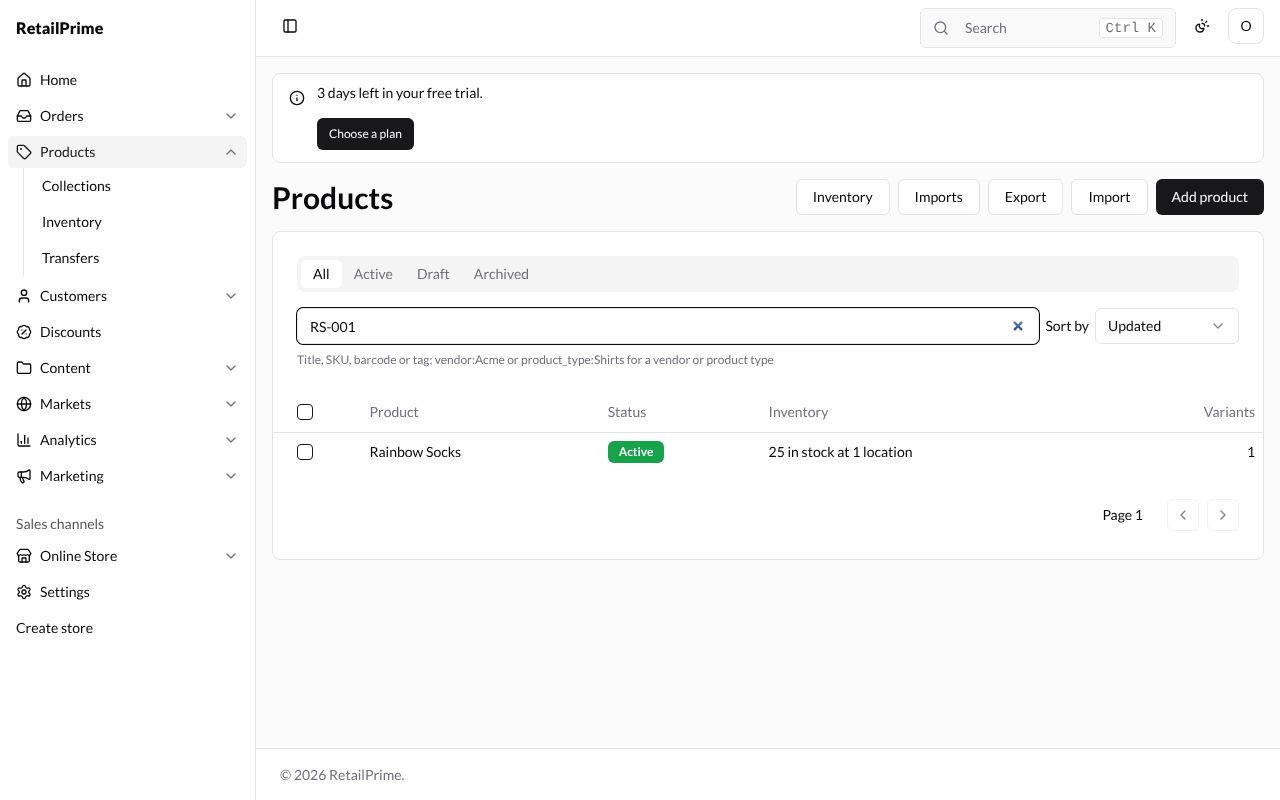
When nothing matches, the list says No products match your search. Empty the box and press Enter to see everything again.
Sort
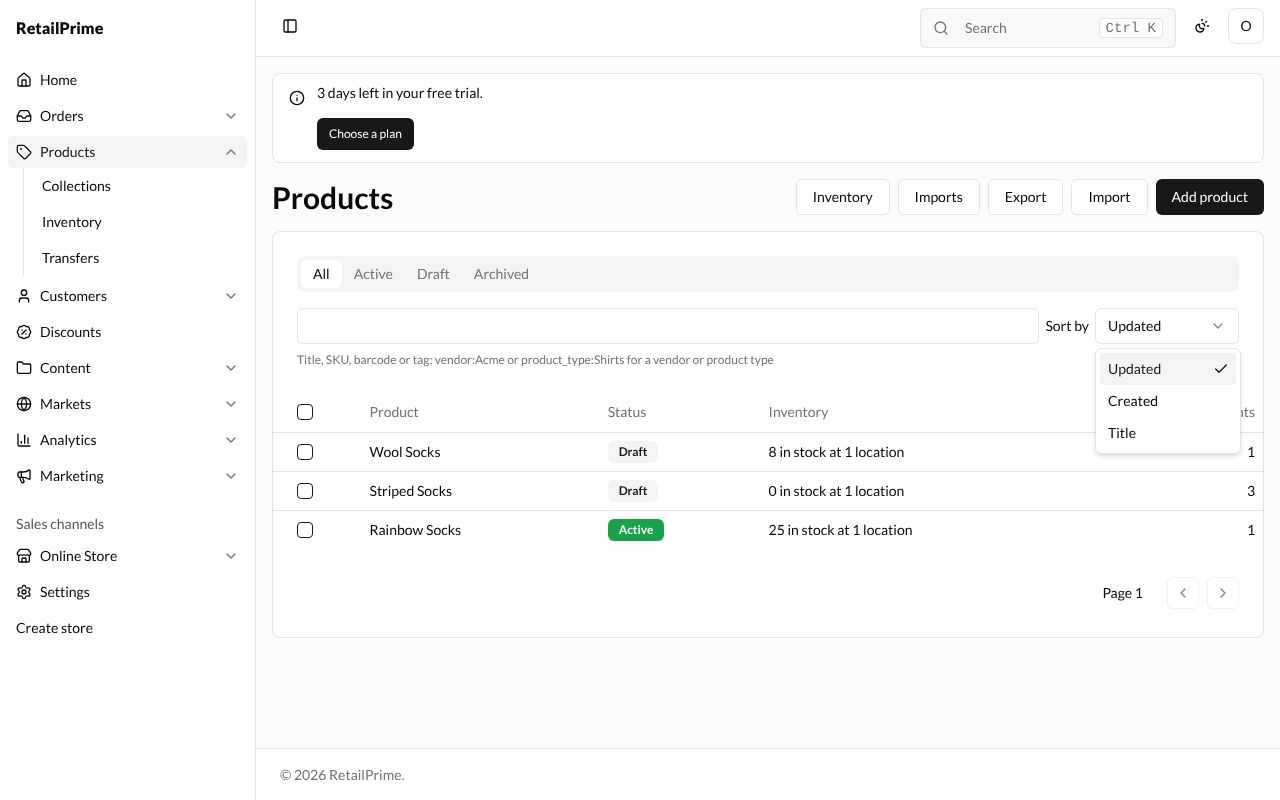
Press the box next to Sort by and choose:
- Updated: the most recently changed first (this is where it starts);
- Created: the newest first;
- Title: A to Z.
Change many products at once
- Tick the box at the start of each product you want. The box in the heading row ticks every product on the page.
- A bar appears above the list, saying how many you chose, such as 2 products selected, with a button for each thing you can do.
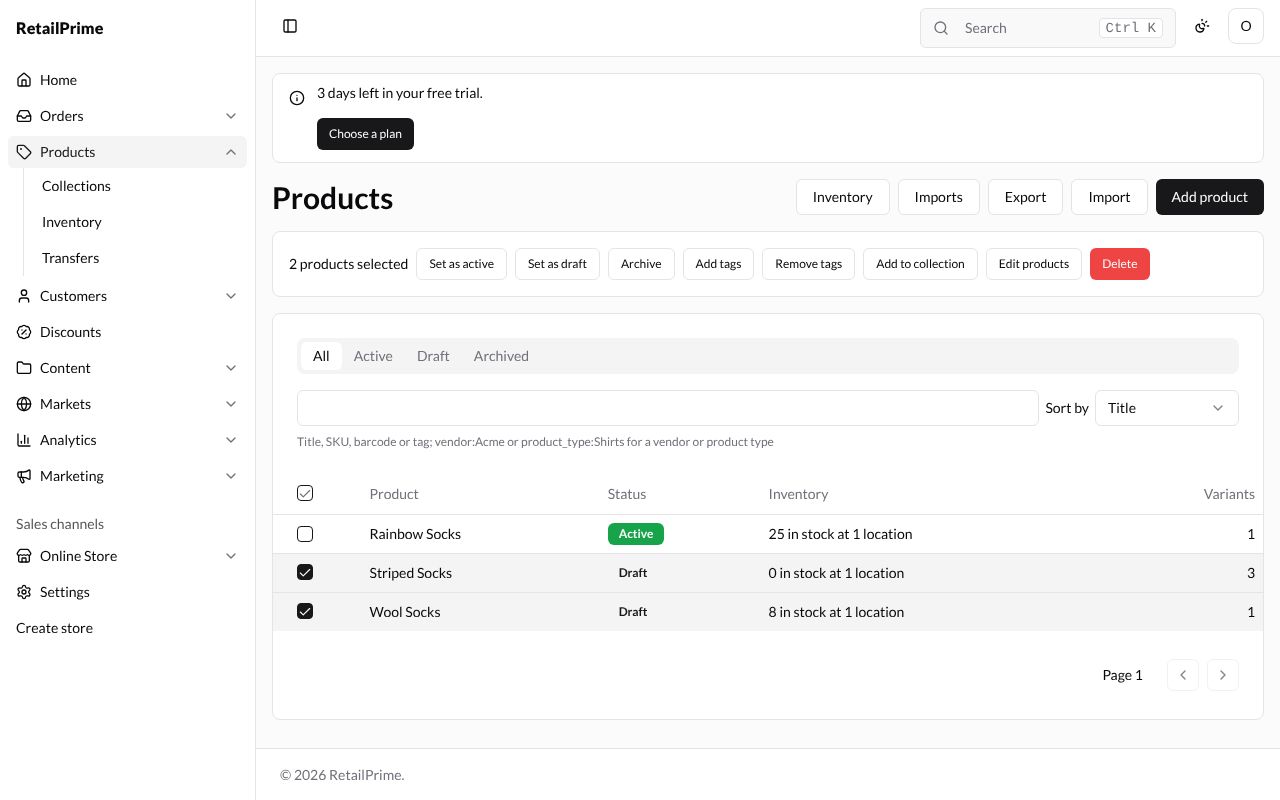
| Button | What it does |
|---|---|
| Set as active | Makes them all active, so they can be sold |
| Set as draft | Makes them all drafts |
| Archive | Archives them. They leave the All view and show under Archived |
| Add tags | Adds tags to all of them (below) |
| Remove tags | Takes tags off all of them |
| Add to collection | Puts them in a collection you choose (see Collections) |
| Edit products | Opens them all in one table to change titles, prices, SKUs and more (see Import products and edit in bulk) |
| Delete | Deletes them, after you confirm |
Add tags to several products
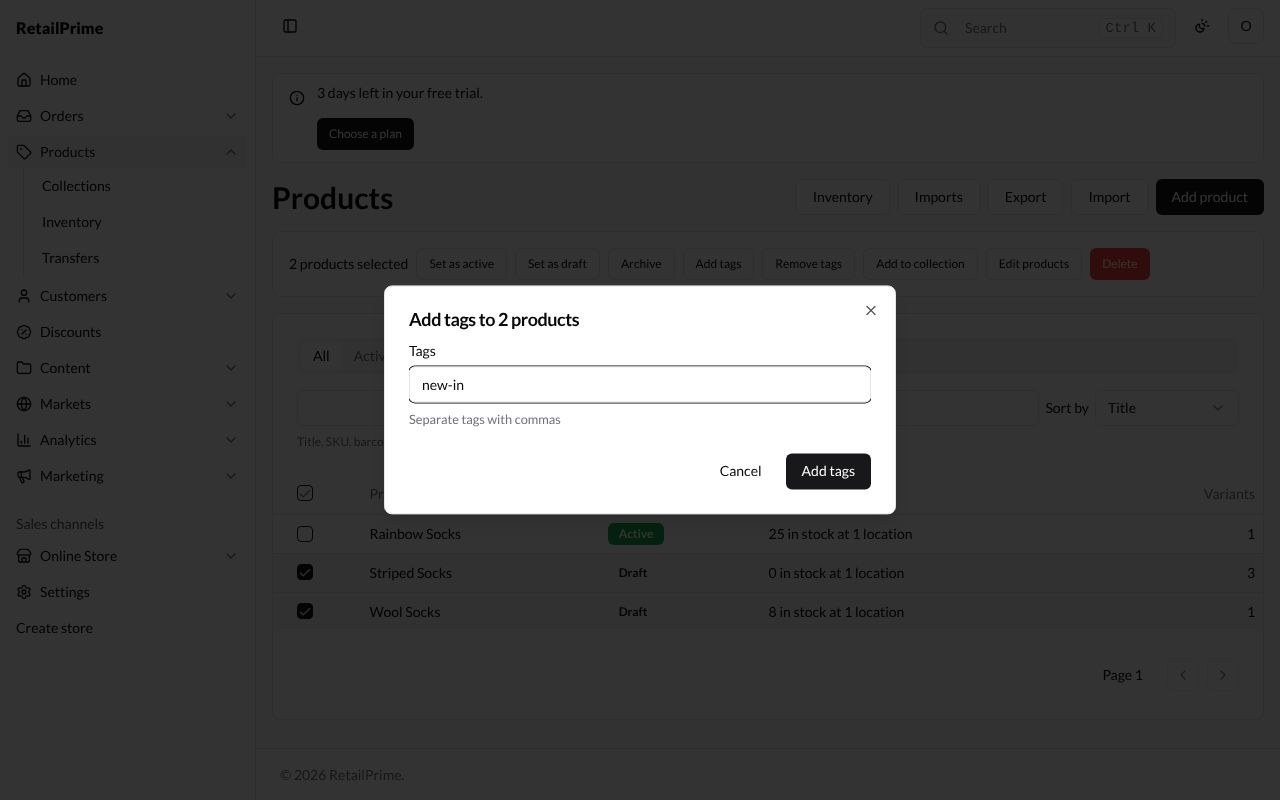
- Tick the products and press Add tags.
- A box opens: Add tags to 2 products. In Tags, type the tags, separated with commas, such as
new-in. - Press Add tags. The list says Tags added to 2 products.
Remove tags from several products
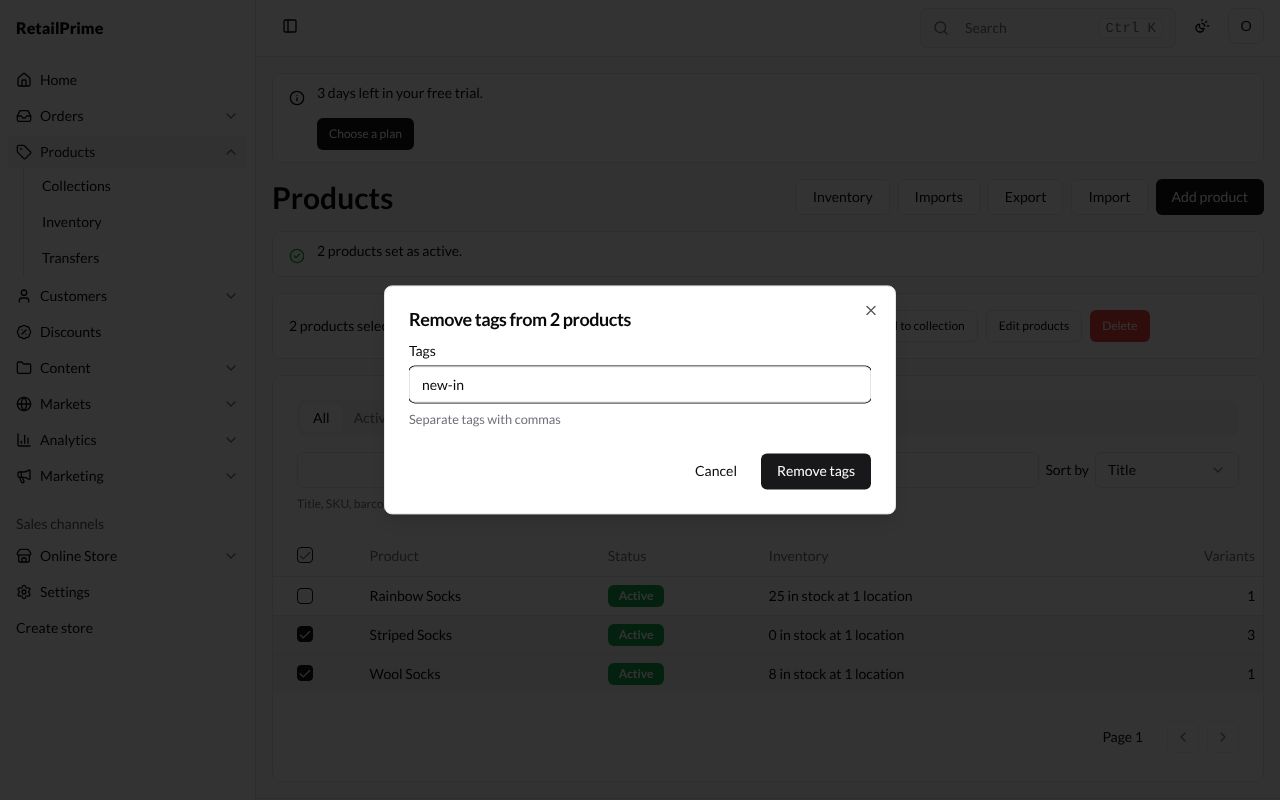
- Tick the products and press Remove tags.
- A box opens: Remove tags from 2 products. In Tags, type the tags to take off, separated with commas, such as
new-in. - Press Remove tags. The list says Tags removed from 2 products.
Change the status of several products
Tick the products and press Set as active. The list says 2 products set as active. and their status turns green.
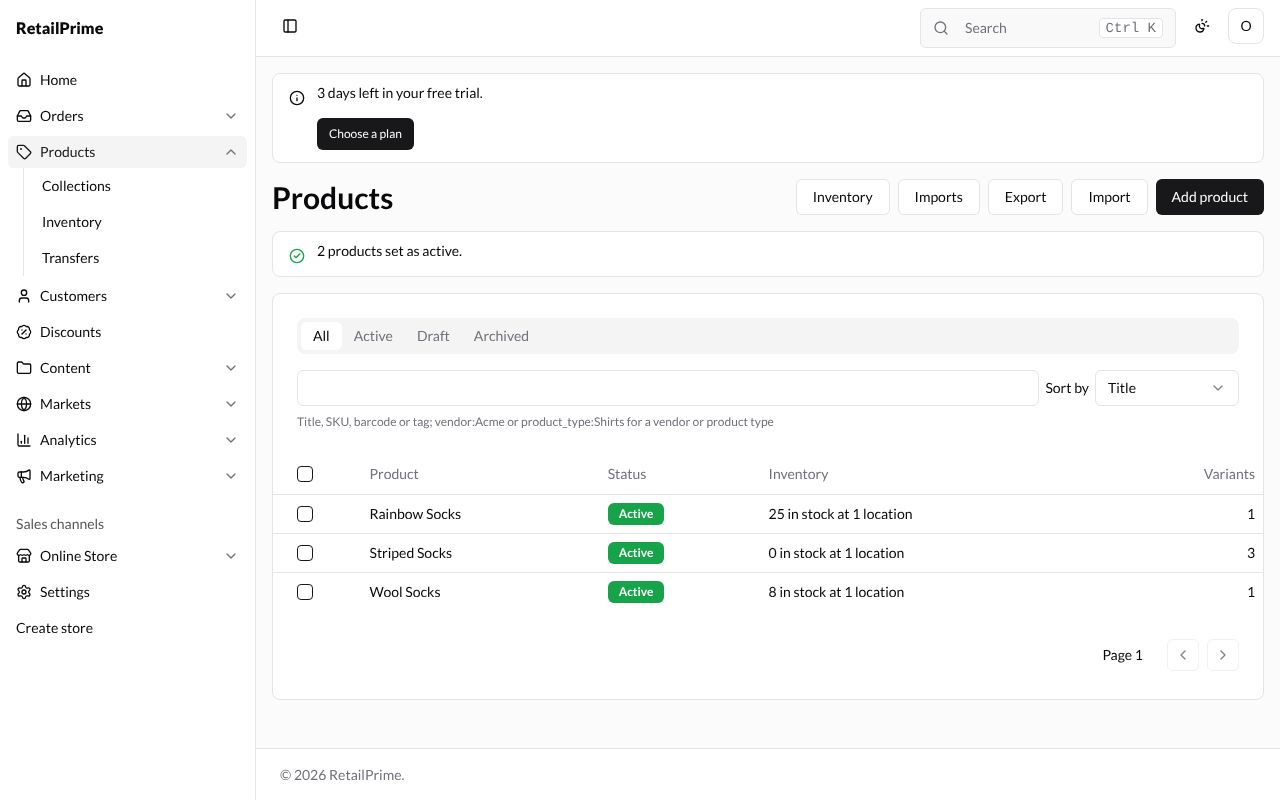
Set as draft works the same way.
Archive products
Archive a product you no longer sell but want to keep, such as last winter’s socks.
- Tick the products and press Archive. The list says, for example, 1 product archived.
- The product leaves the All view. Press the Archived tab to see it (picture above).
- To bring it back, open the Archived view, tick it and press Set as active or Set as draft.
Add several products to a collection
You need a manual collection first (see Collections).
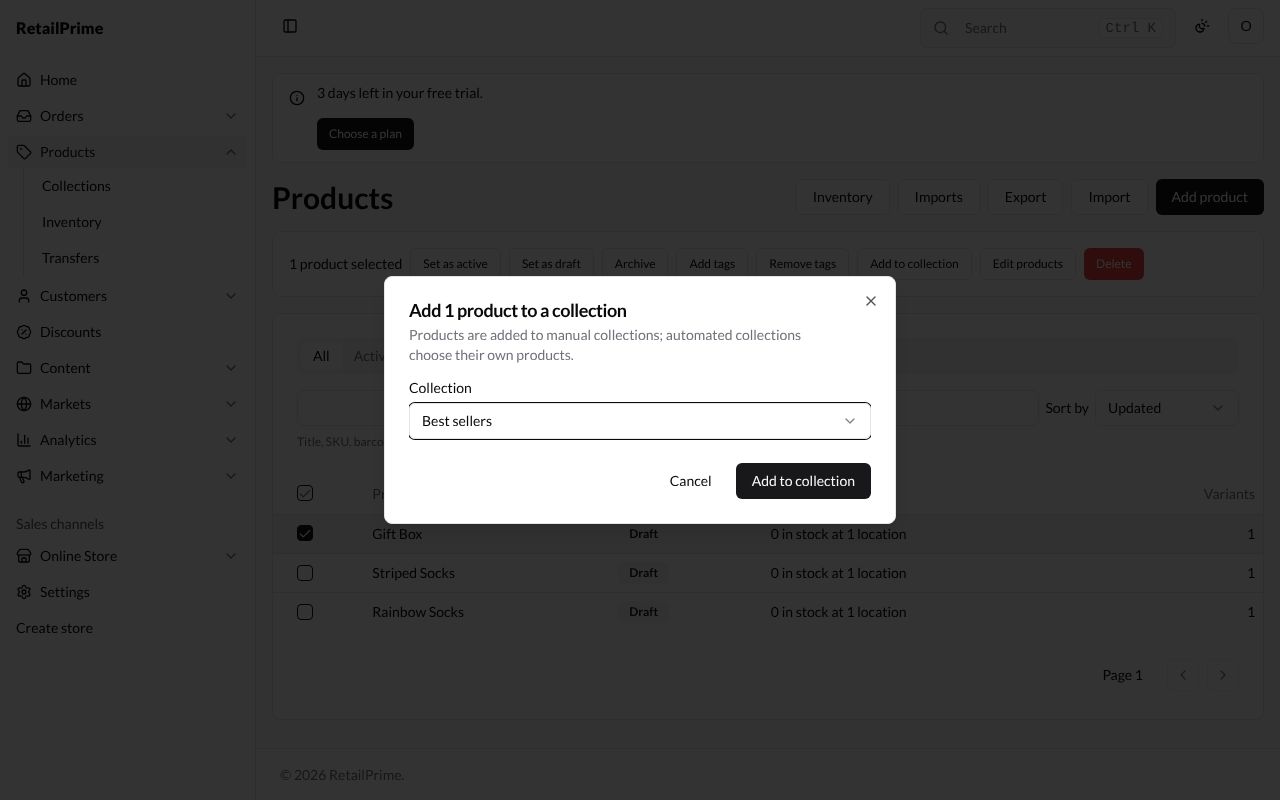
- Tick the products and press Add to collection.
- A box opens, such as Add 1 product to a collection. Products are added to manual collections; automated collections choose their own products.
- Press Collection and choose one, here Best sellers.
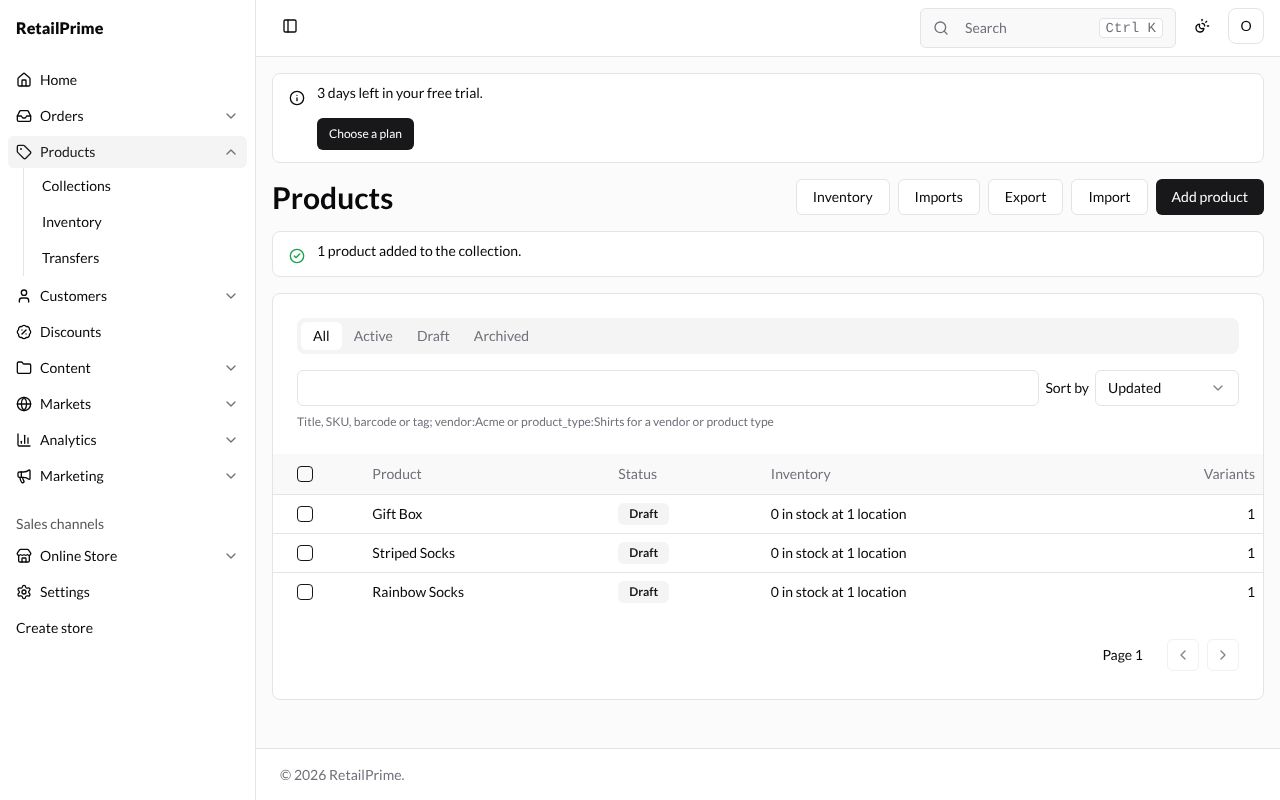
- Press Add to collection. The list says 1 product added to the collection.
Delete several products
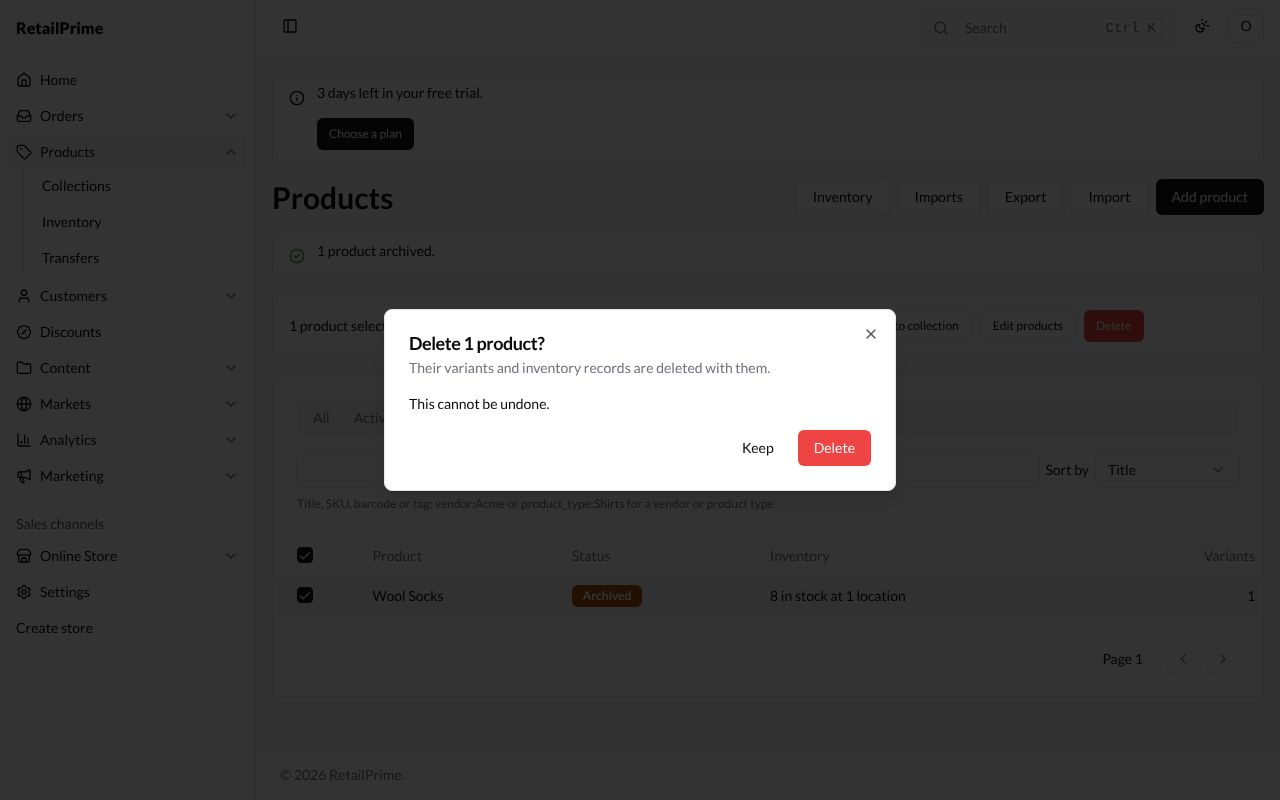
- Tick the products and press Delete (the red button in the bar).
- A box asks, for example, Delete 1 product? Their variants and inventory records are deleted with them.
- Press Delete, or Keep to change your mind. The list says 1 product deleted.
Export your products
Export downloads your products as a CSV file, which opens in a spreadsheet such as Excel or Google Sheets.
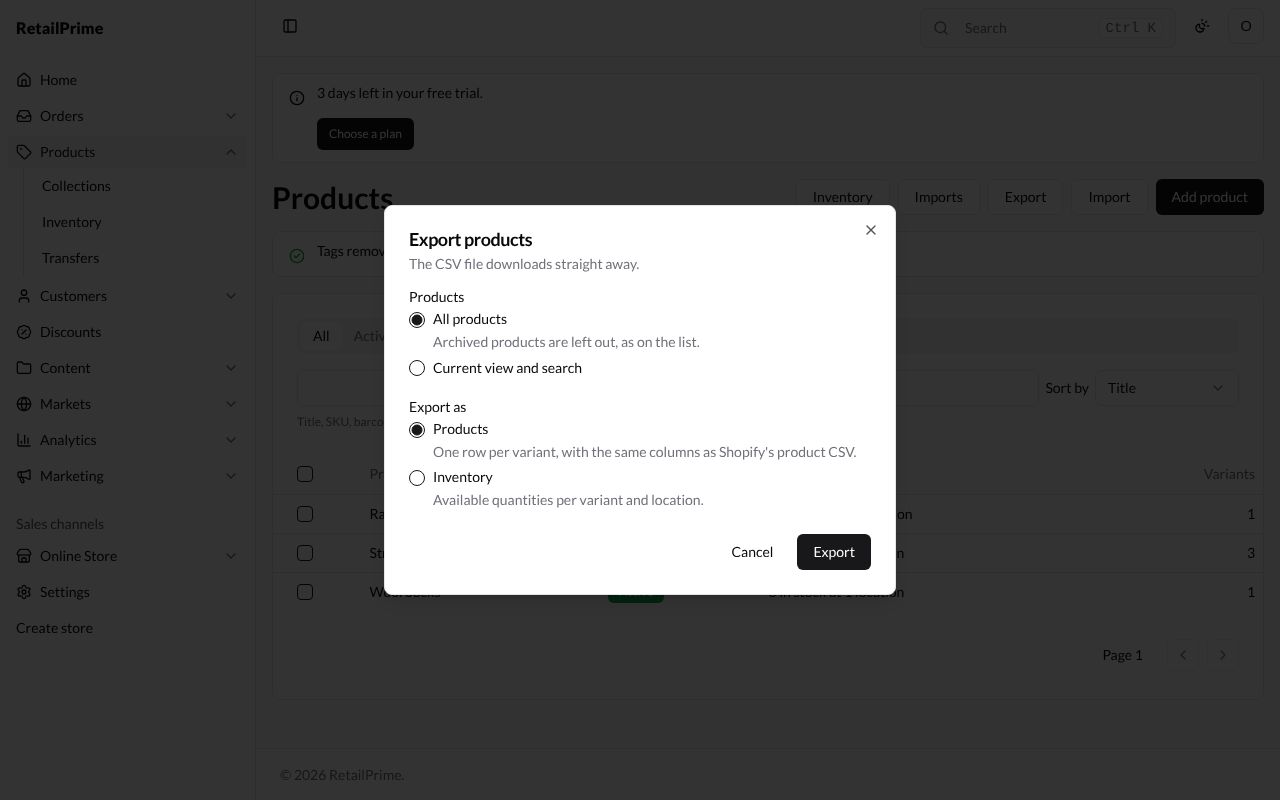
- Press Export at the top.
- Under Products, choose which ones:
- All products (archived products are left out, as on the list);
- Current view and search: only what the list shows now;
- Selected: when you ticked products first, only those.
- Under Export as, choose:
- Products: one row per variant, with the same columns as Shopify’s product CSV;
- Inventory: how many are available of each variant at each location.
- Press Export. The file downloads straight away:
products_export.csvfor Products, orinventory_export.csvfor Inventory.
What’s next
Group your products for buyers: Collections.