Edit, duplicate and delete a product
Change a product, make a copy of it, or remove it for good.
Edit a product
- Go to Products and press the product’s name in the list, such as Rainbow Socks.
- The product opens with the same cards you filled in when you added it.
- Change any box. For example, type
1400in Price. - Press Save at the bottom.
Duplicate a product
A copy saves typing when a new product is almost the same as one you have, such as the same socks in a new pattern.
- Open the product, here Striped Socks.
- Press Duplicate at the top right.
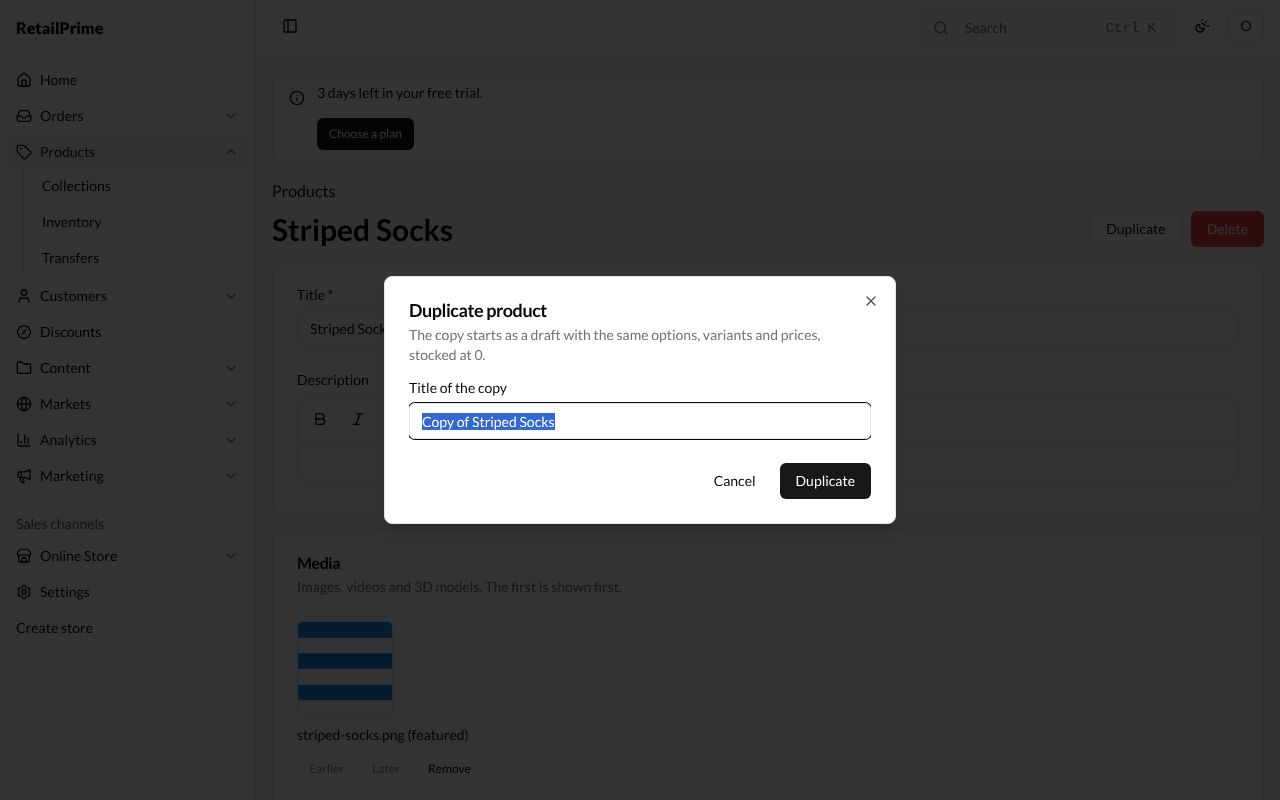
- A box opens: Duplicate product. It says the copy starts as a draft with the same options, variants and prices, stocked at 0.
- In Title of the copy, keep Copy of Striped Socks or type a new name.
- Press Duplicate.
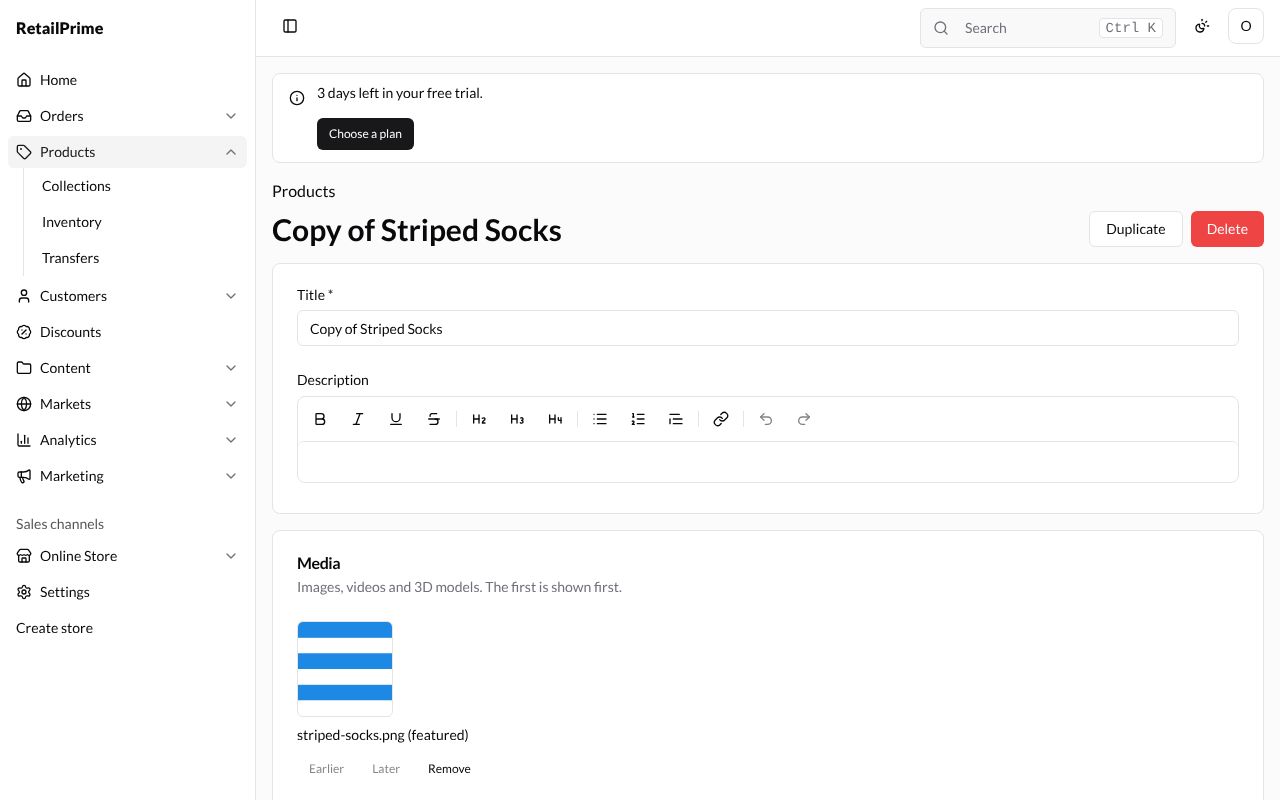
The copy opens straight away, titled Copy of Striped Socks. Change what you need and press Save.
Delete a product
- Open the product, here Copy of Striped Socks.
- Press Delete (the red button) at the top right.
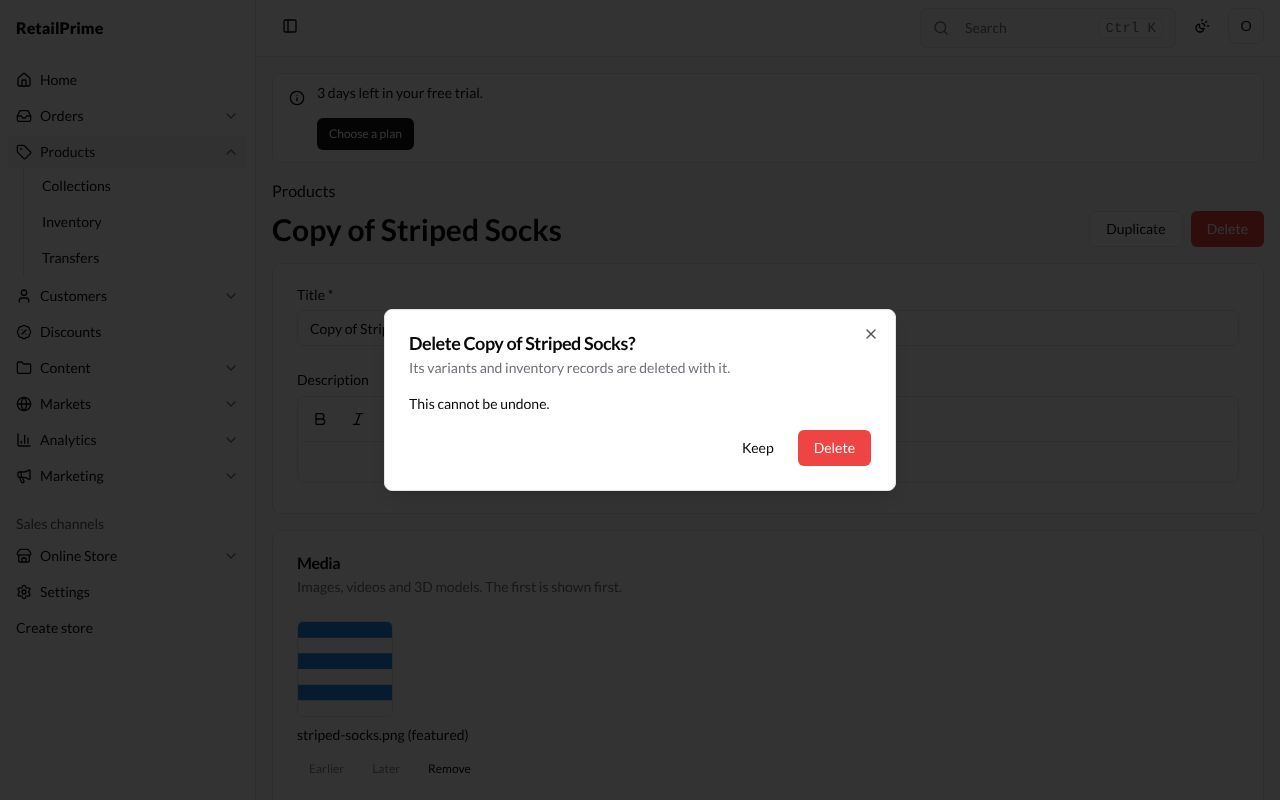
- A box asks Delete Copy of Striped Socks? It says its variants and inventory records are deleted with it.
- Press Delete to remove it, or Keep to change your mind.
You are back on the Products list, and the product is gone.
To delete several products at once, see The products list.
What’s next
The products list: find, sort and change many products at once.