Options and variants
Sell one product in sizes or colours, and change each version on its own page.
Some products come in versions: socks in sizes S, M and L, or in red and blue. In RetailPrime:
- an option is the thing that changes, such as Size;
- its values are the choices, such as S, M, L;
- each choice becomes a variant: a version with its own price, SKU and stock.
Add an option
- Go to Products and press Add product.
- Fill in the Title (here
Striped Socks), and the other cards as in Add a product. Type a Price and SKU too: the first variant keeps them. - In the Options card, press Add option.
- In Option 1 name, type the option, such as
Size. - In Option 1 values, type the choices, separated with commas, such as
S, M, L.
A Variants card appears at once, with one row for each value. Each row has its Price and SKU, which you can change here. Available says New until you save.
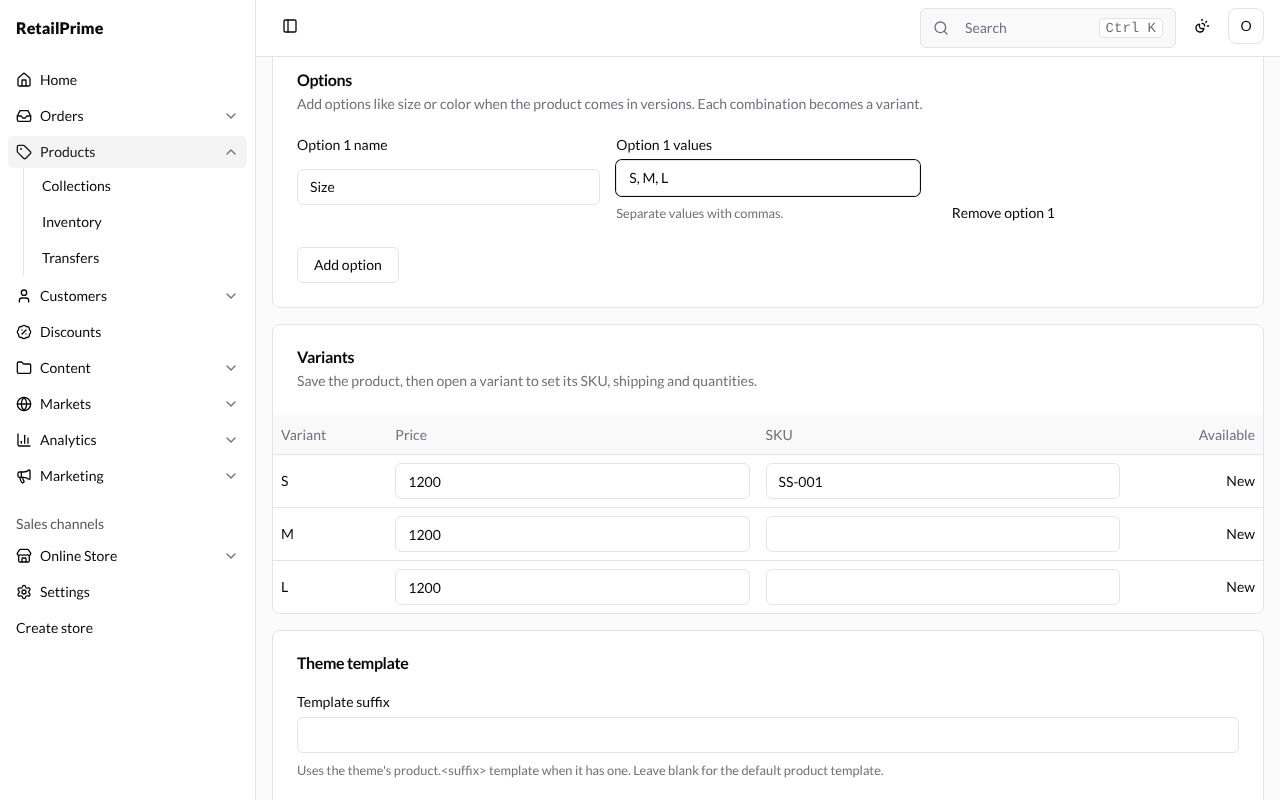
- Add option again adds a second option, such as Color. Every combination becomes a variant (for example S / Red, S / Blue and so on).
- Remove option 1 takes the option away.
- Change a variant’s price if it costs more. Here L costs
1300. - Press Save.
The variants table
After saving, each variant’s name is a link, and Available shows how many you have.
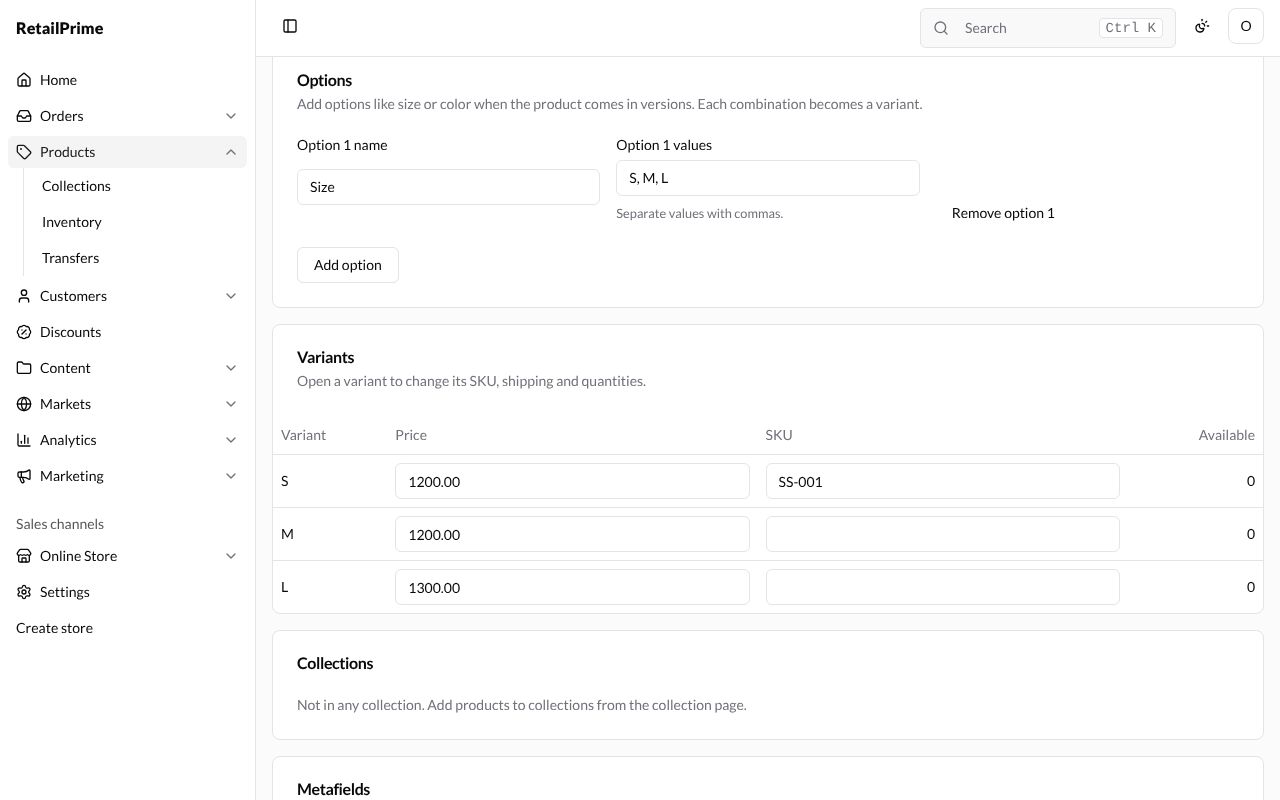
The card says Open a variant to change its SKU, shipping and quantities.
Edit one variant
- In the Variants card, press the variant’s name, such as M.
- Its own page opens, titled M, with the product’s name (Striped Socks) under it.
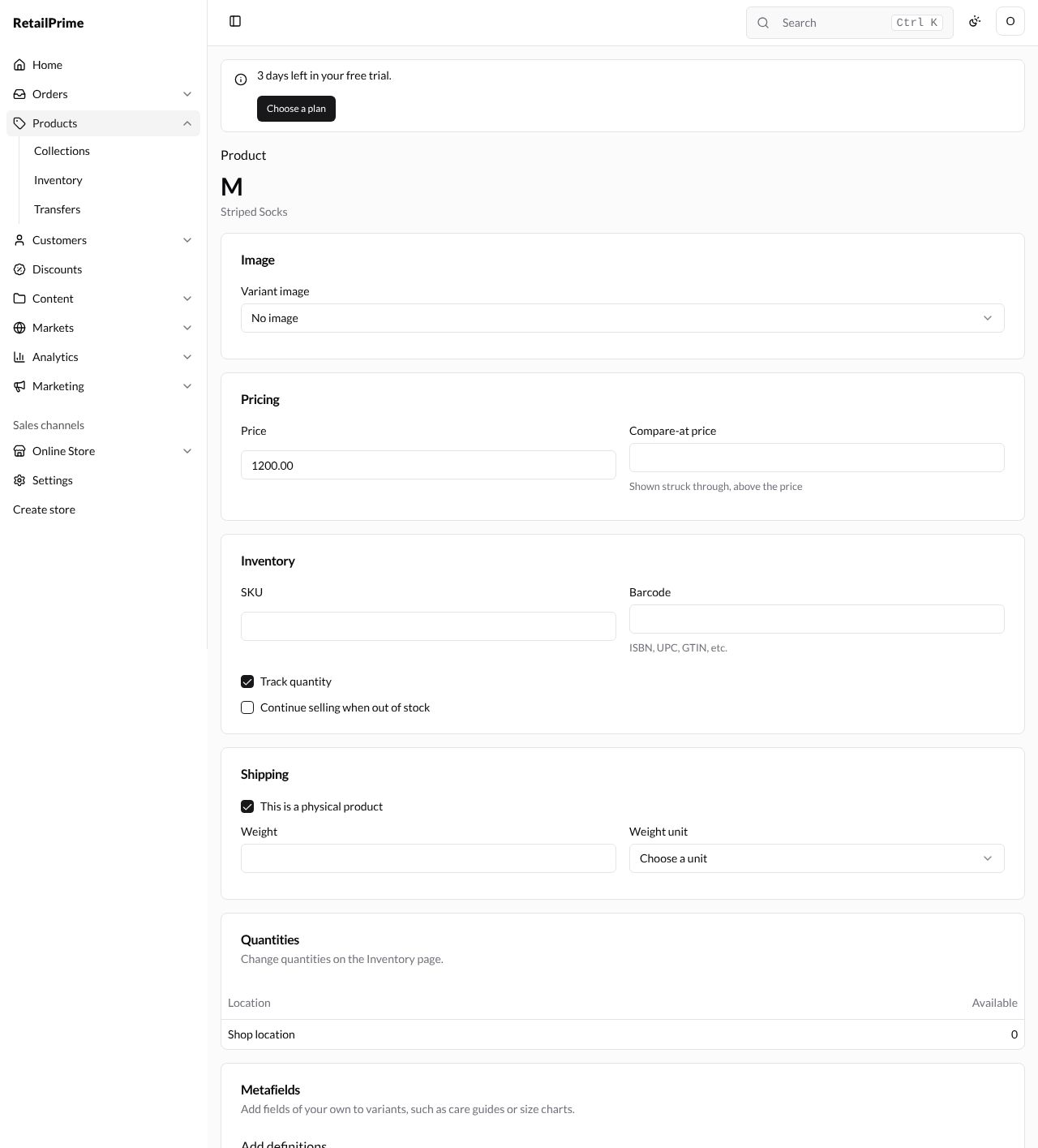
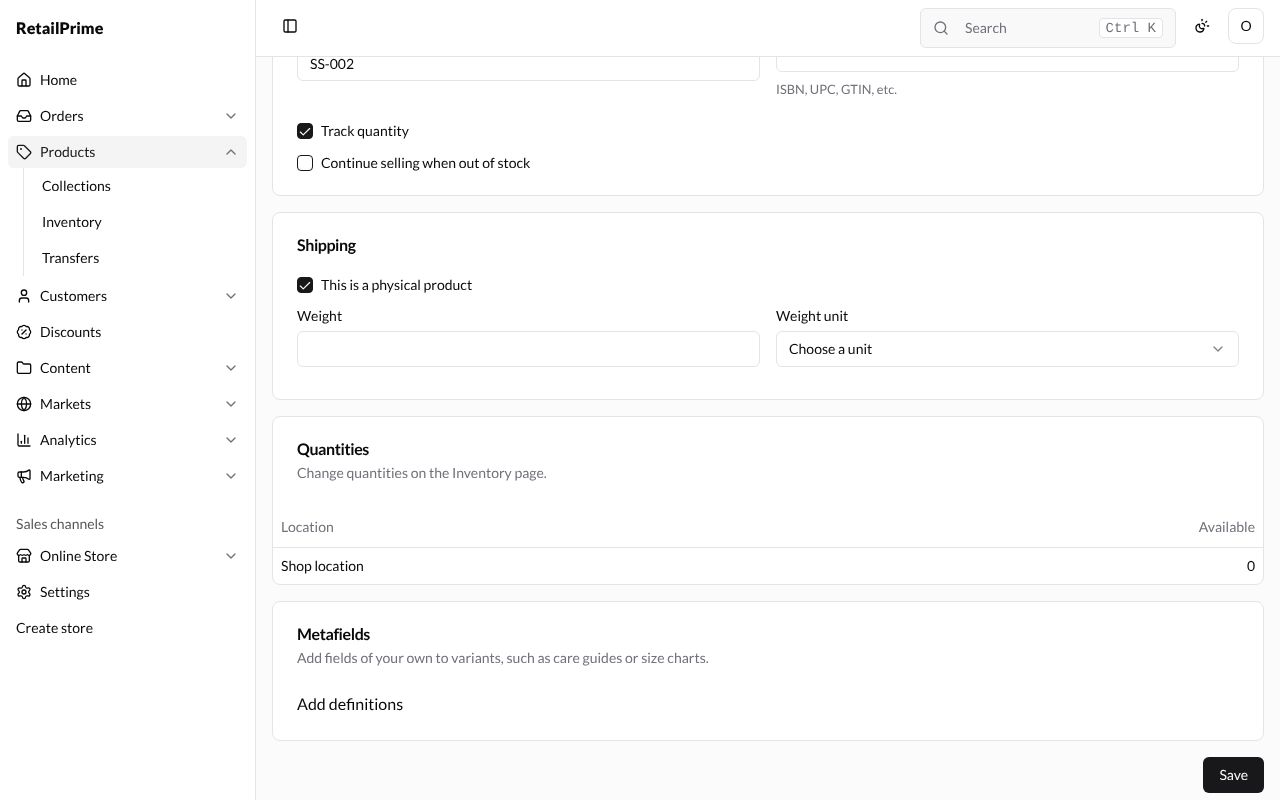
The page has the same boxes as a product without options, for this variant only:
| Card | What you set |
|---|---|
| Image | Variant image: which of the product’s pictures shows for this variant, or No image |
| Pricing | Price and Compare-at price |
| Inventory | SKU, Barcode, Track quantity and Continue selling when out of stock |
| Shipping | This is a physical product, Weight and Weight unit |
| Quantities | How many are at each location. You change them on the Inventory page |
| Metafields | Fields of your own, such as a size chart. Add definitions takes you to set them up |
- To give the variant its own picture, press Variant image and choose one of the product’s pictures (here striped-socks.png). No image shows none. Add pictures to the product first, in its Media card.
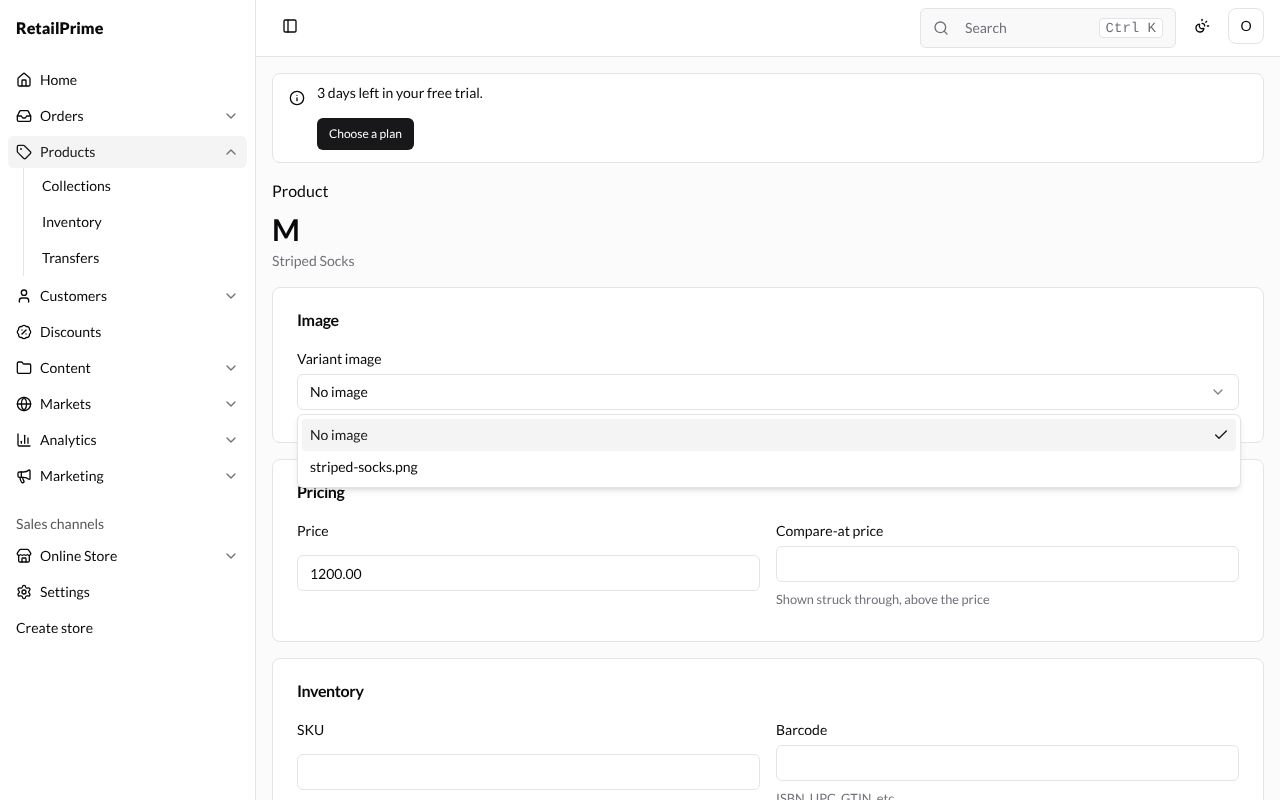
- Change anything else you need. Here we type
SS-002in SKU. - Press Save. Variant saved. appears at the top.
- To go back to the product, press Product above the variant’s name.